These are instructions on how to enable DFU mode detection in Mac OS X 10.5.6. In order to pwn your iPhone for jailbreak or unlock you will need to have iTunes detect your iPhone in DFU mode. Normally this was not a problem; however, it seems Apple has disabled this ability in OS X 10.5.6.
Volkspost from Hackint0sh has released an Automator program to fix this. You can find instructions below on how to use it. A big thanks go out to him for his efforts.
***WARNING: While this does not affect all users, it is possible that QuickTime 7.6 may freeze your keyboard and mouse. Please uninstall this patch before installing QuickTime 7.6
***ALTERNATIVE: Rather then following this tutorial a much easier solution is the use of a USB hub between your iPhone and the computer. If you are not an advanced user it is suggested that a USB Hub be used until an update to the script has been posted
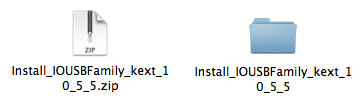
Step One Download the Automator program(Install_IOUSBFamily_kext_10_5_5.zip) from here and save it to your desktop.
Step Two Double click the downloaded zip(Install_IOUSBFamily_kext_10_5_5.zip) on your desktop to extract it.
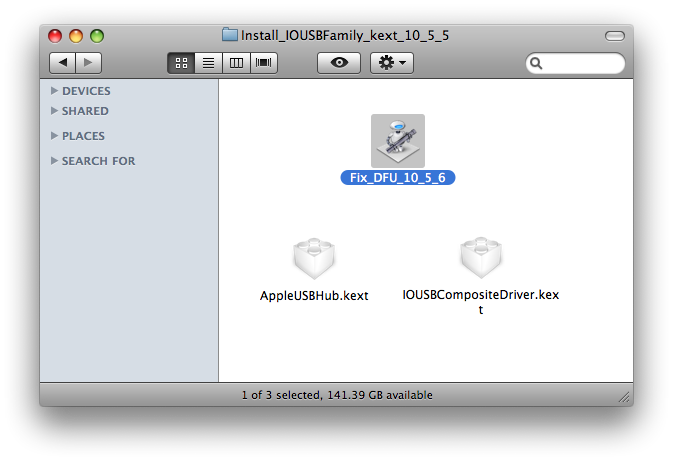
Step Three Double click the extracted folder(Install_IOUSBFamily_kext_10_5_5) to open it.
Step Four Double click the Fix_DFU_10_5_6 icon to launch the Automator script.
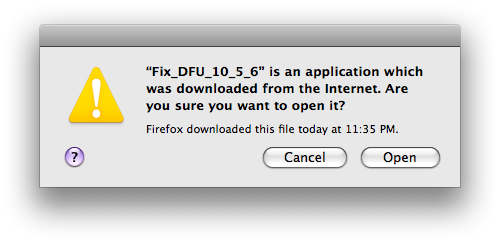
Step Five If warned that the application was downloaded from the Internet click the Open button.
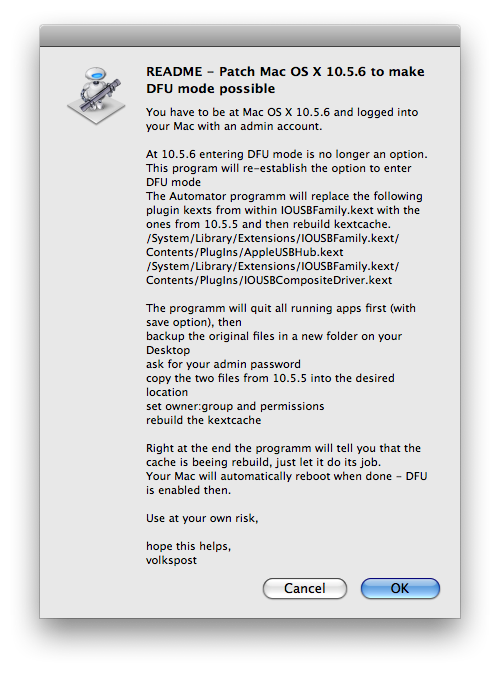
Step Six You will then be displayed the Readme for the script. Make sure you are logged into Mac OS X using an administrator account then click the OK button.
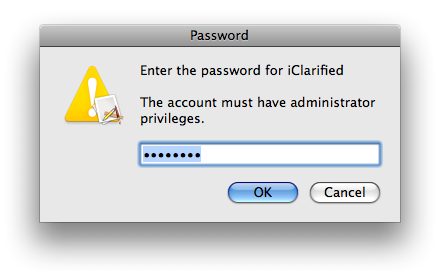
Step Seven The Automator script will then attempt to close all open applications. A window will pop up asking for your Administrator password. Enter the password then click the OK button.
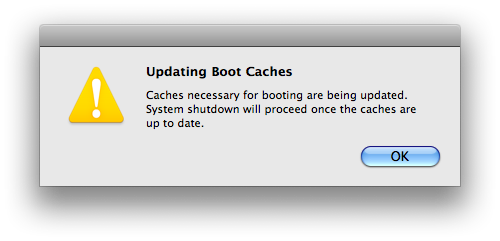
Step Eight Another dialog box will appear informing you that caches necessary for boot are being updated. Click the OK button.
Step Nine Your computer will then reboot. Once it has you will be able to detect an iPhone in DFU mode again.
The full procedure of the Automator program is as follows: 1. checks if you are at Mac OS X 10.5.6 or better (if not will quit) 2. show a readme 3. quits all running apps (with save option) 4. backup the original files (AppleUSBHub.kext and IOUSBCompositeDriver.kext from 10.5.6) in a new folder on your Desktop 5. ask for your admin password 6. copy AppleUSBHub.kext and IOUSBCompositeDriver.kext from 10.5.5 into the desired location on your Mac 7. set owner:group and permissions 8. rebuild the kextcache 9. reboot your Mac
For more information you can read volkspost's original post. To learn how to put your iPhone into DFU mode click here
Add Comment
Would you like to be notified when someone replies or adds a new comment?
Yes (All Threads)
Yes (This Thread Only)
No
Notifications
Would you like to be notified when we post a new Apple news article or tutorial?
Hello,
I got my mouse and keyboard frozen and I dont know what to do to uninstall the patche, since its impossible to move anything in my Mac. Help me pls!! My mail is gapertile@ ig.com.br.
Tks
I\'ll tell you what happened, they made to many iPhone 4 s and they want to milk the marekt so they upgrade the camera give it a new processor and slap a S on it .. and call it the iPhone 4S. S stands for slack, meaning they Slacked off on this one. I think it\'s fair to say that it is the biggest let down of the year. Only good thing is the camera the a4 is more than capable just jailbreak it and speed up the processor to the original iPads a4 speed.
had Same problem. Insert restore disk and restart while comp boots up hold down c key and u should be able to use keys and mouse to restore back to factory
Ok, here is the easiest solution if your computer freezes after using this script:
You need another mac though.
1) Turn off the messed up computer
2) Connect a 6-6 firewire cable between the messed up computer and the other mac (turned on)
3) Boot the messed up computer in target mode by pressing T during boot. Youll see a big firewire symbol on the screen and the hard drive of the messed up computer will appear in finder.
4) Download the 10.5.6 Combo Update from Apple at the other mac.
5) Double-click the update to start it and just follow the instructions. Choose the messed up computers hard drive when you select the target volume during the installation process.
6) When you have finshed the update, eject the messed up computer in finder, disconnect the firewire cable and reboot it.
7) Done.
Hi! I found a really easy solution. If you are like me, not an expert at all and you think people is talking Chinese when trying to explain how to fix your Mac, here it goes a easy way to do it: http://hackint0sh.org/forum/f146/60657-8.htm#post375941 (follow unkle's instructions). If you are worried about loosing all the info you had before everything frozed, don't worry anymore. By following this guy instructions you just repair the damage this stupid program made and update 10.5.6 combo at the end. When you finish doing all of that, your mac will be the same as always. Applications, pictures, documents, music...everything :) LESSON LERNT: never ever ever again, install something without reading a LOT about it in many many forums. :) Hope I helped! Sofia
this thing broke my mac.
I can't type nor use my mouse anymore.
is there anything I can do to save my files?
this sucksss SUCKS
I don't have time to waste trying to fix it!
pls contact me!
gscilla@gmail.com
PLS PLS PLS HELP ME!
Hi!
I found a really easy solution. If you are like me, not an expert at all and you think people is talking Chinese when trying to explain how to fix your Mac, here it goes a easy way to do it: http://hackint0sh.org/forum/f146/60657-8.htm#post375941 (follow unkle's instructions).
If you are worried about loosing all the info you had before everything frozed, don't worry anymore. By following this guy instructions you just repair the damage this stupid program made and update 10.5.6 combo at the end.
When you finish doing all of that, your mac will be the same as always. Applications, pictures, documents, music...everything :)
LESSON LERNT: never ever ever again, install something without reading a LOT about it in many many forums. :)
Hope I helped!
Sofia
I ran this script 2 weeks ago. After it requested my imac pw, it sat there. It did not automatically reboot. I rebooted anyways and everything was fine. I couldn't tell if the script worked or not so I ended up using a usb port (based on other comments in forums). After 2 weeks, I had to reboot my imac and my keyboard and mouse stopped working. I hadn't made any changes between then and now. I was stuck. I didn't have another mac and safe mode would not recognize the keyboard or mouse either. So I researched around (using my windows pc) and found this forum post: www.hackint0sh.org/forum/f146/60657-8.htm. I read and followed unkle's instructions and It worked for me! (Only step different was in step 3, I removed the "/" before the ending quotes.) I was able to use my keyboard and mouse in safe mode and install the 10.5.6 combo update that I had downloaded and placed on a flash drive. Everything is back to normal. All apps and everything are still there :)
Yeah I had the same problem with this script !!! Dont use it !!!
If you are in trouble (stuck with no keyboard an mouse) check out
Tapatio's post below on how to solve this issue by restoring your system:
definitely the easiest way if you are non-geek like me...
Thanks Tapatio
Thanks, Oliver! I'm glad this has worked for the relief of some of us who are non-geeks (that's like 90% of readers) and that also avoided the embarassing step of taking our Mac for "service". And as I said. I'm using 10.5.5 and do not intend to upgrade untill this is truly solved.
Look. It worked for some. This means that all you people just don't have experience in modifying system resources, and therefore leave your finger off it - and if something turns out wrong because auf your ignorance: live with it an don't whine!
And if you want to do it right, just do it with your brain turned on, or read the OLDER COMMENTS!
I'm out.
DO NOT USE THIS PATCH!! I is likely to cause way more trouble than help. Yes, for some it has worked, but for many others it has not. Do you really want to roll the dice? Honestly, I think it's quite irresponsible for iClarified to keep this hack up here (and only with a small quote that it 'might" cause problems).
Want to use DFU with 10.5.6? It's simple, just use a USB hub. It's that easy!!!!
I'm successfully restoring with a custom 2.2 ISPW on 10.5.6. Instead of putting the iPhone into DFU, I put it into regular recovery mode.
When in this mode on the iPhone the iTunes logo and the USB cable is shown (Apple default), or "Steve" (Standard Pwnage) or your custom recovery logo.
1. Disconnect iPhone from your PC/Mac if not done already.
2. Hold Power/Sleep until the red slider shows up, slide to shut the iPhone down. If this aint work hold Power/Sleep and Home until the iPhone shuts down. Put it aside.
3. Start iTunes on your PC/Mac and make sure to have the latest version.
4. On the iPhone press Home button and keep holding it while connecting the iPhone to your PC/Mac.
5. iTunes will detect an iPhone in recovery mode, the iPhone shown the recovery logo.
I have the same problem. I read a few posts on macfixit.com but the solution did not work for me. I tried the ''Archive and Install'' approach but my MacbookPro can't boot from the leopard DVD. I constantly get a nasty folder with a question-mark. After a few seconds, the question mark disappears and it takes me again to the frozen input at login. I understand that the machine does not recognise the DVD and continues to boot from my HDD. I tried with another DVD but the same problem remains. Help!Help!Help!Help!Help!
when it this patcher froze your keyboard and mouse what did you do to reverse the issue? Please dont tell me you had to completely reset your computer!!!
go ahead and install this patch if you want your keyboard and mouse to stop working. It won't even work in safe mode and you're screwed like me if you have a macbook air, because you have to use a USB cd drive to reinstall OSX.
iClarified should NOT recommend this or even have a page on this. I'm so disappointed!
Install this 'patch' if you're a sucker.
I did and my usb port sucks, don't work my keyboard and mouse.
When you run this file may DAMAGE for usb port becarefull.
Please! Delete this "How to Enable DFU Mode in Mac OS X 10.5.6" news.
RISK RISK RISK....
iMac 20' (Metalic)
Macosx 10.5.6
It did work the first time for me. No problems. Quickpwn was not recognizing my iPhone in DFU mode and after installing this package it did. No problems with iTunes either.







![DJI Introduces Its Own Portable Power Stations [Video]](/images/news/93370/93370/93370-160.jpg "DJI Introduces Its Own Portable Power Stations [Video]")
![Apple to Revamp Calculator App for macOS 15 [Rumor]](/images/news/93368/93368/93368-160.jpg "Apple to Revamp Calculator App for macOS 15 [Rumor]")







![New 15-inch M3 MacBook Air On Sale for $149.01 Off! [Lowest Price Ever]](/images/news/93314/93314/93314-160.jpg "New 15-inch M3 MacBook Air On Sale for $149.01 Off! [Lowest Price Ever]")
![Apple 96W USB-C Power Adapter On Sale for 49% Off [Deal]](/images/news/93302/93302/93302-160.jpg "Apple 96W USB-C Power Adapter On Sale for 49% Off [Deal]")

![AirPods Pro 2 With USB-C On Sale for $189! [Deal]](/images/news/92932/92932/92932-160.jpg "AirPods Pro 2 With USB-C On Sale for $189! [Deal]")
![iPad Mini 6 On Sale for Just $375! [Lowest Price Ever]](/images/news/93207/93207/93207-160.jpg "iPad Mini 6 On Sale for Just $375! [Lowest Price Ever]")
