How to Unlock/Jailbreak Your iPhone 2G on OS 3.0.x Using RedSn0w (Windows)
LIKE
TWEET
SHARE
PIN
SHARE
POST
MAIL
MORE
Posted June 20, 2009 at 7:22am by iClarified
***** IMPORTANT: These instructions have been updated for the latest iPhone firmware. Please follow the up to date instructions here *****
These are instructions on how to unlock and jailbreak your iPhone 2G on the 3.0.x iPhone firmware using RedSn0w for Windows. Before beginning make sure you have updated to iTunes 8.2.
You can find the Mac version of this tutorial here
** If you would like to jailbreak on the 3.0.1 firmware you can follow these exact instructions; however, in Step Two restore using this 3.0.1 iPhone firmware file instead of the 3.0 one. Continue with the instructions as indicated.**
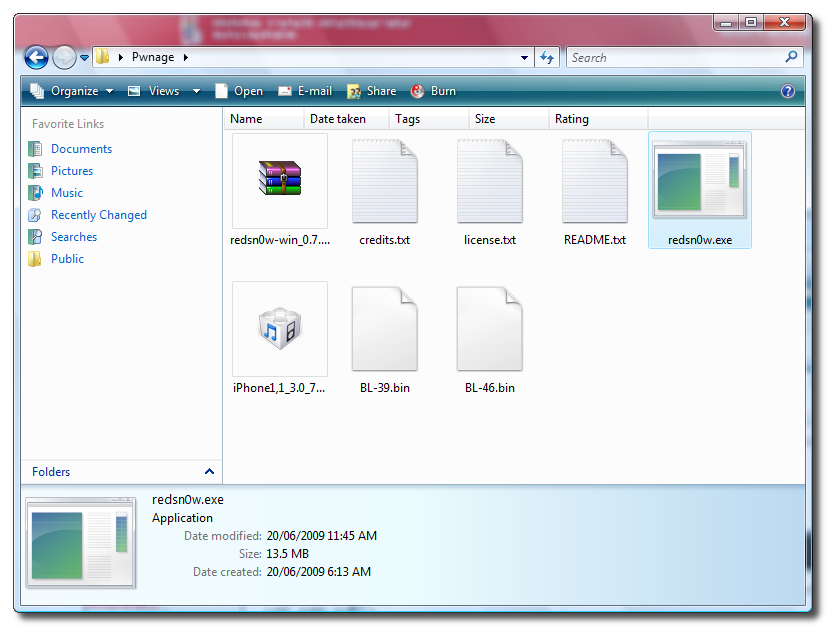
Step One Create a folder called Pwnage on your desktop.
Extract the RedSn0w zip file to the Pwnage folder.
Step Two Connect your iPhone to the computer and launch iTunes.
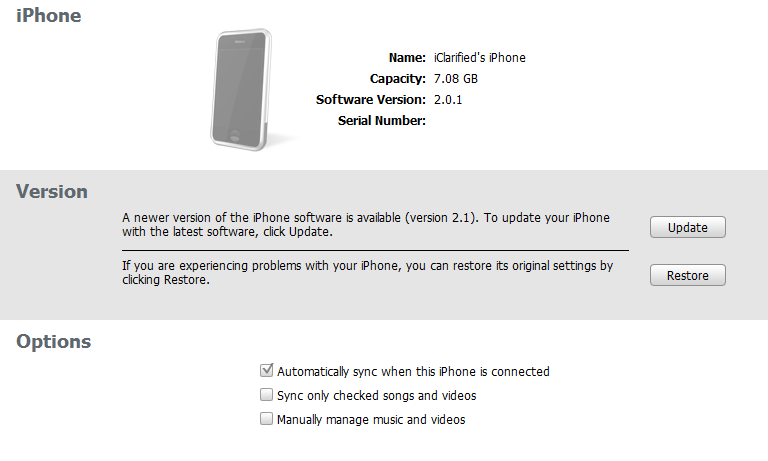
Select your iPhone from the list of devices on the left. Now hold down shift and click the Restore button. Restore is preferred as it won't create any wasted space on your iPhone.
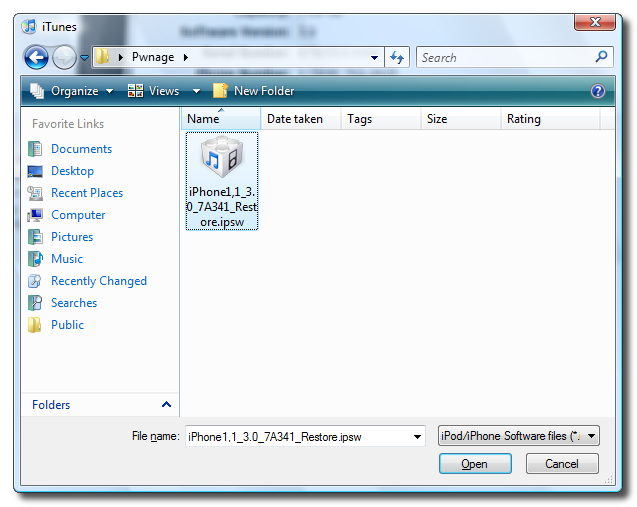
Navigate to the Pwnage folder on your desktop and select the firmware ipsw. Click the Open button to continue.
Step Three Once iTunes has finished updating your iPhone to the desired firmware you may launch redsnw0w.exe from the Pwnage folder on your desktop.
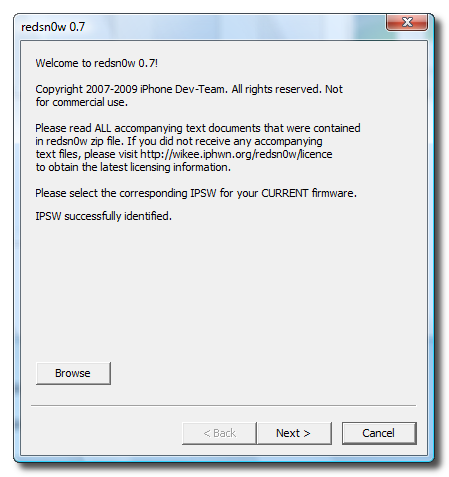
Step Four Once RedSn0w opens click the Browse button
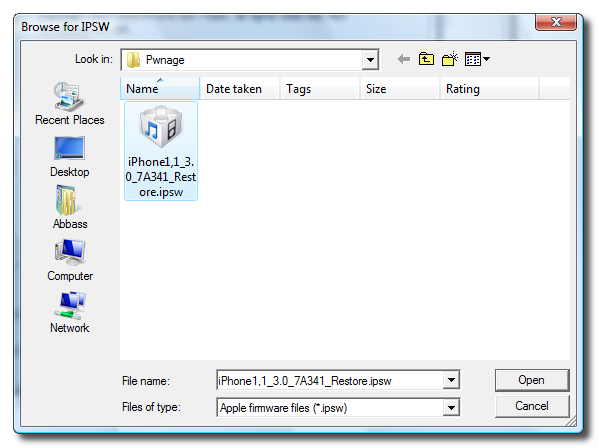
Step Five Select the firmware ipsw we placed in the Pwnage folder on our desktop then click Open
Step Six Once the firmware has been verified click the Next button to continue.
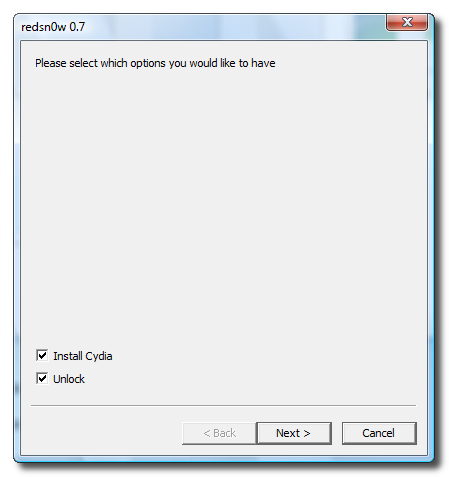
Step Seven Make sure Cydia and Unlock is selected and click the Next button.
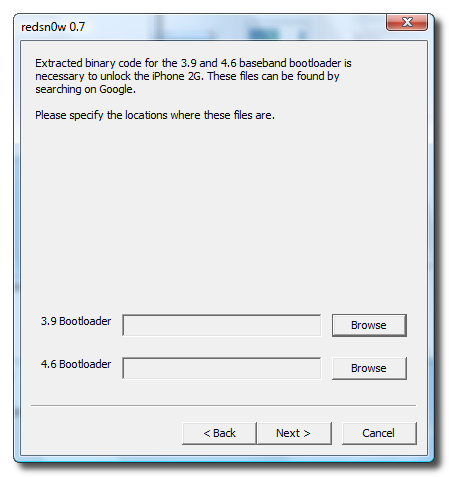
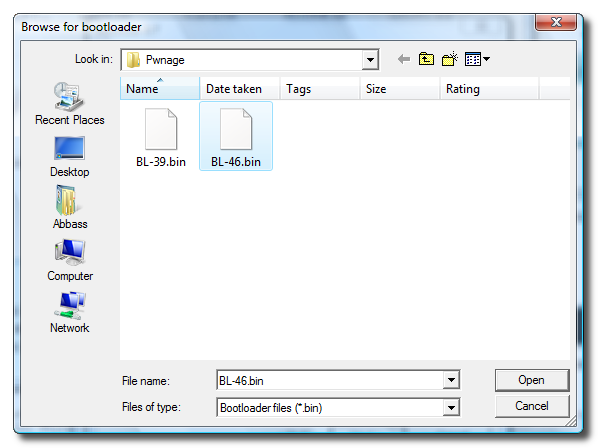
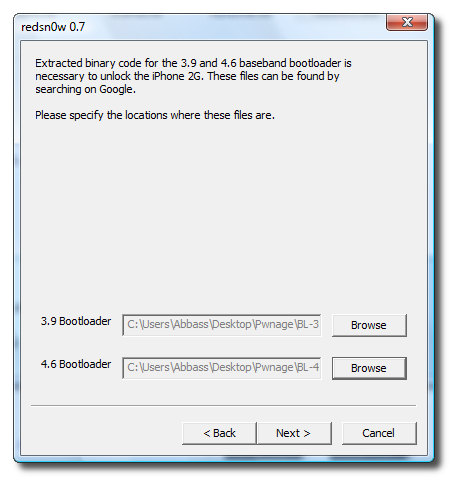
Step Eight We will know need to set the location of our bootloader files.
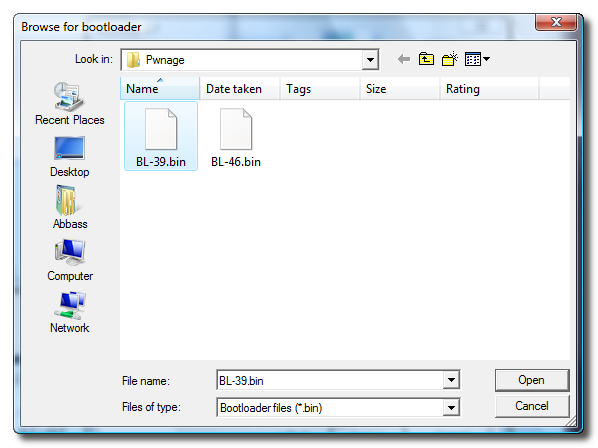
Click Browse and select the 3.9 bootloader file from the Pwnage folder on your desktop.
Click Browse and select the 4.6 bootloader file from the Pwnage folder on your desktop.
Click the Next button to continue.
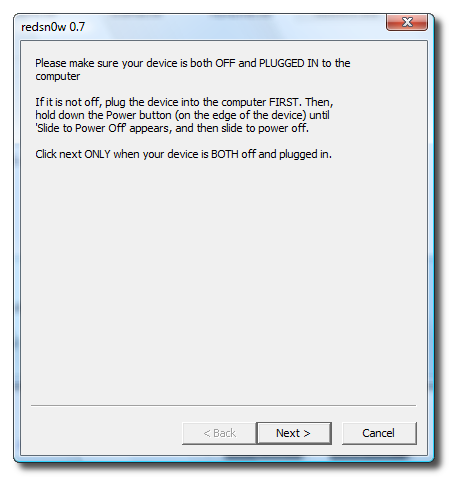
Step Nine Please plug your iPhone into the computer and make sure its OFF then click the Next button
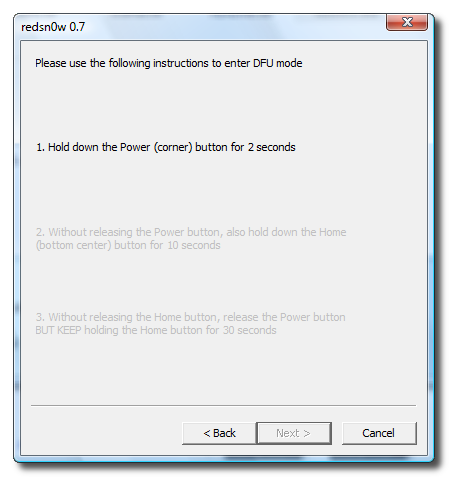
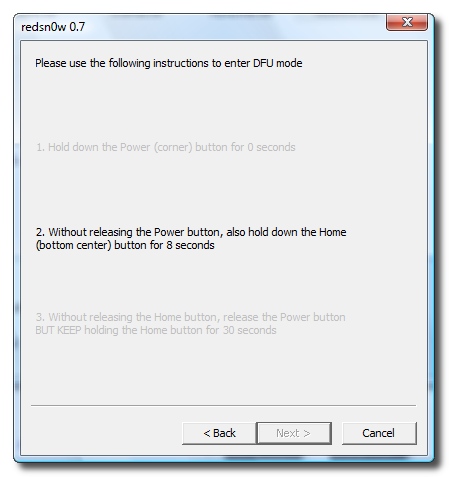
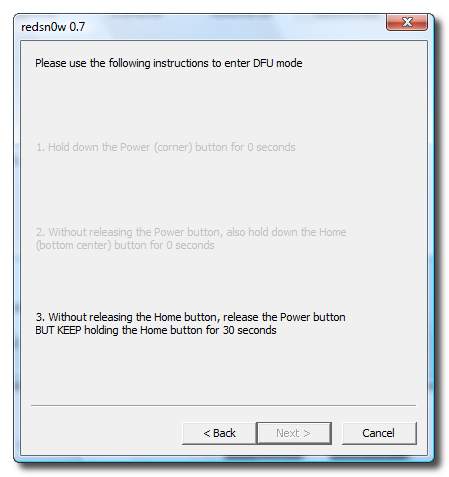
Step Ten RedSn0w will now guide you through the steps to get into DFU mode.
Hold down both the Home button and the Power button for 10 seconds.
Release the Power button and continue holding the Home button until RedSn0w detects the device.
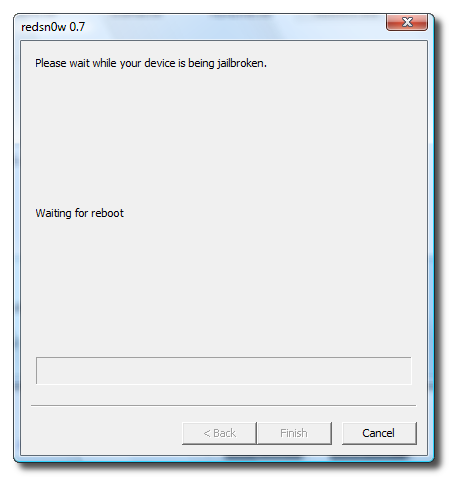
Step Eleven Your iPhone will now reboot
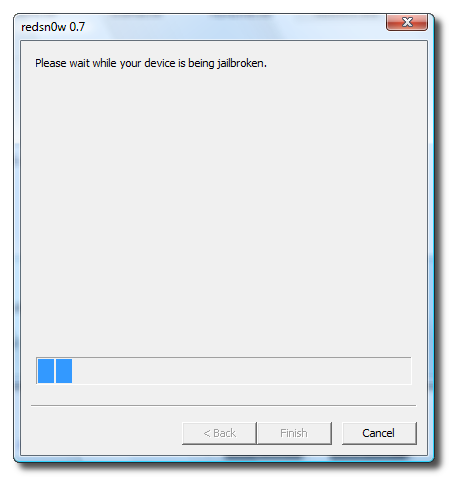
Step Twelve RedSn0w will then begin uploading the new RAM Disk.
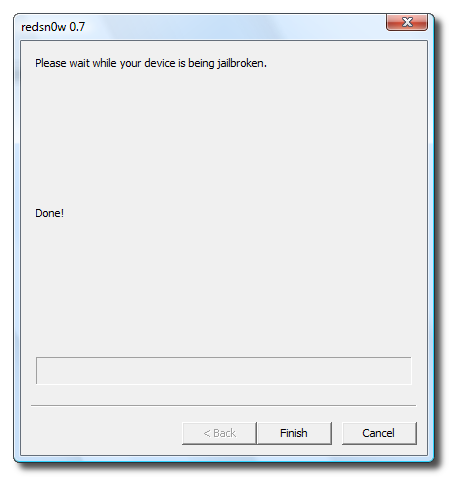
Step Thirteen Once this is complete you will be notified that RedSn0w is done. Click the Finish button. When your iPhone finishes reboot (5 minutes or so). It will run BootNeuter then be unlocked and jailbroken with Cydia on the SpringBoard.
Add Comment
Would you like to be notified when someone replies or adds a new comment?
Yes (All Threads)
Yes (This Thread Only)
No
Notifications
Would you like to be notified when we post a new Apple news article or tutorial?
The redsn0w 0.9.4 doesn't recognize 3.1.3. So what I did is:
- in iTunes, put 3.1.3 to the phone
- use redsn0w 0.9.3, browser-> load in iphone OS 3.1.2, then follow the rest ...
everything works.
Go to this link: http://modmyi.com/forums/iphone-news/638291-windows-how-jailbreak-unlock-iphone-2g-firmware-3-0-redsn0w.html
You can download them from here. Save them to the desktop file pwnage as designated.
I have a 2G iPhone that im trying to unlock, when i follow the instruction and get to itunes it takes me to the invalid sim card. Any suggestions on how to get around it????
I got the same message on my iphone when i unlocked it. all i did was continue on with the instructions and everything worked fine once it was all said and done
Hi everyone, i have a question, hope you can help me.
I have a 2G Iphone that i jailbroke with Pwnage tool to get firmware 2.2 and it works fine.
I was wondering if i can i use this method to upgrade it to firmware 3 without leaving it unjailbroken or messing up the baseband?
Thanks!
I unlocked my phone using the RedSn0w, everything worked perfectly. But the volume is very very low, I can barely hear the other person. I tried to download a volume patch through Cydia, but the one with the drill icon won't download, says something about size being mismatched. I tried downloading one for the 2.0 version, it download and says installed, but there's no difference. Does anyone know how to fix this? Thanks
I'm stuck in step 2. When I open my iTunes, the restore screen doesn't come out. A box came out and says that my sim card is not compatible. What should I do? Help !!
I think if you have a fresh phone that's never been used, you can skip Step two (b/c iTunes won't connect to the phone since you don't have an AT&T sim in it). Just go straight to step 3. Hope this helps.
I unlocked the phone successfully following the steps, but cannot get connected to the internet. It shows I'm connected to my wifi at home and the little blue internet icon (the little blue fan shaped icon on the top of the screen) is on, but when I try to open Cydia or Safari, it shows there's no internet connection. Can anyone help me with this? Thanks!
nvm--i put in a sim card and all of a sudden the internet is connecting...does anyone know why though? isn't the wifi network independent from the phone service carrier (i'm not subscribed to internet use thru my phone plan)?
Yes it does. I just went through this process and it worked! If it says your sim is not for the right carrier, just keep going with the process and everything will work fine at the end.
I am trying to jailbreak/unlock iPhone using this guide..
But the phone isn't activated! I have everything I need to do this but I don't know how I can go about upgrading the firmware for this device without activating the phone..
I downloaded the 3.1 firmware but it comes as a zipped file instead of ipsw, so I tried downloading the 3.0 version and it's the samething. When I tried to unzip it, it's just a bunch of weird files and a couple of folders and there's nothing with the whate square iTunes logo like the one show in the tutorial pics. Can anyone help me with this? Thanks!
You have to save it as .ipsw instead of zip.
Right click on the link, then in the end of the name, write .ipsw and then click "download" or "OK" or whatever it says.
Sorry I'm being slow (not a computer savy person), but when I right click on the link like you said, it just comes up with the normal options such as Open, Open in New Tab, etc, I don't see where I can type in '.ipsw' in place of 'zip'. When I click on the Download option from the right clicked option list, it still doesn't give me option to replace 'zip'. Can you elaborate on how to download this as a ipsw file? Thanks!
I have now successfully made all the steps. All things worked fine.
However, i discovered you can't use the 3.0.1 version when using vista, go with the 3.0 instead.
I'm having problem launching cydia.
Yesterday, when i used the guide, no problems what so ever using cydia afterwards.
Today, i was going to install some stuff using Cydia. When I tapped the icon, it started to load as usual, then a message pops up saying some files are missing and are not up to date then i pressed OK, then it shut down to springboard.
Now, when tapping the Cydia icon, it says "Loading Data", ´then shuts down to the springboard. What could be wrong?
Also, I checked the "Icy" box when using Redsn0w, so I have both Cydia and Icy.
I installed the Mobileterminal via Icy, but Terminal won't start either. It just shuts down and goes back to springboard. Will the Icy app interrupt Cydia or what? Please Help :)






















![Apple Seeds VisionOS 1.2 Beta 3 to Developers [Download]](/images/news/93399/93399/93399-160.jpg "Apple Seeds VisionOS 1.2 Beta 3 to Developers [Download]")
![Apple Releases macOS Sonoma 14.5 Beta 3 [Download]](/images/news/93397/93397/93397-160.jpg "Apple Releases macOS Sonoma 14.5 Beta 3 [Download]")
![Apple Seeds tvOS 17.5 Beta 3 to Developers [Download]](/images/news/93394/93394/93394-160.jpg "Apple Seeds tvOS 17.5 Beta 3 to Developers [Download]")
![Apple Seeds watchOS 10.5 Beta 3 to Developers [Download]](/images/news/93391/93391/93391-160.jpg "Apple Seeds watchOS 10.5 Beta 3 to Developers [Download]")






![New 15-inch M3 MacBook Air On Sale for $149.01 Off! [Lowest Price Ever]](/images/news/93314/93314/93314-160.jpg "New 15-inch M3 MacBook Air On Sale for $149.01 Off! [Lowest Price Ever]")
![Apple 96W USB-C Power Adapter On Sale for 49% Off [Deal]](/images/news/93302/93302/93302-160.jpg "Apple 96W USB-C Power Adapter On Sale for 49% Off [Deal]")
![AirPods Pro 2 With USB-C On Sale for $189! [Deal]](/images/news/92932/92932/92932-160.jpg "AirPods Pro 2 With USB-C On Sale for $189! [Deal]")
