
These are instructions on how to sync your iPhone Contacts with Google Contacts.
To follow this tutorial you must be running Mac OS X Leopard 10.5.3.
Step One
Launch Address Book by selecting it from your dock
Step Two
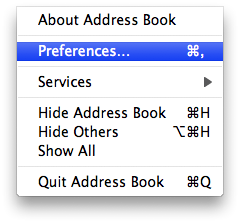
Select Preferences from the Address Book Menu.
Step Three
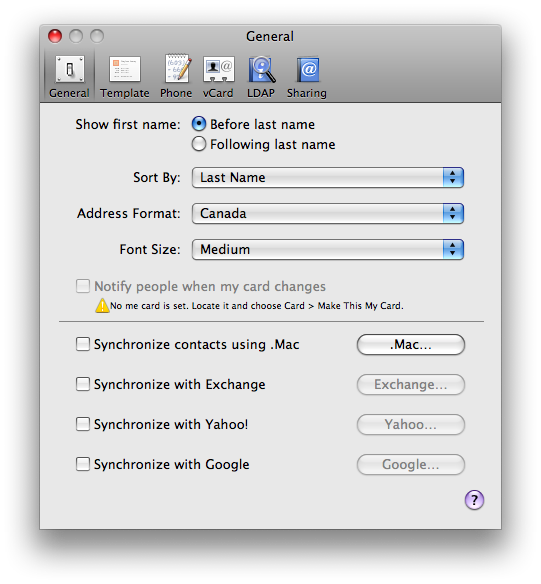
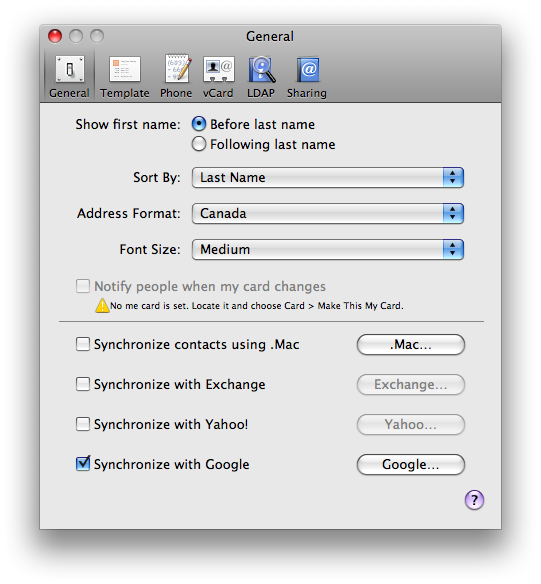
From the General Tab check the Synchronize with Google box. Then click the Google... button if a popup window does not appear.
Step Four
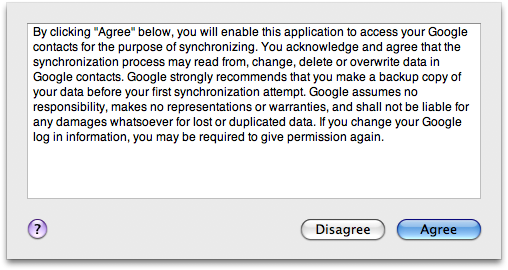
A popup window will appear asking you to allow Google to access your contacts. Click the Agree button to continue.
Step Five
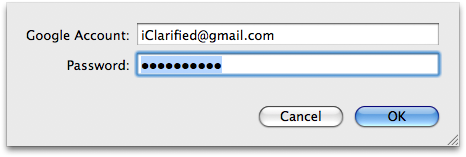
You will be asked to enter your Google Account ID and Password. Do this then click the OK button.
Step Six
Connect your iPhone to the computer then open iTunes by selecting its icon from the dock.
Step Seven
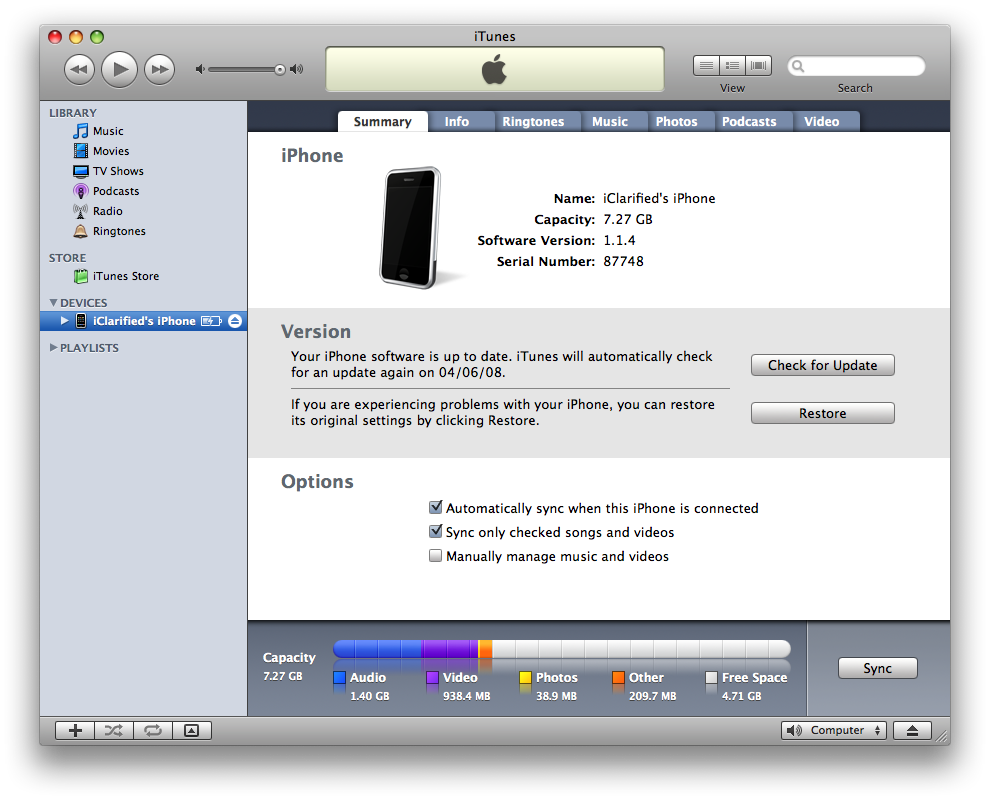
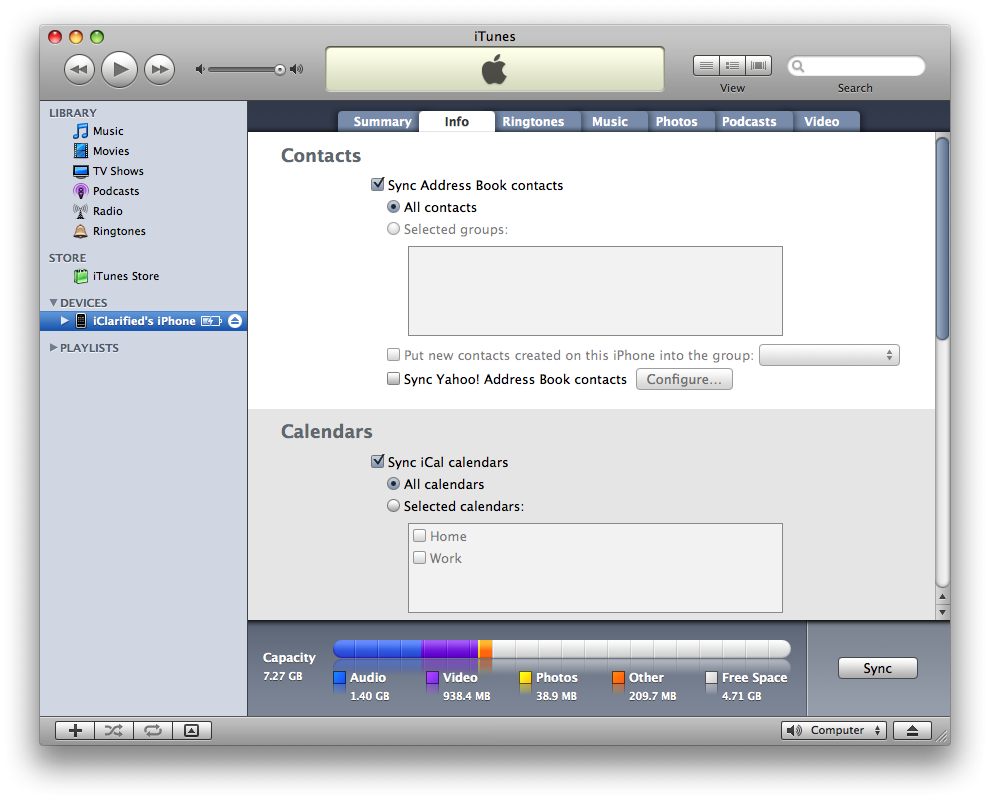
Make sure your iPhone is selected from the list of devices on the left.
Step Eight
Click to select the Info tab. Then check the Sync Address Book Contacts box.
Step Nine
Now click the Sync button at the bottom right of the screen.

Step Ten
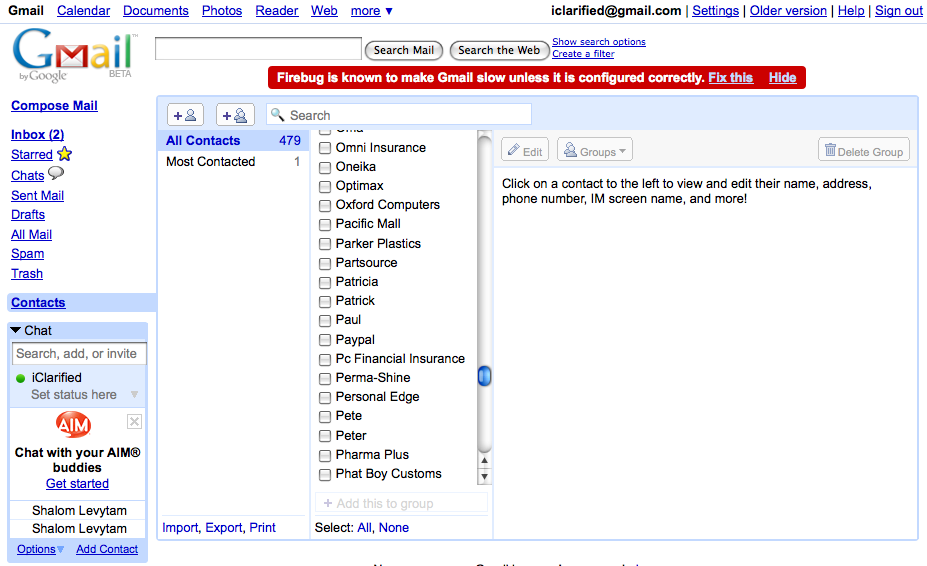
Your iPhone will then sync its contacts to Address Book as normal. However, it will at the same time sync your contacts to Google Contacts!
To follow this tutorial you must be running Mac OS X Leopard 10.5.3.
Step One
Launch Address Book by selecting it from your dock
Step Two
Select Preferences from the Address Book Menu.
Step Three
From the General Tab check the Synchronize with Google box. Then click the Google... button if a popup window does not appear.
Step Four
A popup window will appear asking you to allow Google to access your contacts. Click the Agree button to continue.
Step Five
You will be asked to enter your Google Account ID and Password. Do this then click the OK button.
Step Six
Connect your iPhone to the computer then open iTunes by selecting its icon from the dock.
Step Seven
Make sure your iPhone is selected from the list of devices on the left.
Step Eight
Click to select the Info tab. Then check the Sync Address Book Contacts box.
Step Nine
Now click the Sync button at the bottom right of the screen.
Step Ten
Your iPhone will then sync its contacts to Address Book as normal. However, it will at the same time sync your contacts to Google Contacts!


![Apple Releases First Betas of iOS 27, iPadOS 27, macOS 27 to Developers [Download]](/images/news/101120/101120/101120-160.jpg "Apple Releases First Betas of iOS 27, iPadOS 27, macOS 27 to Developers [Download]")







![Apple Watch Series 11 is Back on Sale for Just $299 [Deal]](/images/news/101081/101081/101081-160.jpg "Apple Watch Series 11 is Back on Sale for Just $299 [Deal]")
![AirPods Max 2 Drop to New All-Time Low of $499 [Deal]](/images/news/101063/101063/101063-160.jpg "AirPods Max 2 Drop to New All-Time Low of $499 [Deal]")
![AirPods Max 2 Hit All-Time Low Price of $509 ($40 Off) [Deal]](/images/news/101039/101039/101039-160.jpg "AirPods Max 2 Hit All-Time Low Price of $509 ($40 Off) [Deal]")
![New 13-Inch M5 MacBook Air Hits All-Time Low Price of $899.99 [Deal]](/images/news/100969/100969/100969-160.jpg "New 13-Inch M5 MacBook Air Hits All-Time Low Price of $899.99 [Deal]")
![AirPods Pro 3 Drop to $199 Ahead of Memorial Day [Deal]](/images/news/100935/100935/100935-160.jpg "AirPods Pro 3 Drop to $199 Ahead of Memorial Day [Deal]")
