These are instructions on how to geotag your photos for use with iPhoto 08.
Certain new cameras have geotagging features already built in; however, you can do this manually using Google Earth and Geotagger.
Step One Download Google Earth from here to your desktop.
Step Two Download Geotagger (Geotagger1.2.zip download no longer available) to your desktop.
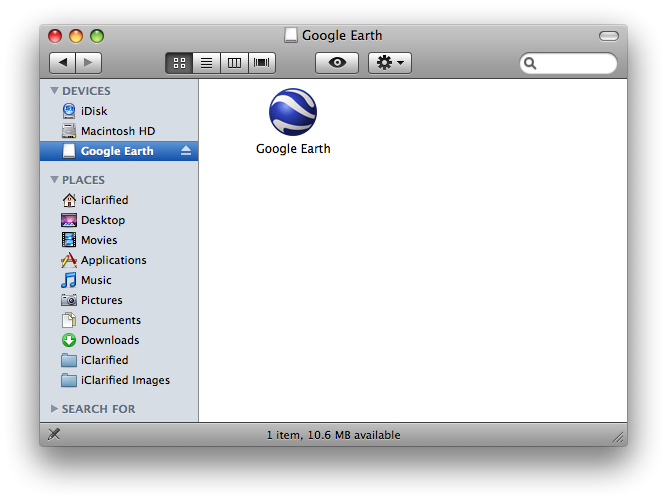
Step Three Double click the Google Earth dmg on your desktop to mount it and then drag the Google Earth icon into your Applications folder.
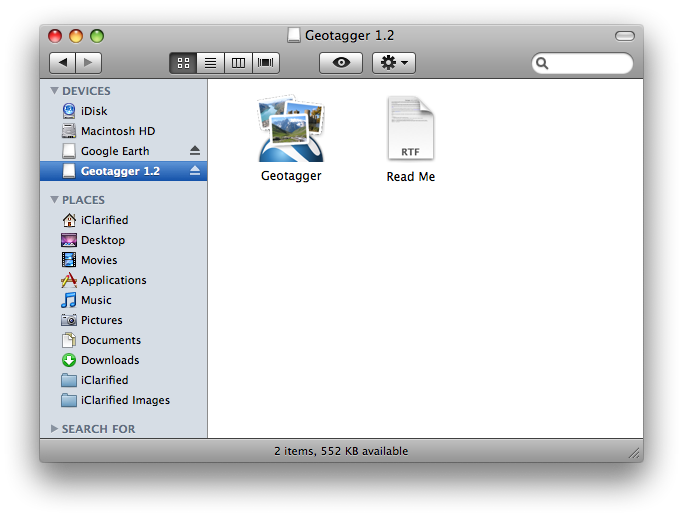
Step Four Double click the Geotagger dmg on your desktop to mount it and then drag the Geotagger icon in your Applications folder.
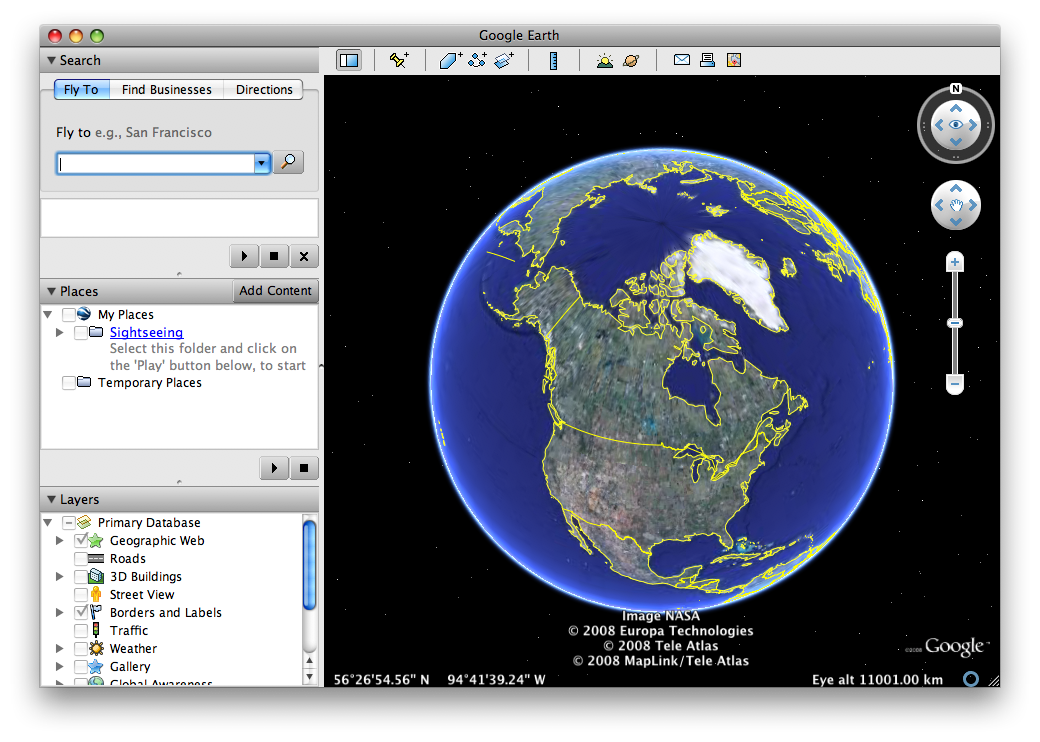
Step Five Double click Google Earth from your Applications folder.
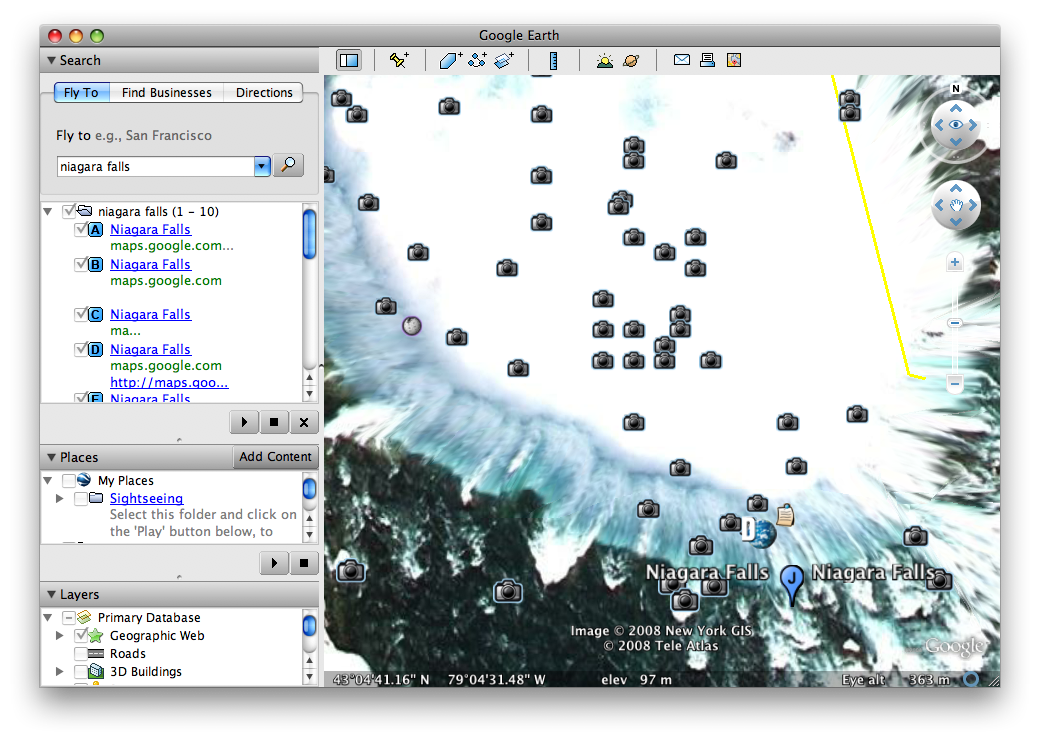
Step Six Navigate to the location your image was taken. Make sure to center the location in the window.
Step Seven Double click to launch Geotagger from your Applications folder.
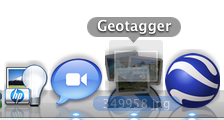
Step Eight Now drag a photo onto the Geotagger icon in the dock. The GPS co-ordinates from Google Earth will automatically be written to your photo.
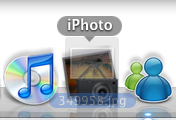
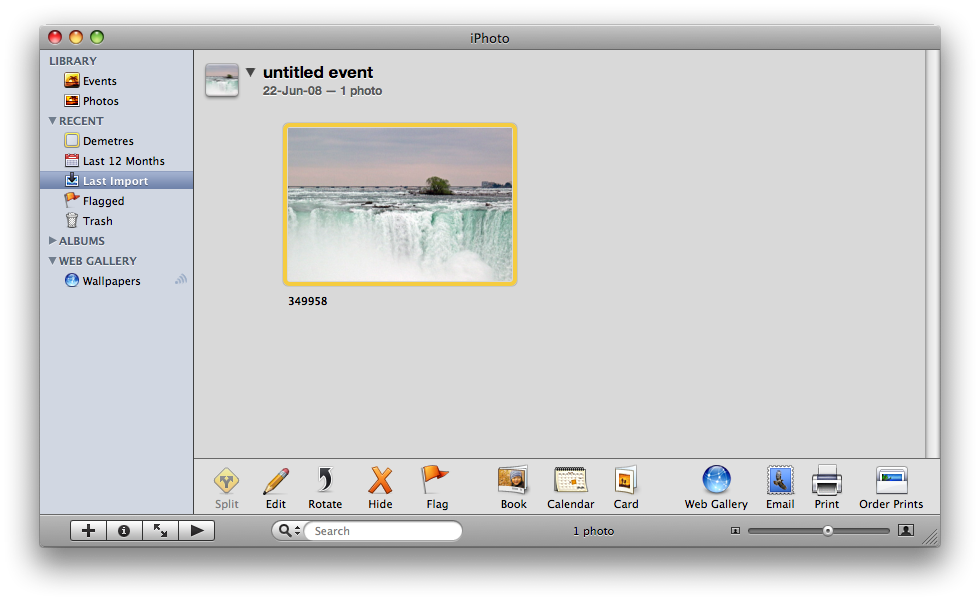
Step Nine Now you can drag the photo onto the iPhoto icon in the dock to import it into your iPhoto Library.
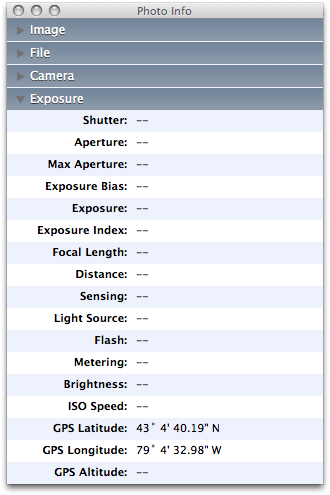
Step Ten Select the imported image and press Command+I on your keyboard to view the GPS co-ordinates you added.
It is possible to modify iPhoto to reveal a hidden Show button which will automatically open Google Maps to reveal the location of your photo. This will be covered in an upcoming tutorial!
It is also possible to create Flickr maps using the geotagging on your iPhotos!
Get the iClarified Daily Newsletter
Apple news, rumors, tutorials, price drop alerts, in your inbox every evening, free.
Unsubscribe at any time.
Success!
You have been subscribed.
Add Comment
Would you like to be notified when someone replies or adds a new comment?
Yes (All Threads)
Yes (This Thread Only)
No
Notifications
Would you like to be notified when we post a new Apple news article or tutorial?
You should be aware, however, that iPhoto caches EXIF data on first import, so if you use this method to manually geotag images already in iPhoto don't be surprised if the coordinates don't appear when you "Show Info". It's best to geotag before first import, if iPhoto is to be your archive.
Also be aware that you valuable GPS data are readily lost when exporting from iPhoto to other services (e.g. Flickr), depending on the iPhoto plug-in/ tool used.















![Apple Watch Series 11 is Back on Sale for Just $299 [Deal]](/images/news/101081/101081/101081-160.jpg "Apple Watch Series 11 is Back on Sale for Just $299 [Deal]")
![AirPods Max 2 Drop to New All-Time Low of $499 [Deal]](/images/news/101063/101063/101063-160.jpg "AirPods Max 2 Drop to New All-Time Low of $499 [Deal]")
![AirPods Max 2 Hit All-Time Low Price of $509 ($40 Off) [Deal]](/images/news/101039/101039/101039-160.jpg "AirPods Max 2 Hit All-Time Low Price of $509 ($40 Off) [Deal]")
![New 13-Inch M5 MacBook Air Hits All-Time Low Price of $899.99 [Deal]](/images/news/100969/100969/100969-160.jpg "New 13-Inch M5 MacBook Air Hits All-Time Low Price of $899.99 [Deal]")
![AirPods Pro 3 Drop to $199 Ahead of Memorial Day [Deal]](/images/news/100935/100935/100935-160.jpg "AirPods Pro 3 Drop to $199 Ahead of Memorial Day [Deal]")
