****THIS TUTORIAL HAS BEEN UPDATED FOR THE NEW 3.0 FIRMWARE. PLEASE FOLLOW THE UPDATED INSTRUCTIONS HERE****
These are instructions on how to unlock/jailbreak your 2G iPhone to the 2.2.1 iPhone firmware using QuickPwn for Windows. Before beginning make sure you have updated to iTunes 8.0.2.
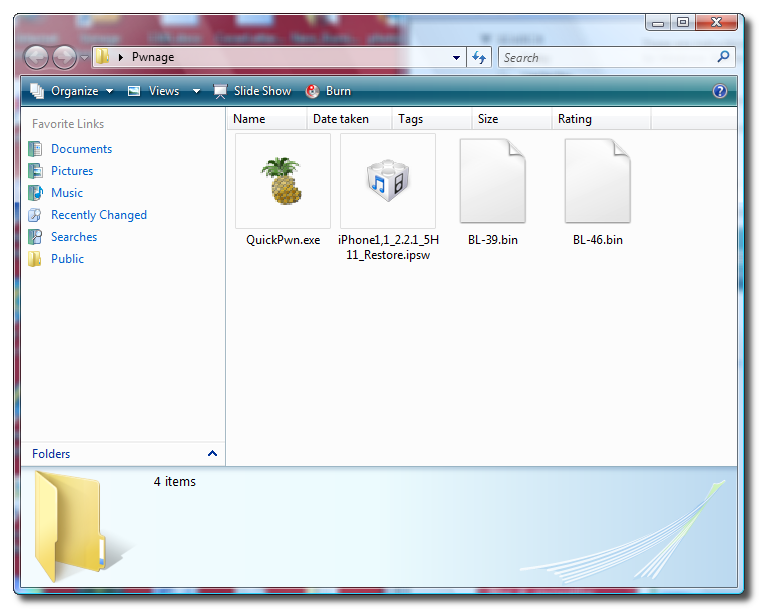
Step One Create a folder called Pwnage on your desktop.
Extract the QuickPwn-225-2.zip file to the Pwnage folder. width=640
Step Two Connect your iPhone to the computer and launch iTunes.
Select your iPhone from the list of devices on the left. Now hold down shift and click the Restore button. Restore is preferred as it won't create any wasted space on your iPhone.
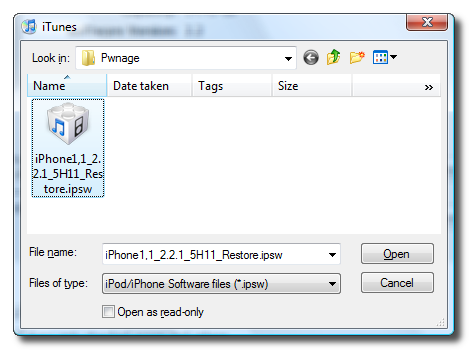
Navigate to the Pwnage folder on your desktop and select the 2.2.1 firmware ipsw. Click the Open button to continue.
Step Three Once iTunes has finished updating your iPhone to the 2.2.1 firmware you may launch QuickPwn.exe from the Pwnage folder on your desktop.
Step Four Make sure you iPhone is connected to the computer and click the blue arrow to continue.
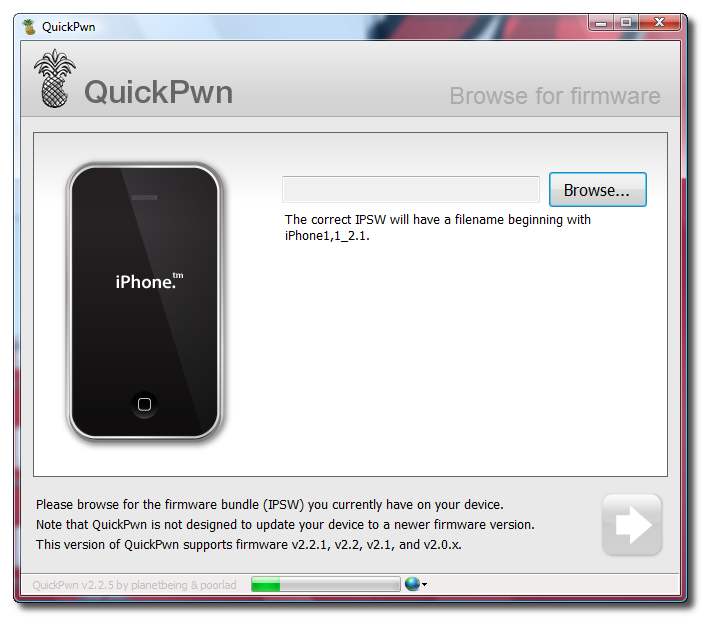
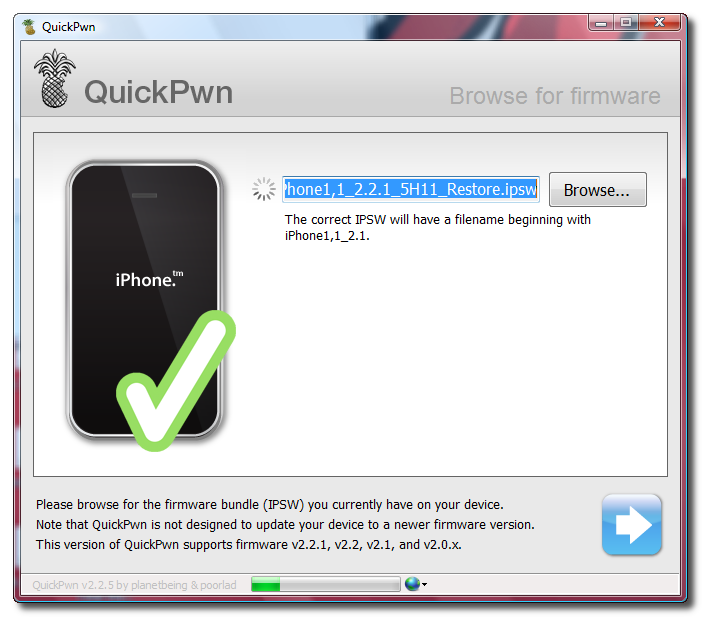
Step Five Click the Browse button to locate your iPhone firmware.
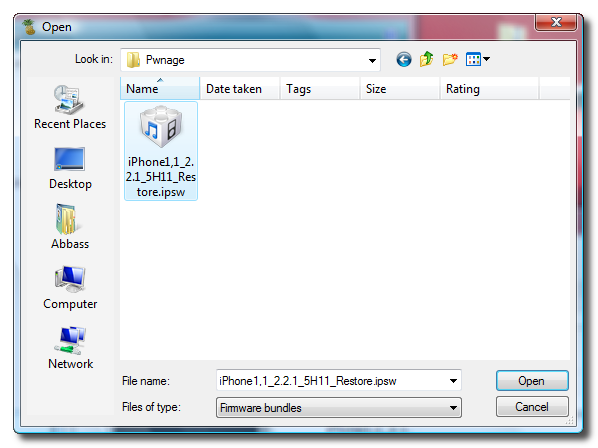
Step Six Select the 2.2.1 firmware ipsw from the Pwnage folder on your desktop then click the Open button.
Step Seven QuickPwn will check to make sure the ipsw is valid. Click the blue arrow button to continue.
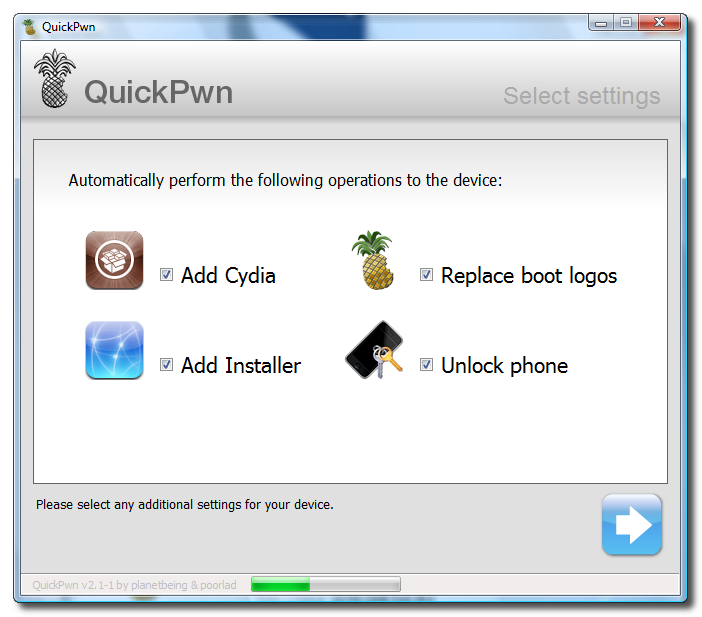
Step Eight You can now select whether to Add Cydia, Add Installer, Replace Boot Logos, and Unlock Phone. Select the ones you would like to perform then click the clue arrow button
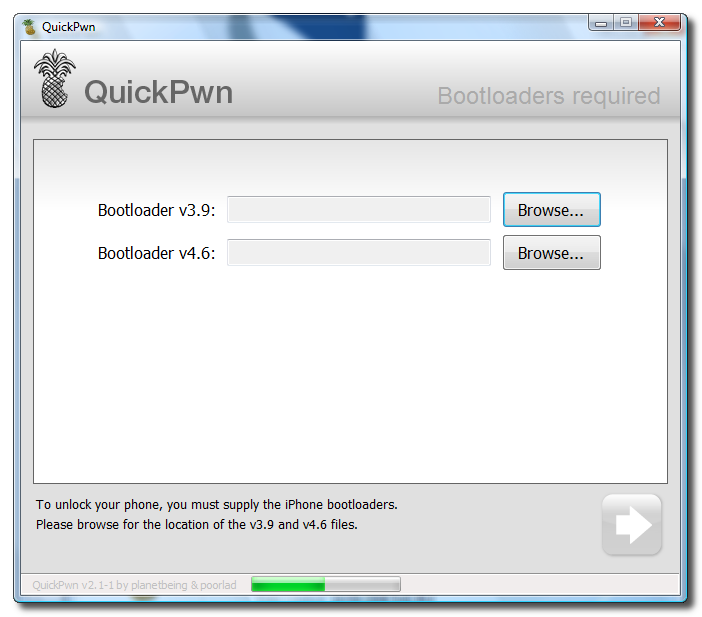
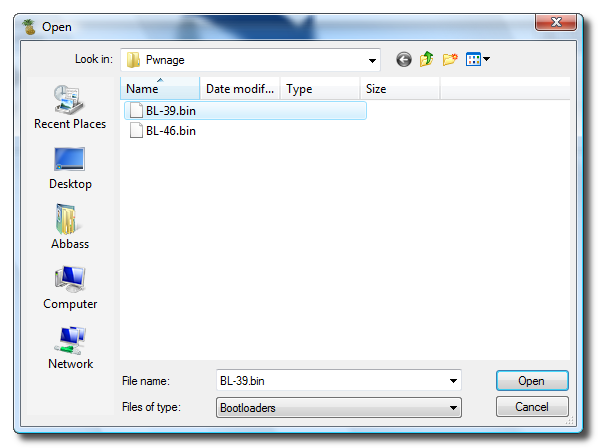
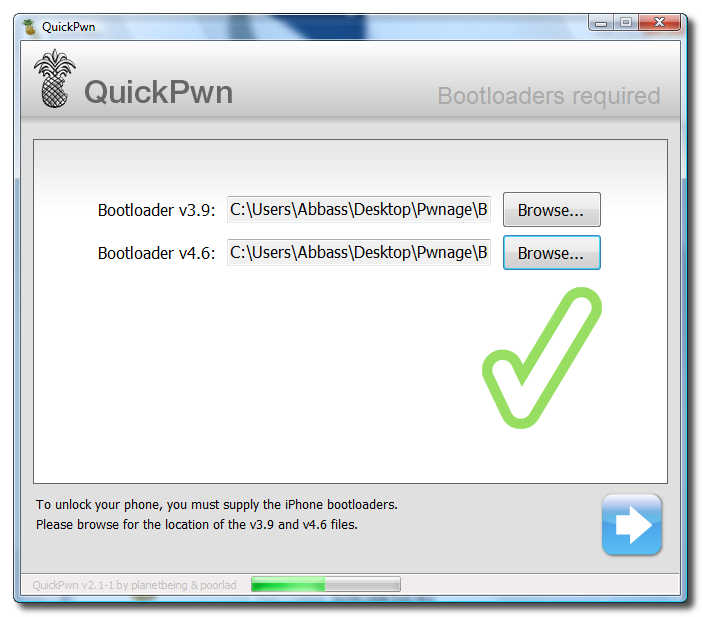
Step Nine You will now be asked to select your bootloader files. Click the Browse button and select the 3.9 bootloader from the Pwnage folder on your desktop. Likewise do the same thing for the 4.6 bootloader file. Then click the blue arrow button to continue.
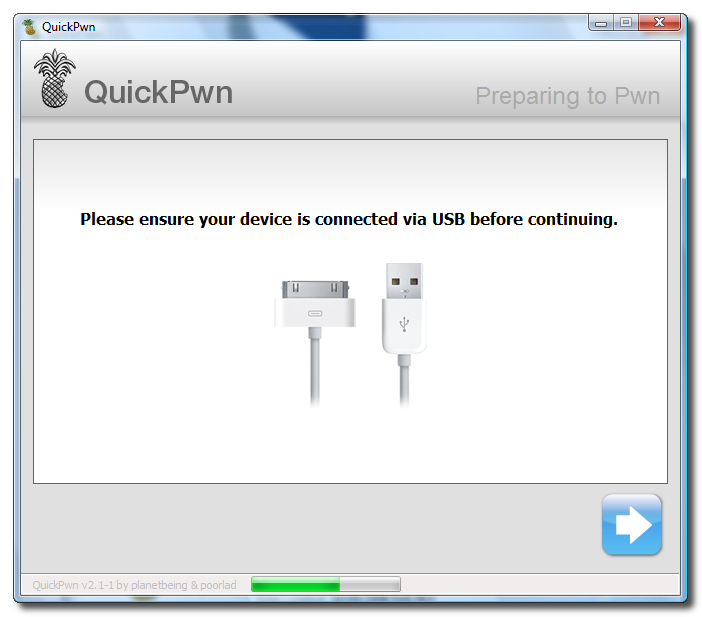
Step Ten QuickPwn will now ask you to confirm your iPhone is connected via USB before continuing. Click the blue arrow button to proceed.
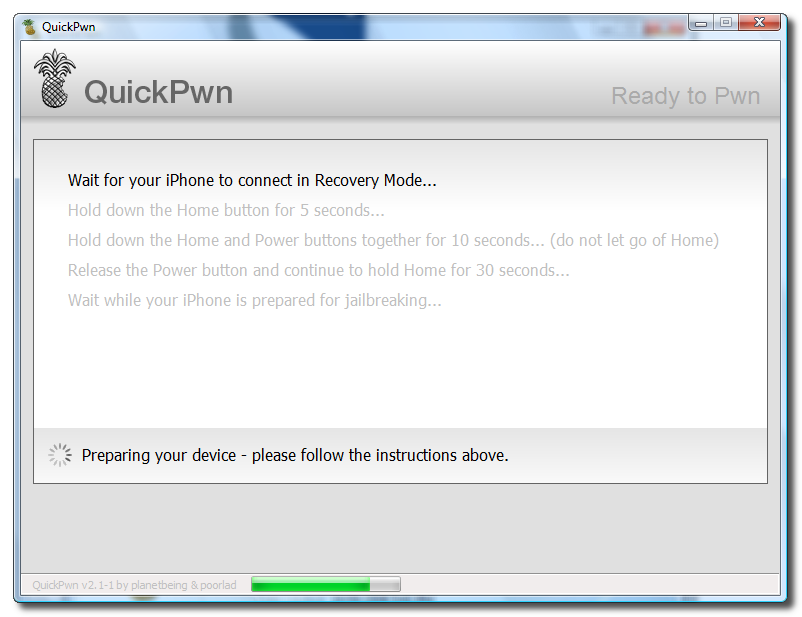
Step Eleven QuickPwn will now automatically put your iPhone into recovery mode. Once its in recovery mode you will be prompted to: Hold the Home button for 5 seconds, Hold the Home and Power buttons for 10 seconds, then release the Power button and continuing holding the Home button until your iPhone is in DFU mode.
Watch the prompts carefully and follow along.
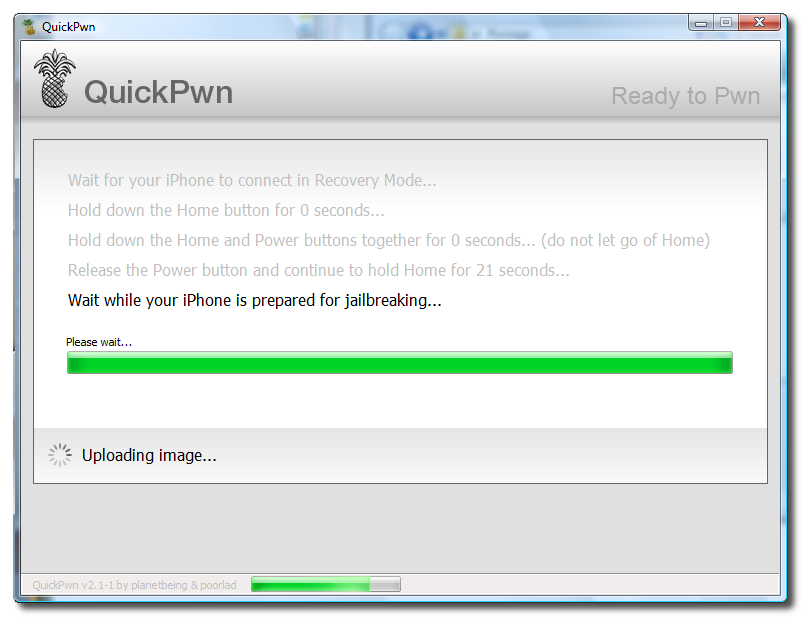
Step Twelve Once QuickPwn detects your iPhone in DFU mode it will begin the jailbreak process.
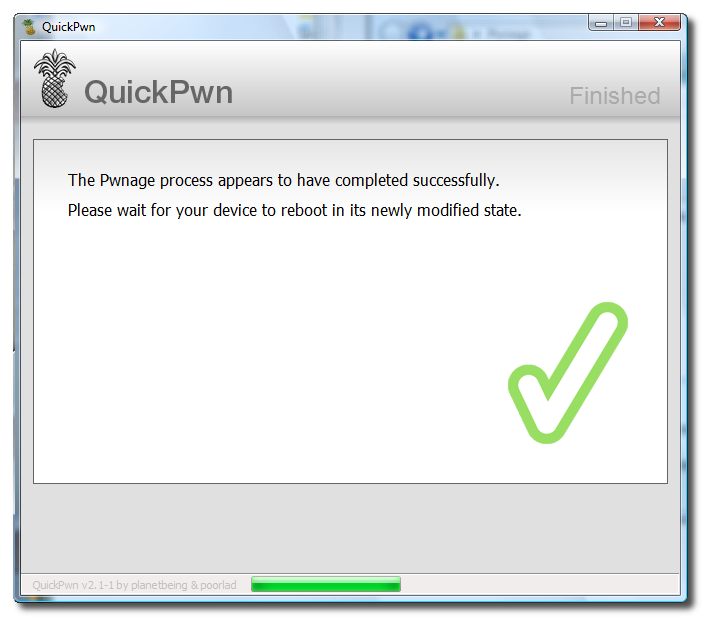
Step Thirteen Once jailbreaking is complete QuickPwn will inform you that it was successfull. Your iPhone will then proceed to run BootNeuter. This process will take about 5 minutes. Please be patient. Your iPhone will reboot when it has completed the process successfully!
Get the iClarified Daily Newsletter
Apple news, rumors, tutorials, price drop alerts, in your inbox every evening, free.
Unsubscribe at any time.
Success!
You have been subscribed.
Add Comment
Would you like to be notified when someone replies or adds a new comment?
Yes (All Threads)
Yes (This Thread Only)
No
Notifications
Would you like to be notified when we post a new Apple news article or tutorial?
hola .. yo tengo un iphone 3g que me trade de usa. y quiero usarlo aqui en mexico con telcel . el problema que tengo es que cuando lo prendo me pide activarlo por medio de wifi o itune . cuando lo conecto por puerto usb a mi ordenador . me sale en el itunes que no tiene tarjeta sim .. no encuentro solucion a esto .. sabes el por que no me detecta la tarjeta sim !! o cual seria el problema ..
gracias
hi my problem comes when i shift+restore my phone i use the provided restore file but it says iphone could not be restored and error occured(20) anybody know of any help to fix this?
Nice set of user friendly steps.
Just would like to add from my end:
1. The link to QuickPwn.zip seems to be dead. Search for QuickPwn-225-2 instead.
2. Mention the step to rename
iPhone1,1_2.2.1_5H11_Restore.zip
to
iPhone1,1_2.2.1_5H11_Restore.ipsw
3. Mention the need of Microsoft .Net Framework 2.0 to run the QuickPwn
Itune recognize my iphone, I can click on the LHS but I don't see the restore button that I need tp press along with the shift, IT seem like I am missing something here. please help
I have firmware 3.1 on my iphone. When I connect to itune, it goes directly to the screen where it says to activate it with At&T. I don't see the screen where I can click the restore button along with the shift key. How to get that screen? Please help
I unlock the phone succesfully And it detect the VOdafone India sim/network. Thank you.
But there is a problem when I try to make a call it shows a message saying that I need to connect the phone to the itunes and only can make only emergency calls. through the emergency calls i can make phone calls but nothing more
Hi
I am from Singapore using M1 (if any1 knows).
My 2G phone was jailbreaked n unlocked 2 yrs ago serial 7U746WBOWH8, using 1.1.3(4A93) modem firmware 04.02.13_G.
I want to upgrade into 2.xx so i can use itunes application, but im not sure if this method will work for me??? any1 in singapore tried this before???
(email: antiphase214@yahoo.com.sg)
thank you for reading
This is for iphone 2g. When i get to "Wait for yout iphone to connect in Recovery Mode" it seems to stop there, i dont get no response. But while that does not respond when i press the home button and the powere button it starts the process after but then when it comes to the jailbreaking stages just on the last second of the 30 seconds it say either i have done the wrong process or the usb is faulty! i have tried it in a few usb ports, but yet no luck! Help is needed please , urgently thanks!
This tutorial worked great! I unlocked my iPhone 2G in less than 20 minutes every other program I have used has not been successful like this one. Thank you so much.
-Jared
I used this tutorial and it worked perfectly! I did not have other SIM card, so I just took out ATT SIM card when unlocking my phone. Thank you for the great tutorial!
If I upgrade to OS 3.0 will it lock my phone back?
There's a link on the top of the page if you want 3.0 firmware. The procedure to jailbreak and unlock is pretty much the same and also very easy to follow. Of course when you upgrade to any firmware, it will relock your iphone. The only problem I had is on both firmwares 2.1 and 3.0, the process doesn't work on Windows Vista, I got stuck in the middle of the process, I thought my iphone was bricked but when I switched to my other PC with Windows XP, it worked like a charm. I just had the new 3G iphone so I used this 2G iphone to practice, restored & unlocked, restored & unlocked so many times now that I can do it with my eyes closed! Just k/d!
If you get an error in a middle of unlock process on Vista, you can use this trick: Before starting the Unlock/Jailbreak process, click the .EXE (redsn0w.exe), select Properties and go to 'Compatibility' tab, check 'Run this program in compatibility mode for' and select XP SP2 or Vista. This essentially tells the executable to run as if it was running in XP. After that you follow the instructions as they are. Works like a charm! You don't need to hunt for an XP machine. Btw, this works with any executable. So, if you have an application that doesn't run on Vista, you can use this trick. And it is a welknown compatibility method- not an hack- which is fully tested by Microsoft.
itunes 8.0.2 for 64 bit vista
jailbreak - https://www.iclarified.com/1880/how-to-unlockjailbreak-your-2xx-2g-iphone-using-quickpwn-windows
unlock - https://www.iclarified.com/4253/how-to-unlock-the-iphone-4-3gs-3g-using-ultrasn0w
steps:
1. the iphone restore did not work with shift + restore.. so i just restored (click restore without pressing shift), it downloaded 2.2.1 from apple website and restored it to factory settings. this was done to erase all previous used space and user settings etc.
2. after this, it was asking for activation, showing only emergency calls only etc.. i was kind of scared as nothing was accessible.
3. but i just continued with the jailbreak steps mentioned in https://www.iclarified.com/1880/how-to-unlockjailbreak-your-2xx-2g-iphone-using-quickpwn-windows and it jailbroke the iphone with cydia installed. some relief here.
4. next was the most cumbersome (according to me) step of unlocking it for vodafone india sim. after googlinh reading many many docs and comments here and there, i realized that my modem firmware is at 2.30 where as yellowsn0w supports only 2.28, and the methods to downgrade were too complicated like using ssh and typing cmds etc..
5. so i upgraded my modem firmware (not iphone OS) to 4.26 using "fuzzyband 3.1b1" . this can be installed by searching in cydia, it detects the current modem firmware and upgrades it from 2.30 to 4.26
6. next i used ultrasn0w to unlock the iphone for india vodafone sim using the instructions at https://www.iclarified.com/4253/how-to-unlock-the-iphone-4-3gs-3g-using-ultrasn0w. here make sure you turn 3g off.
every thing worked as it said..........only small glich where it said program will put iphone will put the phone in recovery mode ...........IT DIDN"T for 10 mins..............Then i had to do it manualy by
"Hold both power and home button at the same time, when the red slider appears, continue to hold. Phone will reboot, when you see the apple icon appears, let go of the power/sleep and continue to hold home. iTunes will detect phone in recovery mode. Note: your phone screen will show the usb cable & CD."
Once that was done everything worked like a charm :) hope this helps








![Apple Music Unveils New Brand Identity 'Made by Sound' [Video]](/images/news/102951/102951/102951-160.jpg "Apple Music Unveils New Brand Identity 'Made by Sound' [Video]")

![iPhone Duo Review Roundup: Impressive Hardware, Mixed Verdicts [Video]](/images/news/102945/102945/102945-160.jpg "iPhone Duo Review Roundup: Impressive Hardware, Mixed Verdicts [Video]")



![How To Back Up Your iPhone to an External Drive on Mac [Video]](/images/tutorials/72786/72786/72786-160.jpg "How To Back Up Your iPhone to an External Drive on Mac [Video]")


![How To Find Your IP Address on iPhone [Video]](/images/tutorials/496/496/496-160.jpg "How To Find Your IP Address on iPhone [Video]")

![16-Inch MacBook Pro With M5 Max Drops to $3,499 ($900 Off), Lowest Price We've Seen [Deal]](/images/news/102900/102900/102900-160.jpg "16-Inch MacBook Pro With M5 Max Drops to $3,499 ($900 Off), Lowest Price We've Seen [Deal]")
![Mac Studio With M5 Max Is $200 Off, Lowest Price We've Seen [Deal]](/images/news/102897/102897/102897-160.jpg "Mac Studio With M5 Max Is $200 Off, Lowest Price We've Seen [Deal]")
![14-Inch MacBook Pro With M5 Pro Drops to $2,069.10 ($429 Off) [Deal]](/images/news/102879/102879/102879-160.jpg "14-Inch MacBook Pro With M5 Pro Drops to $2,069.10 ($429 Off) [Deal]")
![Apple HomeView and New Apple TV 4K Get First Pre-Order Discount on Amazon [Deal]](/images/news/102867/102867/102867-160.jpg "Apple HomeView and New Apple TV 4K Get First Pre-Order Discount on Amazon [Deal]")
