These are instructions on how to convert H.264 MKV files to MP4 without re-encoding.
Following this procedure will save you lots of time and prevent video quality degradation if you need video in mp4 format for playback through iTunes, the Apple TV, or on your iOS device.
***We have posted an easier version of this tutorial here, we suggest that most users follow that tutorial instead.***
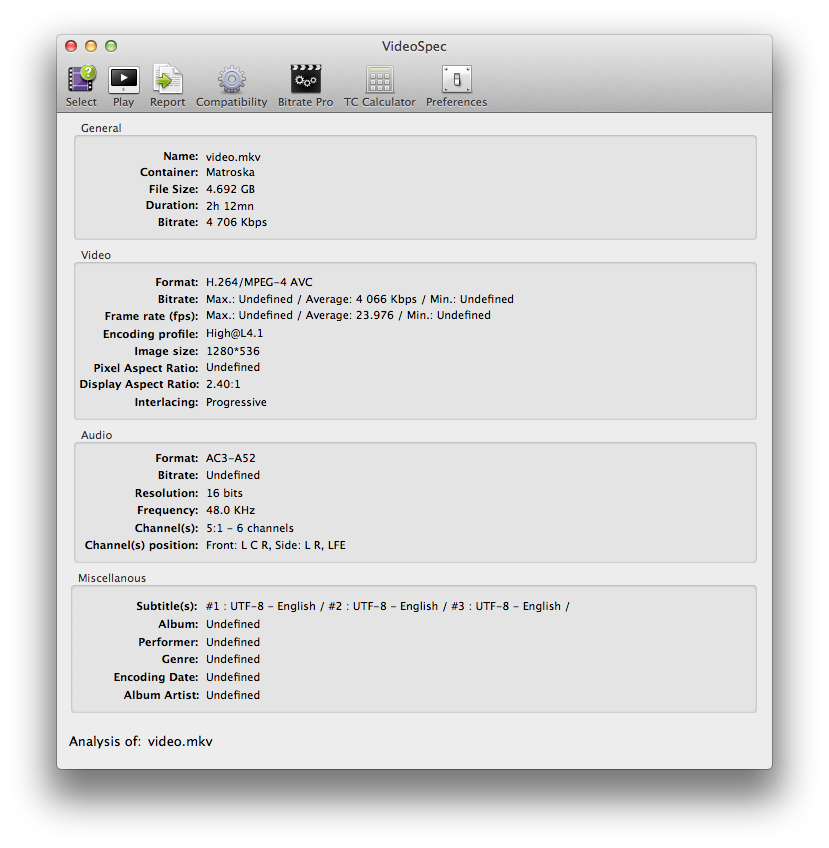
IDENTIFY THE SOURCE VIDEO AND AUDIO Before beginning lets get some details on the source video and audio.
Step One Download and install VideoSpec to your Applications folder from here.
Step Two Launch VideoSpec from your Applications folder.
Step Three Click Select from the toolbar.
Step Four Choose your .mkv file and click Open.
Step Five Make sure the video format is H.264 and take note of the Frame Rate (fps) and Audio Format.
Important: Make note of the Encoding Profile. Some older Apple devices only support the Main profile so if your video is High Profile this procedure may not work. The new Apple TV supports High Profile at Level 4.0; however, we have tested level 4.1 and it worked fine in all attempts. The iPhone and iPad support High Profile level 4.1.
EXTRACT VIDEO AND AUDIO FROM MKV Demux (ie extract) the video and audio tracks from the MKV container format.
Step One Download and install iMKVExtract from here to your applications folder.
Step Two Launch iMKVExtract and click the Browse button to select your Matroska file.
Step Three Select your mkv file and click the Choose button.
Step Four Select the video and audio track for extraction. These are usually track one and track two.
Change the target folder if need be and click the Extract button.
Step Five iMKVExtract will let you know when the extraction is complete.
CONVERT AUDIO TO AAC If the audio track you extracted is NOT in AAC format than you will need to convert it. If it is in AAC format then you can skip this section.
Step One You can use your favorite application to convert the audio or try Audio-Converter which can be downloaded from the Mac App Store here.
Step Two Launch Audio-Converter from the Applications folder.
Step Three Set the Convert To: dropdown to AAC then set the destination folder to the folder than contains the files we extracted earlier.
Step Four Drop the audio file that was extracted from the mkv into Audio-Converter to begin conversion. Note: the audio files will likely be named audio2.ac3 or audio2.dts.
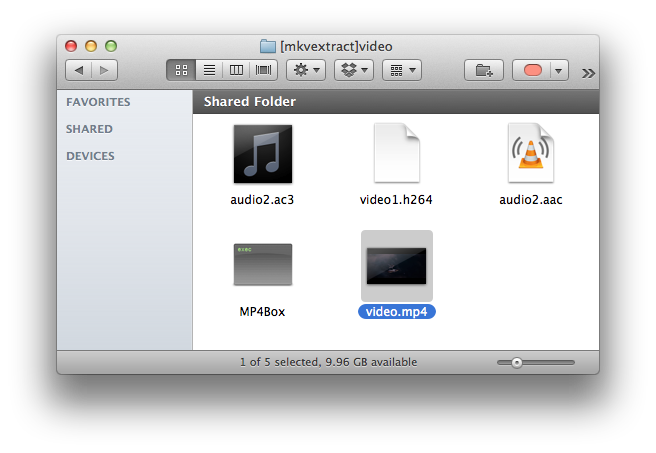
COMBINE VIDEO AND AUDIO INTO MP4 FILE Mux the .h264 video and the .aac audio file into a mp4 file using MP4Box.
Step One Download MP4Box from here and save it to the same folder as your extracted video and audio. Double click to extract the archive if need be.
Step Two Open a new Terminal window from Applications:Utilities.
Step Three Navigate to the folder your video and audio is located in. ie. cd ~/Desktop/[mkvextract]video
Step Four Execute the command to create a MP4 video. Make sure to specify the frame rate we noted earlier or your audio will be out of sync. Also be sure to use the .aac audio file and not the original.
Nice Tips!
Yeah, there are many free tools like MKVtools, Mp4 tools can do this works, as I always use Handbrake to convert before read this article.
But think I still don't abandon Handbrake as it can do many more works on DVD movies for my Apple TV.
Please note that this method is not the same as re-encoding with Handbrake and is far faster. i.e. 15 minutes compared to hours. Unfortunately, at the time of writing we were not aware of MP4Tools. After trying MP4Tools we've found it much simpler of course; however, it is noticeably slower than using mp4toolnix and mp4box. Since for most people the simplicity of MP4Tools will outweigh the extra time it takes, we've posted a new 'easier' tutorial here. Thanks for the feedback.
Wow. I like most of your tutorials, but that is the most horrible time suck I think I've ever tried to accomplish....
To be clear that's 19 steps across 4 programs....
If the intent is to save time, just re-encode the darn thing with Handbrake.... you can't even utilize an Automater tool for the method proposed here...
This following procedure will save you time? By the time I got half way through I converted an Mkv into an mpeg perfectly. This is possibly the most long winded way of doing anything on a computer in 2012.
Ooooooor you could just use Subler. You know it does the same thing but in 2 steps right? And in less than 4 minutes, cause theres also no reencoding..







![Apple Watch Series 12 and Ultra 4 Score 4/10 in iFixit Teardown [Video]](/images/news/102633/102633/102633-160.jpg "Apple Watch Series 12 and Ultra 4 Score 4/10 in iFixit Teardown [Video]")
![Apple Partnering With LG on Smart Lock, Doorbell, Thermostat, and Cameras [Report]](/images/news/102627/102627/102627-160.jpg "Apple Partnering With LG on Smart Lock, Doorbell, Thermostat, and Cameras [Report]")


![Apple Releases Public Beta 2 of iOS 27.2, macOS Golden Gate 27.2, and More [Download]](/images/news/102621/102621/102621-160.jpg "Apple Releases Public Beta 2 of iOS 27.2, macOS Golden Gate 27.2, and More [Download]")
![How To Back Up Your iPhone to an External Drive on Mac [Video]](/images/tutorials/72786/72786/72786-160.jpg "How To Back Up Your iPhone to an External Drive on Mac [Video]")
![How To Force Restart iPhone [Video]](/images/tutorials/95012/95012/95012-160.jpg "How To Force Restart iPhone [Video]")
![How To Turn Off iPhone [Video]](/images/tutorials/94999/94999/94999-160.jpg "How To Turn Off iPhone [Video]")


![Mac mini Drops to New Low of $769 for Prime Big Deal Days [Deal]](/images/news/102624/102624/102624-160.jpg "Mac mini Drops to New Low of $769 for Prime Big Deal Days [Deal]")