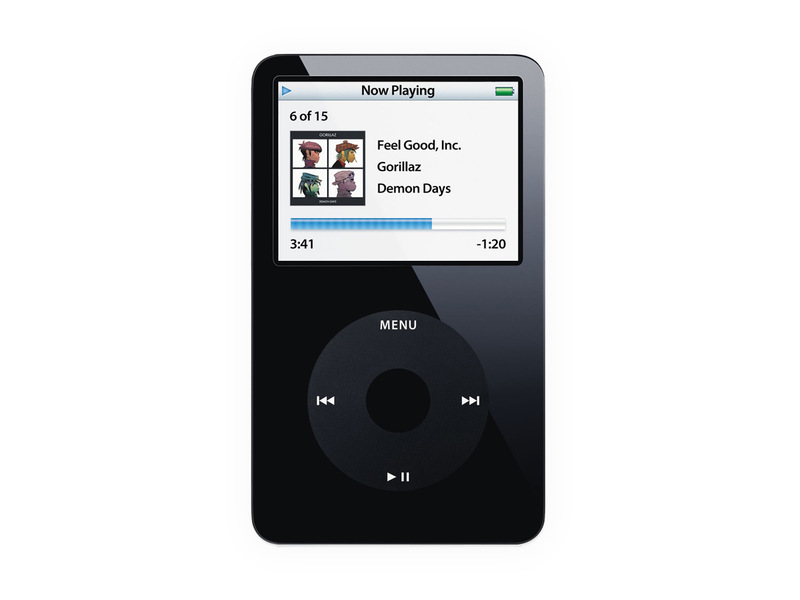
The 1.1.1 software update for iPod nano and Fifth Generation iPod provides an easy way for you to set a maximum volume limit to prevent the volume from exceeding a certain level. This feature works with any headphones attached to the headphone jack and with the iPod Radio Remote; other Apple and third-party accessories are not supported with this feature. You can also assign a combination to prevent the setting from being changed which is ideal for parental control.
To set the maximum volume limit for your iPod:
Step One Select Settings > Volume Limit. The volume control shows the current volume.
Step Two Use the Click Wheel to select the maximum volume. You can press Play to hear the currently selected song play while you select the maximum volume limit.
Step Three Press the Center button to set the maximum volume limit. A triangle on the volume bar indicates the maximum volume limit.
Step Four On the Volume Limit screen, click Set Combination to require a combination to be entered to change the maximum volume. Click Done to accept the maximum volume without requiring a password to change it.
Step Five If you choose Set Combination, enter a combination:
1. Use the Click Wheel to select a number for the first position. 2. Press the Center button to confirm your choice and move to the next position. 3. Use the same method to set the remaining numbers of the combination. You can use the Next/Fast-forward button to move to the next position and the Previous/Rewind button to move to the previous position. 4. Press the Center button in the final position to confirm the entire combination and return to the previous screen.
If you turn the volume all the way up after you set a limit, you see a lock icon on the right end of the volume bar in the Now Playing screen that indicates a maximum volume limit has been set.
Note: The volume of songs and other audio may vary depending on how the audio was recorded or encoded. Volume level may also vary if you use different earbuds or headphones. With the exception of the iPod Radio Remote, accessories that connect through the iPod dock connector do not support volume limits.
If you set a combination, you must enter it before you can change or remove the maximum volume limit.
Get the iClarified Daily Newsletter
Apple news, rumors, tutorials, price drop alerts, in your inbox every evening, free.
Unsubscribe at any time.
Success!
You have been subscribed.
Add Comment
Would you like to be notified when someone replies or adds a new comment?
Yes (All Threads)
Yes (This Thread Only)
No
Notifications
Would you like to be notified when we post a new Apple news article or tutorial?








![Apple Watch Series 11 is Back on Sale for Just $299 [Deal]](/images/news/101081/101081/101081-160.jpg "Apple Watch Series 11 is Back on Sale for Just $299 [Deal]")
![AirPods Max 2 Drop to New All-Time Low of $499 [Deal]](/images/news/101063/101063/101063-160.jpg "AirPods Max 2 Drop to New All-Time Low of $499 [Deal]")
![AirPods Max 2 Hit All-Time Low Price of $509 ($40 Off) [Deal]](/images/news/101039/101039/101039-160.jpg "AirPods Max 2 Hit All-Time Low Price of $509 ($40 Off) [Deal]")
![New 13-Inch M5 MacBook Air Hits All-Time Low Price of $899.99 [Deal]](/images/news/100969/100969/100969-160.jpg "New 13-Inch M5 MacBook Air Hits All-Time Low Price of $899.99 [Deal]")
![AirPods Pro 3 Drop to $199 Ahead of Memorial Day [Deal]](/images/news/100935/100935/100935-160.jpg "AirPods Pro 3 Drop to $199 Ahead of Memorial Day [Deal]")
