Using iTunes 7.5 or higher you are able to create custom ringtones for your iPhone. This method may not work after a firmware update but for now everything works great.
Follow these instructions to make your ringtone and put it on the iPhone.
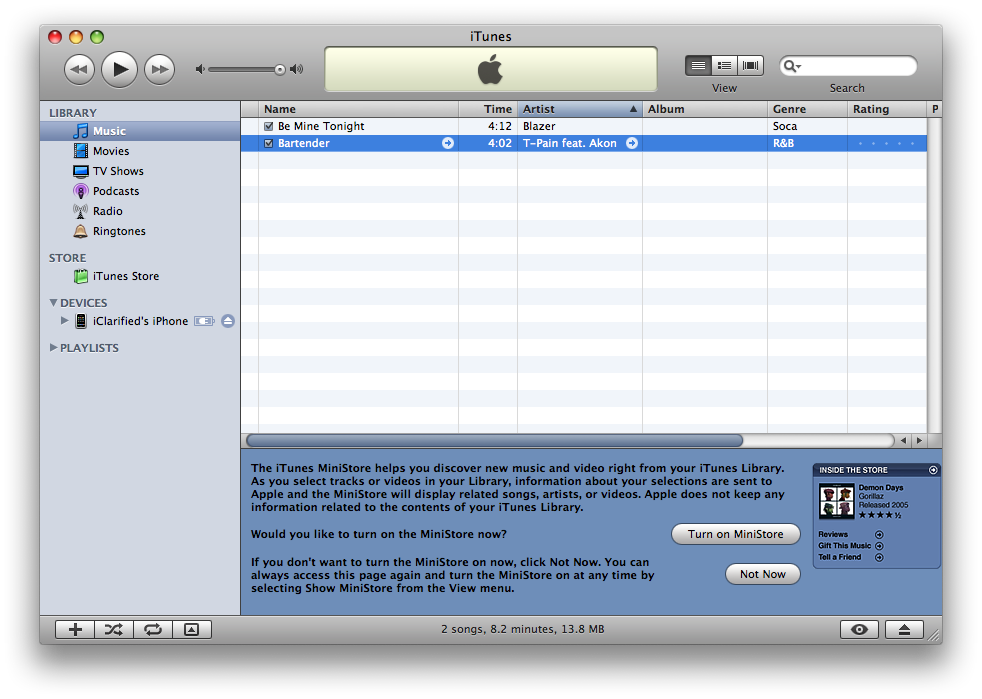
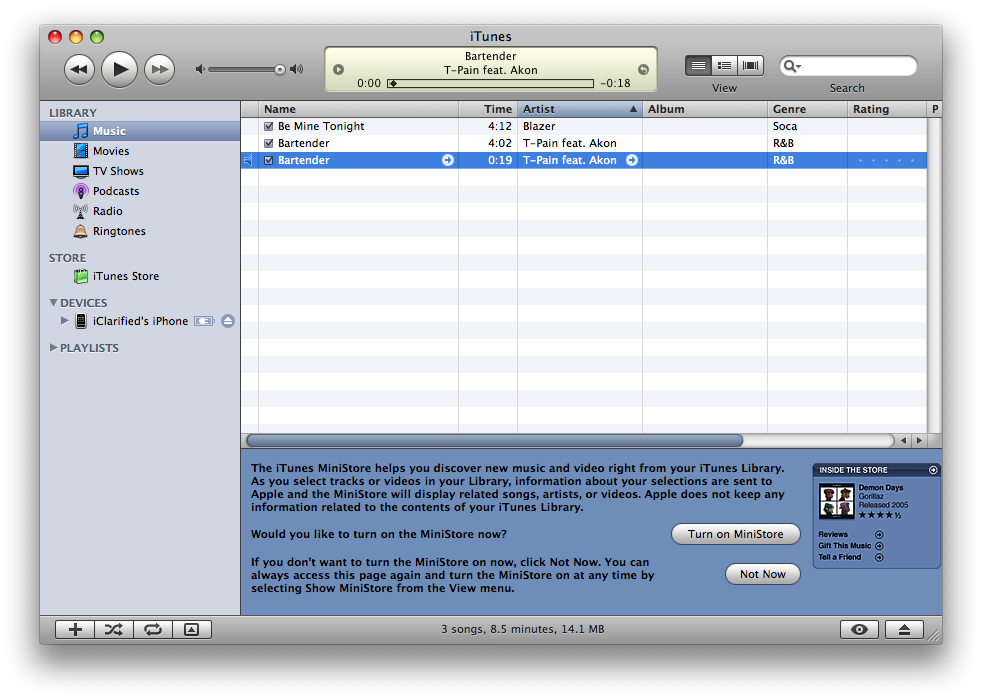
Step One Open iTunes by clicking its icon in the dock.
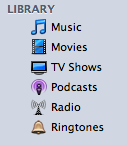
Step Two Check to see if you have a Ringtones category within your Library. You will find this on the left side of the iTunes window. If you DO have Ringtone category then you can skip to Step Four.
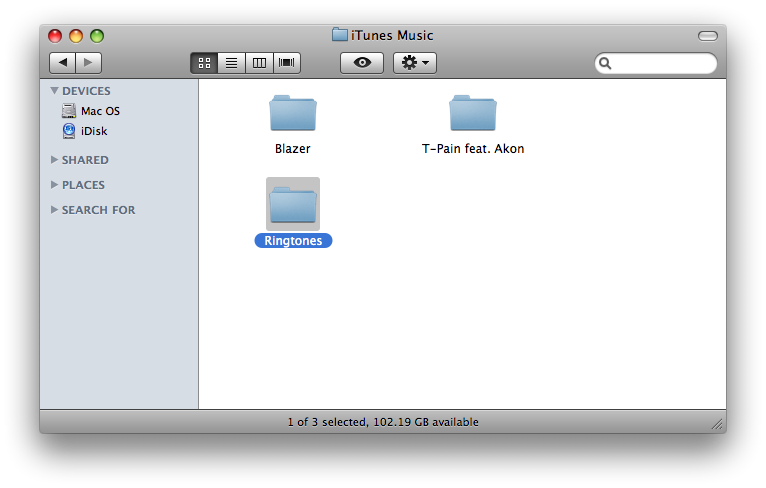
Step Three Quit iTunes then open a new Finder window by clicking its icon in the dock.
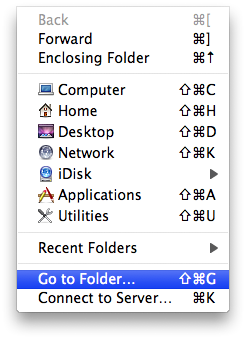
Select Go To Folder... from the Finder's Go menu.
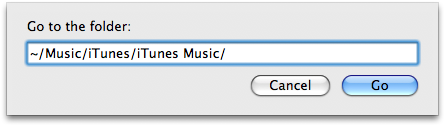
A popup window will appear. Type ~/Music/iTunes/iTunes Music/ into the entryfield and click the Go button.
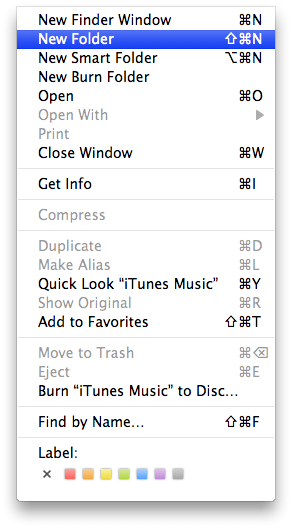
Select New Folder from the File menu.
This will create a new folder in the Finder window. Select the folder and press the Enter key. This will allow you to rename the folder. Rename the new folder to Ringtones.
You can now restart iTunes. You should now have a Ringtones category on the left!
Step Four Select a song from your library that you would like to use as a ringtone.
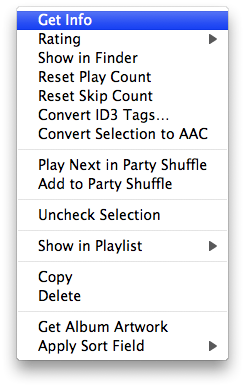
Hold down Control on the keyboard and click the song. From the popup menu select Get Info.
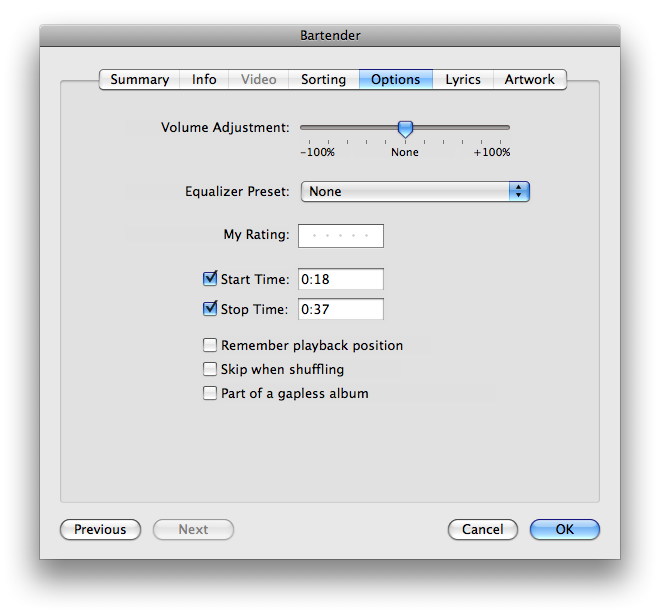
From the window that appears select the Options tab. Check the box next to Start Time and enter a start time for your ringtone. Check the box next to Stop Time and enter a stop time for your ringtone. NOTE***: The first time i tried this I attempted a ringtone 36 seconds long. It would not sync to my iPhone. I'd recommend you keep your ringtone at around 30 seconds long.
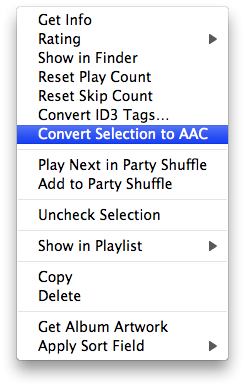
Step Five Press the play button to test your ringtone and make sure it sounds okay. If it doesn't you can go back and modify the start and stop time till it does. Once you are satisfied then Control+Click the song and select Convert Selection to AAC from the popup menu.
You will notice that a copy of the song appears in your library. This copy is the shortened song to be used as your ringtone.
Before you forget go back into the original song's options and uncheck the Start Time and Stop Time so it will play normally.
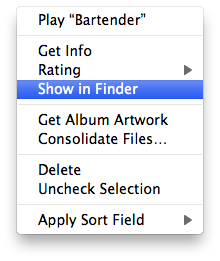
Step Six Right click the newly created file and select Show in Finder.
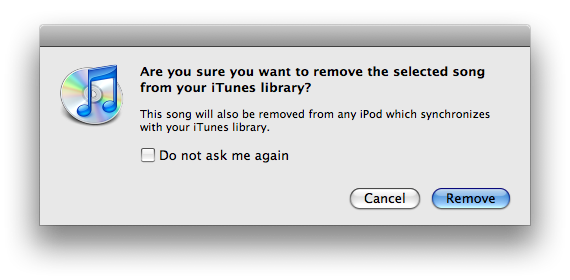
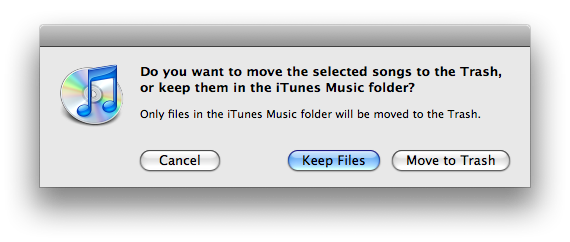
With the newly created track still selected in iTunes press the Delete key on your keyboard. A popup will appear asking to confirm its removal from the library. Click the Remove button. Another popup will appear asking you what to do with the file. Click the Keep File button.
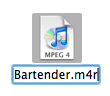
Step Seven Rename the file in your Finder window to .m4r from .m4a. Do this by selecting the file then pressing the Enter key on your keyboard.
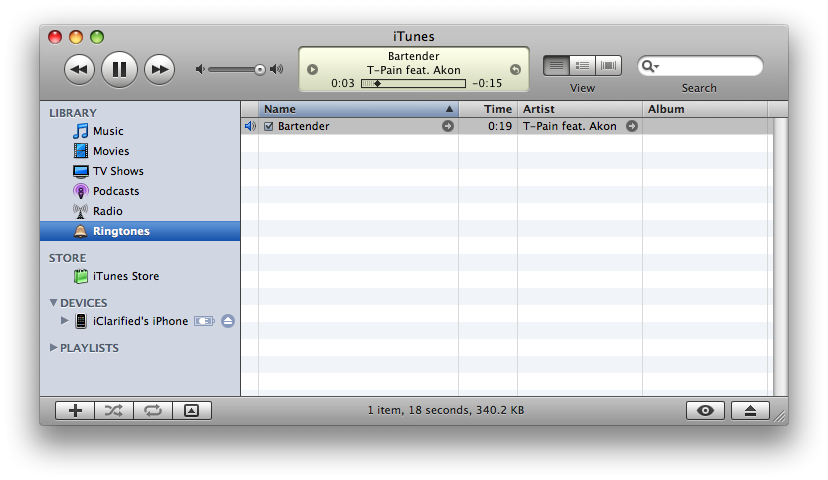
Step Eight Once you have renamed the file on your desktop add it back to iTunes by double clicking on it. You will notice that the track now appears under the Ringtones category in iTunes.
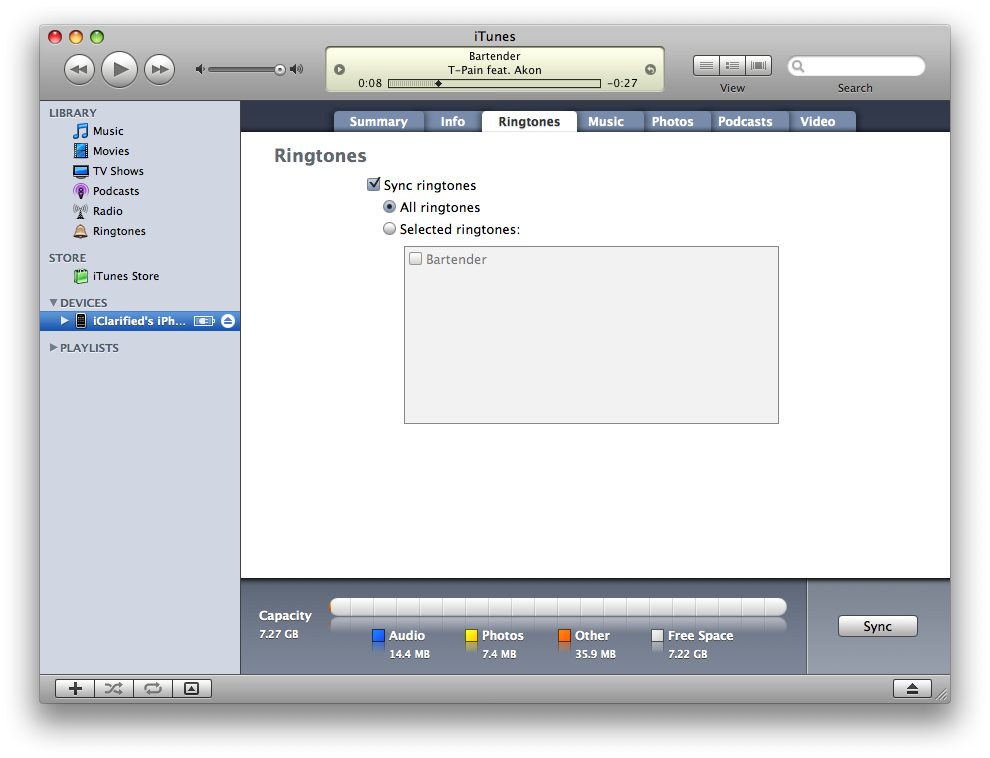
Step Nine In iTunes select your iPhone from the list of Devices on the left. Then select the Ringtones tab.
Check the box next to Sync Ringtones and select to either sync All Ringtones or to sync only specific ones.
Finally, click the Sync button at the bottom right to sync your newly created ringtone with your iPhone.
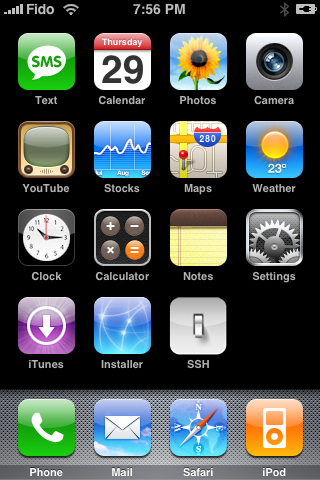
Step Ten To use your new ringtone with your iPhone select Settings from your iPhone's springboard.
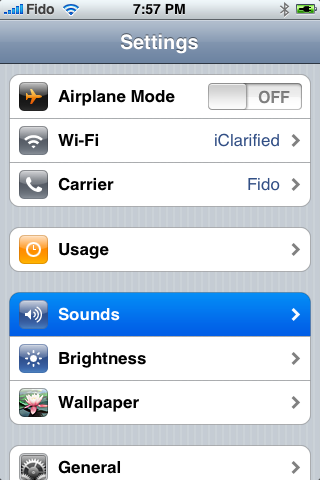
Select Sounds from the Settings menu.
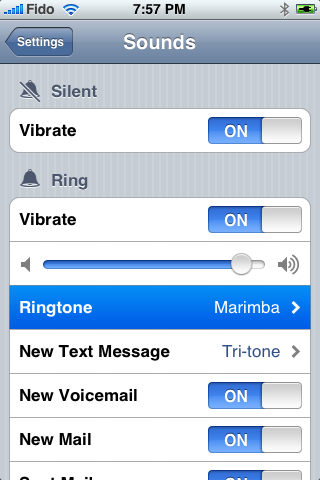
Select Ringtone from the Sounds menu.
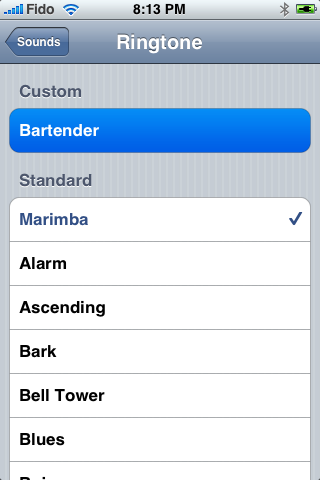
You will see your newly created ringtone under the custom category! Press to select it!
Get the iClarified Daily Newsletter
Apple news, rumors, tutorials, price drop alerts, in your inbox every evening, free.
Unsubscribe at any time.
Success!
You have been subscribed.
Add Comment
Would you like to be notified when someone replies or adds a new comment?
Yes (All Threads)
Yes (This Thread Only)
No
Notifications
Would you like to be notified when we post a new Apple news article or tutorial?
This worked great on windows (not Mac) with latest iTunes and latest iPhone software. Thanks for your help as it is frustrating to not be able to create ringtones through iTunes as I am not in USA
step eight is not working. when i drag it back to i tunes from the desktop in an attempt to put it in the the ring tones folder it doesn't work. help please.
I've followed all the steps, but the file doesn't appear in the Ringtones section of my iTunes library.
Also, when I use the create ringtone function in iTunes ...... store.... ( with songs purchased from the iTunes store) I get the following message:
"iTunes could not connect to the iTunes store. An unknown error occured (11556)"
Could this be that the create ringtones function is only available to songs bought from certain store?!
Any help would be greatly appreciated since the ringtones already present on the iPhone are mainly boring.
I followed the procedures for creating custom ringtones (https://www.iclarified.com/entry/index.php?enid=414) and everything worked great on my iphone with software version 1.1.3.
I would like to know if I upgrade to the newest version of iphone software 1.1.4 will these custom ringtones still work?
Trevor
2007-12-16 14:20:49
:' Is there another way to convert to AAC?':
Switch your import preferences in iTunes to import AAC then it will let you convert to AAc. I had the same trouble and figured it out
Worked for me :)
Today I found fast solution how create & add easily custom rintones on FW 1.1.1 Across Installer v3.0b8 (Nullriver Soft.) I downloaded app SendSong. Open it and choose from offered albums (downloaded to iPod library before) > choose song > set ringtone > done. Back to menu and open settings > sounds > ringtone > search your new ringtone & confirm. (better is restart phone for customize ringtones of selected persons in contacts). Ringtones play longer than 40 sec ! - but long songs is not recommended :))
K
I try your very easy way, but how to Create Custom Ringtones for a 1.1.1 iPhone on iMac Intel 10.4.11 with iTunes 7.5. I was trying all, but without success. I see ringtones (is in format XXX.m4r) in iTunes Ringtone folder, but during sync I get warn: XXX was not copied because the file type is not supported by the iPhone.. ?? Exist some solution for 1.1.1 ? Thanks. K.
Is anyone else having the following problem:
If you have your default ringtone as one of Apple's preset ringtones your
custom ringtones won't work for individuals. However, if you set your default
ringtone to a custom ringtone all of your custom ringtones for individual contacts
work?
Ok, I checked this again after I read the following hint here: "aed0101, try working through the rest of the tutorial and see if the Ringtones category appears after double clicking the newly created ringtone. "
And guess what, it worked! Thanks!
Fady, you are deleting the short clip you created in step 5. It is the correct procedure to move to trash.
Peggie, the tutorial was created on Leopard with iTunes 7.5 and a 1.1.2 iPhone. Leopard isn't the problem. Have you tried to continue through the rest of the steps to see if the ringtones category will appear when you add your created ringtone to iTunes?
Everything seems to work except the part where you are supposed to convert the song to AAC and I control click on the song and there is no option that will let me convert it to AAC. I do have a MP3 option, so I that and followed the steps up to the end .m4r and such and when I click on the song it will bring up itunes but the song will not appear in the ringtone section or any other. whats the deal? Is there another way to convert to AAC?
Matt, check the size of ringtone. Probably is to long or to large.
aed0101, try working through the rest of the tutorial and see if the Ringtones category appears after double clicking the newly created ringtone. If it does not then try quiting iTunes then manually copying the created ringtone to your Ringtone folder.





![Apple Releases Xcode 27.1 Beta With iPhone Duo SDKs and Simulator [Download]](/images/news/102276/102276/102276-160.jpg "Apple Releases Xcode 27.1 Beta With iPhone Duo SDKs and Simulator [Download]")
![Apple Shares 'new trick' Shot on iPhone 18 Pro Ad Featuring ROSÉ [Video]](/images/news/102273/102273/102273-160.jpg "Apple Shares 'new trick' Shot on iPhone 18 Pro Ad Featuring ROSÉ [Video]")
![iPhone 18 Pro Teardown Shows Under-Display Face ID Camera and Larger Vapor Chamber [Video]](/images/news/102270/102270/102270-160.jpg "iPhone 18 Pro Teardown Shows Under-Display Face ID Camera and Larger Vapor Chamber [Video]")











![Apple Studio Display XDR Hits All-Time Low of $2,969.99 ($329 Off) [Deal]](/images/news/101976/101976/101976-160.jpg "Apple Studio Display XDR Hits All-Time Low of $2,969.99 ($329 Off) [Deal]")
