Using iTunes 7.5 you are able to create custom ringtones for your iPhone. This method may not work after a firmware update but for now everything works great. This tutorial is for Windows users. If you are a mac user please use the original tutorial for Mac users.
Follow these instructions to make your ringtone and put it on the iPhone.
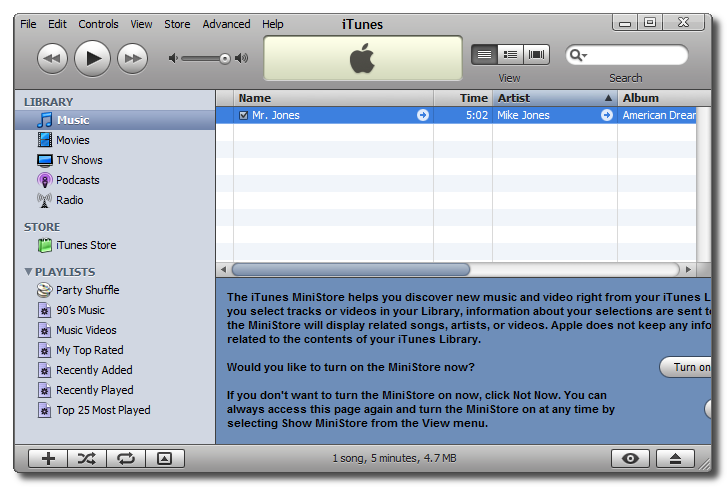
Step One Open iTunes from your program list.
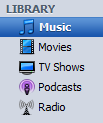
Step Two Check to see if you have a Ringtones category within your Library. You will find this on the left side of the iTunes window. If you DO have Ringtone category then you can skip to Step Four.
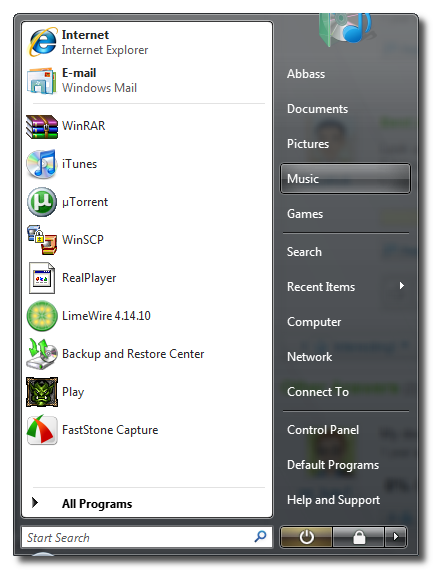
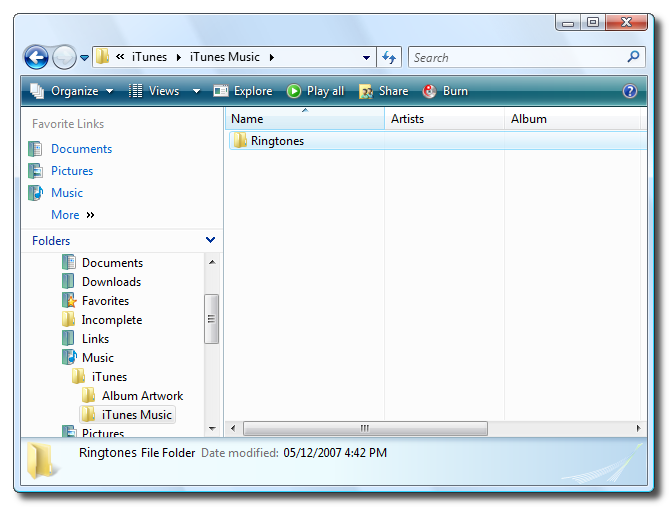
Step Three Quit iTunes then click to open the Start menu from the bottom left of the screen. Select Music from the Start menu.
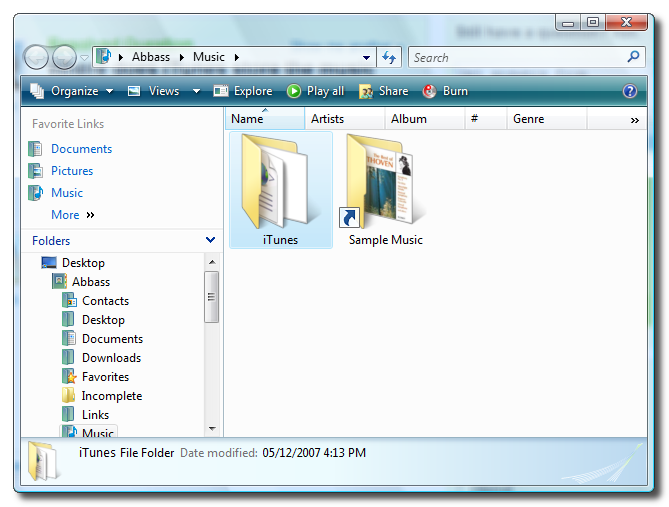
Double click on the folder iTunes to open it.
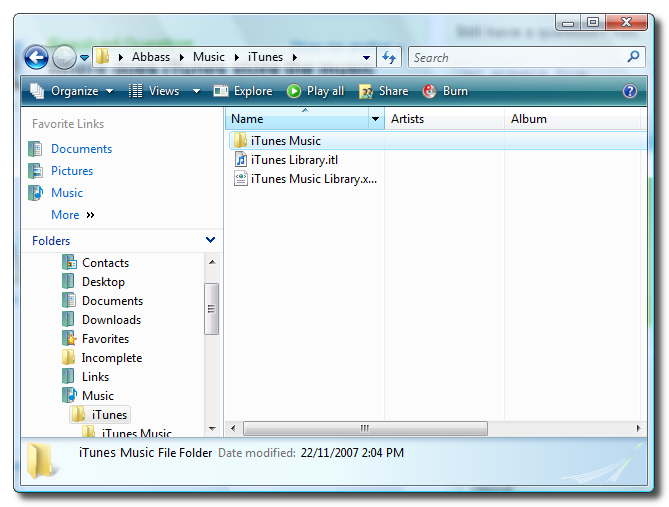
Double click on the folder iTunes Library to open it.
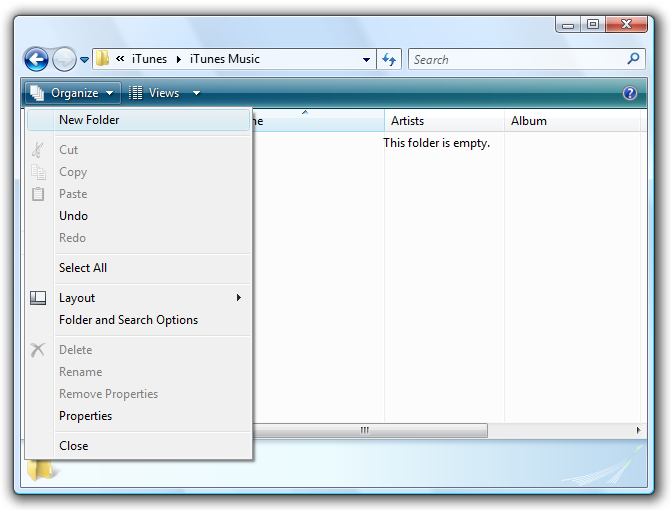
Create a new folder and name it Ringtones.
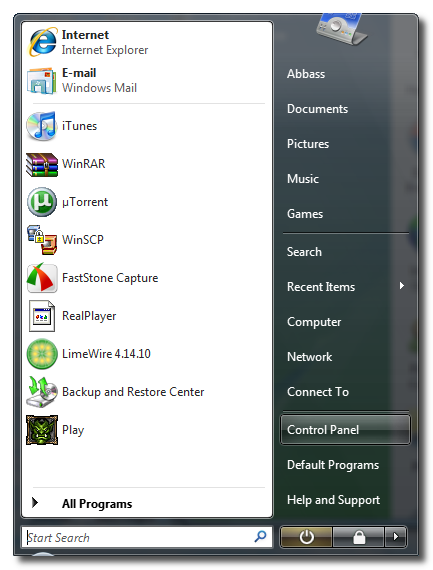
Step Four Click to open the Start menu from the bottom left of the screen. Select Control Panel from the Start menu.
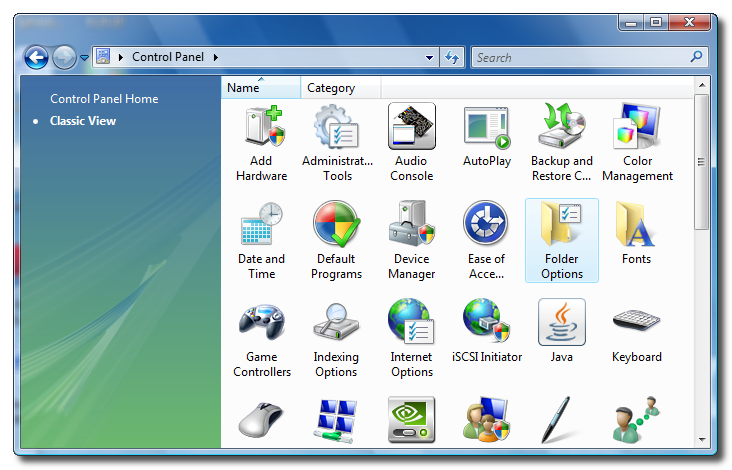
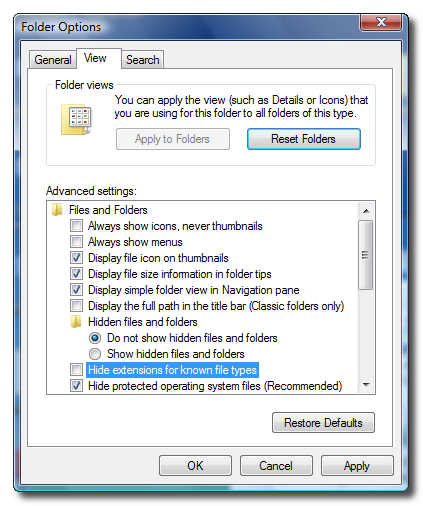
Select Classic view from the sidebar on the left. Then double click to open Folder Options.
Click to select the View tab. From the list of options uncheck the box next to Hide extensions for known file types. Then click the Apply button.
Step Five You can now restart iTunes. I still didn't get a Ringtones category on the left sidebar. So don't be worried if you don't see one yet.
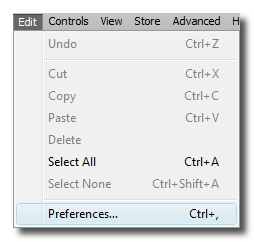
Step Six Select Preferences from the Edit Menu.
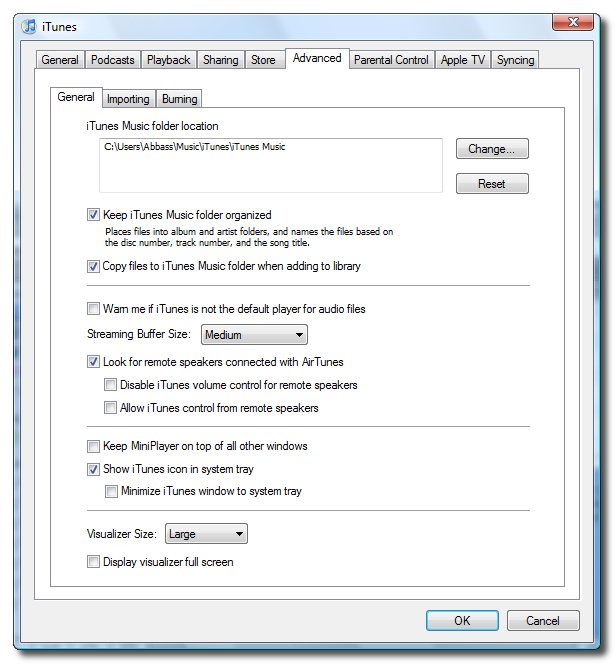
Click to select the Advanced tab. Click to select the General sub-tab. Check the box next to Copy files to iTunes Music folder when adding to library.
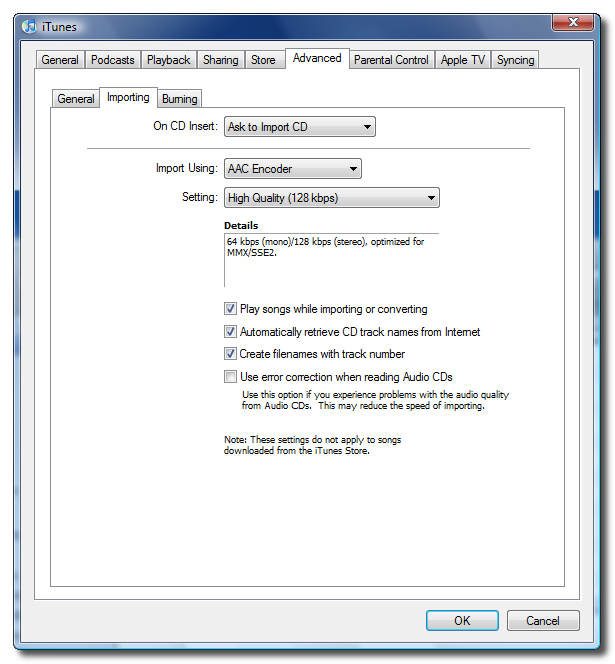
Now click to select the Importing sub-tab. Make sure the Import Using dropdown menu is set to AAC Encoder. Click the Ok button to save your changes.
Step Seven Select a song from your library that you would like to use as a ringtone.
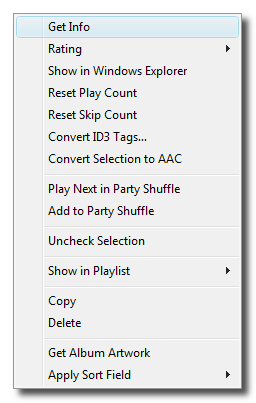
Right click the song you have selected. From the popup menu select Get Info.
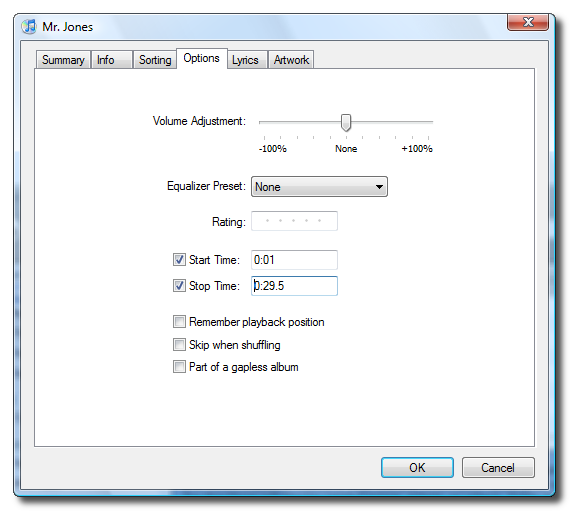
From the window that appears select the Options tab. Check the box next to Start Time and enter a start time for your ringtone. Check the box next to Stop Time and enter a stop time for your ringtone. NOTE***: The first time i tried this I attempted a ringtone 36 seconds long. It would not sync to my iPhone. I'd recommend you keep your ringtone at around 30 seconds long.
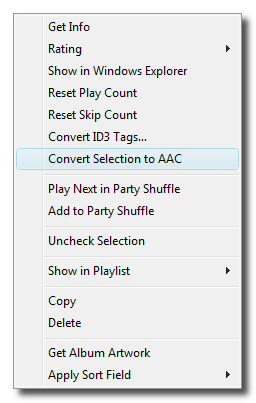
Step Eight Press the play button to test your ringtone and make sure it sounds okay. If it doesn't you can go back and modify the start and stop time till it does. Once you are satisfied then Right Click the song and select Convert Selection to AAC from the popup menu.
You will notice that a copy of the song appears in your library. This copy is the shortened song to be used as your ringtone.
Before you forget go back into the original song's options and uncheck the Start Time and Stop Time so it will play normally.
Step Nine Right click the newly created track and select Show in Windows Explorer.
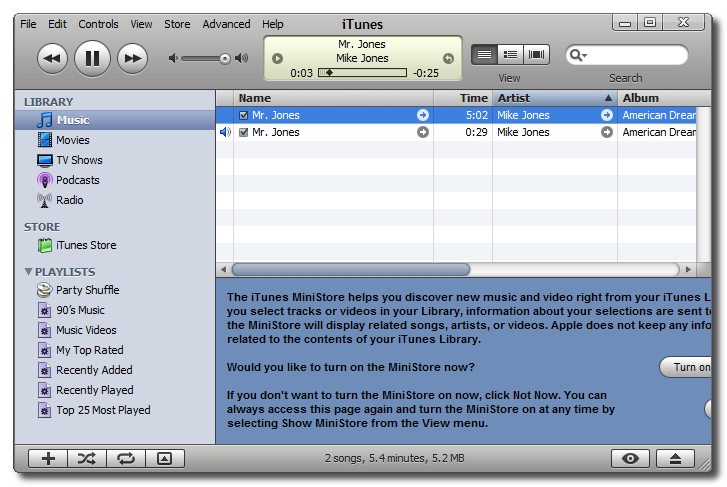
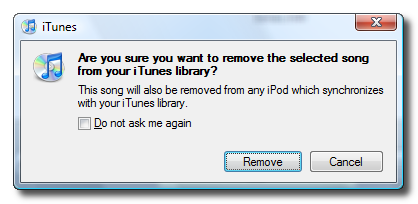
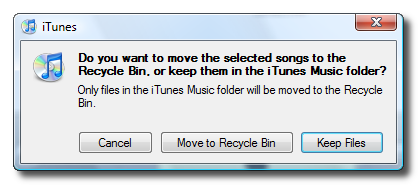
With the newly created track still selected in iTunes press the Delete key on your keyboard. A popup will appear asking to confirm its removal from the library. Click the Remove button. Another popup will appear asking you what to do with the file. Click the Keep File button.
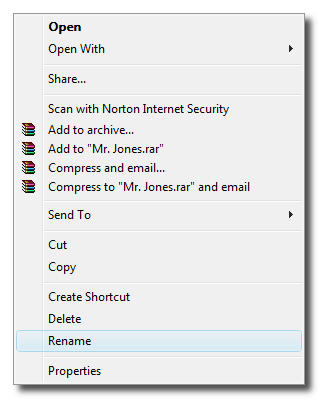
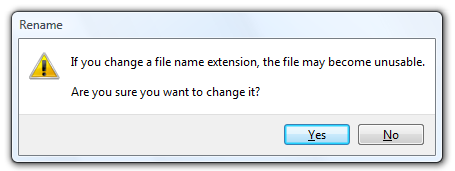
Step Ten Rename the file opened in Windows Explorer to .m4r from .m4a. Do this by Right Clicking the file then selecting Rename from popup menu. If a warning popup appears asking to confirm the file name change click the Yes button.
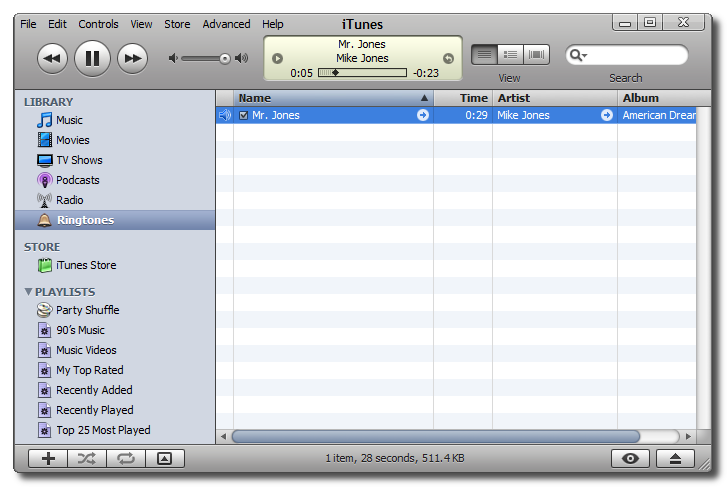
Step Eleven Once you have renamed the file on your desktop add it back to iTunes by double clicking on it. You will notice that the track now appears under the Ringtones category in iTunes.
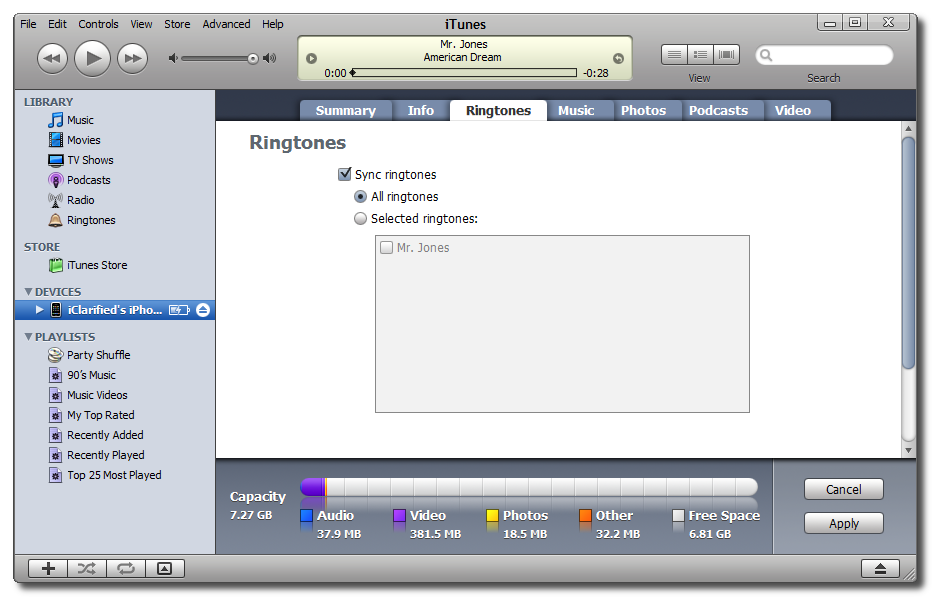
Step Twelve Connect your iPhone to the computer. In iTunes select your iPhone from the list of Devices on the left. Then select the Ringtones tab.
Check the box next to Sync Ringtones and select to either sync All Ringtones or to sync only specific ones.
Finally, click the Sync button at the bottom right to sync your newly created ringtone with your iPhone. If you have made changes to the sync settings you might have to click the Apply button before you can press to sync.
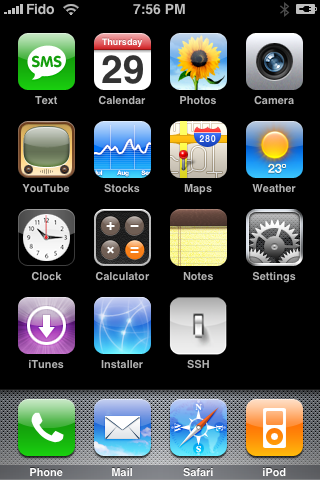
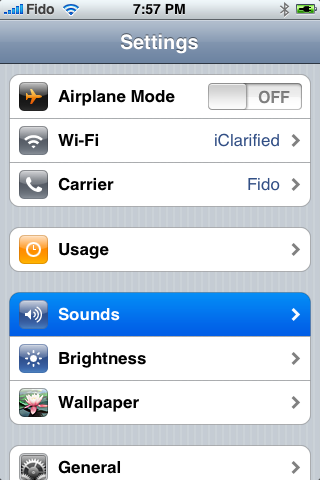
Step Thirteen To use your new ringtone with your iPhone select Settings from your iPhone's springboard.
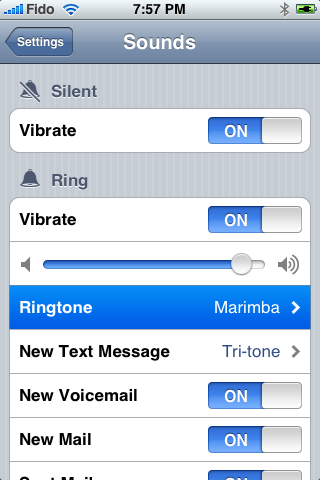
Select Sounds from the Settings menu.
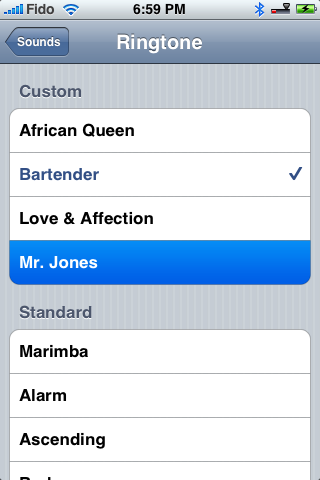
Select Ringtone from the Sounds menu.
You will see your newly created ringtone under the custom category! Press to select it!
Get the iClarified Daily Newsletter
Apple news, rumors, tutorials, price drop alerts, in your inbox every evening, free.
Unsubscribe at any time.
Success!
You have been subscribed.
Add Comment
Would you like to be notified when someone replies or adds a new comment?
Yes (All Threads)
Yes (This Thread Only)
No
Notifications
Would you like to be notified when we post a new Apple news article or tutorial?
Awesome, It really helped.. Though it is mess every time I would like to use my ringtone..but hats off to you man..Your step by step explanation was amazing.
cheers :)
Hi... i have tried all the steps that are mentioned, i am using iphone 3gs, i am using itunes 9.0 version but still i cannot find importing sub tab in advanced in preferences. and moreover i couldn't get ringtones subcategory on the left hand side of the itunes section.... can you please help me with the issue...
This worked REALLY good, but after the huge iPhone update it doesn't work anymore. I mean, I can still see the ringtone I made in the "Ringtones" section of my iTunes but when I sync it nothing knew from my "Ringtones" section goes through anymore....help?
For the people having the problem, of ringtones having all the same names (and also playing the same song, n mather wich one you click on the phone)
-> Using more than one song on the phone, is (in my findings) only possible if you NOT synch manually. You have to use the auto-synch function, then it works like a charm...
This part is mostly left out in all of the video tutorials....
To get rid of the "same name for all" problem ->
In Itunes, right click each of your ringtones -> get info -> wipe out all song data (genre, composer, ...) except for the title. Be sure to go trough all the tabs, so that the only thing left, is the song name.
That way, problem is solved ;)
Thanks a lot this is really helpful. I'm never going to pay $2.00 for a ring tone especially if its already on my phone. Works great with iTunes 7.7 and a 3g iPhone.
nice bro...very nice...finally something that is really useful without havin to pay for some stupid stuff just to mess up your phone...thanks bro..props





![Apple Developing iPhone Game Controllers Likely to Launch Under Beats [Report]](/images/news/102201/102201/102201-160.jpg "Apple Developing iPhone Game Controllers Likely to Launch Under Beats [Report]")
![Apple to Remove Video Walls and Bring Back Dedicated Genius Bars [Gurman]](/images/news/102198/102198/102198-160.jpg "Apple to Remove Video Walls and Bring Back Dedicated Genius Bars [Gurman]")
![John Ternus and Joz Discuss iPhone Duo Design, Price, and iPhone 18 Pro Camera [Video]](/images/news/102197/102197/102197-160.jpg "John Ternus and Joz Discuss iPhone Duo Design, Price, and iPhone 18 Pro Camera [Video]")






![Apple Studio Display XDR Hits All-Time Low of $2,969.99 ($329 Off) [Deal]](/images/news/101976/101976/101976-160.jpg "Apple Studio Display XDR Hits All-Time Low of $2,969.99 ($329 Off) [Deal]")
![Apple AirPods Pro 3 Drop to $199 ($50 Off) [Deal]](/images/news/101966/101966/101966-160.jpg "Apple AirPods Pro 3 Drop to $199 ($50 Off) [Deal]")
