These are instructions on how to add subtitles to your movies and videos so they can be watched using iTunes and the Apple TV.
To follow these steps you will need a program called Submerge which can be downloaded from here. There may be other programs which offer similar functionality but we have found Submerge to work quite well.
Step One Install then launch Submerge from your Applications folder.
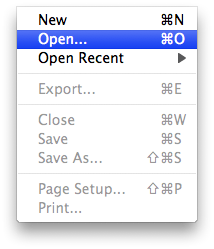
Step Two Select Open from the File menu.
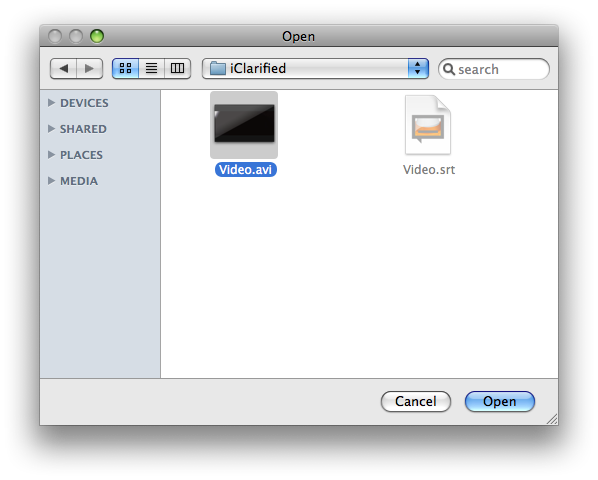
Step Three Select the video file you would like to add subtitles to then click the Open button.
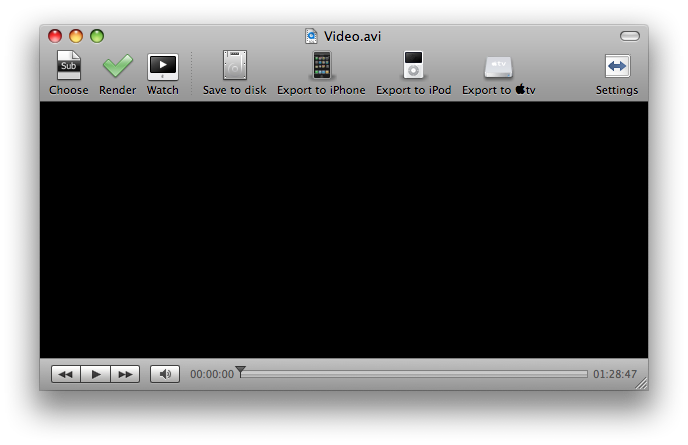
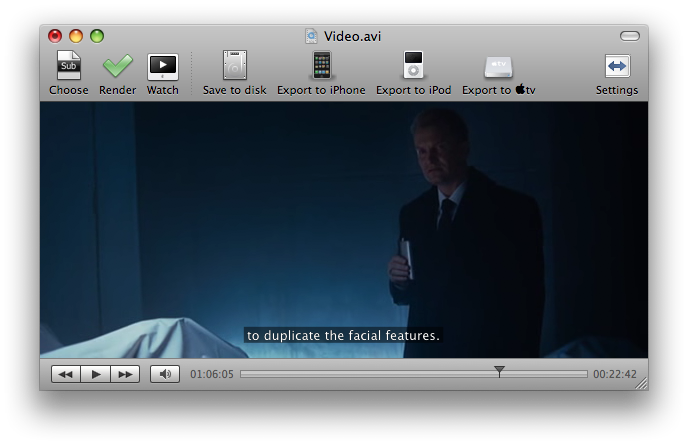
Step Four Click the Choose button in the toolbar.
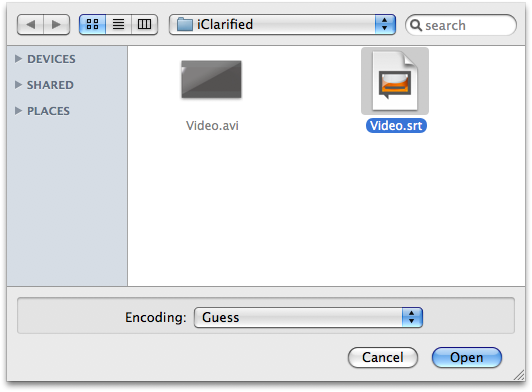
Step Five Select the .srt subtitle file for your video then click the Open button.
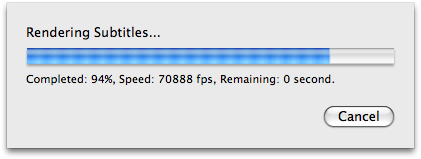
Step Six Submerge will render the subtitles onto your video.
Step Seven You can now skip through the video or movie and make sure the subtitles are correct.
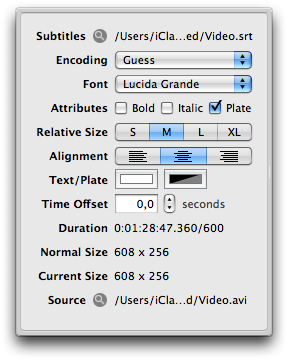
Step Eight Use the Settings button on the toolbar to open the Settings drawer.
From here you can customize how your subtitles look. You can set the font, attributes, relative size, alignment, text/plate, and time offset.
Step Nine Once done customizing the look of your subtitles click the Render button on the toolbar to commit the changes.
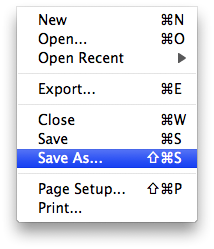
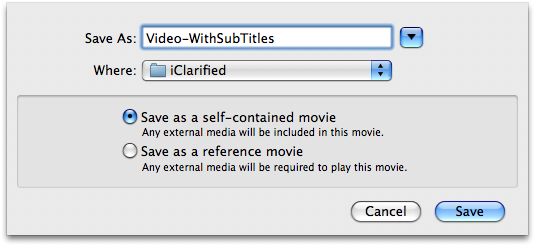
Step Ten In order to view subtitles in iTunes we must hard code the subtitles into the movie or video. Select Save As from the File menu.
Step Eleven Enter a name for the new subtitled file then click the Save button.
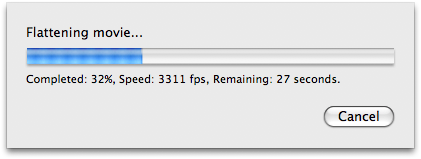
Step Twelve Submerge will now create a new file with the subtitles hard coded into it. This does not require recoding of the video so it is very fast. It shouldn't take more then a minute or so for a full length movie.
You can then drag the movie or video into iTunes to import it as you normally would.
Get the iClarified Daily Newsletter
Apple news, rumors, tutorials, price drop alerts, in your inbox every evening, free.
Unsubscribe at any time.
Success!
You have been subscribed.
Add Comment
Would you like to be notified when someone replies or adds a new comment?
Yes (All Threads)
Yes (This Thread Only)
No
Notifications
Would you like to be notified when we post a new Apple news article or tutorial?
Existem dois programas indispensáveis para este tipo de operação e muito mais no Mac: Subtitles theEditor e Subler. Com estes dois programas simples, a sincronia e adicionar legendas, deixou de ser problema.
VC-Portugal
Email note from the developer:
This tutorial is wrong ;-)
When you flatten the movie the subtitles doesn't "burn" into the video track. A flattened movie will only play in QuickTime Player as the subtitle track is separate from the video track.
You need to Export the movie to hard-code (i.e. "burn") the subtitles using any of the other presets.
I recommend using a program called iSubtitle from the same company that makes Submerge, because it lets you "soft encode" any number of subtitles in different languages and then turn them on or off and switch between them in iTunes, on Apple TV and on the iPhone.
iSubtitle is great...
But if you want to add subtitles to a DRM protected movie (like the ones sold on itunes) you will also need requiem 1.8.9 any other version will not work.
Requiem will create a DRM free copy of a movie and then you can add the subtitles with isubtitle








![OLED iPad mini Expected in Late October or November [Report]](/images/news/102552/102552/102552-160.jpg "OLED iPad mini Expected in Late October or November [Report]")
![Redesigned MacBook Pro Said to Be 'Significantly Lighter' [Gurman]](/images/news/102549/102549/102549-160.jpg "Redesigned MacBook Pro Said to Be 'Significantly Lighter' [Gurman]")
![John Ternus Emerges as Apple's De Facto Design Chief [Gurman]](/images/news/102555/102555/102555-160.jpg "John Ternus Emerges as Apple's De Facto Design Chief [Gurman]")
![How To Turn Off Always On Display on iPhone [Video]](/images/tutorials/87524/87524/87524-160.jpg "How To Turn Off Always On Display on iPhone [Video]")
![How To Change Wallpaper on Mac [Video]](/images/tutorials/90512/90512/90512-160.jpg "How To Change Wallpaper on Mac [Video]")

![How To Back Up Your iPhone to an External Drive on Mac [Video]](/images/tutorials/72786/72786/72786-160.jpg "How To Back Up Your iPhone to an External Drive on Mac [Video]")

![AirPods Pro 3 Drop to $179, Lowest Price Since June [Deal]](/images/news/102558/102558/102558-160.jpg "AirPods Pro 3 Drop to $179, Lowest Price Since June [Deal]")



![16-Inch M5 Max MacBook Pro Drops $900 to New Low of $3,499 [Deal]](/images/news/102438/102438/102438-160.jpg "16-Inch M5 Max MacBook Pro Drops $900 to New Low of $3,499 [Deal]")
