These are instructions on how to extract the backups that iTunes makes of your iPhone using iPhone Backup Extractor for Mac.
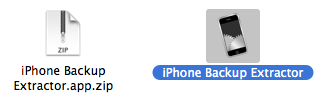
Step One Download iPhone Backup Extractor (iPhone Backup Extractor.app.zip download no longer available) and save it to your desktop.
Step Two Double click to extract the archive then drag the extracted application into your Applications folder to install it.
Step Three Double click iPhone Backup Extractor icon from the applications folder to launch it.
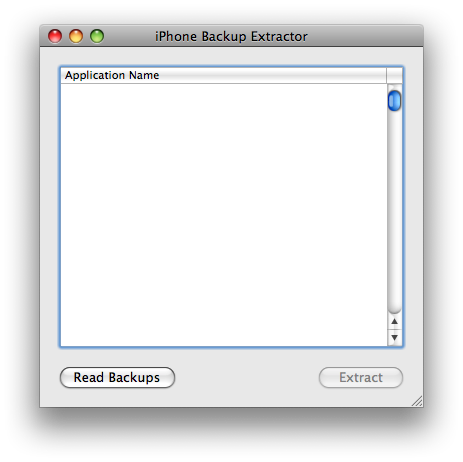
Step Four Click the Read Backups button to have the application display the iPhone backups on your system.
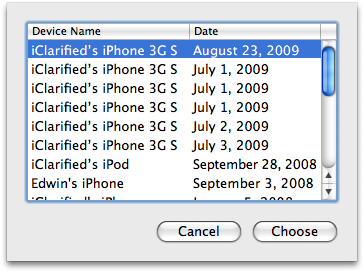
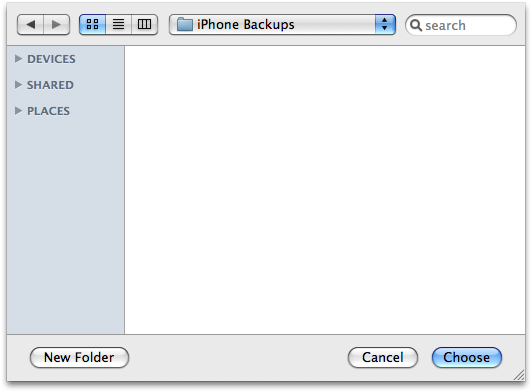
Step Five Select the backup you would like to extract from the list that appears then click the Choose button.
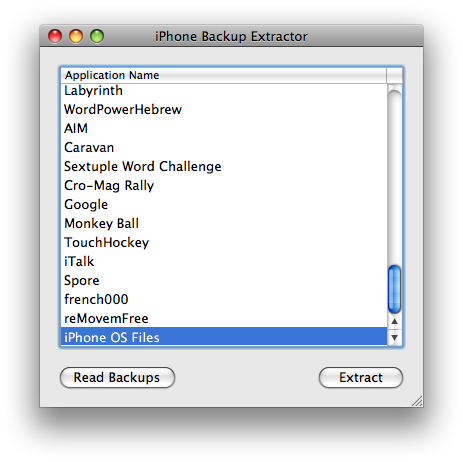
Step Six iPhone Backup Extractor will then display a list of the different application settings that can be extracted. Make a selection from the list then click the Extract button.
Note: In this example we will select iPhone OS Files as this contains the more important information we might want to recover such as contacts or sms etc.
Step Seven You will now be asked to select a location for the extraction. Navigate to the folder of your choice then click the Choose button.
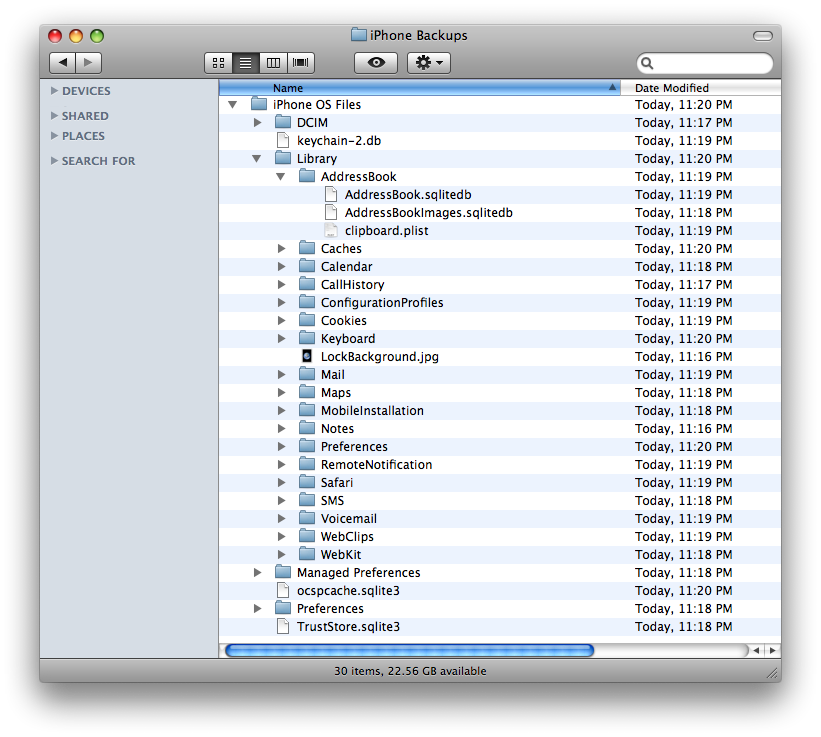
Step Eight You can now navigate to the folder you specified for extraction. In it you will find a folder called iPhone OS Files. This folder will contain the extracted system settings and data.
NOTE***: You will notice many of the files have a .sqlitedb extension. These are database files that can be opened using Sqlite Database Browser. You can download it here.
THANKS***: Thanks go out to Pádraig for creating this utility.
Get the iClarified Daily Newsletter
Apple news, rumors, tutorials, price drop alerts, in your inbox every evening, free.
Unsubscribe at any time.
Success!
You have been subscribed.
Add Comment
Would you like to be notified when someone replies or adds a new comment?
Yes (All Threads)
Yes (This Thread Only)
No
Notifications
Would you like to be notified when we post a new Apple news article or tutorial?
Are you sure that you choose the contacts before you extracted the backup? If you chose but it still shows the contact, it may be some damage on your backup. So I advice you use iTunes or some recovery tool to check up the contacts on your iTunes backup. I recommend you the FonePaw iPhone Data Recovery which can check up the backup of your iTunes for free.
Is there any way possible way to recover a deleted voice memo which was never imported into iTunes or iCloud. I am guessing it must still be stored somewhere inside the iPhone itsself and hopefully recovered or am I completely wrong?
Wow, a very nice post. Thank you for sharing. And I also know a freeware which do the same thing. It's called iRefone with both windows & mac versions.
I can't find my old backed-up notes! Can you help? I used iPhone Backup Extractor to get to the notes in backup and then downloaded SQLite Database Browser in hopes to view the text. But I cannot figure that out! Can you help explain how I get my notes text using SQLite Database Browser??
Thanks!!!
after I have done all that, what do I do to actually backup the iPhone with the information I gathered from this software (Excuse the ignorance please).
unfortunately it doesn't work if your backup is encrypted. there disnae seem to ba anything out there that will allow you to retreve your info from an encrypted iphone backup - even if [as is the case here] you know the password.
most frustrating!
Wow, this totally worked for me. You need to disable encryption and be sure the backup was stored successfully in your MobileSync/Backup Folder. I researched hours before finding this, whew! Only problem I'm having now is I'm unable to see the time on the deleted call logs, let me know if there is a solution to this.
Thanks!
all right !! but what do you do if you have an already encrypted backup file which you need to extract ? this is my case, and itunes, after successfully creating the encrypted backup with my latest settings/photos .etc.., was totally unable to restore my iphone using this newly created backupfile (the progress bar hangs or throws an error *Itunes cannot restore the iphone '[yourName]'s" because an unknown error has occured" , while being half way.)
My iPhone backup was encrypted. Is it the reason that after I extract the content, (e.g. iPhone OS Files), the extracted folder is empty?
OS X: 10.6.2, iPhone OS 3.1.3
Once we have this iPhone Backup file, can we use it on a different Mac to get our iPhone to sync on a new Mac?
My older iMac is about to die and I'm madly trying to figure out how best to get all my iPhone data over to the newer iMac.
What do you recommend? I've moved all my iTunes music, movies, podcasts and even the applications over using iTunes' home sharing feature. But I'm very concerned that I will lose all my contacts, SMS messages, notes, and iCal information when I go to sync my jailbroken and unlocked iPhone on my new iMac the first time. I also do not want to lose my jailbroken and unlocked status.
Can you advise me on how to proceed from here before my older iMac gives up the ghost and I'm truly up a creek?
Thanks!






![Apple Developing iPhone Game Controllers Likely to Launch Under Beats [Report]](/images/news/102201/102201/102201-160.jpg "Apple Developing iPhone Game Controllers Likely to Launch Under Beats [Report]")
![Apple to Remove Video Walls and Bring Back Dedicated Genius Bars [Gurman]](/images/news/102198/102198/102198-160.jpg "Apple to Remove Video Walls and Bring Back Dedicated Genius Bars [Gurman]")
![John Ternus and Joz Discuss iPhone Duo Design, Price, and iPhone 18 Pro Camera [Video]](/images/news/102197/102197/102197-160.jpg "John Ternus and Joz Discuss iPhone Duo Design, Price, and iPhone 18 Pro Camera [Video]")








![Apple Studio Display XDR Hits All-Time Low of $2,969.99 ($329 Off) [Deal]](/images/news/101976/101976/101976-160.jpg "Apple Studio Display XDR Hits All-Time Low of $2,969.99 ($329 Off) [Deal]")
![Apple AirPods Pro 3 Drop to $199 ($50 Off) [Deal]](/images/news/101966/101966/101966-160.jpg "Apple AirPods Pro 3 Drop to $199 ($50 Off) [Deal]")
