These are instructions on how to jailbreak your iPhone 3GS on the 3.1.2 iPhone firmware using RedSn0w for Windows. If you are already on firmware 3.1.2, do NOT update to firmware 3.1.3. The Mac version of this tutorial is here. The 3G version of this tutorial is here . The 2G version of this tutorial is here
This tutorial can be used to jailbreak before applying the BlackSn0w unlock if you are on OS 3.1.2. You can find instructions on how to apply the unlock here.
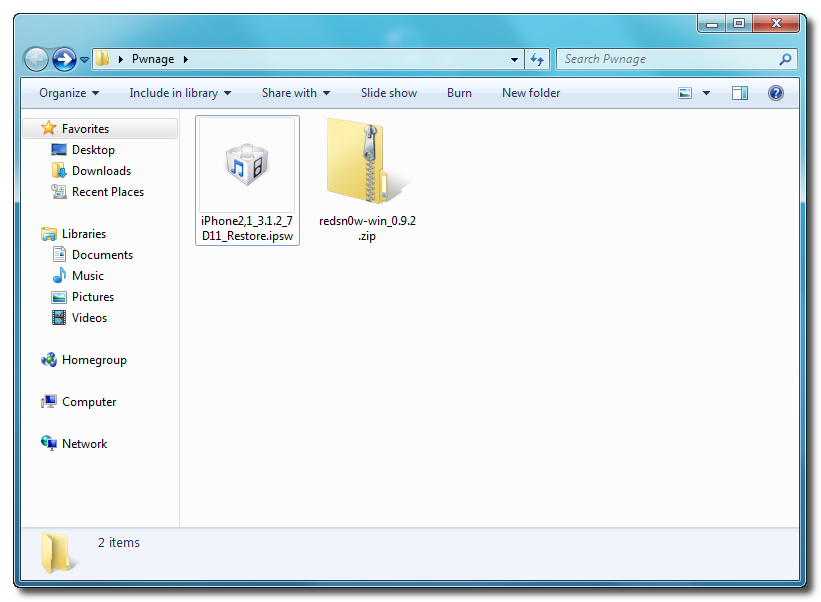
Step One Create a folder on your desktop called Pwnage
Download RedSn0w from here and place it in the Pwnage folder. Likewise, download the latest 3.1.2 firmware from below and place it in the same folder.
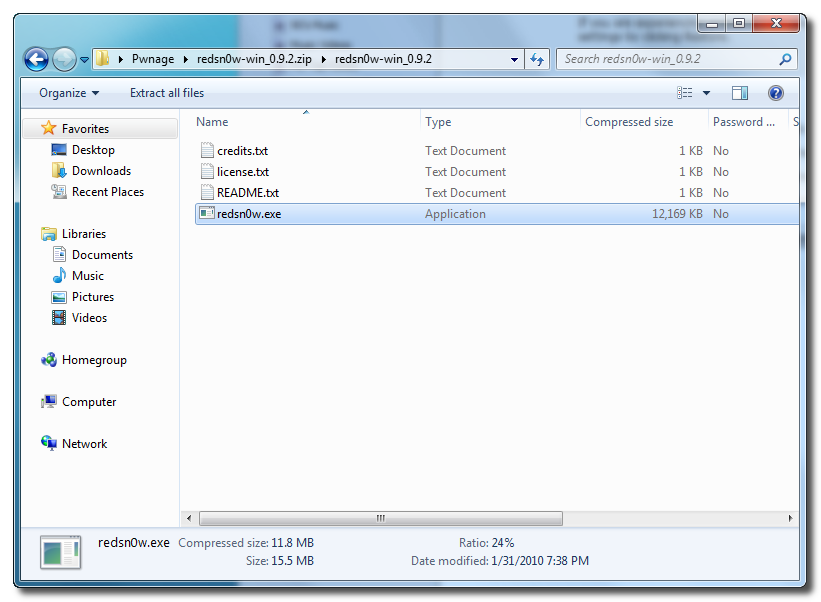
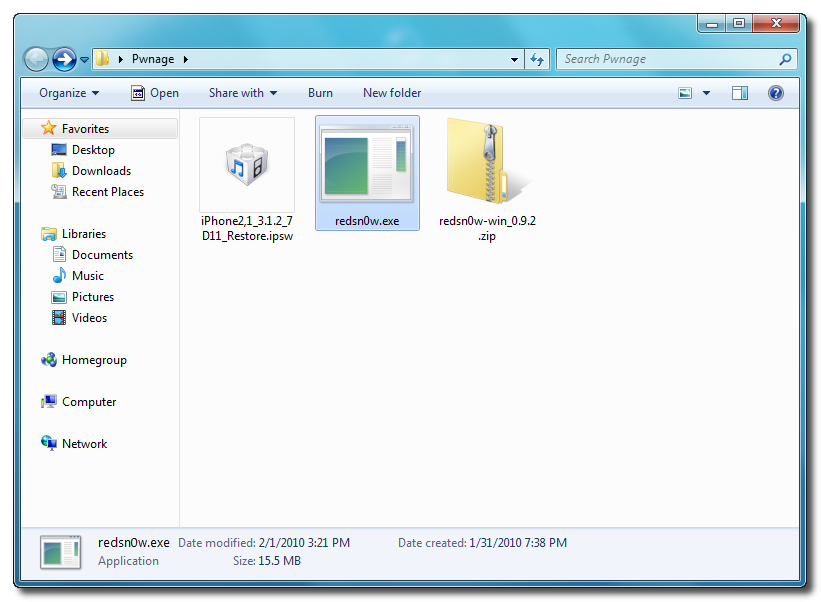
Extract the RedSn0w executable from the zip file to the Pwnage folder.
Step Two ***If you are running iPhone OS 3.1.2 you may skip this step***
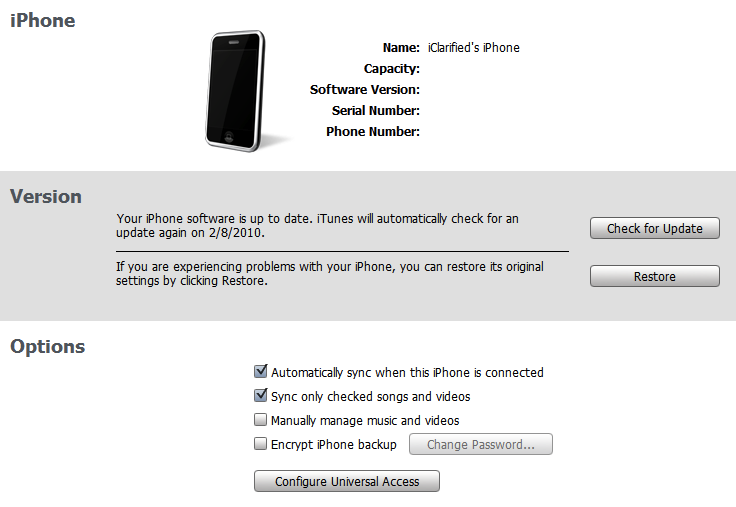
Connect your iPhone to the computer and launch iTunes.
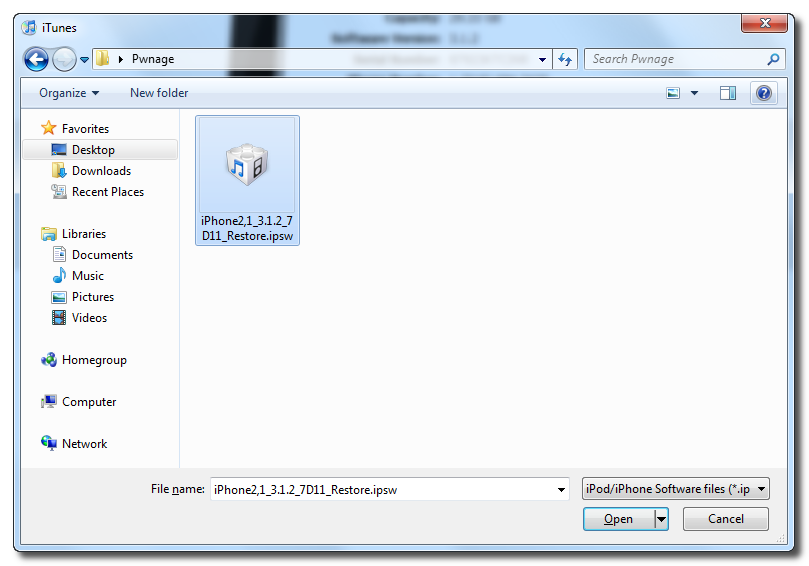
Select your iPhone from the list of devices on the left. Now hold down shift and click the Restore button. Restore is preferred as it won't create any wasted space on your iPhone.
Navigate to the Pwnage folder on your desktop and select the firmware ipsw. Click the Open button to continue.
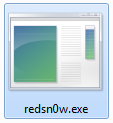
Step Three Once iTunes has finished updating your iPhone to the desired firmware you may launch redsnw0w.exe from the Pwnage folder on your desktop.
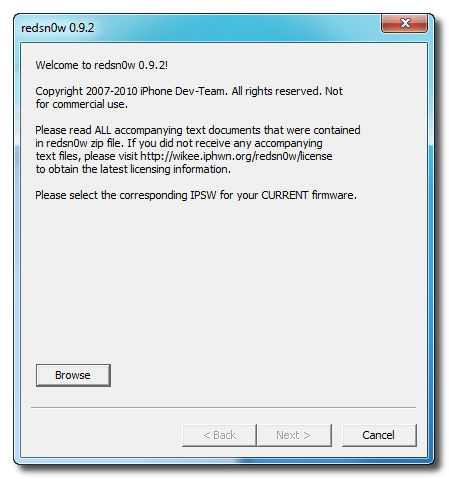
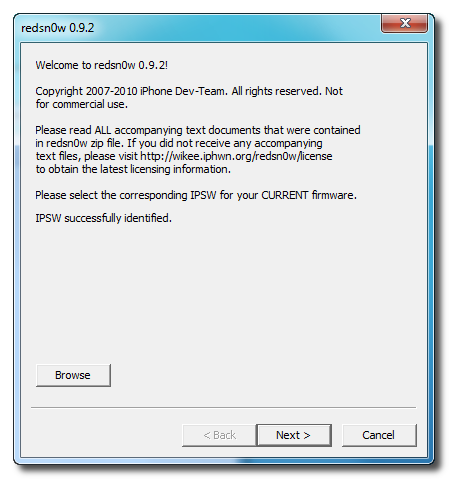
Step Four Once RedSn0w opens click the Browse button
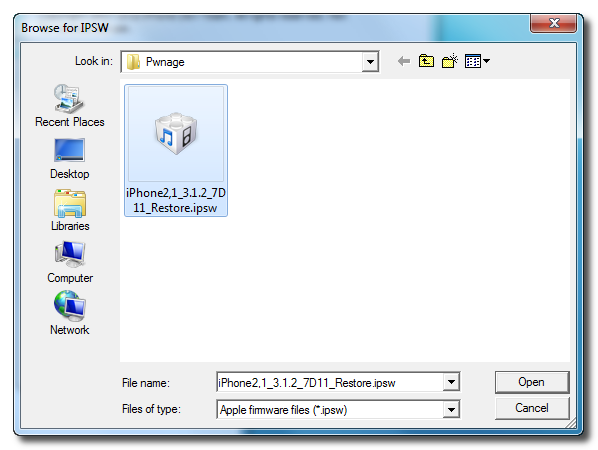
Step Five Select the firmware ipsw we placed in the Pwnage folder on our desktop then click Open
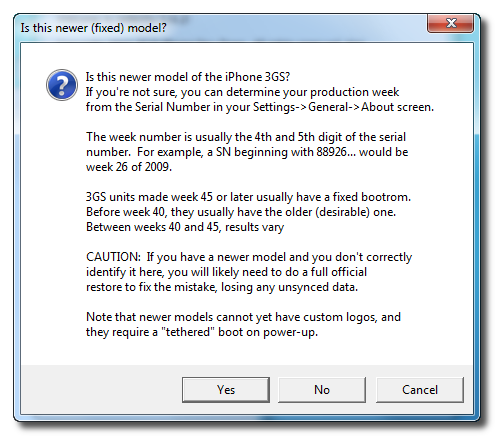
Step Six RedSn0w will ask you if this is a newer (fixed) model iPhone. Newer models of the iPhone 3GS have a fixed bootrom which requires you to connect your device to the computer each time you wish to reboot.
To find your serial number you can follow these instructions. The week number is usually the 4th and 5th digit of the serial number. For example, a serial number beginning with 88926 would be week 26 of 2009. 3GS units made week 45 or later will usually have a fixed bootroom. Before week 40 they usually have the older bootroom. Between weeks 40 and 45 the results vary.
If you believe your device has a fixed bootrom then press the Yes button. Otherwise press the No button.
If you accidentally select the wrong option you may have to do a full restore so please make this choice carefully.
Once the firmware has been verified click the Next button to continue.
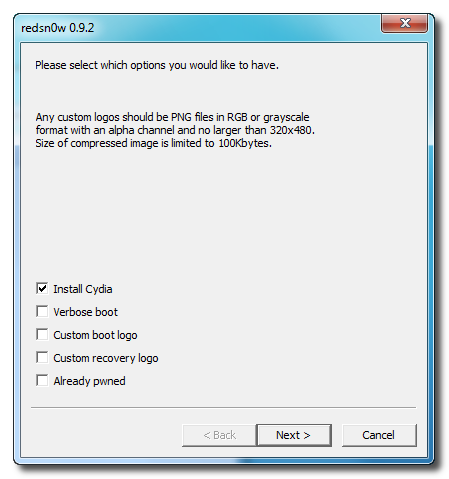
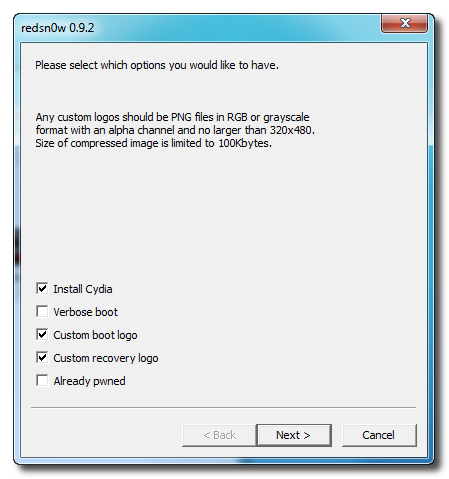
Step Seven Make sure Cydia is selected and click the Next button. From this window you can select the jailbreak options you would like. If you have already pwned your device check the Already pwned option.
Verbose boot displays detailed information on boot of your device and is generally only needed by developers and advanced users.
Make sure Cydia is selected. For this tutorial we will also select Custom boot logo and Custom recovery logo.
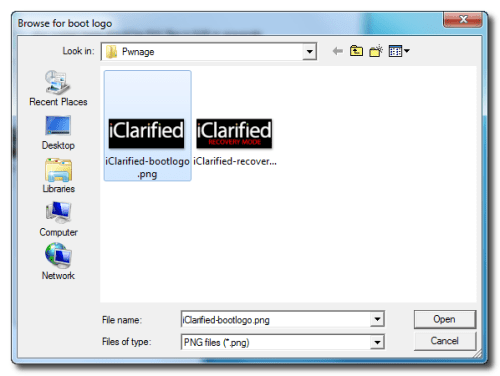
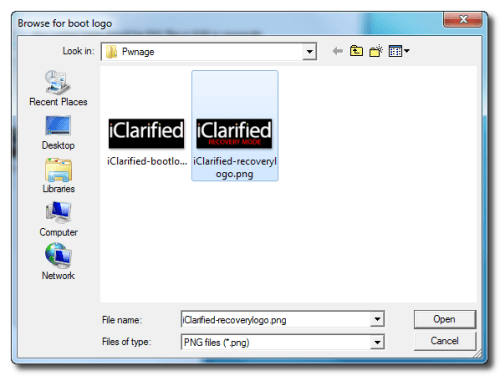
When you click to select each custom logo option a dialog window will appear asking you to select the image. Locate the image you would like to use then press the Open button.
*Remember the rules for boot logos are: RGB or Grayscale format with Alpha channel and dimension below 320x480. If you would like to use the iClarified ones they can be found here: Boot Logo, Recovery Logo
Click the Next button to continue
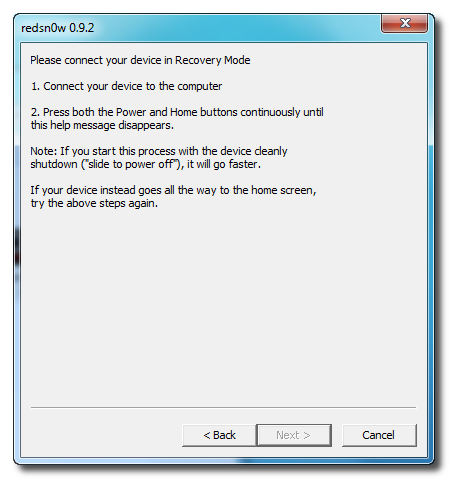
Step Eight RedSn0w will now instruct you on how to put your iPhone into recovery mode. Disconnect you iPhone 3GS from the computer then power it off. Then hold down the Home button while reconnecting the device to the computer. Don't let go of the button until RedSn0w detects the iPhone and begins installation.
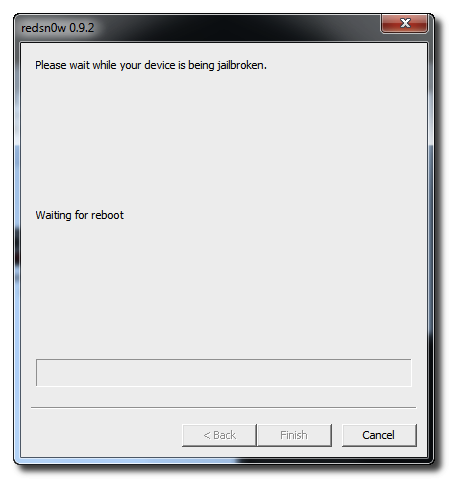
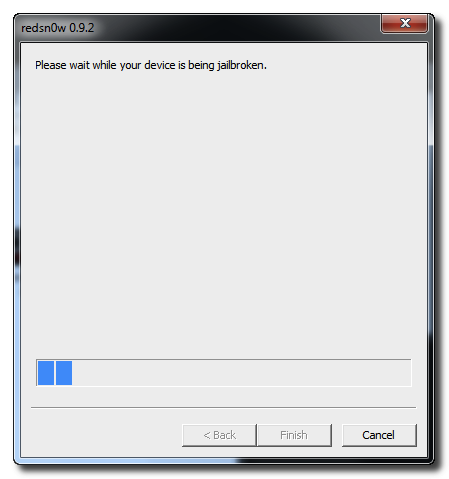
Step Nine Your iPhone will now reboot
Step Ten RedSn0w will then begin uploading the new RAM Disk and kernel.
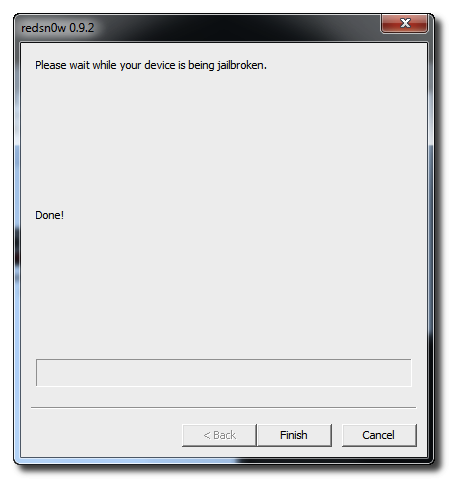
Step Eleven Once this is complete you will be notified that RedSn0w is done. Click the Finish button. When your iPhone finishes rebooting (5 minutes or so) it will be jailbroken with Cydia on the SpringBoard.
*As usual a big thanks to the iPhone Dev-Team for this contribution to the community.
Get the iClarified Daily Newsletter
Apple news, rumors, tutorials, price drop alerts, in your inbox every evening, free.
Unsubscribe at any time.
Success!
You have been subscribed.
Add Comment
Would you like to be notified when someone replies or adds a new comment?
Yes (All Threads)
Yes (This Thread Only)
No
Notifications
Would you like to be notified when we post a new Apple news article or tutorial?
Is it true that if I currently have OS 3.0.1, I won't be able to upgrade to 3.1.2? I tried to JB and kept getting the 3194 error when I tried to restore to 3.1.2. What's the way to upgrade??? Do I have to wait until someone come up with JB 4.1 in order to upgrade my OS? Please advice. Thank you so much.
hi all
even after the last step, i am still stuck at cd/usb cable screen for more than 30 mins
any idea why
i am on 3.1.2 bb 05 11 07 3GS
it went once into emergency mode so i ran the redsnow again but no luck
pls guide
I'm following all the teps to jailbrake my 3gs 3.1.2 but when it comes to dowload iphone2,1_3.1.2_7D11_Restore.ipsw it actually dowload a Zip file. Someone can help me and tell me why?
Quick question, i am currently running a jailbroken 3gs with 3.0.1. I want to update to 3.1.2 but not 4.0.1/ I tried to do the shift click restore method, but it wouldnt take. probably because i never had this firmware installed in the first place. is there any way to install a specific firmware, without updating to the curent one and backtracking?
thanks
Dear Team,
i have been observing all the post in regards with jailbreak iphone 3GS but it seems that thre is something still to be explained or provide a little bit guideness as i know those who have 3GS (old botroom) are experiment some issue at the time to restore the IPSW created by the software...it seems that apple constantly refuse to update with the firmware...i am been trying to do everything according with your guideness but i can not get through to unlock or jailbreak my iphone 3GS (old botroom)
I would like to ask a simple question; why it is that when you finish to create the IPSW with Redsn0w or Pwgnage tool this IPSW when you are using Itunes does not upgrade that IPSW, why is keep giving an error message?
your response to his inquiry will be highly appreciated.
Ok this is frustrating....I followed step by step based on this tutorials. After I restore the firmware 3.1.2 and install the redsnow all I see is the completely black out screen nothing comes up and I cant power on/off ...NOTHING. But when I connect to the Itune it says im in the recovery mode but you cant really see it because the screen is black. Anyway, I have 3GS 16gb and if anyone experience the same please share.
Thanks in advance.
i have not experienced it, however; i could think of the following:
1) try the procedure on a different pc, with a freshly downloaded FW and redsnow,
2) try restoring 3.1.2 then balckrain it, just to see what happens
3) if all fails and you have an OLD bootrom, try OS4
I read the link that someone metioned below but i dont understand this ..how did you add this anyway ?
" So, open the file C:\Windows\System32\drivers\etc\hosts (Windows) or /etc/hosts (Mac OS X) and add the following entry to the bottom of the file.
74.208.10.249 gs.apple.com "
i just have a question, i have two iphone 3gs, both 3.1.2 / 05.11.07 / 51week, one i didn't touch at all, fresh from at&t, locked and not in use, the other one i did redsnow several months back, so now its tethered jailbroken and unlocked.
is the perfect jailbreak out yet? do i need to treat these two phones with two different methods if i want to unlock and jaibreak them perfectly? if yes what should i use? its been bothering me for months, since the untouched phone was a birthday present for my dad but i still haven't give him yet cause he doesn't know how to tethered boot it, any help?
i have iphone 3gs 32 gb at & t phone in emergency call mode. frns pls give me ur suggestion to jailbreak my phone.which version is better 3.1.2 or 3.1.3 and which version of itunes i have to use?? thnxx for ur replies
I have an iphone 3gs 3.1.2... i had it thetered unlocked with blackra1n but suddenly when it ran out of battery and tried to unlocked, after the tipical screen comes up it shuts down again... what is happening...can somebody tell? and what to do...please...im without cell phone and i need it a lot!!!!!! please thanks.....
Please Help ...I Just Tried To JailBreak My Iphone 3GS . After I Run Redsn0w My Phone went To Black Screen n Now Nothin Happning , Itune saying u r phone pn recover mode . But my contact is in phone . please help me how can i save my contacts please help ..
Hi All,
I have just bought factory unlocked Iphone 3GS (3.1.3), and I am totally unfamiliar on how to install applications etc on my phone.
I would request experts for step by step instructions on how to install applications on my factory unlocked Iphone 3GS.
Thanks and regards,
Anees
Hi,
I have tried jailbreaking my iPhone using redsn0w but I keep going back to recovery mode (the USB + iTunes logo) after reboot. Even if I just tick the "'just tether to reboot'" it still doing the same thing...
Any idea how to fix this? Any help will be greatly appreciated.
Thanks






![Apple TV Shares 'Full Throttle' With F1 Drivers and Vince Young Ahead of U.S. Grand Prix [Video]](/images/news/103023/103023/103023-160.jpg "Apple TV Shares 'Full Throttle' With F1 Drivers and Vince Young Ahead of U.S. Grand Prix [Video]")
![MacBook Neo Helps Apple Gain PC Market Share Despite Shipment Decline [Report]](/images/news/103020/103020/103020-160.jpg "MacBook Neo Helps Apple Gain PC Market Share Despite Shipment Decline [Report]")
![iPhone Duo Teardowns Reveal Dual-Battery Design and Repair Challenges [Video]](/images/news/103014/103014/103014-160.jpg "iPhone Duo Teardowns Reveal Dual-Battery Design and Repair Challenges [Video]")


![How To Back Up Your iPhone to an External Drive on Mac [Video]](/images/tutorials/72786/72786/72786-160.jpg "How To Back Up Your iPhone to an External Drive on Mac [Video]")

![How To Find Your IP Address on iPhone [Video]](/images/tutorials/496/496/496-160.jpg "How To Find Your IP Address on iPhone [Video]")


![New Fire TV Stick 4K Drops to $29.99 (50% Off) [Deal]](/images/news/102984/102984/102984-160.jpg "New Fire TV Stick 4K Drops to $29.99 (50% Off) [Deal]")
![Apple's iPhone 18 Pro and Pro Max Cases Are Up to 37% Off [Deal]](/images/news/102978/102978/102978-160.jpg "Apple's iPhone 18 Pro and Pro Max Cases Are Up to 37% Off [Deal]")
![16-Inch MacBook Pro With M5 Pro Drops to $2,429 ($570 Off), Lowest Price We've Seen [Deal]](/images/news/102957/102957/102957-160.jpg "16-Inch MacBook Pro With M5 Pro Drops to $2,429 ($570 Off), Lowest Price We've Seen [Deal]")