These are instructions on how to backup and restore your list of Cydia applications using PkgBackup.
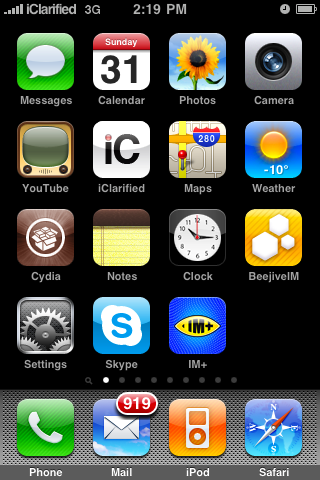
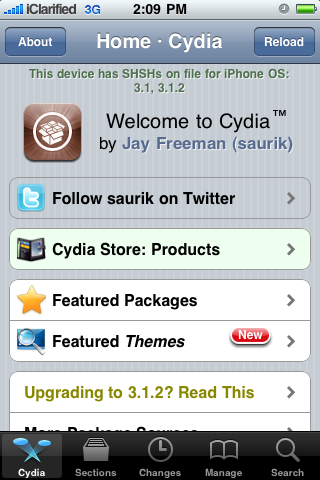
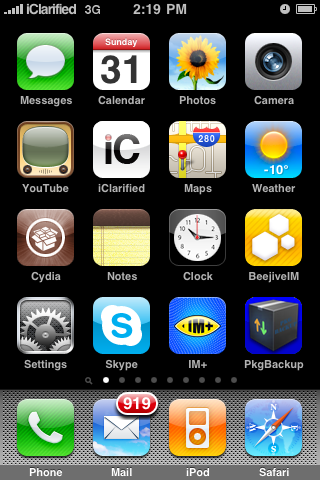
Step One Press to launch Cydia from your iPhone Springboard
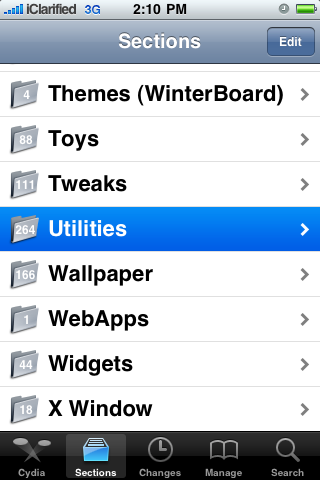
Step Two Press to select Sections from the tabs at the bottom of the screen
Step Three Press to select Utilities from the list of Sections
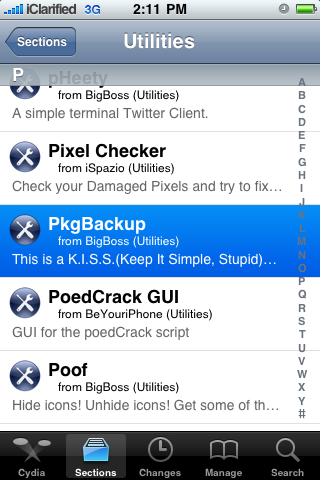
Step Four Press to select PkgBackup from the list of Packages
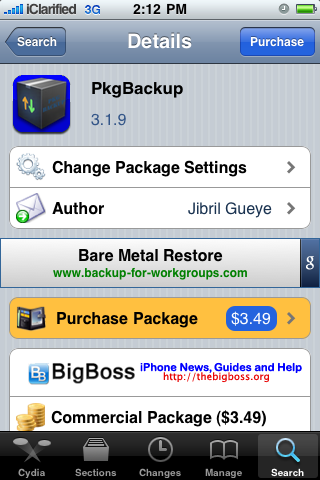
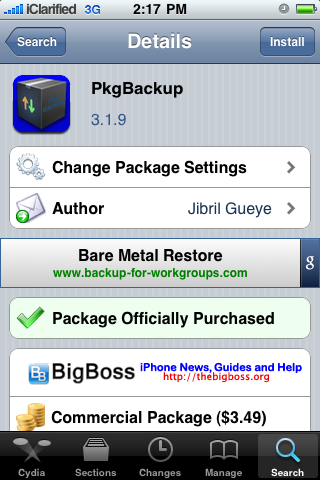
Step Five Press to Purchase PkgBackup from the Cydia Store for $3.49. Once you have entered your payment information you will be returned to the package information view where you can now press the Install button at the top right of the screen.
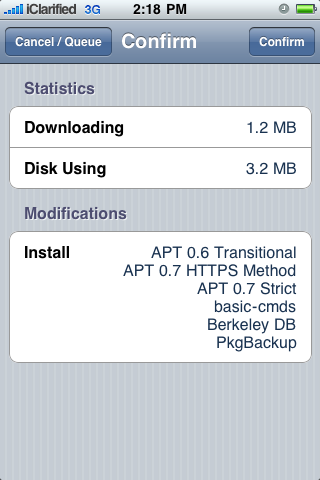
Step Six Press the Confirm button to begin your installation.
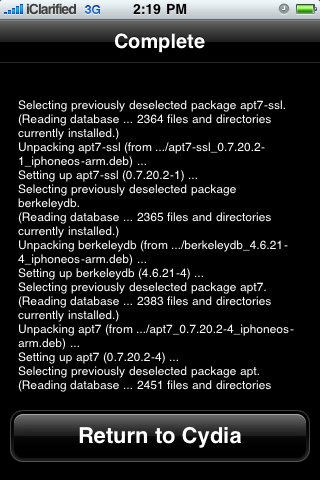
Step Seven Once installation has completed successfully press the large Return to Cydia button.
Step Eight Press the Home button to return to your Springboard then launch the newly installed PkgBackup application.
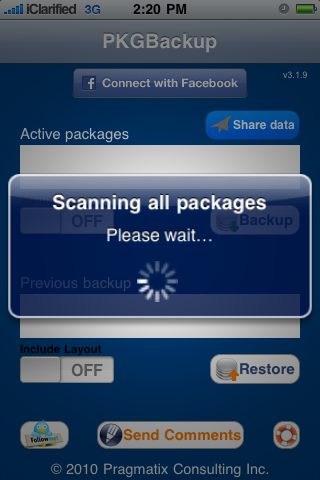
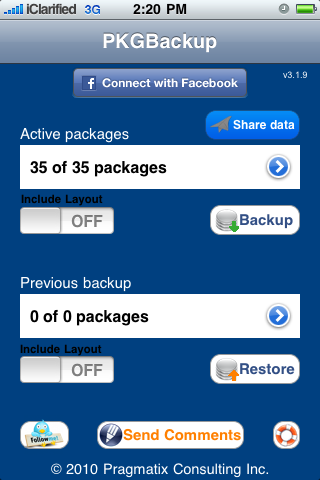
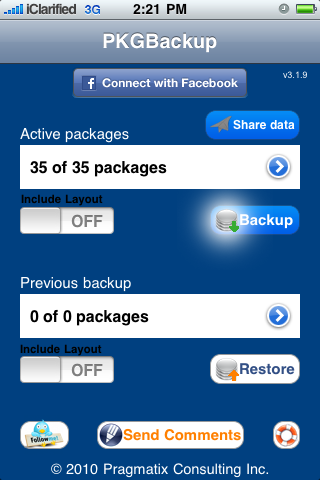
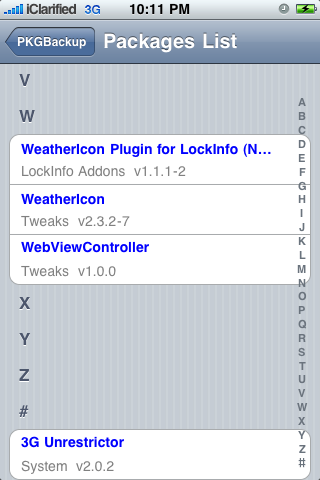
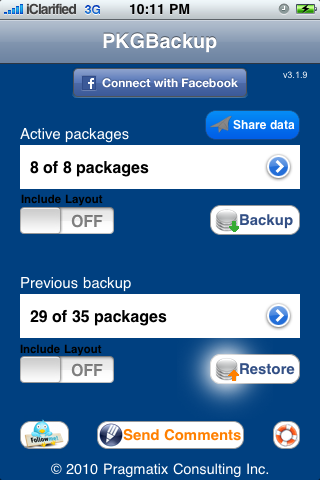
Step Nine PkgBackup will begin by scanning all your installed packages. Press the blue circular arrow button to view the list of active packages.
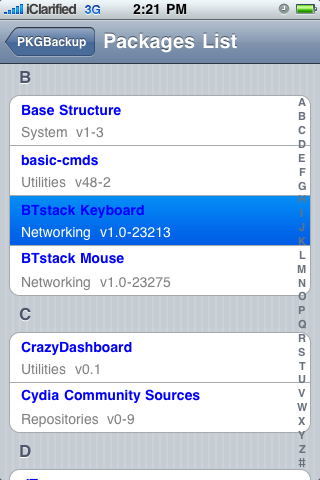
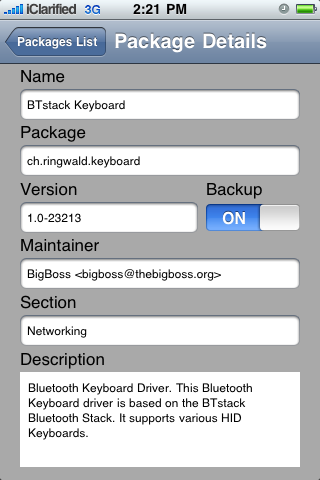
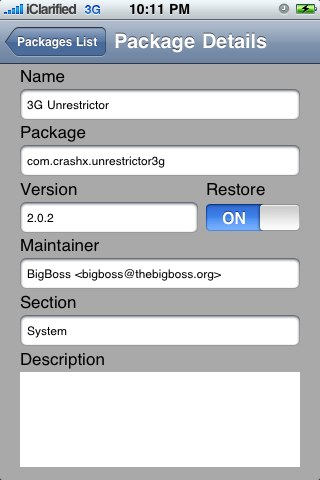
Step Ten Press to select an application from the list. From the package details window you can enable or disable backup of that particular package.
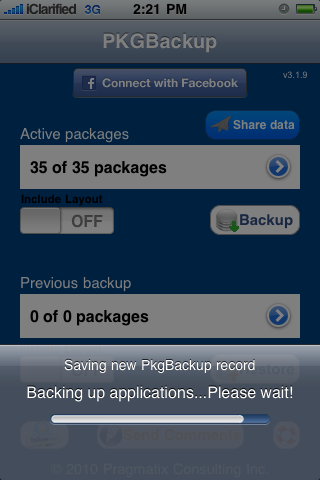
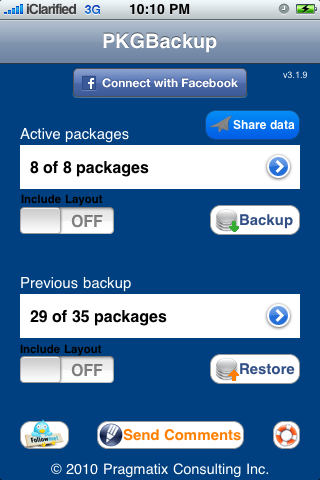
Step Eleven From the main screen you can turn the Include Layout switch to ON if you would like to save your Springboard layout. Next, press the Backup button to begin backing up your application list.
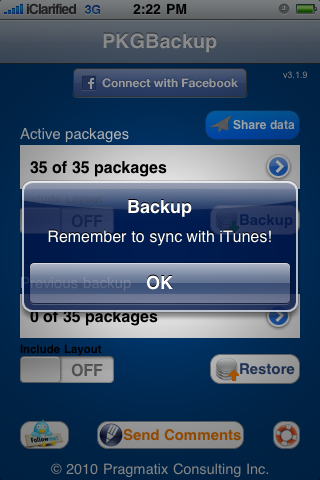
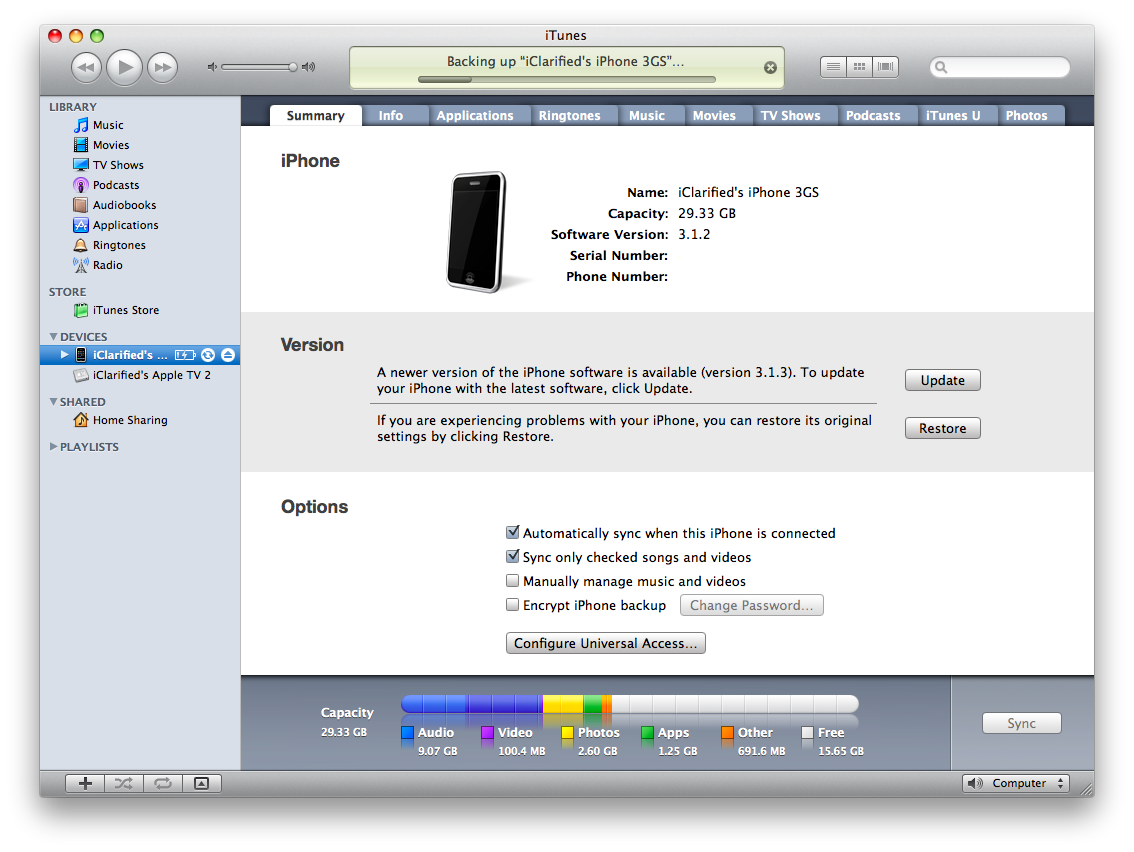
Step Twelve Once Pkgbackup is finished it will prompt you to sync with iTunes. Press the large OK button then connect your iPhone to iTunes and perform the sync. Make sure that iTunes successfully completes a backup during the sync process.
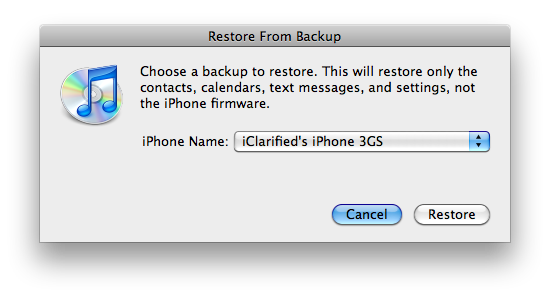
Step Thirteen If your firmware has been restored and you have lost your Cydia applications the first step is to restore the backup we just made in iTunes.
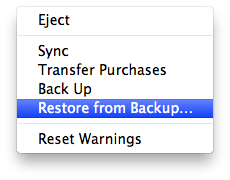
To do this, either Ctrl-Click or Right-Click on the iPhone in the list of devices in iTunes. Select Restore Backup from the popup menu that appears.
Chose the backup you would like to restore to from the list then click the Restore button.
Step Fourteen Once the backup has been successfully restored to the iPhone you will need to follow Steps One through Eight again to install and launch PkgBackup.
Step Fifteen Notice PkgBackup will detect how many packages you have installed and how many packages are available for installation from your previous backup.
Step Sixteen Press the blue circular button to see the packages from your previous backup. You can select an individual package to see its details and set whether or not it will be included in a Restore.
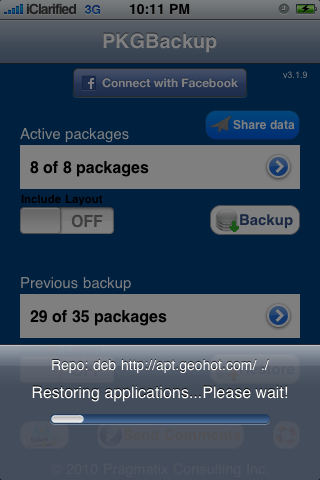
Step Seventeen Press the Restore button to begin installing all your missing applications.
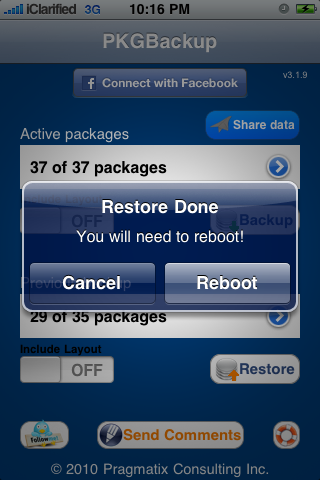
Step Eighteen Once its done installing your applications PkgBackup will ask you to reboot. Press the Reboot button.
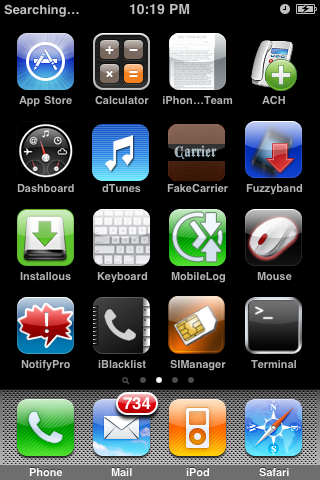
Step Nineteen Once your iPhone restarts you will have all your applications back!
Get the iClarified Daily Newsletter
Apple news, rumors, tutorials, price drop alerts, in your inbox every evening, free.
Unsubscribe at any time.
Success!
You have been subscribed.
Add Comment
Would you like to be notified when someone replies or adds a new comment?
Yes (All Threads)
Yes (This Thread Only)
No
Notifications
Would you like to be notified when we post a new Apple news article or tutorial?
There's another free backup utility:
AptBackup
It's simplier than this one, with only two buttons: Backup and Restore
And it works as this one
Restore the iPhone, jailbreak it, install aptbackup, make the restore in aptbackup
It restores the custom sources and all cydia applications
I thought it was best to start your jailbroken phone as 'a new phone' when upgrading the os. That restoring from a backup left behind mystery empty data????
Us that true?




![Apple Developing iPhone Game Controllers Likely to Launch Under Beats [Report]](/images/news/102201/102201/102201-160.jpg "Apple Developing iPhone Game Controllers Likely to Launch Under Beats [Report]")
![Apple to Remove Video Walls and Bring Back Dedicated Genius Bars [Gurman]](/images/news/102198/102198/102198-160.jpg "Apple to Remove Video Walls and Bring Back Dedicated Genius Bars [Gurman]")
![John Ternus and Joz Discuss iPhone Duo Design, Price, and iPhone 18 Pro Camera [Video]](/images/news/102197/102197/102197-160.jpg "John Ternus and Joz Discuss iPhone Duo Design, Price, and iPhone 18 Pro Camera [Video]")








![Apple Studio Display XDR Hits All-Time Low of $2,969.99 ($329 Off) [Deal]](/images/news/101976/101976/101976-160.jpg "Apple Studio Display XDR Hits All-Time Low of $2,969.99 ($329 Off) [Deal]")
![Apple AirPods Pro 3 Drop to $199 ($50 Off) [Deal]](/images/news/101966/101966/101966-160.jpg "Apple AirPods Pro 3 Drop to $199 ($50 Off) [Deal]")
