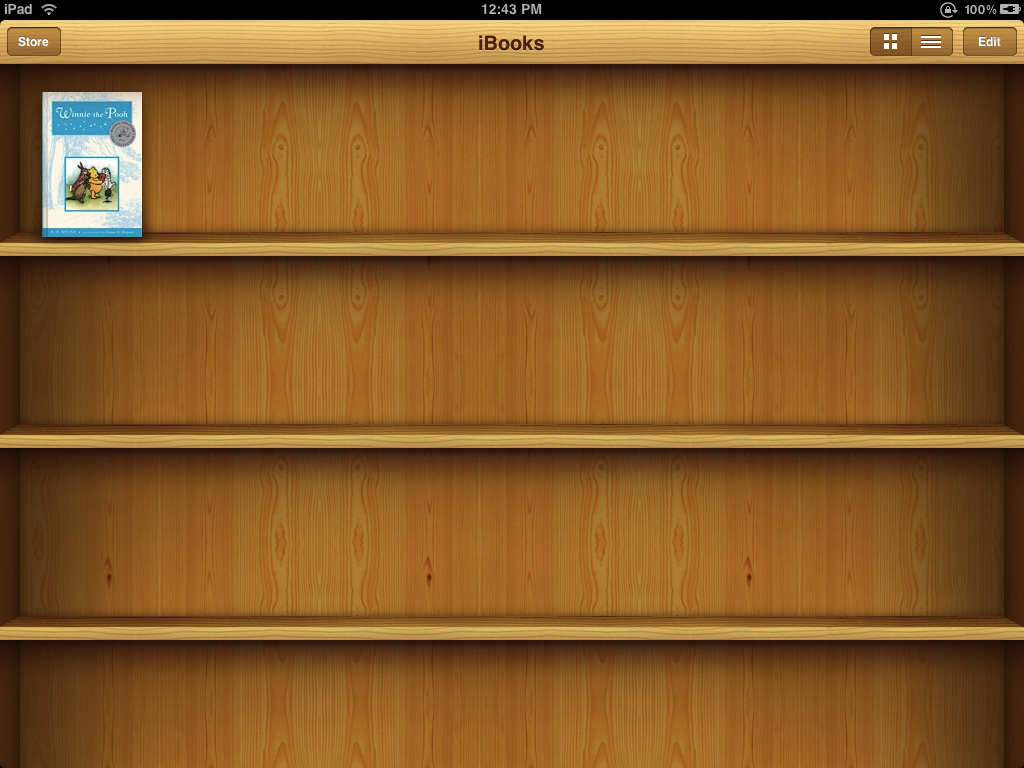
These are instructions on how to transfer a DRM-free ePub formatted eBook to your iPad for reading in iBooks.
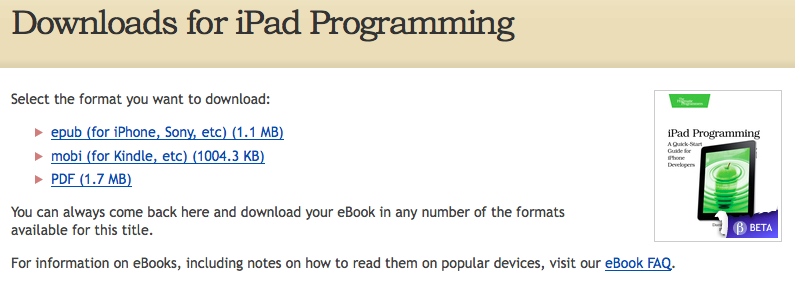
Step One Download the ePub title and save it on your desktop. In this example I will be downloading the iPad Programming book by Daniel H Steinberg and Eric T Freeman.
Step Two Launch iTunes by clicking its icon in the dock
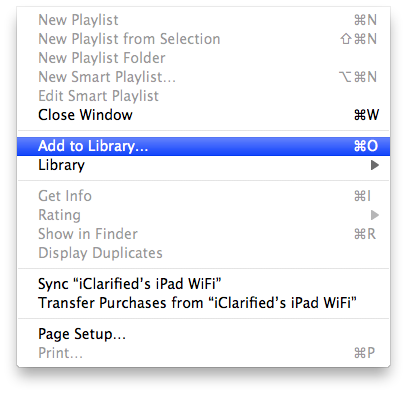
Step Three Click to select Add to Library... from the File menu.
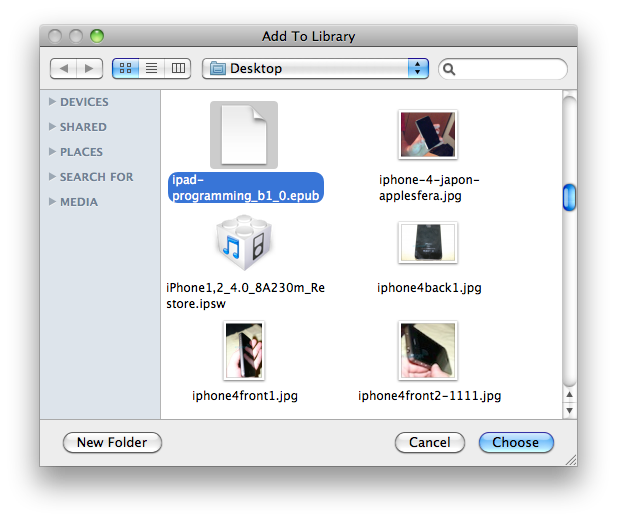
Step Four Select the eBook file from your Desktop and click the Choose button.
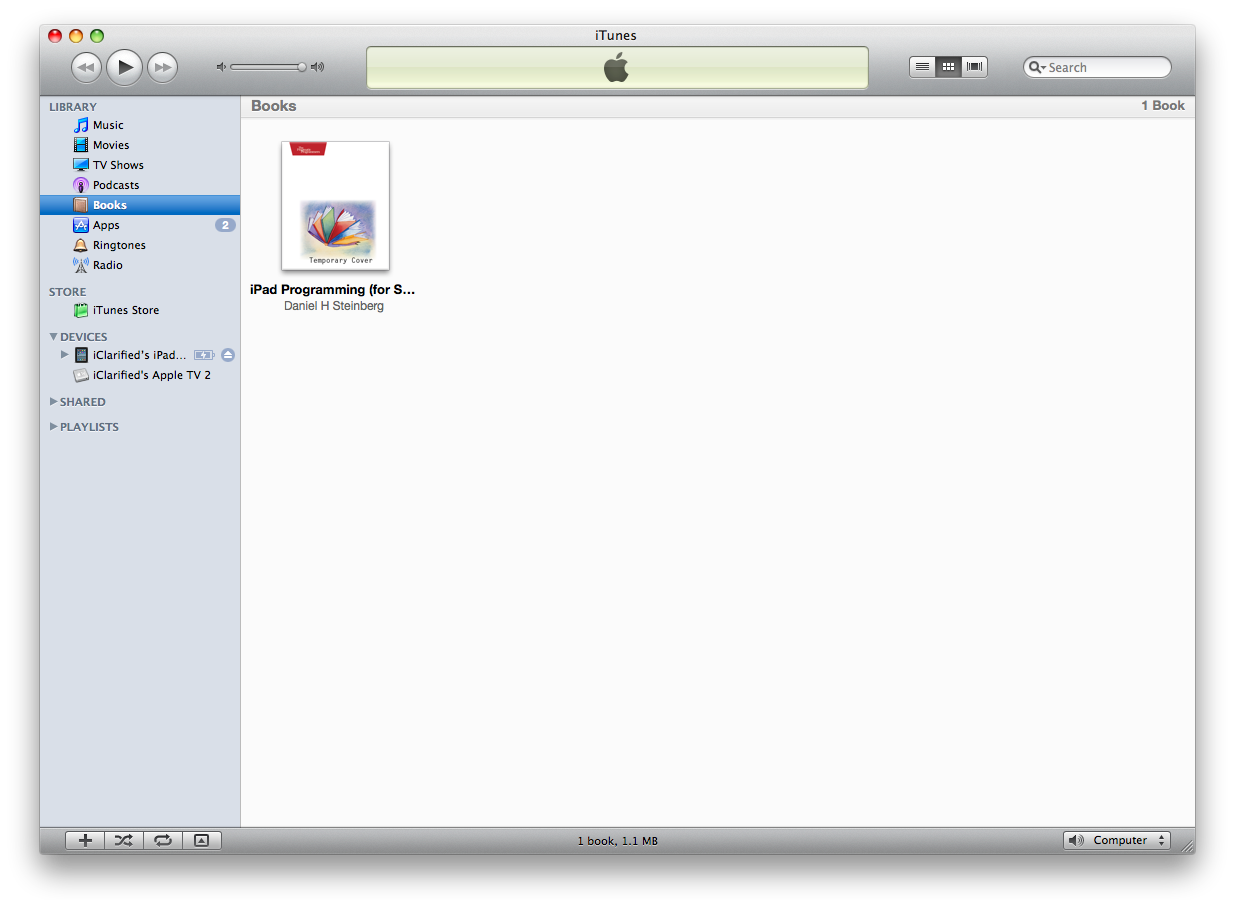
Step Five Click to select Books from the list of libraries on the left. Notice your book is now listed.
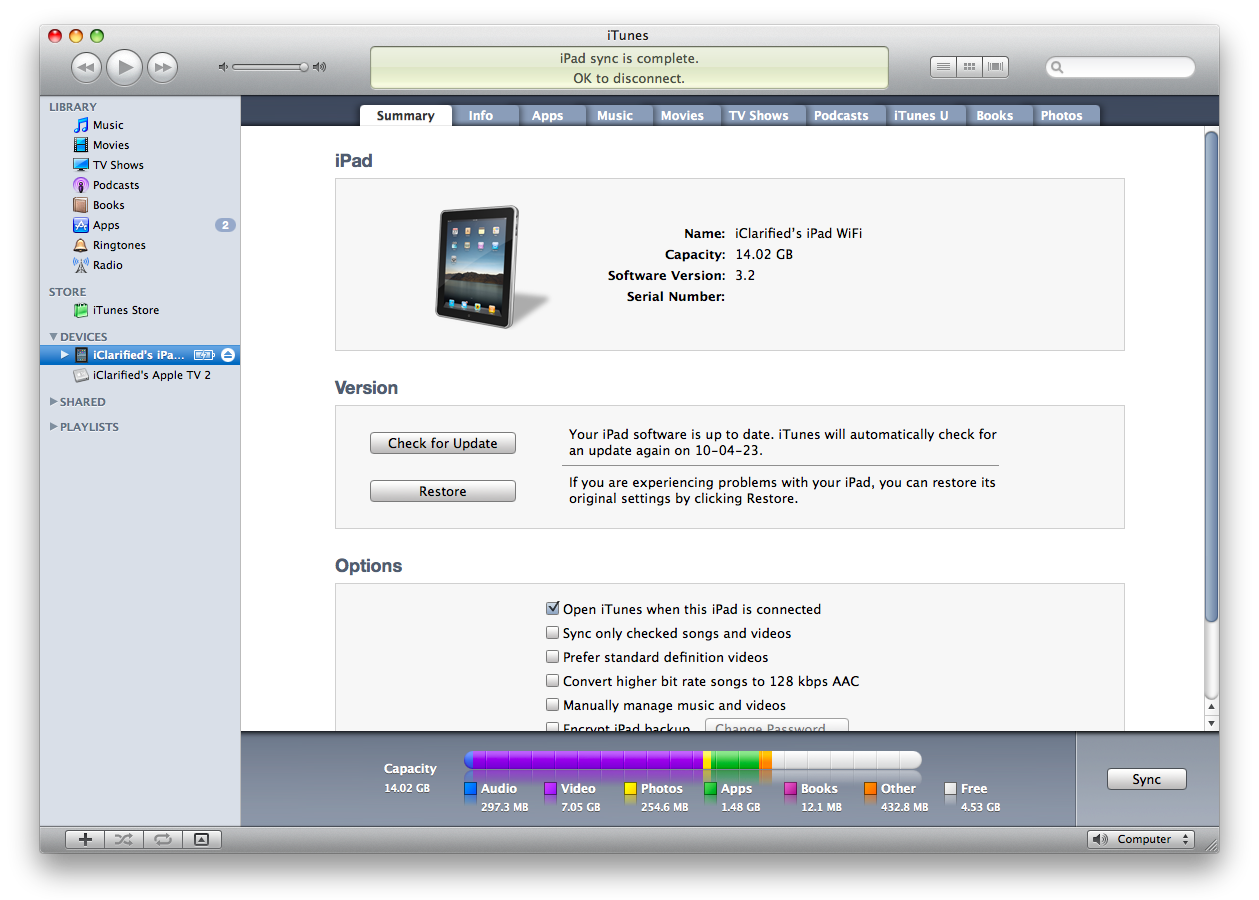
Step Six Connect your iPad to the computer and select it from the list of devices on the left.
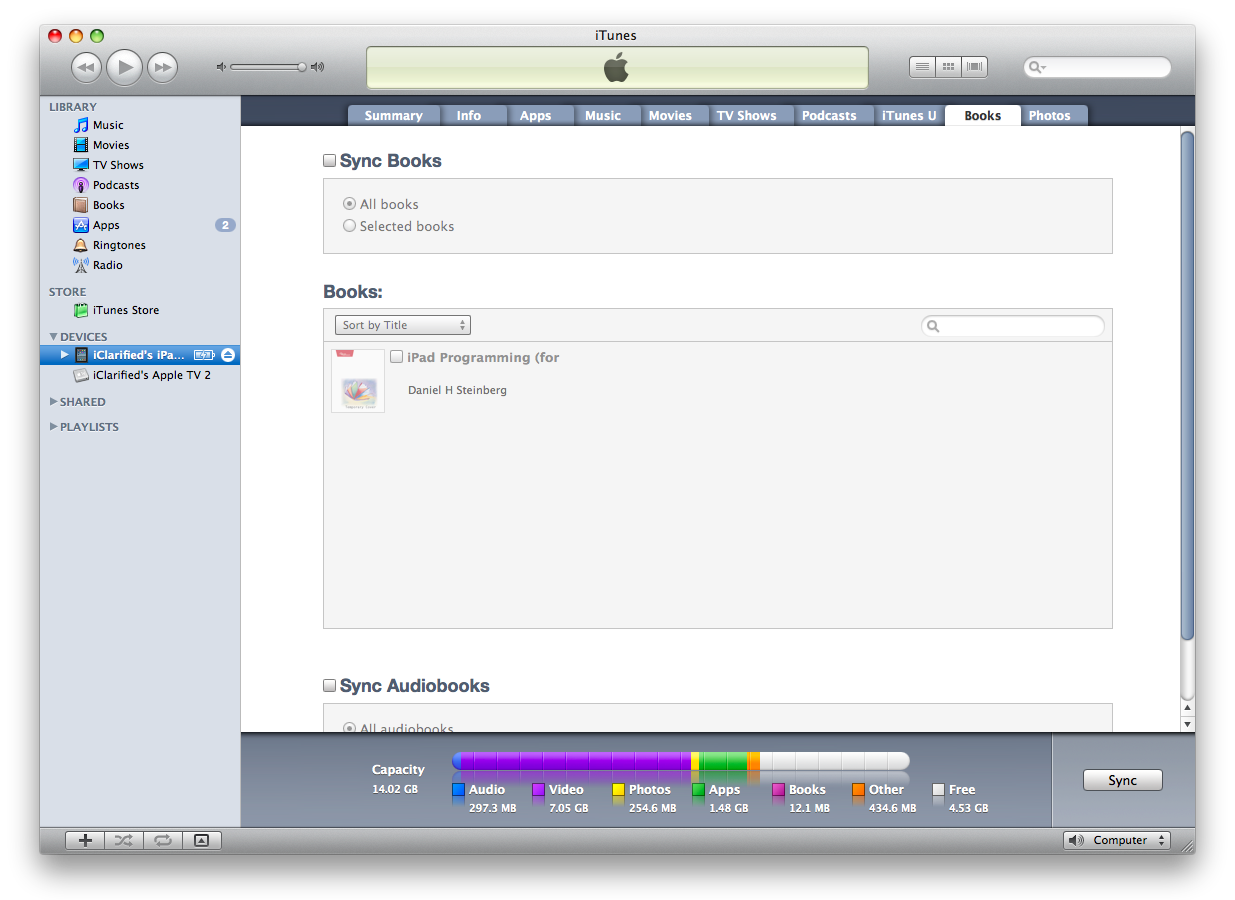
Step Seven Click to select the Books tab.
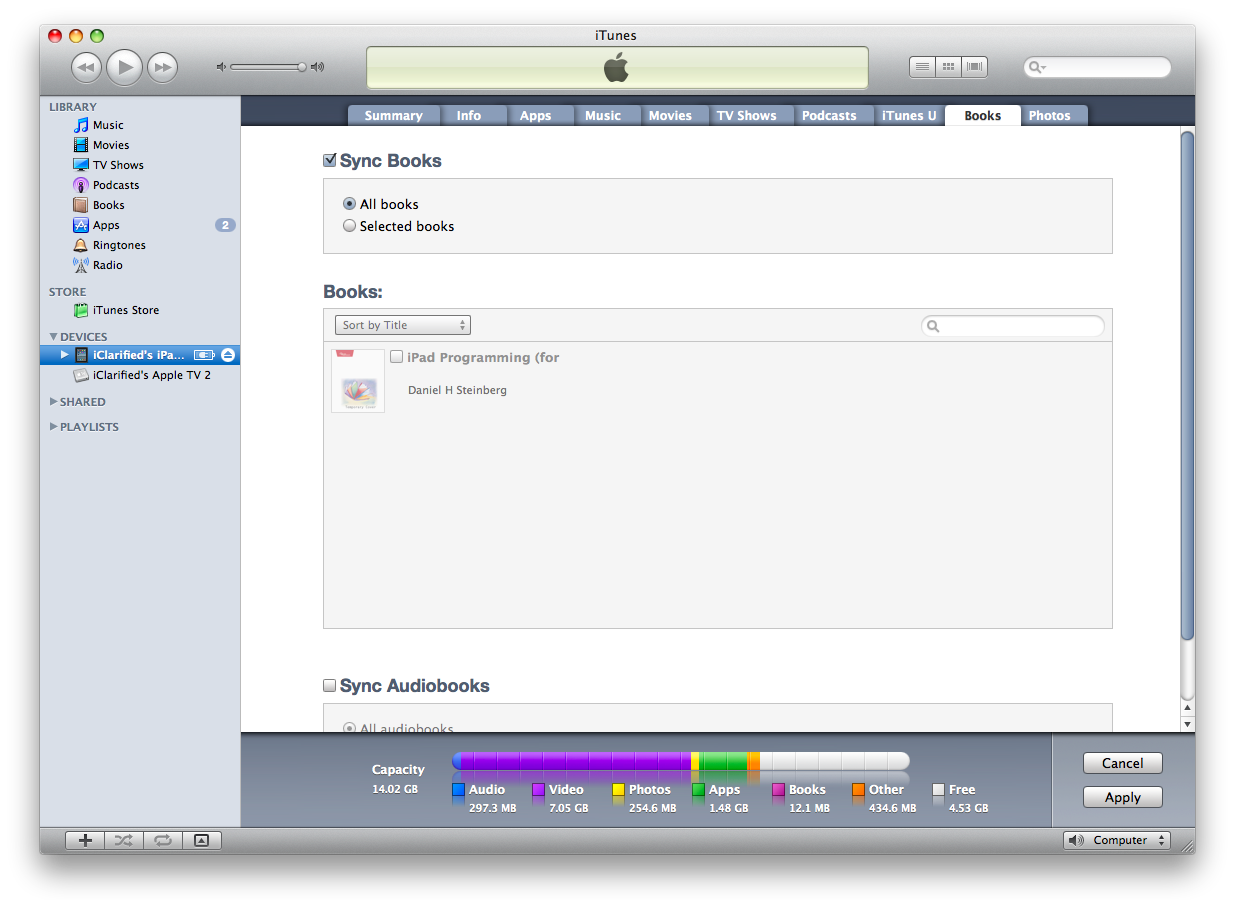
Step Eight Check the Sync Books checkbox if it isn't already enabled.
If All books is selected then all your Books will be transferred to the iPad. If Selected books is selected then you will need to look below for the newly added Book and check the checkbox next to its title.
Now click the Apply or Sync button at the bottom right of the window.
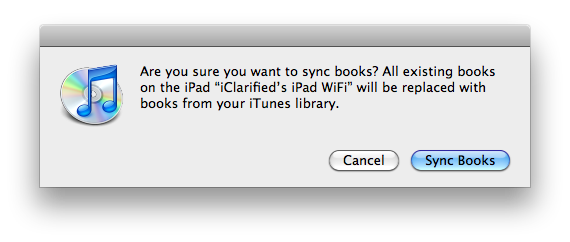
You may receive a warning that this will erase all the books on your iPad if this is your first Books sync. Click the Sync Books button.
Step Nine Once the sync has completed you can open iBooks on your iPad to read your newly transferred title.
*Note: If you do not have iBooks on your iPad you can download it free from the App Store.
Get the iClarified Daily Newsletter
Apple news, rumors, tutorials, price drop alerts, in your inbox every evening, free.
Unsubscribe at any time.
Success!
You have been subscribed.
Add Comment
Would you like to be notified when someone replies or adds a new comment?
Yes (All Threads)
Yes (This Thread Only)
No
Notifications
Would you like to be notified when we post a new Apple news article or tutorial?
I have transferred ePub ebooks from Windows laptop to iPad using both iTunes & email. Books appear in Book folder on iPad but I get an error message saying that they cannot be opened as the file maybe corrupted or not in the right format. Does this mean the book files are not DRM-free? Can ebooks which are not DRM-free be transferred?
One simple way is to email the epub file directly into the email registered on your iPad/iPhone. Open the email in your iPad/iPhone and Open it with iBooks.
My version of iTunes 11 doesn't have a "Books" tab in the Library Panel. I checked the Preferences, and there's no "Books" option to check.
How do I get "Books" to show up in the Library?
So annoying I've been trying all week to download on iPhone, iPad and laptop!! 5 hours today and still no success. I see it in my iTunes act on the computer but can't get it on iBooks on my apple devices..
I downloaded my book from OverDrive from my public library and it wont let me drag it into iTunes, or open up from and email and it doesnt show up in my ibooks when I choose it. Am I doing something wrong or is it because it's a rented book?
How do I read rented ebooks then if I cant put them in my itunes?
If you have Dropbox on your desktop and your iPad, you can copy the ePub file to your Dropbox account. When you try to open the file in the Dropbox app, you'll get an error saying that you can't view the file. But if you touch the download icon in the upper right corner, one of your options will be to open the file in iBooks (assuming you have the iBooks app installed). Touch that and you're good to go.
every time I transfer new epub book to ipad, the old epub gone, i see only the new epub.
How can i add the new epub without lost the old epub. (i do option selected check box for the epub i want to transfer only.)
Thanks
Simplest way to transfer epub to iPad is as follows:
1. Download epub from sites you know
2. Email the epub file to yourself (eg. GMail) - do not zip or rar it
3. Open up the email in your iPad, and click on the attachment (the epub file)
4. Choose "Open in iBook"
and that's it.
Wow, I seriously can't thank you enough. I don't know why I didn't think to do this, I was going crazy because I was going to have to update my entire Apple software. Thank you






![Apple Releases HomePod Software Update 27 [Download]](/images/news/102222/102222/102222-160.jpg "Apple Releases HomePod Software Update 27 [Download]")

![Apple Officially Releases visionOS 27 [Download]](/images/news/102219/102219/102219-160.jpg "Apple Officially Releases visionOS 27 [Download]")







![Apple Studio Display XDR Hits All-Time Low of $2,969.99 ($329 Off) [Deal]](/images/news/101976/101976/101976-160.jpg "Apple Studio Display XDR Hits All-Time Low of $2,969.99 ($329 Off) [Deal]")
![Apple AirPods Pro 3 Drop to $199 ($50 Off) [Deal]](/images/news/101966/101966/101966-160.jpg "Apple AirPods Pro 3 Drop to $199 ($50 Off) [Deal]")
