These are instructions on how to filter your incoming calls and SMS messages using iBlackList for iPhone.
iBlackList allows your to create a blacklist or whitelist for filtering purposes. iBlacklist also features a scheduler which allows you to set the time of day iBlackList is active. The unregistered version of iBlackList allows you to filter 2 numbers. For unlimited numbers your must register. Please see the link at the end of this tutorial.
Step One Please make sure you have iClarified added to your list of installer sources. To do this click here.
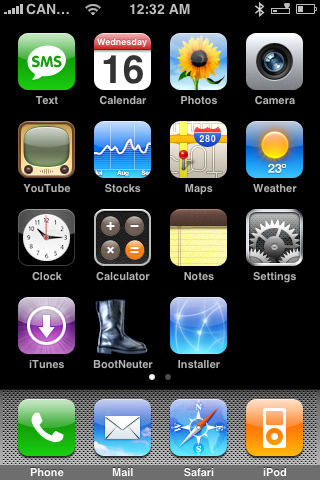
Step Two Press to launch Installer from your SpringBoard.
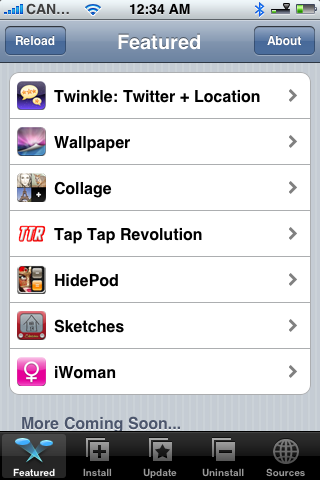
Step Three Press to select the Install tab at the bottom of the screen.
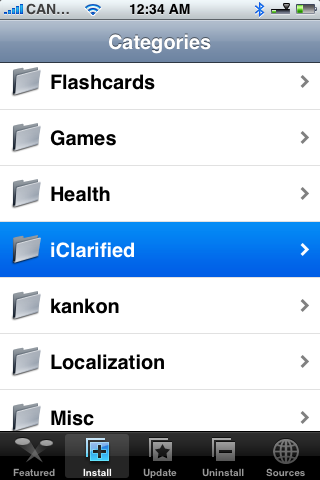
Step Four Press to select iClarified from the list of Categories
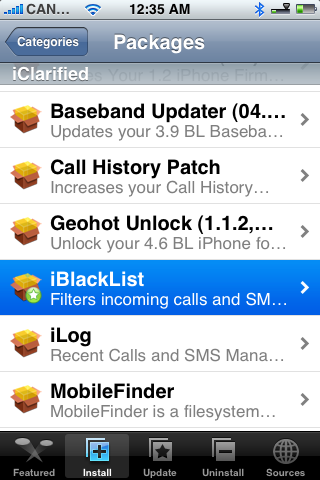
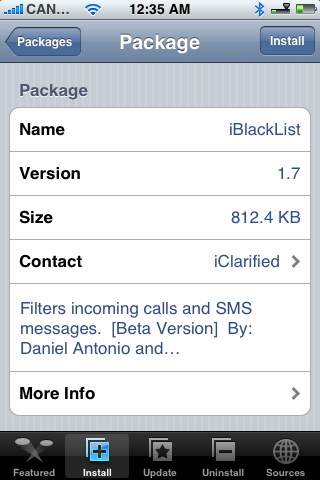
Step Five Press to select iBlackList from the list of Packages
Step Six Press the Install button at the top right of the screen.
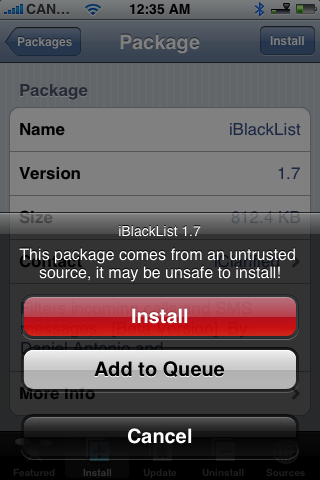
Step Seven Press the large red Install button that appears.
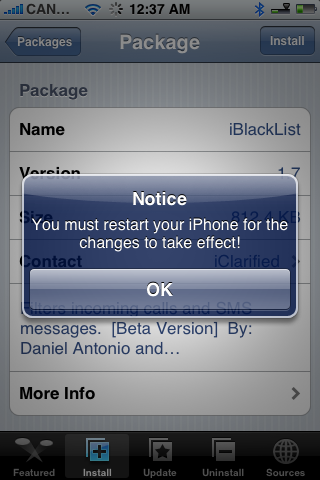
Step Eight You will be notified that you must restart iBlackList once install has been completed. Press the large OK button.
Step Nine You will be returned to the Categories menu when installation is complete. Press and hold the Sleep/Wake button for 3 seconds until the Power slider appears. Move the slider to the right to power off your iPhone. Then press the Sleep/Wake button again to turn your iPhone back on.
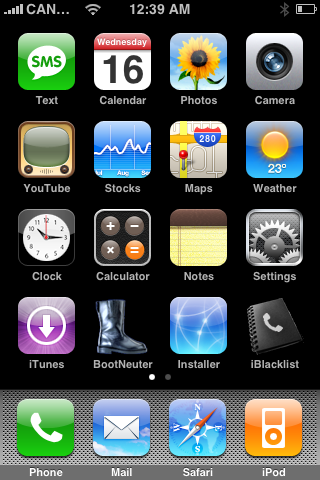
Step Ten From the SpringBoard press to launch your new iBlackList icon.
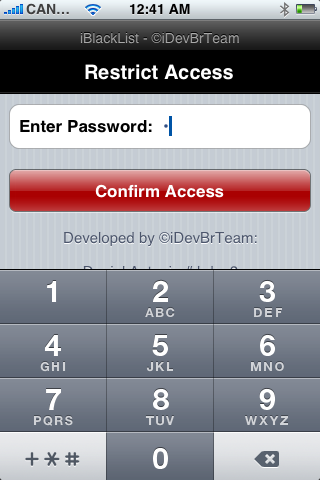
Step Eleven You will be asked to enter a password. Input the number 1 and press the Confirm Access button.
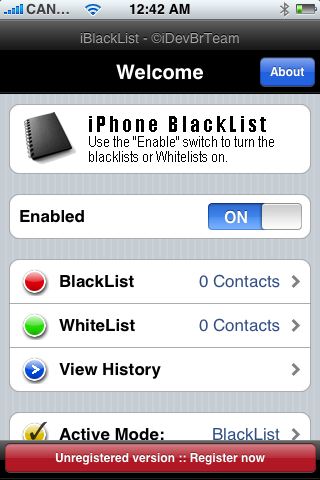
Step Twelve You will now be taken to the iBlackList home screen. Lets first move the Enabled switch to ON to enable iBlackList.
Step Thirteen Now to add a number to our BlackList press the BlackList button.
Step Fourteen Press the Add button at the top right to Add a number.
Step Fifteen Here we can enter a contacts information in manually or press the Contacts button at the top right to input information from your phonebook.
Step Sixteen Select a contact from your phone book and then select the phone number you would like to blacklist.
The Display and Phone number fields will then be populated automatically. Press the Add to list button.
Step Seventeen Notice the number is now added to your BlackList. Press the Back button at the top left to return to the iBlackList menu.
Step Eighteen Scroll down and ensure Active Mode is set to BlackList. Note: if you want to setup a whitelist of course you would set active mode to WhiteList.
Step Nineteen Press Settings Calls to modify the settings for call filtering. Here you can set the action to take when a filter call comes in. You can also enable or disable the call filter and set the preferences to save history, delete recent calls, filter restrict number, filter unknown number, show a status bar icon, and vibrate. Press the Save button at the top left hand corner when finished modifying the settings.
Step Twenty We can also press Settings SMS to modify the filter options for SMS messages. Here you can enable or disable SMS filtering and set the preferences to save history, delete SMS upon receipt, filter unknown number, show a status bar icon, and vibrate. Press the Save button at the top left hand corner when finished modifying the settings.
Step Twenty One You can press Scheduler from the main menu to set the iBlackList's operation schedule.
Press to select a day of the week and you can modify the hours iBlackList is enabled for that day.
Press the Save button at the top left to return to back to the iBlackList menu.
Step Twenty Two Finally you can also change your password by pressing the Password button on the main menu. Enter a new password and then press the large red Save password button.
Step Twenty Three You can now press the Home button to exit iBlackList. When ever you receive a filtered text or call you will notice an icon in your Status bar. Press to launch iBlackList from the SpringBoard.
Step Twenty Four Press View History from the iBlackList menu.
Step Twenty Five You will now be able to view your filtered call or message and respond accordingly!
THANKS***: Thanks goes to the iDevBrTeam (Daniel Antonio, Alexandre Kremer). Their iBlackList registration site is no longer available.
Get the iClarified Daily Newsletter
Apple news, rumors, tutorials, price drop alerts, in your inbox every evening, free.
Unsubscribe at any time.
Success!
You have been subscribed.
Add Comment
Would you like to be notified when someone replies or adds a new comment?
Yes (All Threads)
Yes (This Thread Only)
No
Notifications
Would you like to be notified when we post a new Apple news article or tutorial?
What does it look like to the person who texts someone who has been blocked by iblacklist? Will it say "message not delivered" right away or will that person think that the text went through?
can u add a filter in the sms text to block messages with pqrticular words. multiple messages wth different numbers. like we buy used cars. or message includes links to a viagra drug site
Spektro, AKA Alexandre, is not flavio almeida...
And, if you didn´t get your refund, is because you activated the device... Impressive how some people like to receive things and then ask for refund.
This application has a 10 days trial, so try it...
to 0009
i open the iblacklist.sqlitedb and find %%_tablefakeBehaviour bla bla , but above no password in number, just &,& . Any other solution for my lost password?
i just bought iblacklist but the problem , i cant change the restricted number option to disconnect the caller is all the just only 1 ring and busy tone already,i want to used no action set up ,but it wont work
If forgot password for iblacklist, try this it will work. Download iFile from CYDIA. After installation go to /VAR/Mobile/Library/iblacklist. there you will see iblacklist.sqliteb. tap that file and u wil see option OPEN WITH. select text viewer and then file wil be opened. Got to bottom of the opened file Now look for '%%_tablefakeBehaviour bla bla'. Just above that you have your password in numbers... BINGO
Mates, this thread here is really old. It´s from the 1.X firmware days. The iBlacklist software for 1.X firmware is no longer supported, since we are about to have the firmware 3.1 in a few days. PLEASE, for license problems, just contact support@iblacklist.com.br and/or sales@iblacklist.com.br I no longer will visit here, and if you need support, please do this: * Contact the e mail above * Or visit www.modmyi.com forums * Or post your request on the package comments tab present on Cydia PLEASE CHECK YOUR SPAM MAILBOX OR JUNKMAIL BOX SINCE OUR E MAILS TO YOU MAY HAVE BEEN CLASSIFIED AS SPAM !!! WE DO DELIVER WHAT YOU PAID FOR. IF YOU HAVE ANY PROBLEMS, CONTACT US IN THE E MAIL ADDRES ABOVE
Mates, this thread here is really old. It´s from the 1.X firmware days.
The iBlacklist software for 1.X firmware is no longer supported, since we are about to have the firmware 3.1 in a few days.
PLEASE, for license problems, just contact support@iblacklist.com.br and/or sales@iblacklist.com.br
I no longer will visit here, and if you need support, please do this:
* Contact the e mail above
* Or visit www.modmyi.com forums
* Or post your request on the package comments tab present on Cydia
Help...does any 1 know of another application that can save history of texts,,,,i want it to pop up i love iblacklist but it doesnt pop up on regular textplease help
I love love love this app! I'm using it since the beginning, and it changed my life! I only talk to peapole I need to talk with, and others leave messages and that's fine like this. This app works perfectly, it is very clever, anf I do really want to thank all the people working, because theyr're doing a really great job. Iblacklist is really worth the price. Thanks again, guys, and congratulations for your excellent work. :-) Terry.





![Apple Releases iOS 27.2 RC and iPadOS 27.2 RC to Developers [Download]](/images/news/102906/102906/102906-160.jpg "Apple Releases iOS 27.2 RC and iPadOS 27.2 RC to Developers [Download]")
![Apple Releases macOS 27.2 Golden Gate RC to Developers [Download]](/images/news/102909/102909/102909-160.jpg "Apple Releases macOS 27.2 Golden Gate RC to Developers [Download]")
![Apple Seeds watchOS 27.2, tvOS 27.2, and visionOS 27.2 Release Candidates [Download]](/images/news/102912/102912/102912-160.jpg "Apple Seeds watchOS 27.2, tvOS 27.2, and visionOS 27.2 Release Candidates [Download]")
![Apple Announces 'Pro and Tell' Event for October 28 [Video]](/images/news/102903/102903/102903-160.jpg "Apple Announces 'Pro and Tell' Event for October 28 [Video]")
![Apple Plans 9-Inch HomeView With Robotic Arm for 2027 or 2028 [Gurman]](/images/news/102885/102885/102885-160.jpg "Apple Plans 9-Inch HomeView With Robotic Arm for 2027 or 2028 [Gurman]")
![How To Install Homebrew on Mac [Video]](/images/tutorials/83695/83695/83695-160.jpg "How To Install Homebrew on Mac [Video]")

![How To Back Up Your iPhone to an External Drive on Mac [Video]](/images/tutorials/72786/72786/72786-160.jpg "How To Back Up Your iPhone to an External Drive on Mac [Video]")


![16-Inch MacBook Pro With M5 Max Drops to $3,499 ($900 Off), Lowest Price We've Seen [Deal]](/images/news/102900/102900/102900-160.jpg "16-Inch MacBook Pro With M5 Max Drops to $3,499 ($900 Off), Lowest Price We've Seen [Deal]")
![Mac Studio With M5 Max Is $200 Off, Lowest Price We've Seen [Deal]](/images/news/102897/102897/102897-160.jpg "Mac Studio With M5 Max Is $200 Off, Lowest Price We've Seen [Deal]")
![14-Inch MacBook Pro With M5 Pro Drops to $2,069.10 ($429 Off) [Deal]](/images/news/102879/102879/102879-160.jpg "14-Inch MacBook Pro With M5 Pro Drops to $2,069.10 ($429 Off) [Deal]")
![Apple HomeView and New Apple TV 4K Get First Pre-Order Discount on Amazon [Deal]](/images/news/102867/102867/102867-160.jpg "Apple HomeView and New Apple TV 4K Get First Pre-Order Discount on Amazon [Deal]")
![14-Inch MacBook Pro With M5 Max Drops to $3,299 ($800 Off) [Deal]](/images/news/102828/102828/102828-160.jpg "14-Inch MacBook Pro With M5 Max Drops to $3,299 ($800 Off) [Deal]")
