***This tutorial has been updated for Apple's built in screenshot capabilities. You can find those new instructions here
Erica Sudan from the The Unofficial Apple Weblog has written a small command line utility to take screenshots of your iPhone. To take screenshots of your iPhone using this tool, please follow these instructions:
Step One Click here to download Erica's screenshot utility. Double click the zip file to extract it.
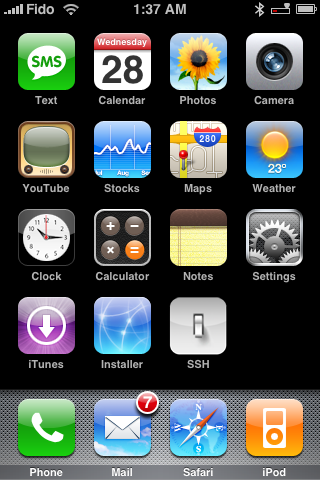
Step Two On your iPhone press to select Settings from the springboard.
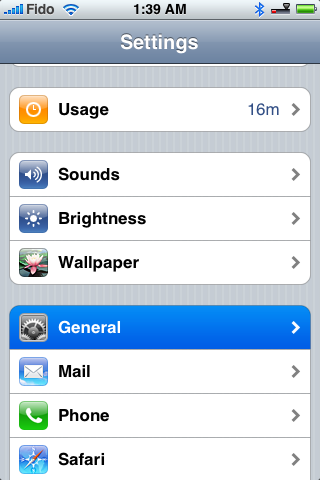
Then press to select General.
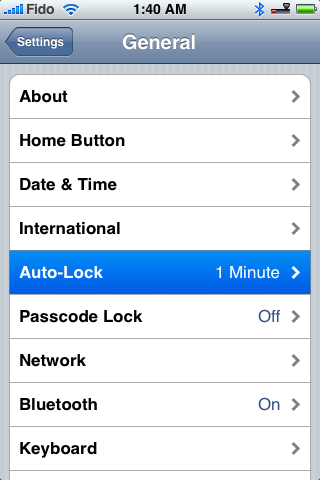
Under General press to select Auto-Lock.
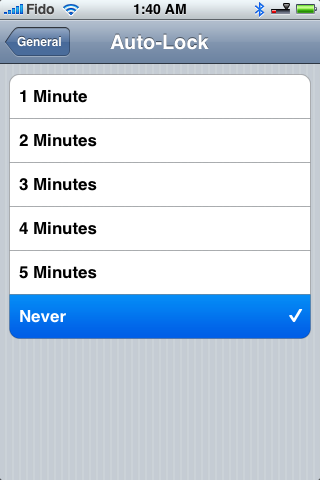
Press to select Never from the list of Auto-Lock times.
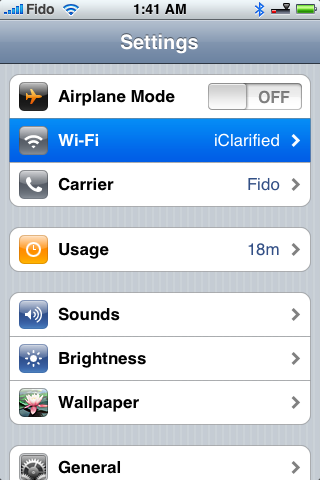
Step Three Find your iPhone's IP Address. Do this by pressing to select Settings from the springboard. Then press to select Wi-Fi from your Settings menu.
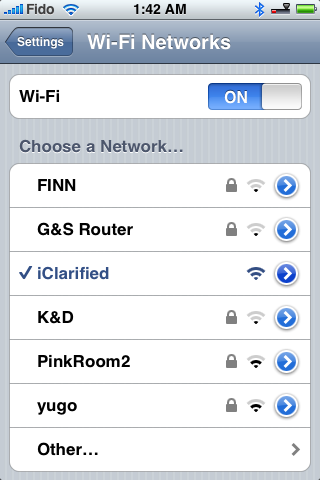
Now press to select the blue circle with the right arrow next to your connected network.
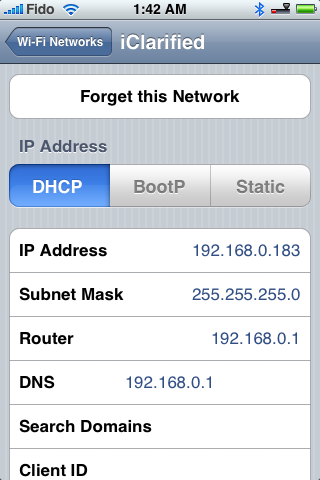
A screen will appear showing your connection details. Take note of your IP Address.
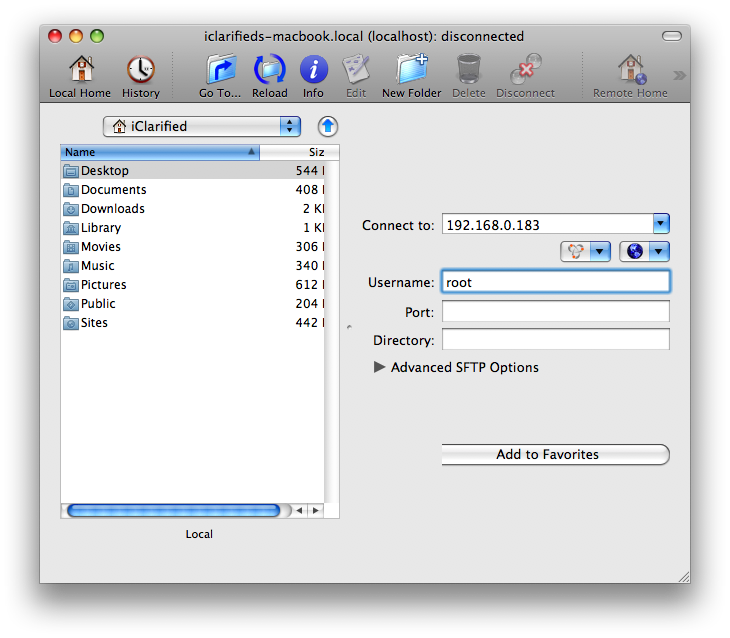
Step Four Start Fugu by clicking its icon in your Applications folder. If you didn't use Fugu to unlock your iPhone you will have to download and install it now.
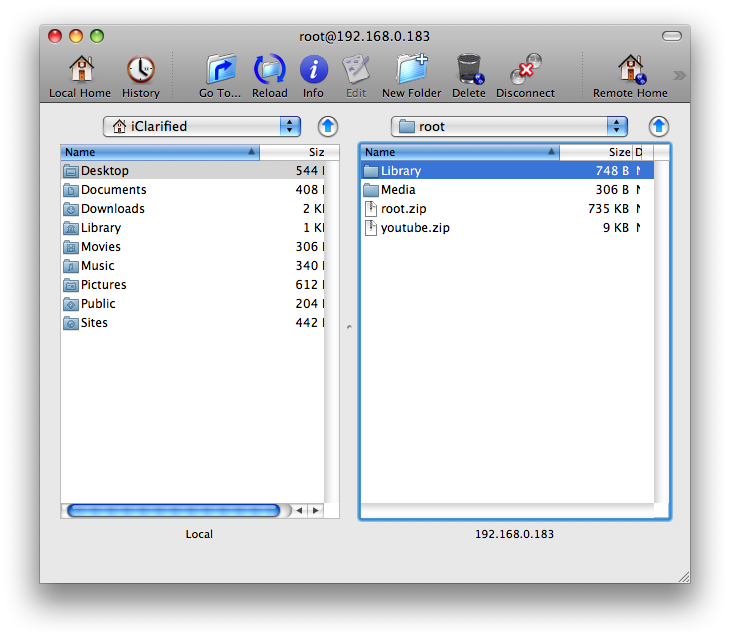
Step Four Log into Fugu by inputing your iPhones IP address into the Connect to field. Type root into the Username field. Then press the Connect button. If you are prompted for a password it is either dottie or alpine depending on your unlock methods.
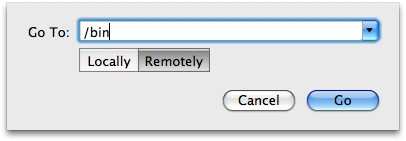
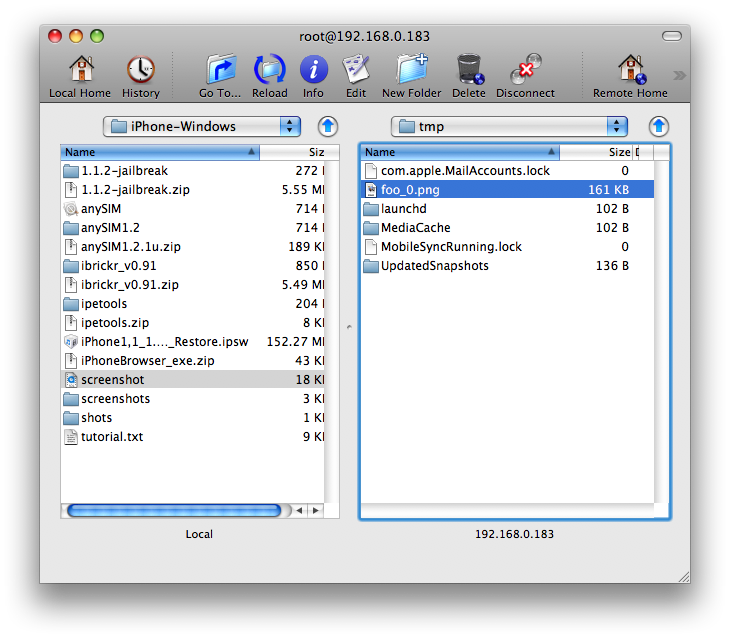
Step Five Select the panel to the right and click the Go To... button on the toolbar.
A popup window will appear. Enter /bin into the entryfield and click the Go button.
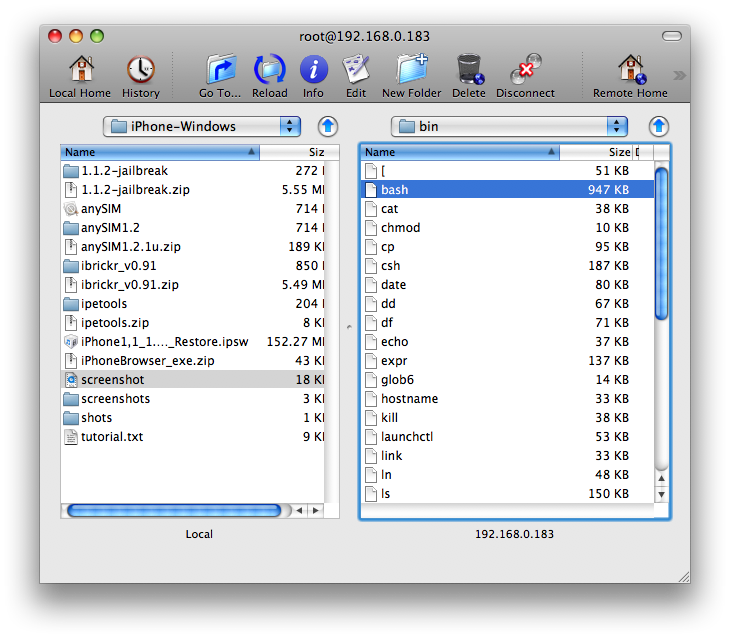
Now on the left panel navigate to where you extracted the file screenshot from screenshot.zip.
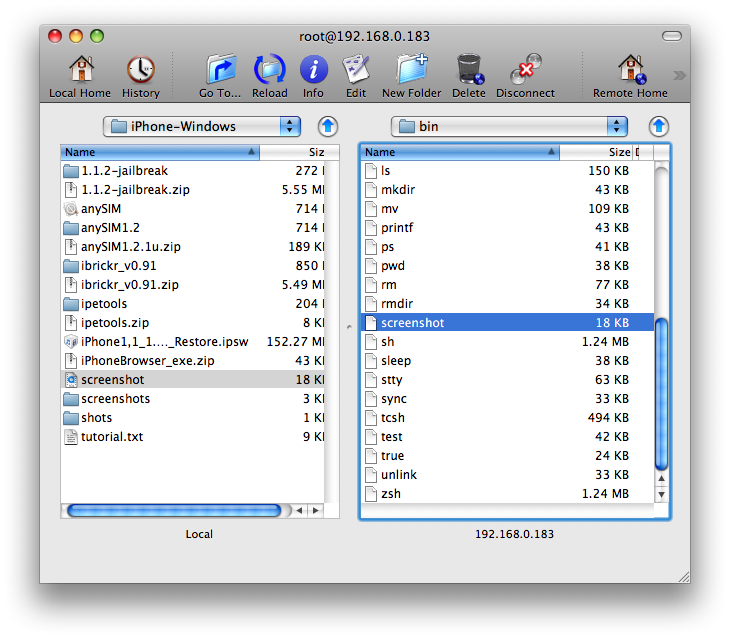
Drag and drop the file screenshot from the left panel to right.
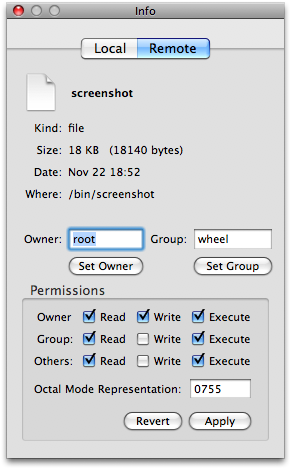
Step Six Select the file screenshot from the right panel and press Command+i on the keyboard.
This will bring up an info window for the file. Check all the boxes next to Execute and click the Apply button.
Step Seven Open a new Terminal window by clicking its icon in Applications:Utilities.
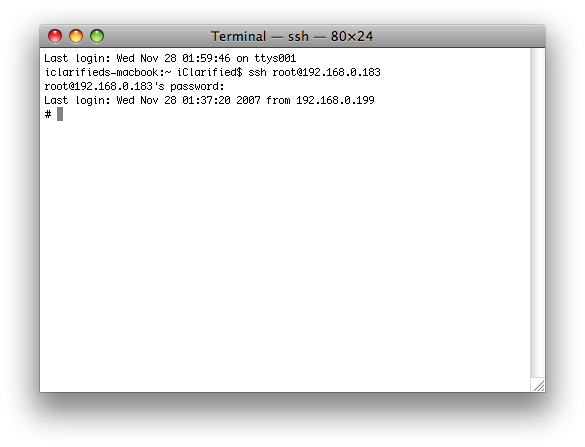
Step Eight SSH into your iPhone by typing the following at the command line replacing 'ipaddress' your iPhone's IP Address. When prompted for a password just enter 'dottie' or 'alpine' depending on the unlock method you used.
ssh root@ipaddress
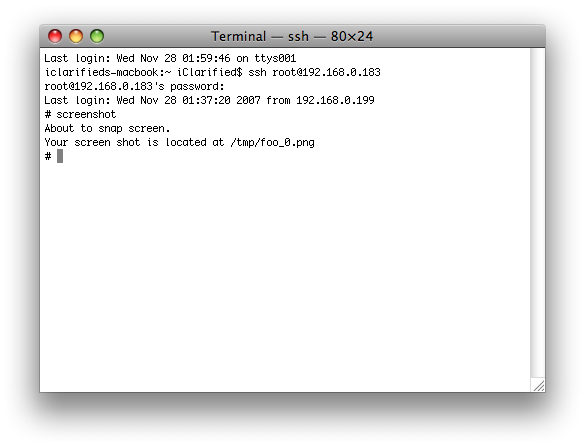
Step Nine On your iPhone navigate to the screen you would like to take screenshot of. Then back in your Terminal window type screenshot then press enter.
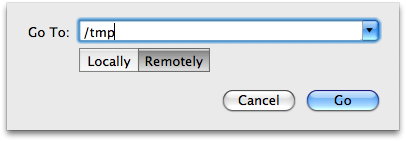
Step Ten Go back to Fugu which you should still have running. Select the right panel then click the Go To... button from the toolbar.
Enter /tmp into the Go To popup window then click the Go button.
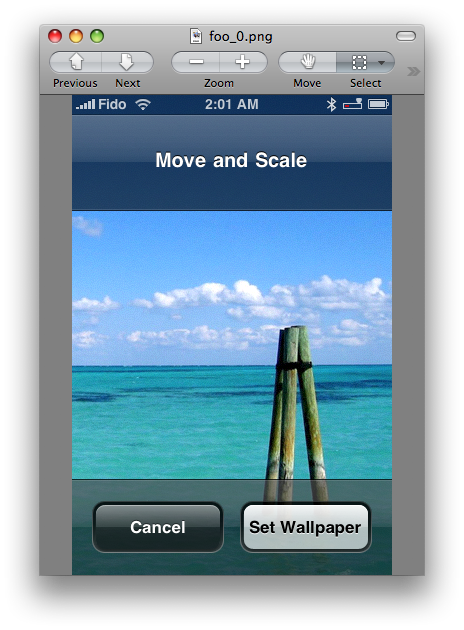
Step Eleven In the right panel you will notice a file called foo_0.png. Drag this file from the right panel to the left panel to copy it to your computer.
If you open the file with preview you will see it is a perfect screenshot of your iPhone!
Get the iClarified Daily Newsletter
Apple news, rumors, tutorials, price drop alerts, in your inbox every evening, free.
Unsubscribe at any time.
Success!
You have been subscribed.
Add Comment
Would you like to be notified when someone replies or adds a new comment?
Yes (All Threads)
Yes (This Thread Only)
No
Notifications
Would you like to be notified when we post a new Apple news article or tutorial?
That sure is complicated. Well if you've the new 2.0 software update, apparently it works just by pressing the power and home buttons together. There's a trick if you're feeling mischievous as well. Once taking an image of a friend's homepage on his iphone, hand the iphone back to him. he'll think it's hung or something like that. one of those cheap thrills. Nice theme btw! :)












![Apple Watch Series 11 is Back on Sale for Just $299 [Deal]](/images/news/101081/101081/101081-160.jpg "Apple Watch Series 11 is Back on Sale for Just $299 [Deal]")
![AirPods Max 2 Drop to New All-Time Low of $499 [Deal]](/images/news/101063/101063/101063-160.jpg "AirPods Max 2 Drop to New All-Time Low of $499 [Deal]")
![AirPods Max 2 Hit All-Time Low Price of $509 ($40 Off) [Deal]](/images/news/101039/101039/101039-160.jpg "AirPods Max 2 Hit All-Time Low Price of $509 ($40 Off) [Deal]")
![New 13-Inch M5 MacBook Air Hits All-Time Low Price of $899.99 [Deal]](/images/news/100969/100969/100969-160.jpg "New 13-Inch M5 MacBook Air Hits All-Time Low Price of $899.99 [Deal]")
![AirPods Pro 3 Drop to $199 Ahead of Memorial Day [Deal]](/images/news/100935/100935/100935-160.jpg "AirPods Pro 3 Drop to $199 Ahead of Memorial Day [Deal]")
