

These are instructions on how to take screenshots using the built in iPhone 2.0 screenshot feature.
You must have iPhone 2.0 firmware installed to follow this tutorial.
Step One
To take a screenshot simply hold down the Home button and press the Sleep/Wake button. You will notice the screen flash white.
Step Two
To view the screenshot you just took, press the Photos icon on your SpringBoard.
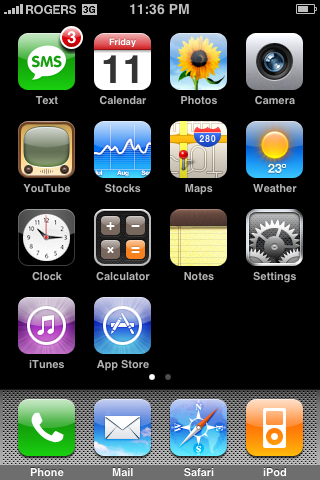
Step Three
Press to select Camera Roll from the list of Photo Albums.

Step Four
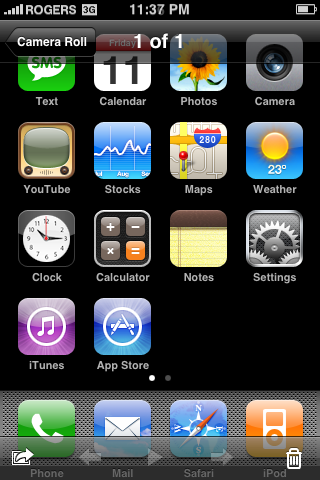
Press to select the small thumbnail of your screenshot.

Step Five
Now you can see your high quality iPhone screenshot. You can easily sync this to your computer just as you would with any other photo!
You must have iPhone 2.0 firmware installed to follow this tutorial.
Step One
To take a screenshot simply hold down the Home button and press the Sleep/Wake button. You will notice the screen flash white.
Step Two
To view the screenshot you just took, press the Photos icon on your SpringBoard.
Step Three
Press to select Camera Roll from the list of Photo Albums.
Step Four
Press to select the small thumbnail of your screenshot.
Step Five
Now you can see your high quality iPhone screenshot. You can easily sync this to your computer just as you would with any other photo!



![Pro Photographer Austin Mann Tests iPhone 18 Pro Camera [Video]](/images/news/102297/102297/102297-160.jpg "Pro Photographer Austin Mann Tests iPhone 18 Pro Camera [Video]")
![Apple Releases Xcode 27.1 Beta With iPhone Duo SDKs and Simulator [Download]](/images/news/102276/102276/102276-160.jpg "Apple Releases Xcode 27.1 Beta With iPhone Duo SDKs and Simulator [Download]")
![Apple Shares 'new trick' Shot on iPhone 18 Pro Ad Featuring ROSÉ [Video]](/images/news/102273/102273/102273-160.jpg "Apple Shares 'new trick' Shot on iPhone 18 Pro Ad Featuring ROSÉ [Video]")









![Apple Studio Display XDR Hits All-Time Low of $2,969.99 ($329 Off) [Deal]](/images/news/101976/101976/101976-160.jpg "Apple Studio Display XDR Hits All-Time Low of $2,969.99 ($329 Off) [Deal]")
