***** IMPORTANT: These instructions have been updated for the latest iPhone firmware. Please follow the up to date instructions here *****
These are instructions on how to unlock and jailbreak your iPhone 2G on the 3.0.x iPhone firmware using RedSn0w for Mac. Before beginning make sure you have updated to iTunes 8.2.
You can find the Windows version of this tutorial here
** If you would like to jailbreak on the 3.0.1 firmware you can follow these exact instructions; however, in Step Two restore using this 3.0.1 iPhone firmware file instead of the 3.0 one. Continue with the instructions as indicated.**
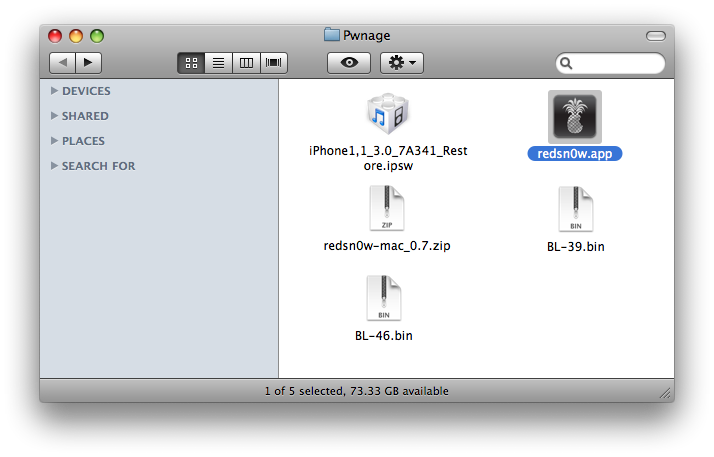
Step One Create a folder called Pwnage on your desktop.
Download the following files and place them in the Pwnage folder you just created: - RedSn0w - BL 3.9 (download no longer available) - BL 4.6 (download no longer available) - 3.0.0 (2G): iPhone1,1_3.0_7A341_Restore.ipsw
Extract the RedSn0w application from the RedSn0w zip file to the Pwnage folder.
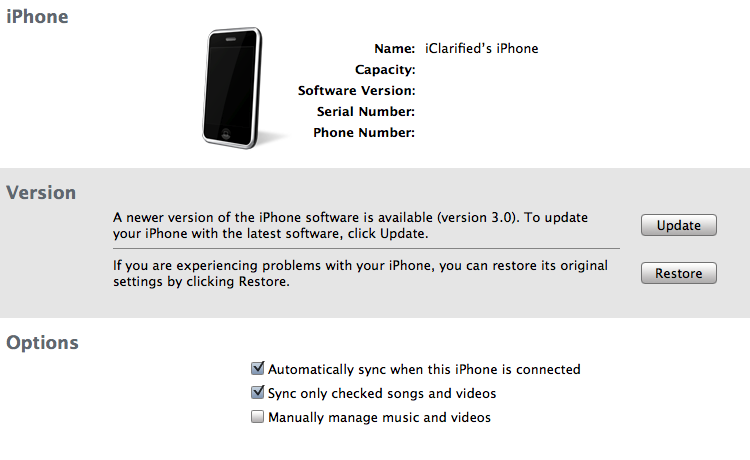
Step Two Connect your iPhone to the computer and launch iTunes.
Select your iPhone from the list of devices on the left. Now hold down Option and click the Restore button. Restore is preferred as it won't create any wasted space on your iPhone.
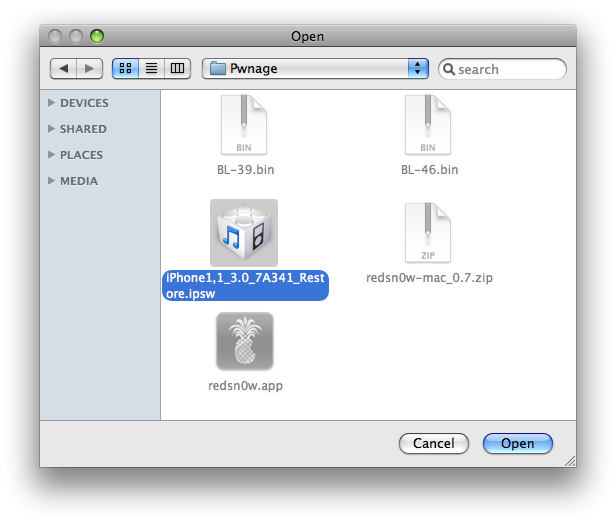
Navigate to the Pwnage folder on your desktop and select the firmware ipsw. Click the Open button to continue.
Step Three Once iTunes has finished updating your iPhone to the desired firmware you may launch redsnw0w from the Pwnage folder on your desktop.
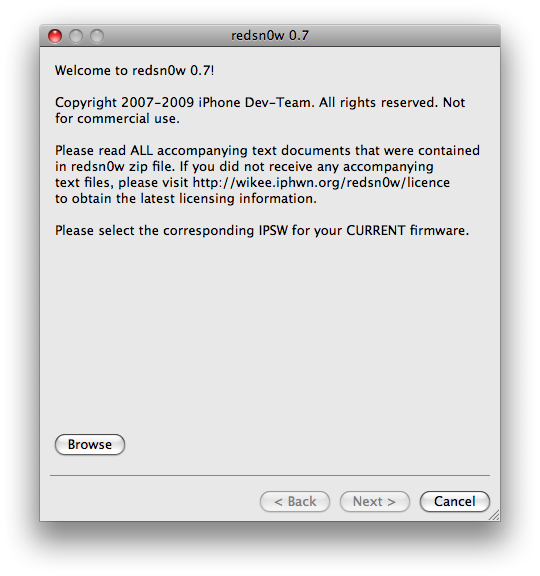
Step Four Once RedSn0w opens click the Browse button
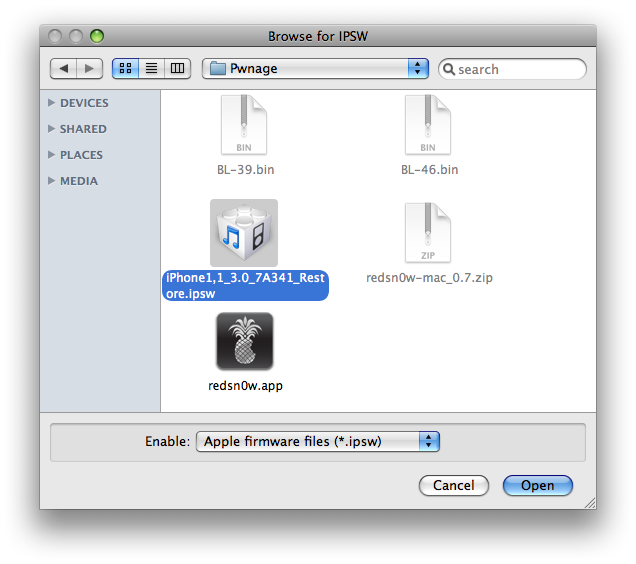
Step Five Select the firmware ipsw we placed in the Pwnage folder on our desktop then click Open
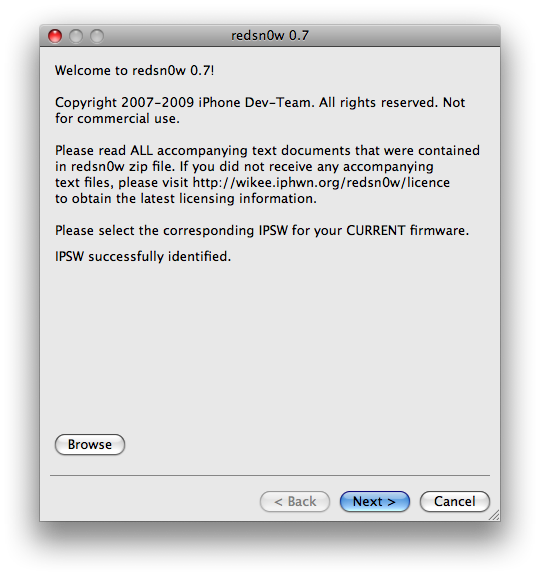
Step Six Once the firmware has been verified click the Next button to continue.
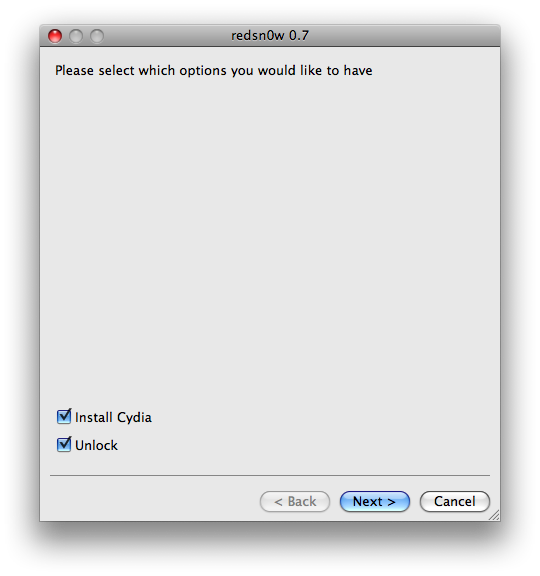
Step Seven Make sure Cydia and Unlock is selected and click the Next button.
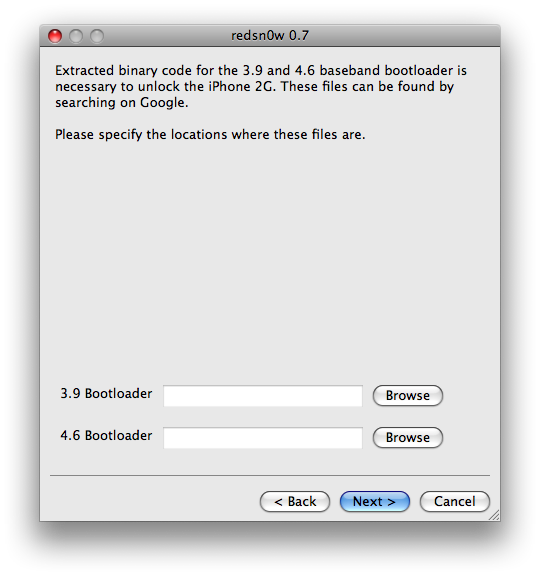
Step Eight We will know need to set the location of our bootloader files.
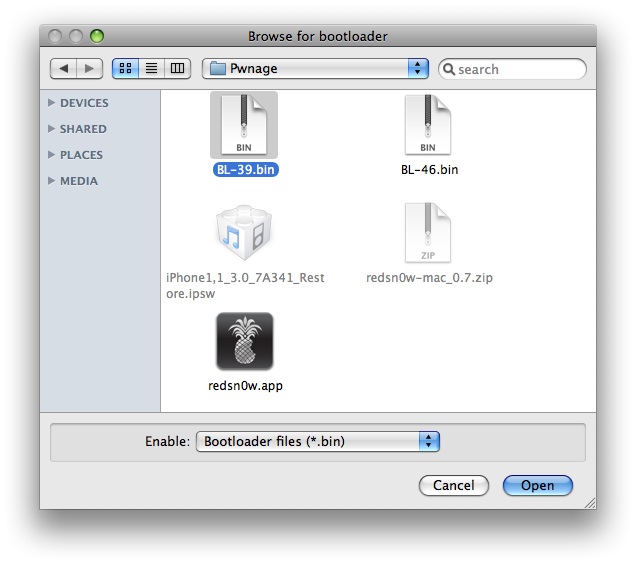
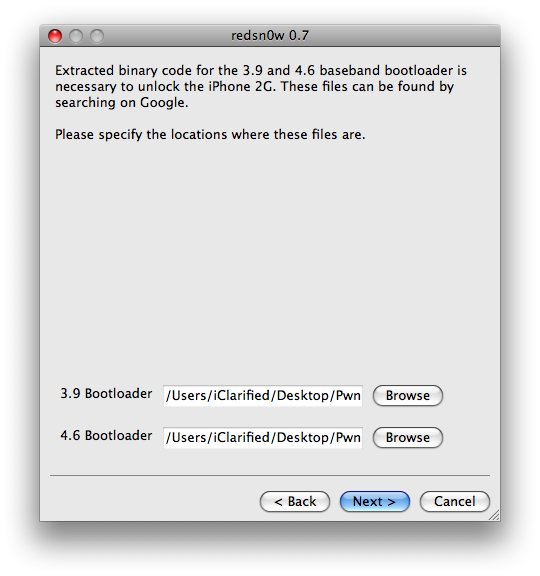
Click Browse and select the 3.9 bootloader file from the Pwnage folder on your desktop.
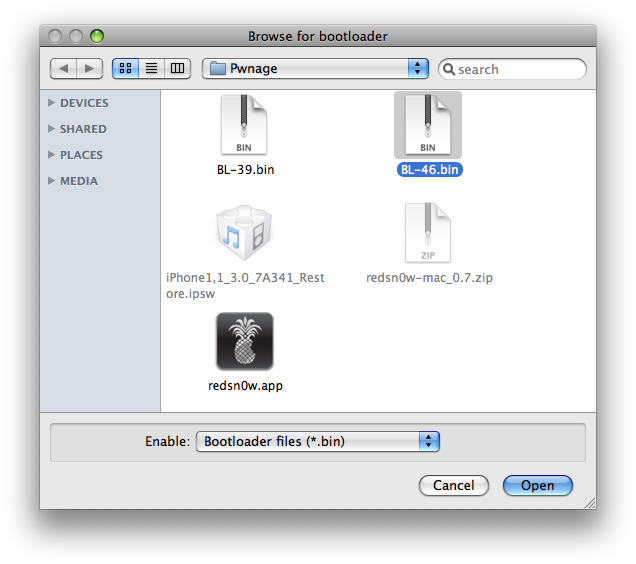
Click Browse and select the 4.6 bootloader file from the Pwnage folder on your desktop.
Click the Next button to continue.
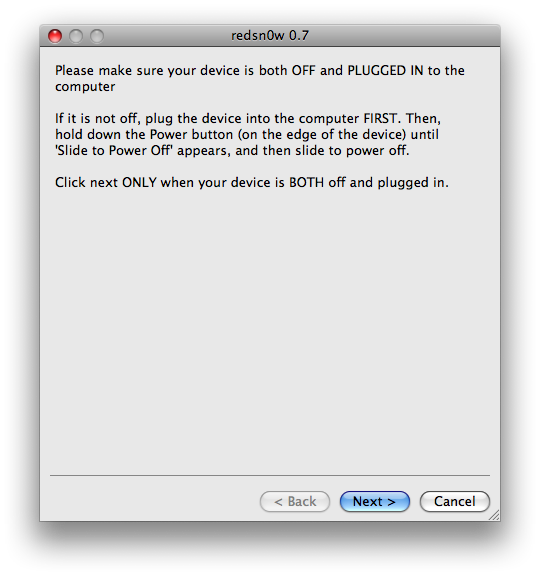
Step Nine Please plug your iPhone into the computer and make sure its OFF then click the Next button
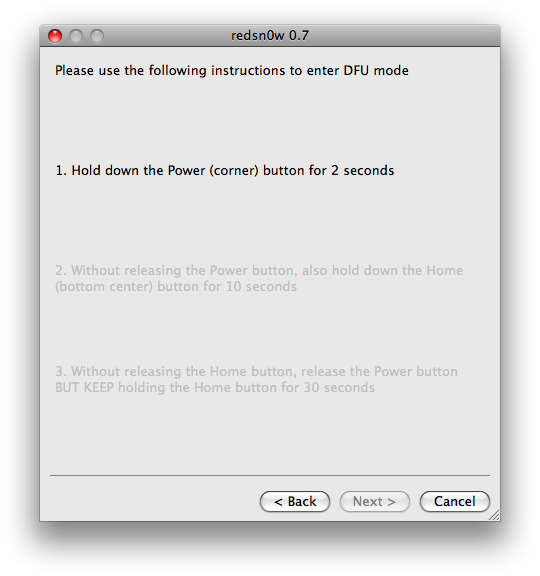
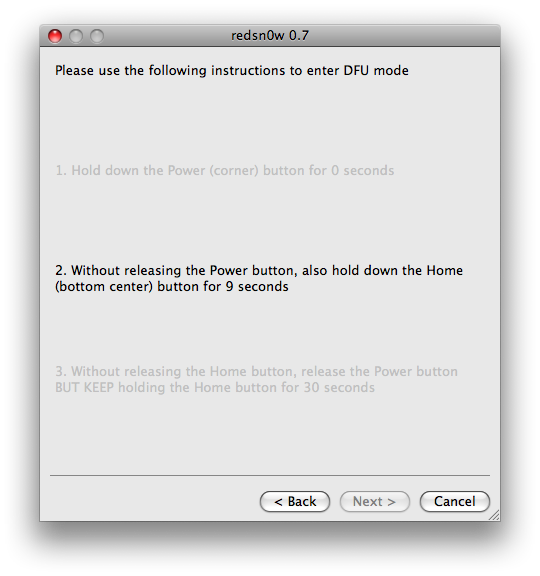
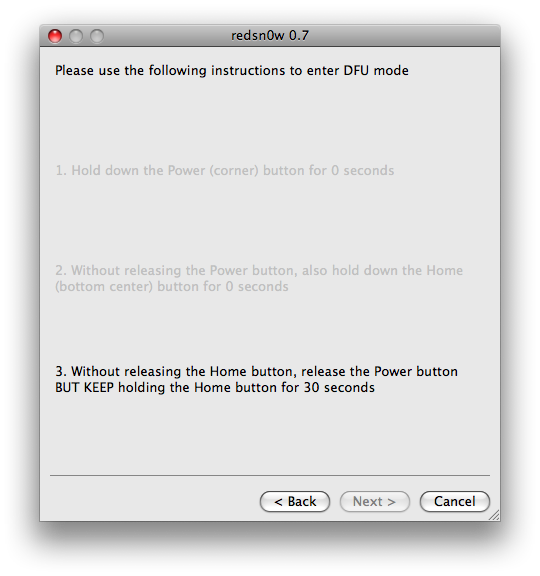
Step Ten RedSn0w will now guide you through the steps to get into DFU mode. You can find more help with DFU mode here
Hold down both the Home button and the Power button for 10 seconds.
Release the Power button and continue holding the Home button until RedSn0w detects the device.
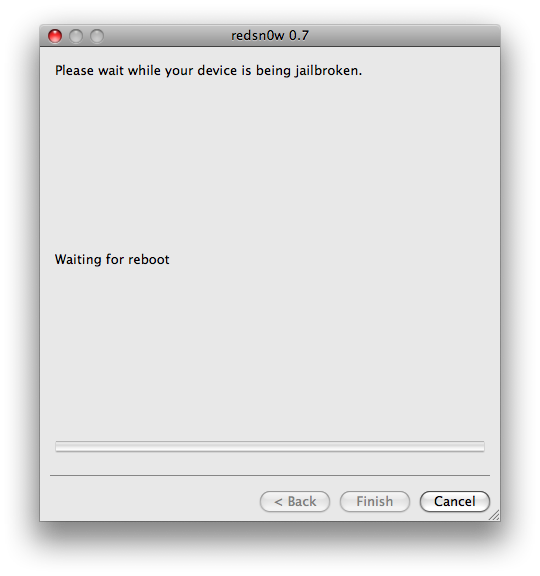
Step Eleven Your iPhone will now reboot
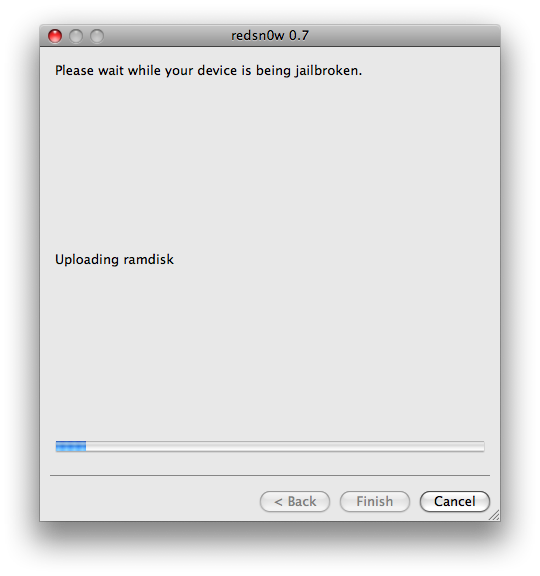
Step Twelve RedSn0w will then begin uploading the new RAM Disk.
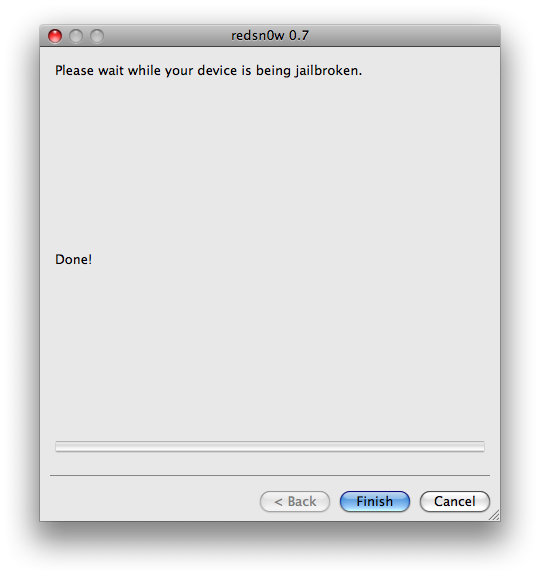
Step Thirteen Once this is complete you will be notified that RedSn0w is done. Click the Finish button.
When your iPhone finishes reboot (5 minutes or so). It will run BootNeuter then be unlocked and jailbroken with Cydia on the SpringBoard.
Get the iClarified Daily Newsletter
Apple news, rumors, tutorials, price drop alerts, in your inbox every evening, free.
Unsubscribe at any time.
Success!
You have been subscribed.
Add Comment
Would you like to be notified when someone replies or adds a new comment?
Yes (All Threads)
Yes (This Thread Only)
No
Notifications
Would you like to be notified when we post a new Apple news article or tutorial?
I have a iPhone 2G with a non working power/sleep/hold button, the one on the top and I want to jailbreak/unlock it with Pwange Tool 3.1.4, but how can I put it into DFU mode with out using that button?
Pwange Tool 3.1.4 requires to put in DFU mode, I am open to use another program like Redsnow too have both Mac and PC... .
i was waiting for my ipod to reboot... like in the last few instructions. In the part t said jail breaking device- and waiting for reboot. it takes a long time... i guess it's over 5 minutes and around...what do i do now? i cannot even turn it on by pressing the button... i tried it O.o please reply to help me :) any replay that helps would end up with a thank you from me XD
i follow this guide exactly and everything works but when i put in a sim card it says no service? can anyone help me ive been trying to do this for a week now..
my friend gave me his 2g iphone which he accidently updated to 3.0.1 (not sure if 3.0 or 3.0.1 but its one of those 2) and well my question is when i connect the iphone to the computer itunes wont even let me get to step 2 (restoring part). its ask me to register the phone and so on. So how do i even get to step 2?? any help is much appreciated.
thanks
i have updated my 2g from 1.1.4. to 3.0.1
everything worked all right till i checked the app for cydia. after this the phone went black and the apple appeared. after the battery went flat nothing is working any more. can anybody help ?
Trying to update 2g to 3.0.1 but at step 6 I get "Unable to recognize specified IPSW". I am able to successfully update to 3.0 though. All were downloaded using Firefox on mac. What's up with 3.0.1?
In any event, thanks iclarified for these tutes!
The instructions state to follow the rest of the guide as indicated; which roughly means you restore in iTunes using 3.0.1 (iPhone1,1_3.0.1_7A400_Restore.ipsw) but then when RedSn0w asks for the IPSW to verify, browse to the 3.0.0 IPSW file (iPhone1,1_3.0_7A341_Restore.ipsw). Hope this helps!
I have the IPhone 3GS with 3.0.1 firmware, when i tried to restore the phone using "iPhone1,1_3.0.1_7A400_Restore.ipsw" it gave me an error message that said "the IPhone... could not be restored because the firmware file is not compatible" Any ideas??? Please???
These tutorials I find seem to only work for the *iPhones* and not the iPod Touch as claimed to do? Would like to hear from an iPod Touch 2G owner that got theirs to work. No matter which firmware version I tried after all the suggestions across the 'net, it never worked with my iPod Touch 2G (v.3.0). Hangs on the "reboot" message every time. Bah. Not worth the hassle...
getting everything but no internet...error says i am not connected to a cellular data service.....but I am. i use sim with my samsung eternity for internet on att....help... I've ran this program 5 times.
in case your iPhone does not reboot in some 20 secs you have to unplug from the USB cable and immediately plug it in again: this trick did work for me.
do not worry.....go back again and redo the whole procedure from the beginning (iPhone in DFU, update the firmware to the 3.0 and go through the redsn0w 0.8 again)...the second time did work for me
As faxao said - unplugging from the USB then immediately plugging it back in worked for me as well. Whew! I was worried there for a second!!! Thanks faxao!
download again the appropriate firmware and check that the file has got the .ipsw format (use explorer or firefox browser not safari).....it should work
It worked like a charm on my iPhone 2G fw 1.1.4 upgraded to 3.0. The only problem I had was related to the reboot of the phone during the redsn0w procedure. I had to detach and reattach immediately the phone from the USB cable (connected to my Mac) and this did the trick ! Thanks
ok, I did the unlock through redsnow and I can make calls but why can't I access the web?
It says I don't have a cellular data service.
I have the following in my network settings:
idata.o2.co.uk
username: vertigo
the password is hidden but I'm sure this is what it had before so how come it's not working?
I'm with O2 (carphone warehouse) but I just have a sim through them and I got the iphone from my brother who unlocked it for me.
any suggestions as to how I can get my internet access back - I pay monthly (contract) and have internet as free with the deal I manage to get.
ok - got it.
if you don't have an iphone internet tariff then you have to change the idata.02.co.uk to mobile.o2.co.uk
works now. phew... only took several hours to update to v3.0, lol
:-)




![iFixit Investigates iPhone Duo Screen Failures, Points to Possible Hinge Issue [Video]](/images/news/103038/103038/103038-160.jpg "iFixit Investigates iPhone Duo Screen Failures, Points to Possible Hinge Issue [Video]")
![Apple's Touchscreen MacBook Pro to Cost 'Significantly' More [Gurman]](/images/news/103035/103035/103035-160.jpg "Apple's Touchscreen MacBook Pro to Cost 'Significantly' More [Gurman]")
![Apple Stores Get iPhone Scanner to Fight Return Fraud [Report]](/images/news/103029/103029/103029-160.jpg "Apple Stores Get iPhone Scanner to Fight Return Fraud [Report]")
![Apple TV Shares 'Full Throttle' With F1 Drivers and Vince Young Ahead of U.S. Grand Prix [Video]](/images/news/103023/103023/103023-160.jpg "Apple TV Shares 'Full Throttle' With F1 Drivers and Vince Young Ahead of U.S. Grand Prix [Video]")
![How To Turn Off iPhone [Video]](/images/tutorials/94999/94999/94999-160.jpg "How To Turn Off iPhone [Video]")
![How To Back Up Your iPhone to an External Drive on Mac [Video]](/images/tutorials/72786/72786/72786-160.jpg "How To Back Up Your iPhone to an External Drive on Mac [Video]")

![How To Find Your IP Address on iPhone [Video]](/images/tutorials/496/496/496-160.jpg "How To Find Your IP Address on iPhone [Video]")

![Beats Headphones, Earbuds, and Pill Speaker Are Up to 41% Off [Deal]](/images/news/103026/103026/103026-160.jpg "Beats Headphones, Earbuds, and Pill Speaker Are Up to 41% Off [Deal]")

![New Fire TV Stick 4K Drops to $29.99 (50% Off) [Deal]](/images/news/102984/102984/102984-160.jpg "New Fire TV Stick 4K Drops to $29.99 (50% Off) [Deal]")
![Apple's iPhone 18 Pro and Pro Max Cases Are Up to 37% Off [Deal]](/images/news/102978/102978/102978-160.jpg "Apple's iPhone 18 Pro and Pro Max Cases Are Up to 37% Off [Deal]")
![16-Inch MacBook Pro With M5 Pro Drops to $2,429 ($570 Off), Lowest Price We've Seen [Deal]](/images/news/102957/102957/102957-160.jpg "16-Inch MacBook Pro With M5 Pro Drops to $2,429 ($570 Off), Lowest Price We've Seen [Deal]")
