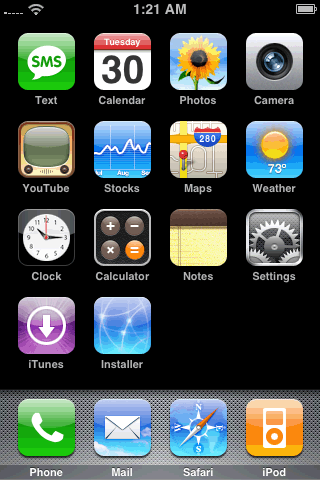
PREPARE THE PHONE Step One Press to select Settings from your springboard.
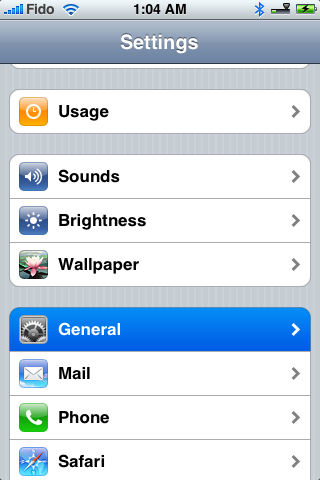
Step Two Press to select General from the list of categories.
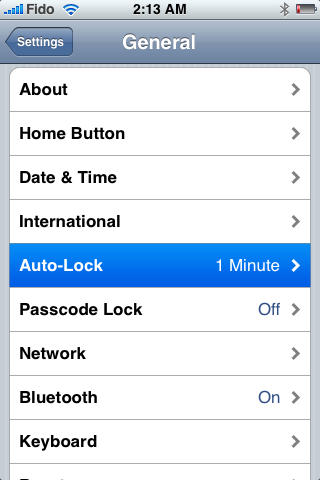
Step Three Press to select Auto-Lock from the General menu.
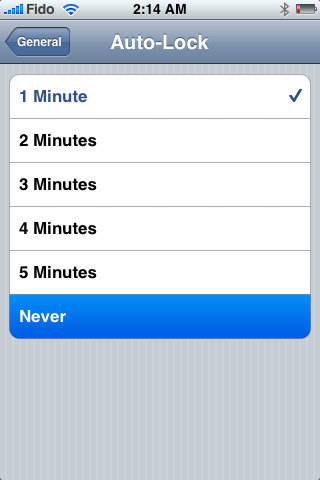
Step Four Press to select Never from the list of Auto-Lock times.
Step Five Press the Home button to return to your springboard.
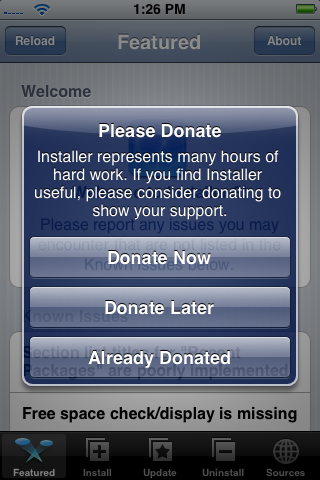
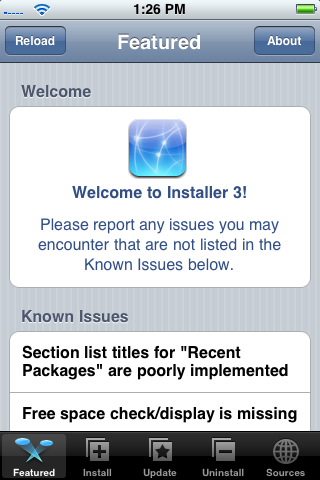
Step Six Press to select Installer from your springboard.
Step Seven Press Donate Later to continue into the Installer app. Note: Come back later and donate as this app is helping you out a ton!
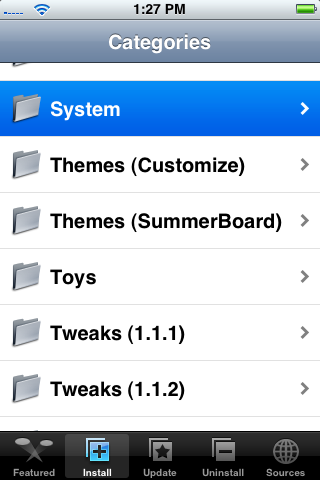
Step Eight Press to select the Install tab at the bottom of the screen.
Step Nine Press to select the System category.
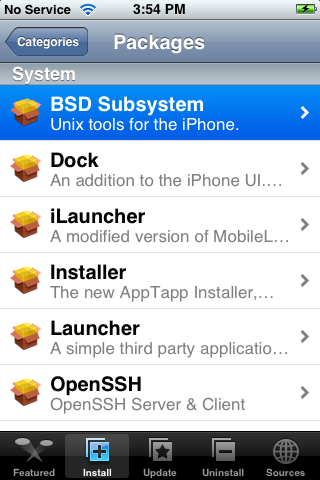
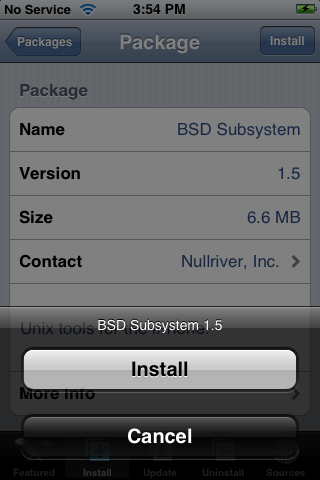
Step Ten Press to select BSD Subsystem from the list of packages.
Step Eleven Press to select the Install button at the top right.
Step Twelve Press the Install button to confirm installation.
NOTE***: Make sure before you continue that you have updated to the latest Installer version if you have not already. The old version of Installer will not operate on 1.1.3.
INSTALL THE JAILBREAK Step One Download the Jailbreak from: download link unavailable
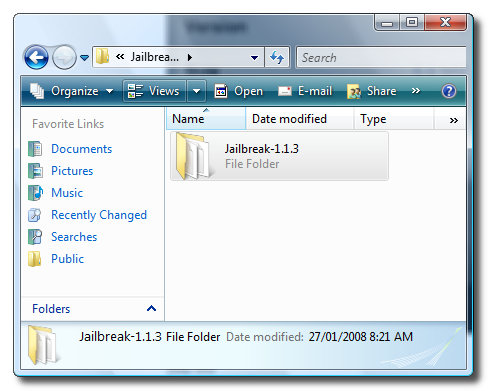
Step Two Extract the downloaded file (Jailbreak-1.1.3.tar.gz). WinRAR can be used to extract it...
Step Three Launch WinSCP by selecting it from your Programs list.
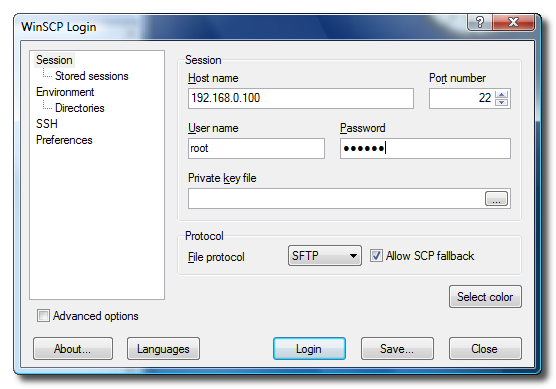
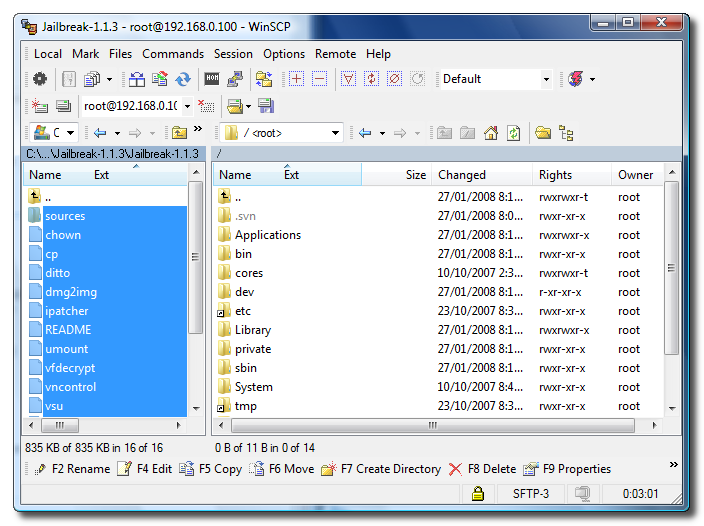
Step Four Enter your iPhone's IP Address as your Host name. Enter root as your User name. Enter alpine as your Password. Finally click the Login button.
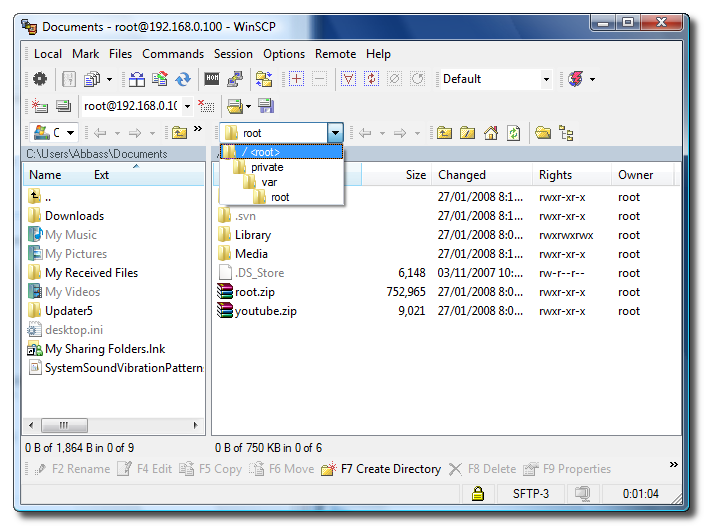
Step Five Select / from the Remote Folder Dropdown Menu.
Step Six Navigate to the location of the Jailbreak-1.1.3 folder using the left pane and select all the files in it.
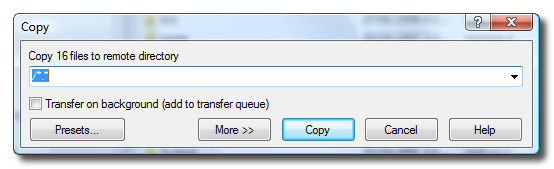
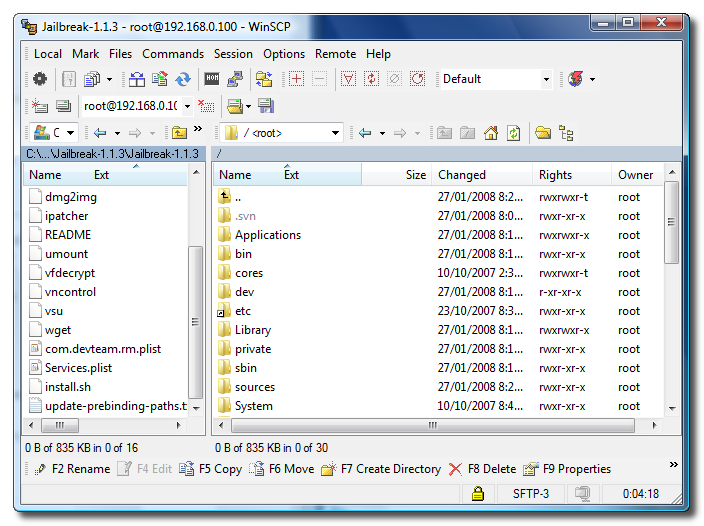
Step Seven Drag the selected files to the right pane. If prompted to confirm the copy press the Copy button.
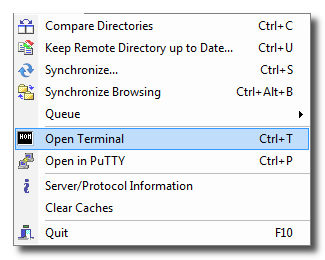
Step Eight Click to select Open Terminal from the Commands Menu.
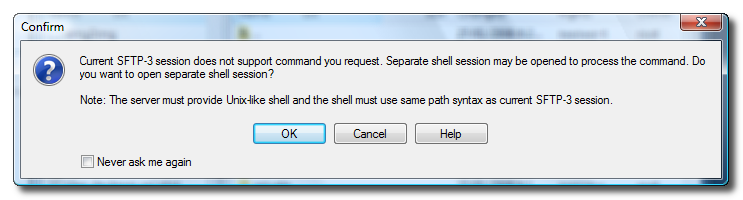
Step Nine If asked to open a separate shell session click the Ok button.
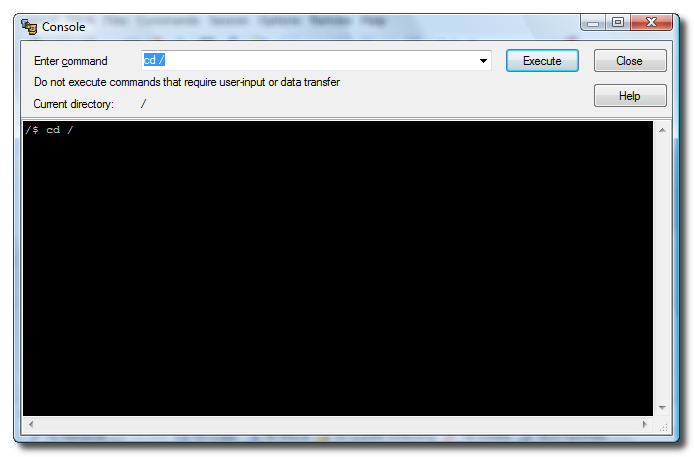
Step Ten In the console window that appears enter the command cd / and click the Execute button.
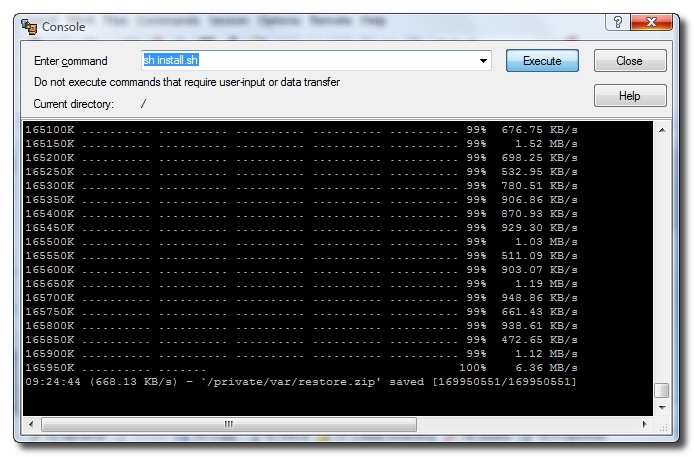
Step Eleven Now enter the command sh install.sh and click the Execute button.
Step Twelve The script will download the firmware from Apple once it finishes it will just sit there for a few minutes. Don't worry this is normal.
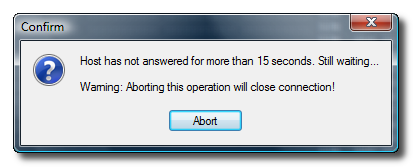
NOTE***: If you ever get this window displayed do not click anything on it. Don't click Abort and don't click the X either. It will disappear in few minutes!
Step Fourteen It will then display some encryption information and sit there for a few minutes. Don't worry this is normal.
Step Fifteen The script will then display some partition information and sit there for another few minutes. Don't worry this is normal.
Step Sixteen The script will then continue to patch your iPhone. It will take several minutes for this to complete and then it will sit there for a longer several minutes again. Once its complete the SSH connection will terminate!
Step Seventeen After about a minute your iPhone will reboot into a Jailbroken 1.1.3 iPhone !!!!
i installed the new bsd subsytem and my iphone is frozen , , wpnt work , nuttin , it is a 112 unlocked with gehotz and now it's ocked , it said when it was downloading it something about passwrd not working and will make springe board not work and to use password but how do i change this password were do i go
Hey there Amin
I have the same problem, there is a way of using a1.1.3 ipsf from your comp, il try find the link later. It involves altering the code in the sh install file, and transferring the 1.1.3 file to the private/VAR/ directory on your iPhone via ash. However even after doing this it still would not install for me! I have given up and I am just using 1.1.2 untill I can be bothered trying again!
Hi, i got a funny installer icon after upgrading to 113. Everything on the originally 11246otb works, unlocked succesfully with the geohot software method and software update 113 with installer.
now ssh is working but there is no icon on screen, and I cannot find Applications in the phone private/var/root directory
Any idea, ?
The installer icon looks like a piece of paper with lever, pencil on it. ????
Hey I have tried installer method, windows method, apple method, and even some other one i found. All get stuck at the apple download part! It just keeps trying to connect and retries many times untill it gives up. Please help me, I'm getting desperate
1.1.1 OTB, jailbroken 1.1.2...
I used the installer to install 1.1.3 without updating to newest installer. The only problem so far is the google locate function!
I didnt connect to my pc to do the "soft upgrade" to 1.1.3.
Thank alots to iClarified and all those who had help so much in getting the iphone working, Last night i use my otb1.1.2 downgrade to 1.1.1 then back to 1.1.2 and using turbo sim and its working fine and then i upgrade to 1.1.3 and its working with the turbo sim. guys remember use the at@t card to upgrade to 1.1.3 and REMEMBER Don't use your SIM with turbo sim. i use the ibraker 1.1.3 to do it but its give me a little problems after its done cos' i have to switch off and on for a while to get it open. i have a 1.1.3 jailbroken and and unlock but i am still in the same modem firmware 04.02.13_g. everythings work like 1.1.3.....THANKS ALOTS TO ALL THE PPLS WHO GOT ALL THIS WORKING.....:) When you use the jb ibreaker 1.1.3 to jailbreak and when its done Don't update to (1.1.3 soft upgrade), it will freeze your phone and then you will have to redo all over again.
Remember guys when ever you get stuck with anythings you can always go to itune to restore to 1.1.1 jb and upgrade to 1.1.2jb and do it again to upgrade to 1.1.3 using jbibreak1.1.3
Has anyone experience with a Bladox TurboSIM using on 1.1.3 Soft Firmwareupdate? I´m using a TurboSIM with 1.1.2 jailbreak and it´s works finde. Will it still work with the TurboSim after upgrading to 1.1.3
Razor1973-> I meant that is not recovery mode. It is only screen. I use AppTap to go to "slide to unlock screen" and everything is ok untill next seft reset device. - I mean when I soft reset my device, some data are deleted so in the next time the phone will start again in mode "with itunes" screen. Then I must again use Apptap.
jailbreak 1.1.1 --> oktoprep --> 1.1.2 --> 1.1.3. Reinstall BSD Subsystem. Everything (EDGE, phone, ringer, mail, safari, SMS) workng fine.. except term-vt100. When I launch term-vt100, it ask for password and I tried alpine or dottie. None successful. But I can use Putty (SSH telnet) to login using root account with alpine password. Anyone have such problem and how you solve this? Thanks.
I ve problem - 1.1.2 - 1.1.3 OK, but when I try to SOFT RESET (holding both buttons) my iPhone, than it shows screen with cabel and iTunes icoon (so i must use apptap to set "slide to unlock") screen. Don t someone know what to do with it please ? :-(
hi, mine is is otb1.1.2 downgrade and upgrade to 1.1.2 and i am using turbo sim and and its running good by the help of iclarified but right now i am trying to upgrade to 1.1.3. using the at@t card i get stuck at step 10. its say that error 127 somethings. please give a little more details which you did on the jailbreak on 1.1.2. thanx much appreciate
After several hours and reinstalling 1.0.2, 1.1.1 and 1.1.2 SEVERAL times, I was able to end up with a jailbroken 1.1.3. Except I hear no ringer when I get a call!!! I have tried changing ringtone, normal, silent and vibrate modes, etc., to no avail. Anybody else experience the same?
hi, everyone. i currently installed the 1.1.3 update using this tutorial. It is great so far except for the installer. i cant install anything from the installer, each time i try to to install sthg i get the following error "Main script execution failed!". Anyone has any idea on how to fix this. Will virgnizing the iphone and then updating to 1.1.3 solve the problem??? (My iPhone is version 1.1.2 OTB, currently updated to 1.1.3 using this tutorial and unlocked using TURBO SIM)
I got also stuck at "mkdir /private/var/logs/Baseband: File exists"
read below, seems to be allright!
Try to hit installer button on homescreen when it's stuck, so it will reboot ... worked for me, gotta check all functions now ... i'm going to tell u later if everything is all right!
I had a 1.1.2ootb jailbroken iphone with t-mobile (germany) carrier lock.
i did:
- iTunes upgrade to usual 1.1.3 worked (so baseband is 04.03.13_G)
- Restor to 1.1.1 -> Error 1015 (has to be)
- Second Restore to 1.1.1 -> Error 1015 (as expected)
- Jailbreak 1.1.1 (*#306#, ...) + Oktoprep
- UPDATE to 1.1.2
- Jailbreak 1.1.2
- updated to latest version of installer, BSD Subsystem 2.0, latest Open SSH
- the continued installing 1.1.3 just like in iClarified's tutorial.
- gut stuck at "mkdir /private/var/logs/Baseband: File exists"
- hit installer button on iphone -> about a minute the spinning "work" circle
- iphone rebooted and voila seems to be a working 1.1.3 iphone.
lets check the functions
cool
I am confused, does the update to 1.1.3 using this method allow my phone functions to work or am I limited to ipod touch status. My iphnone is a 1.1.1 unlocked updated to 1.1.2. If i follow the update & jailbreak path to 1.1.3 does the phone function still work?
.







![Beats 360 Headphones Debut With Swappable Cushions, IPX4 Rating for $349.99 [Video]](/images/news/102342/102342/102342-160.jpg "Beats 360 Headphones Debut With Swappable Cushions, IPX4 Rating for $349.99 [Video]")











![Apple Studio Display XDR Hits All-Time Low of $2,969.99 ($329 Off) [Deal]](/images/news/101976/101976/101976-160.jpg "Apple Studio Display XDR Hits All-Time Low of $2,969.99 ($329 Off) [Deal]")
