These are instructions on how to unlock your 3.9 Bootloader iPhone with AnySIM 1.3 for use on the 1.1.3 firmware!
To follow these directions you must have a 3.9 Bootloader iPhone. This means that your iPhone came with firmware 1.1.1 or lower out of the box. The instructions also assume that you already have soft updated to 1.1.3.
Step Two Now that we are at 1.1.3, jailbroken, and with the right baseband we can begin to unlock!
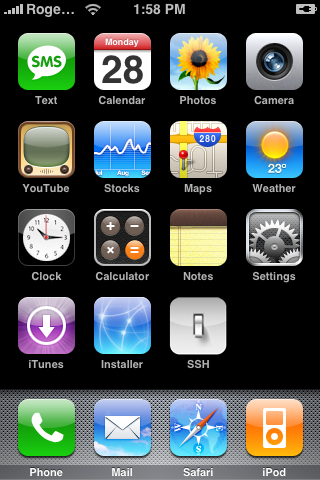
Press to select Settings from the Springboard.
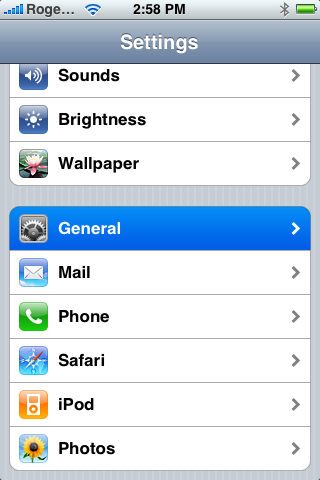
Step Three Press to select General from the list of Settings.
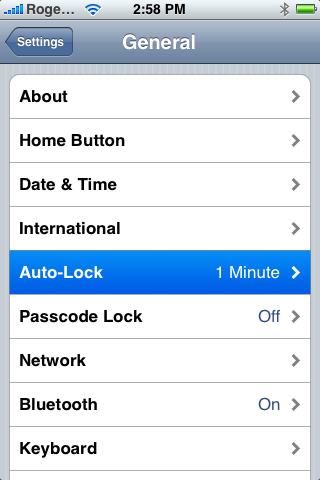
Step Four Press to select Auto-Lock from the General Menu.
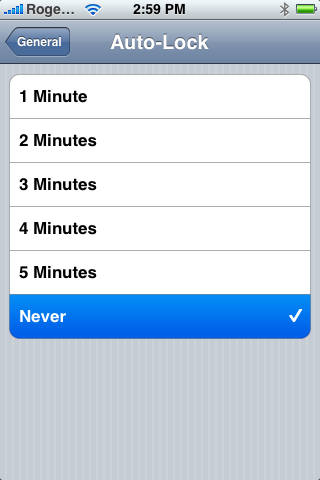
Step Five Press to select Never from the Auto-Lock Menu.
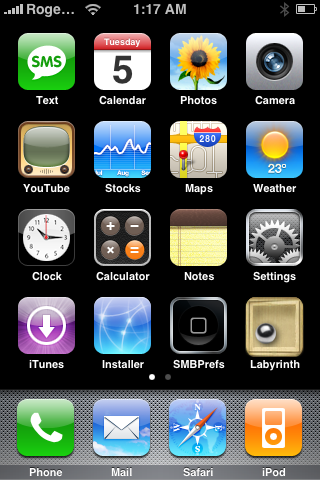
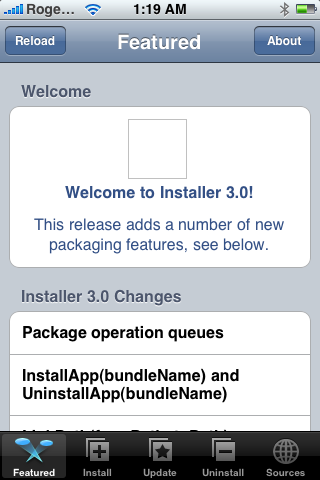
Step Six Press the Home button to return to your Springboard then press the Installer icon to launch it.
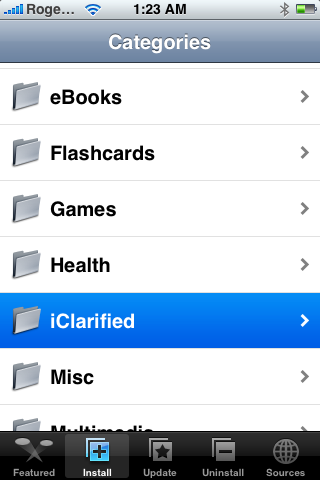
Step Seven Press the Install tab at the bottom of the screen.
Step Eight Press to select iClarified from the list of Categories.
If you haven't already added the iClarified installer source you must do this to see the iClarified category! You can find instructions to do this here: How to Add the iClarified Source to Installer
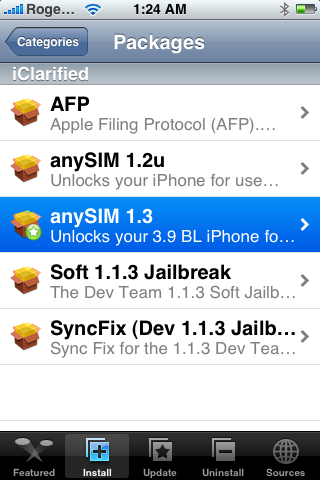
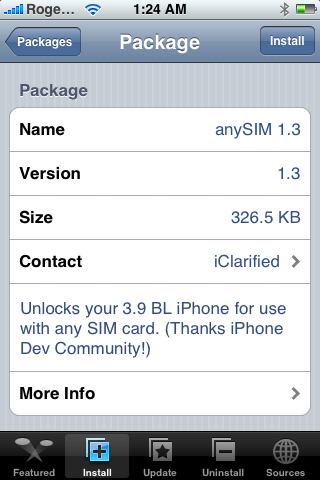
Step Nine Press to select anySIM 1.3 from the list of Packages.
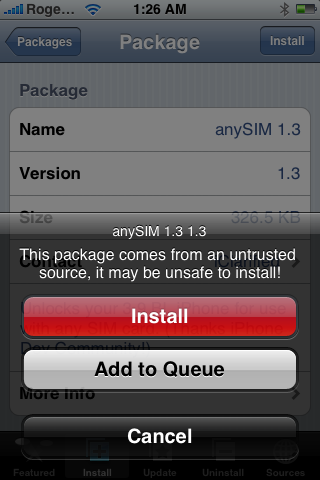
Step Ten Press the Install button at the top right of the screen.
Step Eleven Press the large red Install button that appears.
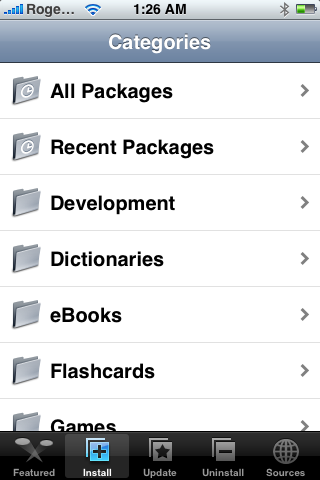
Step Twelve The anySIM 1.3 will install and then you will be returned to the Categories list. Press the Home button to return to your Springboard.
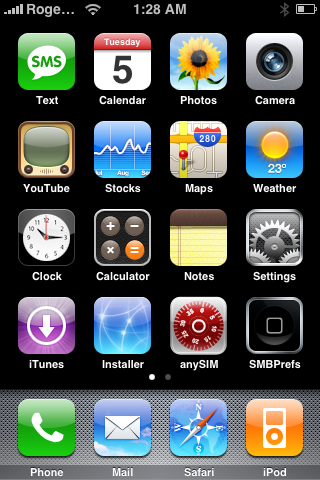
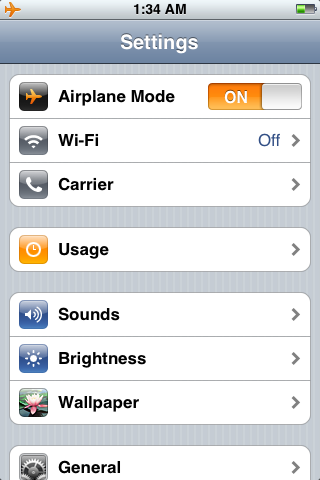
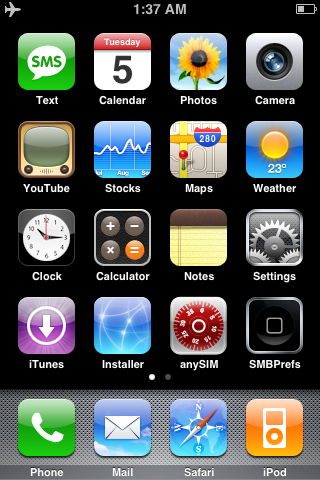
Step Thirteen Notice the new anySIM icon on your Springboard. Before we can unlock we must enable Airplane mode. Press to select Settings from your Springboard.
Step Fourteen Slide the Airplane Mode switch to the ON position.
Step Fifteen Press the Home button to return back to your Springboard. Press the anySIM icon located on your Springboard.
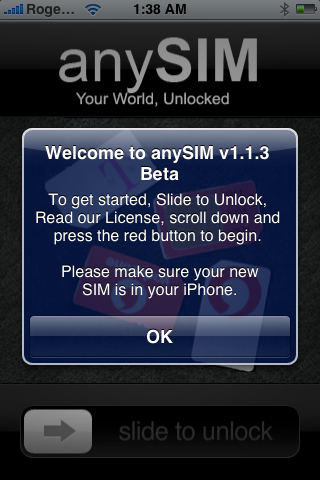
Step Sixteen Press the large OK button to continue past the welcome message.
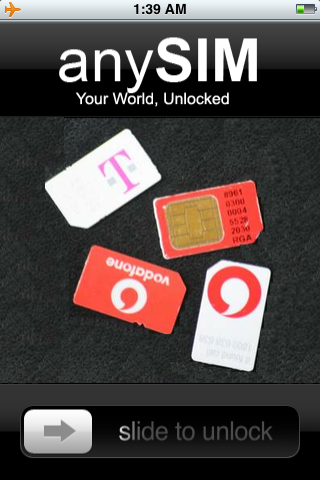
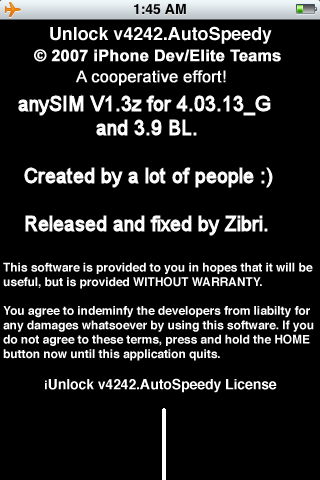
Step Seventeen Slide the Unlock Slider to the right to begin your unlock procedure.
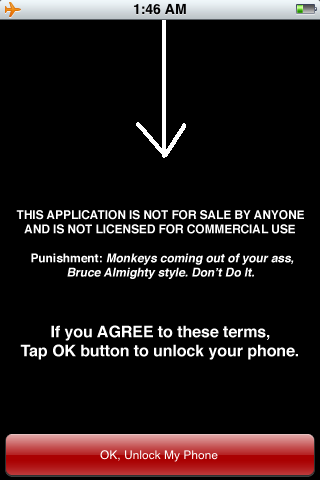
Step Eighteen Scroll down and read the legal information then click the large red OK, Unlock My Phone button.
NOTES***: If you are experiencing a problem with AnySIM telling you that your Auto-Lock is not set to never you can try this solution posted by iderzh. Thanks!
It is very simple solution, the root cause is: anySIM 1.3 checks in /var/root/Library/Preferences/com.apple.springboard.plist file "SBAutoLockTime" value. So, if you used Official Dev Team 1.1.3 Upgrade this file was moved to /var/mobile/Library/Preferences/ .
Solution only for iPhone with 1.1.3 (Official Dev Team Release): 1. Set "Auto-Lock" to "Never" 2. Rename /var/root/Library/Preferences/com.apple.springboard.plist to /var/root/Library/Preferences/com.apple.springboard.plist.old 3. Copy /var/mobile/Library/Preferences/com.apple.springboard.plist to /var/root/Library/Preferences/com.apple.springboard.plist 4. Set "Airplane mode" to ON. 5. run anySIM 1.3 (now it should run smoothly) 6. rename /var/root/Library/Preferences/com.apple.springboard.plist.old to /var/root/Library/Preferences/com.apple.springboard.plist 7. turn "Airplane mode" OFF
Get the iClarified Daily Newsletter
Apple news, rumors, tutorials, price drop alerts, in your inbox every evening, free.
Unsubscribe at any time.
Success!
You have been subscribed.
Add Comment
Would you like to be notified when someone replies or adds a new comment?
Yes (All Threads)
Yes (This Thread Only)
No
Notifications
Would you like to be notified when we post a new Apple news article or tutorial?
Thanks for the tips -- one note though, when I had to copy the springboard plist from mobile's preferences to root's preferences, I had to chmod +r it too since it was originally set to not be world readable.
that line is (for anyone else having trouble) after the copy step and it would be:
chmod a+r /var/root/Library/Preferences/com.apple.springboard.plist
i renamed the file becouse i was having problems but i for got the change the airplane mode off
its flashed my phone and is working
do i need to do the proses again
I have the same problem as Dana, I get a "Script execution error" when trying to install Anysim 1.3.
Any idea what could be causing this?
I used ZiPhone (the GUI version on windows) and am coming from an originally 1.0.2
I run Anysim 1,3 , i inserted my sim , it was recognised and the signal is ok! I can receive calls but when I am trying to call it calls but I don't hear anything ! Why?? Any solution plz??
Hi All,
I have a question and hope the iClarified team or someone can help me and give me an answer.
I have followed the guide and working great at 1.1.3 upgrade from 1.1.1
now here is my question. each time i upgrade to 1.1.3 and restart the phone by holding down on the power button and the home key the phone restarts and goes into recovery mode....why? and from there i have to restart the whole process again please help.
Hello,
I have just done everything as in guide.
Baseband upgrade - ok
changed the attributes of ..springboard.plist - ok
anysim 1.1.3 run ok (succesful unlock)
and now my phone does not work also not showing the Modem version...
Any help?
Ok, for those of you that have been having problems installing the soft update and getting Ringtones to work, every where keeps talking about adding Tweaks 1.1.3 for Ringtones. But you can't find them anywhere. You need to install Bigboss's Beta/Experimental first and then do the tweak. Now, I have at least the standard ringtones on the phone.
Just a note: If you are following iClarified's tutorials to fully update your phone to 1.1.3, make sure to immediately install BossTools and check the free space left on your root partition. I have 2MB left after installing anySIM, and could not install any more programs. Required many cycles of restoring before I got my phone working again.
MAKE SURE YOU HAVE FREE SPACE ON YOUR ROOT PARTITION! If you don't, installing apps will fail.
Followed directions with a few exceptions. I had to SSH in and fix the installer. Locate me on Maps is working now, too. However, ringtones aren't working yet. I even tried added the repo for the 1.1.3 Tweak but the fix isn't in. Any clues?
You guys rock!!!!!!!
I did everything with the files provided by your repo. Soft-Upgrade 1.3 -> re-install BSD Subsystem -> Baseband Upgrade to 04.03.13_G -> Unlock with AnySim (having a 1.1.2 jailbreaked/unlocked phone with BL 3.9).
Worked like a charm... the whole process took about an hour...
The only thing I had to do is enter my voicemail-number again (*5005*86*my-voicemail-number#)...
Thanks a lot for these awesome tutorials!
(happy iPhone user from Switzerland here :)
I did this and forgot to did the soft jailbrealk 1.1.3 now my phone seems to be bricked. I can not restore to 1.1.1 I have no internet what can I do from here. Please help
maybe someone can answer. I have v1.1.1 OTB with BL 3.9. I uploaded Nate True's iBrickr. After that which is correct way to finish? #1 Soft update, #2 then baseband? Or is it baseband then soft update?
I tried last night the soft update but 1.1.1 is still on phone and I had to perform a sync fix. After that, the phone doesnt see what's already on the phone so I may have to re-install 1.1.1.
Any suggestions?
This works great. Thanks. I now have an unlocked phone with upgraded baseband on T-mobile. My only question is, does "My Location" still not work on T-mobile? I can't get it working.
For everybody having problems with anySIM "you must set auto-lock to never" isuue:
after copying the apple.springboard.plist to var/root/Library/Preferences folder, makse sure that the PERMISSIONS of the springboard.plist FILE IS SET TO 755 (or at least to 744) so that the anySIM application can read the springboard.plist file. The file HAS to have the SUFFICENT PERMISSIONS for anySIM TO READ the file.
thanks for reading
Thanks for all the info, but I have one problem. When I get to the part where I'm running AnySim 1.3 the process seems to get stuck on "stopping commcenter". I've left it for a few hours and nothing. Am I missing a step?
I did the Natetrue version for upgrading to 1.1.3...i had 1.1.1 before. It upgraded fine but for some reason my ringtones would not work... all sound comes from the phone but when i get a call it only vibrates! It wont even play the ringtone settings>sounds>ringtone... I then upgraded baseband, and used AnySim unlock 1.1.3. It unlocked and the process was flawless however, ringtones still do not work. Am i doing something wrong? Do i need to install something from the installer to fix this? please anyone help!!!!



![Apple Developing iPhone Game Controllers Likely to Launch Under Beats [Report]](/images/news/102201/102201/102201-160.jpg "Apple Developing iPhone Game Controllers Likely to Launch Under Beats [Report]")
![Apple to Remove Video Walls and Bring Back Dedicated Genius Bars [Gurman]](/images/news/102198/102198/102198-160.jpg "Apple to Remove Video Walls and Bring Back Dedicated Genius Bars [Gurman]")
![John Ternus and Joz Discuss iPhone Duo Design, Price, and iPhone 18 Pro Camera [Video]](/images/news/102197/102197/102197-160.jpg "John Ternus and Joz Discuss iPhone Duo Design, Price, and iPhone 18 Pro Camera [Video]")








![Apple Studio Display XDR Hits All-Time Low of $2,969.99 ($329 Off) [Deal]](/images/news/101976/101976/101976-160.jpg "Apple Studio Display XDR Hits All-Time Low of $2,969.99 ($329 Off) [Deal]")
![Apple AirPods Pro 3 Drop to $199 ($50 Off) [Deal]](/images/news/101966/101966/101966-160.jpg "Apple AirPods Pro 3 Drop to $199 ($50 Off) [Deal]")
