These are instructions on how to jailbreak your iPhone 3G on the 3.1.2 or 3.1.3 iPhone firmware using RedSn0w for Windows. If you are already on firmware 3.1.2, do NOT update to firmware 3.1.3. The Mac version of this tutorial is here. If you have an iPhone 3G click here, if you have and iPhone 3GS click here
This tutorial can be used to jailbreak before applying the BlackSn0w unlock to your device.
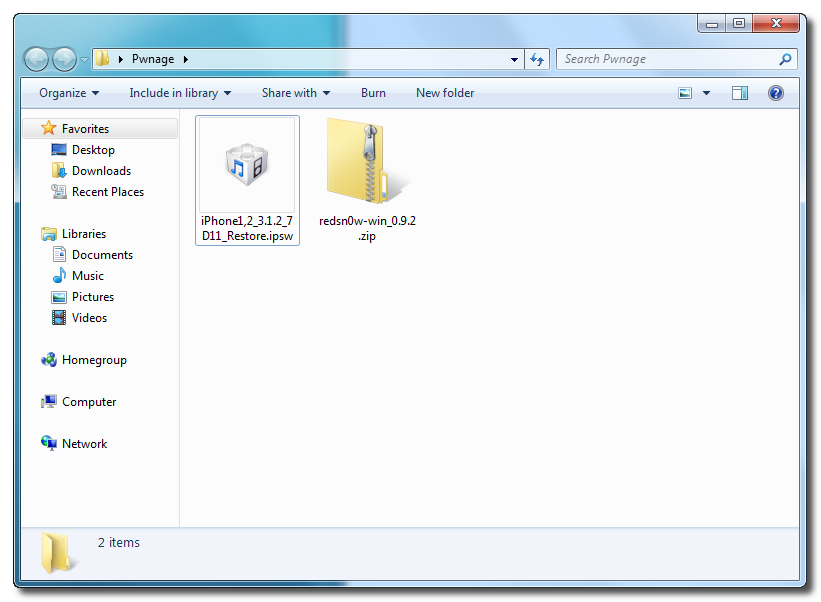
Step One Create a folder on your desktop called Pwnage
Download RedSn0w from here and place it in the Pwnage folder. Likewise, download the latest 3.1.2 firmware from below and place it in the same folder.
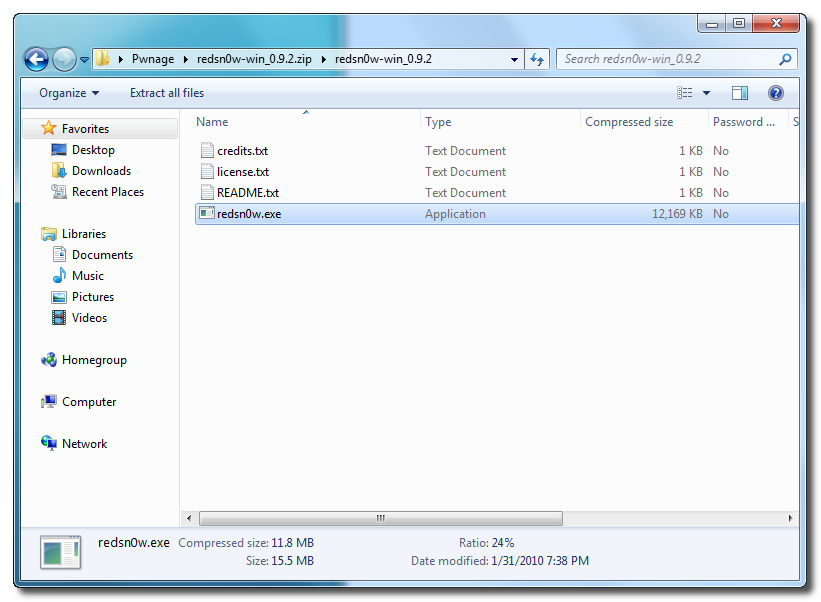
Extract the RedSn0w application from the RedSn0w zip file to the Pwnage folder.
Step Two ***If you are running iPhone OS 3.1.2 or 3.1.3 you may skip this step***
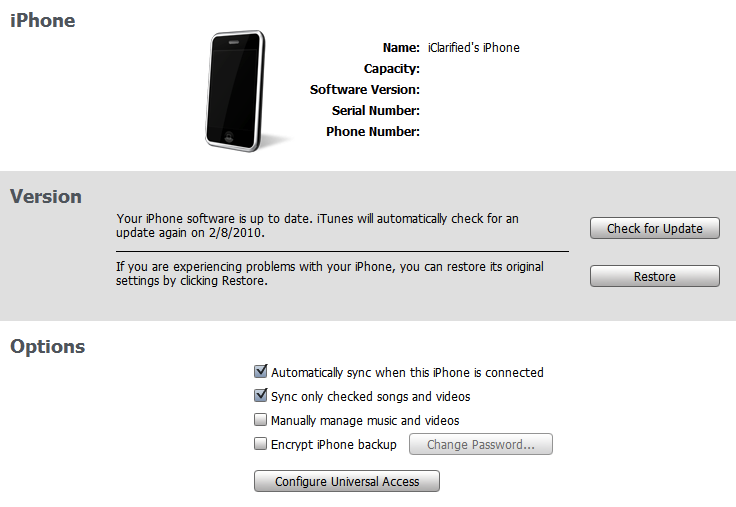
Connect your iPhone to the computer and launch iTunes.
Select your iPhone from the list of devices on the left. Now hold down shift and click the Restore button. Restore is preferred as it won't create any wasted space on your iPhone.
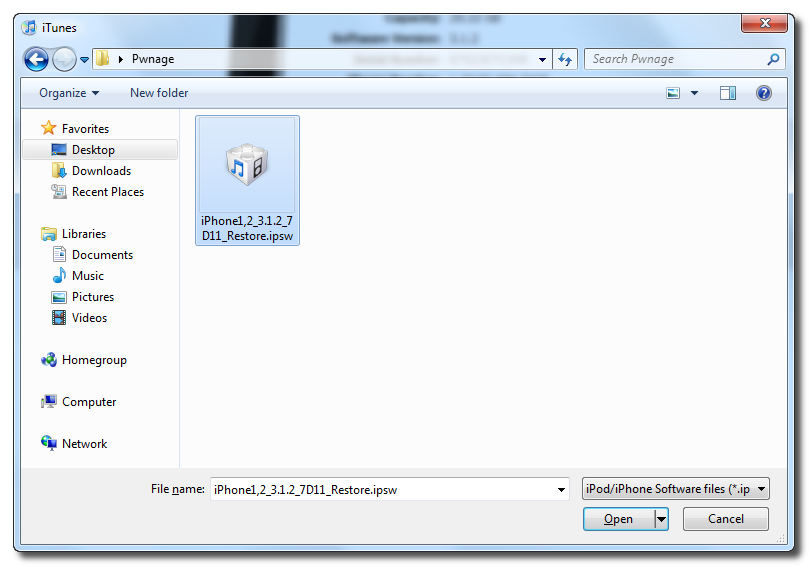
Navigate to the Pwnage folder on your desktop and select the firmware ipsw. Click the Open button to continue.
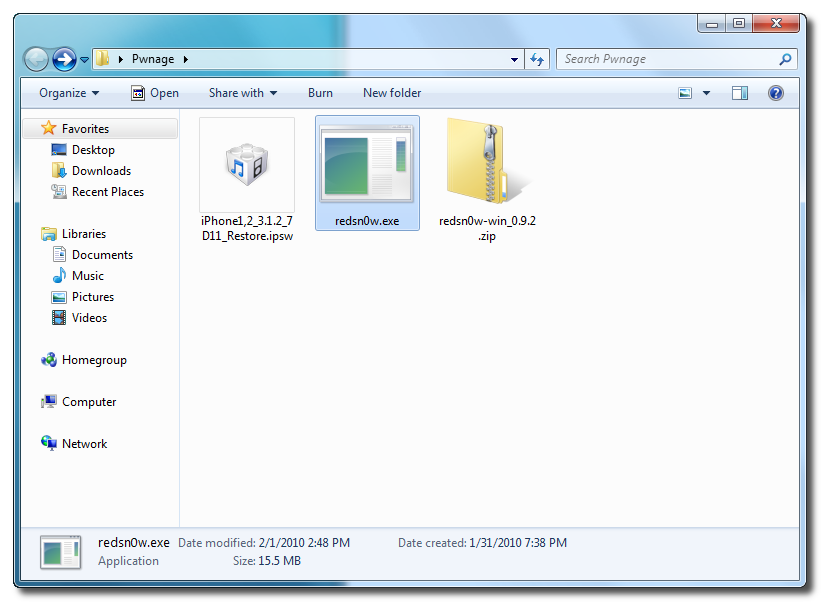
Step Three Once iTunes has finished updating your iPhone to the desired firmware you may launch redsn0w.exe from the Pwnage folder on your desktop.
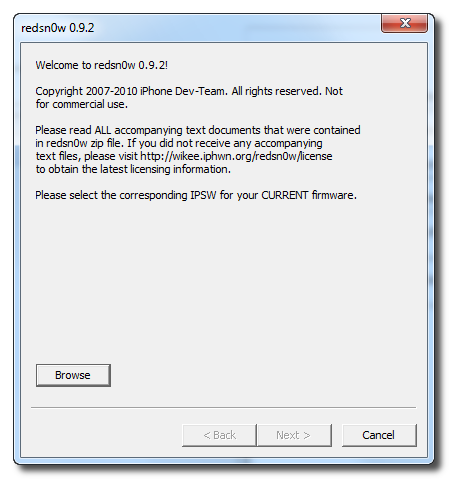
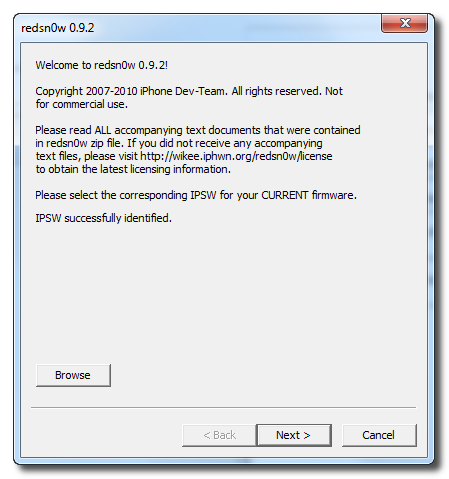
Step Four Once RedSn0w opens click the Browse button
Step Five
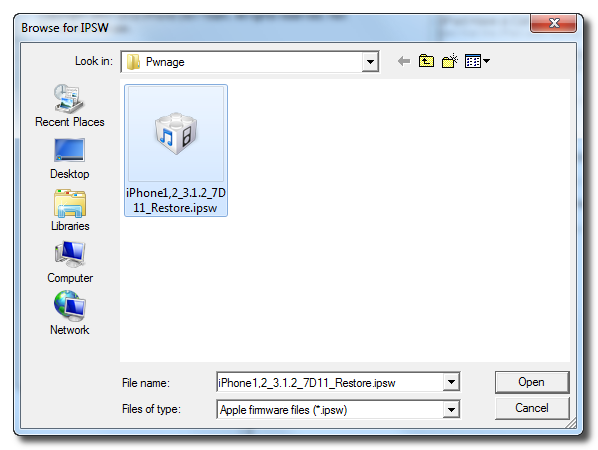
**Note** Even if you are on firmware 3.1.3, still select firmware 3.1.2. Redsn0w works the same way on firmware 3.1.2 or firmware 3.1.3. If you select firmware 3.1.3, you will get an error, as Redsn0w does not recognize the 3.1.3 file yet.
Select the firmware ipsw we placed in the Pwnage folder on our desktop then click Open
Step Six Once the firmware has been verified click the Next button to continue.
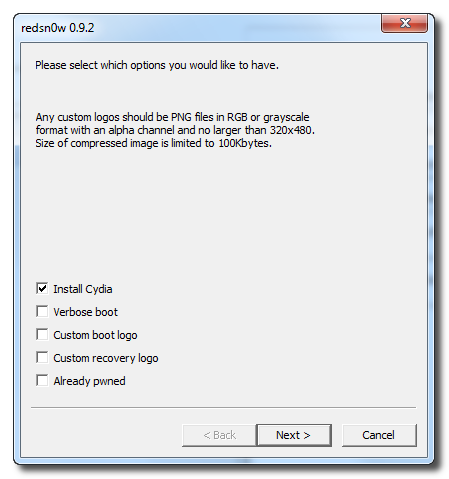
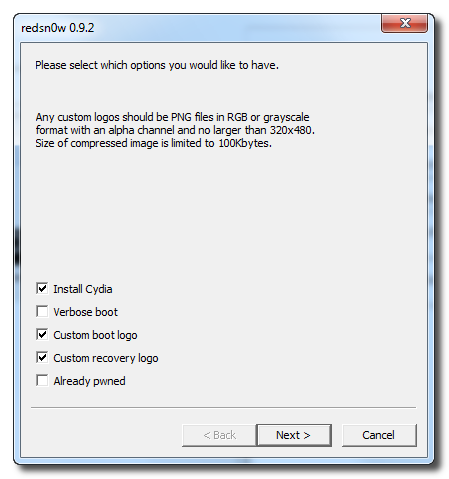
Step Seven From this window you can select the jailbreak options you would like. If you have already pwned your device check the Already pwned option.
Verbose boot displays detailed information on boot of your device and is generally only needed by developers and advanced users.
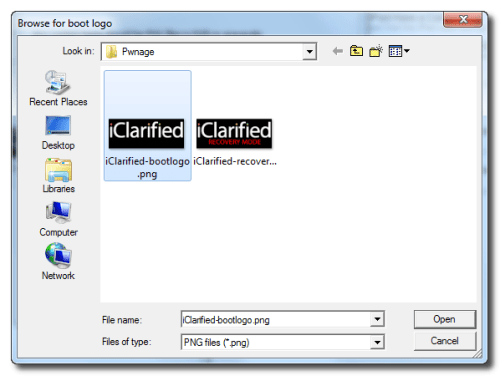
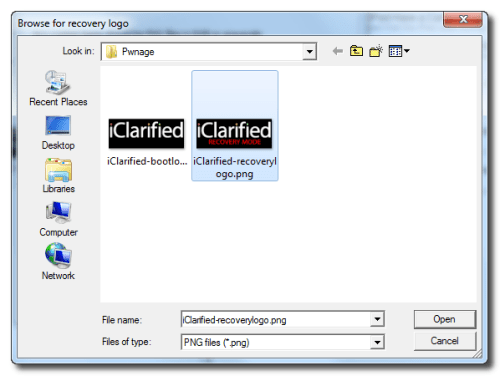
Make sure Cydia is selected. For this tutorial we will also select Custom boot logo and Custom recovery logo.
When you click to select each custom logo option a dialog window will appear asking you to select the image. Locate the image you would like to use then press the Open button.
*Remember the rules for boot logos are: RGB or Grayscale format with Alpha channel and dimension below 320x480. If you would like to use the iClarified ones they can be found here: Boot Logo, Recovery Logo
Click the Next button to continue
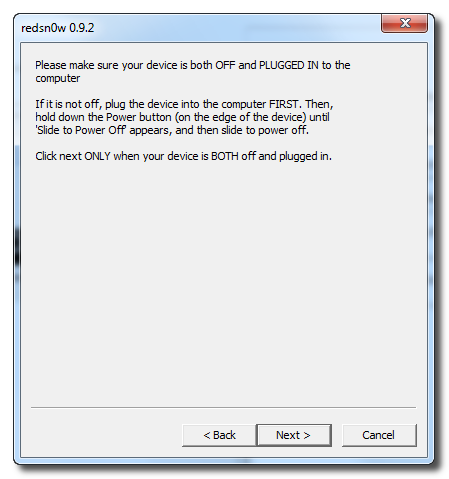
Step Eight Please plug your iPhone into the computer and make sure its OFF then click the Next button
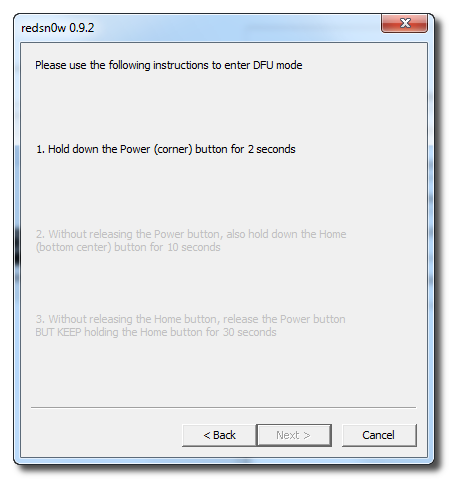
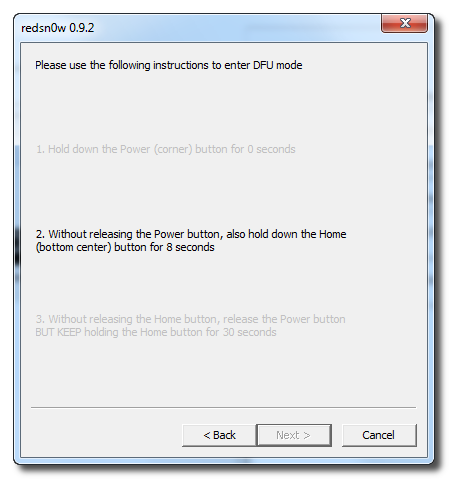
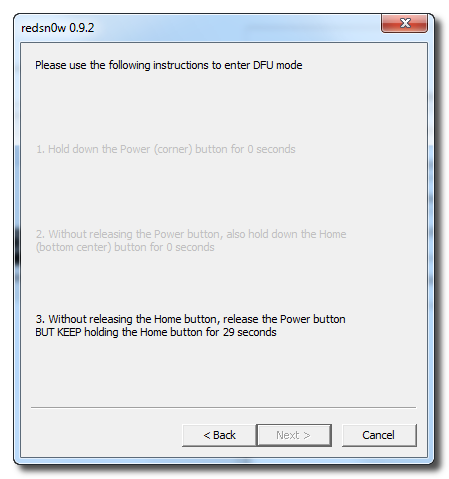
Step Nine RedSn0w will now guide you through the steps to get into DFU mode.
Hold down both the Home button and the Power button for 10 seconds.
Release the Power button and continue holding the Home button until RedSn0w detects the device.
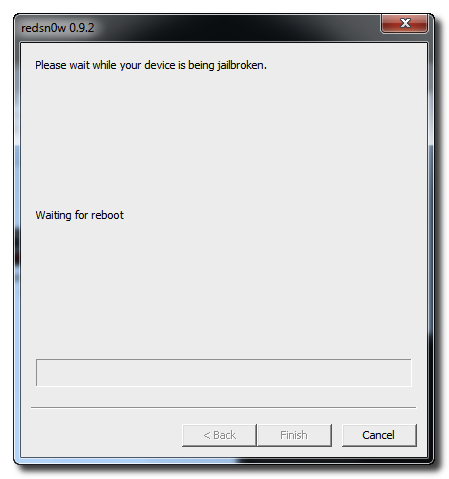
Step Ten Your iPhone will now reboot
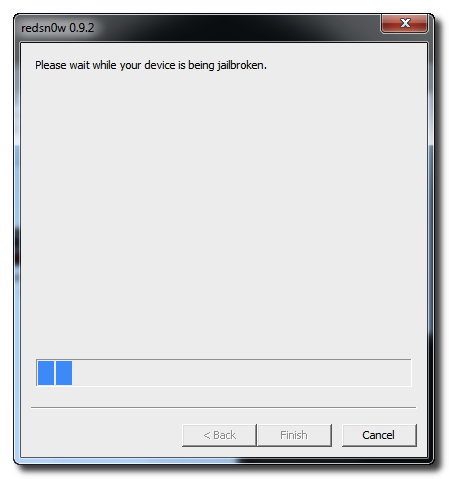
Step Eleven RedSn0w will then begin uploading the new RAM Disk and Kernel.
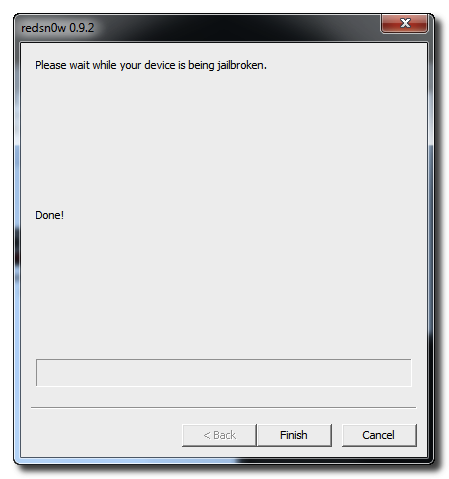
Step Twelve Once this is complete you will be notified that RedSn0w is done. Click the Finish button. After your iPhone finishes rebooting (5 minutes or so), it will be jailbroken with Cydia on the SpringBoard.
*As usual a big thanks to the iPhone Dev-Team for their contribution to the community!
Get the iClarified Daily Newsletter
Apple news, rumors, tutorials, price drop alerts, in your inbox every evening, free.
Unsubscribe at any time.
Success!
You have been subscribed.
Add Comment
Would you like to be notified when someone replies or adds a new comment?
Yes (All Threads)
Yes (This Thread Only)
No
Notifications
Would you like to be notified when we post a new Apple news article or tutorial?
..firmware is 3.1.3 (5.x.x) firmware imitation w/siri and 6.15 ipad bandbase.. jailbroke with whited00r what does this mean? I just bought this phone from ebay its a really pretty one . Its also a 3g and is functional as it is the one the seller is currently using.
Pl answer:
If I attempt to jailbreak my iphone 3g(3.1.3), will I lose all data i.e contacts, calendar entries, SMS.. ?If yes, then where n how do I transfer my data to be uploaded again after jailbreaking?
thanx
Hi, i'm using iPhone 3G ver 3.0 (7A341) with 04.26.08 baseband (modem firmware). I want to upgrade the version to 3.1.2. However, when I try to restore the ipsw file, the itunes will give this error "it could not be restored because the firmware file is not compatible. Please help to advice.
Hi,
I think I have successfully jaikbroke my iPhone 3G and it has rebooted. But it does not pick up my exisiting AT&T network. When I try to bring-up Cydia, it wouldn't come up (after I push Cydia, the screen goes blank momenarily and then comes back to home screen). I am not able to use my cell phone now. Pleaseeee help!!
After the restore, wait until itunes opens the activation window (this happens on itunes store).. Once you get that page, then you launch the redsn0w software.. not before, because that closes itunes automatically and then you will loose that "activation" part.... be patient and let me know if you have any problems...
oh well hey bro with what did u jailbroke ur iphone? well u also need to unlock it. jailbreaking and unlocking is a different thing.. TC well i had the same like jailbroken on 3.1.2 and hardly found the unlock for it.. let me know if u need any help
If you are having trouble Jailbreaking and need to turn your phone on again after getting to step 10, repeat step 9 (hold down power, hold down home, let go of power, etc) to revert your phone and turn it back on.
i\'ve a 32gb iphone 3gs with firmware 3.1.3 (No MC model, its MB)
This phone is of AT&T but I don\'t have the simcard.... :P
I cant even get to the menu screen... plz tel me wht 2 do.... :(
hallo people)-:
i have a big problem with my iPhone, it was already jailbroken and suddenlly everything on my iPhone is gone and it keeps telliing me to to put a sim card without pin so it can be activated ....... and i just can call emergency number (-:
can anybody heeeeeeeeeeeelp me and tell me what should i doooooo
my iPhone 3.1.3 3GS 16GB
Hi i am on 3.1.3 OS when i am trying to jailbreak its returning error 1015.even i tried to put in DFU mode bu still same.is there any chance i can jailbeak my Iphone
I followed all the steps above and when I get to the step where it says "downloading Jailbreak Data. . ." on my iPhone and says "Uploading ramdisk" on my computer then an error message pops up saying "redsn0w.exe has stopped working" and I'm forced to close the program. After this happens I am able to turn off my iPhone and it still works. I have an iPhone 3G with the 3.1.3 update and modem firmware 05.12.01.
Hey guys i had os 3.0 and was running jailbroken since long, well just did the update to 3.1.2 using the same tutoriial and now my baseband has been kinda updated to 5.11.07 and now am unable to unlock cos am using other carrier. ya i came to know about blackra1n but i would prefer it with blacksn0w. is there anything i cam lower my baseband and then unlock? any help would be appriciated, waiting fro someone to help me over this..





![iPhone Duo's Initial 8 Million-Unit Order Extends Into 2027 [Gurman]](/images/news/102975/102975/102975-160.jpg "iPhone Duo's Initial 8 Million-Unit Order Extends Into 2027 [Gurman]")
![CT Scan Reveals How iPhone Duo's Hinge Works [Video]](/images/news/102981/102981/102981-160.jpg "CT Scan Reveals How iPhone Duo's Hinge Works [Video]")
![Apple Tests Face ID and Action Button for iPhone Duo, Considers Larger Display [Gurman]](/images/news/102972/102972/102972-160.jpg "Apple Tests Face ID and Action Button for iPhone Duo, Considers Larger Display [Gurman]")

![How To Back Up Your iPhone to an External Drive on Mac [Video]](/images/tutorials/72786/72786/72786-160.jpg "How To Back Up Your iPhone to an External Drive on Mac [Video]")

![How To Find Your IP Address on iPhone [Video]](/images/tutorials/496/496/496-160.jpg "How To Find Your IP Address on iPhone [Video]")

![New Fire TV Stick 4K Drops to $29.99 (50% Off) [Deal]](/images/news/102984/102984/102984-160.jpg "New Fire TV Stick 4K Drops to $29.99 (50% Off) [Deal]")
![Apple's iPhone 18 Pro and Pro Max Cases Are Up to 37% Off [Deal]](/images/news/102978/102978/102978-160.jpg "Apple's iPhone 18 Pro and Pro Max Cases Are Up to 37% Off [Deal]")
![16-Inch MacBook Pro With M5 Pro Drops to $2,429 ($570 Off), Lowest Price We've Seen [Deal]](/images/news/102957/102957/102957-160.jpg "16-Inch MacBook Pro With M5 Pro Drops to $2,429 ($570 Off), Lowest Price We've Seen [Deal]")
![16-Inch MacBook Pro With M5 Max Drops to $3,499 ($900 Off), Lowest Price We've Seen [Deal]](/images/news/102900/102900/102900-160.jpg "16-Inch MacBook Pro With M5 Max Drops to $3,499 ($900 Off), Lowest Price We've Seen [Deal]")
