MobileFinder is a filesystem navigator and launcher for use with your iPhone.
You can use MobileFinder to navigate your system files, launch applications, send files by email, synchronize desktop via ssh and rsync, set file permissions, copy/move/delete files, create files and more. You will find it to be very useful. Just like Finder in OS X. It was created by matt.stoker. Make sure to thank him.
This will work on 1.1.3 and higher iPhones. To follow this tutorial make sure you have BSD Subsystem installed and have added the iClarified Source to Installer.
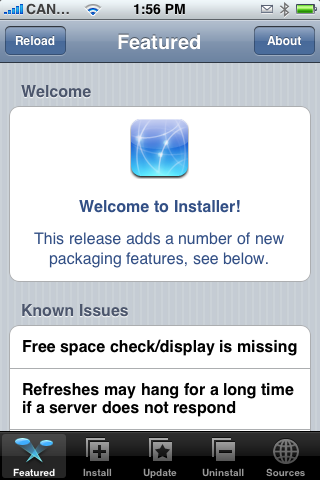
Step One Press to launch Installer from the SpringBoard.
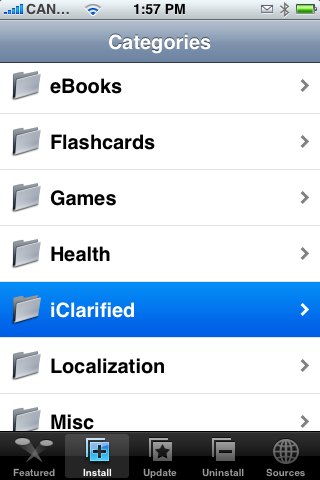
Step Two Press to select the Install tab at the bottom of the screen.
Step Three Press to select iClarified from the list of Categories
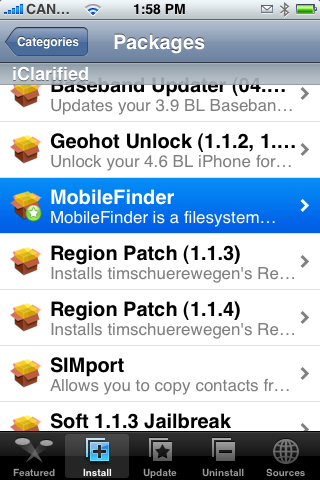
Step Four Press to select MobileFinder from the list of Packages.
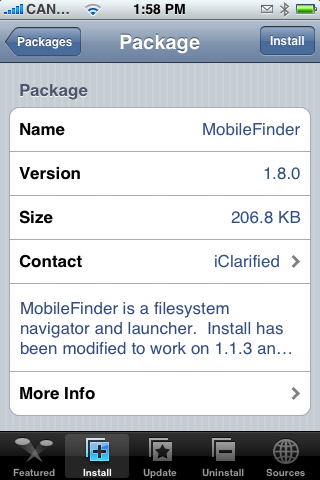
Step Five Press the Install button at the top right of the screen.
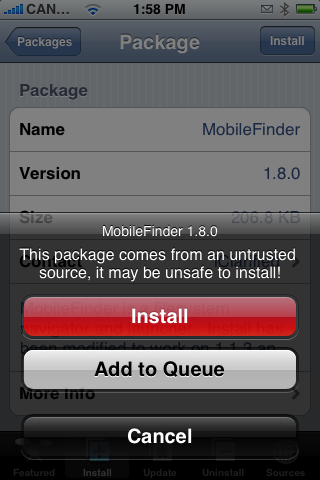
Step Six Press the large red Install button that appears.
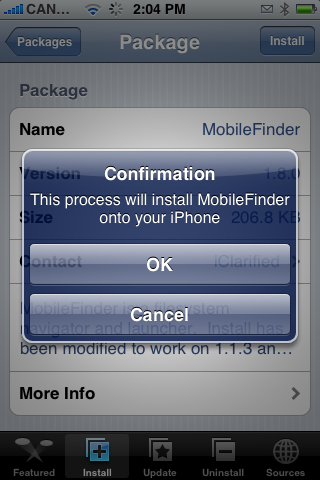
Step Seven You will be asked to confirm the installation of MobileFinder. Press the large OK button.
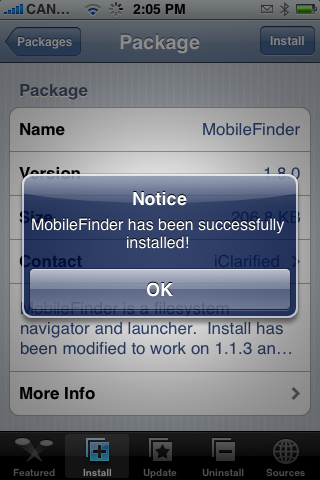
Step Eight Once the installation is complete you will receive a Notice indicating the installation was successful. Press the large OK button.
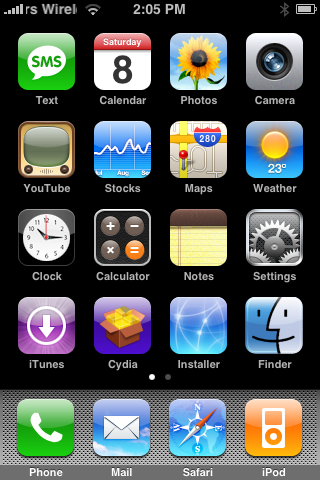
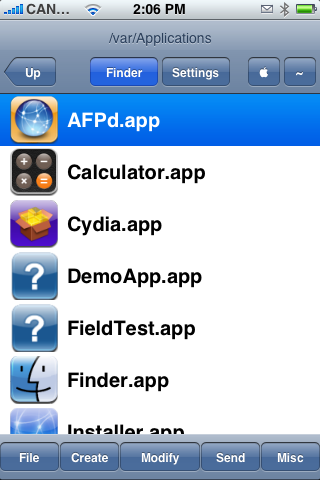
Step Nine Installer will return you to the Categories menu. Press the Home button to return to your SpringBoard. Notice the new Finder icon. Press this to launch MobileFinder.
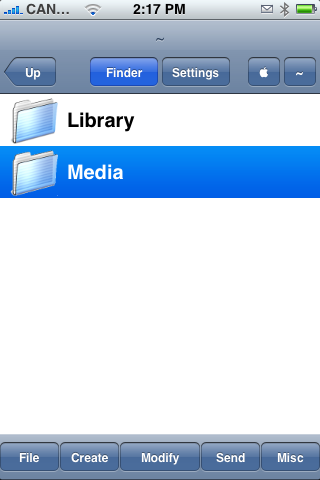
Step Ten Now lets try to email ourselves a photo to see how MobileFinder can work. Press the ~ button at the top right of the screen.
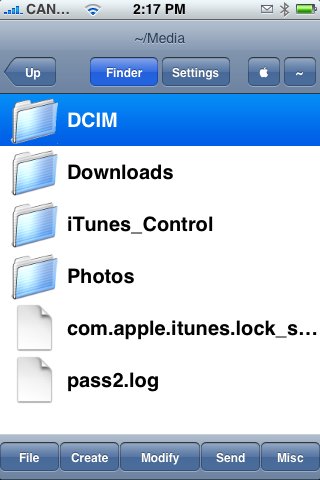
Step Eleven Double tap the Media folder.
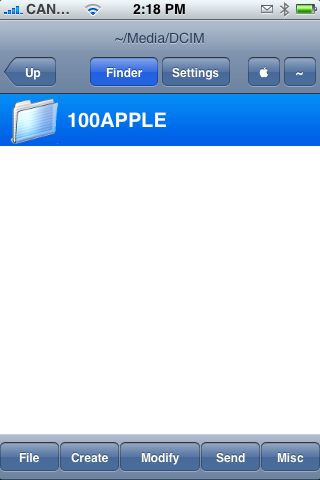
Step Twelve Double tap the DCIM folder
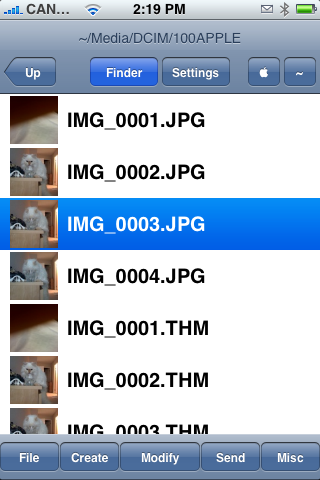
Step Thirteen Double tap the 100APPLE folder.
Step Fourteen You will now see a list of images! Select an email then click the Send button at the bottom of the screen.
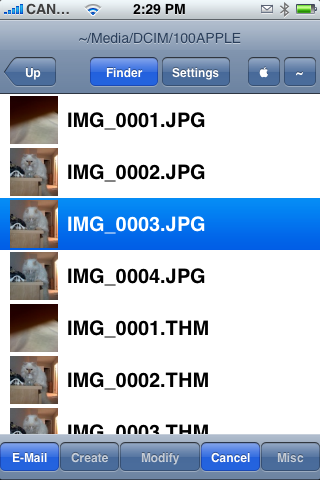
Step Fifteen Notice that an Email button appears at the bottom left of the screen. Press it.
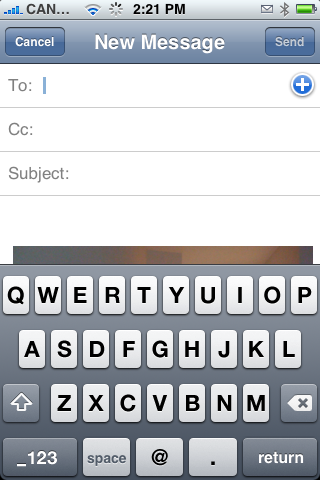
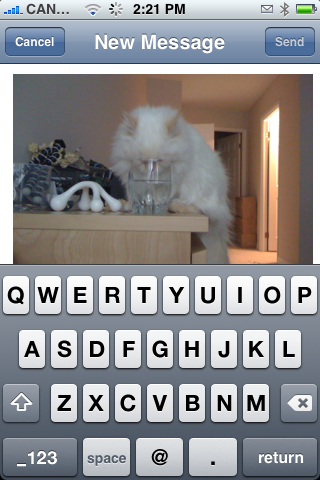
Step Sixteen You will be brought to a New Message window which already includes your files/image as an attachment.
NOTES**: We will do a tutorial on how to use MobileFinder to sync soon. We added MobileFinder on our installer source so the install procedure could be modified to support 1.1.3 and 1.1.4.
THANKS**: Of course thanks to matt.stoker and the other project members: kdbdallas and LSwank. You can view the googlecode page: here
Get the iClarified Daily Newsletter
Apple news, rumors, tutorials, price drop alerts, in your inbox every evening, free.
Unsubscribe at any time.
Success!
You have been subscribed.
Add Comment
Would you like to be notified when someone replies or adds a new comment?
Yes (All Threads)
Yes (This Thread Only)
No
Notifications
Would you like to be notified when we post a new Apple news article or tutorial?
Great app.. I was looking for a way to send attachments for a while.. Thank you so much..
One request if you please.. The sync function is very poorly documented.. Can you give a tutorial on how to use this on a Vista machine? I'm using Air Sharing right now but using a single app would be much easier.
Thanks in advance..
Hiya
I have a problem with the mobilefinder application, too. I tried to install it, but it gave me a scrip execution failed error, but it installed somehow. I can see the icon and it works. The only thing that doesn't work is the execution of files, eg. opening pictures from that application. Anyways, I would like to uninstall it and had a look under installer - uninstall, but the mobilefinder is not there.
How can I safely uninstall this application? I also have Cydia installed.
I tried to search the net for an answer, but there is nothing helpful.
Please help.
Thanks so much.
Cheers
Stef
I too, have cydia installed, and the instalation of this package fails with a main script execution failed, but the app itself gets installed.
what i do is isntall the default finder and then this one, at least some of the changes get aplied i think
i couldn`t of helped notice that you use cydia. i can`t, for the life of me, figure out why it doesn`t show categories like in installer. all it shows is "all packages" and that`s it, in that category there`s nothing. can anyone help? i`ll buy a beer :D
I've tried to install the package several times and I get "Mail Script Execution Failure". I'm using Cydia Packager and APT subsystem. I've never had problems before installing any app. Any help would be greatly appreciated.
Thank you very much for this tutorial. I just have a few questions. Is this an update to the current Mobile Finder? Because I already have a Mobile Finder 1.8.0 installed but I had to use a tweak downloaded through installer to get it to work. It doesn't work completely the way it used to. I am running jailbroken firmware 1.1.3. Should I just install iClarified's version of Mobile Finder over my current 1.8.0 install or uninstall my current Finder then install the iClarified 1.8.0 version? Thanks in advance.










![Apple Watch Series 11 is Back on Sale for Just $299 [Deal]](/images/news/101081/101081/101081-160.jpg "Apple Watch Series 11 is Back on Sale for Just $299 [Deal]")
![AirPods Max 2 Drop to New All-Time Low of $499 [Deal]](/images/news/101063/101063/101063-160.jpg "AirPods Max 2 Drop to New All-Time Low of $499 [Deal]")
![AirPods Max 2 Hit All-Time Low Price of $509 ($40 Off) [Deal]](/images/news/101039/101039/101039-160.jpg "AirPods Max 2 Hit All-Time Low Price of $509 ($40 Off) [Deal]")
![New 13-Inch M5 MacBook Air Hits All-Time Low Price of $899.99 [Deal]](/images/news/100969/100969/100969-160.jpg "New 13-Inch M5 MacBook Air Hits All-Time Low Price of $899.99 [Deal]")
![AirPods Pro 3 Drop to $199 Ahead of Memorial Day [Deal]](/images/news/100935/100935/100935-160.jpg "AirPods Pro 3 Drop to $199 Ahead of Memorial Day [Deal]")
