

How to Open Applications From Unidentified Developers in Mac OS X Mountain Lion
Posted March 13, 2013 at 4:24pm by
Shalom Levytam
These are instructions on how to run applications that 'can't be opened because it is from an unidentified developer' in Mac OS X Mountain Lion.
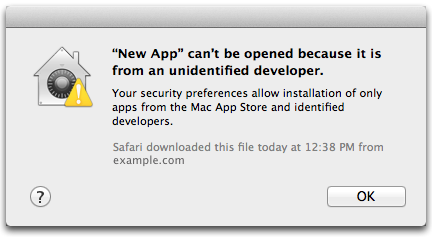
ALLOW SINGLE APP:
If you would like to allow just one specific application to run:
Step One
Hold down the Control key and click the application icon. From the contextual menu choose Open.

Step Two
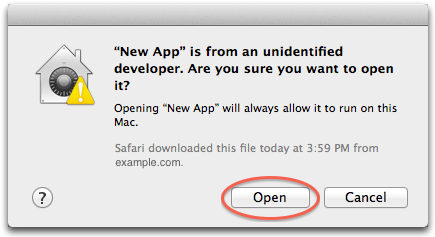
A popup will appear asking you to confirm this action. Click the Open button.
ALLOW ALL APPS:
If you would like to allow all applications from unidentified developers to run:
Step One
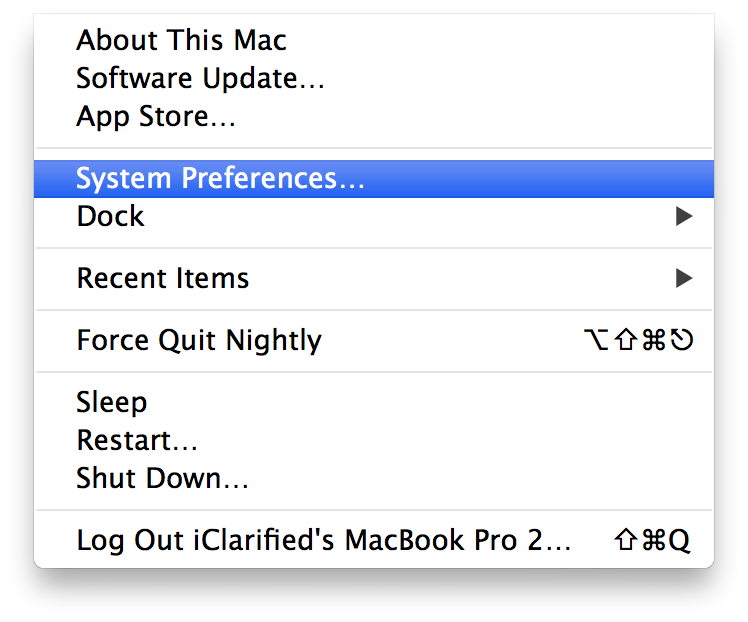
Select System Preferences from the Apple Menu at the top left of your screen.
Step Two
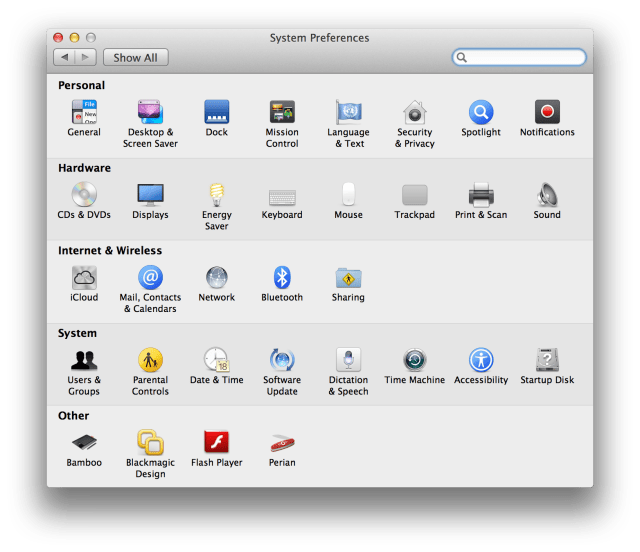
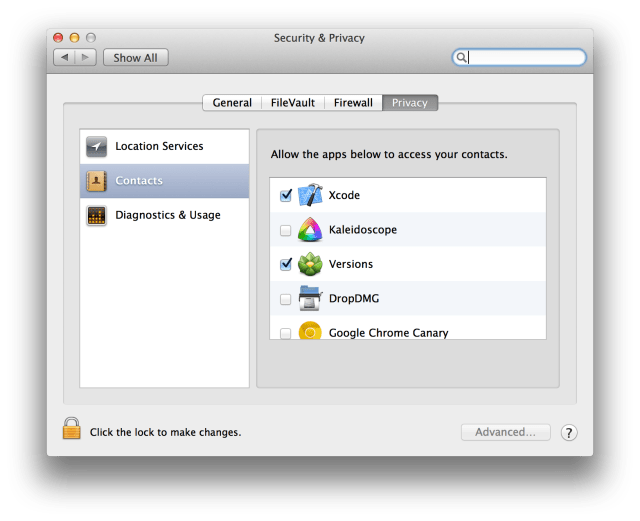
Choose Security & Privacy from the System Preferences menu.
Step Three
Select General from the tabs at the top of the Security & Privacy page.
Step Four
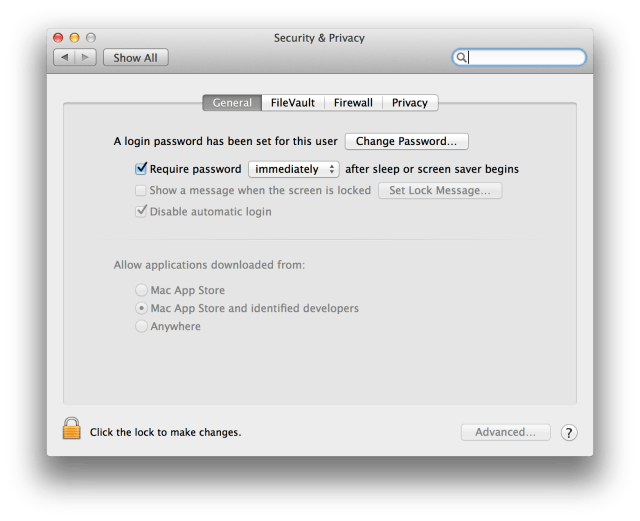
Click the Lock icon at the bottom left of the window.
Step Five
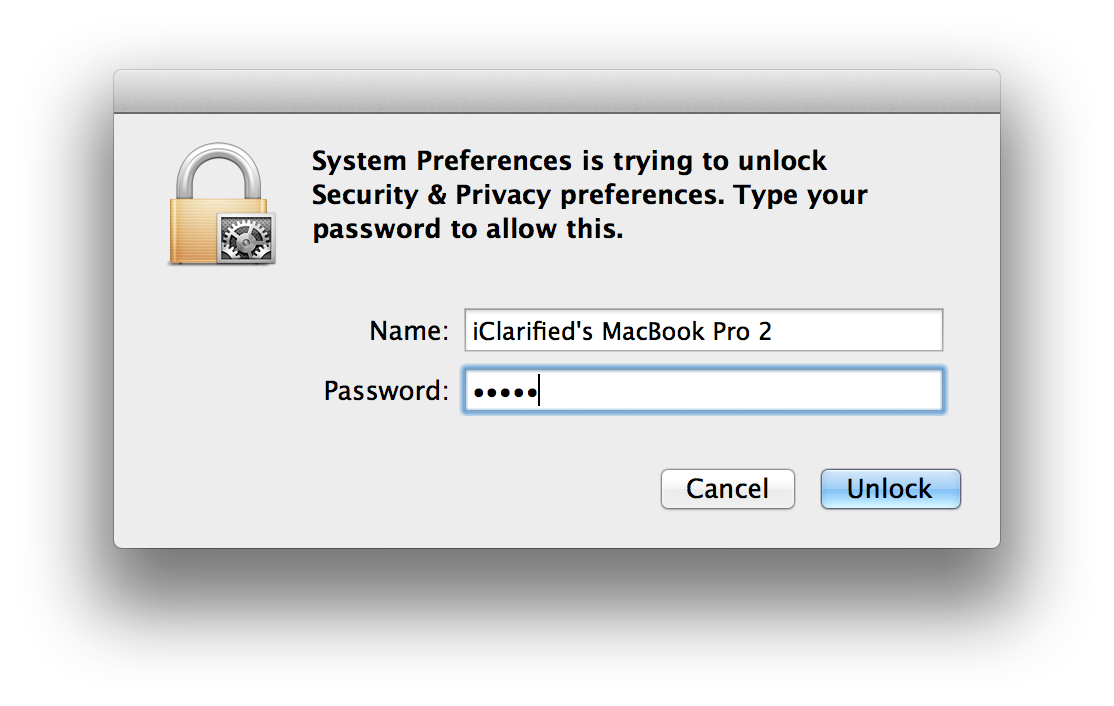
Enter your administrative username and password and click Unlock
Step Six
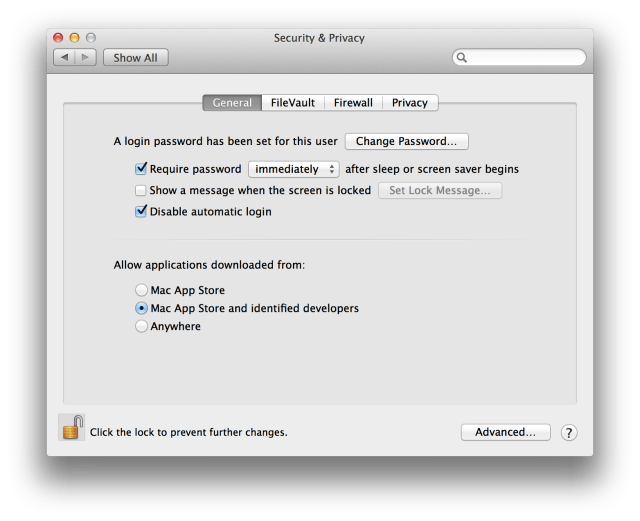
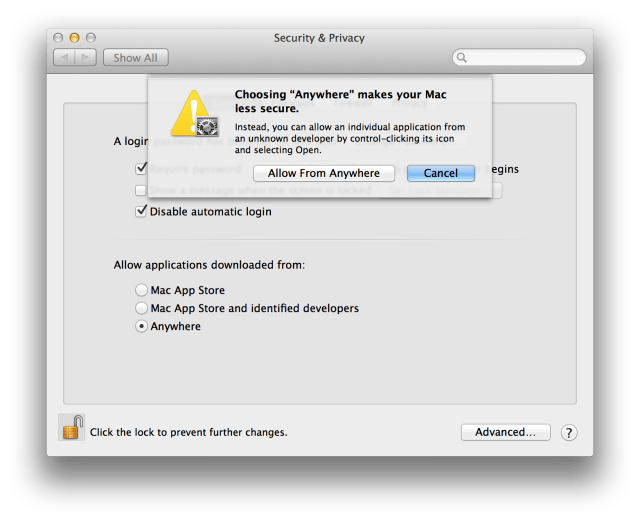
Select Anywhere from list of places to allow downloaded applications from.
Step Seven
A popup window will appear asking you to confirm your selection. Click the Allow From Anywhere button.
ALLOW SINGLE APP:
If you would like to allow just one specific application to run:
Step One
Hold down the Control key and click the application icon. From the contextual menu choose Open.
Step Two
A popup will appear asking you to confirm this action. Click the Open button.
ALLOW ALL APPS:
If you would like to allow all applications from unidentified developers to run:
Step One
Select System Preferences from the Apple Menu at the top left of your screen.
Step Two
Choose Security & Privacy from the System Preferences menu.
Step Three
Select General from the tabs at the top of the Security & Privacy page.
Step Four
Click the Lock icon at the bottom left of the window.
Step Five
Enter your administrative username and password and click Unlock
Step Six
Select Anywhere from list of places to allow downloaded applications from.
Step Seven
A popup window will appear asking you to confirm your selection. Click the Allow From Anywhere button.


![iPhone Duo Teardowns Reveal Dual-Battery Design and Repair Challenges [Video]](/images/news/103014/103014/103014-160.jpg "iPhone Duo Teardowns Reveal Dual-Battery Design and Repair Challenges [Video]")

![Calif Demonstrates iPhone Duo Jailbreak on Launch Day [Video]](/images/news/103008/103008/103008-160.jpg "Calif Demonstrates iPhone Duo Jailbreak on Launch Day [Video]")


![How To Back Up Your iPhone to an External Drive on Mac [Video]](/images/tutorials/72786/72786/72786-160.jpg "How To Back Up Your iPhone to an External Drive on Mac [Video]")

![How To Find Your IP Address on iPhone [Video]](/images/tutorials/496/496/496-160.jpg "How To Find Your IP Address on iPhone [Video]")

![New Fire TV Stick 4K Drops to $29.99 (50% Off) [Deal]](/images/news/102984/102984/102984-160.jpg "New Fire TV Stick 4K Drops to $29.99 (50% Off) [Deal]")
![Apple's iPhone 18 Pro and Pro Max Cases Are Up to 37% Off [Deal]](/images/news/102978/102978/102978-160.jpg "Apple's iPhone 18 Pro and Pro Max Cases Are Up to 37% Off [Deal]")
![16-Inch MacBook Pro With M5 Pro Drops to $2,429 ($570 Off), Lowest Price We've Seen [Deal]](/images/news/102957/102957/102957-160.jpg "16-Inch MacBook Pro With M5 Pro Drops to $2,429 ($570 Off), Lowest Price We've Seen [Deal]")
![16-Inch MacBook Pro With M5 Max Drops to $3,499 ($900 Off), Lowest Price We've Seen [Deal]](/images/news/102900/102900/102900-160.jpg "16-Inch MacBook Pro With M5 Max Drops to $3,499 ($900 Off), Lowest Price We've Seen [Deal]")
