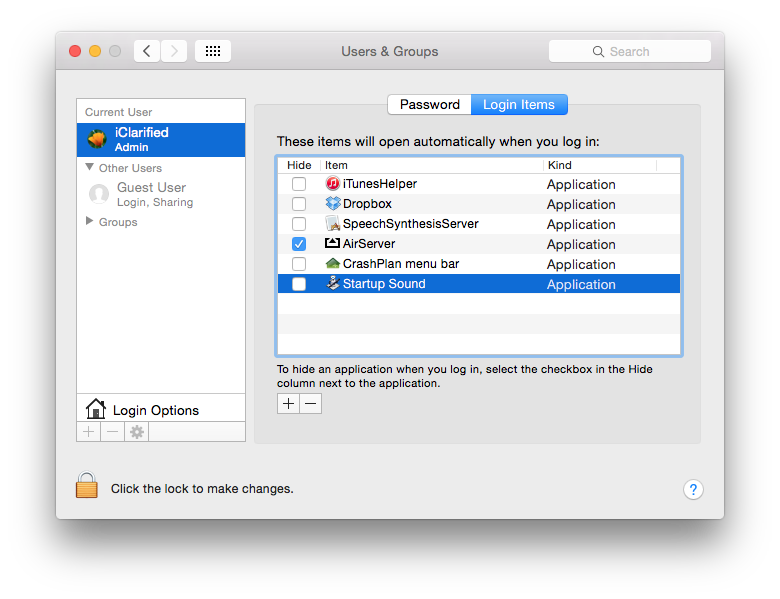
These are instructions on how to add a startup sound to Mac OS X.
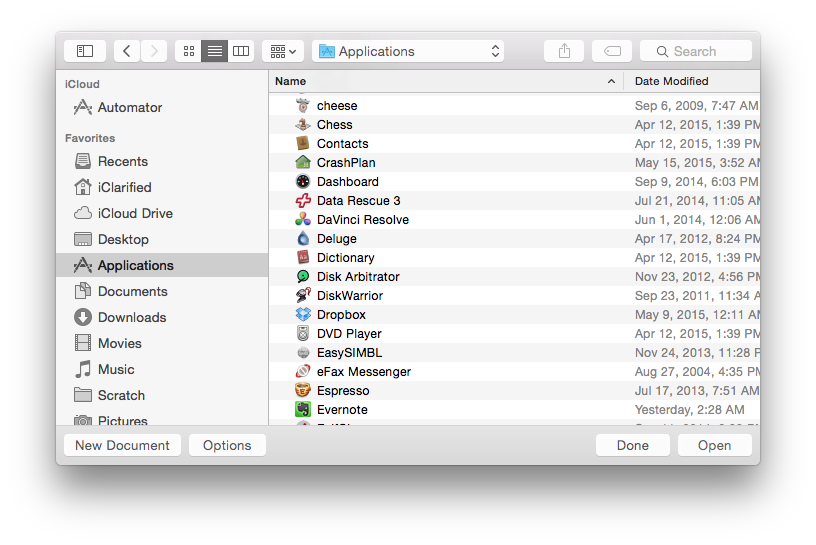
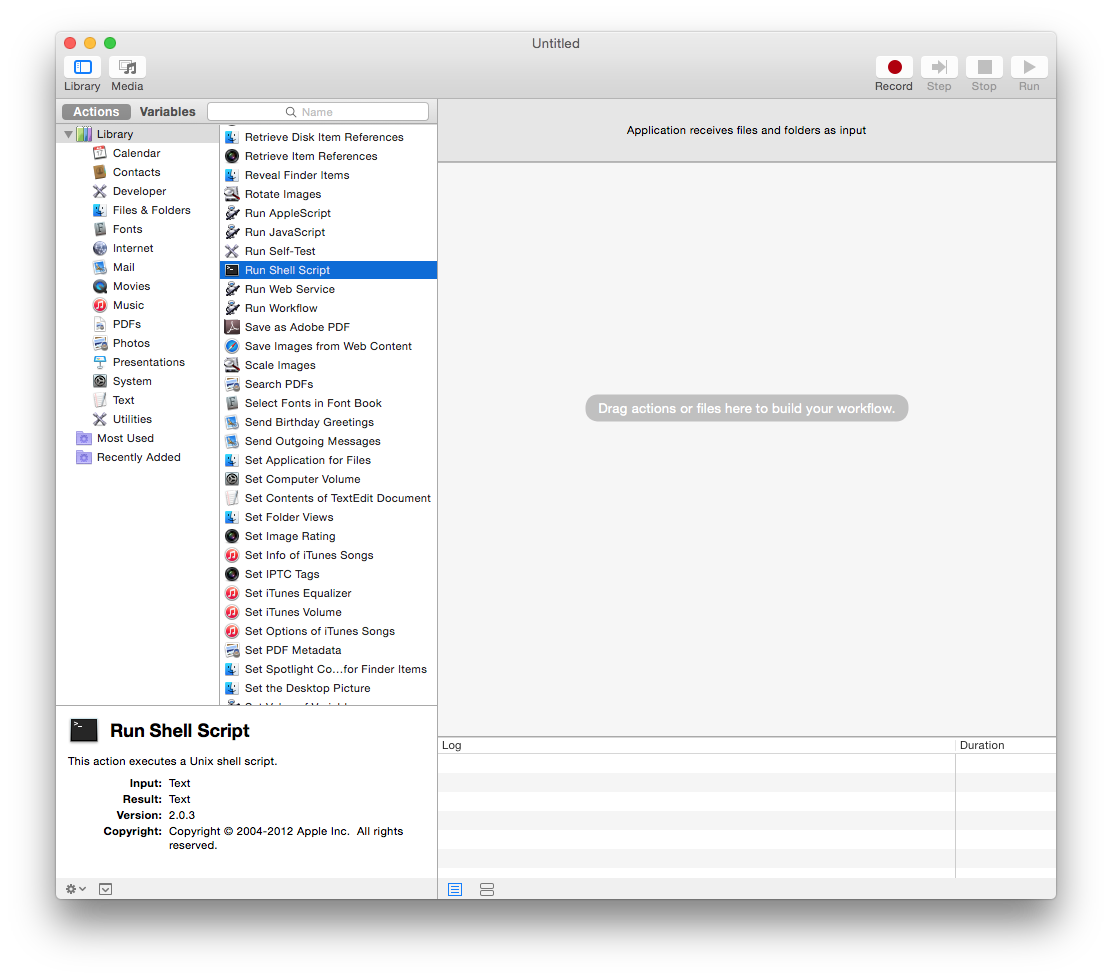
Step One Launch Automator from your Applications folder.
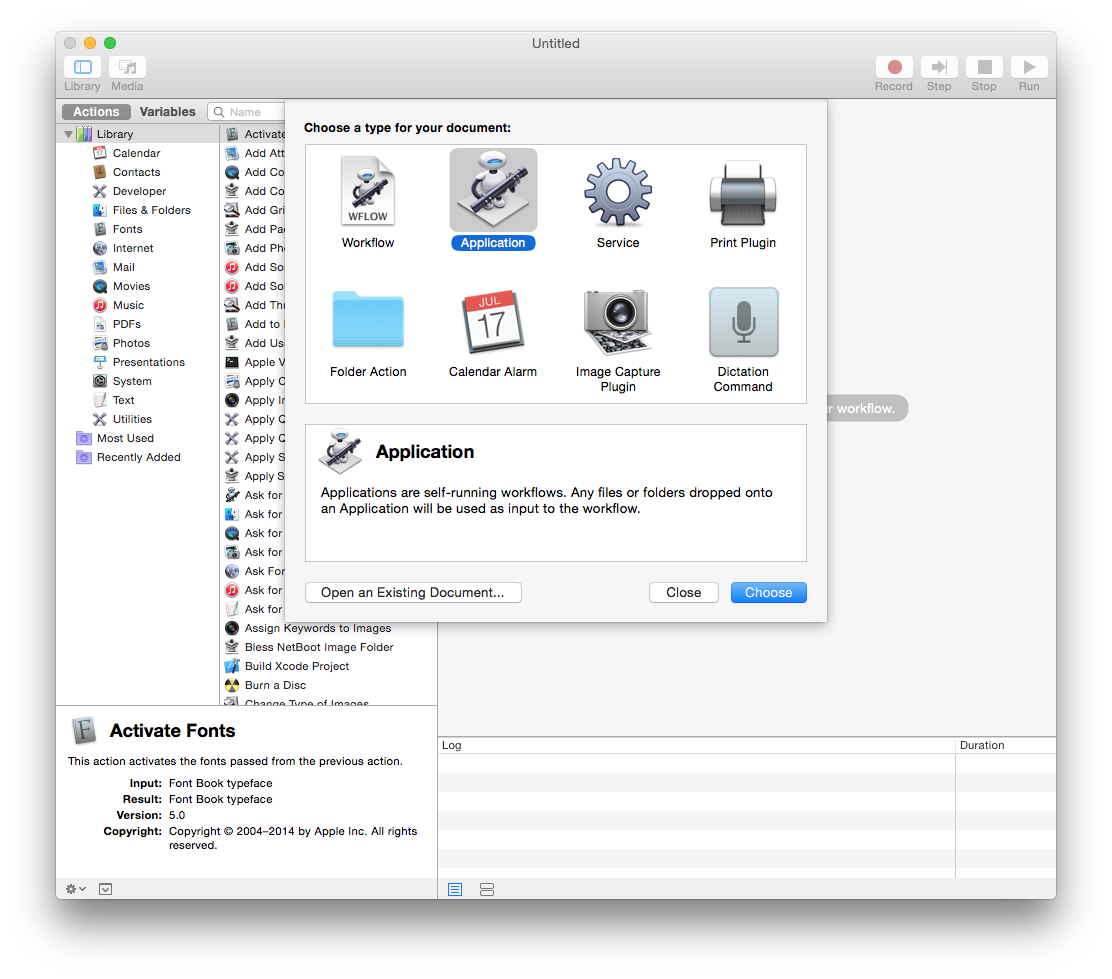
Step Two Click the New Document button.
Step Three Select Application from the list of document types then click the Choose button.
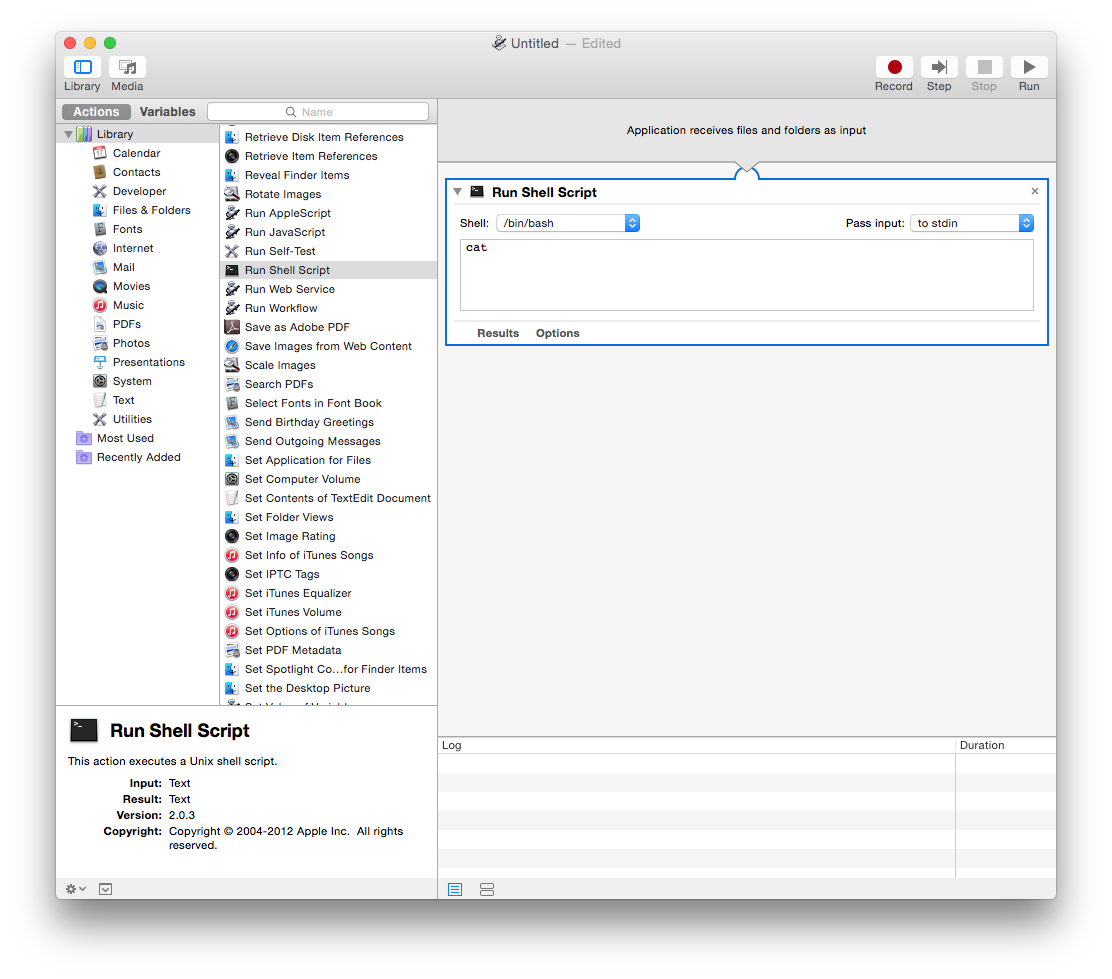
Step Four Drag the Run Shell Script action from the list off Actions to the workflow pane on the right hand side of the window.
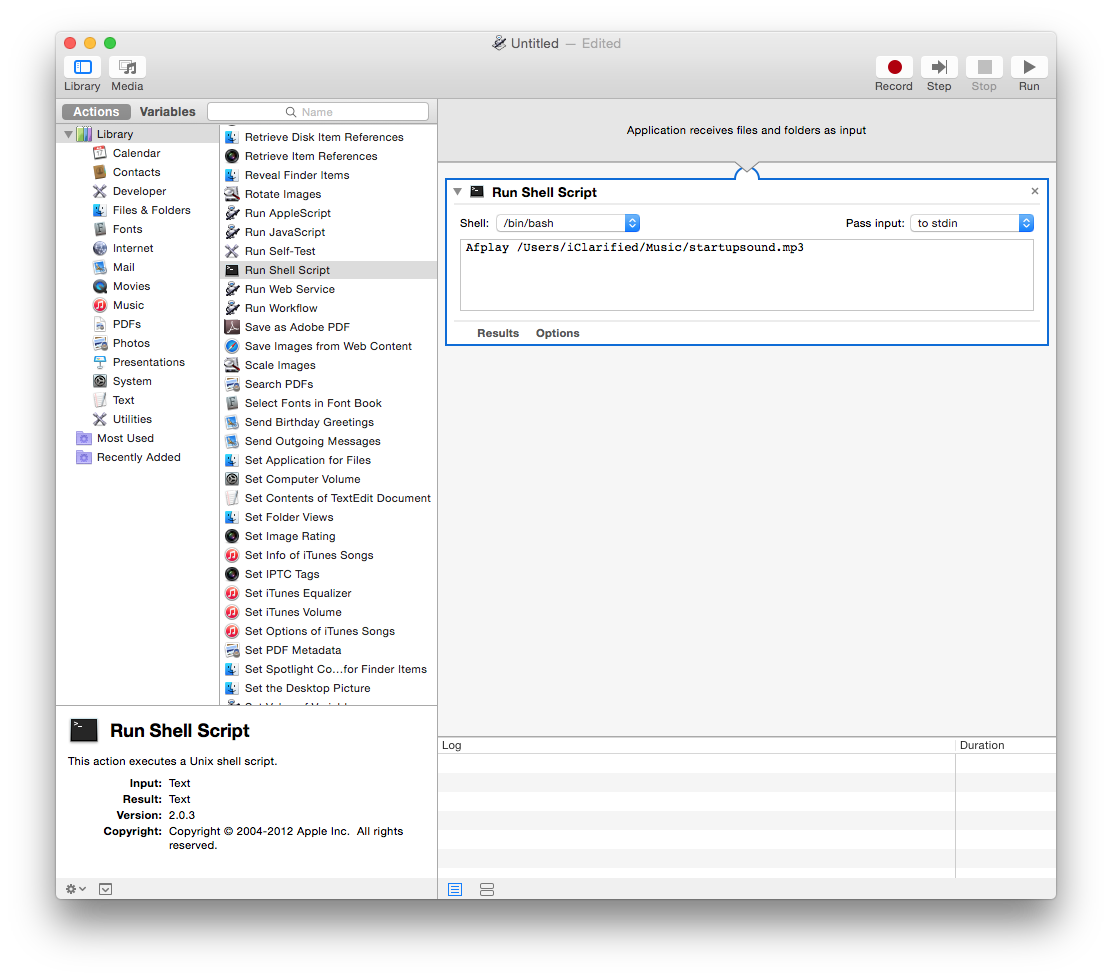
Step Five In the text area, type Afplay followed by the full path to the sound file you would like to use as a startup sound. You can also just type Afplay then drag the sound file into the text area.
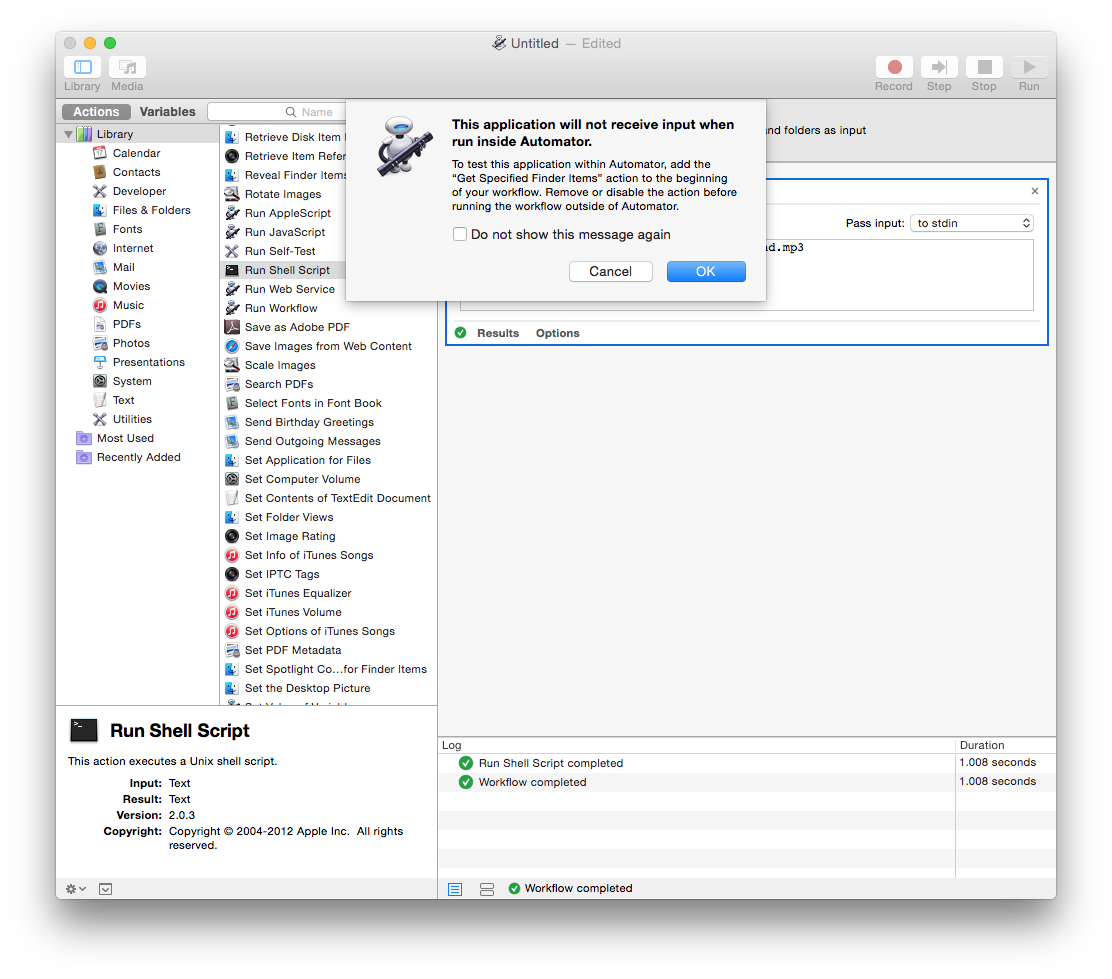
Step Six To make sure your sound file plays correctly, click the Run button at the top right of the screen. If you receive a warning that the application will not receive input when run inside Automator, just click OK.
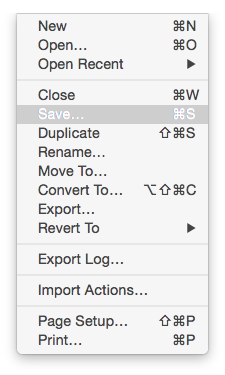
Step Seven Once you've confirmed that the sound plays correctly, choose Save from the File menu.
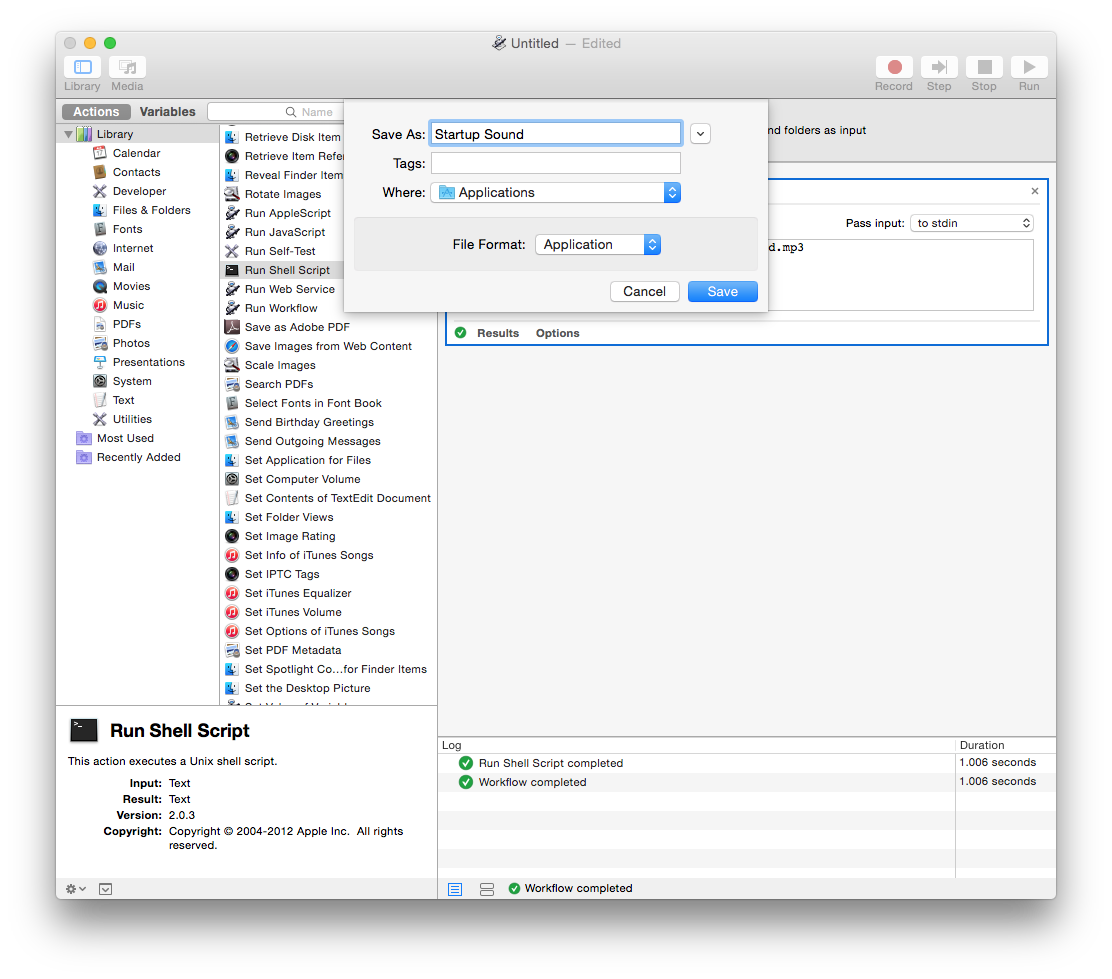
Step Eight Enter a name for the application that you will remember, choose your Applications folder from the Where dropdown menu, and click Save.
anonymous little helper - January 28, 2016 at 5:21am
For those of you having trouble with the "May only Specify one file to play" message…
I did some testing and figured out that, if the file's pathname has a space in it, it doesn't work… e.g. '/user/name/folder/song.mp3' seems to work,
but '/user/name name/folder/song song.mp3' does not… at least not on my MBP : )
this command should disable the chime (haven't tried though):
sudo nvram SystemAudioVolume=%80
or you can run this AppleScript when logging out:
osascript -e "set volume output volume 0"
how to create a logout script in Mac OS X is described on technical community sites like SuperUser.





![Untethered iOS 27.0.1 Jailbreak Demonstrated on iPhone 18 Pro [Video]](/images/news/102876/102876/102876-160.jpg "Untethered iOS 27.0.1 Jailbreak Demonstrated on iPhone 18 Pro [Video]")
![iPhone Duo May Be Unavailable for Launch-Day Walk-In Purchases [Report]](/images/news/102882/102882/102882-160.jpg "iPhone Duo May Be Unavailable for Launch-Day Walk-In Purchases [Report]")
![Apple Hires Meta's Scott Tucker as Global Litigation Chief [Report]](/images/news/102873/102873/102873-160.jpg "Apple Hires Meta's Scott Tucker as Global Litigation Chief [Report]")

![How To Install Homebrew on Mac [Video]](/images/tutorials/83695/83695/83695-160.jpg "How To Install Homebrew on Mac [Video]")
![How To Back Up Your iPhone to an External Drive on Mac [Video]](/images/tutorials/72786/72786/72786-160.jpg "How To Back Up Your iPhone to an External Drive on Mac [Video]")


![14-Inch MacBook Pro With M5 Pro Drops to $2,069.10 ($429 Off) [Deal]](/images/news/102879/102879/102879-160.jpg "14-Inch MacBook Pro With M5 Pro Drops to $2,069.10 ($429 Off) [Deal]")
![Apple HomeView and New Apple TV 4K Get First Pre-Order Discount on Amazon [Deal]](/images/news/102867/102867/102867-160.jpg "Apple HomeView and New Apple TV 4K Get First Pre-Order Discount on Amazon [Deal]")
![14-Inch MacBook Pro With M5 Max Drops to $3,299 ($800 Off) [Deal]](/images/news/102828/102828/102828-160.jpg "14-Inch MacBook Pro With M5 Max Drops to $3,299 ($800 Off) [Deal]")