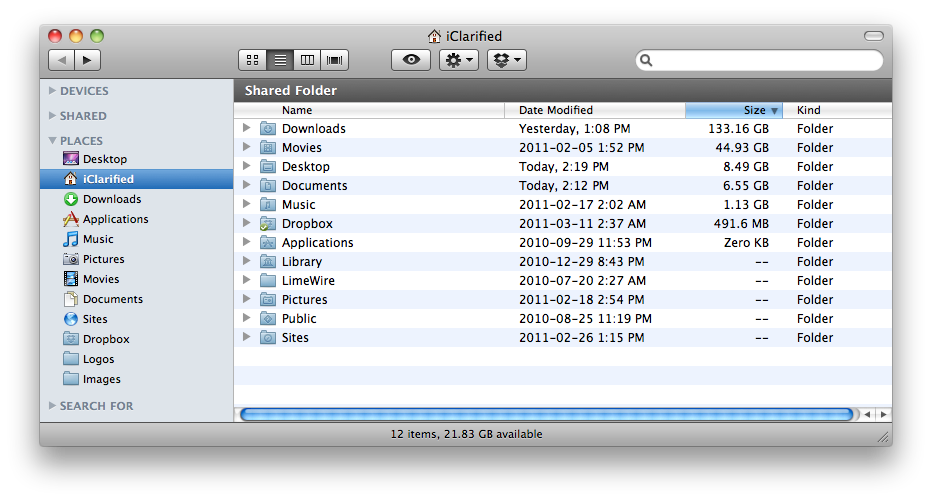
These are instructions on how to get Mac OS X Finder to display the size of your folders. This is especially useful if you are trying to free up space on your drive and want to determine which files and folders are largest.
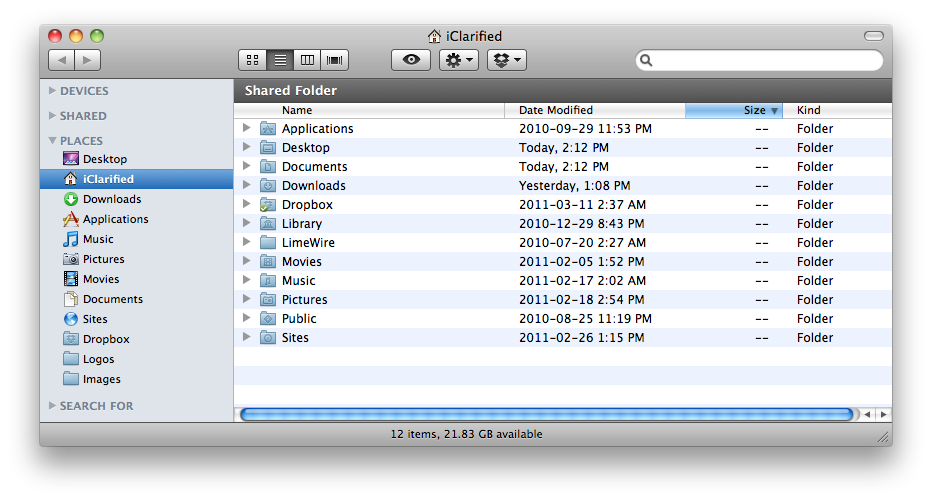
Step One Launch a new Finder window by clicking the Finder icon in your dock
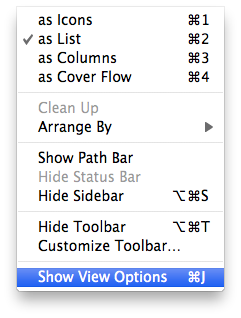
Step Two Select Show View Options from the View menu at the top of your screen.
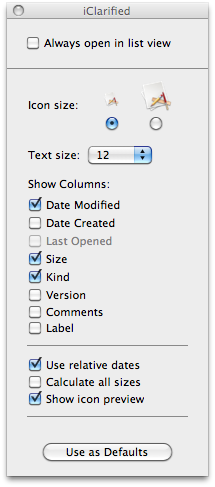
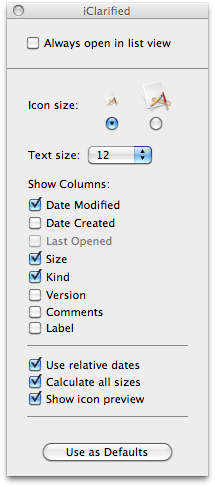
Step Three Check the Calculate all sizes box.
Step Four Notice that Finder will now begin to calculate the size of your folders. This may take some time depending on the size of your folders. You can now sort by size and actually see which folders are taking up the most space.
Get the iClarified Daily Newsletter
Apple news, rumors, tutorials, price drop alerts, in your inbox every evening, free.
Unsubscribe at any time.
Success!
You have been subscribed.
Add Comment
Would you like to be notified when someone replies or adds a new comment?
Yes (All Threads)
Yes (This Thread Only)
No
Notifications
Would you like to be notified when we post a new Apple news article or tutorial?
Hi there, I am using Mavericks but for some reason the folder size of all folders are not showing I just see "--". Do you know what could it be? Thanks and regards.
how do I get them on an external HD, even w/ firewire connection, it's calculating the sizes of folders for days. especially the Backups by
Time-machine




![Apple-LG Home Accessories Could Offer Dynamic Island Proximity Controls [Leak]](/images/news/102711/102711/102711-160.jpg "Apple-LG Home Accessories Could Offer Dynamic Island Proximity Controls [Leak]")


![How To Force Restart iPhone [Video]](/images/tutorials/95012/95012/95012-160.jpg "How To Force Restart iPhone [Video]")
![How To Turn Off iPhone [Video]](/images/tutorials/94999/94999/94999-160.jpg "How To Turn Off iPhone [Video]")
![How To Back Up Your iPhone to an External Drive on Mac [Video]](/images/tutorials/72786/72786/72786-160.jpg "How To Back Up Your iPhone to an External Drive on Mac [Video]")




![Mac mini Drops to $779.99 for Prime Big Deal Days [Deal]](/images/news/102624/102624/102624-160.jpg "Mac mini Drops to $779.99 for Prime Big Deal Days [Deal]")