These are instructions on how to organize the iPhone applications on your Springboard into folders using Categories.
To follow this tutorial you must be on the iPhone firmware 2.0 or higher. You also need to have a jailbroken iPhone. Instructions can be found to jailbreak your iPhone here: 2G Windows, 3G Windows, 2G Mac, 3G Mac.
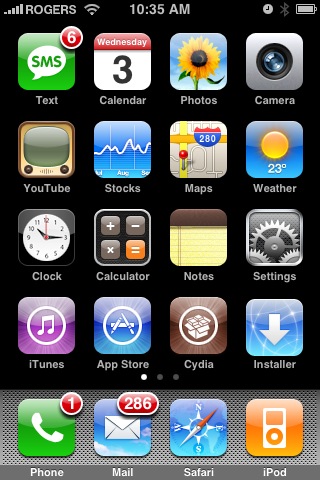
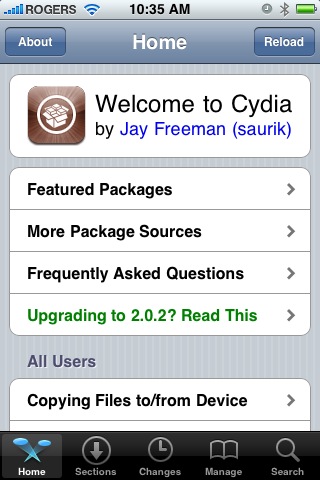
Step One Press to launch Cydia from your Springboard.
Step Two Press to select the Sections tab at the bottom of the screen.
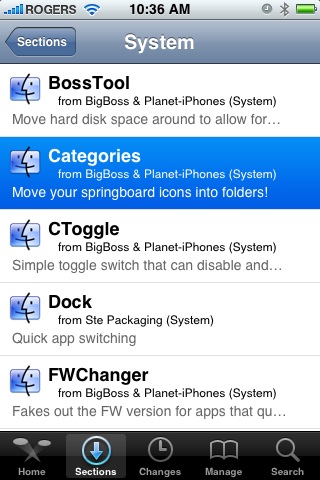
Step Three Press to select the System section.
Step Four Press to select Categories from the list of Packages that appear.
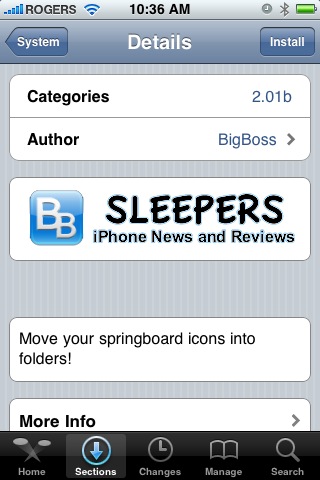
Step Five Press to select theInstall button at the top right of the screen.
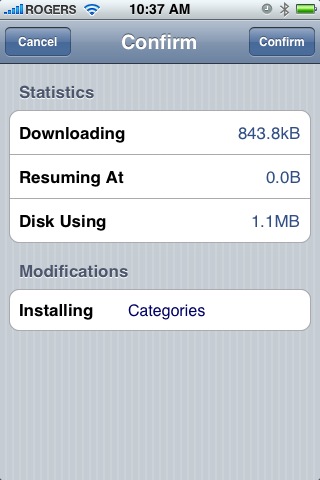
Step Six Press to select the Confirm button at the top right of the screen.
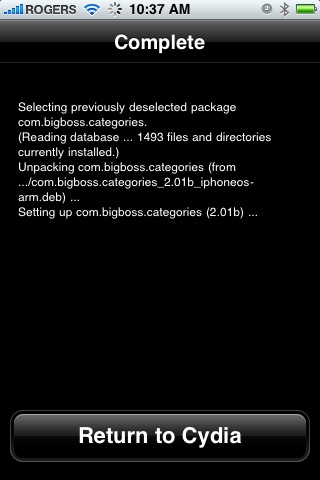
Step Seven Once Cydia has installed the Categories application press the Return to Cydia button at the bottom of the screen.
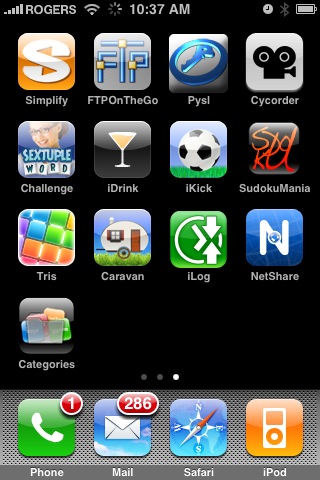
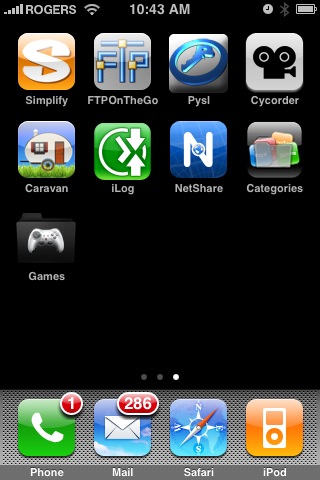
Step Eight Press the Home button to return to your Springboard. Notice the new Categories application. Press to launch it!
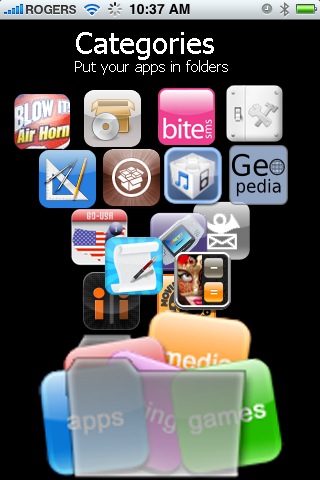
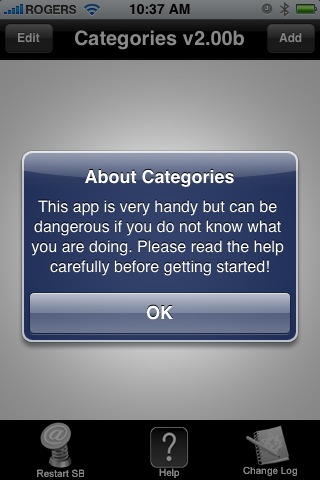
Step Nine Read the warning that appears then press the large OK button.
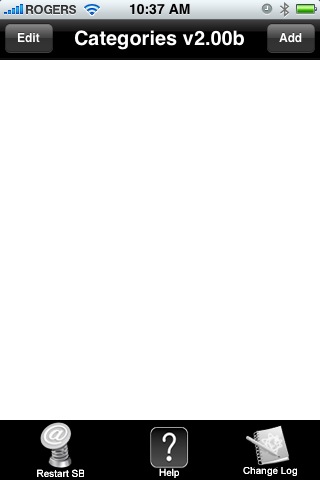
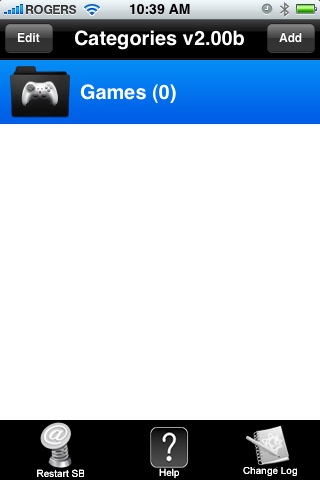
Step Ten You will be taken to blank list of Categories. It is here where we will create folders for our Springboard. Press the Add button at the top right of the screen.
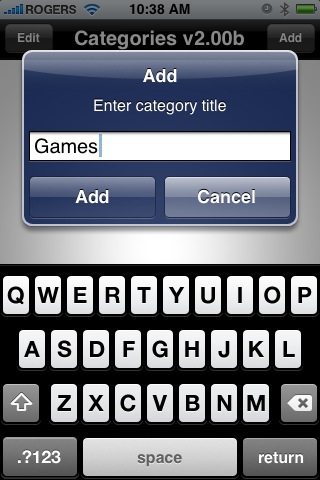
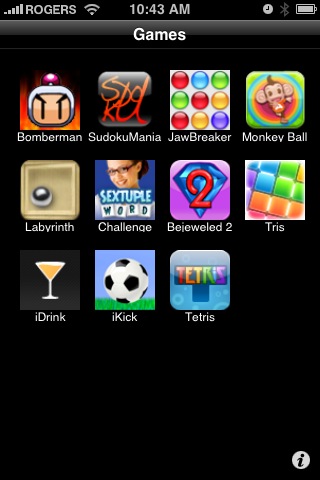
Step Eleven Enter the name for the Category/Folder you would like to create and press the Add button. I created a folder called Games.
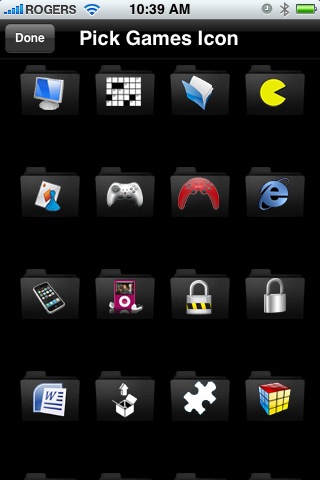
Step Twelve You will be asked to select an icon for the folder/category you just created.
Step Thirteen Notice your newly created folder appears in the list now! Press to select it.
Step Fourteen You now are taken to the Edit menu where you can edit the applications that appear in the Category. Since we have not added any applications to the folder it is blank. Press the Add button at the top right of the screen.
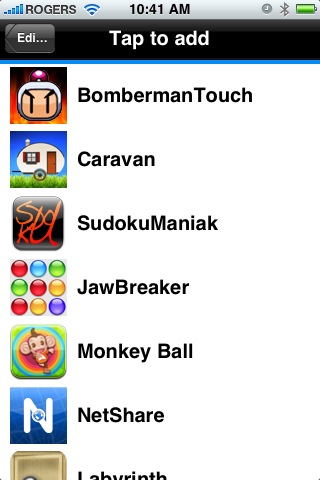
Step Fifteen You will be shown a list of the applications on your iPhone. Press to select the ones you would like added to the Category then press the Edit button at the top left of the screen.
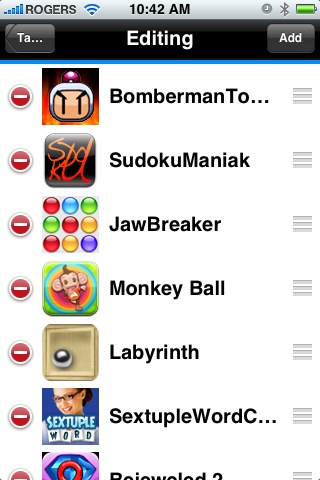
Step Sixteen You will be returned to the Edit menu where you can now order and remove applications from the Category. Press the button at the top left to return to the Categories List.
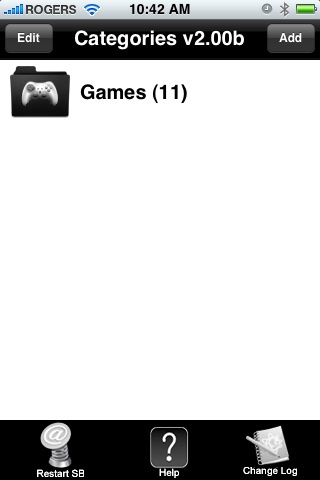
Step Seventeen Notice it now shows how many applications we have in our folder.
Step Eighteen Press the Home button. Notice that we now have a new icon for our newly created Category. Also notice that applications we moved into this category are not visible on the Springboard. Press to select the icon for your newly created Category.
Step Nineteen You will now be shown a list of your applications in the selected Category. Press to launch one!
Step Twenty If you press the little i at the bottom of the Category you will see some basic options as described by BigBoss.
Folder Title: Displays folder title on main screen.
Save Image On Exit: Saves the current background image when an app is loaded. Leave this on unless there are unusually long delays loading each app.
Icon Labels: You can disable the text labels with this so you see only the icon pictures
Black Background: If you dislike seeing the desktop background from winterboard, you can force a black background with this.
You now can organize your Springboard in a much improved manner!
Get the iClarified Daily Newsletter
Apple news, rumors, tutorials, price drop alerts, in your inbox every evening, free.
Unsubscribe at any time.
Success!
You have been subscribed.
Add Comment
Would you like to be notified when someone replies or adds a new comment?
Yes (All Threads)
Yes (This Thread Only)
No
Notifications
Would you like to be notified when we post a new Apple news article or tutorial?
cydia is not on iphone screen like others. It is in a folder called reference. How do i take it out of the folder and put it back where it was? I need response quickly. thnk you.
cant you buy this one on itunes ?
Because my jailbreak is gone. and i hate it when my springbaord is full !
Wanna put them all in folders ! Searching for days for a apps like this one..
Somebody knows a app like this one for a not jailbreak iphone ?
Thanks a lot !
So far so good for me. My only problem is that when I made the folder I was not given an icon selection for each folder. How can you get an icon on each folder if everything else is working right? I have folders but they are grey. :o/ Thanks in advance. CJ
Can someone please help.. I had the CATEGORIES applicatoin installed in the previous 2.2 version but after upgrading to the 3.0 version all applications that were inside a folder are all gone now.. I tried to redownload the programs that was inside the folder but it says its already installed. Itried to delete the program and reinstalling but same thing. All applications are hidden and its icon is not showing on the screen.
I installed cydia in version 3.0 and installed the categories program but its now showing all the programs that were initially in there as well.
Is there any way to somehow show the programs that were initially stored inside one of the folders created in CATEGORIES. Can someone please help or provide some advice!
Thanks!!
The apps are still on the phone they are simply hidden, go into SB settings or boss prefs and you can go to ide icons and the full list of apps will appear. All of the apps that were in folders will be off, simply switch them to on and they will reappear on your spring board. then you can recategorize them.
great app but I need help. I created some folders, moved cydia etc inside a folder, then few days later, I upgraded to 2.1. Now I can't find cydia as I assume, it's still inside a folder, but with out the catagories app, I can't access the folder. Because I can't access cydia, I can't reinstall catagories.
Is there a way to reinstall catagories without cydia, or ssh in and move something somewhere to make it available ??
Thanks for ant help - when if it's how to do a full format / restore - pwn'ed 5 times before thinking it may have something to do with catagories app... Thanks
I've installed this Categories application, and among other things have created a folder Settings&Tweaks where I've put all system changing apps like Settings, Cydia, Winterboard, BossPrefs, Categories but when I've restarted the springboard all folders I've created were there except this Settings folder I've created so now I'm stuck - I cannot change anything in my iPhone, cannot access this Categories app, cannot access Settings, cannot access Cydia... Please help!
I have done the same thing - but can not get to Settings since it was in my Utilities folder, which is now lost. Also, I can't see/change my IP to SSH into the phone since I can't get to Settings. Cant reinstall since Cydia is hidden as well. The developer gave this solution, but again, I can't SSH:
If anything goes wrong and your phone has no icons, you can just restore the display order file in the /System/Library/CoreServices/SpringBoard.app folder. M68AP.plist for iphone 1.1.1/1.1.2, N45AP.plist for touch, DisplayOrder.plist for 1.0.2 or older. The back up of this file is in /var/root/Library/Categories folder. Just copy it with scp or ssh.
Help?
Btw, after you have installed something from Cydia, how do you get to the homescreen so quick seeing as "home" button will not respond until the circle in the bar at top stops finishing, which can take upto half an hour? All I can do is browse Cydia
restarted phone so now if i delete apps out of the game folder they are removed off phone a bit thick how do you put them back onto springboard so i can remove this app









![Apple Targets October 13 for Smart Home Hub, New HomePod mini and Apple TV [Gurman]](/images/news/102501/102501/102501-160.jpg "Apple Targets October 13 for Smart Home Hub, New HomePod mini and Apple TV [Gurman]")


![How To Find Your iPhone IMEI Number [Video]](/images/tutorials/83557/83557/83557-160.jpg "How To Find Your iPhone IMEI Number [Video]")



![16-Inch M5 Max MacBook Pro Drops $900 to New Low of $3,499 [Deal]](/images/news/102438/102438/102438-160.jpg "16-Inch M5 Max MacBook Pro Drops $900 to New Low of $3,499 [Deal]")
![Magic Keyboard for iPad Air Drops to $200 on Amazon [Deal]](/images/news/102402/102402/102402-160.jpg "Magic Keyboard for iPad Air Drops to $200 on Amazon [Deal]")
![13-Inch M5 MacBook Air With 1TB Drops to $1,449 on Amazon [Deal]](/images/news/102345/102345/102345-160.jpg "13-Inch M5 MacBook Air With 1TB Drops to $1,449 on Amazon [Deal]")

