These are instructions on how to sync your iPhone with two or more computers at the same time.
To clarify this process a bit the tutorial is divided into two parts. The first part will instruct you on how to obtain the iTunes Library ID from your main computer. The second part will then modify your secondary computer to use the same iTunes Library ID, thus allowing for sync on both.
For your convenience instructions for Part One and Part Two are provided for both Windows and Mac.
PART ONE (MAC): If your main computer is a Mac start here...
Step One Open a new Finder window by clicking the Finder icon in the dock.
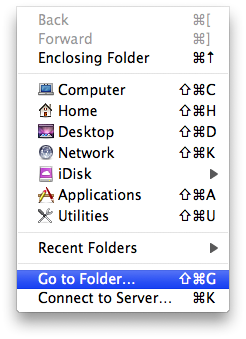
Step Two Select Go to Folder... from the Go menu.
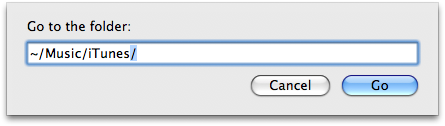
Step Three Input ~/Music/iTunes into the textfield then click the Go button.
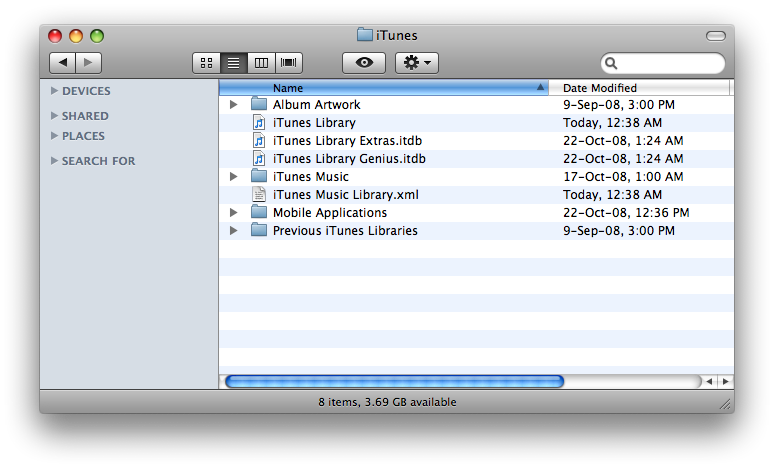
Step Four Double click the file named iTunes Music Library.xml to open it in TextEdit.
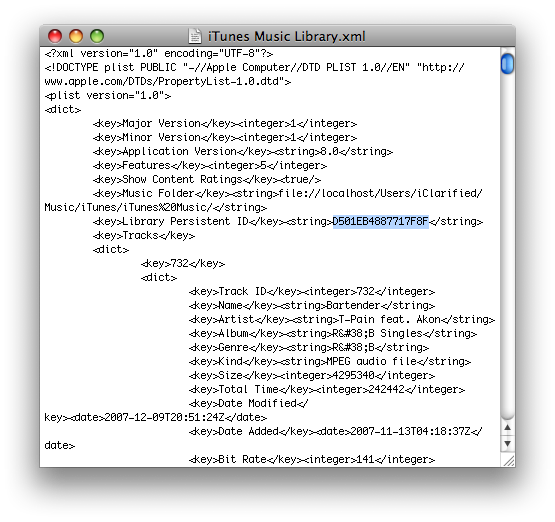
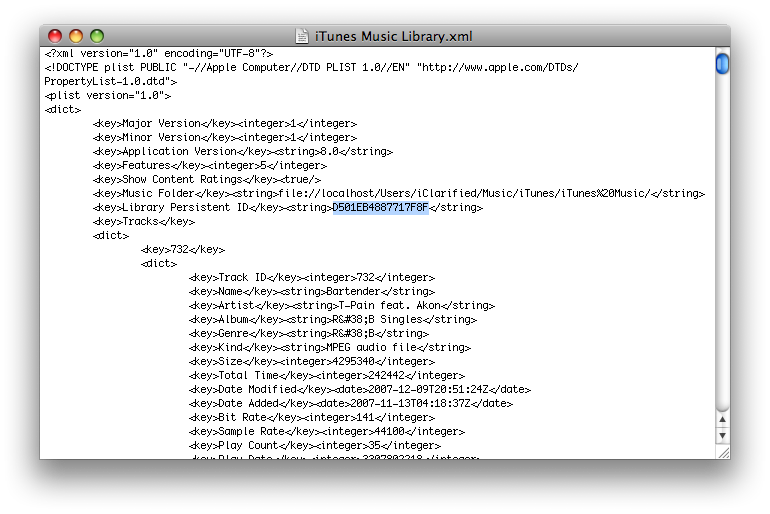
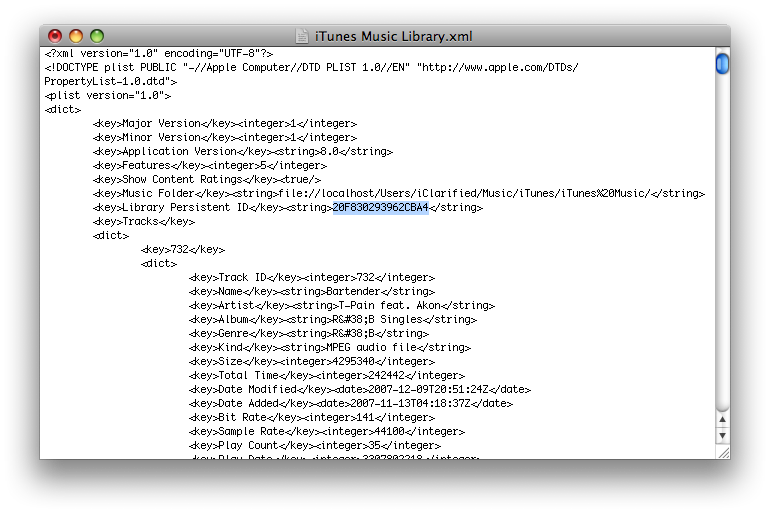
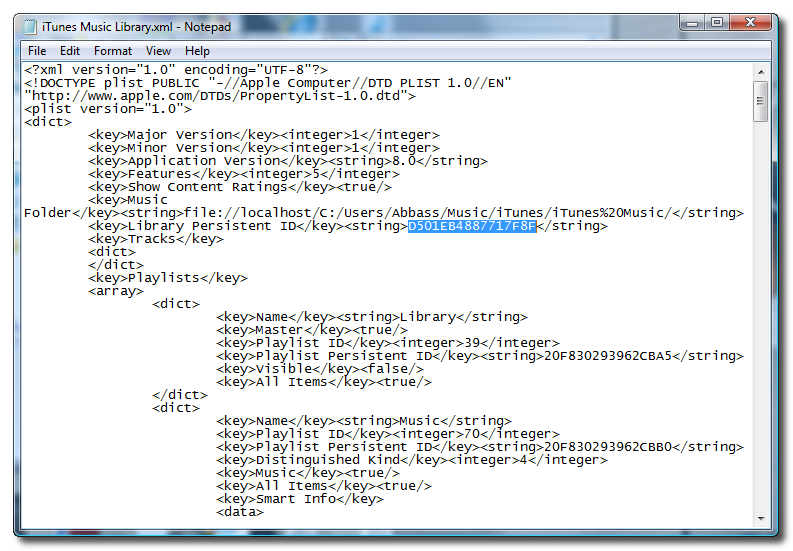
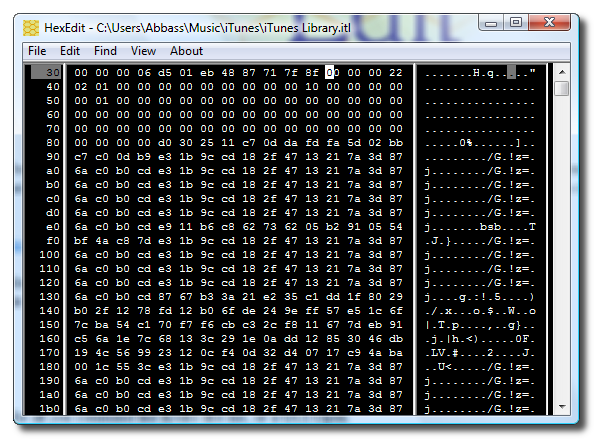
Step Five Write down the value of the Library Persistent ID key. Take care not to modify the file before closing. It should look something like D501EB4887717F8F.
PART ONE (WINDOWS): If your main computer is a Windows PC start here...
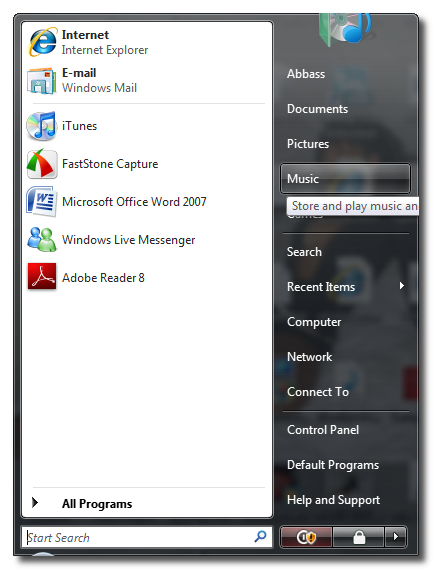
Step One Press the Windows (Start) button at the bottom left of the screen and select Music from the menu.
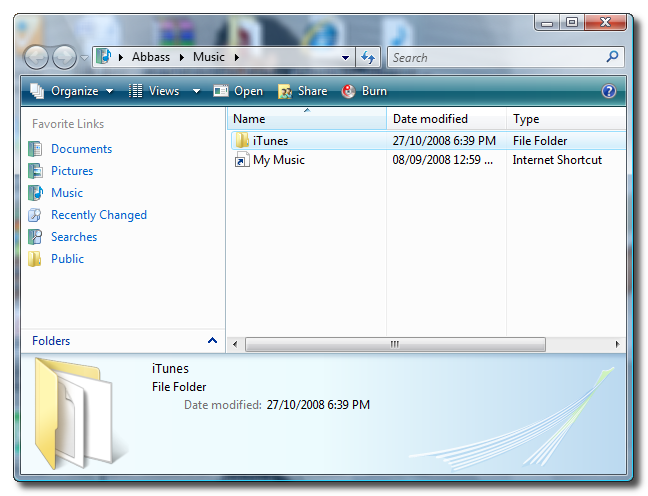
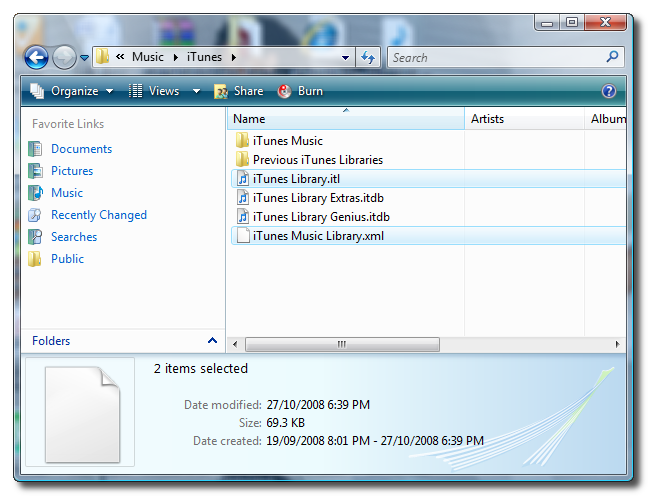
Step Two Double click the iTunes folder.
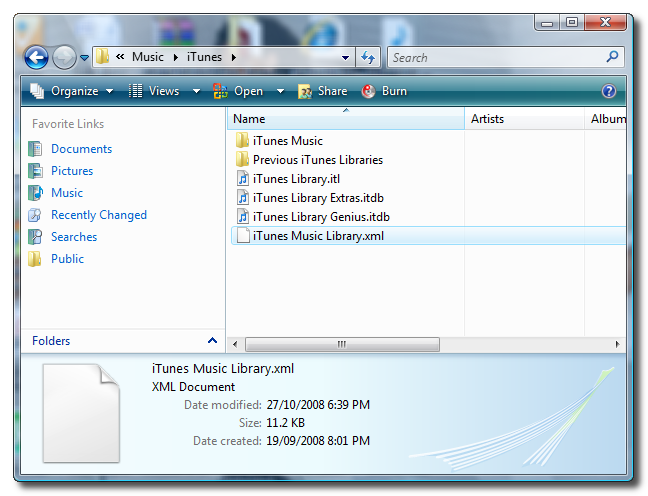
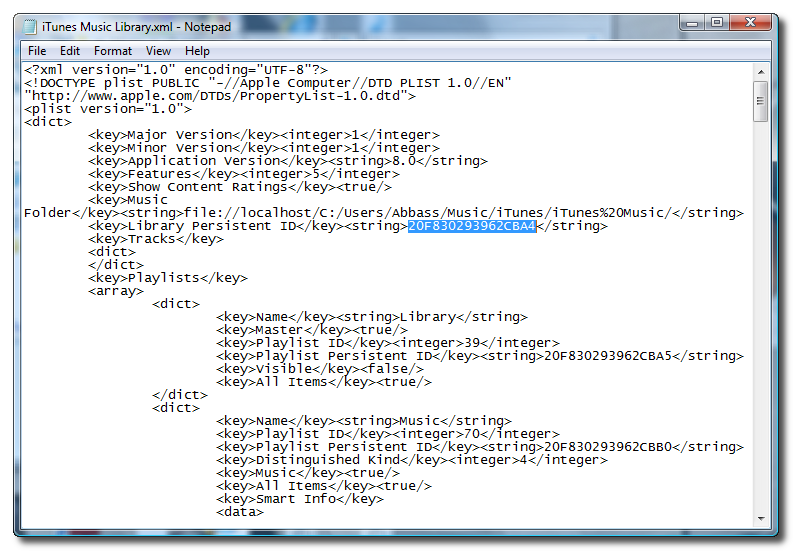
Step Three Double click the file named iTunes Music Library.xml to open it in Notepad
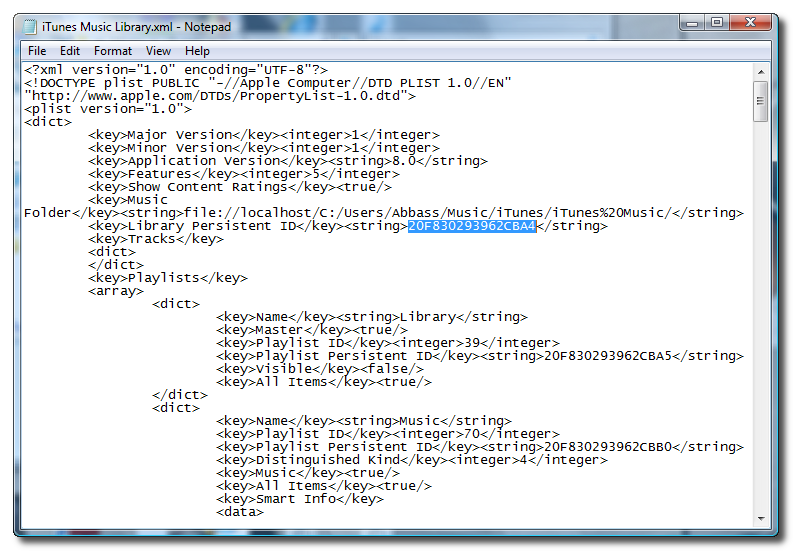
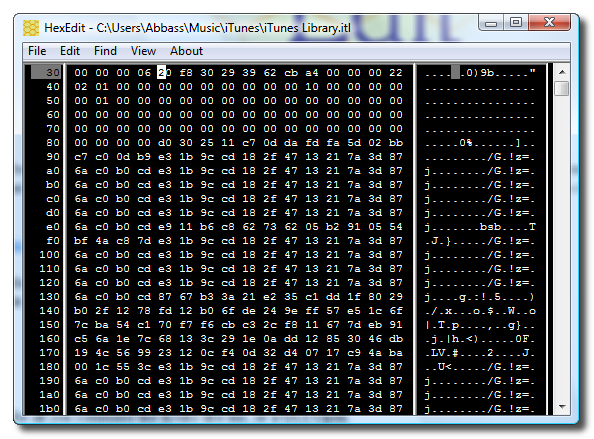
Step Four Write down the value of the Library Persistent ID key. Take care not to modify the file before closing. It should look something like 20F830293962CBA4
--------------------------------
PART TWO (MAC): If your secondary computer is a Mac continue here....
Step One Open a new Finder window by clicking the Finder icon in the dock.
Step Two Select Go to Folder... from the Go menu.
Step Three Input ~/Music/iTunes into the textfield then click the Go button.
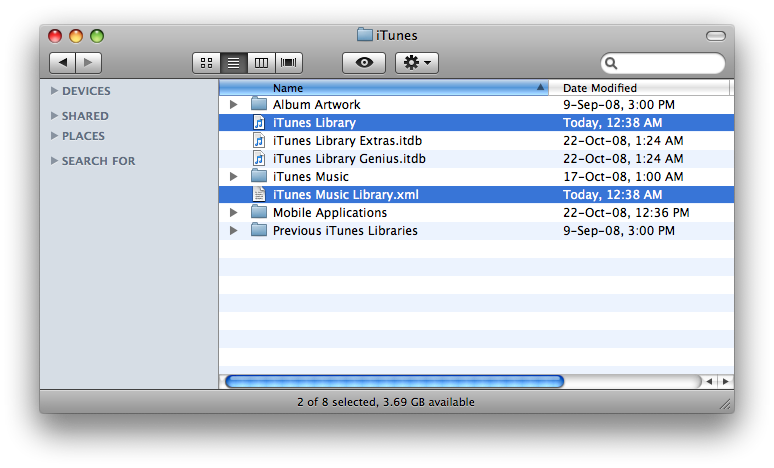
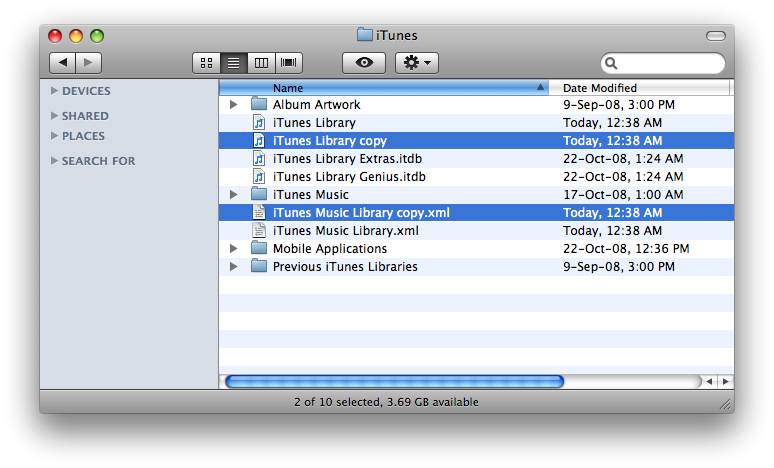
Step Four First we will create a backup of iTunes Music Library.xml and iTunes Library. Select both files and press Command+c then Command+v on your keyboard. This will make a backup copy of the files.
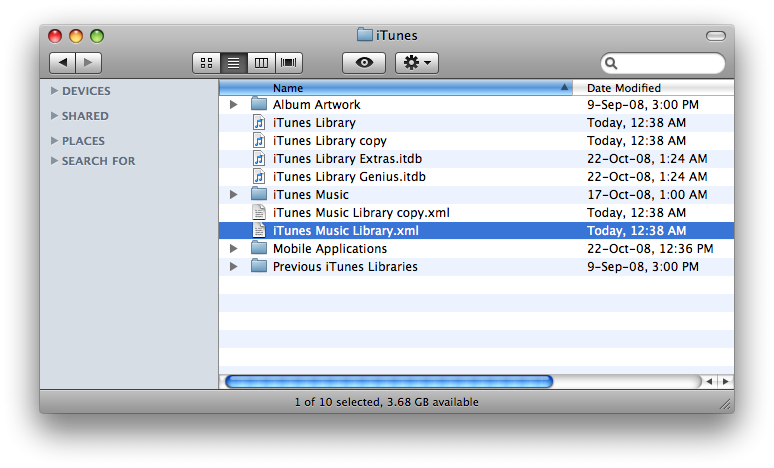
Step Five Double click to open iTunes Music Library.xml.
Step Six Make note of the current Library Persistent ID then change the Library Persistent ID key to the one we wrote down from Part One and save the file.
Step Seven Now we will need to open iTunes Library using a HexEditor. You can download HexEdit from here
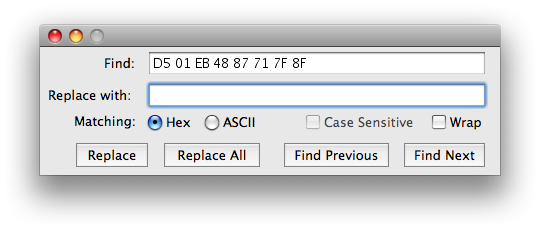
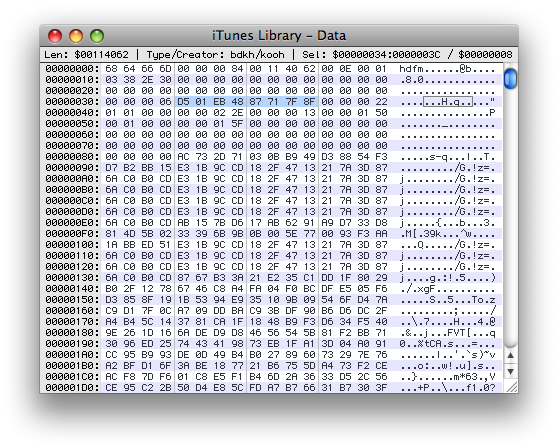
Step Eight Once you have opened iTunes Library use HexEdit to search for the old Library Persistent ID we replaced in Step Five. Do this by clicking Find from the Menubar. Make sure to select Hex as your search type.
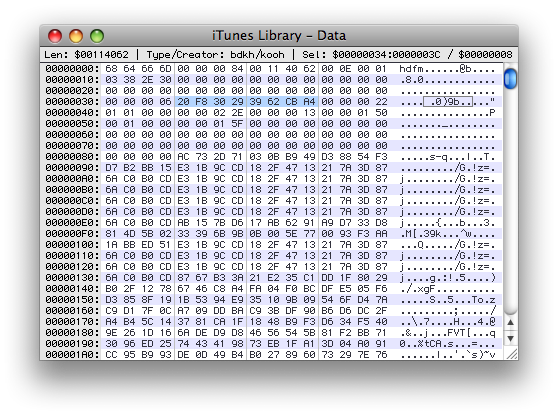
Step Eight Once found replace the old Library Persistent ID with the one from Part One and save the file.
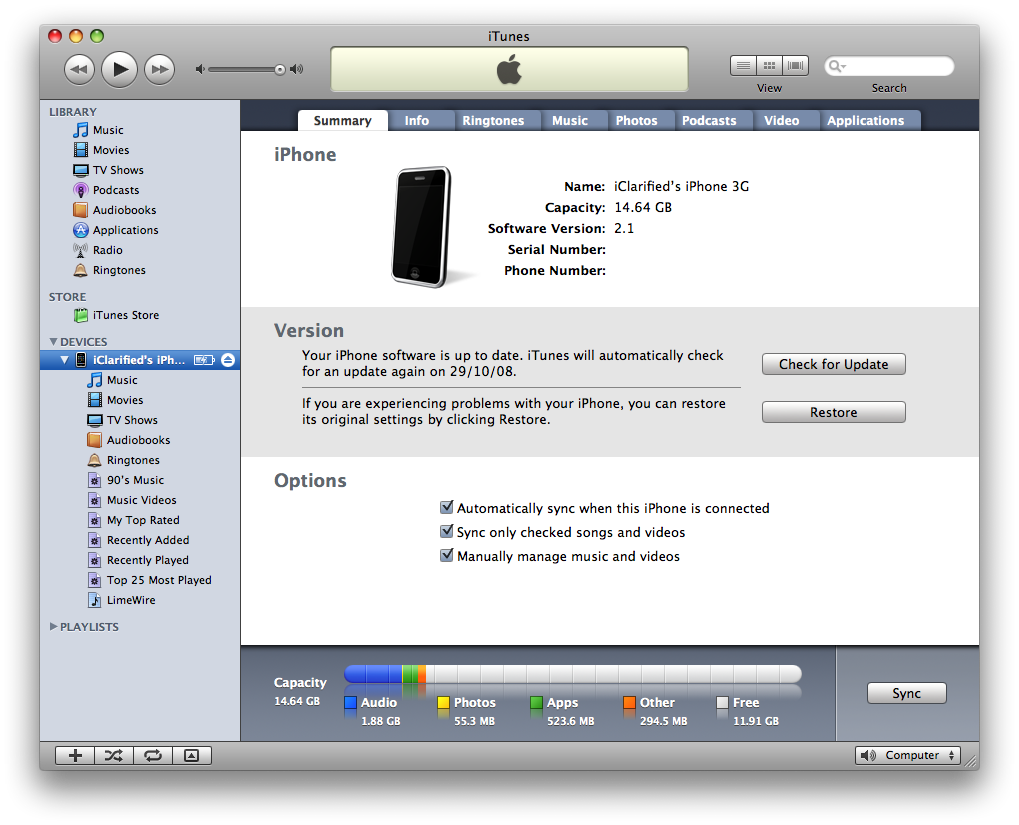
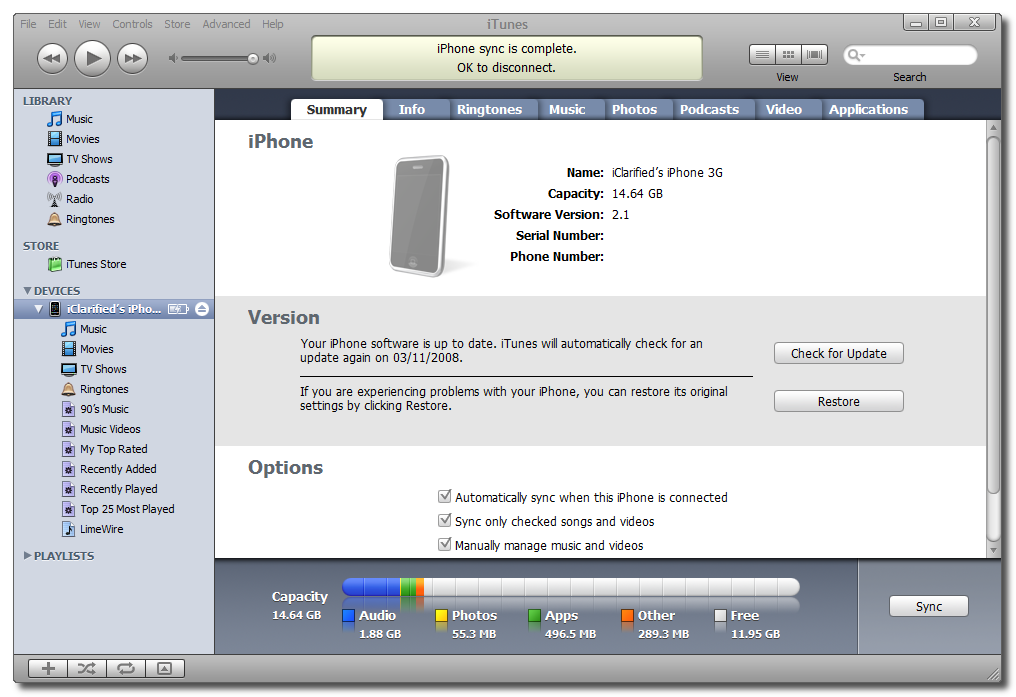
Step Nine You can now launch iTunes and connect your iPhone to the new computer for syncing. Select your iPhone from the list of devices on the left. Notice if now select Manually manage music and videos from the Summary Tab you will no longer be prompted to erase your data, nor will the files on your iPhone be grayed out.
PART TWO (WINDOWS): If your secondary computer is a Windows PC continue here....
Step One Press the Windows (Start) button at the bottom left of the screen and select Music from the menu.
Step Two Double click the iTunes folder.
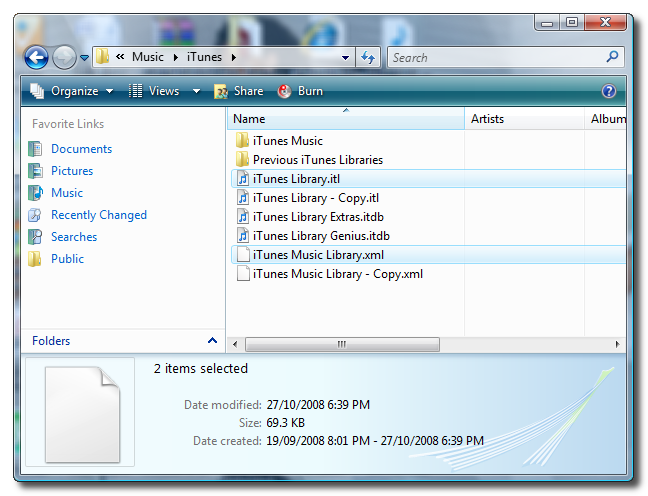
Step Three First we will create a backup of iTunes Music Library.xml and iTunes Library.itl. Select both files and press Control+c then Control+v on your keyboard. This will make a backup copy of the files.
Step Four Double click to open iTunes Music Library.xml.
Step Five Make note of the current Library Persistent ID then change the Library Persistent ID key to the one we wrote down from Part One and save the file.
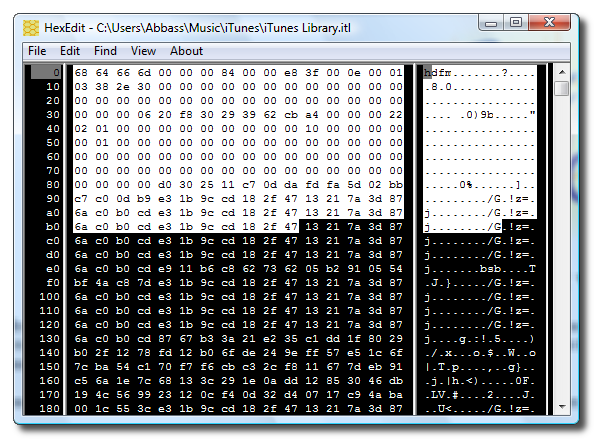
Step Six Now we will need to open iTunes Library.itl using a HexEditor. You can download HexEdit from here
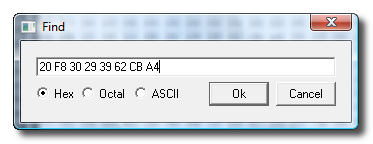
Step Seven Once you have opened iTunes Library.itl use HexEdit to search for the old Library Persistent ID we replaced in Step Five. Do this by clicking Find from the Menubar. Make sure to select Hex as your search type.
Step Eight Once found replace the old Library Persistent ID with the one from Part One and save the file.
Step Nine You can now launch iTunes and connect your iPhone to the new computer for syncing. Select your iPhone from the list of devices on the left. Notice if now select Manually manage music and videos from the Summary Tab you will no longer be prompted to erase your data, nor will the files on your iPhone be grayed out.
THANKS***: This tutorial is based on the discovery by Andrew Grant. He deserves credit for his work. You can check out his blog posting on the subject here
Get the iClarified Daily Newsletter
Apple news, rumors, tutorials, price drop alerts, in your inbox every evening, free.
Unsubscribe at any time.
Success!
You have been subscribed.
Add Comment
Would you like to be notified when someone replies or adds a new comment?
Yes (All Threads)
Yes (This Thread Only)
No
Notifications
Would you like to be notified when we post a new Apple news article or tutorial?
All the parts are okay until i tried to find the older ID with hexedit and it stated the string is not found and I was stuck in a dead end. Any solutions?
I tried this and it worked for my iPod, but not my iPhone and they were from the same library and had the same Library Persistent ID. Any idea why this might've happened?
1) Close iTunes
2) Update the .xml file with the persistent ID
3) delete sentinel file
4) Delete .itl file and recreate a text-file with the same name.
Thanks to you! Everyone, this guy has the key! It's 3:18 in the morning, and I have finally concluded my search for this single elusive answer!! Kudos!! The trick wasn't working for my iPhone until I did this!! Thank you! Quote of Damian: 1) Close iTunes 2) Update the .xml file with the persistent ID 3) delete sentinel file 4) Delete .itl file and recreate a text-file with the same name. Thanks Damian!!!
I have tried this several times, but the ID keeps getting reset within the "iTunes Library.itl" file which then updates the .xml file. I have even tried setting the .itl file to read only but then Itunes won't open complaining that the file is locked. Wow. I never had an issue copying music from anywhere with my droid.
That's probably because your iTunes is open, but (refer to what I said above, I think they patched it in iTunes 11.)
Everything seems to revert to the old Persistent ID.
I also noticed that there is a file named "Sentinel" (If you show hidden folders.) Using HexEdit, you'll see that it also has the ID in it.
I changed all 3 ID's (iTunes library.itl, iTunes Music Library.xml and the Sentinel's file ID) with iTunes 11 reverting it straight back to the original IDs..
Pretty sure I've done everything correctly, iTunes was also closed for the duration.
I couldn't get it to work with iTunes 11 so I decided to use gSyncit and open a Google mail account for contacts/calendars. I was already syncing Tasks/Notes with Toodledo using gSyncit so that wasn't a big deal at this point.
I just find Apple is not making my life any easier despite what they say. The Palm TX was so much simpler - all apps were syncing automagically to Palm Desktop on multiple computers. Each 3rd party app was installing a conduit where needed (time sheet, encrypted notes...), and you only had 1 button to press to sync everything. And your data was local on your own machines.
With Apple you have to install other pieces of software on top of iTunes/Outlook, open up accounts on different Web services, and your data is dispersed overs a few Internet servers (cloud) over which you have absolutely no control. There are advantages to that too, mind you, but only if I happen to have my iPhone stolen while away at the end of the world (not often...)
Bad Apple, instead of improving they make things ever so complicated.
hi...while saving itunes music library.xml in apple editor after changing the persistent key, it shows following syntax error-
A < cant go here.
plsss tell a way out....
In stage 8 of the instructions, you say that we have to replace the OLD LIBRARY PERSISTENT ID with the no. obtained from stage 1 - but this is the SAME number surely? Please clarify. Thanks.
Any way to do this for a new mac which has mountain lion? Mountain lion is not allowing itunes 10 to be downgraded to itunes9 by uninstalling and the technic specified in this post does not work because itunes reverts the ID back to what it was. Any more options?
did you ever get it working in iTunes 10 on mountain lion? I've used several different text editors and check the string in both lib files and it keeps reverting back to the old persistent id.
yes it worked after some of these steps - first go to the applications folder and go to "show info" for itunes app [select itunes and hit command+i] > here change the permissions to "read & write" for everything > now trash itunes and it should go off > now download an older version of itunes and install it [something lower than 10]... after this try the entire process and it should retain the persistant ID this time..... theres something with itunes 10 which reverts it to the previous default id... try this and see.
so, had to downgrade, change user permissions on mountain lion to delete iTunes, then deleted iTunes folder, installed previous version of iTunes, changed the xml, then the hex edit (super easy btw), downloaded newest iTunes, works, done. thank you.
Im trying to still figure out how the hex edit works. I copied old itl file, pasted it in hex editor and clicked search but i get nothing. And once you do find it, how do you replace it? this is the only step im confused about.
Thanks
Hi, I dont need to sync my iPhone with multiple computers, but I have a new laptop (PC) nad all I want is to be able to Sync my iPhone 4 and iPod Touch with my new laptop and stop syncing with the old one. Is this possible?
i dont think this works for itunes 10 . . .
cause it still prompts me to erase & sync , & when i check back into the files, the old code reappears. i have done this successfully on other computers, i dont know whats causing this problem now, especially since none of the files are read only.
I've installed iTunes on my new computer and then copied the iTunes folder from my old computer and replaced that folder on my new computer and it has worked two different times.
Yes, sadly this no longer works in iTunes 10. On the "secondary" computer, i.e. the one where we change the ID manually, the ID gets reset to its original value by iTunes once any action (e.g. playing a song or, more importantly, plugging in a device) is performed. Interestingly if you just load iTunes and quit, the ID change does stick.
So it seems iTunes is reading the ID from somewhere else. Perhaps from another settings/preference file? (Hopefully) Worst case is that this is now a hard-coded check and the ID is based on something we can't easily change (e.g. hardware ID/CPU serial number/MAC/etc or derivation from one of those).
I'll keep checking back to see if someone's come up with a workaround! I'll keep playing with it too... It's really too bad since the new sync provided by Apple is only for purchases from their store, not any other files (which could be perfectly legal as well, such as CD imported MP3s).
i tried following this too and it didn't work. my main computer is a brand new mac mini and my secondary is a pc at work; both running itunes 10. all seemed to work(no immediate prompt to delete files when i clicked on 'manually manage music', but as soon as i tried to check 'sync apps' from the apps page i got the dreaded prompt about erasing/replacing data on the phone with what's in my pc's library.
one additional item to point out, my pc is authorized for my itunes store account, if that matters.
any help would be appreciated.





![iFixit Investigates iPhone Duo Screen Failures, Points to Possible Hinge Issue [Video]](/images/news/103038/103038/103038-160.jpg "iFixit Investigates iPhone Duo Screen Failures, Points to Possible Hinge Issue [Video]")
![Apple's Touchscreen MacBook Pro to Cost 'Significantly' More [Gurman]](/images/news/103035/103035/103035-160.jpg "Apple's Touchscreen MacBook Pro to Cost 'Significantly' More [Gurman]")

![Apple Stores Get iPhone Scanner to Fight Return Fraud [Report]](/images/news/103029/103029/103029-160.jpg "Apple Stores Get iPhone Scanner to Fight Return Fraud [Report]")
![Apple TV Shares 'Full Throttle' With F1 Drivers and Vince Young Ahead of U.S. Grand Prix [Video]](/images/news/103023/103023/103023-160.jpg "Apple TV Shares 'Full Throttle' With F1 Drivers and Vince Young Ahead of U.S. Grand Prix [Video]")
![How To Turn Off iPhone [Video]](/images/tutorials/94999/94999/94999-160.jpg "How To Turn Off iPhone [Video]")
![How To Back Up Your iPhone to an External Drive on Mac [Video]](/images/tutorials/72786/72786/72786-160.jpg "How To Back Up Your iPhone to an External Drive on Mac [Video]")

![How To Find Your IP Address on iPhone [Video]](/images/tutorials/496/496/496-160.jpg "How To Find Your IP Address on iPhone [Video]")

![Beats Headphones, Earbuds, and Pill Speaker Are Up to 41% Off [Deal]](/images/news/103026/103026/103026-160.jpg "Beats Headphones, Earbuds, and Pill Speaker Are Up to 41% Off [Deal]")

![New Fire TV Stick 4K Drops to $29.99 (50% Off) [Deal]](/images/news/102984/102984/102984-160.jpg "New Fire TV Stick 4K Drops to $29.99 (50% Off) [Deal]")
![Apple's iPhone 18 Pro and Pro Max Cases Are Up to 37% Off [Deal]](/images/news/102978/102978/102978-160.jpg "Apple's iPhone 18 Pro and Pro Max Cases Are Up to 37% Off [Deal]")
![16-Inch MacBook Pro With M5 Pro Drops to $2,429 ($570 Off), Lowest Price We've Seen [Deal]](/images/news/102957/102957/102957-160.jpg "16-Inch MacBook Pro With M5 Pro Drops to $2,429 ($570 Off), Lowest Price We've Seen [Deal]")
