These are instructions on how to enable Japanese Emoticons on your iPhone for use with SMS, Mail, Notes, etc. This tutorial will install the Emoji patch from the iSpazio repository.
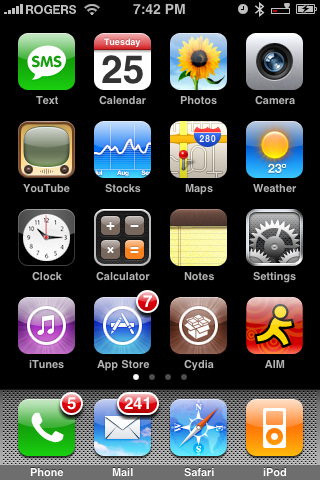
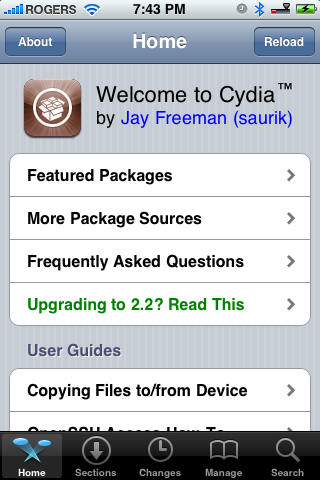
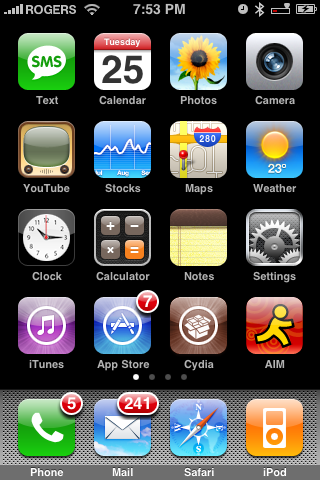
Step One Press to launch the Cydia Installer from your SpringBoard.
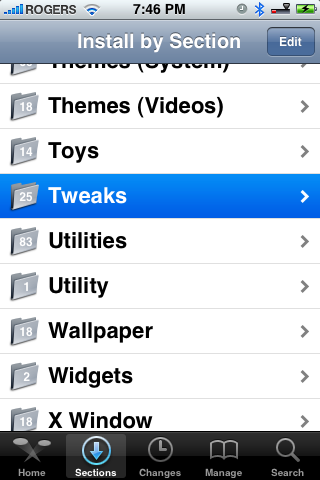
Step Two Press to select Sections from the tabs at the bottom of the screen.
Step Three Press to choose Tweaks from the list of Sections.
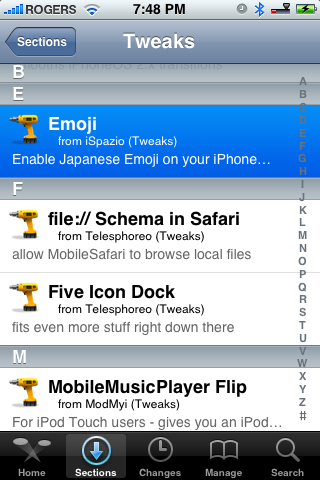
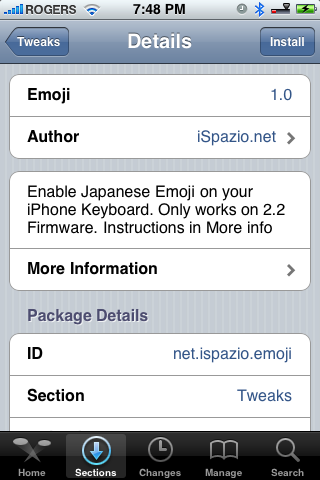
Step Four Press to select Emoji from the list of Packages.
Step Five Press the Install button at the top right of the screen.
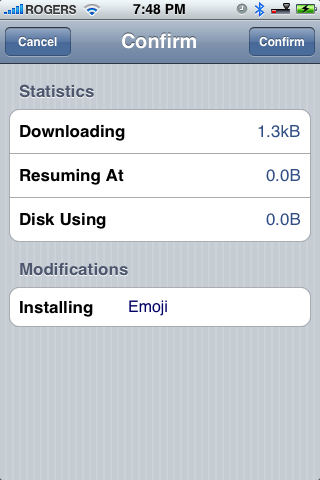
Step Six Press the Confirm button at the top right of the screen.
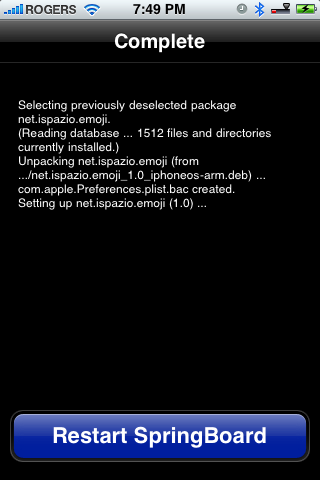
Step Seven Once the installation has completed successfully click the large Restart SpringBoard button.
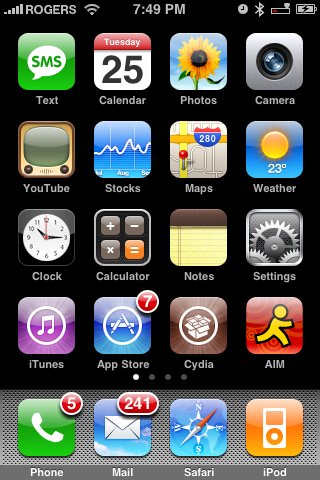
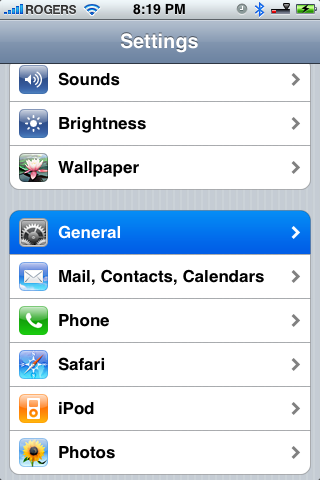
Step Eight Press the Home button then press the Settings icon on your SpringBoard.
Step Nine Press to select General from the Settings Menu.
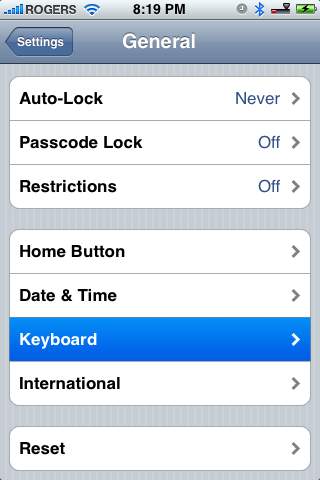
Step Ten Press to select Keyboard from the General Menu.
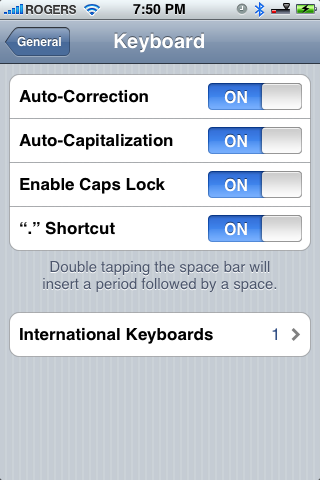
Step Eleven Press to choose International Keyboards from the Keyboard Menu.
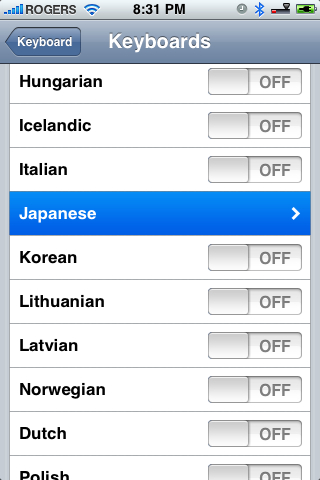
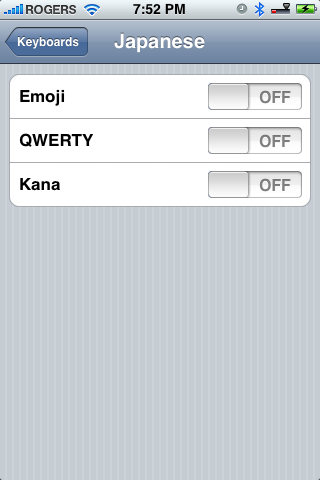
Step Twelve Press to choose Japanese from the Keyboards Menu
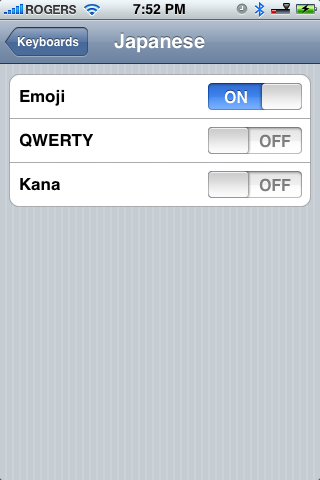
Step Thirteen Move the Emoji switch to the ON position.
Step Fourteen Press the Home button then press the SMS icon to open the text messaging application.
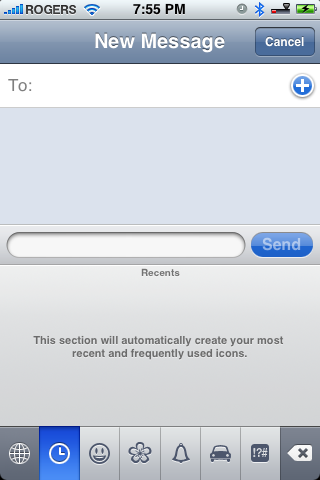
Step Fifteen Press the New SMS button at the top right hand corner of the screen.
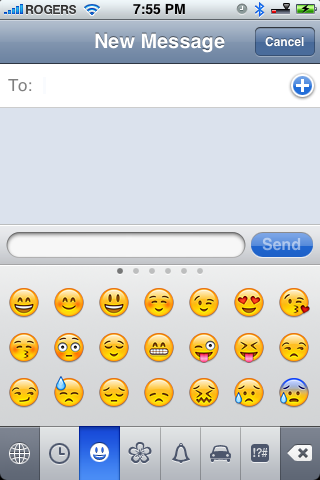
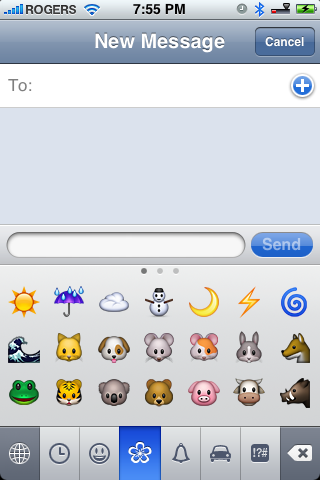
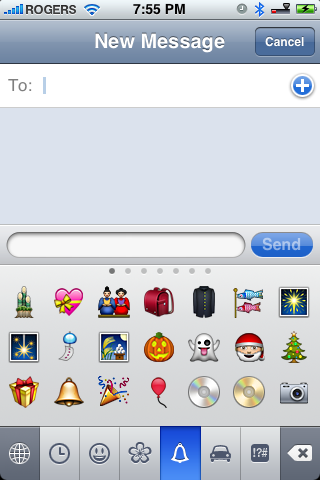
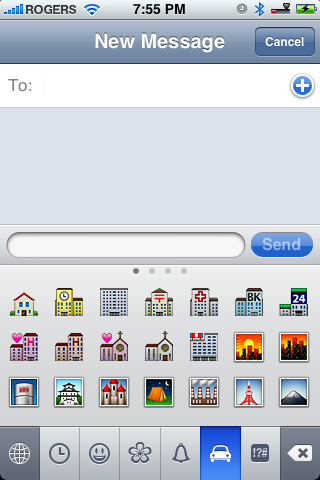
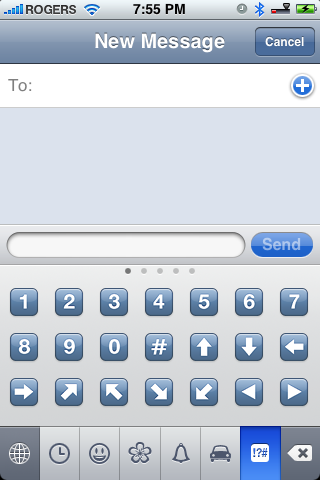
Step Sixteen Notice you will now have the choice of many emoticons to enhance your messaging.
Get the iClarified Daily Newsletter
Apple news, rumors, tutorials, price drop alerts, in your inbox every evening, free.
Unsubscribe at any time.
Success!
You have been subscribed.
Add Comment
Would you like to be notified when someone replies or adds a new comment?
Yes (All Threads)
Yes (This Thread Only)
No
Notifications
Would you like to be notified when we post a new Apple news article or tutorial?
Miguel: Its the battery gauge for the Apple Bluetooth Headset. When the iPhone and the Apple BT headset are paired, the battery level is shown in the menubar of the iPhone.
Very nice!!!!!
I'm curious about the little red gauge in the right side of the battery indicator in the status bar....
what is this????
Can somebody answer me????





![Apple Releases visionOS 27.0.1 for Apple Vision Pro [Download]](/images/news/102459/102459/102459-160.jpg "Apple Releases visionOS 27.0.1 for Apple Vision Pro [Download]")
![Boot Speed Test: iPhone 18 Pro Max vs iPhone 17 Pro Max vs iPhone 16 Pro Max [Video]](/images/news/102462/102462/102462-160.jpg "Boot Speed Test: iPhone 18 Pro Max vs iPhone 17 Pro Max vs iPhone 16 Pro Max [Video]")
![Apple Releases macOS Golden Gate 27.0.1, Tahoe 26.7.1, and Sequoia 15.8.1 [Download]](/images/news/102456/102456/102456-160.jpg "Apple Releases macOS Golden Gate 27.0.1, Tahoe 26.7.1, and Sequoia 15.8.1 [Download]")
![Apple Releases iOS 27.0.1, iPadOS 27.0.1, and 26.7.1 Updates [Download]](/images/news/102453/102453/102453-160.jpg "Apple Releases iOS 27.0.1, iPadOS 27.0.1, and 26.7.1 Updates [Download]")


![How To Find Your iPhone IMEI Number [Video]](/images/tutorials/83557/83557/83557-160.jpg "How To Find Your iPhone IMEI Number [Video]")



![16-Inch M5 Max MacBook Pro Drops $900 to New Low of $3,499 [Deal]](/images/news/102438/102438/102438-160.jpg "16-Inch M5 Max MacBook Pro Drops $900 to New Low of $3,499 [Deal]")
![Magic Keyboard for iPad Air Drops to $200 on Amazon [Deal]](/images/news/102402/102402/102402-160.jpg "Magic Keyboard for iPad Air Drops to $200 on Amazon [Deal]")
![13-Inch M5 MacBook Air With 1TB Drops to $1,449 on Amazon [Deal]](/images/news/102345/102345/102345-160.jpg "13-Inch M5 MacBook Air With 1TB Drops to $1,449 on Amazon [Deal]")

