
How to Find the Firmware and Baseband Version of Your iPhone
Posted December 31, 2008 at 7:00pm by
Shalom Levytam
These are instructions on how to find the firmware and baseband version (modem firmware) your iPhone is currently running.
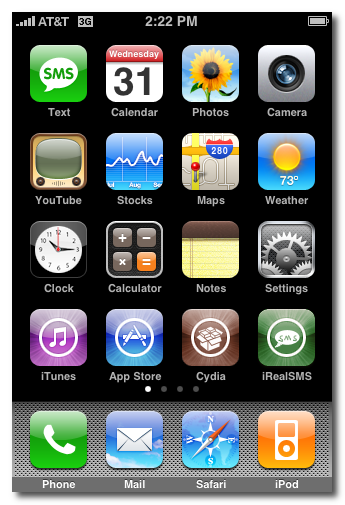
Step One
Press to launch Settings from your Springboard.
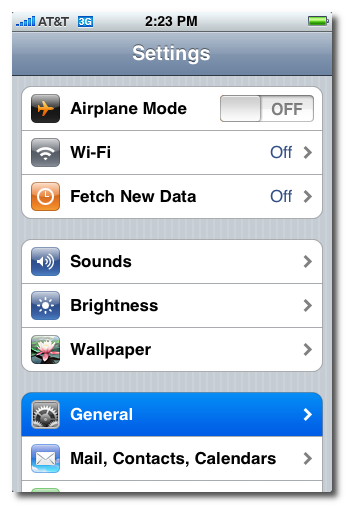
Step Two
Press to select General from the Settings Menu.
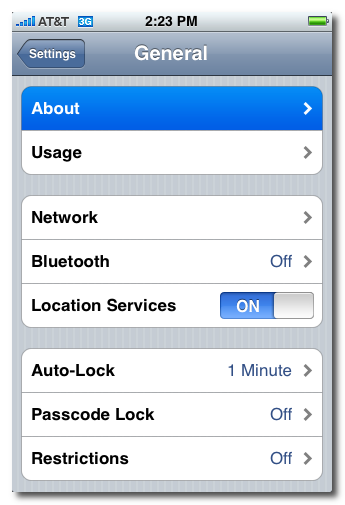
Step Three
Press to select About from the General Settings Menu.
Step Four
From the about screen you can find your firmware version under the Version label.
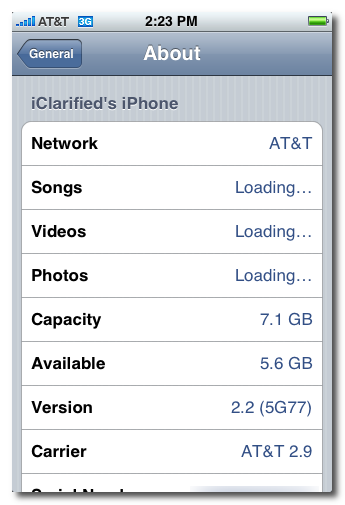
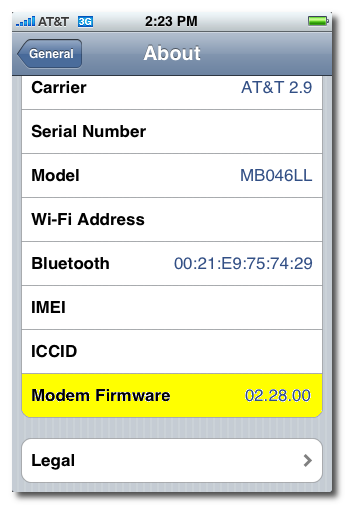
Scroll down and you can find your baseband version under the Modem Firmware label.
Step One
Press to launch Settings from your Springboard.
Step Two
Press to select General from the Settings Menu.
Step Three
Press to select About from the General Settings Menu.
Step Four
From the about screen you can find your firmware version under the Version label.
Scroll down and you can find your baseband version under the Modem Firmware label.


![iPhone 18 Pro SIM Tray Leak Suggests No Black Option for Second Year [Image]](/images/news/101963/101963/101963-160.jpg "iPhone 18 Pro SIM Tray Leak Suggests No Black Option for Second Year [Image]")



![Apple AirPods Pro 3 Drop to $199 ($50 Off) [Deal]](/images/news/101966/101966/101966-160.jpg "Apple AirPods Pro 3 Drop to $199 ($50 Off) [Deal]")

![Sony WH-1000XM5 Headphones Drop to Lowest Price Ever of $198 [Deal]](/images/news/101950/101950/101950-160.jpg "Sony WH-1000XM5 Headphones Drop to Lowest Price Ever of $198 [Deal]")

![M6 Mac mini Pre-Orders Get First Discount at $879.99 [Deal]](/images/news/101923/101923/101923-160.jpg "M6 Mac mini Pre-Orders Get First Discount at $879.99 [Deal]")
