These are instructions on how to install Windows 7 (32 bit or 64 bit) on your Mac using Boot Camp.
Before you begin this tutorial you will need the following: - Windows 7 beta download (no longer available) - Mac OS X Installation DVD or Boot Camp Update 2.1 for Windows Vista 64 (download no longer available)
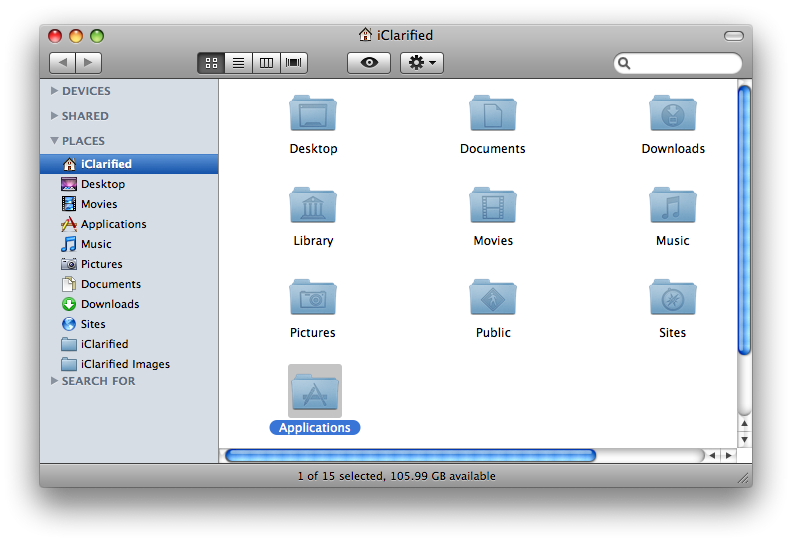
Step One Open a new Finder window by clicking the Finder icon in your dock.
Step Two Click Applications from the list of places on the left.
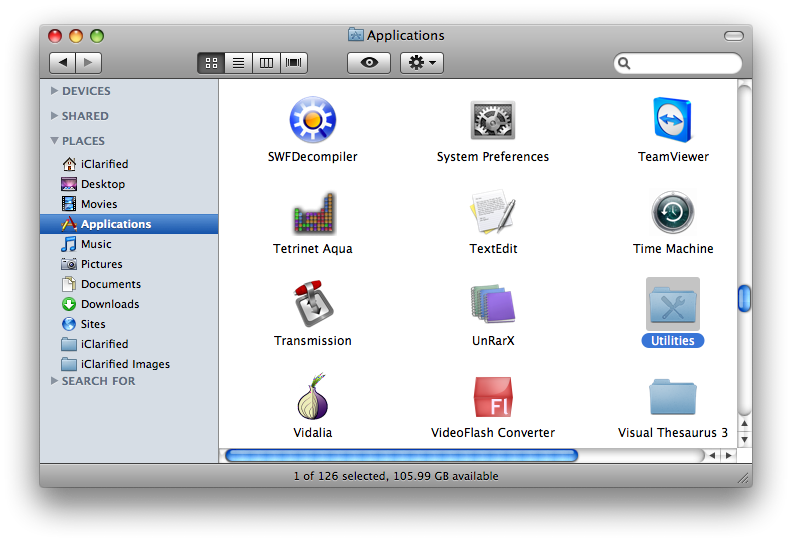
Step Three Double click the Utilities folder to access your utility applications.
Step Four Double click the Boot Camp icon to launch the application.
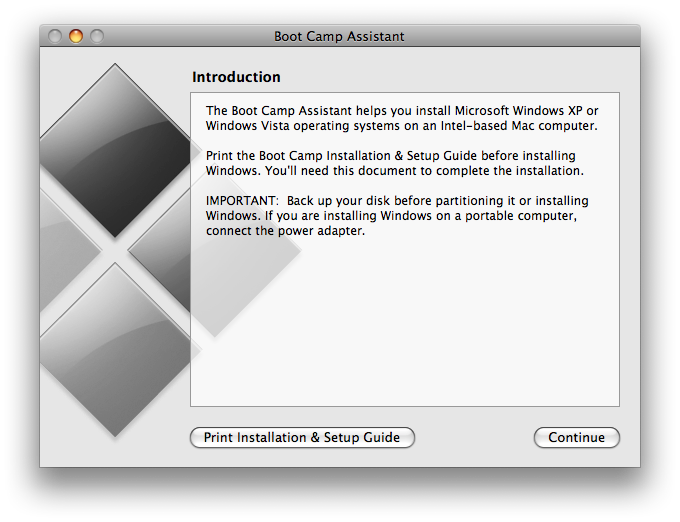
Step Five The Boot Camp Assistant will open. Click the Continue button.
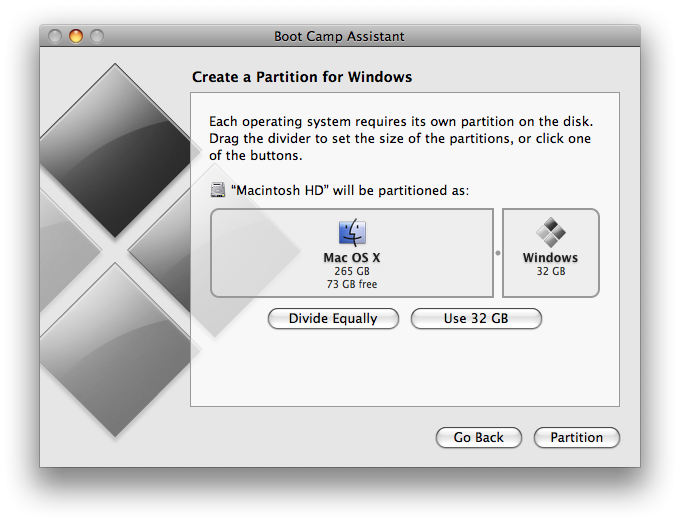
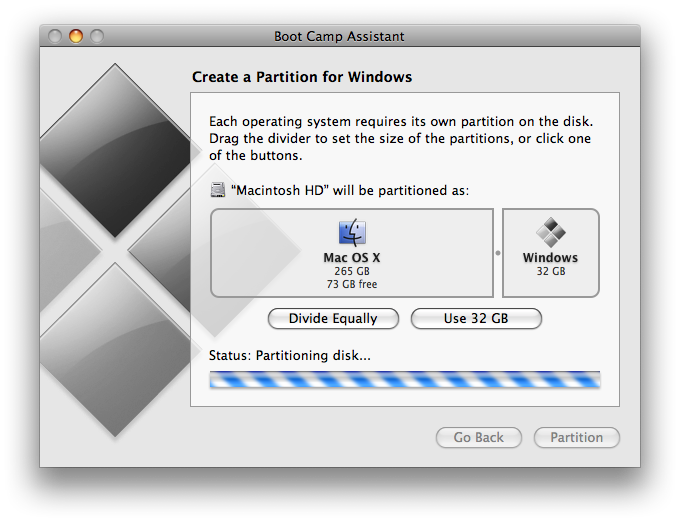
Step Six You will now be asked to Create a Partition for Windows. You can drag the divider to set the size of the partitions. Windows 7 needs about 10 GB at very minimum. If you plan to install applications make sure you allow extra space for them. I clicked the Use 32 GB button to assign 32 GB to my Windows 7 partition. When satisfied with the size of your partition click the Partition button.
Boot Camp will now partition your hard disk...
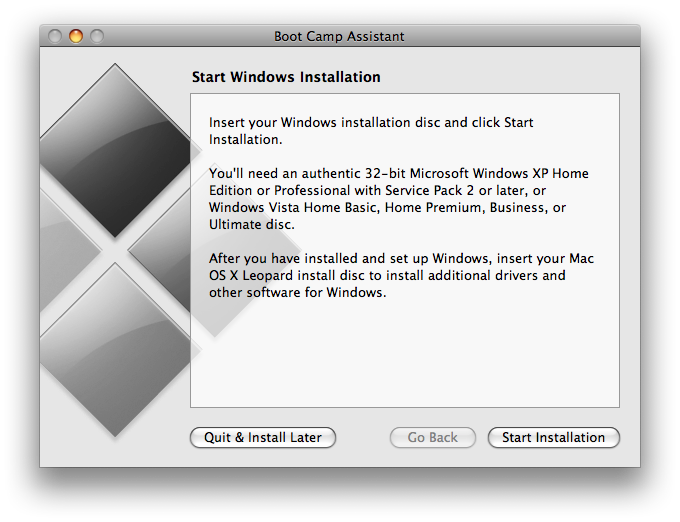
Step Seven Once your disk has been partitioned you are ready to start the Windows installation. Insert your Windows 7 Installation DVD and click the Start Installation button.
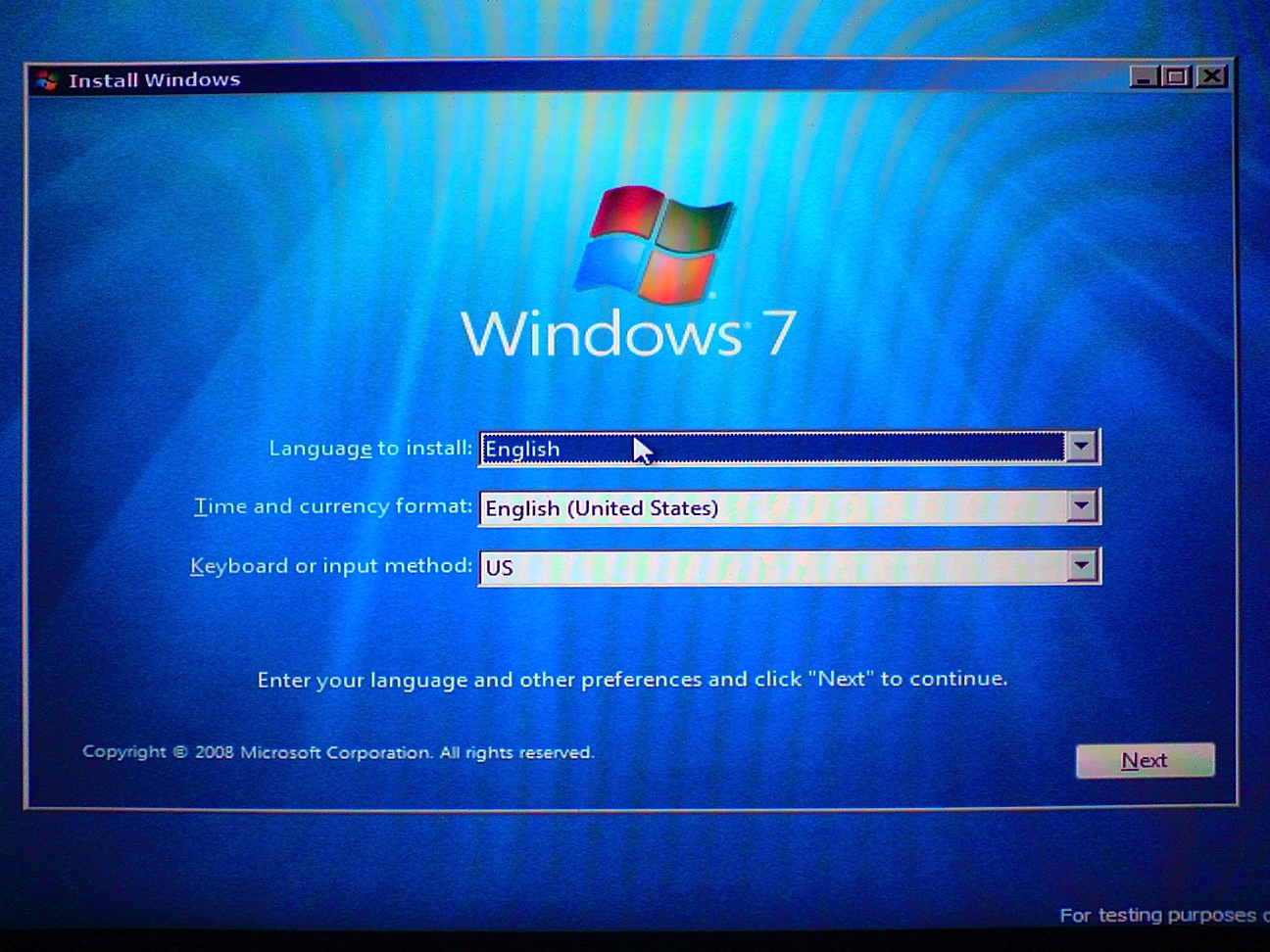
Step Eight Your computer will now reboot and launch the Windows 7 Setup. Select your language, Time and currency format, and Keyboard or input method from the dropdown boxes, then click the Next button.
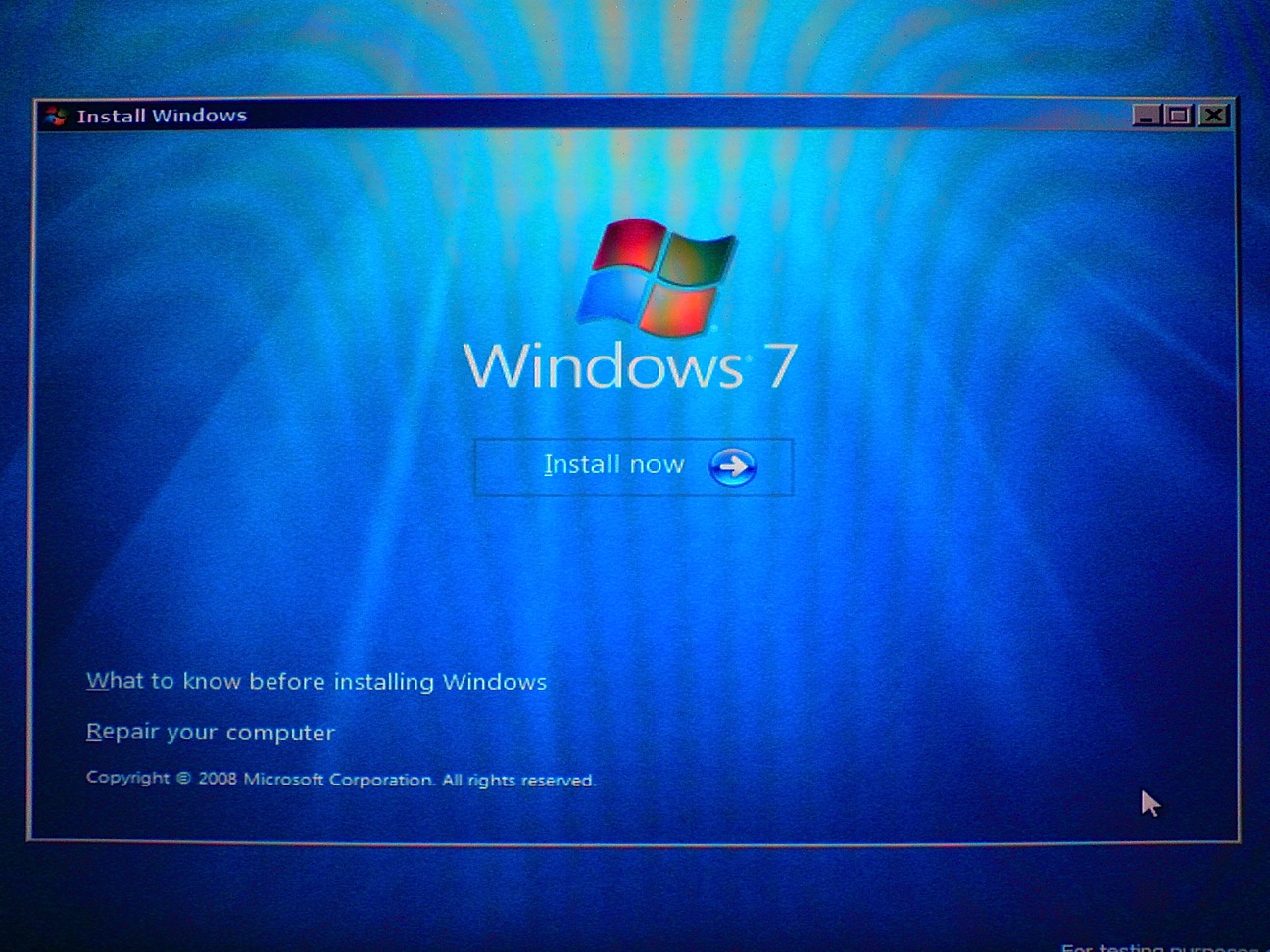
Step Nine Click the Install now button.
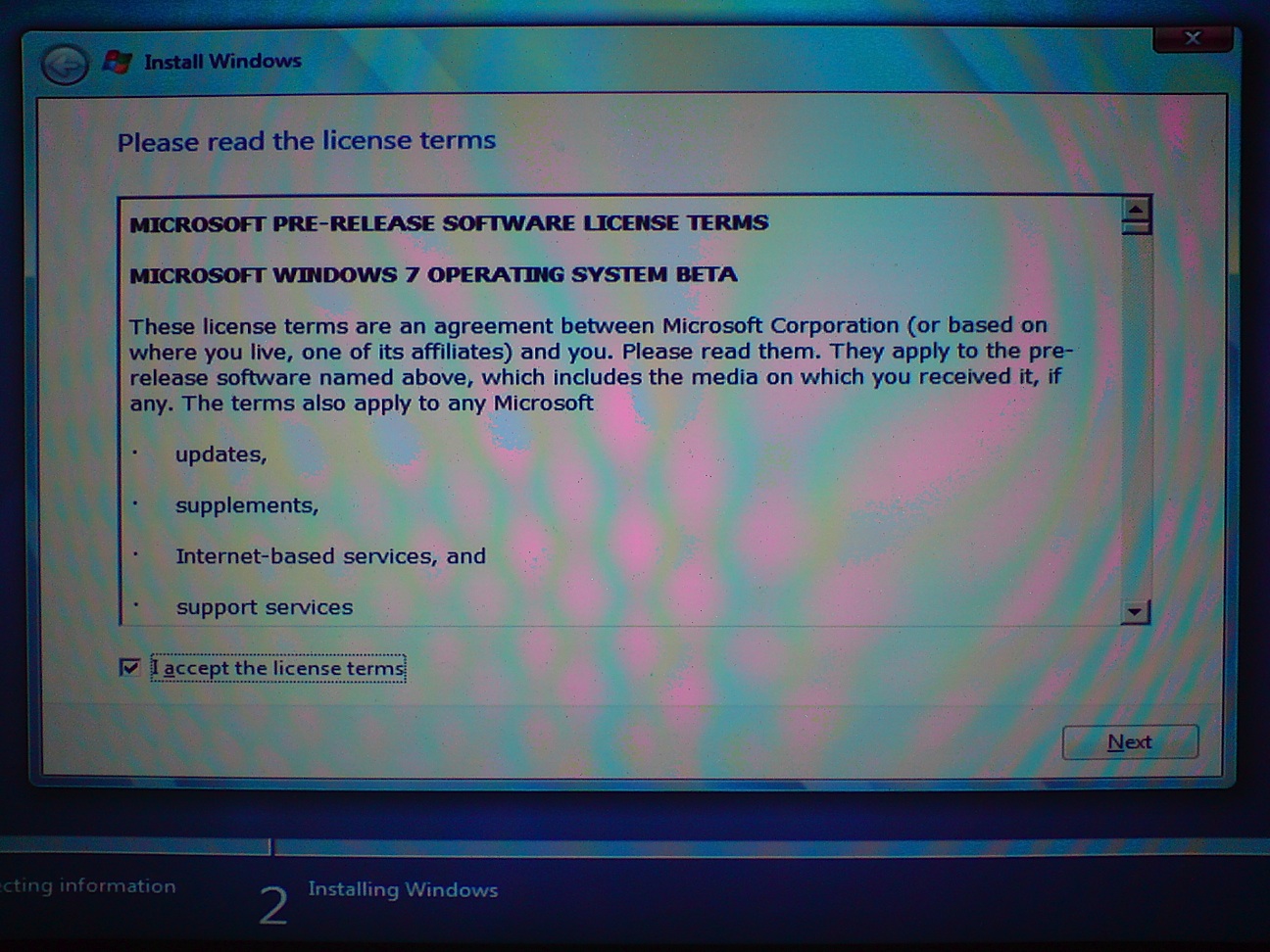
Step Ten Please read the license terms then check the box to accept the license terms. Click the Next button to continue.
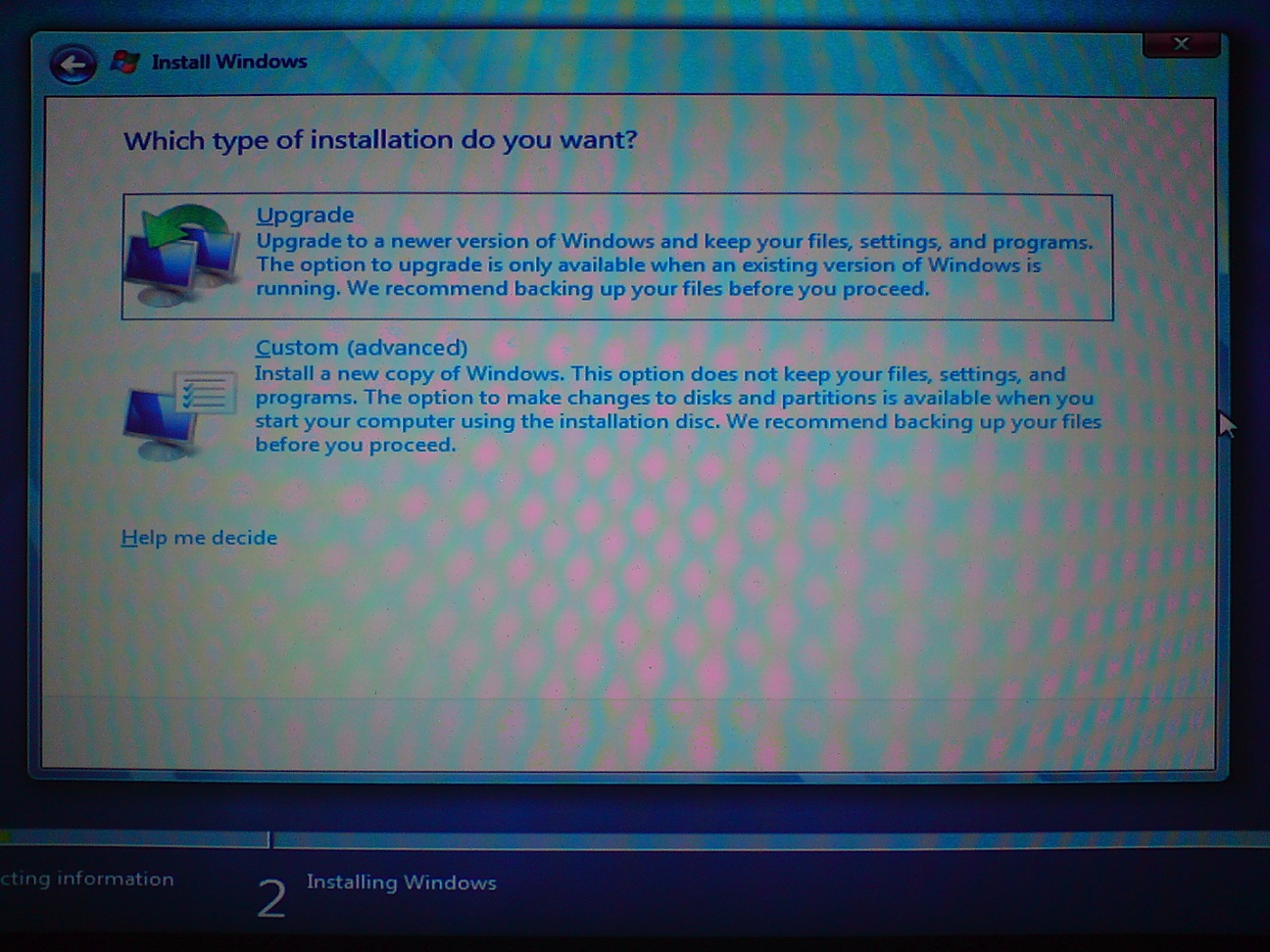
Step Eleven Click to select the Custom (advanced) method of installation.
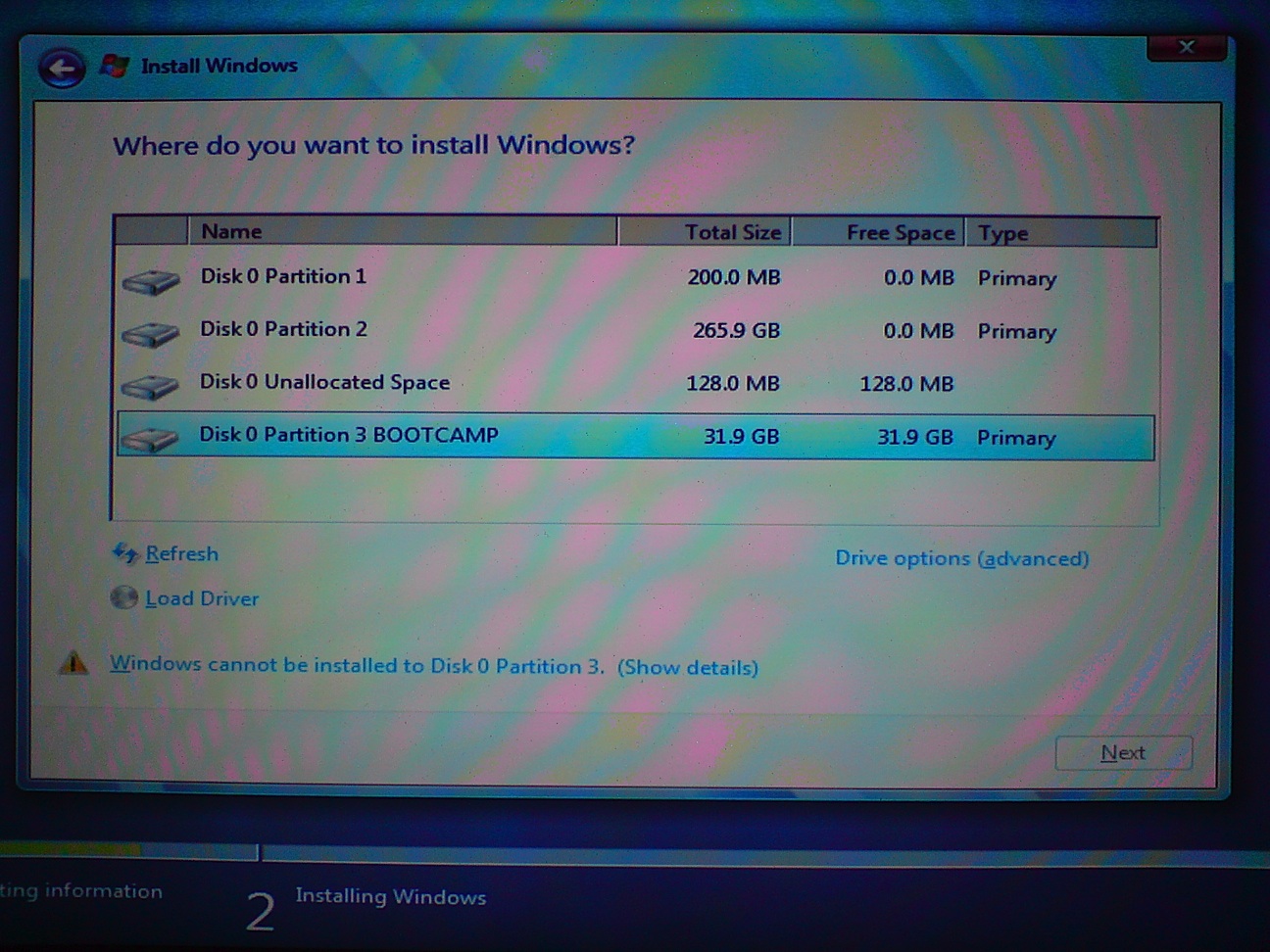
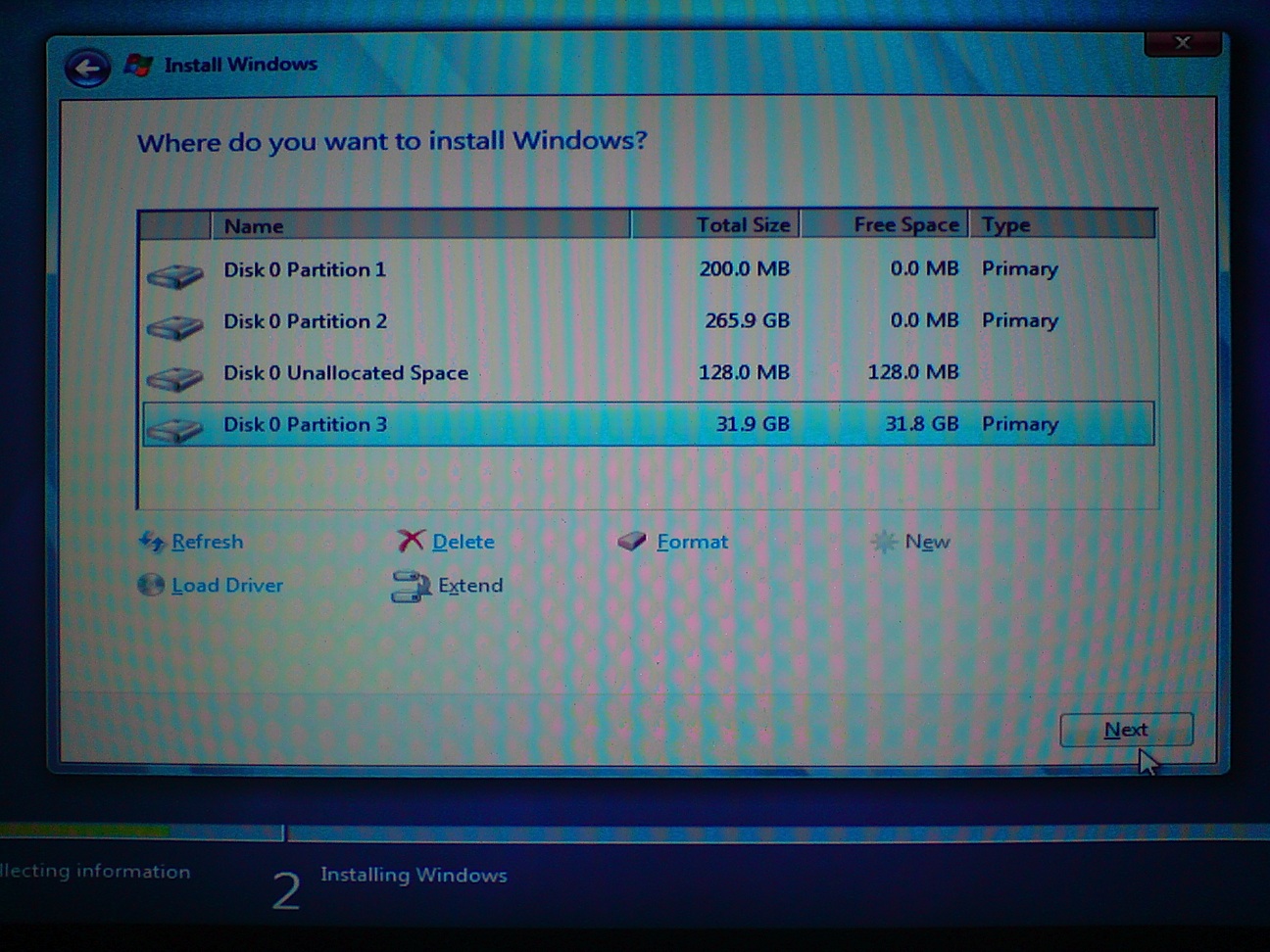
Step Twelve Click to select the Disk Partition labeled BOOTCAMP then click the Drive options (advanced) link below.
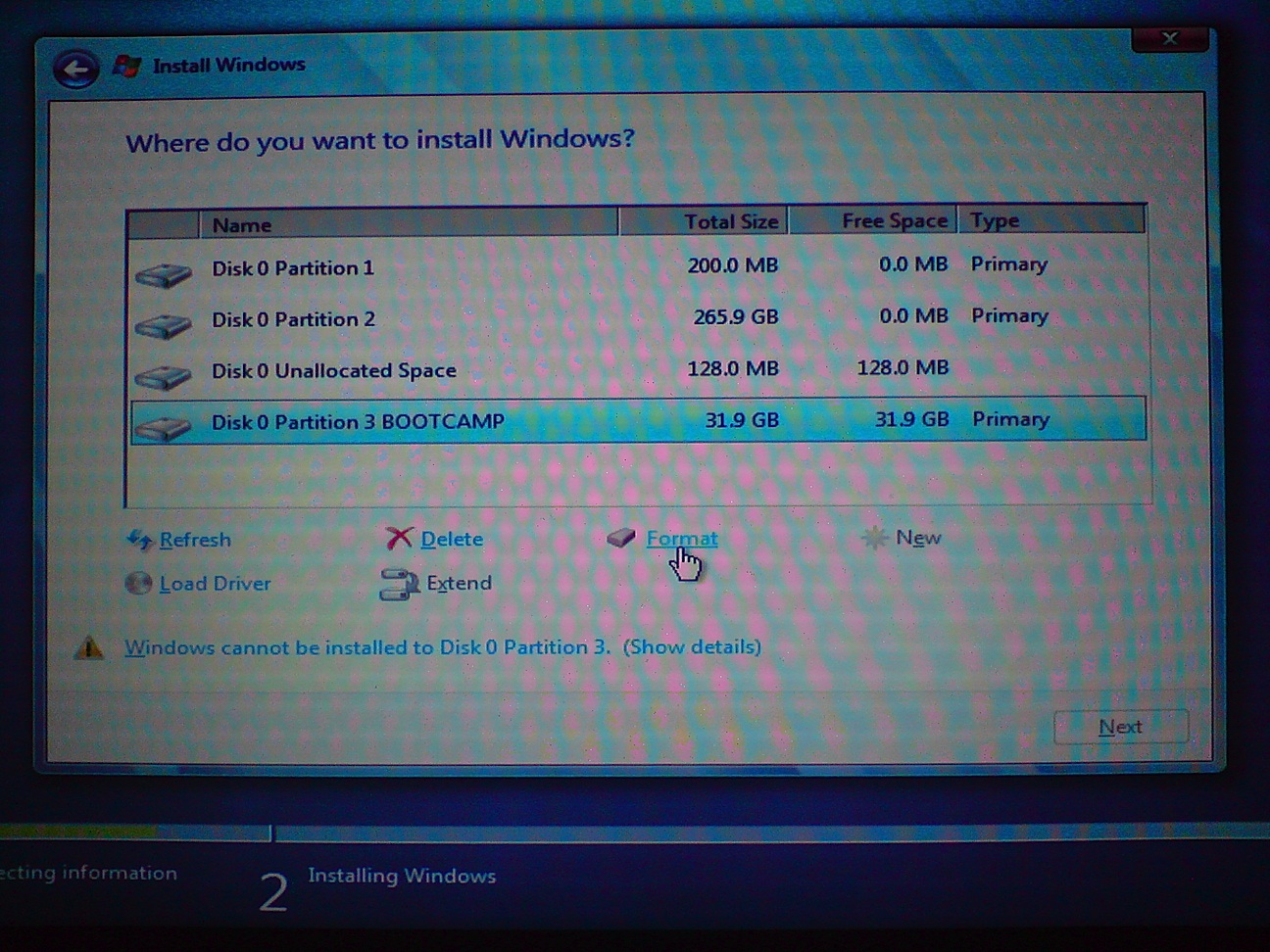
A few different drive options will appear. Making sure the BOOTCAMP partition is highlighted click the Format link.
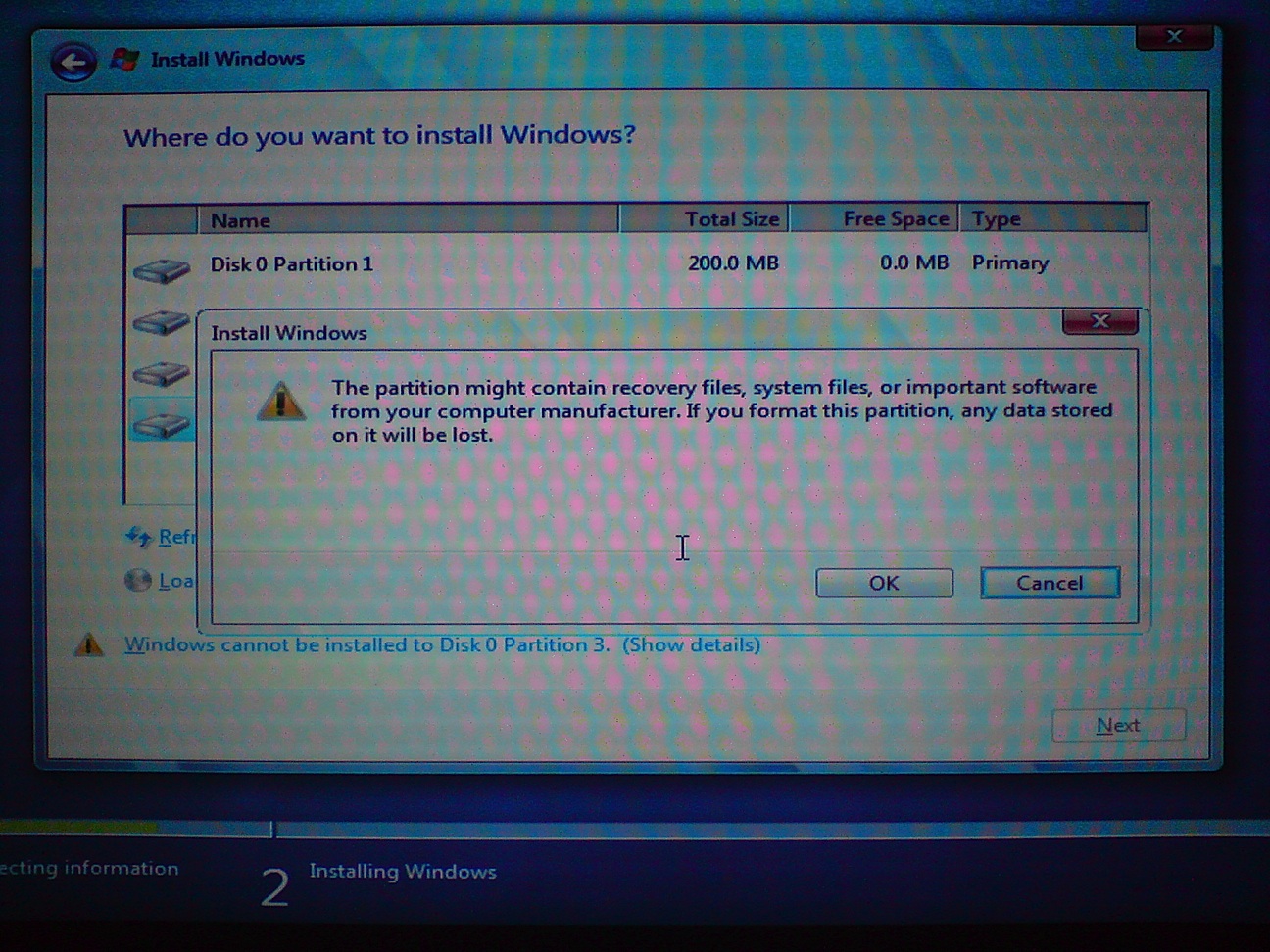
A popup window will appear warning you that any data stored on the partition will be lost. Click the OK button.
Once the drive has finished formatting you can click the Next button to continue.
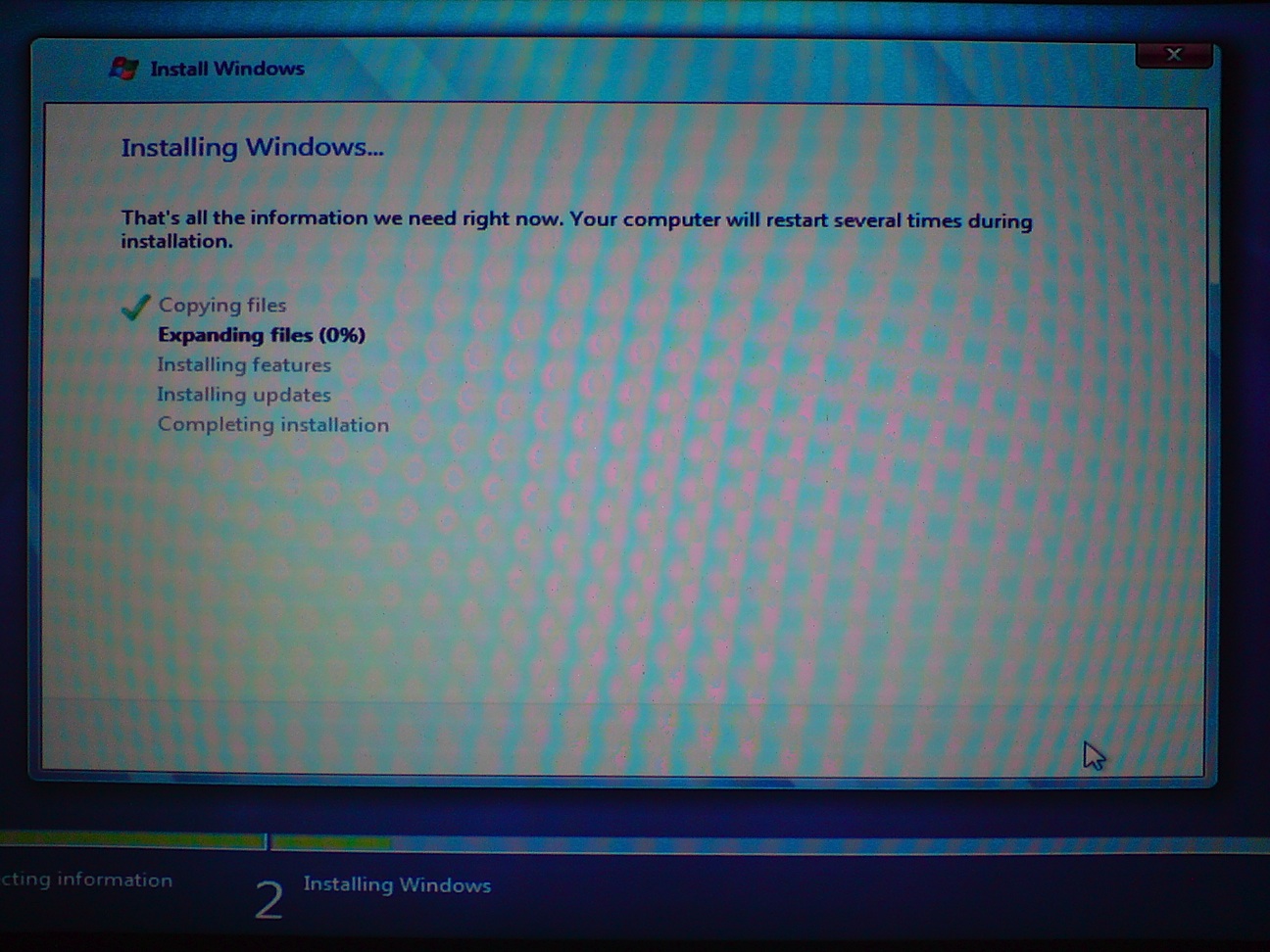
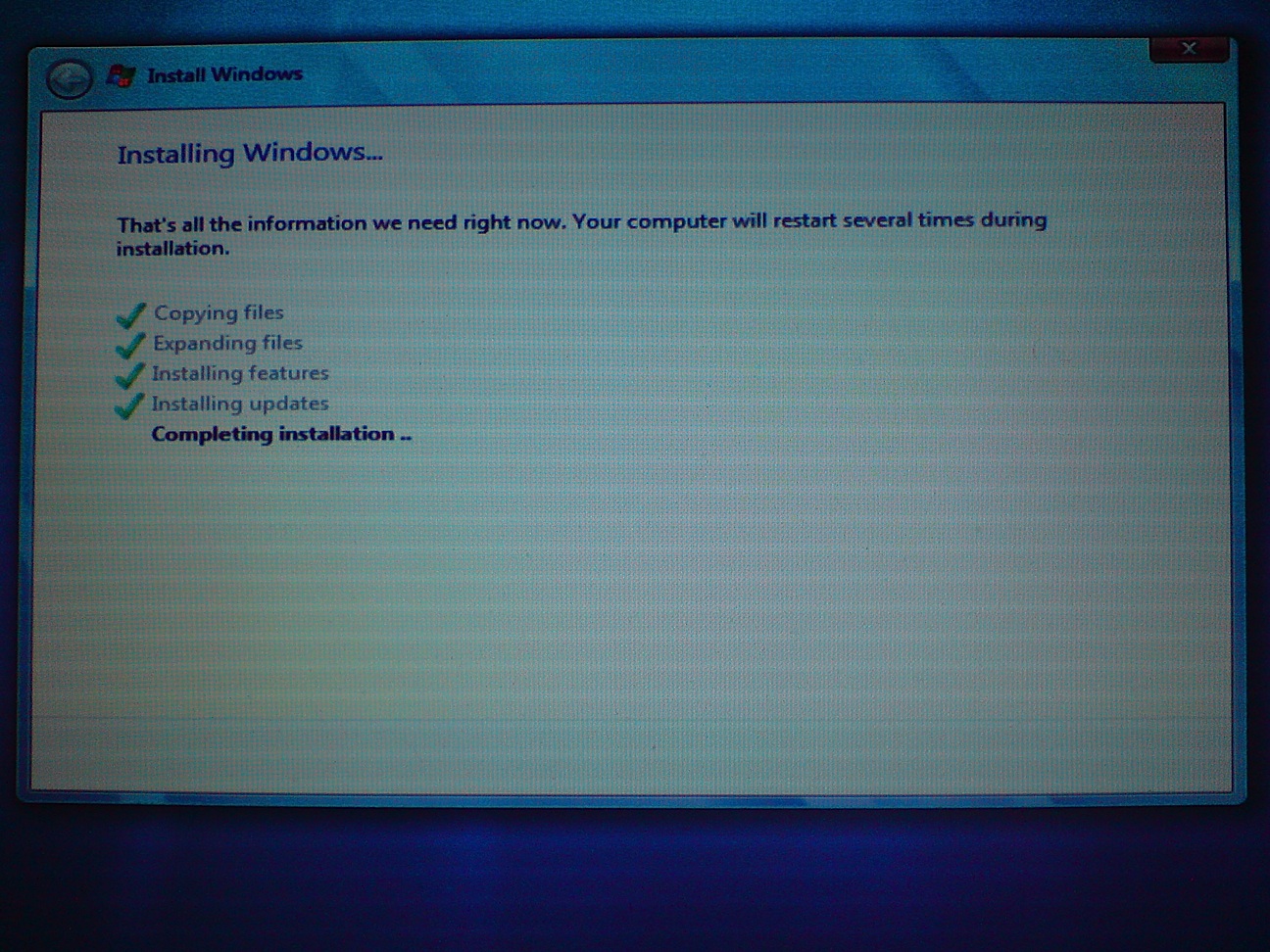
Step Thirteen Windows 7 will now begin copying and expanding files. This may take some time. After all the files have been copied and expanded your computer will reboot.
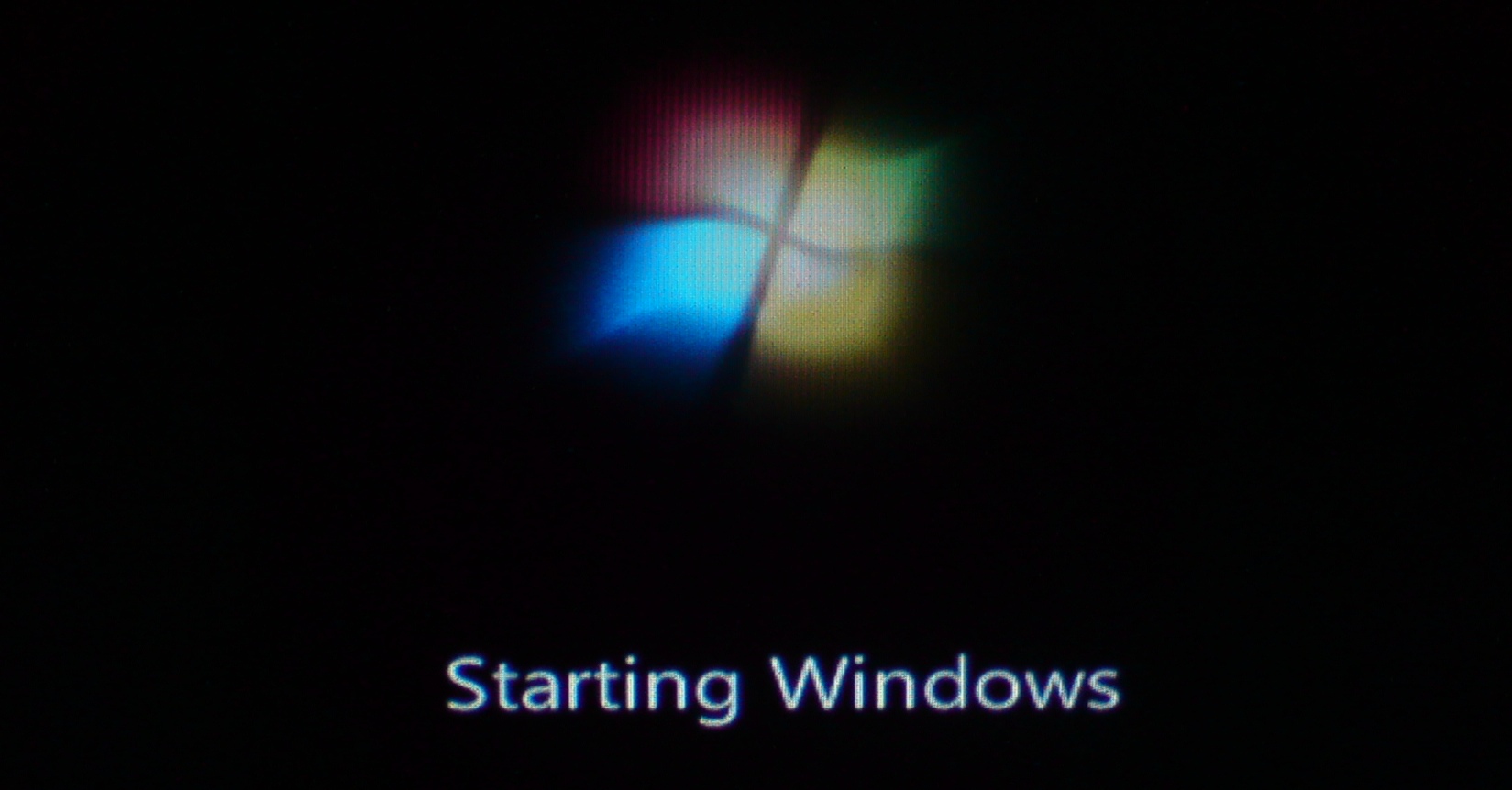
Windows 7 will now complete the installation.
Your computer will then be restarted again.
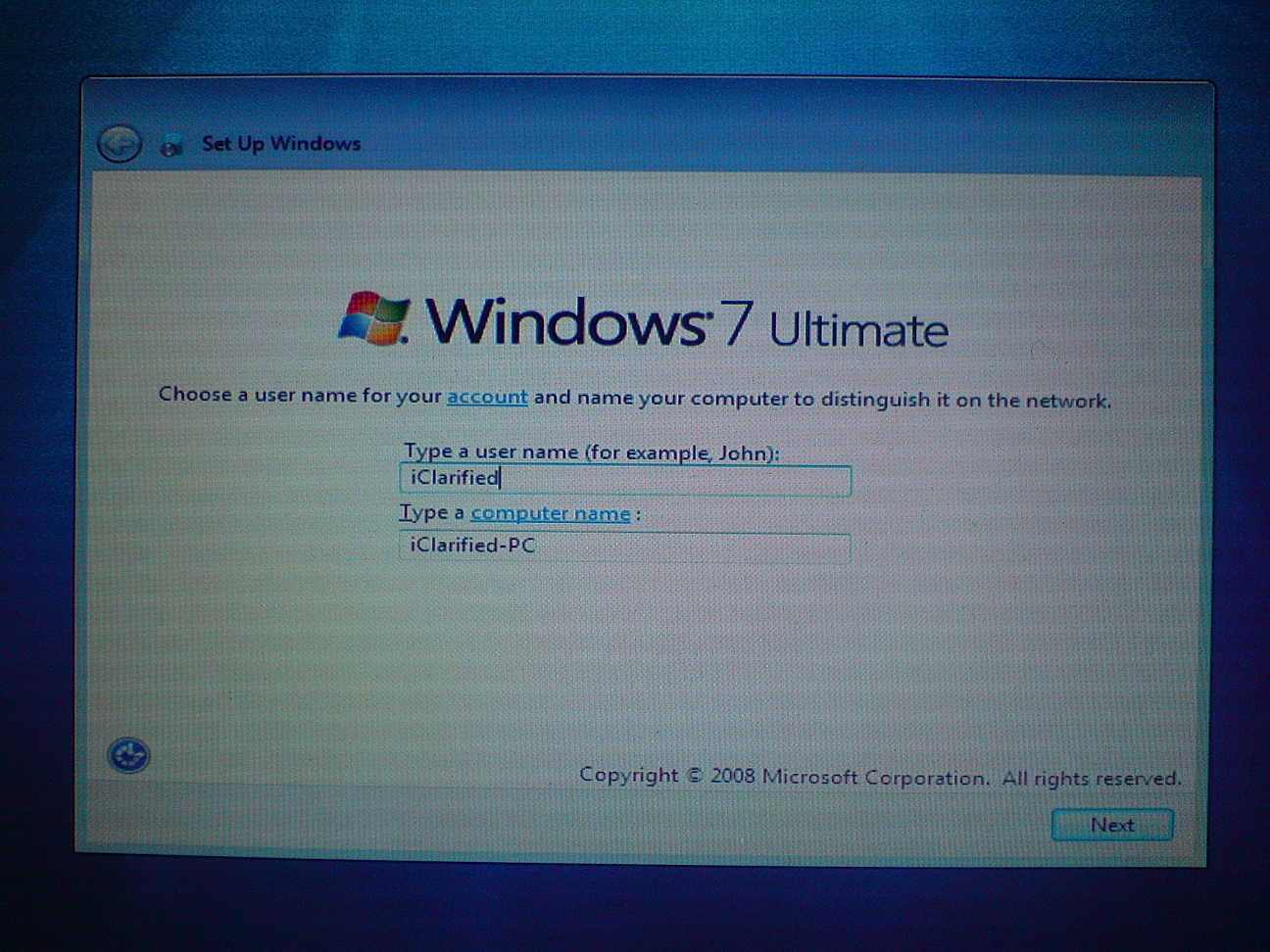
Step Fourteen You will then be asked to choose a username for your account and name your computer to distinguish it on the network. Please do this then click the Next button to continue.
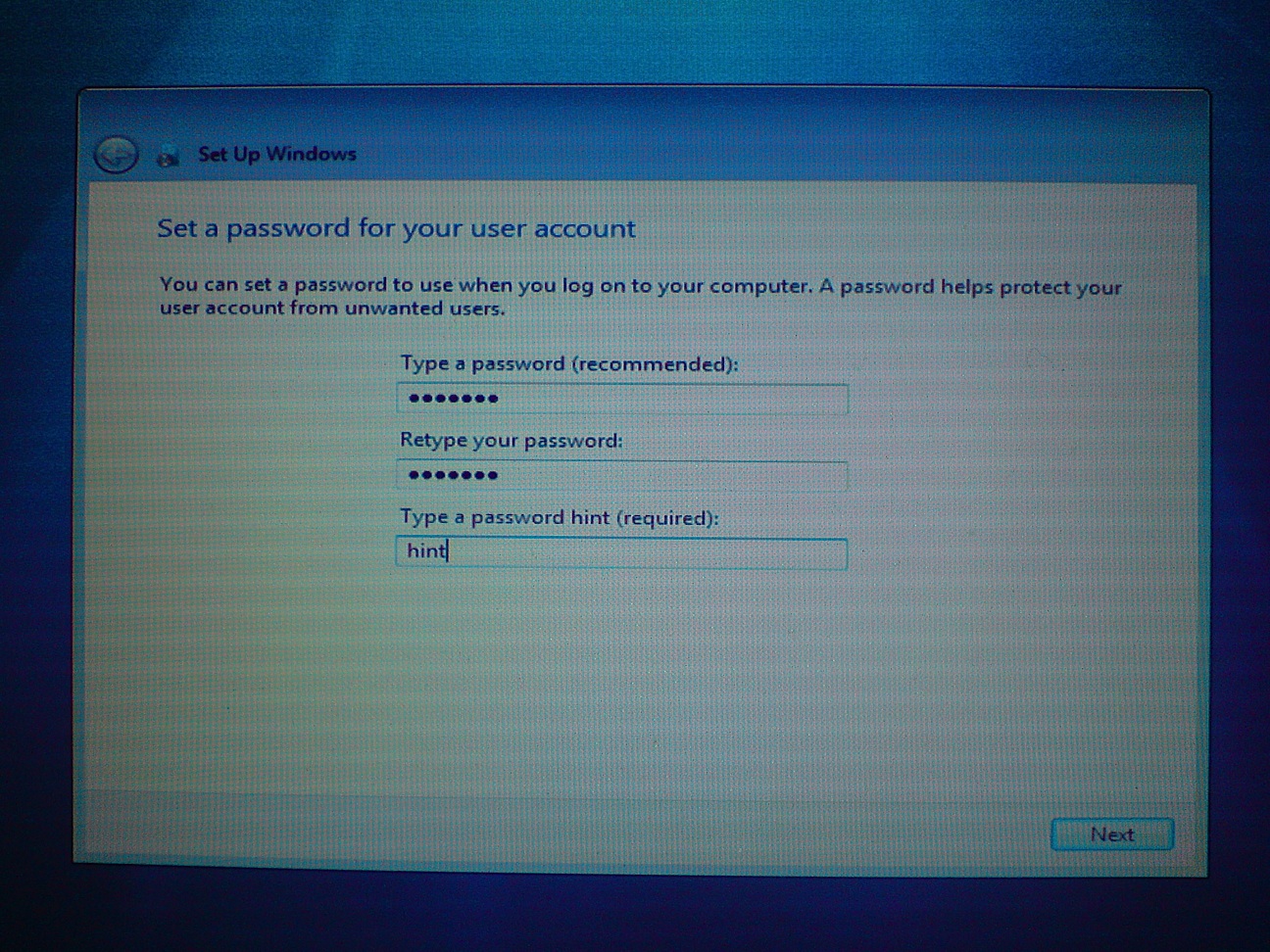
Step Fifteen You will then be asked to set a password to use when you log on to your computer. Type in your desired password, retype it to confirm, and enter a hint to be used if you forget the password. Click the Next button to continue.
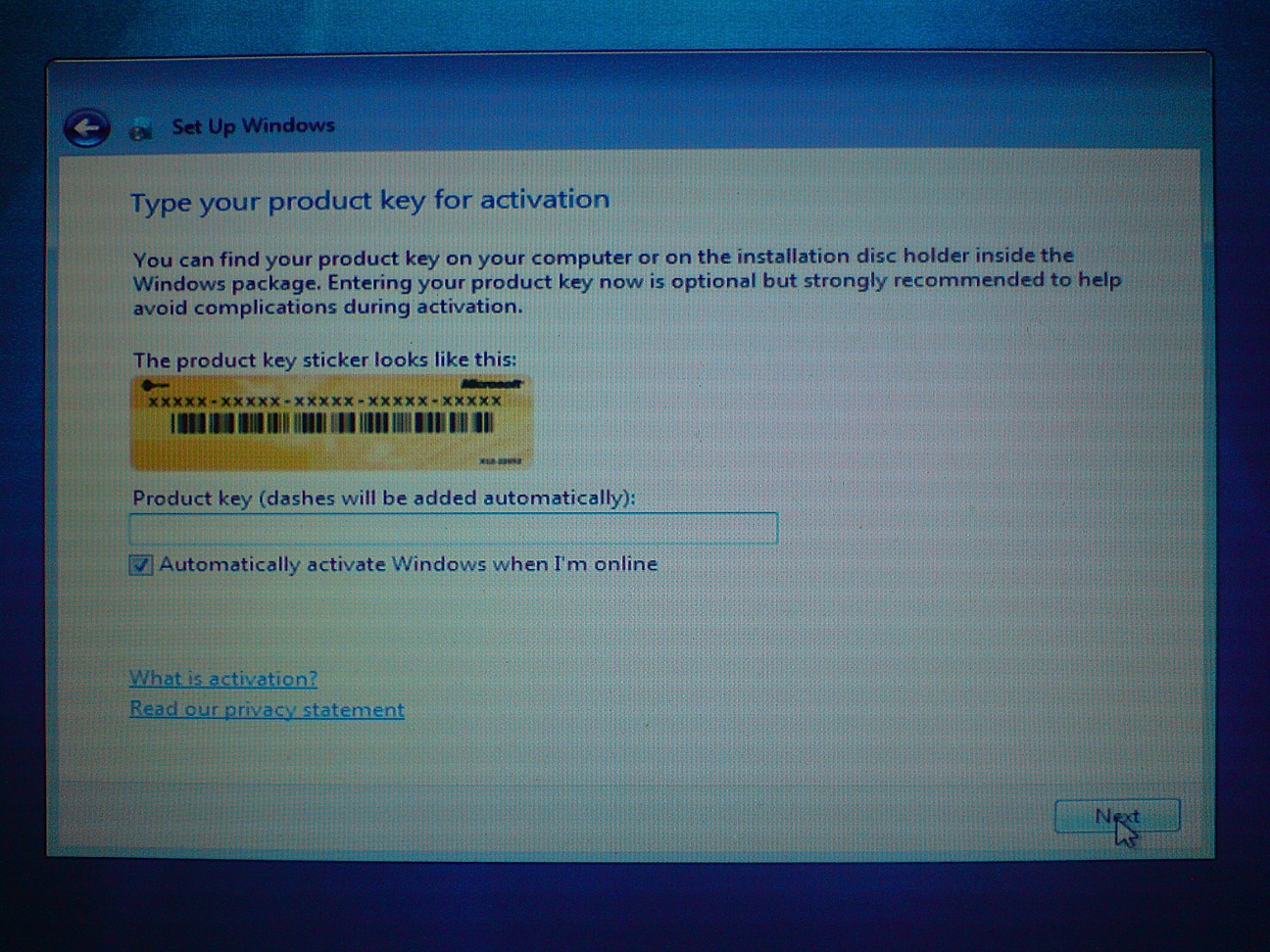
Step Sixteen Windows 7 Setup will now ask for your product key. Input the key then click the Next button to continue.
Step Eighteen Windows will now ask you to select your preference in regards to its updates, security, and online assistance. Select Use recommended settings unless you are an advanced user and understand how to manage the system on your own.
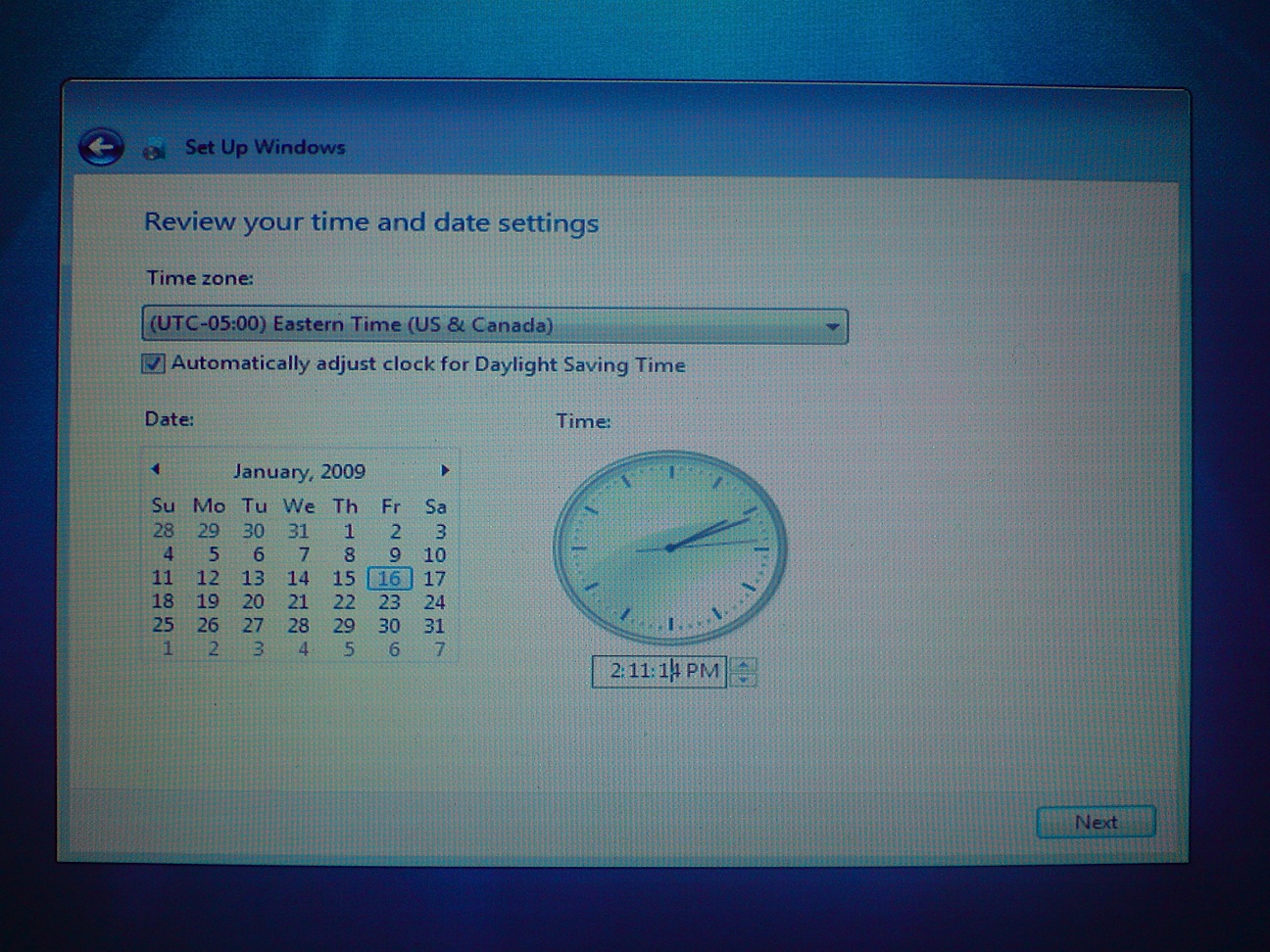
Step Nineteen Review your time and date settings to make sure they are correct, then click the Next button to continue.
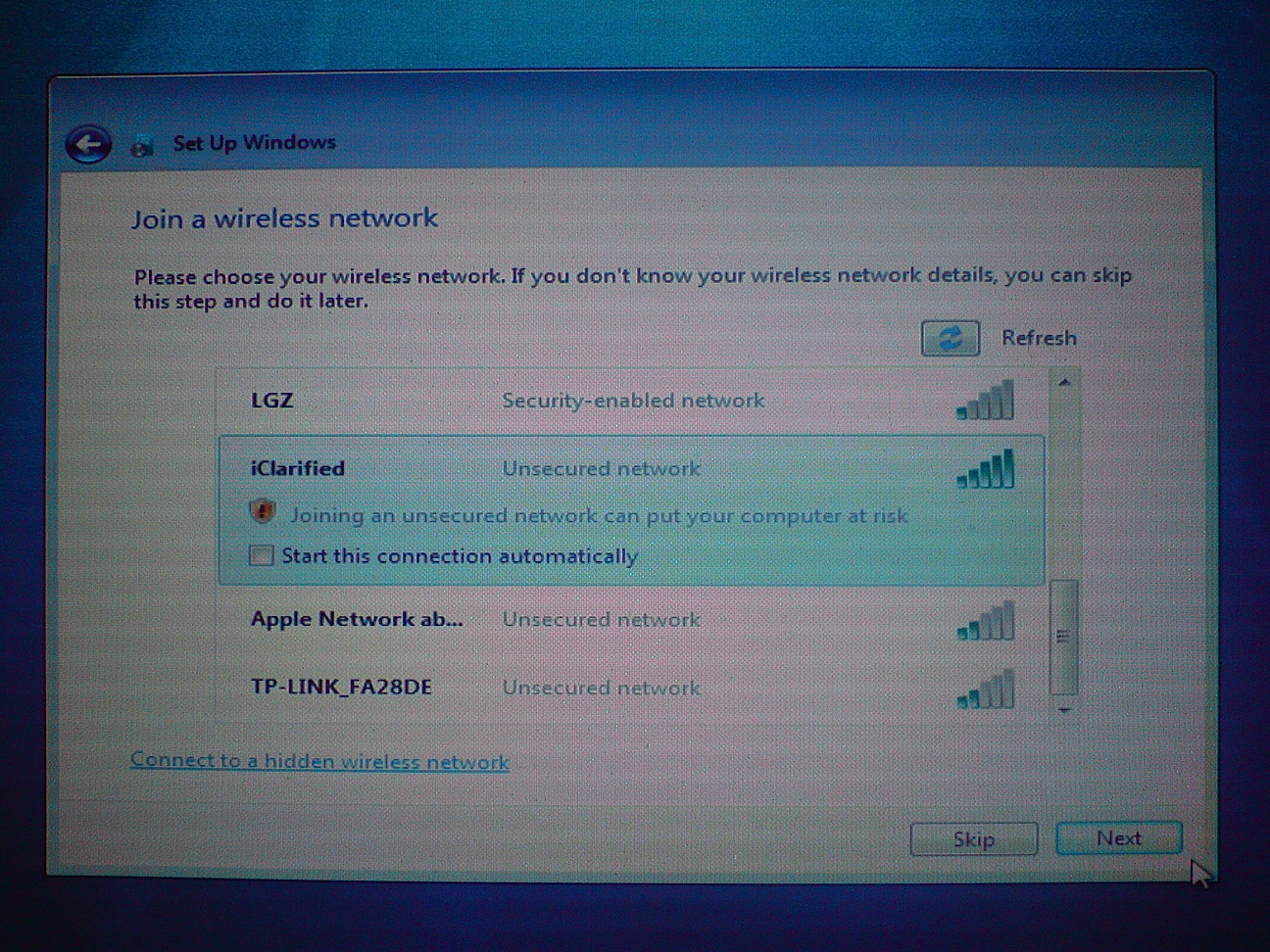
Step Twenty You will be asked to join a wireless network. Select your wireless network from the list that appears then click theNext button. If you do not wish to set up a wireless network you may click the Skip button.
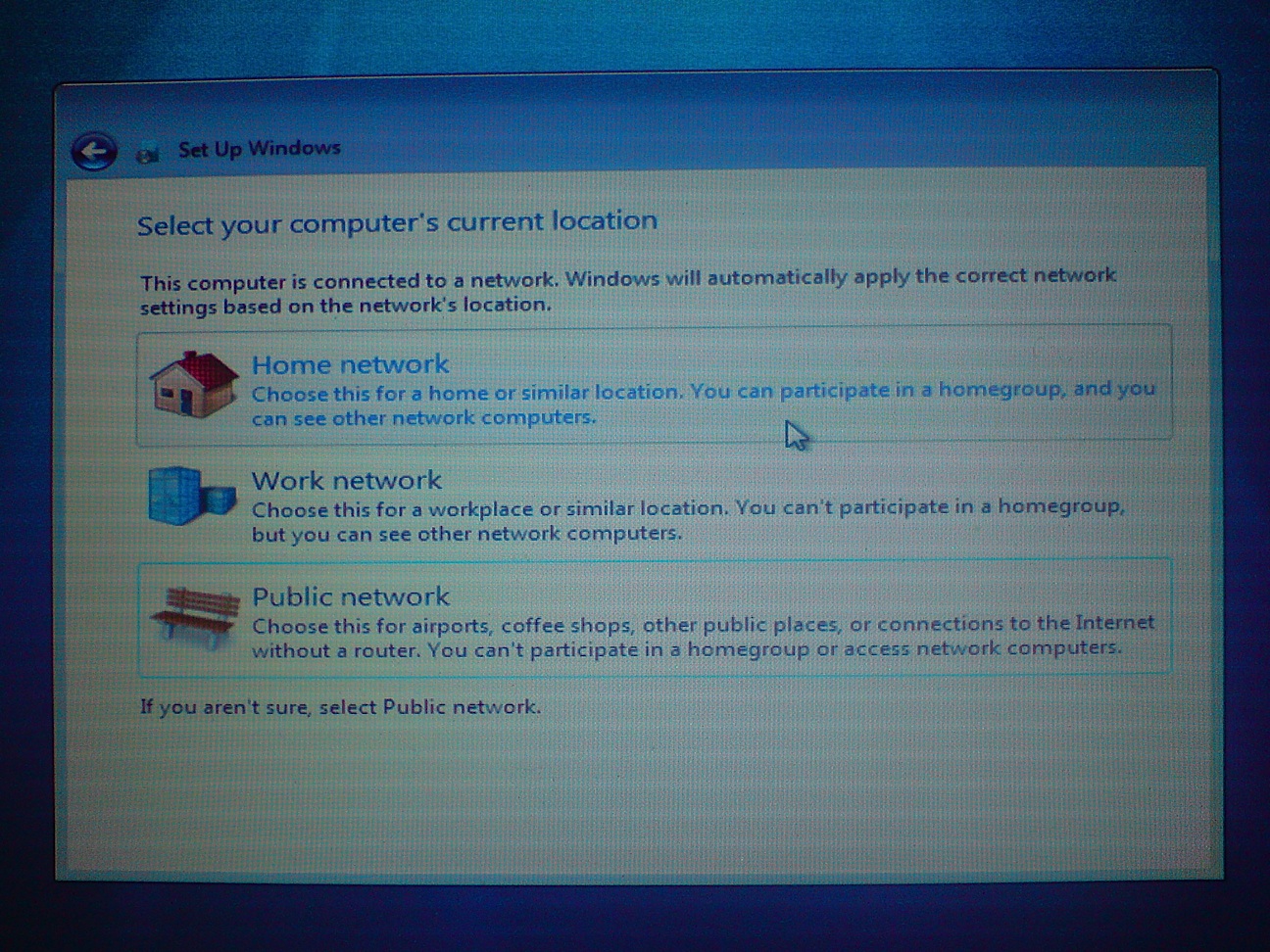
Step Twenty One Windows 7 Setup will ask you to select your computer's current location. Click the appropriate option.
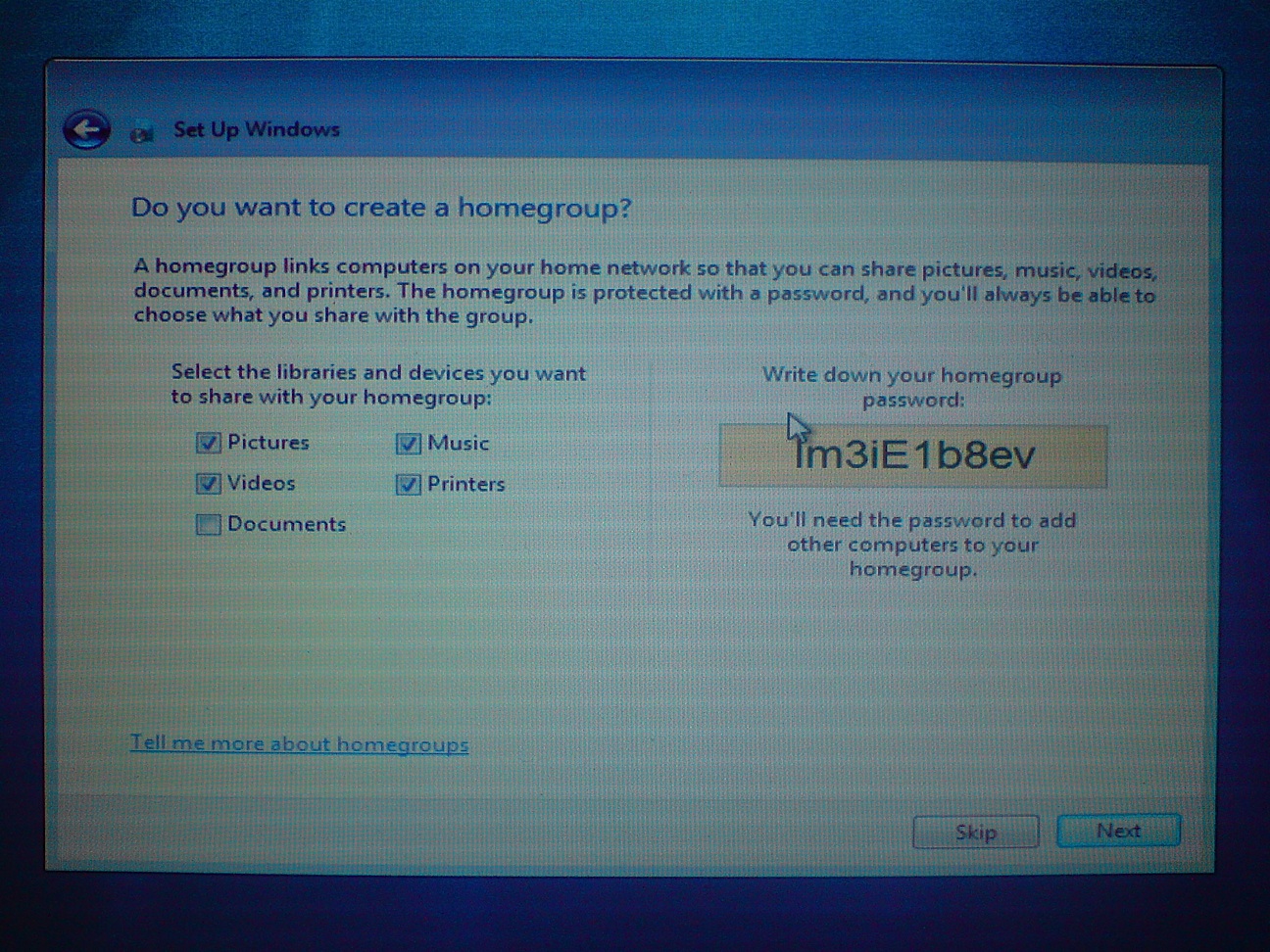
Step Twenty Two Since I select Home in the previous step, Windows asks if I would like to create a homegroup. A homegroup links computers on your home network so that you can share devices and files. Click the Next button if you would like to create a homegroup; otherwise, click the Skip button.
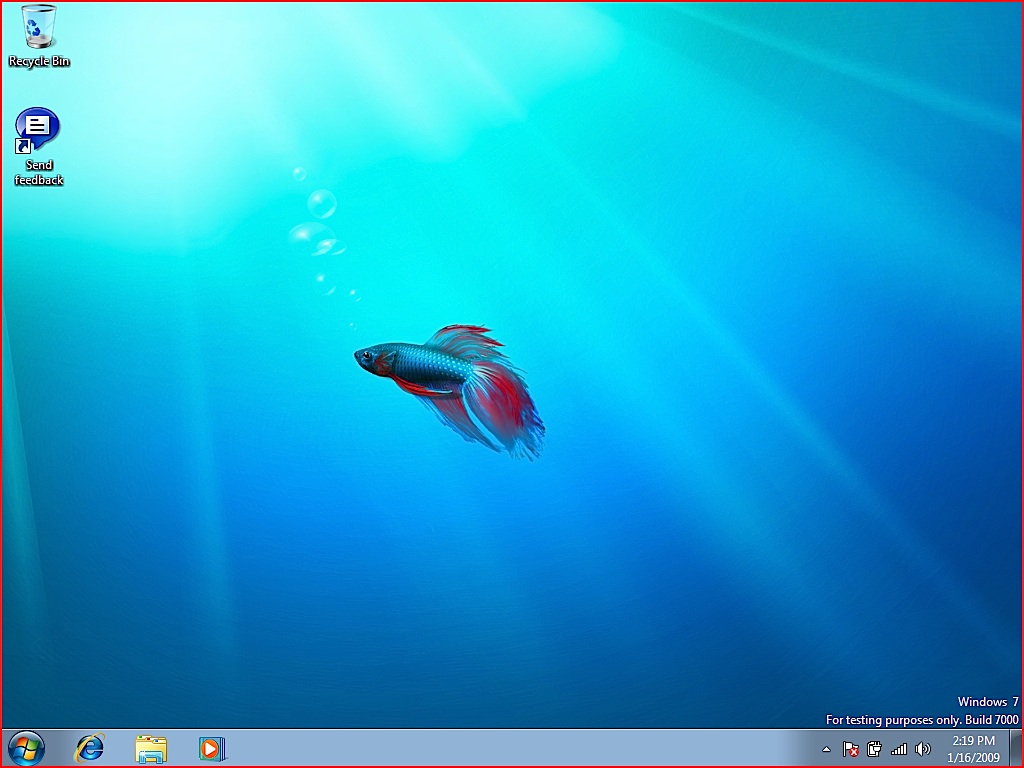
Step Twenty Three Windows 7 will now open to the Desktop.
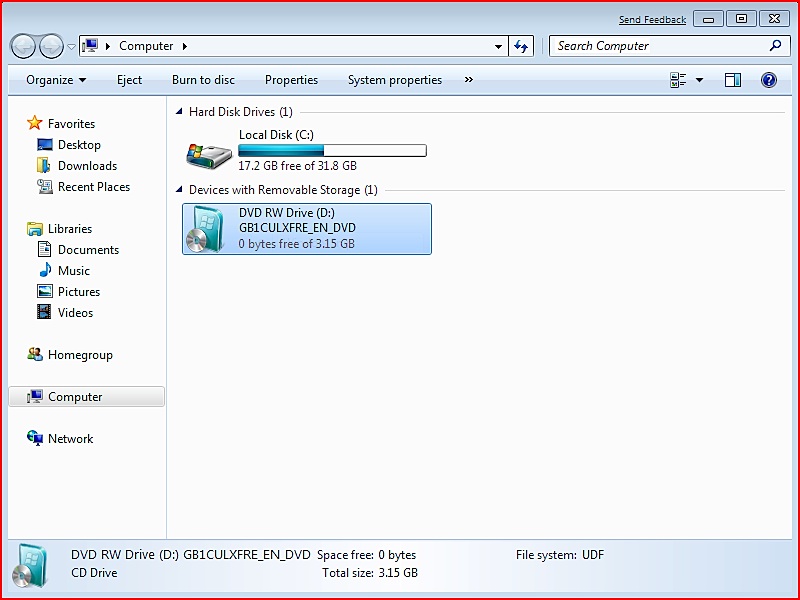
Click on the Windows button at the bottom left then click Computer. Select your DVD drive from the visible devices then click the Eject button in the toolbar.
Step Twenty Four Insert your Mac OS X Installation DVD and run the setup.exe file.
Note*: If you have installed the 64 bit version of Windows 7 then insert and run a DVD that contains BootCamp 2.1 for Windows Vista 64 bit (Boot Camp Update 2.1 for Windows Vista 64 (download no longer available)).
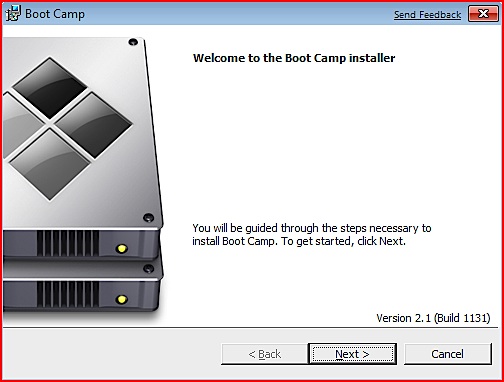
Step Twenty Five The Boot Camp Installer will appear to guide you through the steps necessary to install Boot Camp. Click the Next button to get started.
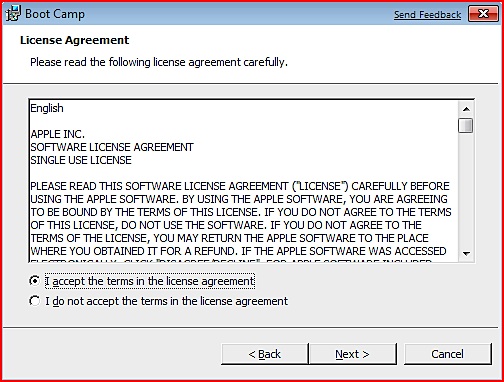
Step Twenty Six Read the license agreement, select I accept the terms in the license agreement, then click the Next button to continue.
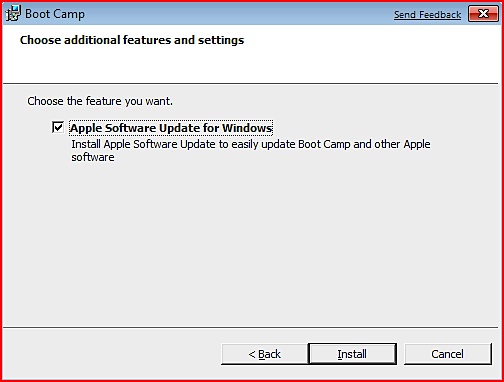
Step Twenty Seven Choose whether you would like to install Apple Software Update for Windows then click the Install button.
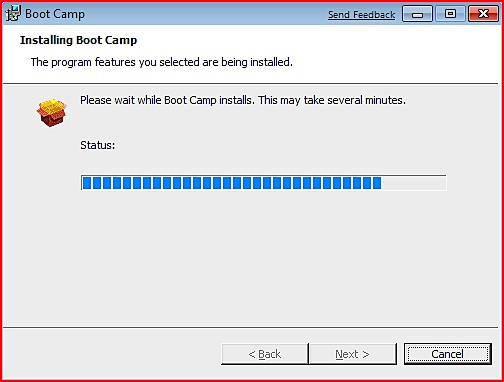
Step Twenty Eight Boot Camp will proceed to install the drivers necessary for your Mac to work properly with Windows.
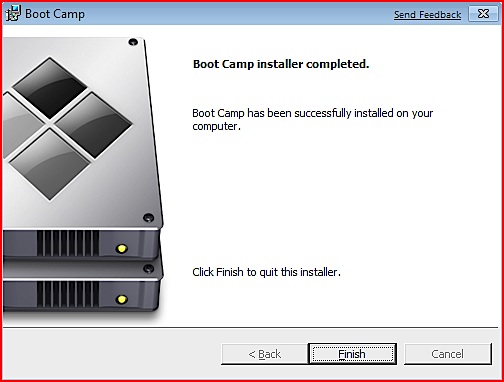
When the installation has completed click the Finish button.
You will then be prompted to restart your system for the configuration changes to take effect. Click the Yes button.
Step Twenty Nine Once your system has restarted you will have successfully installed Windows 7 on your Mac using Boot Camp.
Notice that now your screen resolution will have improved and you should have all your drivers working properly!
NOTES*: We installed Windows 7 on a late 2008 MacBook Pro. We had no difficulties with drivers of any sort. If there are any specific models of Macs that do need additional drivers please let us know in the comments and we will update the notes to contain links to these drivers. Thanks.
Get the iClarified Daily Newsletter
Apple news, rumors, tutorials, price drop alerts, in your inbox every evening, free.
Unsubscribe at any time.
Success!
You have been subscribed.
Add Comment
Would you like to be notified when someone replies or adds a new comment?
Yes (All Threads)
Yes (This Thread Only)
No
Notifications
Would you like to be notified when we post a new Apple news article or tutorial?
estou tentando instalar o windows seven no meu mac mavericks osx 10.9.3. estou utilizando o Boot Camp vai tudo ok ate na hora de escolher a partição pra instalar o windows. nessa hora aparece o seguinte erro'a instalação não pode criar uma nova partição do sistema, nem localizar uma partição existente.consulte os arquivos de log de instalação para obter mais informações'. ja tentei de tudo sempre so me retorna essa mensagem ja tentei com outro arquivo de instalação do windows ja reinstalei o mac e atualizei mas nda resolve. se alguém puder ajudar... eduardo.campelo@Hotmail.com
oi boa tarde eu tenho um Mac Book Pro que molhou os teclados e o tapete com agua e eu abri a tampa de traz depois fechei mas ele ja nao esta a ligar nao sei oque esta a acontecer.
peco ajuda
Moises tecnico de Informatica
Gostaria de saber se é o mesmo procedimento para o Mac Mini Intel versão Qsx10.7.3
I'd like to know if the procedure is the same for my Mac Mini Intel version Qsx 10.7.3, Thanks
Hi,
So I have reached the "Where do you want to install Windows" window during the Windows 7 installation. I think I want to give less space to windows though. I have given it 141.3GB and prefer less.
I can't get the cd to eject and abort the installation though. Everytime I exit the installation, the mac shuts off and I don't know how to eject the cd.
Eject button and apple key + E is not working.
Help!!
Turn off your Mac
Then start it back up while holding the "option" key on the keyboard.
Keep holding until you see a picture of a hard drive, maybe 2 hard drive icons. After that, wait until you see a picture of a CD appear. Press the eject key and it will eject the disc.
Hope this helps
I installed Windows 7 on my Macbook Pro (13"). I don't have the OSX installation disc - I lost it. Most things work fine, but is there any way to update the drivers? For example, I tried playing a game, and it told me that I have an insufficient video card.
I recently bought like this past month, 17" macbook pro 4gb ram, 500gb hard drive. Just switched over from PC to MAC. I also bought a retailed full version of Windows 7 Ultimate that comes with the 32-bit and 64-bit DVDs. I partition my hard drive for 150GB and then put the 64-bit windows 7 dvd in and clicked start installation. The superdrive spins up for a bit and the mouse pointer spins, the superdrive slows down as if its stop spinning and the mouse pointer continues to spin as if it is doing something. I waited for some time and nothing changes. I called Apple support and they said it wont install because the update for bootcamp hasnt came out yet to support windows 7. That i would have to wait some time untill the end of the year to get it. I dont understand how they have all these how to install windows 7 and all these forums of people installing windows 7 via bootcamp, when Apple is saying its impossible. Im confused.....lol.....help?
Windows 7 has just been officially released and Apple are saying they will supply driver 'before the end of the year'. Will this still work using a new copy?
for those having problems with the x64 version and upgrading to Boot Camp 2.1:
insert the OS X install DVD, explore the disc drive and navigate to Boot Camp > Drivers > Apple and then run BootCamp64.
Hi everyone
I just want to highlight that there is a reason why the partition should not exceed 32GB. If you choose more than 32GB then format it on DOS32, Windows will not work because it will not recognize a DOS32 over 32GB. If you format it as NTFS, then yes Windows will work, but MAC OS will not be able to deal with it.
I installed Windows 7 on bootcamp, then installed the drivers, but my brightness keys do NOT work. When you tap the button to reduce brightness the popup flashes, but the indicator never drops down, nor does the screen brightness actually reduce... Help!
Hmm, I also installed the 32 bit version on a late 2008 MBP but not all of my drivers installed correctly. I had to search for an audio driver and I can't get the trackpad driver to install correctly.
Kevin, see my response below... try reinstalling the BC drivers, but don't use the EXE, use the *.MSI. that's what installed the drivers for me... I have everything working in 64bit Windows 7.
HEy i just seen a thing that if you put your mac os disk into the computer when your using windows and then click on some stuff to install the drivers.
Users wanting to install the x64 version of Windows 7 can do so; but will have problems with the Boot Camp drivers after installation is completed. They simply won't install at all. While most of the MB/MBP should work with the stock drivers, the keyboard (and therefore the eject button for CD/DVD's) won't work.
To correct this, insert the BC DVD into the drive, and then open the DVD to view the files. Search for and execute BootCamp64.msi. Do NOT use the EXE. Something in it just isn't right on the 64bit version of Windows 7. Executing the MSI directly will install all the drivers and will get you running the right way.
I did this on my late 2008 unibody MacBook, and all seems to be running correctly.








![Pro Photographer Austin Mann Tests iPhone 18 Pro Camera [Video]](/images/news/102297/102297/102297-160.jpg "Pro Photographer Austin Mann Tests iPhone 18 Pro Camera [Video]")
![Apple Releases Xcode 27.1 Beta With iPhone Duo SDKs and Simulator [Download]](/images/news/102276/102276/102276-160.jpg "Apple Releases Xcode 27.1 Beta With iPhone Duo SDKs and Simulator [Download]")
![Apple Shares 'new trick' Shot on iPhone 18 Pro Ad Featuring ROSÉ [Video]](/images/news/102273/102273/102273-160.jpg "Apple Shares 'new trick' Shot on iPhone 18 Pro Ad Featuring ROSÉ [Video]")









![Apple Studio Display XDR Hits All-Time Low of $2,969.99 ($329 Off) [Deal]](/images/news/101976/101976/101976-160.jpg "Apple Studio Display XDR Hits All-Time Low of $2,969.99 ($329 Off) [Deal]")
