Instructions on how to install Boxee and XBMC on to your Apple TV.
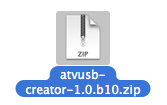
Step One Download the atvusb-creator to your Desktop from here. Select the latest version for the osx intel/ppc platform.
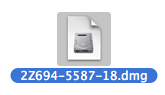
Download the latest AppleTV firmware version from here and save it on your desktop.
NOTE*: This tutorial was done with firmware 2.3.1.
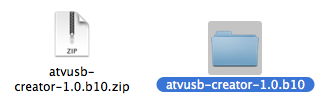
Step Two Double click the downloaded file on your desktop (atvusb-creator-1.0.b10.zip) to extract it. Then double click the folder that is extracted (atvusb-creator-1.0.b10) to open it.
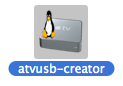
Step Three Attach a blank USB stick to your computer then double click to launch atvusb-creator.
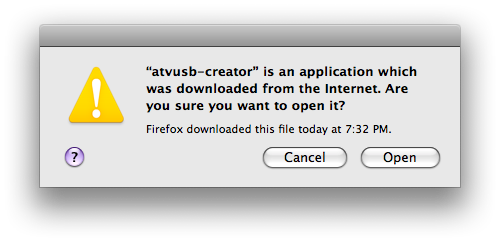
Step Four If asked to confirm whether you would like to open the application click the Open button.
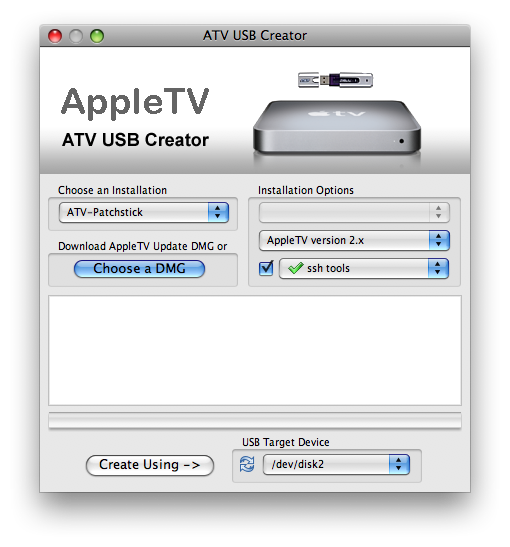
Step Five ATV USB Creator will now open.
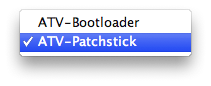
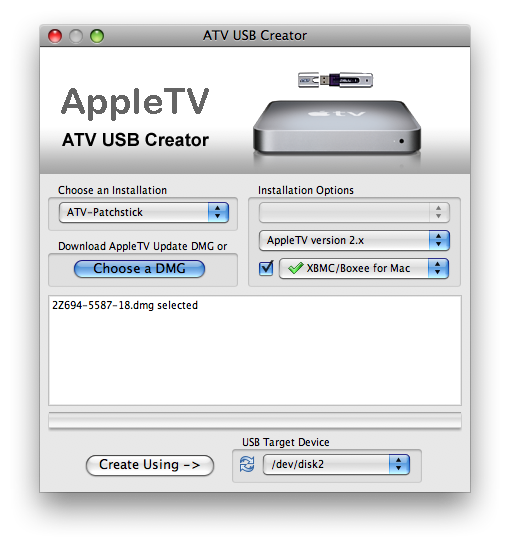
Select ATV-Patchstick from installation type dropdown.
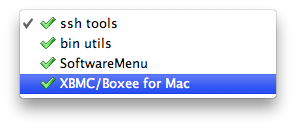
Select XBMC/Boxee for Mac from the installation options dropdown and make sure the checkbox to left of the dropdown is selected.
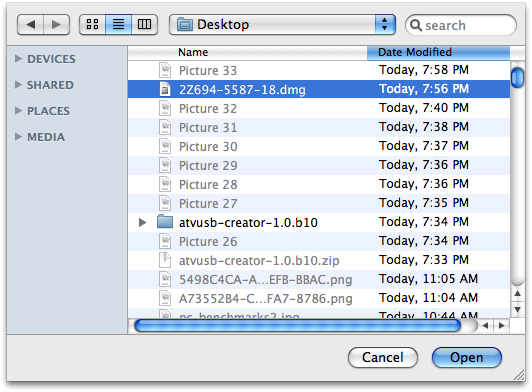
Click the Choose a DMG button.
From the window that appears select the AppleTV firmware you downloaded to your desktop and click the Open button.
Make sure the USB Target Device is set to the correct location. If you only have one internal hard disk and the USB stick is the only other device connected it should be /dev/disk2.
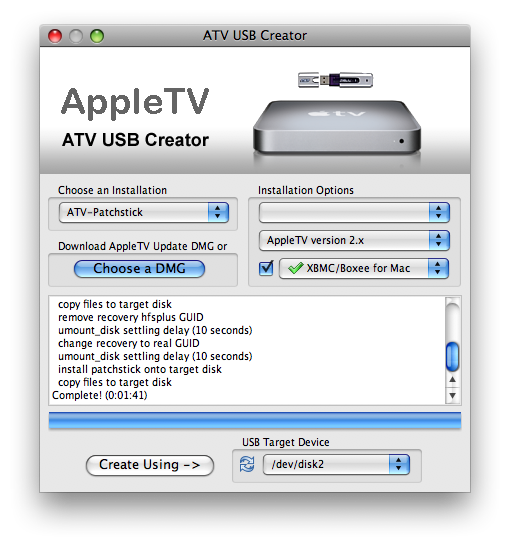
Finally click on the Create Using --> button to begin making your patchstick.
Step Six Once the patchstick has been created successfully remove the patchstick from your computer. Turn off your AppleTV by unplugging it then connect the patchstick to the back of the AppleTV. Plug the AppleTV back in to start the patching process.
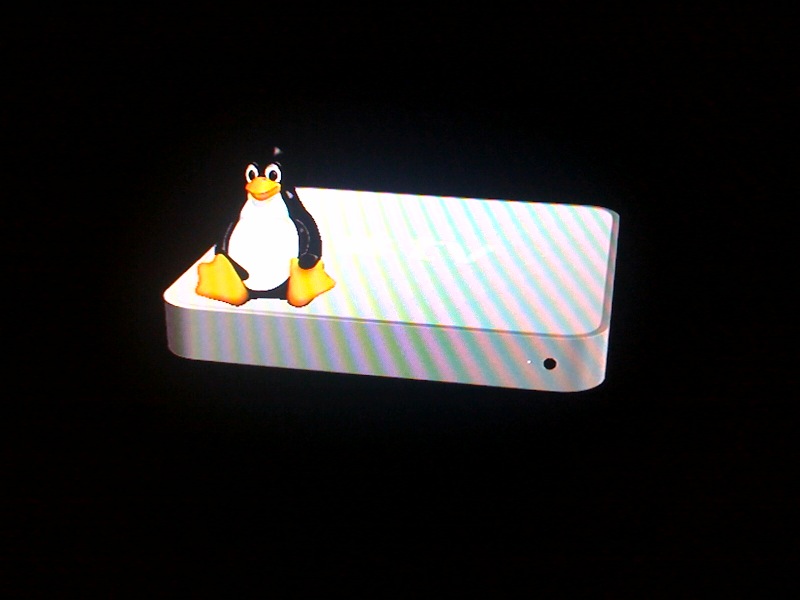
Step Seven You will notice the ATV USB Creator icon appear on your TV instead of the Apple logo.
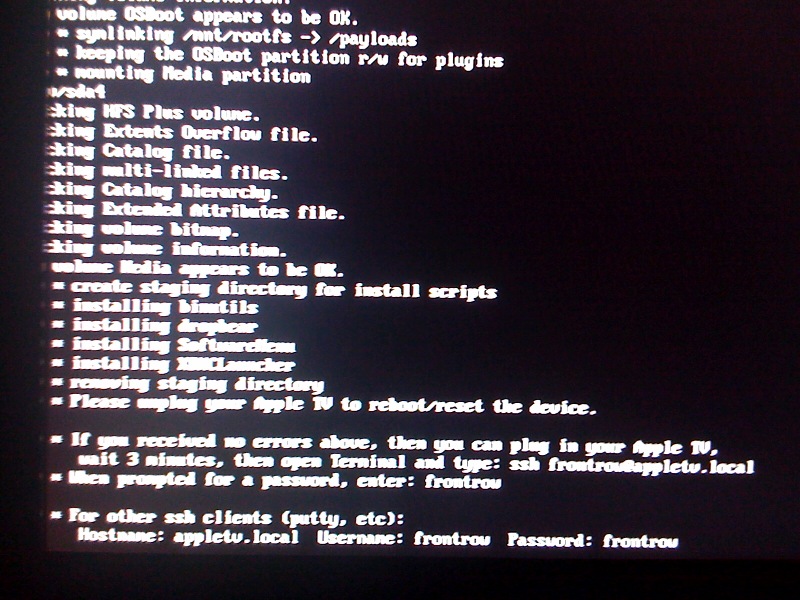
The screen will then go black and some Terminal commands will execute for a few minutes. Once they have completed you will be informed that you can now unplug your AppleTV to reboot it. Make sure you remove the patchstick from the back of the AppleTV before you plug it back in.
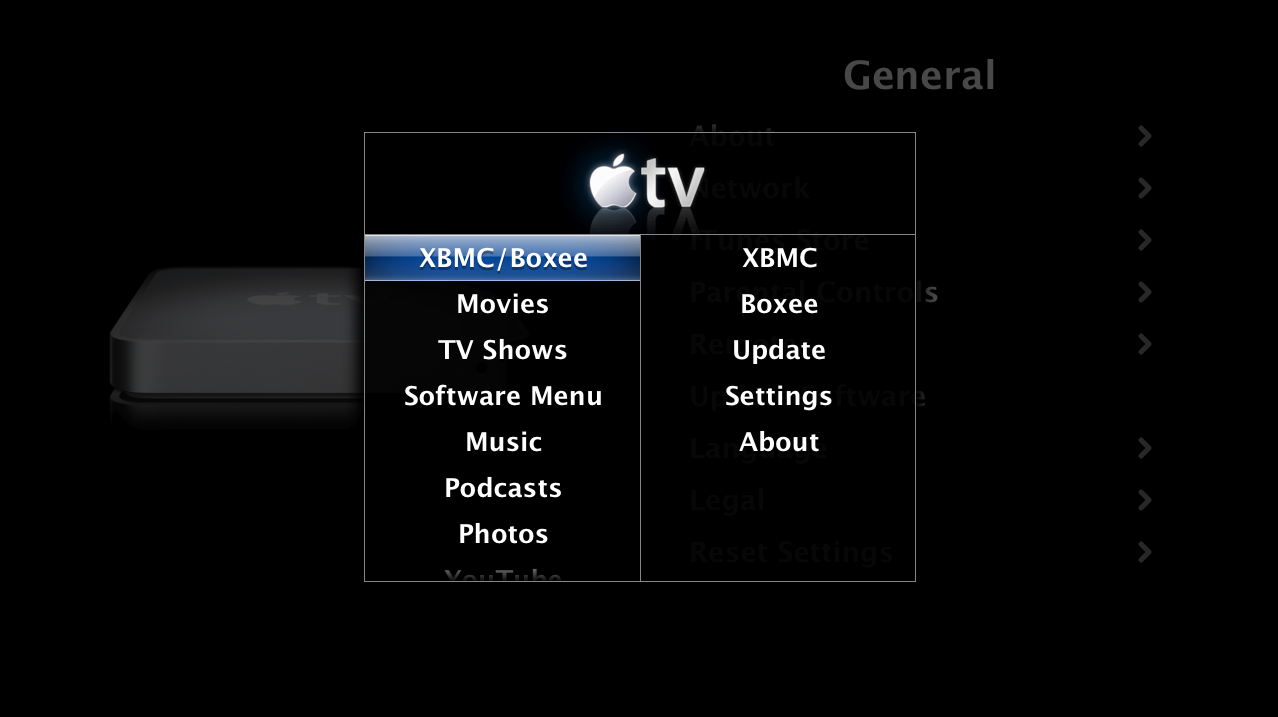
Step Eight When your AppleTV reboots you will have a new menu item called XBMC/Boxee.
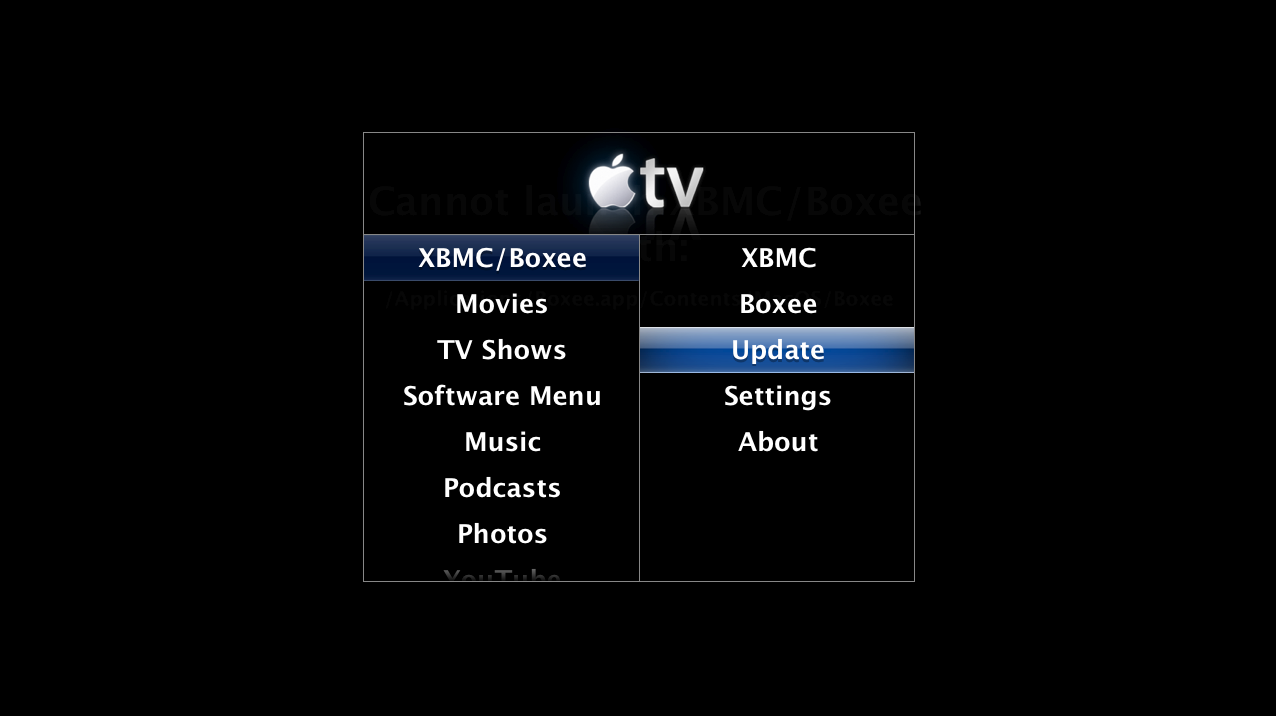
Select Update from the submenu.
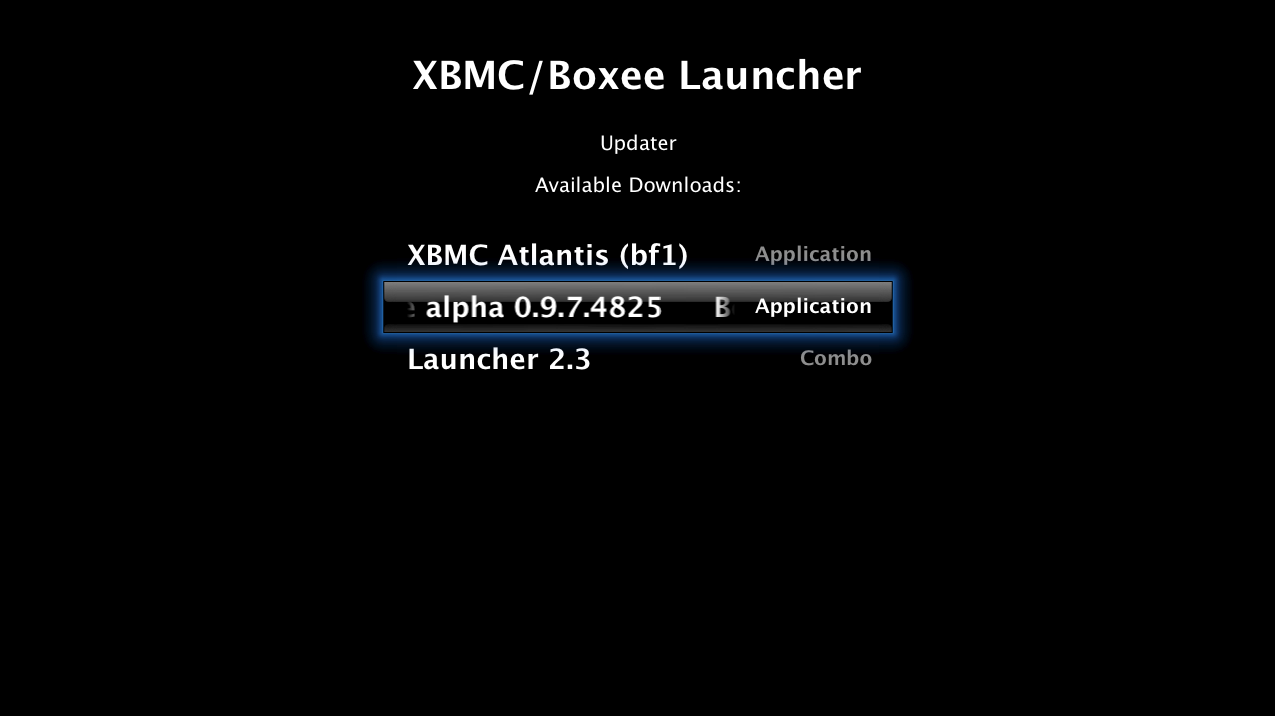
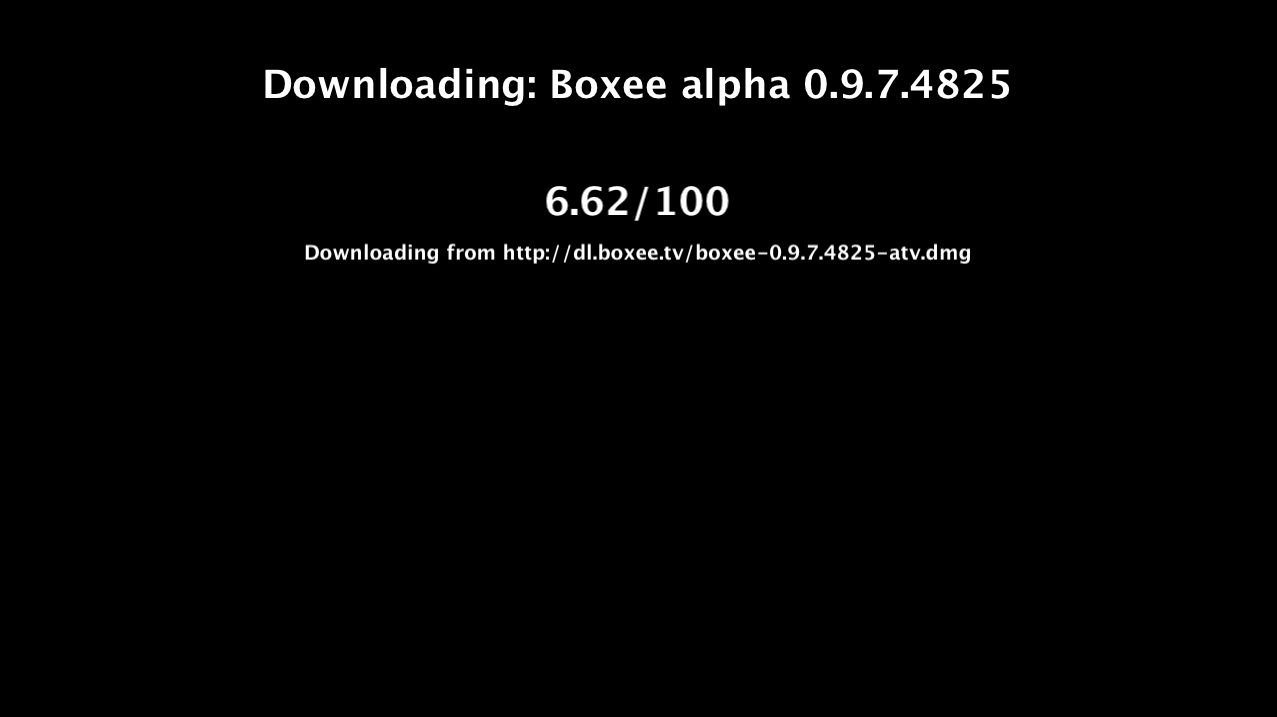
Then select to download the latest version of Boxee from the Updater.
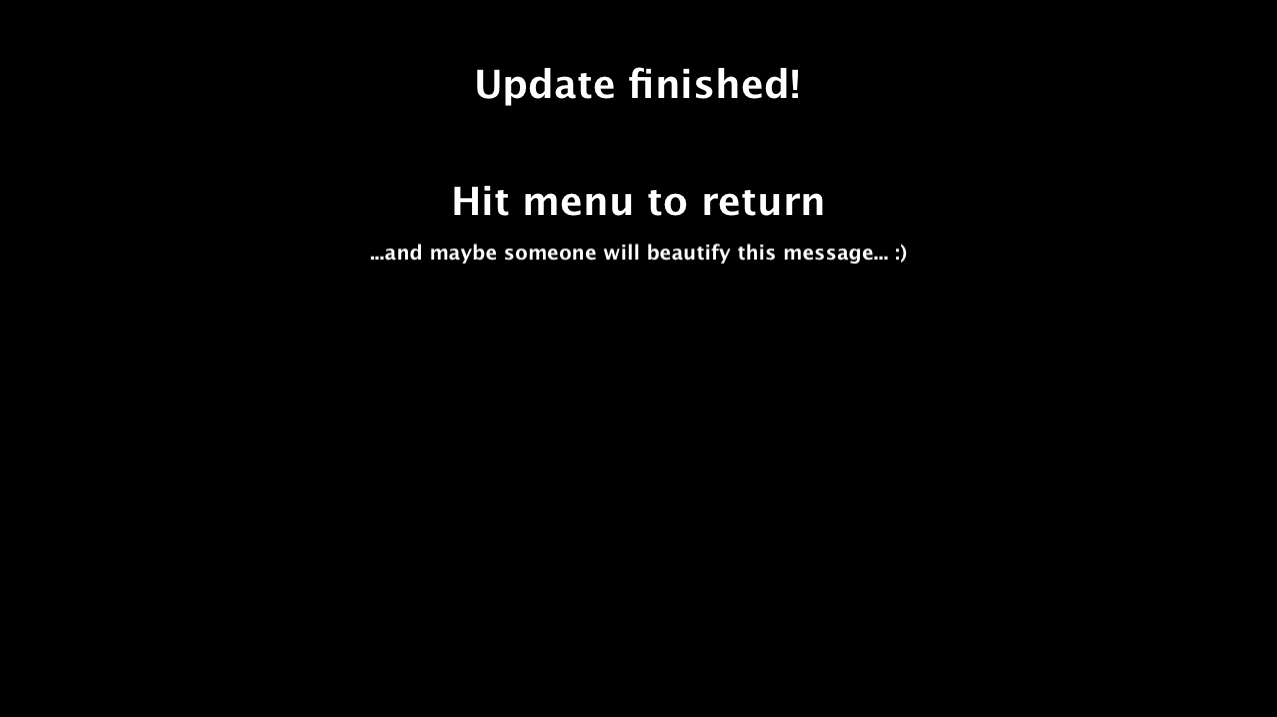
You will be informed of the download and update status.
When complete you can press Menu to return to the Update menu.
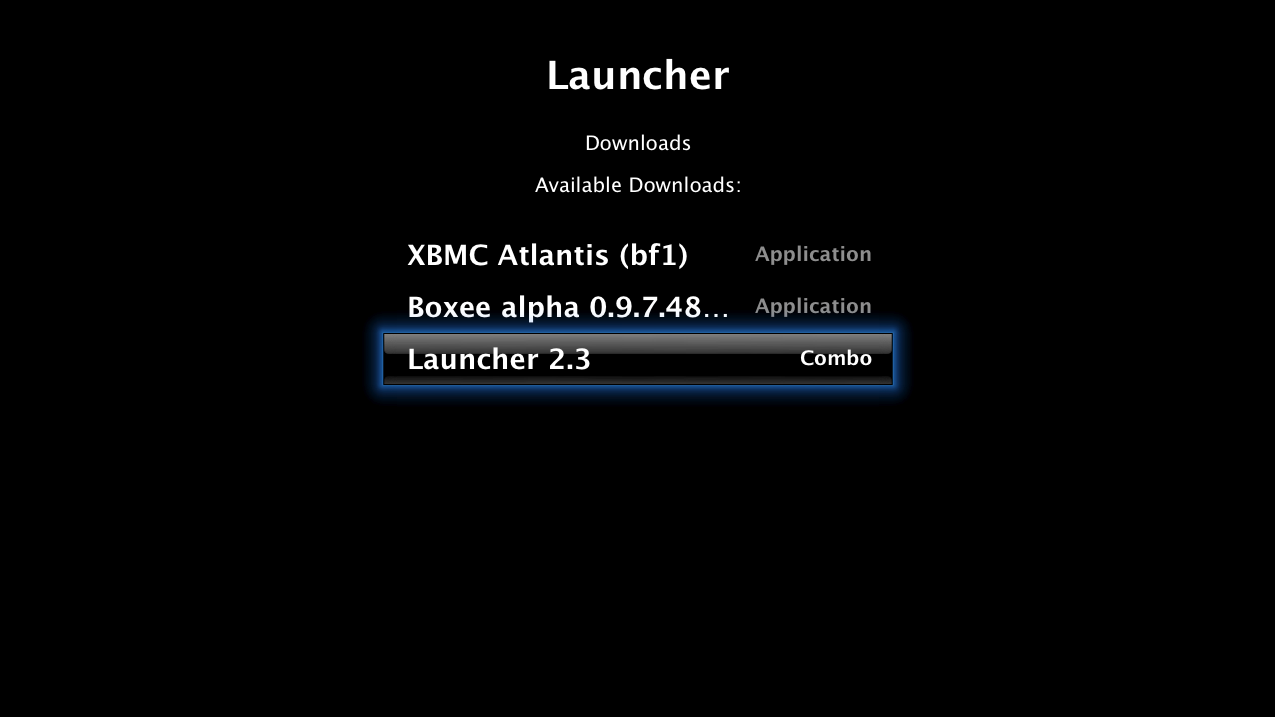
Next select to download the latest version of Launcher from the Updater.
Once the download completes it will install then reboot your Apple TV.
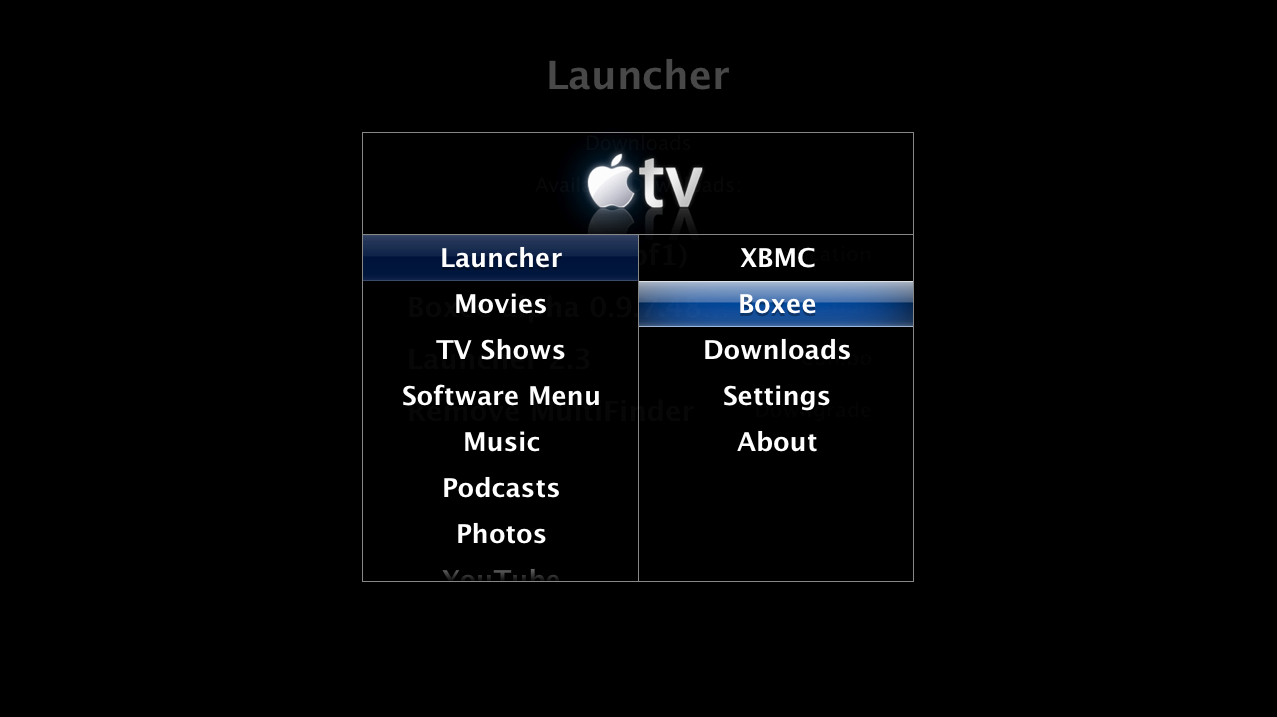
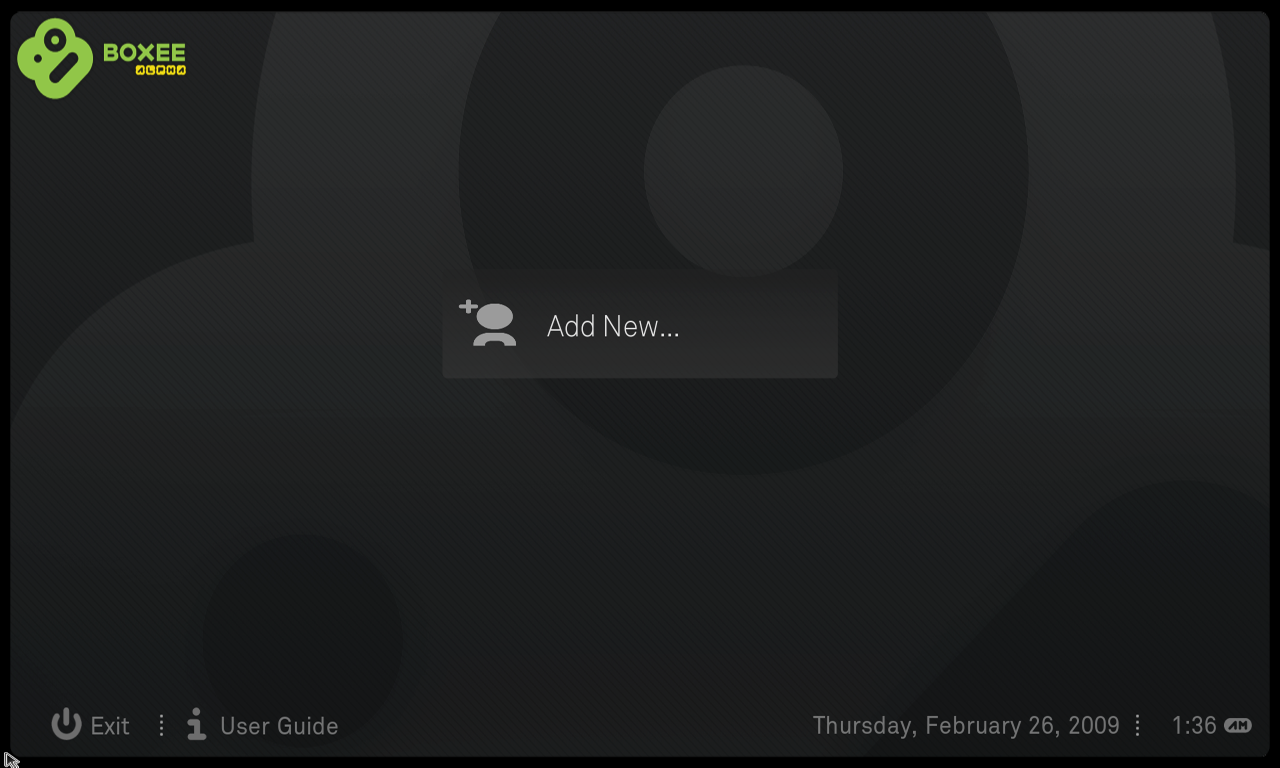
Step Nine Once your AppleTV reboots you will be presented with a new menu item called Launcher. Select Boxee from the Launcher submenu to start the application.
Get the iClarified Daily Newsletter
Apple news, rumors, tutorials, price drop alerts, in your inbox every evening, free.
Unsubscribe at any time.
Success!
You have been subscribed.
Add Comment
Would you like to be notified when someone replies or adds a new comment?
Yes (All Threads)
Yes (This Thread Only)
No
Notifications
Would you like to be notified when we post a new Apple news article or tutorial?
On ATV 1st gen, I installed everything and it worked great. However, while upgrading NitoTV, the system did not come back to the menu. It shows a blank screen, and I am stuck there - I lost all menus -. I rebooted a few times, re-patched, but to no avail. The menus are lost. Screensaver works though; and iTunes still connects as before. But now I need the PC to connect. I even SSH'ed and all files seem to be there - for what I can judge, I am a rookie -. Any idea? Shall I downgrade the software and try again - but will I lose all music then -.? Thanks
I've perfectly installed a 3.02 but I have a problem.
I can mount only HFS external volemes
in the previous 2.4 installation I was able to use NTFS volumes
any idea?
thanks
UPDATE: This worked great. However, when I updated the FW to 3.0.2 the Boxee menu disappeared. I won't do this again, unless someone updated the for FW 3.0.2.
I tried this on FW 3.0.2 and it didn't work. It added a new menu with none of the options listed above. I downgraded the FW to 2.4, followed the tutorial and I'm now downloading Boxee Beta 0.9.20.10708. It seems to be working but, I'll update later after its completed.
I've followed the directions but the atvusb-creator seems to stall when it gets to "copy files to target disk". How long should the copying process take? All I see is this quote and nothing more. The progress bar doesn't move either even after 10 minutes.
Any help would be appreciated.
you don't need to download the atv DMG from here. if you download the creator it will automatically download one. i kept getting errors following these instructions, but when i let the creator independently download DMG no errors and done in less than 2 min!









![How To Find Your iPhone IMEI Number [Video]](/images/tutorials/83557/83557/83557-160.jpg "How To Find Your iPhone IMEI Number [Video]")


![Magic Keyboard for iPad Air Drops to $200 on Amazon [Deal]](/images/news/102402/102402/102402-160.jpg "Magic Keyboard for iPad Air Drops to $200 on Amazon [Deal]")
![13-Inch M5 MacBook Air With 1TB Drops to $1,449 on Amazon [Deal]](/images/news/102345/102345/102345-160.jpg "13-Inch M5 MacBook Air With 1TB Drops to $1,449 on Amazon [Deal]")



