These are instructions on how to install and use iBluetooth, an application which enables bluetooth file transfer on the iPhone.
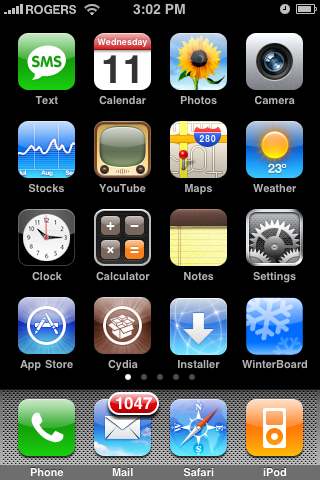
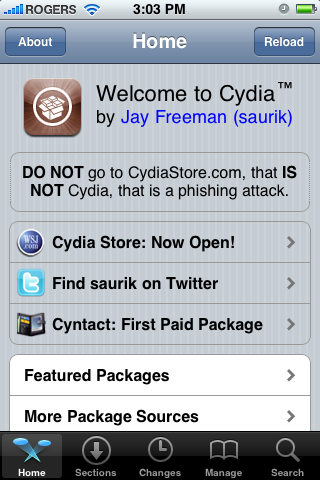
Step One Press to launch Cydia from your SpringBoard
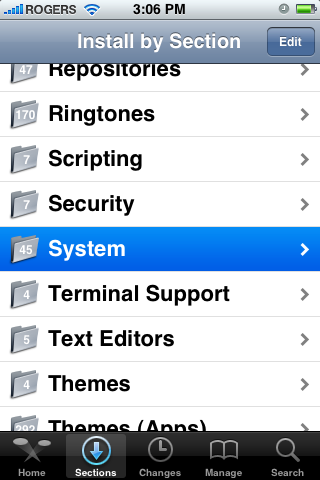
Step Two Press to select the Sections tab at the bottom of the screen
Step Three Press to choose System from the list of Sections.
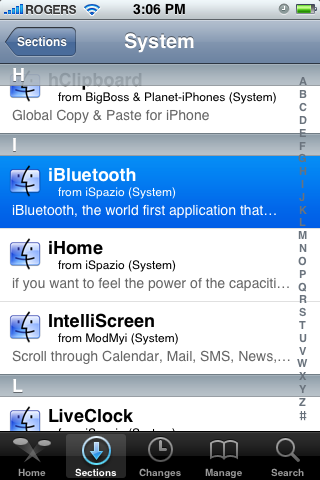
Step Four Press to select iBluetooth from the list of Packages.
Step Five Press the Install button at the top right of the screen.
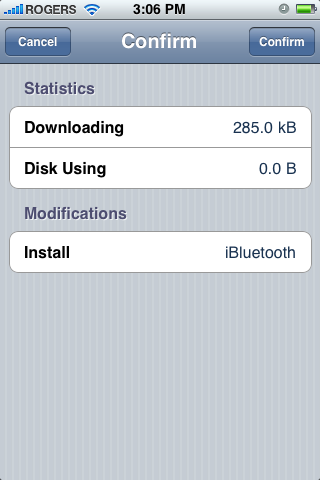
Step Six Press the Confirm button at the top right of the screen to begin installation.
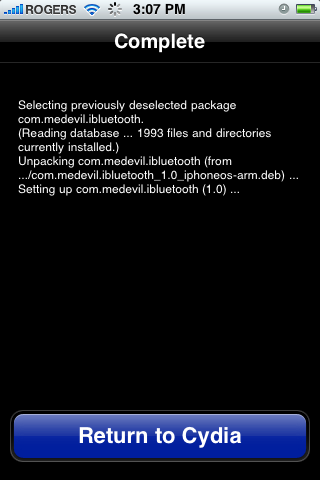
Step Seven Once the installation has completed successfully. Press the large Return to Cydia button.
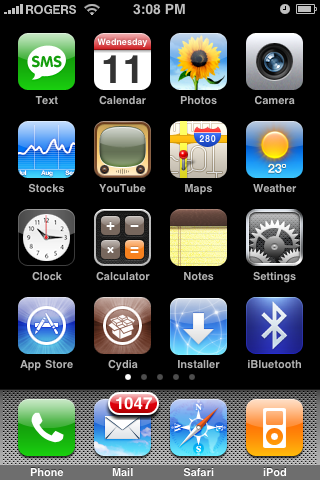
Step Eight Press the Home button to return to your SpringBoard. Notice we now have a new iBluetooth icon.
Step Nine Press to launch Settings from your SpringBoard.
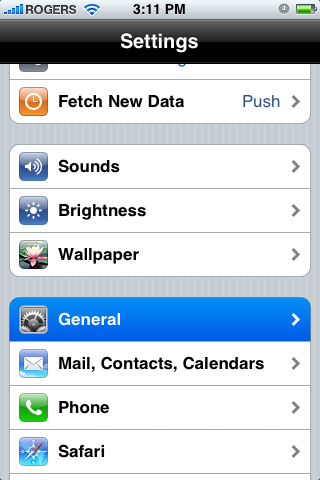
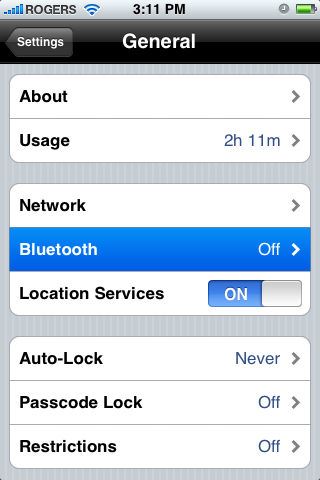
Step Ten Press to choose General from the Settings Menu.
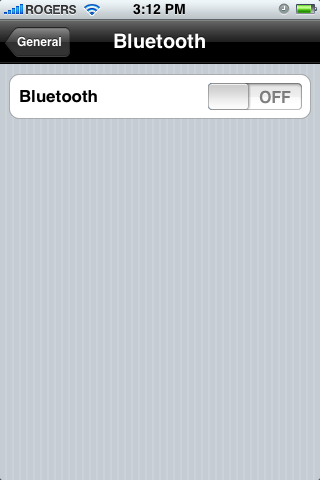
Step Eleven Press to select Bluetooth from the General Menu.
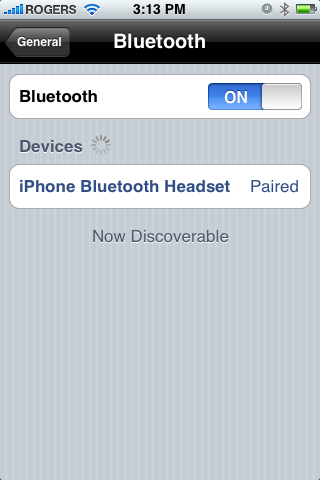
Step Twelve Move the Bluetooth toggle switch to the ON position.
Step Thirteen Press the Home button to return to the Springboard then press the iBluetooth icon.
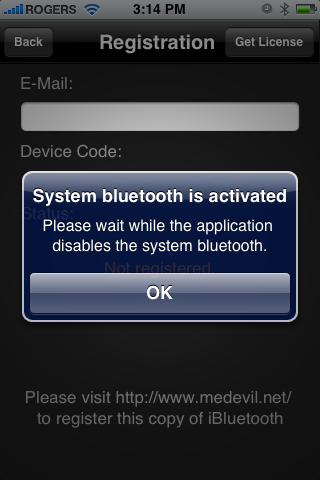
Step Fourteen iBluetooth will start and inform you that it is disabling the system bluetooth. Note*: I had to enable the system bluetooth to successfully start iBluetooth. Press the large OK button.
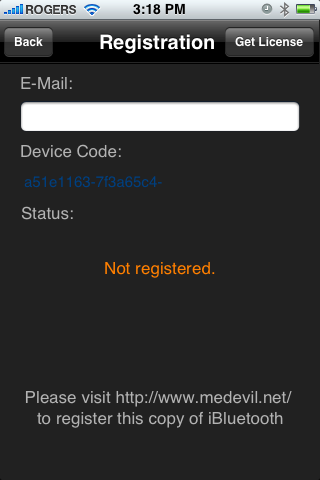
Step Fifteen You will now be asked to register by visiting https://www.medevil.net/. Register on the site then come back and press the Get License button at the top right of the screen.
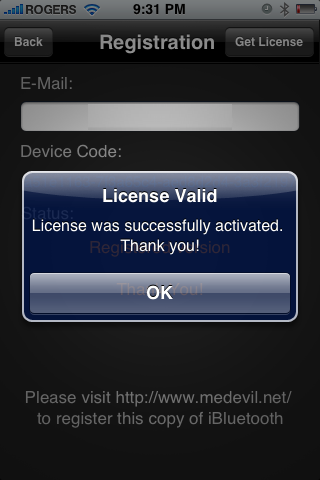
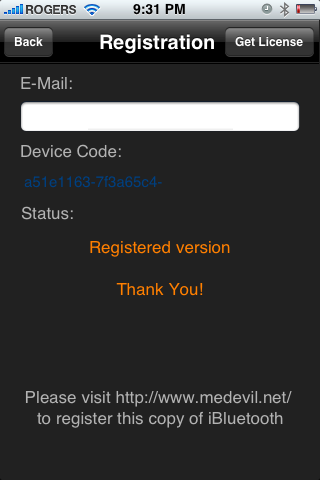
Step Sixteen A popup will appear to let you know your license is valid. Press the large OK button.
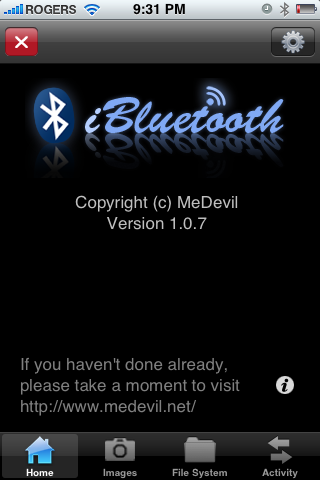
Step Seventeen Press the Back button at the top left of the screen.
Step Eighteen From the iBluetooth Home Tab press the Settings icon at the top right of the screen.
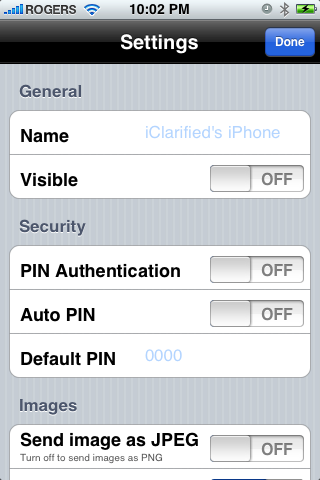
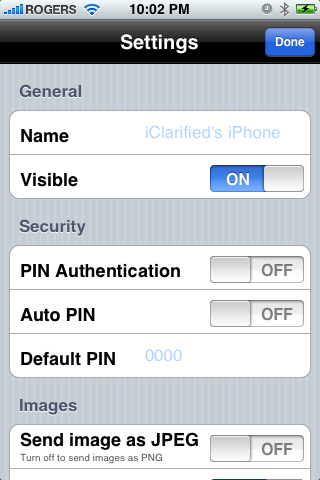
Step Nineteen From the settings menu you can change the name and visibility of your iPhone.
You can also set a PIN for allowing incoming bluetooth connections.
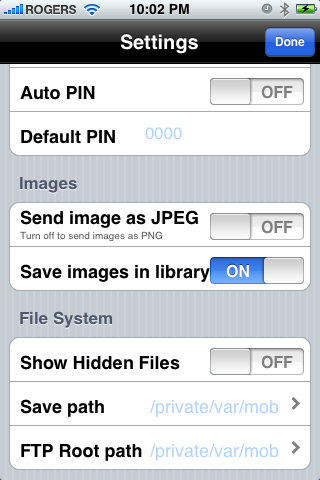
Under the images section you can choose to send images as jpg instead of png. Also you can select to have images saved in your photo library.
From the file system section you can decide to show hidden files and set the save path and ftp root path.
Press Done to return to the iBluetooth Home screen.
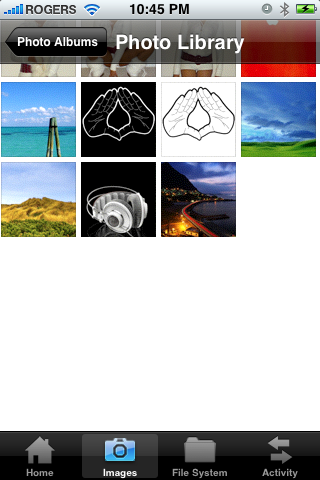
SEND AN IMAGE Press the Images tab to open your photo albums.
Press Photo Library to open the album.
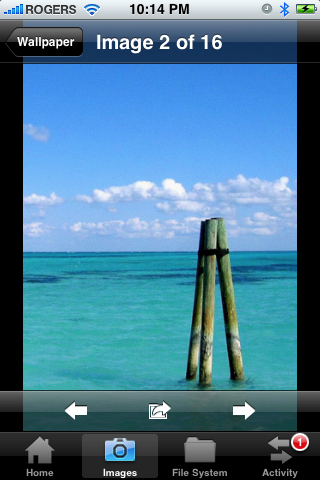
Press to select a photo you would like transfered via bluetooth.
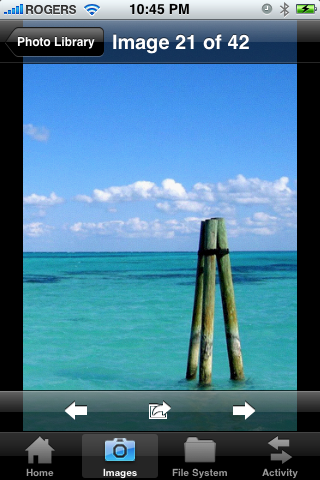
From the photo preview press the send icon at bottom center of the image.
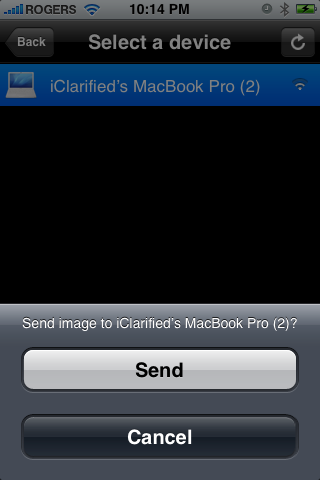
iBluetooth will now search for nearby bluetooth devices. Press to select one from the list.
To send the image press the large Send button that appears.
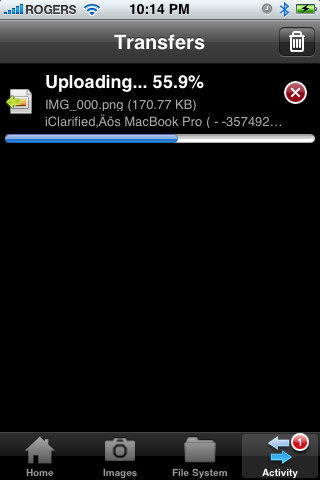
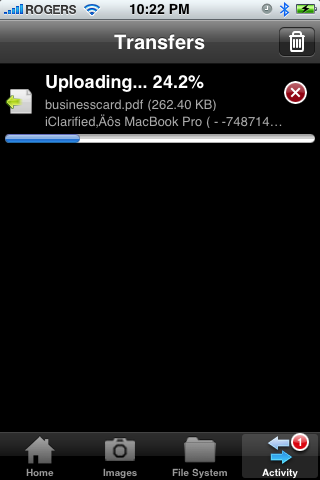
A number 1 will appear over the Activity Tab. Press to select it.
Notice that the file progress is shown.
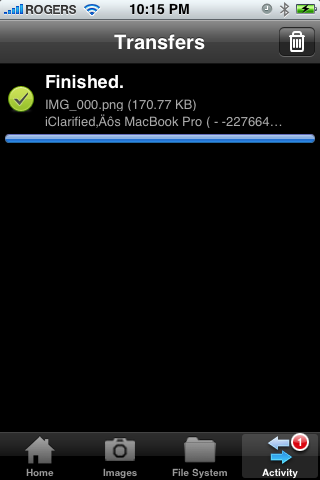
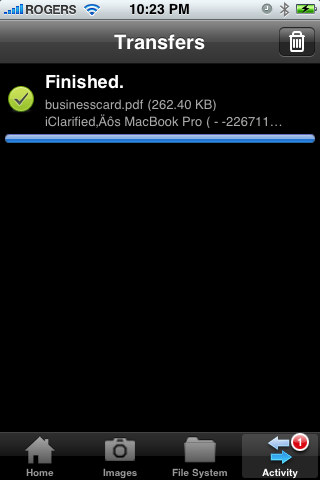
Once the file transfer is complete you can press the Trash icon to remove it from the activity log.
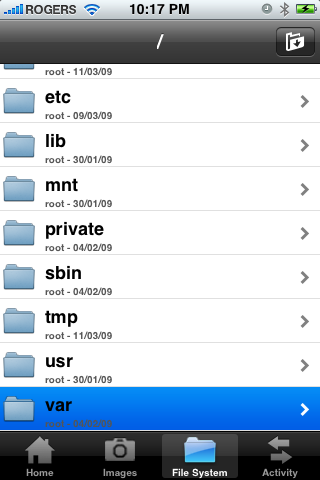
SEND A FILE Press the Files tab to open the file system browser
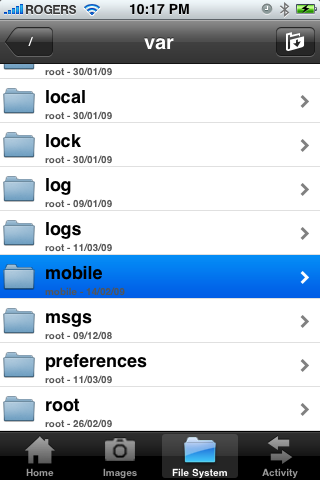
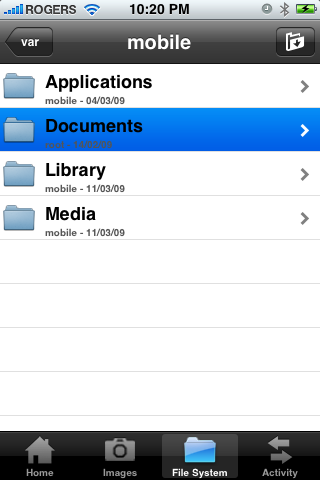
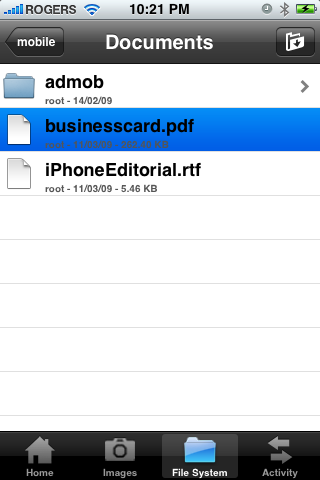
Navigate to the folder that contains the file you would like to send. I am going to select a file from the /var/mobile/Documents folder.
Press to select the filename you would like to send.
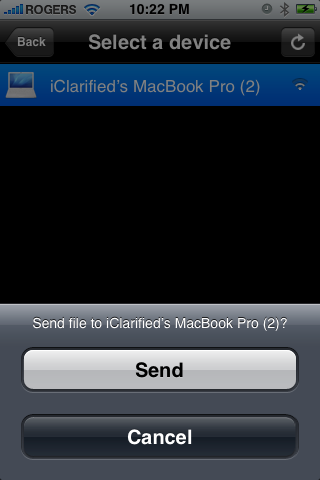
iBluetooth will now search for nearby bluetooth devices. Press to select one from the list.
To send the file press the large Send button that appears.
Once the receiver accepts your transfer you will see the transfer progress shown under the Activity Tab.
When the file transfer is complete you can press the Trash icon to remove it from the activity log.
RECEIVE A FILE To receive a file from another bluetooth device make sure your iPhone is visible so the other device can find you.
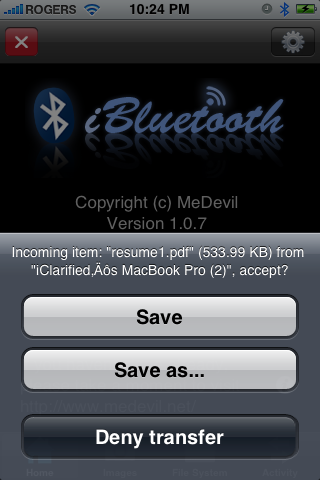
When you are sent a file iBluetooth will notify you of an incoming file transfer. Press the Save As button to select the download location.
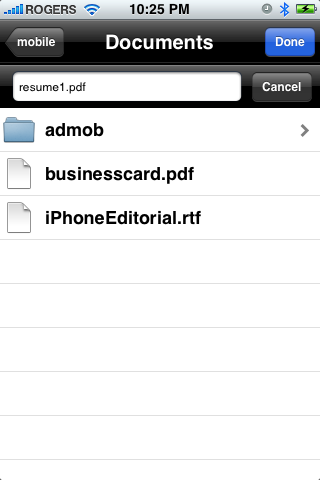
iBluetooth will open to the file system browser.
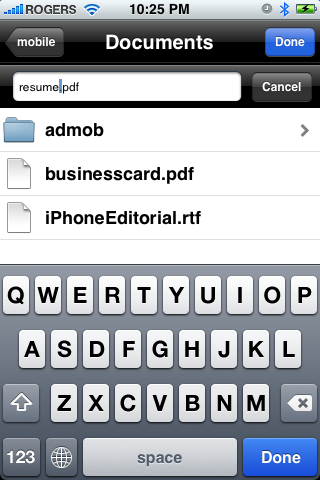
You can now set the name for the incoming file. To set the directory, simply navigate to the folder you would like to save the file in. Press the Done button to start the transfer.
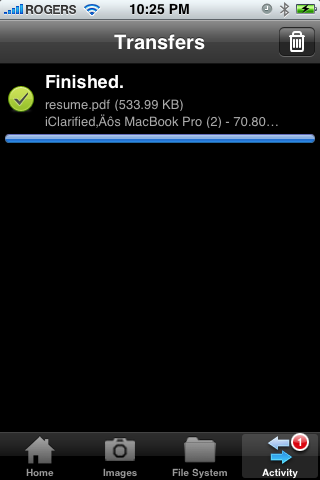
The activity tab will open to display the download progress. When the file transfer is complete you can press the Trash icon to remove it from the activity log.
Get the iClarified Daily Newsletter
Apple news, rumors, tutorials, price drop alerts, in your inbox every evening, free.
Unsubscribe at any time.
Success!
You have been subscribed.
Add Comment
Would you like to be notified when someone replies or adds a new comment?
Yes (All Threads)
Yes (This Thread Only)
No
Notifications
Would you like to be notified when we post a new Apple news article or tutorial?
Hi guys,
How can I delete / uninstall iBluetooth from my 2G?
If I hold on icon (as for other applications) it don't offer to remove...
Thanks in advance! ;-)
I followed the exact steps. iBluetooth installaiton went smooth. But it does not detect my Laptop. My Laptop is windows 7 has Bluetooth in it. Any help?
Hi, I m using iPhone 3gs. OS Version: 3.0 (7A341). I installed iBluetooth application successfully. However, application fails to start giving following error "Unable to start the stack, pls try restarting the application. If the problem persist, try rebooting the device." I rebooted iPhone few times, but that didn't help. Pls help
hello,iam trying to install the application and when i press confirm,i get ''nodname or server unknown '' does anyone know whats should i do?thanks in advance
Hi..
for the day I updated my Iphone 3G to the 3.0 I have lost my iBluetooth. and when i try to add the source ( ispaziorepo.com ) again.. I get an error msg..
any help.
As i said i try to add that sources, but it didnt work. would u write the sources u r using. as maybe there is something wrong or mistake in the sources im using or mistake in the spelling.
Thanks
From the day i updated my Iphone to 3G 3.0 and needed to JB it again i noticed had problem with my cydia so i had to install it again and without Icy but now i didnt find the source in cydia.. so try to add it again but i keep getting these msgs Posix: Broken pipe & Sub-process bzip2 returned an error code (2).. just to make sure.. is this the right Source ispaziorepo.com/cydia/apt
Thanks for all your help.
dont work in iphone 3GS no ipod touch 2G
no try install it
wait for iBluetooth 2.0 (for iphones and ipod 2G ) no announced for iphone 3GS
[from xsellize forums]
When trying to send a photo it leaves east message to me: unable to connect to remote device. That me it can be happening?. There is some solution on the matter?.
when install the ibluetooth and going to open the its display the it cannot open.wat can i do i also reinstall the ibluetooth still the problem is same











![Apple Releases macOS 27.2 Golden Gate Beta to Developers [Download]](/images/news/102249/102249/102249-160.jpg "Apple Releases macOS 27.2 Golden Gate Beta to Developers [Download]")
![Apple Seeds First Betas of watchOS 27.2, tvOS 27.2, and visionOS 27.2 to Developers [Download]](/images/news/102252/102252/102252-160.jpg "Apple Seeds First Betas of watchOS 27.2, tvOS 27.2, and visionOS 27.2 to Developers [Download]")
![Apple Releases iOS 27.2 Beta and iPadOS 27.2 Beta to Developers [Download]](/images/news/102248/102248/102248-160.jpg "Apple Releases iOS 27.2 Beta and iPadOS 27.2 Beta to Developers [Download]")









![Apple Studio Display XDR Hits All-Time Low of $2,969.99 ($329 Off) [Deal]](/images/news/101976/101976/101976-160.jpg "Apple Studio Display XDR Hits All-Time Low of $2,969.99 ($329 Off) [Deal]")
