These are instructions on how to transfer files to your iPhone using WinSCP. To follow this tutorial you need to have a jailbroken iPhone with SSH installed. You can find instructions on how to jailbreak your iPhonehere (3G) or here(2G)
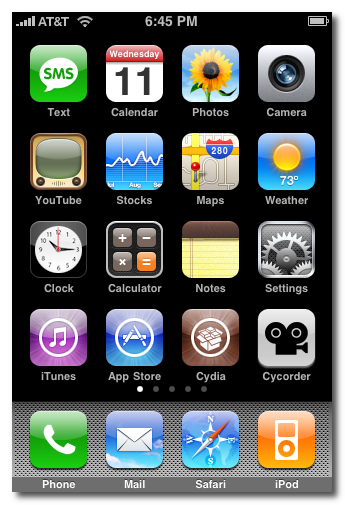
Step One Press the Cydia icon on your Springboard
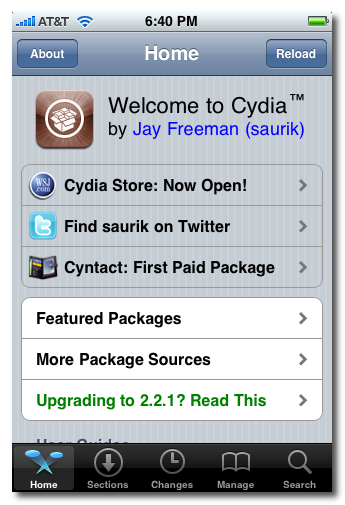
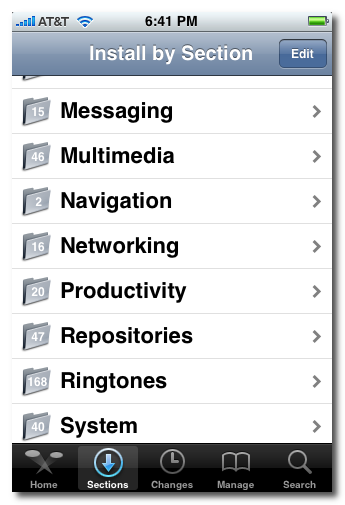
Step Two Press to select the Sections tab at the bottom of the screen.
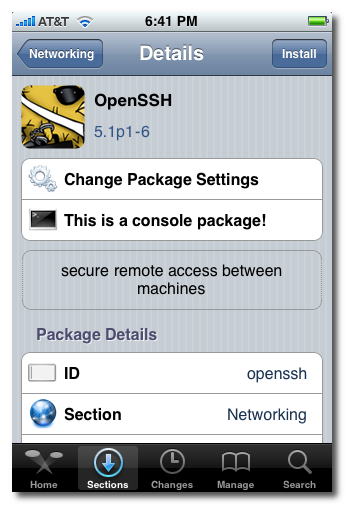
Step Three Press to select Networking from the list of Sections.
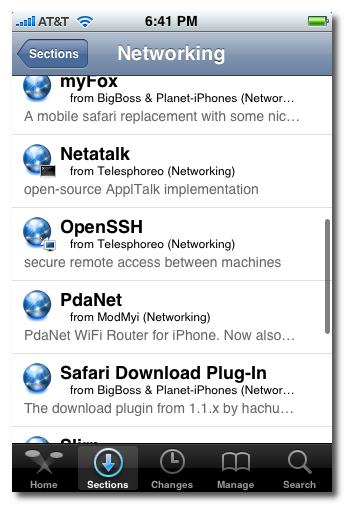
Step Four Press to select OpenSSH from the list of Packages.
Step Five Press the Install button at the top right of the screen.
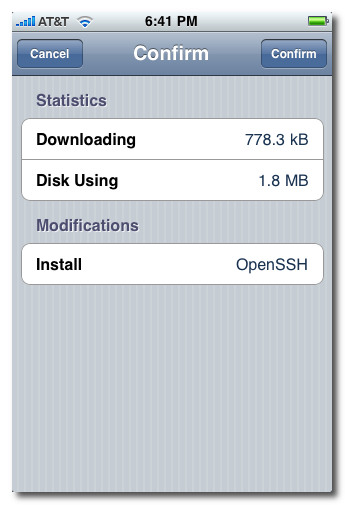
Step Six Press the Confirm button at the top right of the screen.
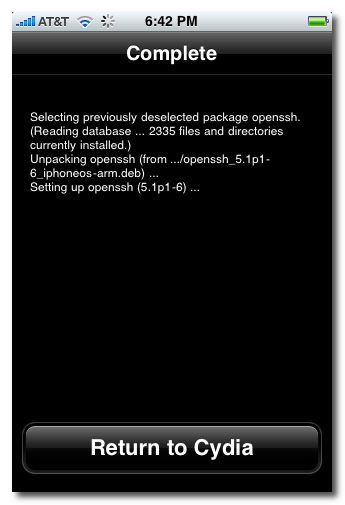
Step Seven Once installation has completed successfully press the large Return to Cydia button.
Step Eight Hit the home button on your iPhone to return to the Springboard.
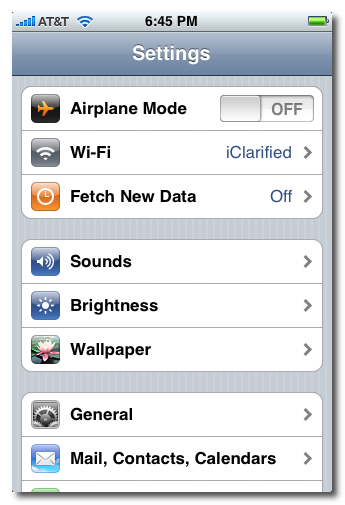
Step Nine We must now obtain the IP Address of the iPhone. To do this press the Settings button on your Springboard.
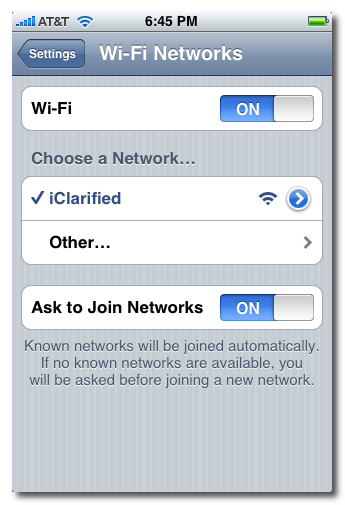
Step Ten Press to select Wi-Fi from the Settings Menu
Step Eleven Make sure you are connected to a wireless network then press the circular blue arrow button.
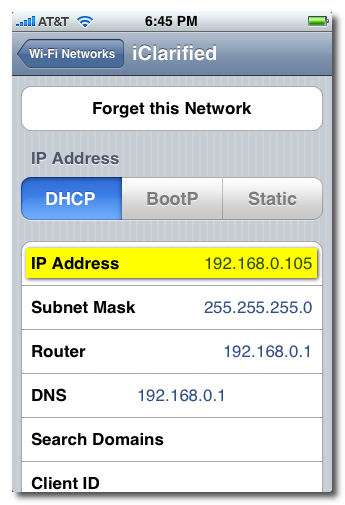
Step Twelve Take note of your IP address from the Wi-Fi details screen
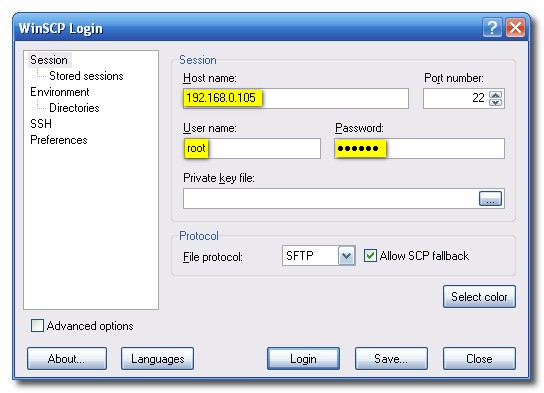
Step Thirteen Make sure you are on the same wireless network as your iPhone and launch WinSCP by clicking it on your desktop, or in the start menu. You can download WinSCP fromhere.
Step Fourteen Once WinSCP opens, enter your iPhone's IP Address into the Host Name Field. Then enter root as your iPhone username and and alpine as the password. Then click Login.
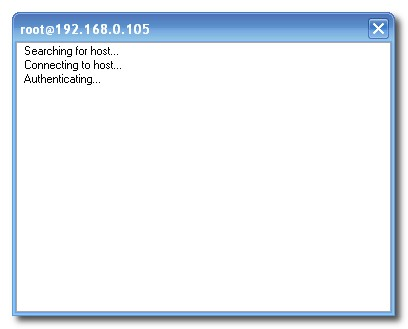
Step Fifteen You will now see WinSCP connecting to your iPhone. The first time you login using SSH, it may take 30-45 seconds.
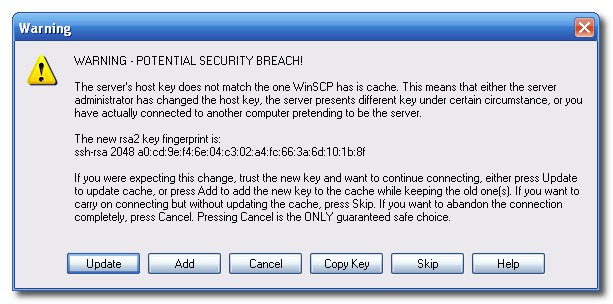
Step Sixteen If a Warning dialogue pops up, click Update or Add
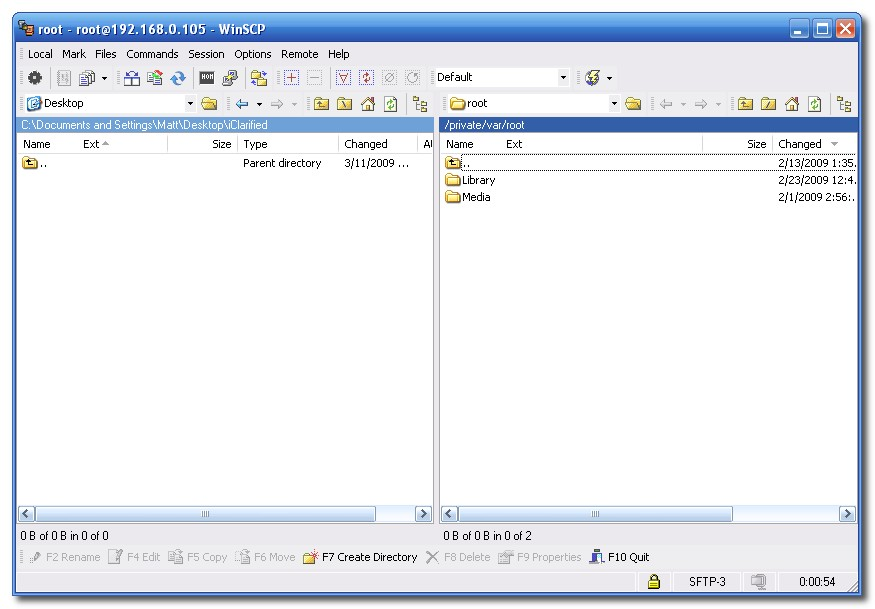
Step Seventeen After about 30-45 seconds, WinSCP should successfully log you into your iPhone. You will be placed in the /private/var/root directory.
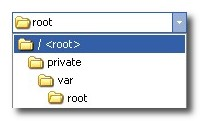
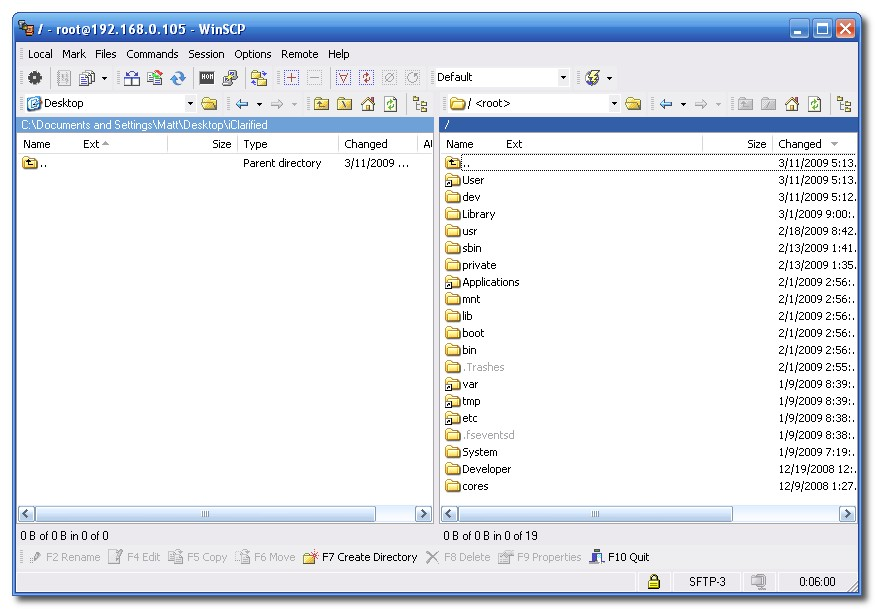
Step Eighteen To get to the root folder of the iPhone you can select / from the dropdown on the right side of the window. From here you can access all the folders on your iPhone for example the Applications folder
Step Nineteen To transfer a file to the iPhone simply locate your local (on your computer) file using the left pane. Then navigate to the desired location in the right pane. Drag the file from the left pane to the right pane to copy the file to your iPhone.
**Note** As user dlr stated, it is a good idea to set auto-lock to never. You can do this by going to Settings>>>General>>>Auto-Lock and set to never.
Get the iClarified Daily Newsletter
Apple news, rumors, tutorials, price drop alerts, in your inbox every evening, free.
Unsubscribe at any time.
Success!
You have been subscribed.
Add Comment
Would you like to be notified when someone replies or adds a new comment?
Yes (All Threads)
Yes (This Thread Only)
No
Notifications
Would you like to be notified when we post a new Apple news article or tutorial?
Acabo de liberar inpohe 3g 16g sin problemas, pero solo puedo llamar y recibir llamadas desde orange, con yoigo y telefonica ni llama ni recibe, si datos e internet. Me dice desvio de llamadas activado y no da sef1al ni tono, y despues de un rato llamada erronea. Alguna idea. Magnifico tutorial
Okay so I did everything step by step and everything worked out fine but when dragging it left to right nothings happening. I moved it in a few places on my phone but I cant seem to find it. I even restarted my phone and tried again and I still can't find what I transfered to my phone. Please help..
i have done everything and it all worked fine. one thing you failed to mention is copying the files to the "desired location." for example, if everyone here is trying to add ROMs to the snes4iphone, would you copy and paste the ROM into the snes4iphone application (found under Applications) ?? and when you download the ROMs, do they need to be unzipped and then added? this is my only issue, and when I load the application on my phone, there is no ROMs on there, so basically its not work. missed a few details, please help, thank you.
Thanks for your reviews and the detail that you put into them. I've got the X and have watched most of your videos and still making up my mind on which ROM I would like. I am interested in knowing what would the phone be like with JUST root without adding any ROM? Also, are there any ROM's that allow the phone to function 100% of all functions i.e. camera res, battery life, etc.
I found this article to be very useful. All I need help with is some of my applications I have downloaded are pretty big. Like, the Tomtom GPS app. It took me an hour and a half to download it but found that all I really need is a few languages and the maps themselves. Is there any way I can ssh into the app and get rid of some of the useless parts of it? I already ssh(ed) into my phone and looked for tomtom and I couldn't find it. It wasnt in the applications folder or anything. Please help. Thanks.
Please add a warning that people should change the root and mobile passwords. Having OpenSSH running with the default passwords is dangerous when you're on a public network, and even the phone's 3G/EDGE/GPRS connection can be unsafe! See http://thebigboss.org/2008/11/30/why-ssh-on-restart-is-required/ comment 10.







![Beats 360 Headphones Debut With Swappable Cushions, IPX4 Rating for $349.99 [Video]](/images/news/102342/102342/102342-160.jpg "Beats 360 Headphones Debut With Swappable Cushions, IPX4 Rating for $349.99 [Video]")











![Apple Studio Display XDR Hits All-Time Low of $2,969.99 ($329 Off) [Deal]](/images/news/101976/101976/101976-160.jpg "Apple Studio Display XDR Hits All-Time Low of $2,969.99 ($329 Off) [Deal]")
