These are instructions on how to do a clean and complete uninstall of iTunes for Windows using Revo Uninstaller.
Before you begin download Revo Uninstaller from here onto your desktop. It is also highly suggested that you make a backup of your system as this procedure will remove registry entries. You can do this by selecting Back up your computer from Start:Control Panel:System and Maintenance.
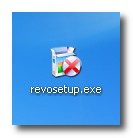
Step One Double click the RevoSetup file (revosetup.exe) on your desktop to begin installing the application.
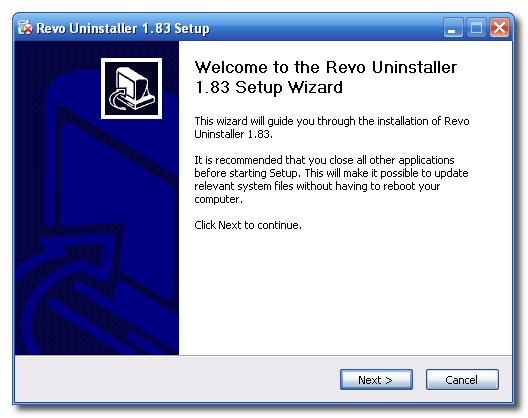
Step Two Once the install wizard opens, follow the prompts to install the application.
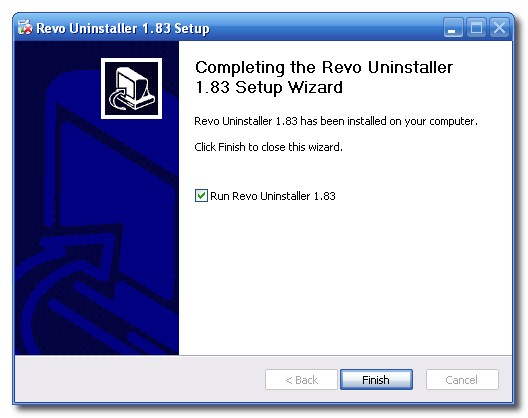
Step Three Once installation has completed successfully select the Run Revo Uninstaller box then click the Finish button.
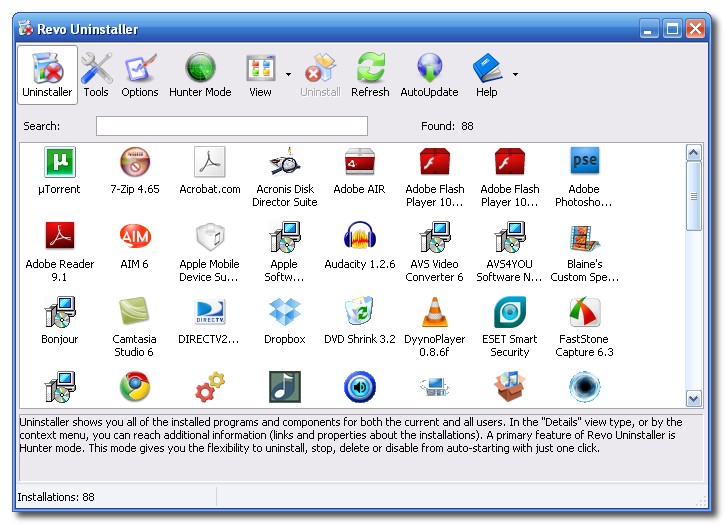
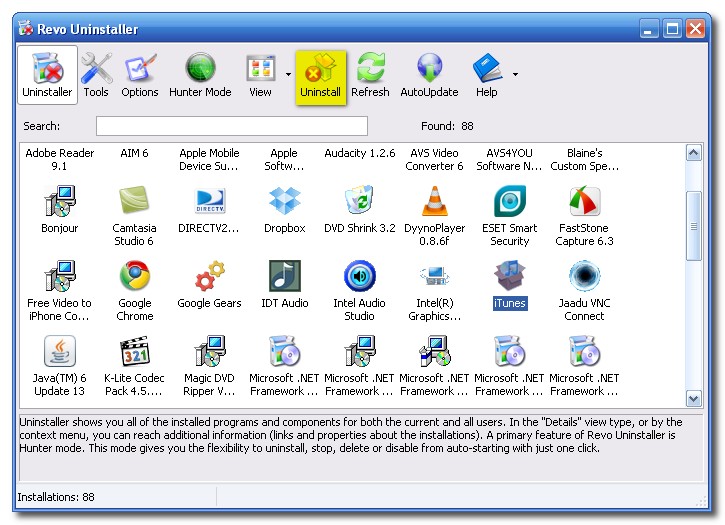
Step Four Select the Uninstaller tab from the Revo application window.
Step Five Click Uninstall at the top of the window, then iTunes from the list of applications.
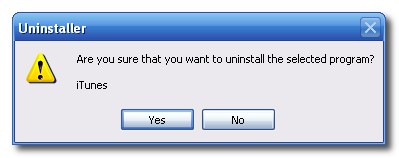
Step Six Revo will ask you to confirm the uninstall. Click the Yes button to continue.
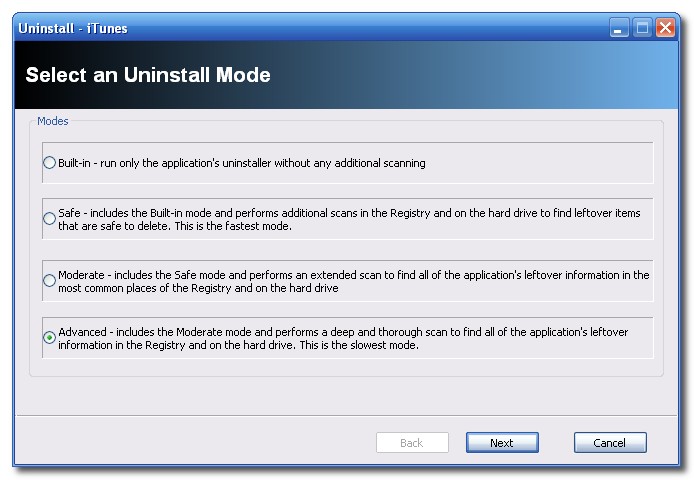
Step Seven You will now be asked to select an uninstall mode. Choose Advanced then click the Next button.
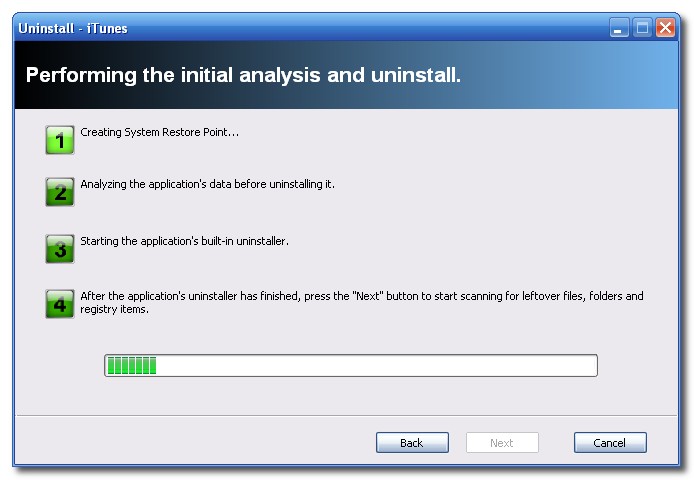
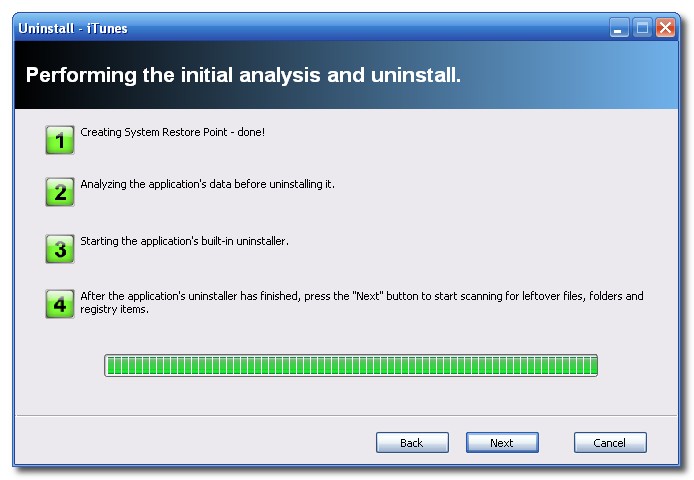
Step Eight Revo will now do an initial analysis of your uninstall.
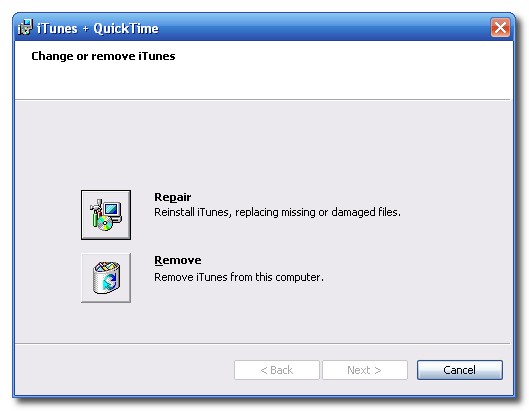
Step Nine A window will appear asking if you would like to repair or remove iTunes. Click the Remove button.
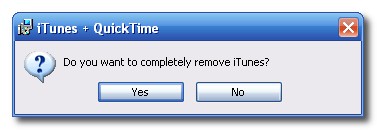
Step Ten You will be asked to confirm the uninstall. Click the Yes button.
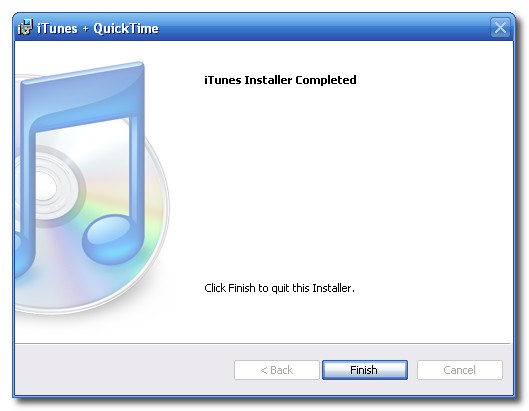
Step Eleven Once the iTunes uninstall has completed successfully click the Finish button.
Step Twelve Click the Next button in the Revo application window to continue.
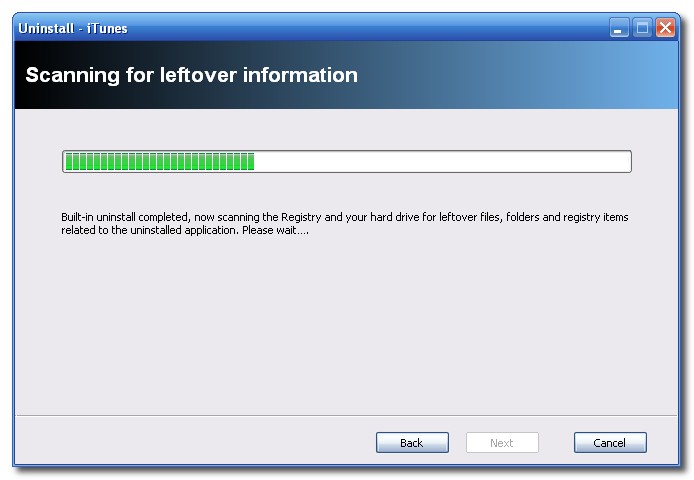
Step Thirteen Revo will now scan for leftover information
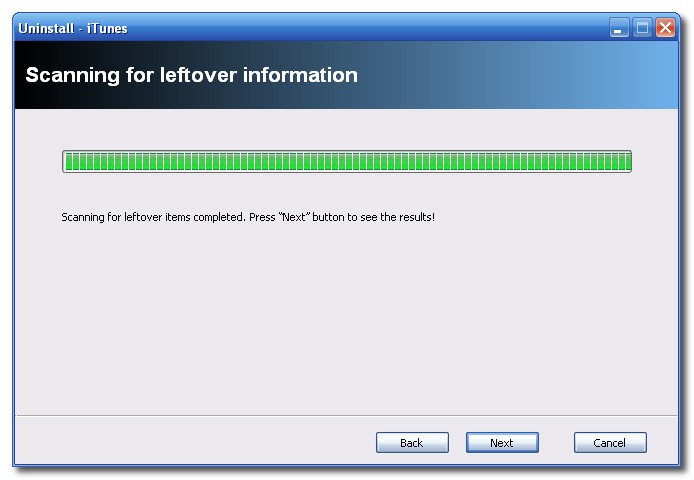
Step Fourteen Press the Next button to see the results
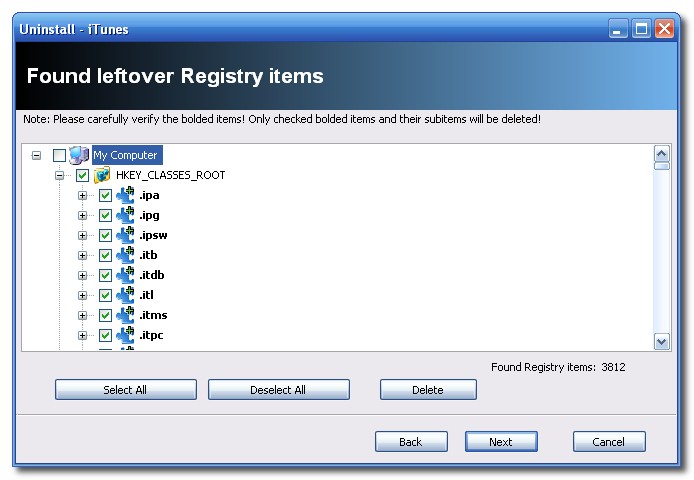
Step Fifteen Revo will display all the leftover registry items it has found. Select the bold registry items the click the Delete button. Then click the Next button.
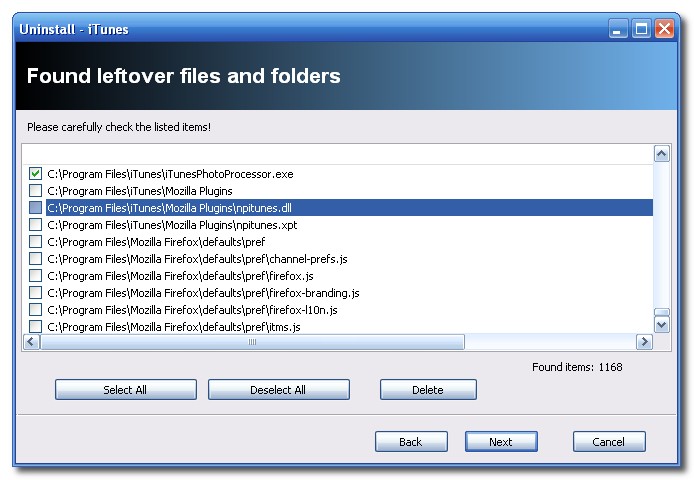
Step Sixteen Revo will now display all the leftover files and folders it has found. Select the bold items and any others that reference anything iTunes related then click the Delete button. Then click the Next button.
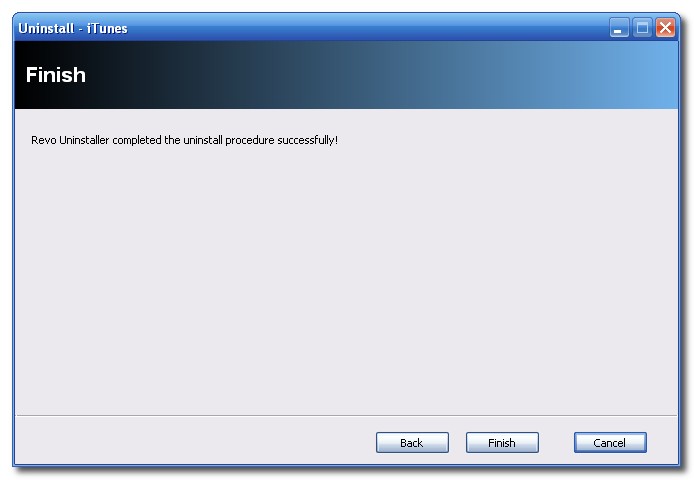
Step Seventeen Click the Finish button to exit the wizard. Reboot your computer to finalize and confirm the uninstall.
Get the iClarified Daily Newsletter
Apple news, rumors, tutorials, price drop alerts, in your inbox every evening, free.
Unsubscribe at any time.
Success!
You have been subscribed.
Add Comment
Would you like to be notified when someone replies or adds a new comment?
Yes (All Threads)
Yes (This Thread Only)
No
Notifications
Would you like to be notified when we post a new Apple news article or tutorial?




![Apple-LG Home Accessories Could Offer Dynamic Island Proximity Controls [Leak]](/images/news/102711/102711/102711-160.jpg "Apple-LG Home Accessories Could Offer Dynamic Island Proximity Controls [Leak]")

![How To Force Restart iPhone [Video]](/images/tutorials/95012/95012/95012-160.jpg "How To Force Restart iPhone [Video]")
![How To Turn Off iPhone [Video]](/images/tutorials/94999/94999/94999-160.jpg "How To Turn Off iPhone [Video]")
![How To Back Up Your iPhone to an External Drive on Mac [Video]](/images/tutorials/72786/72786/72786-160.jpg "How To Back Up Your iPhone to an External Drive on Mac [Video]")





![Mac mini Drops to $779.99 for Prime Big Deal Days [Deal]](/images/news/102624/102624/102624-160.jpg "Mac mini Drops to $779.99 for Prime Big Deal Days [Deal]")