These are instructions on how to do a clean and complete uninstall of iTunes from Mac OS X. This will remove all traces of iTunes from your computer.
Make sure you have quit iTunes before beginning this tutorial.
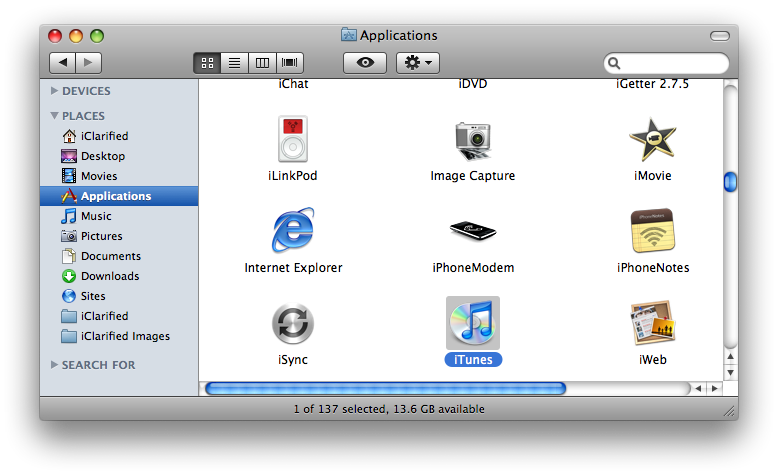
Step One Click to launch a new Finder window from your Dock.
Step Two Select Applications from the list of PLACES on the left side of your Finder window. Locate the iTunes application icon then drag it into the Trash Bin on your dock.
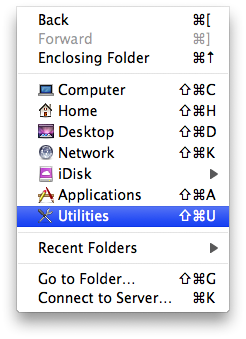
Step Three With the Finder window selected choose Utilities from the Go menu.
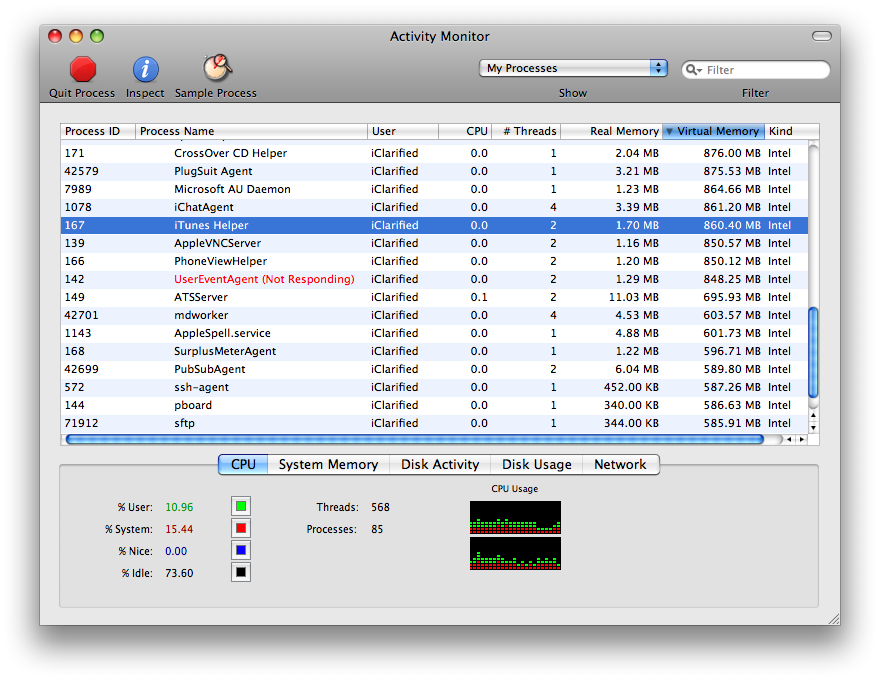
Step Four Double click to launch Activity Monitor from the Utilities folder.
Step Five In the process list locate and select iTunes Helper.
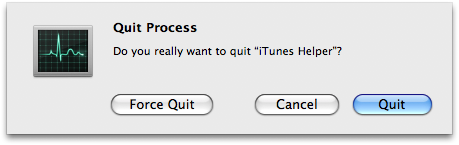
Click the Quit Process button.
When asked if you really want to quit the process, click the Quit button.
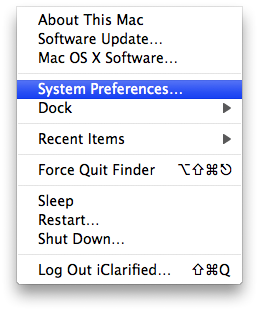
Step Six Select System Preferences from the Apple menu at the top left of the screen.
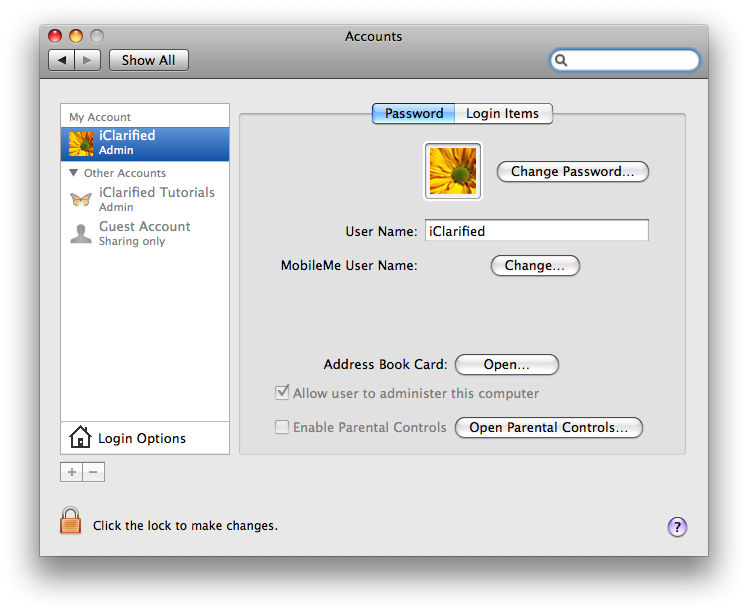
Step Seven Select Accounts from the System Preferences window.
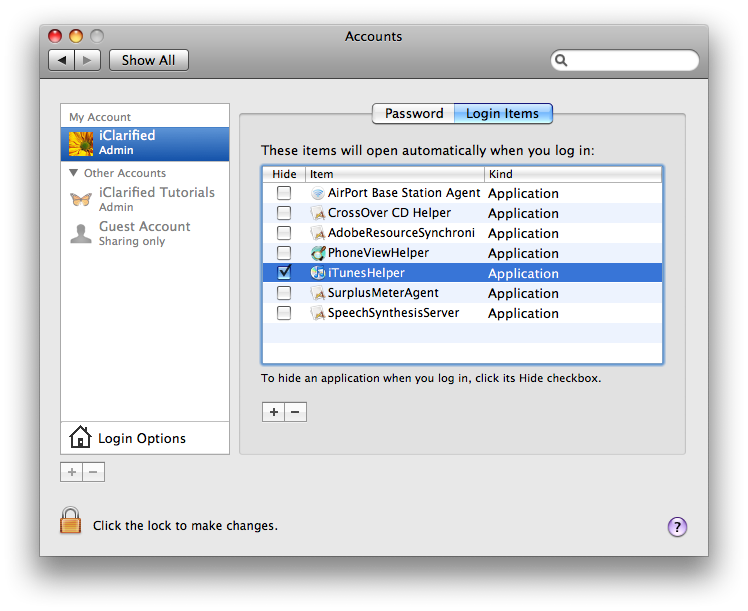
Step Eight Select the Login Items tab from the Accounts preference window
Step Nine Select the iTunesHelper entry then click the "-" button to remove it from the list
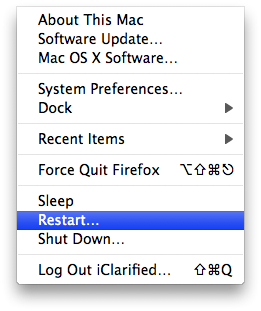
Step Ten Select Restart from the Apple menu at the top left of your screen to reboot your computer.
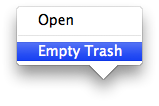
Step Eleven Once your computer has restarted hold down the Control key and click the Trash icon in the dock. Select Empty Trash from the popup menu that appears.
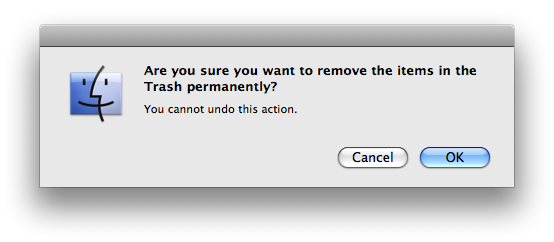
If asked whether you want to remove the items in the Trash permanently, click the OK button.
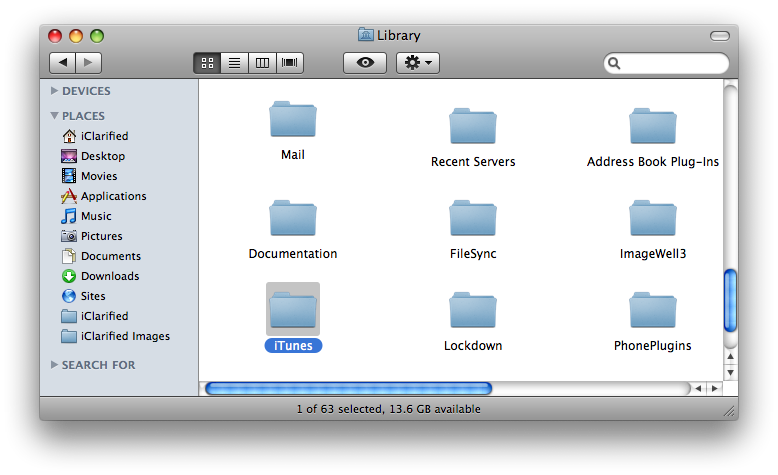
Step Twelve Click to launch a new Finder window from the dock.
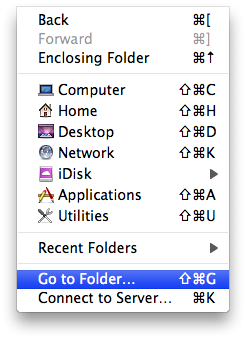
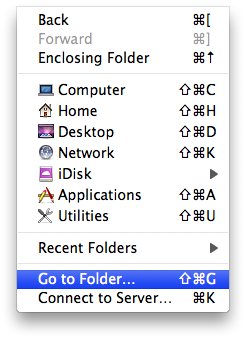
Select Go to Folder... from the Go menu at the top of the screen.
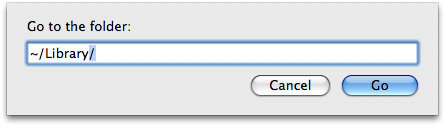
Type in ~/Library/ and click the Go button.
Locate the iTunes folder and then drag it to the Trash.
Step Thirteen Select Go to Folder... from the Go menu at the top of the screen.
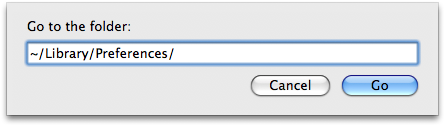
Type in ~/Library/Preferences/ and click the Go button.
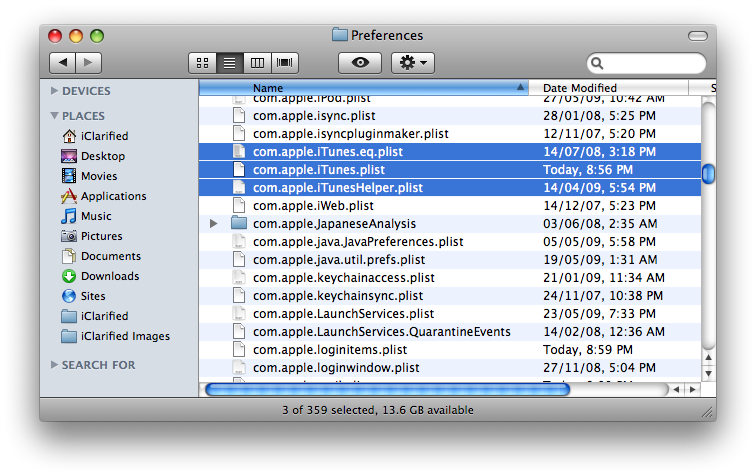
Locate the preference files that have names beginning with com.apple.iTunes and drag them to the Trash. The file names should be com.apple.iTunes.eq.plist, com.apple.iTunes.plist, and com.apple.iTunesHelper.plist.
Step Fourteen Select Go to Folder... from the Go menu at the top of the screen.
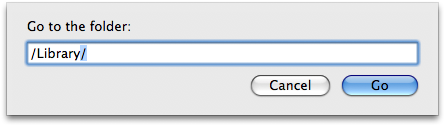
Type in /Library/ and click the Go button.
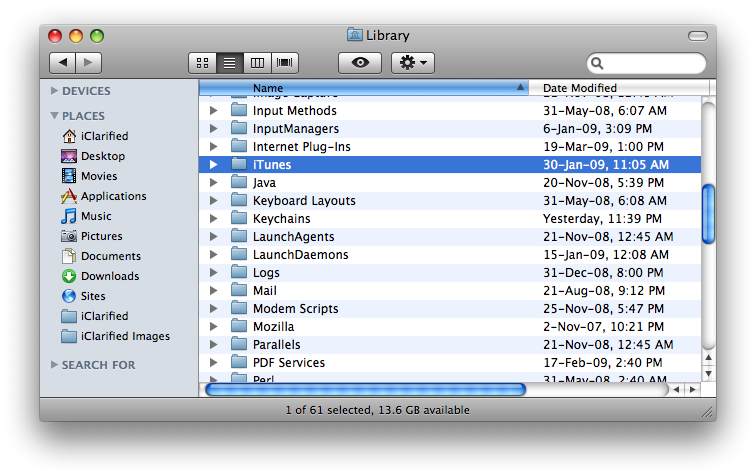
Locate the iTunes folder and then drag it to the Trash.
Step Fifteen Select Go to Folder... from the Go menu at the top of the screen.
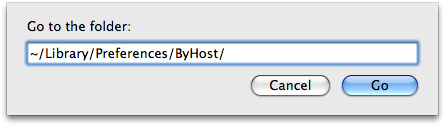
Type in ~/Library/Preferences/ByHost/ and click the Go button.
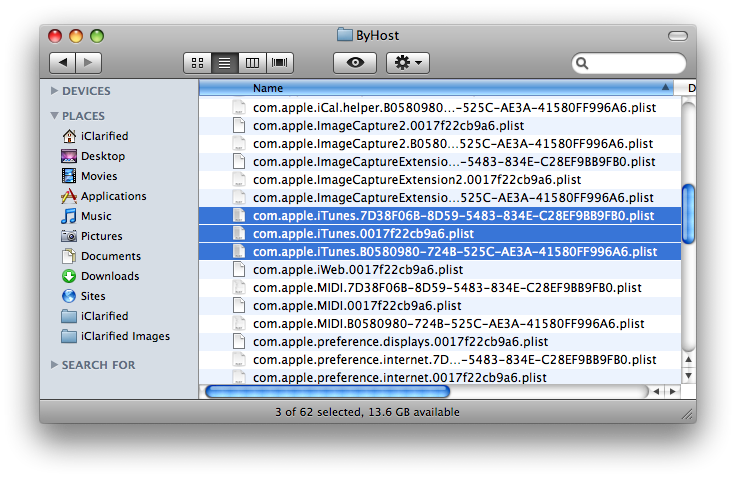
Locate the preference files that have names beginning with com.apple.iTunes and drag them to the Trash.
Step Sixteen Hold down the Control key and click the Trash icon in the dock. Select Empty Trash from the popup menu that appears.
If asked whether you want to remove the items in the Trash permanently, click the OK button.
Get the iClarified Daily Newsletter
Apple news, rumors, tutorials, price drop alerts, in your inbox every evening, free.
Unsubscribe at any time.
Success!
You have been subscribed.
Add Comment
Would you like to be notified when someone replies or adds a new comment?
Yes (All Threads)
Yes (This Thread Only)
No
Notifications
Would you like to be notified when we post a new Apple news article or tutorial?
Thank you sooo much this is one of the only probably the only step by step tutorial I've followed on a website that worked for me. Thank you for taking the time to do this.
To fix this, you need to change the permissions settings for iTunes.
Step one:
Open a new Finder window and find iTunes, select it (don't open it) and hit the "get info" button
Step two:
Scroll down the the tiny padlock on the bottom right hand of the "get info" window. Click it and enter in your password if you're prompted for it
Step three:
Go to Sharing and Permissions and click "everyone" and change the permission from 'read only' to 'read and write'. Enter your password if you need to.
That's it! Hope this helps
Worked perfectly! Songs from my old iPod (3rd gen) are syncing to my new iPod as I type! How stupid is it that Apple won't let you move music from iPod to iPod via computer??? Time & money gone to waste. Thanks for this awesome tutorial!
In order to do step 2, when you are on the iTunes app icon, ctrl click Get Info -> Permissions -> Unlock Icon, then change "everyone" from "custom" to "read/write"
After that you can delete it, and the rest of the steps here work like a charm!
I can do only Step One. When trying to complete Step Two, I get the following message:
"iTunes" can't be modified or deleted because it's required by OS X.
Any idea what to do?
Go to a Terminal window and type the following:
sudo rm -rf /Applications/iTunes.app
It will then prompt you for your password. Enter it and then hit return. iTunes should disappear.
If I do all this, does that mean I've lost forever EVERYTHING that I've put in iTunes? all my music and videos that are in there? There is no available backup for iTunes music and videos?
no, PJ, if you have a time machine doing your backups you can open a previous library. one that was saved before iTunes 11 was installed.
but read the instructions on the second link (see Albe Sure's comment) and that will tell you how to save your library if you need to.
I complete steps 1 thru 100, twice, uploaded downloaded, checked my TCP/IP connection. This phase in my Apple experience is like trying to delete that one file in windows that just wont go away. Itunes still WILL NOT recognize my iphone Ipod Ipad or Itouch. They all work on my wife's Mac and Windows XP so its not the cable. On the Macbrook Pro they DO SHOW UP on Finder and I am able to use the iPods as a harddrive so its not the USB port.
Has anyone figured out how to fix this problem?
I did all this.
A couple of times.
But still when I launch iTunes i get the message: 'the file "itunes Library.itl" cannot be read becasue it was created by a newer version of itunes. Would you like to download iTunes now?'
I don't know, what am I sposed to do? Delete the library? How do I do that? Does my music then have to be reinstalled? I have a lot of podcasts I want to keep. Or do I go back in my time machine to a previous version of the library?
I fixed my own problem, in case anyone is interested.
I deleted the new .itl file, and then restored the iTunes library from the time machine, from before the installation of iTunes 11.
One of my problems, which sounds like it might be the same as yours, Rakshi? is that I wasn't actually downloading the old version of iTunes, but was restoring it from the Time Machine. When I actually followed the link listed in the instructions, above, and downloaded and re-installed iTunes 7 the only problem left was the .itl file.
Maybe this helps?
Okay, I did the process and was happily allowed to install iTunes 10.6.3. But now I am unable to open my iTunes library, because it says it was made with a later version. What do I do?
BTW, it won't let me download an update, even if I accept my fate of using version 11 with its useless search function. It tells me no update is available.
If you're STILL having difficulties completely removing iTunes 11 and reverting back to iTunes 10.7, then this is the link for you...
https://discussions.apple.com/message/20625974#20625974
Kind regards,
-A.S.
I downloaded AppCleaner and it was as simple as drag and drop and confirm delete and it was totally gone. Not sure if I previously downloaded AppCleaner or if it was on the computer but sure beats the 9000 steps listed above.
There's more to it than this, I think. I went through this procedure, then did a fresh reinstall of iTunes. Hey presto - everything was there as before - all the music, photos, device associations. Not clean at all. Perhaps I misunderstood, but I needed to remove all trace of iTunes and start again. If you need to do that too, then there's more to it than this. Sadly, I don't know what more. Yet.











![Apple Releases macOS 27.2 Golden Gate Beta to Developers [Download]](/images/news/102249/102249/102249-160.jpg "Apple Releases macOS 27.2 Golden Gate Beta to Developers [Download]")
![Apple Seeds First Betas of watchOS 27.2, tvOS 27.2, and visionOS 27.2 to Developers [Download]](/images/news/102252/102252/102252-160.jpg "Apple Seeds First Betas of watchOS 27.2, tvOS 27.2, and visionOS 27.2 to Developers [Download]")
![Apple Releases iOS 27.2 Beta and iPadOS 27.2 Beta to Developers [Download]](/images/news/102248/102248/102248-160.jpg "Apple Releases iOS 27.2 Beta and iPadOS 27.2 Beta to Developers [Download]")









![Apple Studio Display XDR Hits All-Time Low of $2,969.99 ($329 Off) [Deal]](/images/news/101976/101976/101976-160.jpg "Apple Studio Display XDR Hits All-Time Low of $2,969.99 ($329 Off) [Deal]")
