A playstation emulator has finally been released for the iPhone. This tutorial will show you how to get gaming! The emulator psx4all was written by ZodTTD. Many thanks to him! You can check out his site to donate at www.ZodTTD.com.
Follow these instructions to get started.
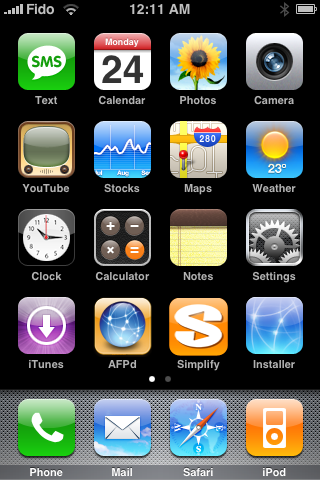
Step One Press to select Installer from the SpringBoard.
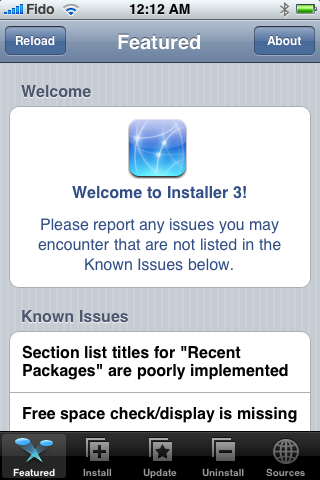
Step Two Press to select the Install tab at the bottom of the screen.
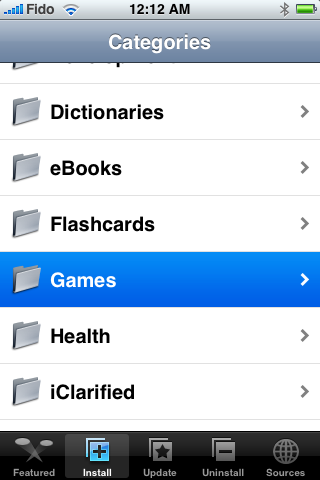
Step Three Press to select Games from the list of Categories.
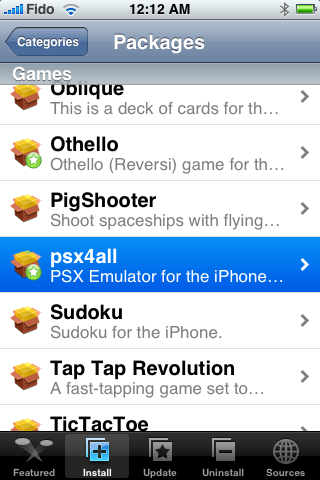
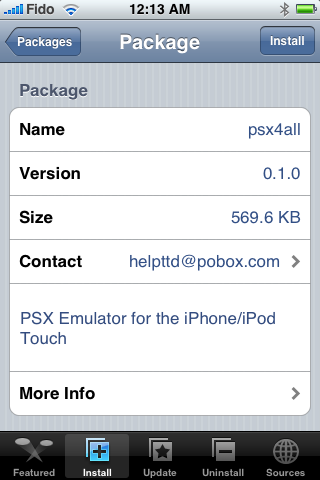
Step Four Press to select psx4all from the list of Packages.
Step Five Press the Install button at the top right hand corner of the screen.
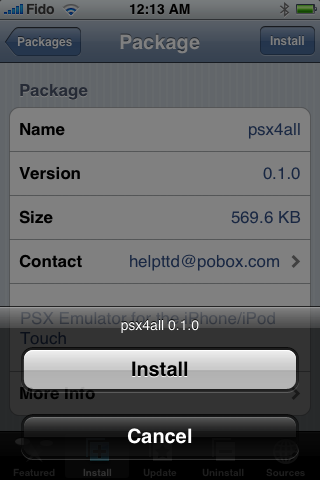
Step Six Press the large Install button that appears.
Step Seven Once the installation is complete you will be returned to the Categories list. Press the Home button to return to your SpringBoard. Notice the new psx4all icon!
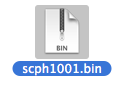
Step Eight Download scph1001.bin from somewhere. (Hint: try google or driverguide.com) Make sure the filename is all lowercase.
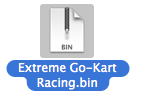
Step Nine Download a PSX ROM a game you would like to install. (Hint: try something like good-roms.com). Often times your download will be a zip file. Extract this and you should find a .bin file which is the required file.
Step Ten Launch Fugu by clicking its icon in the dock.
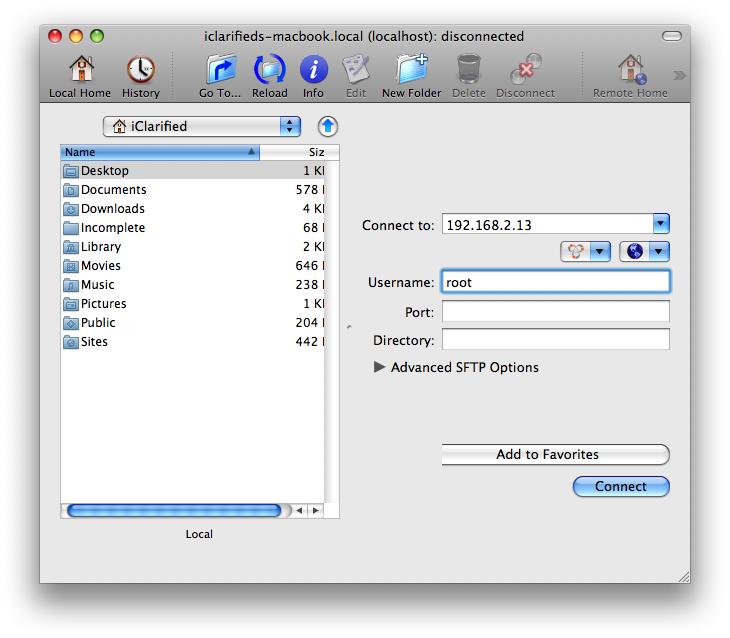
Step Eleven Enter your iPhone's IP Address in the Connect to: field. Then enter root in the Username field. Now click the Connect button.
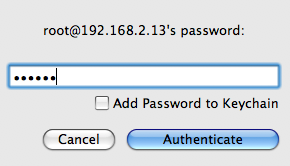
Step Twelve If prompted for a password enter alpine or dottie or whatever else your iPhone's password may be. Then click the Authenticate button.
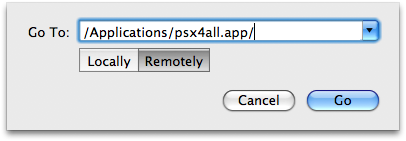
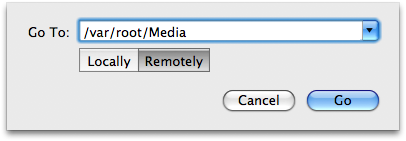
Step Thirteen On the left pane navigate to where you saved scph1001.bin. Then click the Go To... button on the toolbar. In the popup that appears enter /Applications/psx4all.app/ into the entryfield. Now click the Remotely button. Finally click the Go button.
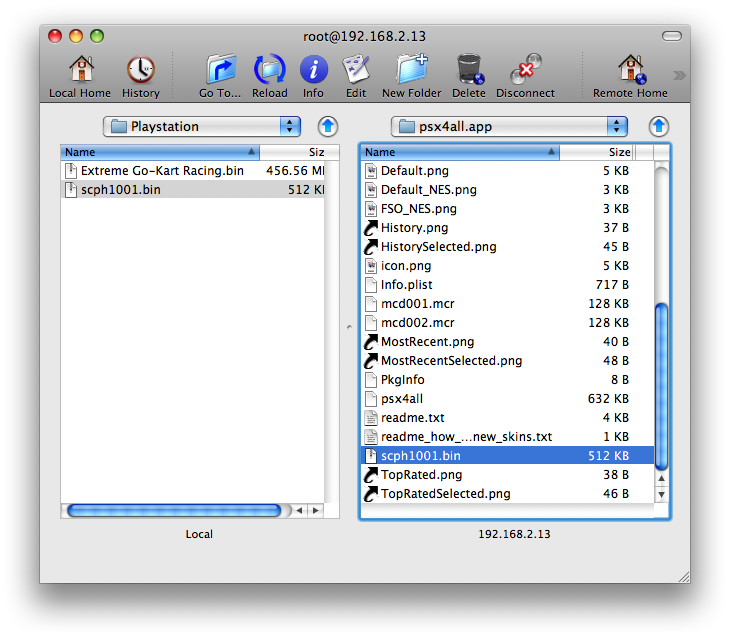
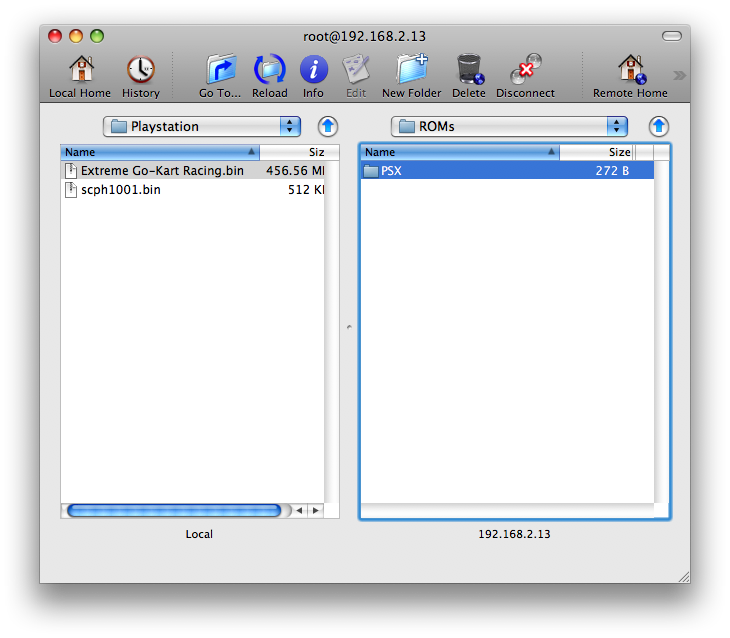
Step Fourteen Drag the file scph1001.bin from the left pane to the right pane of the Fugu window.
Step Fifteen Click the Go To... button again. Enter /var/root/Media/ into the entryfield. Make sure Remotely is clicked then click the Go button.
Step Sixteen Click the New Folder button and create a folder called ROMs in the right pane.
Step Seventeen Double click the newly created ROMs folder to open it. Click the New Folder button and create a folder called PSX.
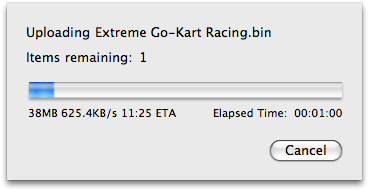
Step Eighteen Double click the newly created PSX folder to open it. In the left pane navigate to the PSX ROM you downloaded. Drag the bin file from the left pane to the right pane. Note: Depending on the size of the bin file it could take a long time to copy!
Step Nineteen On your iPhone press to select psx4all from your SpringBoard.
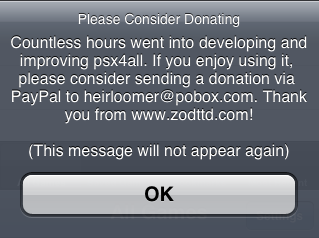
Step Twenty You will get a message with information on how to donate. Consider doing this as a lot of hard work was put into the emulator. Send your donations to heirloomer@pobox.com. Click the Ok button to proceed.
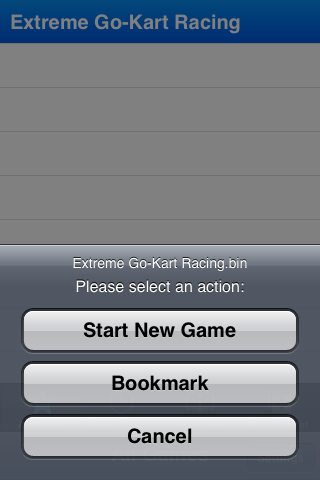
Step Twenty One Press to select the Game you just installed from the list.
Step Twenty Two Press the Start New Game button.
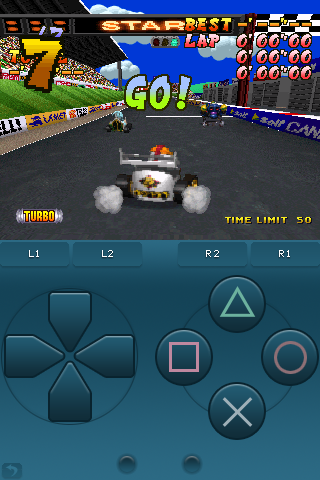
You are now good to go!
Just as a side note you might want to try these shortcuts to improve performance: To change the Clock Cycle: To increase: Hold L1 and press R2 To decrease: Hold L1 and press L2
To change the Clock Speed To increase: Hold R1 and press R2 To decrease: Hold R1 and Press L2
Get the iClarified Daily Newsletter
Apple news, rumors, tutorials, price drop alerts, in your inbox every evening, free.
Unsubscribe at any time.
Success!
You have been subscribed.
Add Comment
Would you like to be notified when someone replies or adds a new comment?
Yes (All Threads)
Yes (This Thread Only)
No
Notifications
Would you like to be notified when we post a new Apple news article or tutorial?
I've managed to install NES, Gameboy Advance and PSX on my iPhone using Windows. For the rest of us "normal" folks who have never used FTP programs before, I find that it's much simpler to use iBrickr to upload ROMs, BIOS and any other files into your iPhone directory. You download the iBrickr software onto your PC, and you can use it to upload and delete files, view your directories, etc.
However, iPhone graphics can't really handle games like Gran Turismo which I installed.










![Apple Releases HomePod Software Update 27 [Download]](/images/news/102222/102222/102222-160.jpg "Apple Releases HomePod Software Update 27 [Download]")

![Apple Officially Releases visionOS 27 [Download]](/images/news/102219/102219/102219-160.jpg "Apple Officially Releases visionOS 27 [Download]")








![Apple Studio Display XDR Hits All-Time Low of $2,969.99 ($329 Off) [Deal]](/images/news/101976/101976/101976-160.jpg "Apple Studio Display XDR Hits All-Time Low of $2,969.99 ($329 Off) [Deal]")
![Apple AirPods Pro 3 Drop to $199 ($50 Off) [Deal]](/images/news/101966/101966/101966-160.jpg "Apple AirPods Pro 3 Drop to $199 ($50 Off) [Deal]")
