

These are instructions on how to organize your iPhone applications using Movement. You will need to jailbreak your iPhone to make use of this utility.
Step One
Download Movement (Movement.zip download no longer available) and save it to your Desktop.
Step Two
Double click the Movement.zip file on your Desktop to extract the archive. Drag the Movement app into your Applications folder to install it.
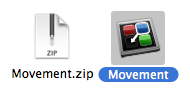
Step Three
Launch the Movement utility by double clicking its icon in the Applications folder.

Step Four
Click OK to close the welcome popup.
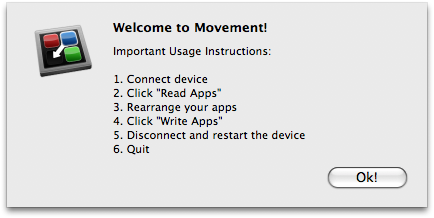
Step Five
Click the Read Apps button to load your SpringBoard layout.

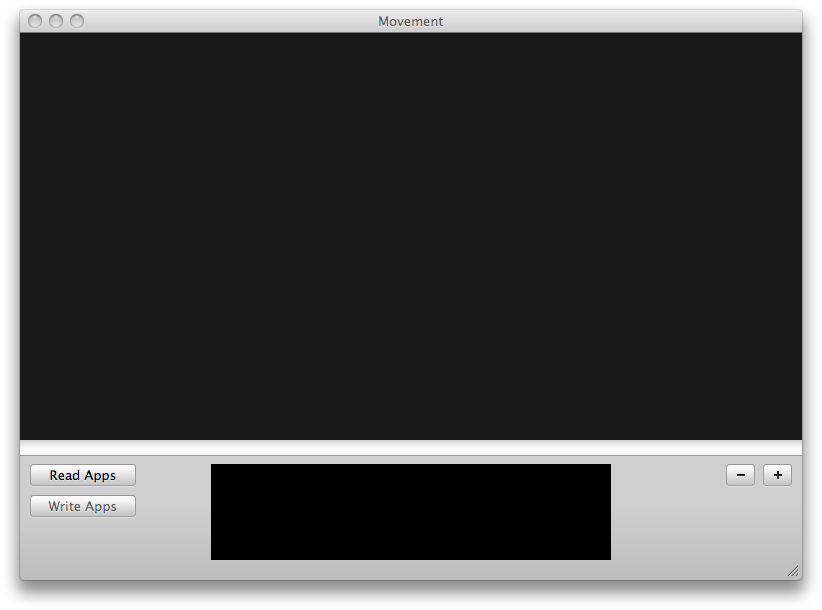
Step Six
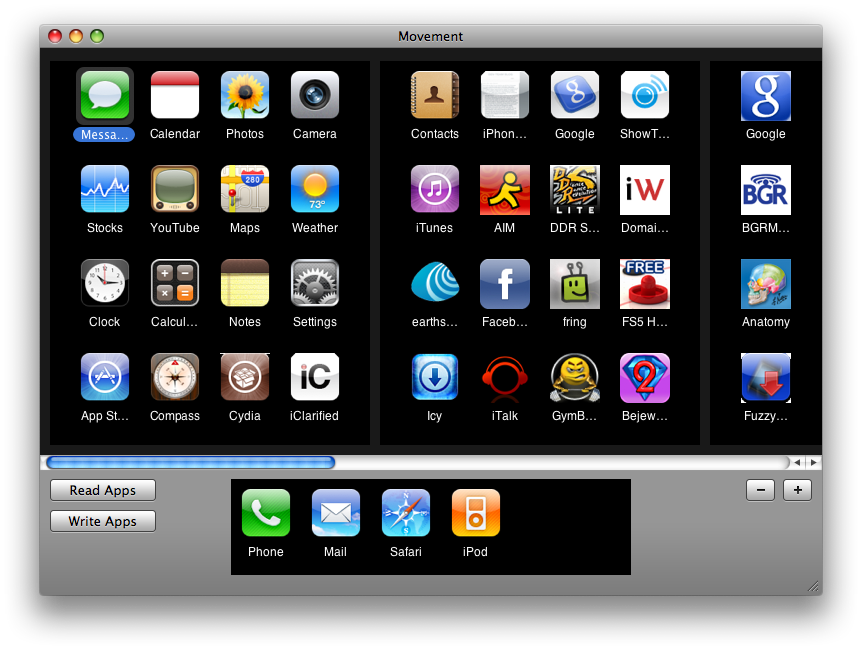
You can now drag the icons around to rearrange the layout to your preference.
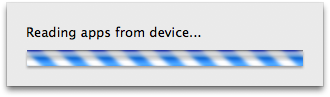
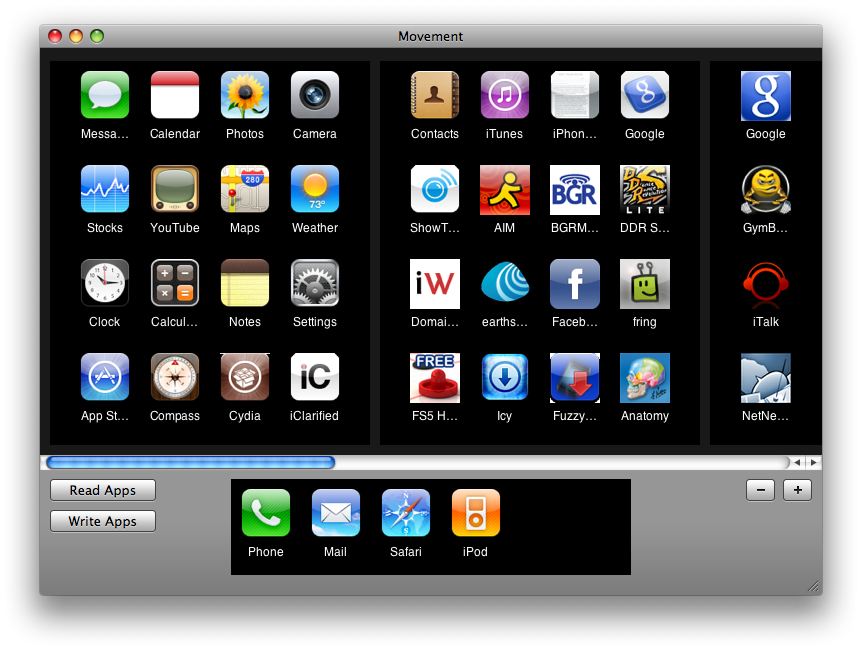
Step Seven
When ready to apply your new layout click the Write Apps button.

Step Eight
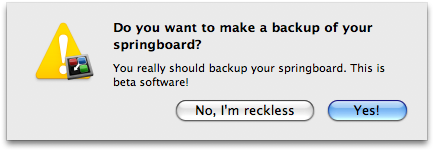
You will be prompted to save a backup of your SpringBoard. Click the Yes button.
Step Nine
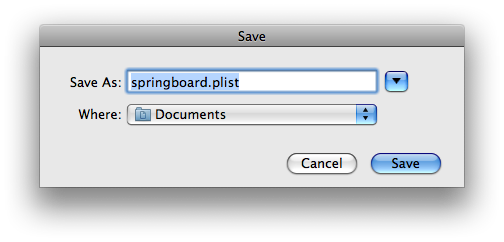
Select the location to save your backup the click the Save button.
Step Ten
You may now disconnect your iPhone and reboot to apply the new layout.
***THANKS: to Jeff Stieler for creating this utility.
Step One
Download Movement (Movement.zip download no longer available) and save it to your Desktop.
Step Two
Double click the Movement.zip file on your Desktop to extract the archive. Drag the Movement app into your Applications folder to install it.
Step Three
Launch the Movement utility by double clicking its icon in the Applications folder.
Step Four
Click OK to close the welcome popup.
Step Five
Click the Read Apps button to load your SpringBoard layout.
Step Six
You can now drag the icons around to rearrange the layout to your preference.
Step Seven
When ready to apply your new layout click the Write Apps button.
Step Eight
You will be prompted to save a backup of your SpringBoard. Click the Yes button.
Step Nine
Select the location to save your backup the click the Save button.
Step Ten
You may now disconnect your iPhone and reboot to apply the new layout.
***THANKS: to Jeff Stieler for creating this utility.









![How To Find Your iPhone IMEI Number [Video]](/images/tutorials/83557/83557/83557-160.jpg "How To Find Your iPhone IMEI Number [Video]")


![Magic Keyboard for iPad Air Drops to $200 on Amazon [Deal]](/images/news/102402/102402/102402-160.jpg "Magic Keyboard for iPad Air Drops to $200 on Amazon [Deal]")
![13-Inch M5 MacBook Air With 1TB Drops to $1,449 on Amazon [Deal]](/images/news/102345/102345/102345-160.jpg "13-Inch M5 MacBook Air With 1TB Drops to $1,449 on Amazon [Deal]")



