These are instructions on how to use your iPhone as a USB stick / USB flash drive without needing to install software on your computer.
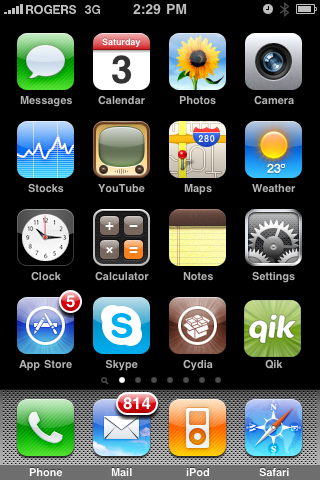
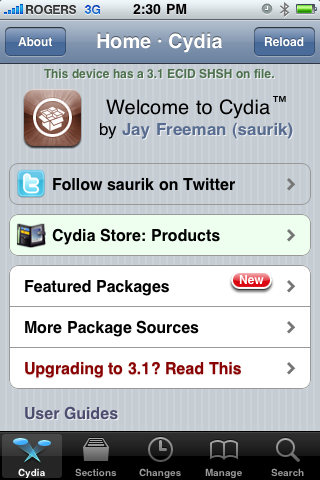
Step One Press to launch Cydia from your iPhone Springboard.
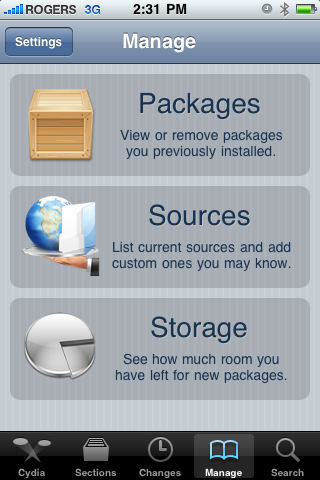
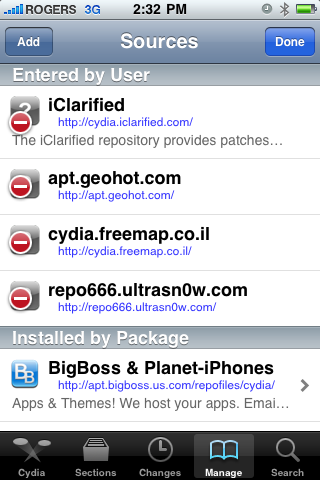
Step Two Press to select Manage from the tabs at the bottom
Step Three Press the large Sources button.
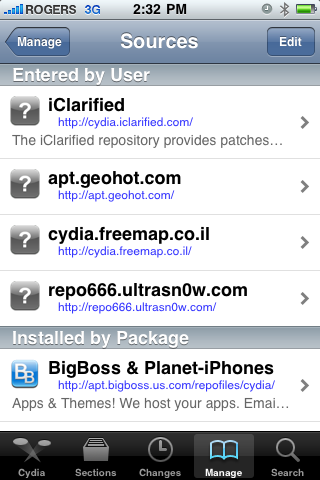
Step Four Press the Edit button at the top right of the sources list.
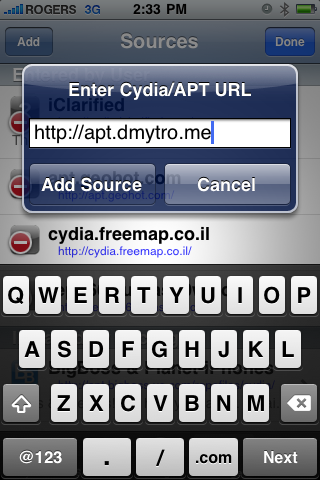
Step Five Press the Add button that appears at the top left.
Step Six Enter http://apt.dmytro.me as the Cydia/APT URL then press the Add Source button.
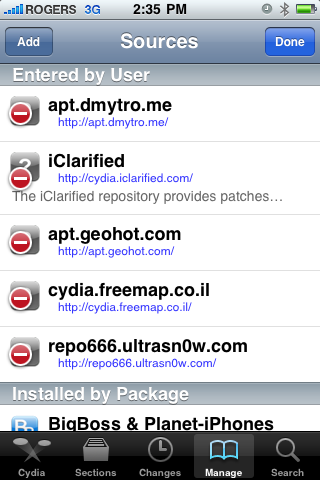
Step Seven Cydia will now update your sources. Press the large Return to Cydia button when finished.
Step Eight Press the Done button at the top right of the sources list.
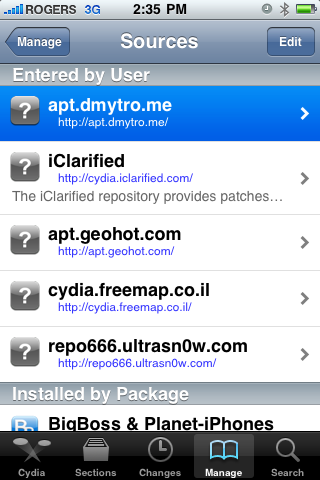
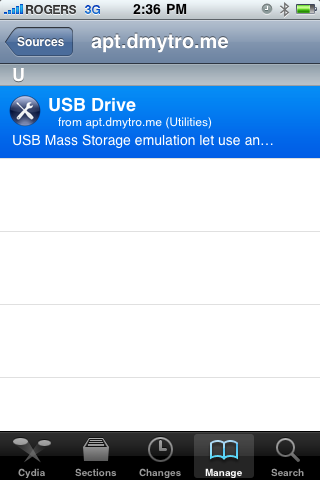
Step Nine Press to select the apt.dmytro.me source we just added
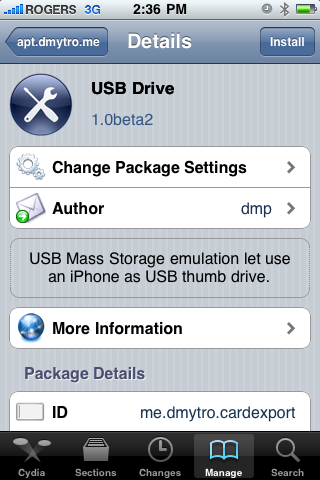
Step Ten Tap to select the USB Drive package from the list of packages
Step Eleven Press the Install button at the top right of the screen.
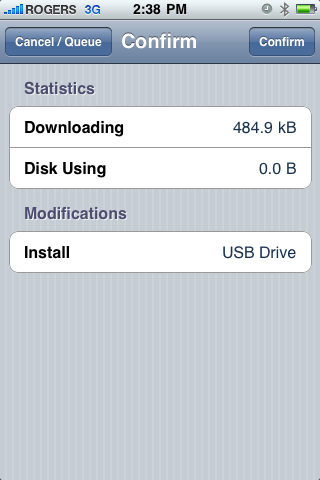
Step Twelve Press the Confirm button at the top right of the screen
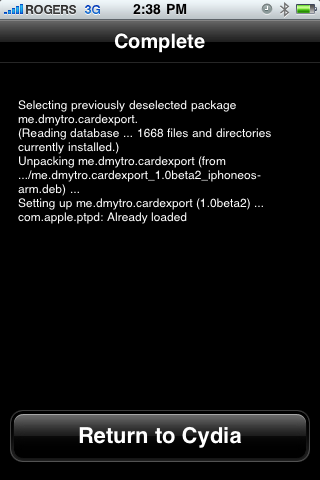
Step Thirteen Cydia will now install your package. When it has completed successfully, press the large Return to Cydia button.
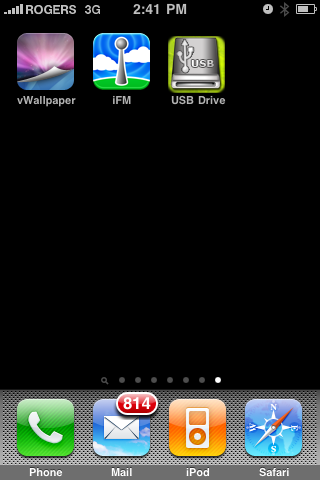
Step Fourteen Press the Home Button to return to your Springboard then press to launch USB Drive from your list of applications.
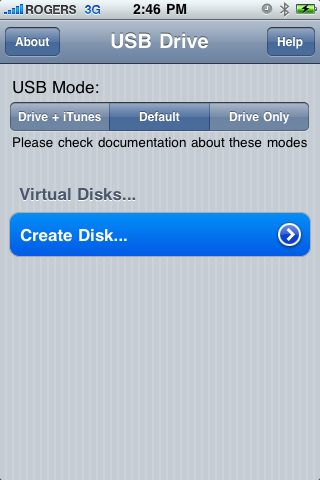
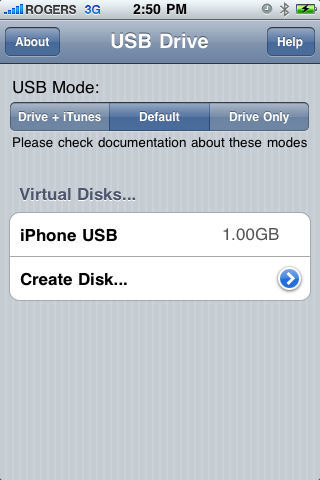
Step Fifteen First we must create a Virtual Disk on the iPhone. Press the Create Disk... button to continue.
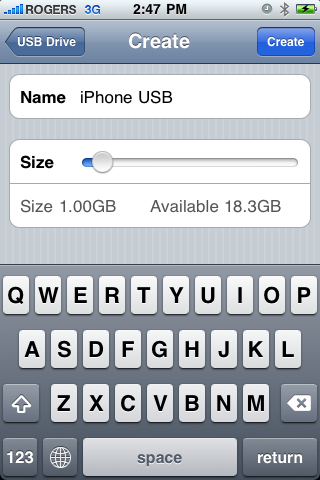
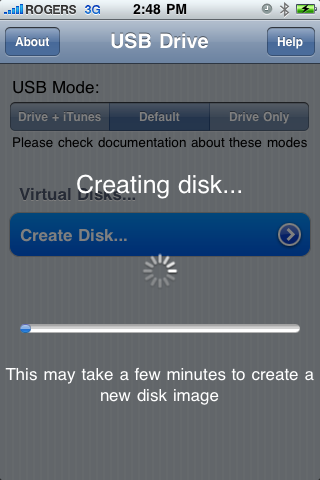
Enter a name for your virtual disk and use the slider to specify how much space you would like to allocate it. When done click the Create button at the top right of the screen.
Step Sixteen Now that we have created a disk to access we must specify the USB Mode. You have three choices:
Drive + iTunes: In this mode USB Drive replaces Picture Transfer Protocol (PTP) interface with Mass Storage interface and lets you use the iPhone as a USB Drive. At the same time you can perform iTunes synchronization, developers can use XCode debugger ,etc. In this mode USB Mass Storage will not work on Windows with iTunes or Apple USB Drivers installed.
Default: This is the iPhone default mode. USB Drive doesn't install daemon application nor modify any USB settings. Picture Transfer Protocol (PTP) is active as well as iTunes synchronization and tethering over USB.
Drive Only: This mode is to resolve compatibility issues with Windows and iTunes. In this mode USB Drive changes the iPhone's USB product ID. This will prevent iTunes synchronization, but USB Mass Storage will work on Windows (and other operating systems). Switch to the Default or Drive + iTunes mode will restore iTunes sync.
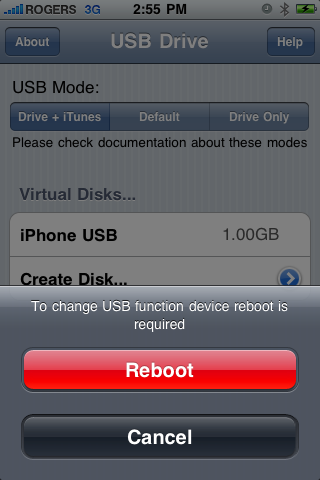
Press to select the mode of your choice. We chose Drive + iTunes because we rarely need Windows compatibility.
A popup will appear asking you to reboot to apply the changes. Press the large Reboot button.
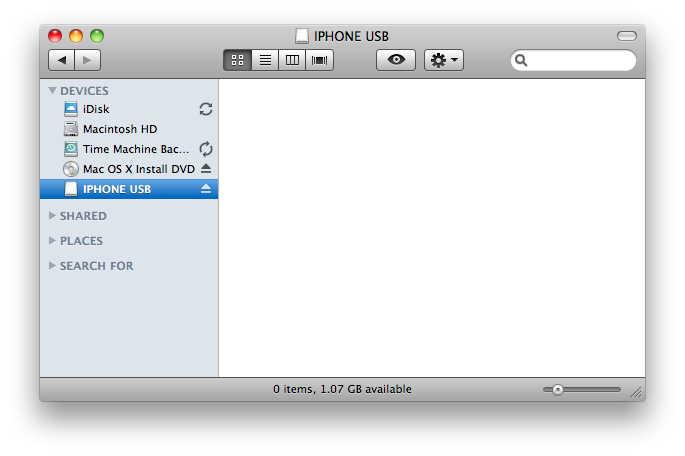
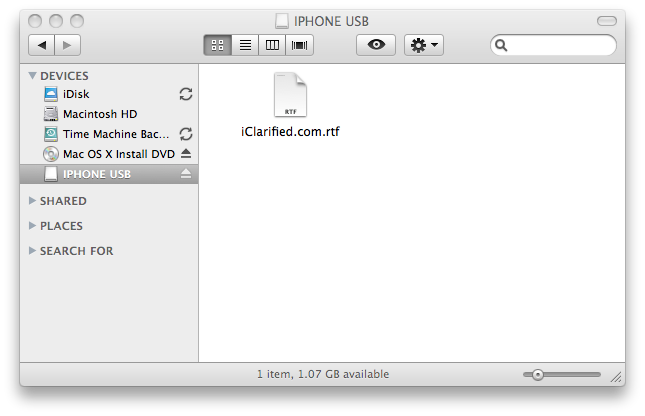
Step Seventeen Once your iPhone reboots you will now be able to access the virtual disk you created using USB Drive.
***THANKS: This is one of the most useful iPhone utilities we have ever seen. A big thanks goes to dmp for creating this app!
Get the iClarified Daily Newsletter
Apple news, rumors, tutorials, price drop alerts, in your inbox every evening, free.
Unsubscribe at any time.
Success!
You have been subscribed.
Add Comment
Would you like to be notified when someone replies or adds a new comment?
Yes (All Threads)
Yes (This Thread Only)
No
Notifications
Would you like to be notified when we post a new Apple news article or tutorial?
i did as you said,,, but drive didn't showed up on my windows PC nor it is being displayed in the app,,, i can't delete it but space is in use
help plzz
I was a little worried using this app, seeing as it felt relatively old. I haven't read to many good comments about it either. It was unfortunate, but since I require a tethered boot, I was unable to properly operate the device.
I didn't put to much effort in it to be honest, I don't have much space on my iPhone to begin with. I love the concept, it's a real quick relief. I was in a rut to play a movie, and this was perfect.
I found I needed to reboot after deleting the volume. It gave me some worry after deleting it through the app (lol). Back to square one, luckily.
Mine is iPhone 3g, and it worked prefectly. THANKS!
Note
Go to USB drive, and then choose
1) If use default, it will only show photos you have in the iphone
2) if you use device only it willonly open USB, then you can add/exchange PPT, PDF, word files between your PC and iphone.
3) drive +iTunes doesn't work for me
in my case (iphone 3G #) either #1 or # 2 works (but not both at the same time). However, when ever you need eaither you can "Reboot" whichever you want.
Hope it helps
Hi,
I'm able to use the USB drive however when trying to find the file stored on virtual disk. I'm unable to locate it on my iPhone using iFile.
Please help, let me know the correct path where the files get stored on iPhone
Mine is iPhone 3g, and it worked prefectly. THANKS! Note Go to USB drive, and then choose 1) If use default, it will only show photos you have in the iphone 2) if you use device only it willonly open USB, then you can add/exchange PPT, PDF, word files between your PC and iphone. 3) drive +iTunes doesn't work for me.
In my case (iphone 3G #) either #1 or # 2 works (but not both at the same time). However, when ever you need eaither you can "Reboot" whichever you want. Hope it helps
iPhone 3g iOS 4.2.1
USB Drive successfully creates the partion drive, but then thats it. The 1g of space that I allocated to it is used up, but the virtual drive is nowhere to be found on my computer (PC).
Any ideas?
Doesn't work on 3G with 4.2.1 When creating a virtual disk a message appears to check the free disk space every time. So no virtual disk can be created. Unfortunately!
Found a solution:
1) connect to the iPhone via SSH
2) mkdir /private/var/Volumes/
3) chown mobile:mobile /private/var/Volumes/
That's it. Creating virtual disks will work then.
Hm, unfortunately only Default mode is working. Although I haven't connected the iPhone as USB drive to Linux host successful. Switching modes will end up in a loop (after asking for reboot). Seems there's a security or rights issue in the file system...
thanks bro you just saved me from restoring. i tryd this on my iphone 4 on ios 5.1.1 default and itunes+drive didnt work for me and i gave up before trying only drive
thanks bro you just saved me from restoring. i tryd this on my iphone 4 on ios 5.1.1 default and itunes+drive didnt work for me and i gave up before trying only drive. also you can delete the drive from the same location in ifile.
i tried to create a second virtual disk... for some reason my phone rebooted in the middle of the process and when it came back on the second partition was created (i know because it takes up a large space on the iPhone) BUT inside of USB Drive app it does not appear. so now i cannot figure out how to delete this partition because it isnt even recognized within the USB app. help anyone?
Hi Jeremy, I have a similar problem.
I created a 1GB volume on my jailbroken iPhone 3G under ios 4.1
After I installed 4.2, I cannot see the 1GB volume anymore, but I am left with 1 less GB storage on the iPhone.
Were you able to find a solution to your problem? It might help me solve mine.
Does anybody have a clue how to get this 1GB back?
Thanks,
Yannick
Since you'e already jailbroken, you can delete the volume files from the file system using SSH.
The volume files are created at /private/var/Volumes/Volume1.img.
so -- if I get it right as somebody with wiondows (not my choice, but have to!) I have to decide wether I want itunes-sync OR usb-drive functionality...? Buuuuh! (beyond that: great, and why the hack is apple not doing it itself?)
After installing app, if you decide to uninstall it, PTP will not get back to original state. In other words, you cannot transfer pictures to you computer like you used to.
Thank you for the screen shot of the sources uploaded. I added all of them and they work.
P.S. When i delete a drive it sometimes does not give me the space back.
hi
i know that problem: to get the empty space back you actually need to empty the bin + restart device + computer.
apart from that: brilliant website this - one of the best. thanks
hi,
I got reboot loop while in USB Drive only mode. And my iTunes cannot recognize my phone, therefore I cannot restore it.
What can I do to fix?
Plz, I'm running with time, because the USB Charge wont work.
finally figured it out.
For those who got the same experience.
Just get your phone into recovery mode (I did this on my 3GS 3.1.2) and get the correct version of custom jailbroken firmware.
1. run iTunes
2. Get your phone into recovery mode (NOT DFU mode)
2.a. connect your phone into the usb port (mine was in the state of loop rebooting)
2.b. press and hold both power button on the top and home button at bottom
2.c. in about 6 secs, the phone will turn off. Keep holding both button
2.d. when you see the apple logo, let go the power button on the top. But keep holding home button
2.e. eventually, iTunes will say you are in recovery mode, and your screen will have recovery icon.
3. Restore the firmware. You can refer to posts in the net on how to do this.
note. in dfu mode (let go power button after 10 secs), iTunes will say you are in recovery mode too. But in fact, you are in DFU mode, and you wont be able to restore with error 1600.
Hope this help.














![Apple Studio Display XDR Hits All-Time Low of $2,969.99 ($329 Off) [Deal]](/images/news/101976/101976/101976-160.jpg "Apple Studio Display XDR Hits All-Time Low of $2,969.99 ($329 Off) [Deal]")
![Apple AirPods Pro 3 Drop to $199 ($50 Off) [Deal]](/images/news/101966/101966/101966-160.jpg "Apple AirPods Pro 3 Drop to $199 ($50 Off) [Deal]")
