How to Customize Your iPhone Carrier Name and Banner
Posted October 26, 2009 at 11:55pm by
Shalom Levytam
These are instructions on how to customize your iPhone carrier name and banner using FakeCarrier.
Step One
Press to launch Cydia from your Springboard.

Step Two
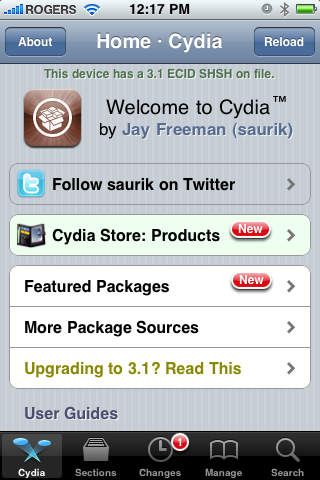
Press to select the Sections tab from the bottom of the screen.
Step Three
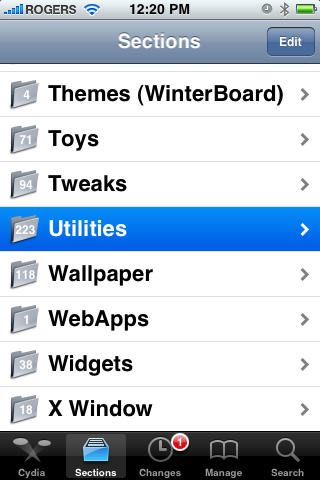
Press to select Utilities from the list of Sections.
Step Four
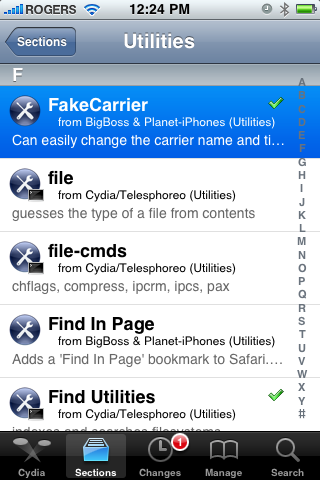
Press to select FakeCarrier from the list of Packages.
Step Five
Press the Install button at the top right of the screen.
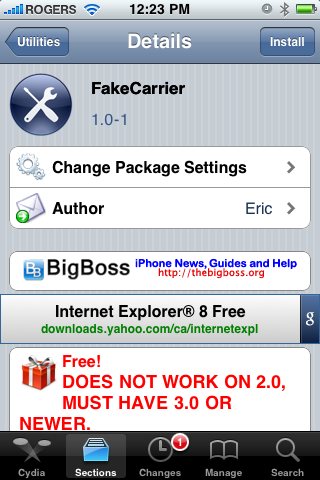
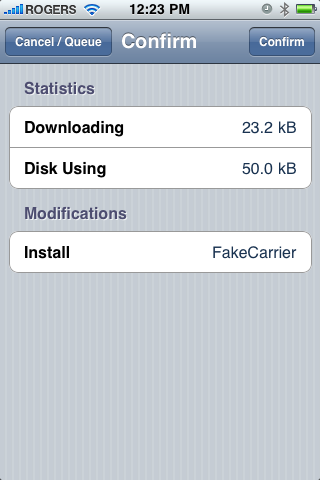
Step Six
Press the Confirm button at the top right of the screen to begin installation.
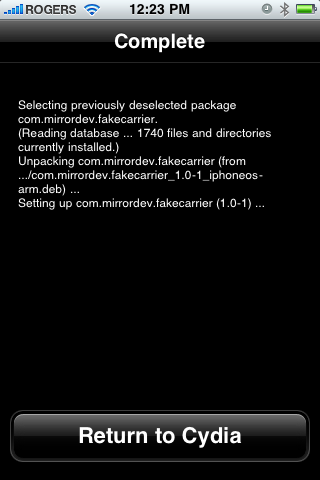
Step Seven
Once the application has installed successfully press the large Return to Cydia button.
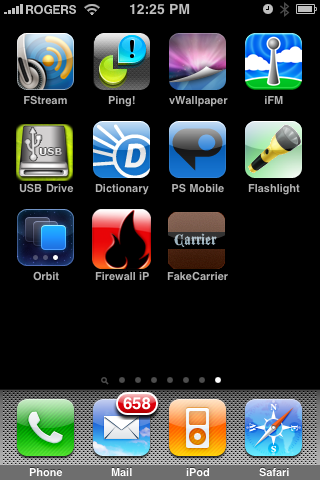
Step Eight
Press the Home button to return to your Springboard then press to launch FakeCarrier.
Step Nine
Press the Fake Carrier button to customize your carrier name.
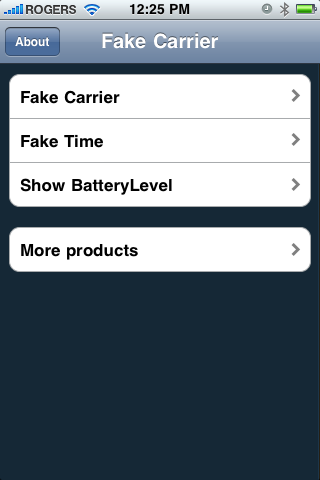
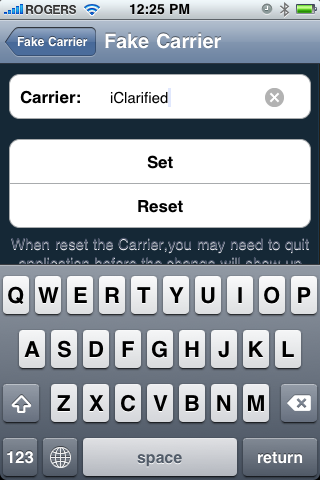
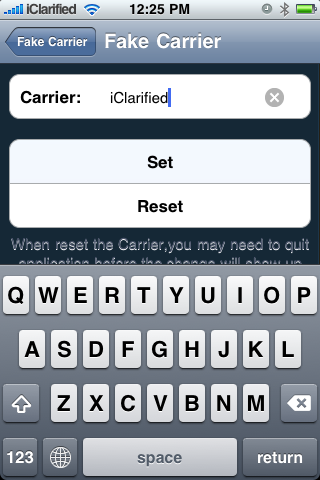
Input your own carrier name then press the Set button to make it active. To return to the default carrier name press the Reset button.
Step Ten
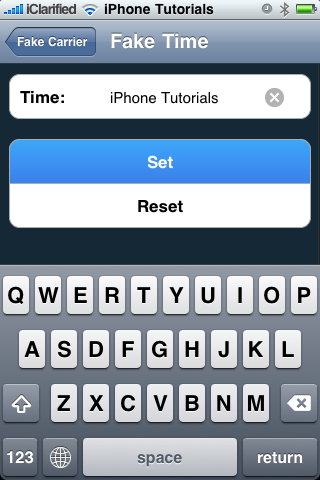
To replace the time banner at the top of the screen press the Fake Time button from the main menu.
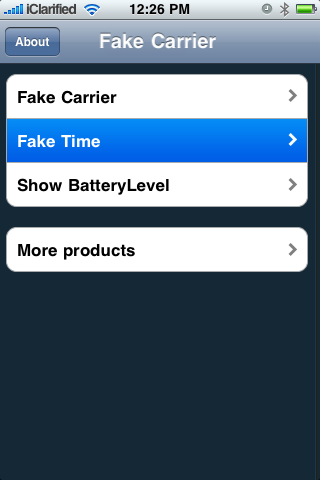
Input your own text for the banner then press the Set button to make it active. To return to the default time banner press the Reset button.
Step One
Press to launch Cydia from your Springboard.
Step Two
Press to select the Sections tab from the bottom of the screen.
Step Three
Press to select Utilities from the list of Sections.
Step Four
Press to select FakeCarrier from the list of Packages.
Step Five
Press the Install button at the top right of the screen.
Step Six
Press the Confirm button at the top right of the screen to begin installation.
Step Seven
Once the application has installed successfully press the large Return to Cydia button.
Step Eight
Press the Home button to return to your Springboard then press to launch FakeCarrier.
Step Nine
Press the Fake Carrier button to customize your carrier name.
Input your own carrier name then press the Set button to make it active. To return to the default carrier name press the Reset button.
Step Ten
To replace the time banner at the top of the screen press the Fake Time button from the main menu.
Input your own text for the banner then press the Set button to make it active. To return to the default time banner press the Reset button.


![Apple TV Shares 'Full Throttle' With F1 Drivers and Vince Young Ahead of U.S. Grand Prix [Video]](/images/news/103023/103023/103023-160.jpg "Apple TV Shares 'Full Throttle' With F1 Drivers and Vince Young Ahead of U.S. Grand Prix [Video]")
![MacBook Neo Helps Apple Gain PC Market Share Despite Shipment Decline [Report]](/images/news/103020/103020/103020-160.jpg "MacBook Neo Helps Apple Gain PC Market Share Despite Shipment Decline [Report]")
![iPhone Duo Teardowns Reveal Dual-Battery Design and Repair Challenges [Video]](/images/news/103014/103014/103014-160.jpg "iPhone Duo Teardowns Reveal Dual-Battery Design and Repair Challenges [Video]")


![How To Back Up Your iPhone to an External Drive on Mac [Video]](/images/tutorials/72786/72786/72786-160.jpg "How To Back Up Your iPhone to an External Drive on Mac [Video]")

![How To Find Your IP Address on iPhone [Video]](/images/tutorials/496/496/496-160.jpg "How To Find Your IP Address on iPhone [Video]")

![New Fire TV Stick 4K Drops to $29.99 (50% Off) [Deal]](/images/news/102984/102984/102984-160.jpg "New Fire TV Stick 4K Drops to $29.99 (50% Off) [Deal]")
![Apple's iPhone 18 Pro and Pro Max Cases Are Up to 37% Off [Deal]](/images/news/102978/102978/102978-160.jpg "Apple's iPhone 18 Pro and Pro Max Cases Are Up to 37% Off [Deal]")
![16-Inch MacBook Pro With M5 Pro Drops to $2,429 ($570 Off), Lowest Price We've Seen [Deal]](/images/news/102957/102957/102957-160.jpg "16-Inch MacBook Pro With M5 Pro Drops to $2,429 ($570 Off), Lowest Price We've Seen [Deal]")