These are step by step instructions on how to copy contacts from your SIM Card to your iPhone.
Before attempting this tutorial please make sure you have BSD Subsystem installed on your iPhone. You can find instructions to do that here
Step One Make sure you have the iClarified Installer Source added to your Installer App. You can find instructions on how to do that here
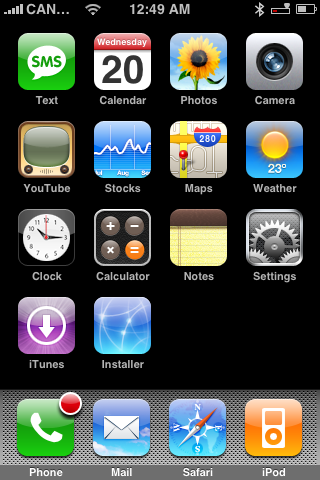
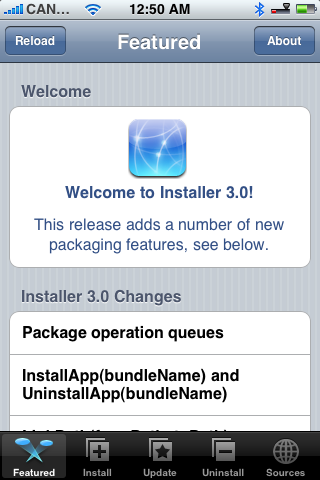
Step Two Press to launch Installer from on your SpringBoard.
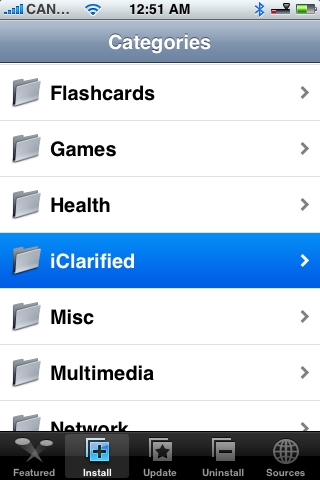
Step Three Press to select the Install tab at the bottom of the screen.
Step Four Press to select iClarified from the list of Categories.
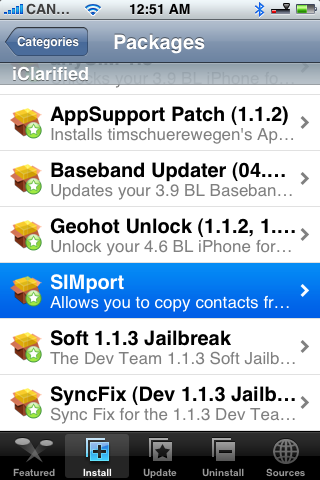
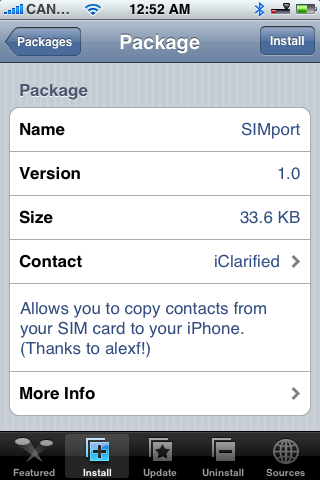
Step Five Press to select SIMport from the list of Packages.
Step Six Press to select the Install button at the top right of the screen.
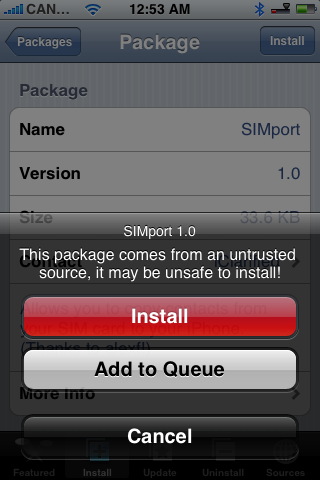
Step Seven Press to select the large red Install button that appears.
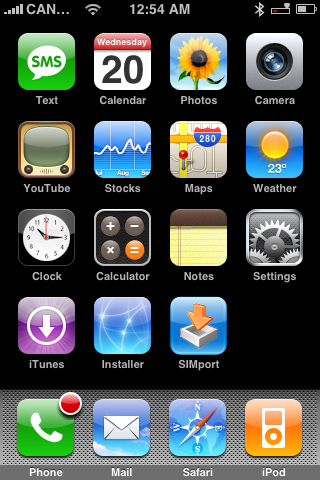
Step Eight Once the package has downloaded and finished installing you will be returned to the Categories list. Press the Home button to return to your SpringBoard. From your SpringBoard press to select the new SIMport icon.
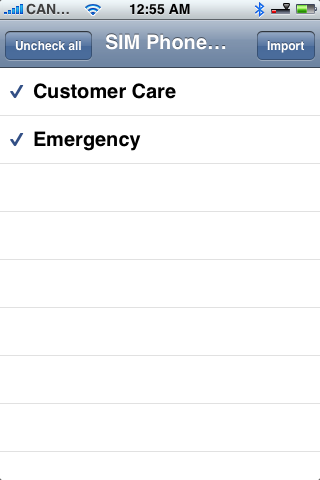
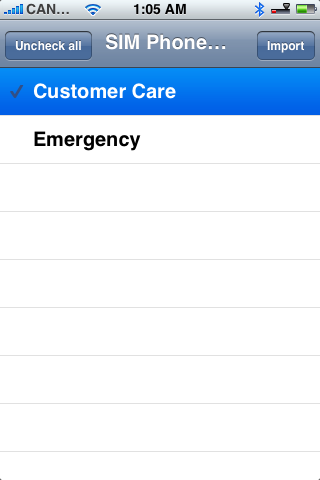
Step Nine You will be displayed a loading screen and then a list of the contacts on your SIM Card will be displayed.
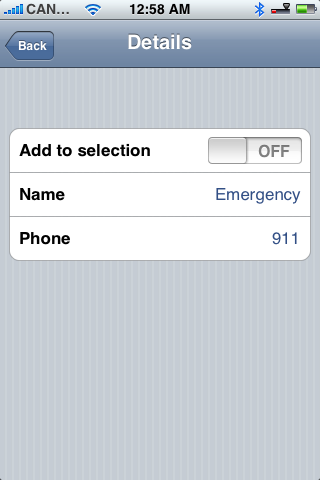
Step Ten By default all the contacts are selected for import. If you wish to deselect all the contacts the press the Uncheck all button at the top left. If you wish to deselect one contact then press to select the contact and slide the Add to selection switch to OFF. Then press the Back button at the top left to return to the list.
Step Eleven When done selecting the contacts for import press the Import button at the top right to begin.
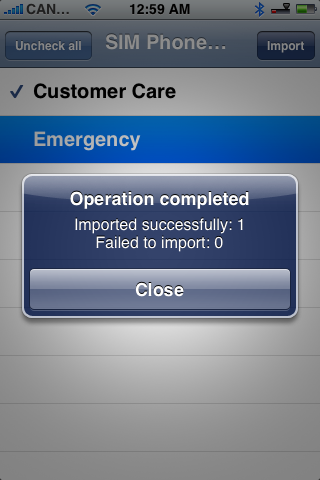
Step Twelve Once the import has completed a notice will appear letting you know how many contacts were successfully imported. Press the large Close button.
You can now check your address book to see the contact you just imported!
THANKS*: This app was developed by alexf from hackint0sh. Big thanks go out to him!
Get the iClarified Daily Newsletter
Apple news, rumors, tutorials, price drop alerts, in your inbox every evening, free.
Unsubscribe at any time.
Success!
You have been subscribed.
Add Comment
Would you like to be notified when someone replies or adds a new comment?
Yes (All Threads)
Yes (This Thread Only)
No
Notifications
Would you like to be notified when we post a new Apple news article or tutorial?
Hi,
I've got the SIM contacts bit covered.
But I have no idea how to copy / access the SMS that were recorded in SIM.
I have a 256 kb SIM with 4 different partitions..
Stores 250 contacts and xx SMS in each partition..
Now I would like to transfer all of them to my phone.
Anyone if you have the solution to this SMS transfer from SIM to
Remove the SIM from the old phone to be copied.
Use the wire provided by iPhone to open the iPhone SIM card tray.
Remove the iPhone SiM card and replace it with the card to be copied.
Open the iPhone menu to settings, to contacts, to copy SIM card.
When the operation is finished, replace the iPhone SIM card into its original position.
Your address book will now be on the iPhone.
Most blogs that I read never mentioned the need to physically exchange SIM cards.
Chaps,
I been trying to do this for ages too.. Then I realised something! Its a standard thing on the 2.2.1 software, if you go - settings - mail, contacts,calendars - under the contacts list is a "import sim contacts" button! ha ha.. God I feel an idiot now...
Hi!
I´ve tried to install SIMPORT with the firmware 2.0.1. when i push the package too install it appears an error: "unable to decode package more info al https://www.iclarified.com/"
What is the reason? it could be that the simport v 1.0 is old for this firmware ( 2.0.1).
this program simply doesnt work for me, im on 1.1.4 iphone unlocked, it just copied 5 numbers that have to do with my provider, to check balance, and check voicemail, all my other contacts are gone., any ideas?
Hi Guys. I have a problem. I have ran Simport and all my Sim contacts are showing in my iphone. But when one of my contacts phones me I still get the phone number not the contact name. Any solution to this please? Thanks. My phone is a 1.1.3 freed with ziphone 2.3
Hello guys, I m having a problem with this app, i installed it and copied all of my 250 contacts normally HOWEVER all my SIM contact numbers begin with "+" which is the inetrnational prefix before the country code so when i copied the contacts the "=" sign wansnt copied. its a problem since if i dial any number it will give me an error since the "=" sign must be there. why doesnt it copy the "=" sign ?? thank u in advance
Dear Sir,
I have 1.1.2 version , and i unlocked the phone , added app support patch for unsupported countries , added volume patch , let me know whther i have to install iphone region format settings .
the problem with my phone is the volume is very low , early in the morning i cannot talk with other in the phone , the person whom i call says that the phone is muted , is there any connection with the iPhone Region Format for All Locales settings , or do i have to install iworld please help me out
Sir also tell me is there any necessity to install
anySIM1.2U
Region format patch (1.1.3)
Baseband updater
(i havent installed the above yet , please let me know do i have to install all of them , i have a 1.1.2 version phone)
please tell me how to overcome the volume problem
i have App support Patch (1.1.2) version 1.2 , Volume Boost (1.1.2) version 1.0, Community sources version 3.6 , BSD subsystem version 2.1 , Installer 3.0 version installed
please mention is there any other patches to added so that my volume problem is sorted out
cheers
kiran
Hi Guys. I have a problem. I have ran Simport and all my Sim contacts are showing in my iphone. But when one of my contacts phones me I still get the phone number not the contact name. Any solution to this please? Thanks.
Shame is that it does not recognize the country prefix so I have to add a + to all the numbers. Is there anyway I can change the phone settings to a European (or German) phone? I might have missed that part. Thanks.





![Pro Photographer Austin Mann Tests iPhone 18 Pro Camera [Video]](/images/news/102297/102297/102297-160.jpg "Pro Photographer Austin Mann Tests iPhone 18 Pro Camera [Video]")
![Apple Releases Xcode 27.1 Beta With iPhone Duo SDKs and Simulator [Download]](/images/news/102276/102276/102276-160.jpg "Apple Releases Xcode 27.1 Beta With iPhone Duo SDKs and Simulator [Download]")
![Apple Shares 'new trick' Shot on iPhone 18 Pro Ad Featuring ROSÉ [Video]](/images/news/102273/102273/102273-160.jpg "Apple Shares 'new trick' Shot on iPhone 18 Pro Ad Featuring ROSÉ [Video]")









![Apple Studio Display XDR Hits All-Time Low of $2,969.99 ($329 Off) [Deal]](/images/news/101976/101976/101976-160.jpg "Apple Studio Display XDR Hits All-Time Low of $2,969.99 ($329 Off) [Deal]")
