These are instructions on how to use your iPhone as a wireless touchpad for your mac.
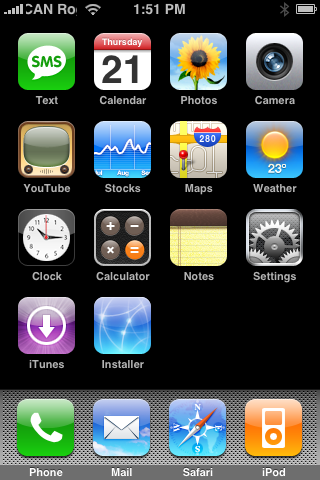
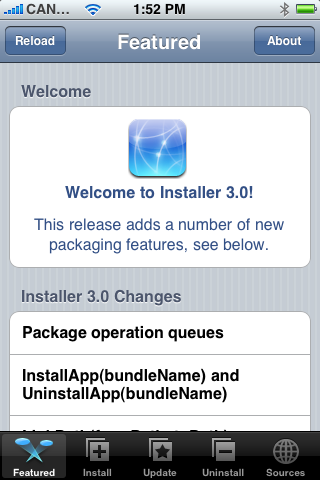
Step One Press to select Installer from your Springboard.
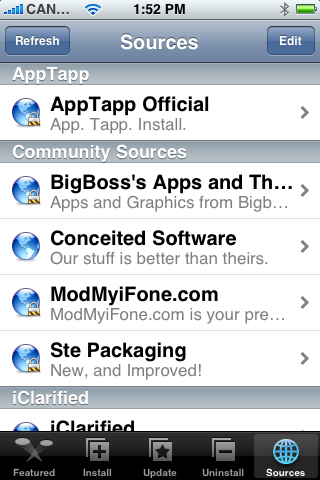
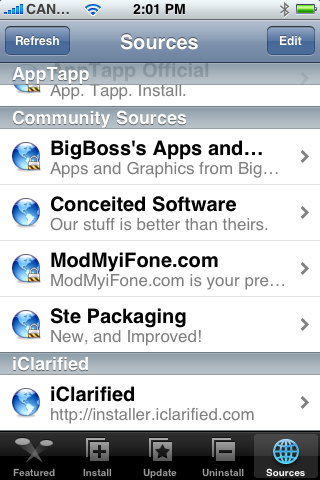
Step Two Press to select the Sources tab at the bottom right of the screen.
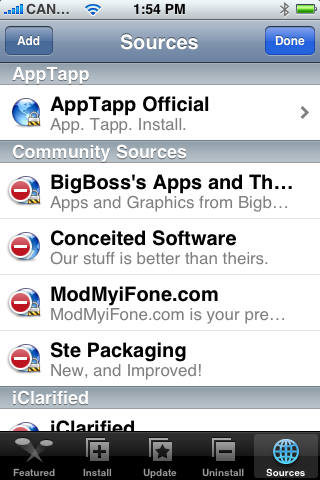
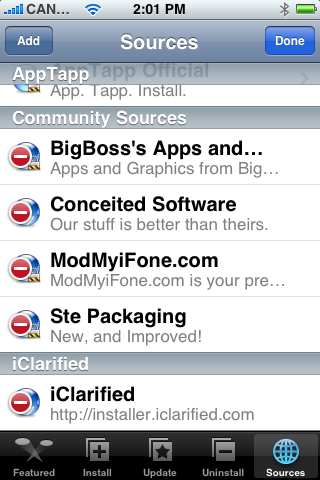
Step Three Press to select the Edit button at the top right of the screen.
Step Four Press to select the Add button at the top left of the screen.
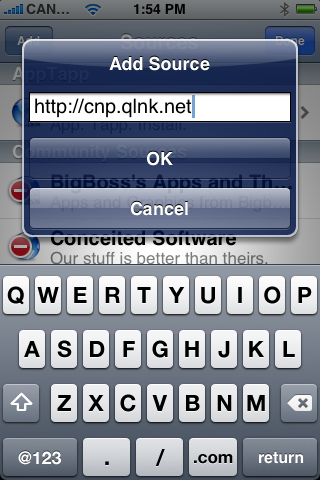
Step Five Enter http://cnp.qlnk.net into the entryfield then press the large OK button.
Step Six Press the Done button at the top right of the screen.
Step Seven Press the Install tab at the bottom of the screen.
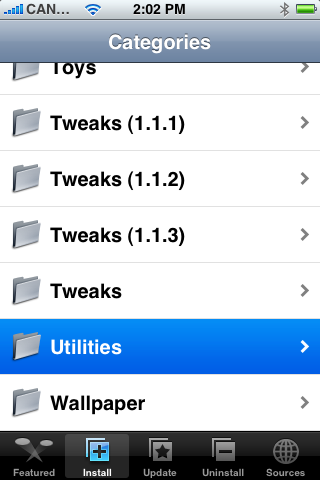
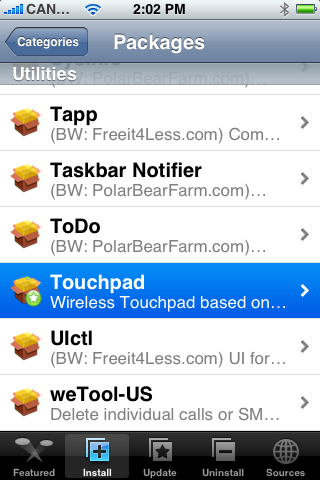
Step Eight Press to select Utilities from the list of Categories.
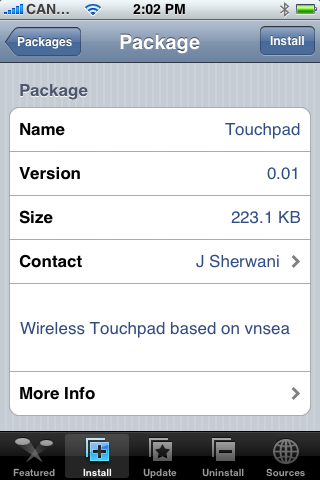
Step Nine Press to select Touchpad from the list of Packages.
Step Ten Press the Install button at the top right of the screen.
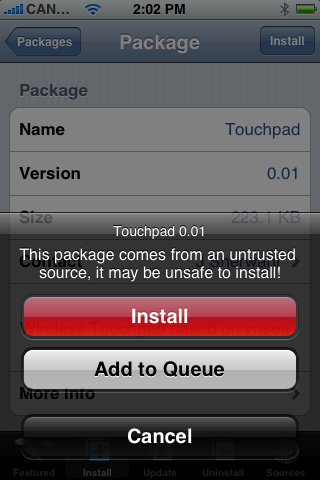
Step Eleven Press the large Install button that appears.
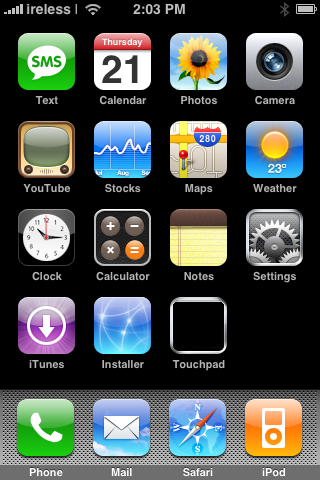
Step Twelve When Touchpad is finished installing you will be returned to the Categories list. Press the Home button to return to your Springboard, then press the Touchpad icon to launch the program.
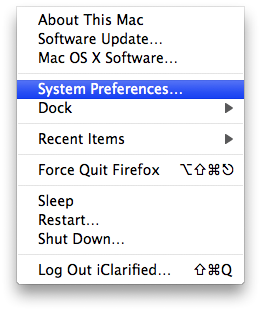
Step Thirteen Now on your computer click the System Preferences from the Apple Menu at the top left hand corner of your screen.
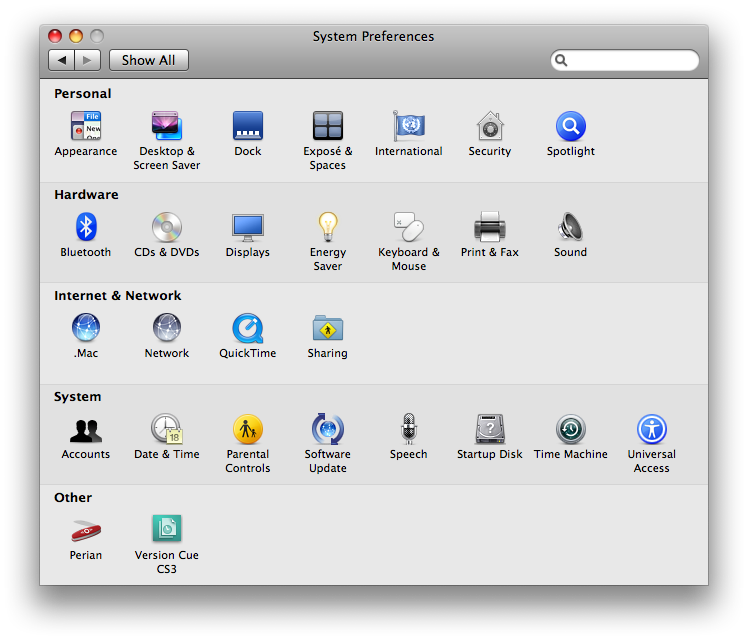
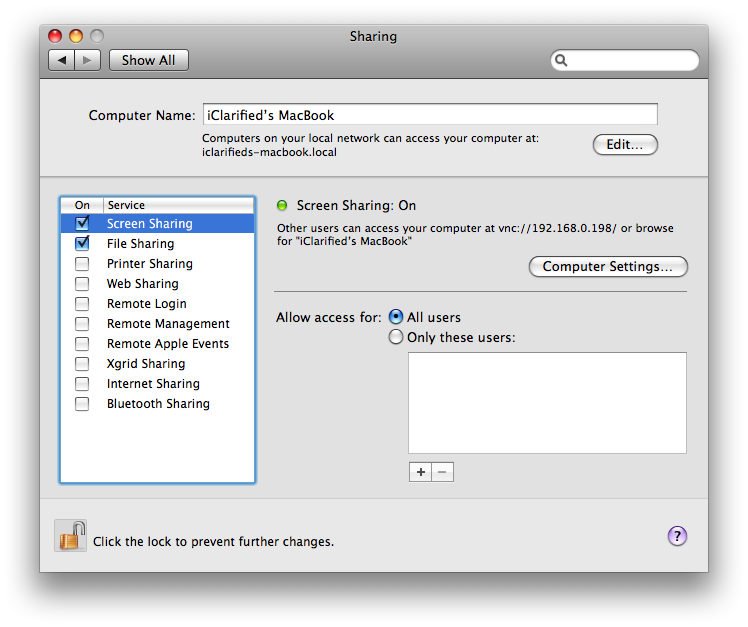
Step Fourteen Click the Sharing icon from the System Preferences window.
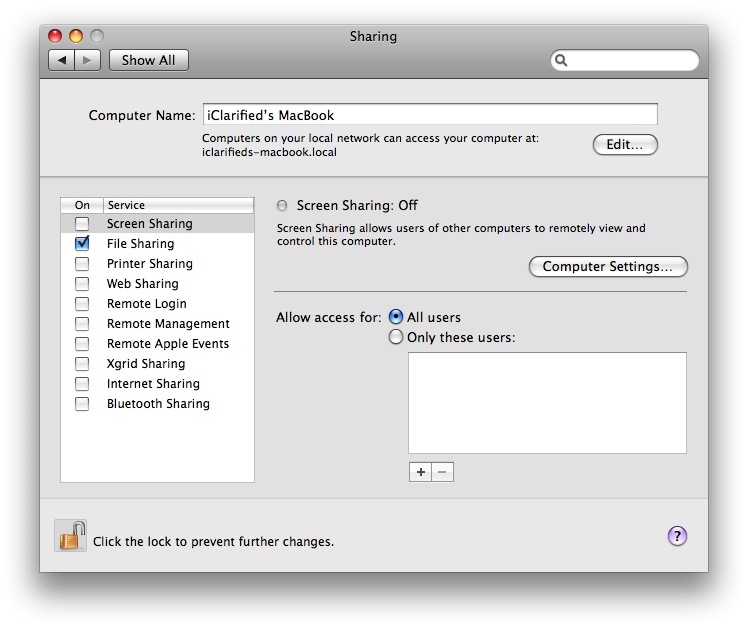
Step Fifteen Notice at the bottom of the window there is a picture of a lock.
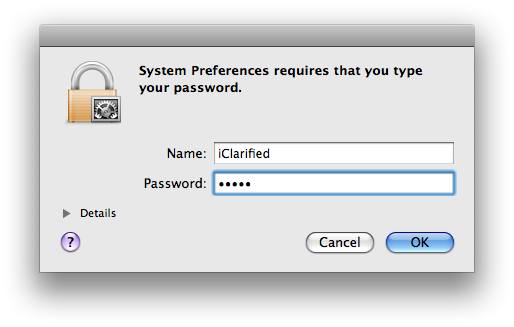
If its not unlocked then click the icon and you will asked to login as an Administrator. Enter your Administrator username and password then click the Ok button. The lock will then change to an unlocked icon!
Step Sixteen Check the box next to Screen Sharing on the left side of the window.
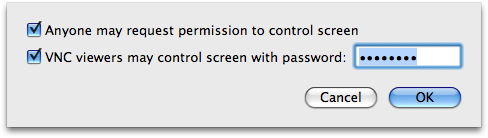
Step Seventeen Click the Computer Settings button. A window will appear with two checkboxes. Check both boxes and then enter a password in the field provided. This is the password you will use to VNC into your computer! Now click the OK button.
Step Eighteen Back on your iPhone, press to launch Touchpad from the Springboard.
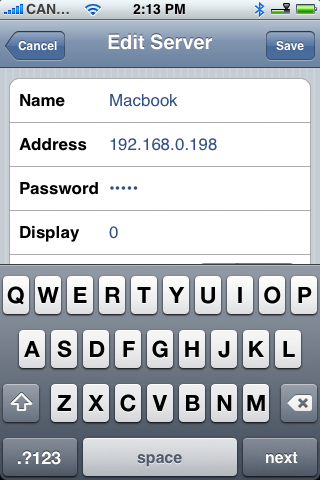
Step Nineteen Press the + button at the top right of the screen.
Step Twenty You will now be presented with the Edit Server screen. Enter a name from the computer you are connecting to. Enter an Address for the computer as well. (You can find this address from the screen in Step Seventeen.) Enter the password you set in Step Seventeen. Then, when you have entered all those settings you may press the Save button at the top right.
Step Twenty One Now that you have configured your server you may press to select it from the list of servers.
Step Twenty Two Now that you have connected to your computer you can use your iPhone as a Touchpad!!!
Thanks***: Big thanks goes out to Jahanzeb for creating this app!
Get the iClarified Daily Newsletter
Apple news, rumors, tutorials, price drop alerts, in your inbox every evening, free.
Unsubscribe at any time.
Success!
You have been subscribed.
Add Comment
Would you like to be notified when someone replies or adds a new comment?
Yes (All Threads)
Yes (This Thread Only)
No
Notifications
Would you like to be notified when we post a new Apple news article or tutorial?
im getting an error. not sure what happened because it was working at first....it keeps telling me: Connection failed No server with the name vnc. ive double and triple checked all the settings and have reinstalled the app a few times as well. any ideas iClarified?
i've follow all the steps, but eventually it shows "connection could not be madeto host 192.XXX.X.XXX port 5900".
But my case, the last digit of ip add shown on cmd & Wi-Fi network of iPhone is different!!
thank you for the vine server tip.
I found the answer to my question.
To use this where there's no wifi network, i just created a network on my macbook and then conected to that. it'll be great for my classes
I use leopard but find this method taxing on my CPU so I use Vine Server instead of the built in vnc server. Its free and works with tiger as well and is light on CPU. After configering it just start the system server in settings and it will load in the background on startup.
also, is it possible to use this in a place with a wireless router os AP? As an exemple, using only the macbook and iphone with an ad-hoc wireless conection...