These are instructions on how to use your iPhone as a wireless touchpad for your windows computer.
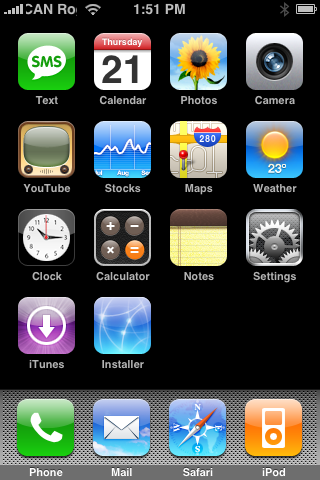
Step One Press to select Installer from your Springboard.
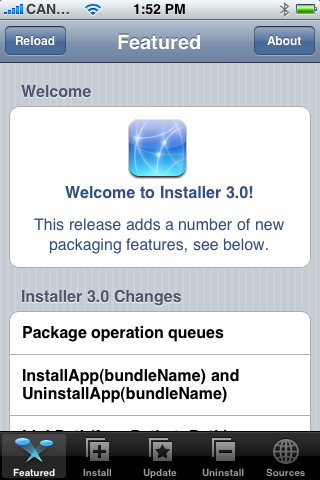
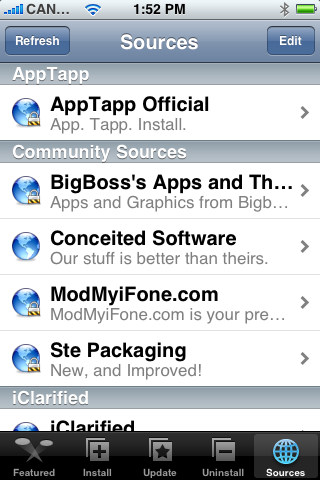
Step Two Press to select the Sources tab at the bottom right of the screen.
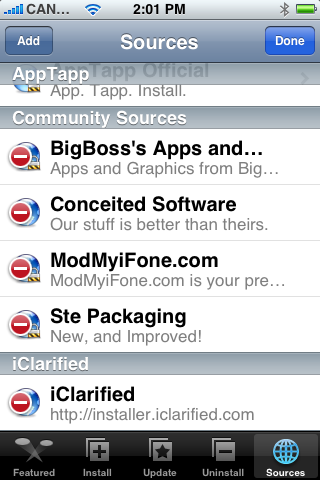
Step Three Press to select the Edit button at the top right of the screen.
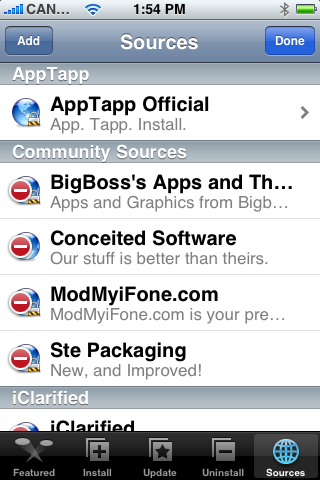
Step Four Press to select the Add button at the top left of the screen.
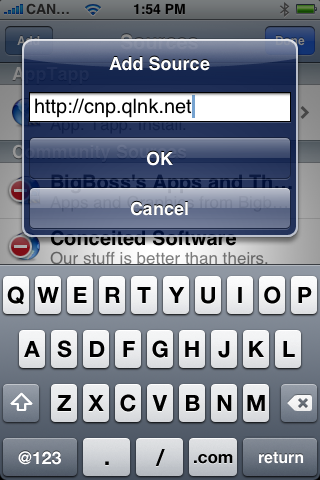
Step Five Enter http://cnp.qlnk.net into the entryfield then press the large OK button.
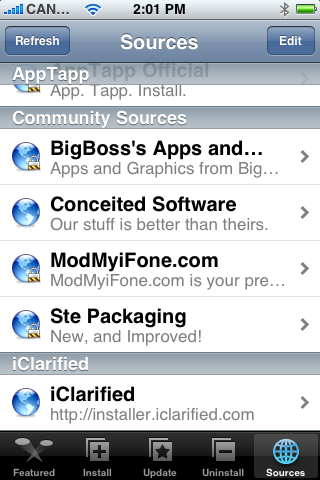
Step Six Press the Done button at the top right of the screen.
Step Seven Press the Install tab at the bottom of the screen.
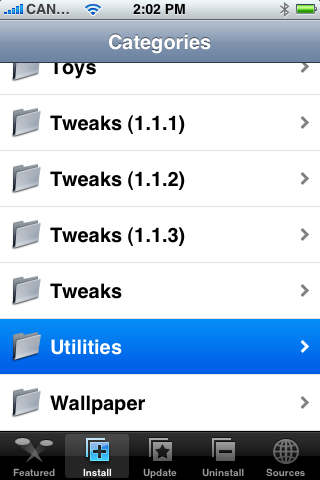
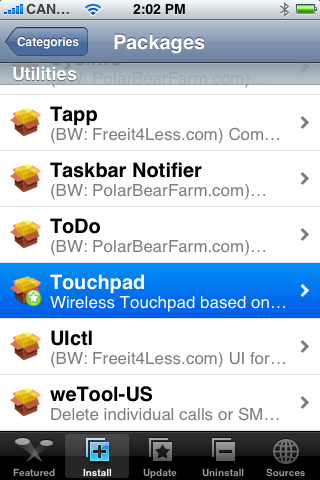
Step Eight Press to select Utilities from the list of Categories.
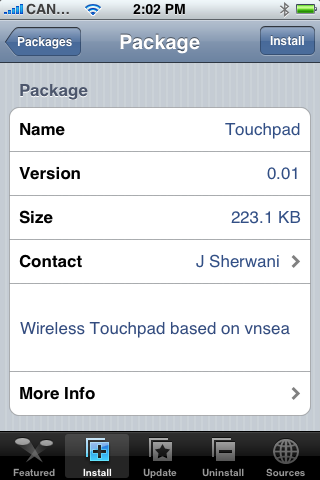
Step Nine Press to select Touchpad from the list of Packages.
Step Ten Press the Install button at the top right of the screen.
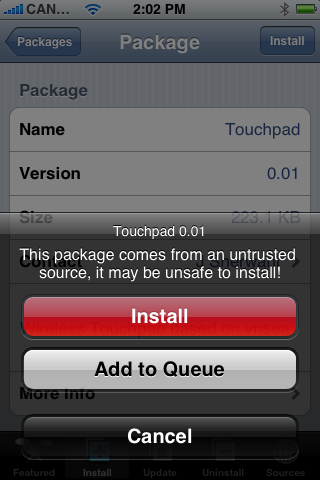
Step Eleven Press the large Install button that appears.
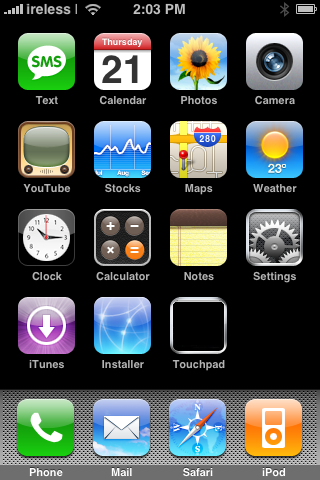
Step Twelve When Touchpad is finished installing you will be returned to the Categories list. Press the Home button to return to your Springboard, then press the Touchpad icon to launch the program.
Step Thirteen Now on your computer download an install TightVNC from here
Step Fourteen Launch TightVNC Server by selecting it from the Program list.
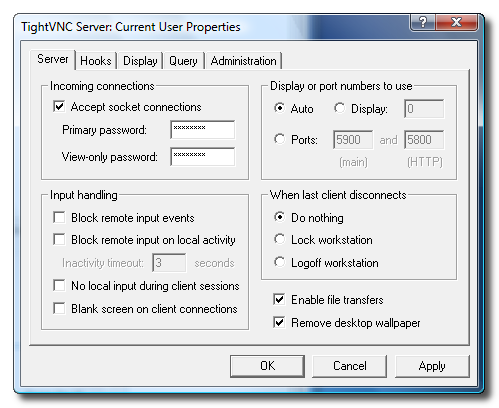
Step Fifteen Change the Primary password and View-only password to a password of your choice. Than click the Apply button.
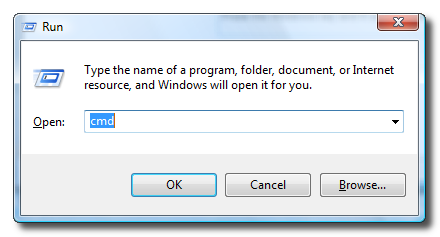
Step Sixteen Press the Windows key and R at the same time to bring up the Run window. Enter cmd into the field and click the Ok button.
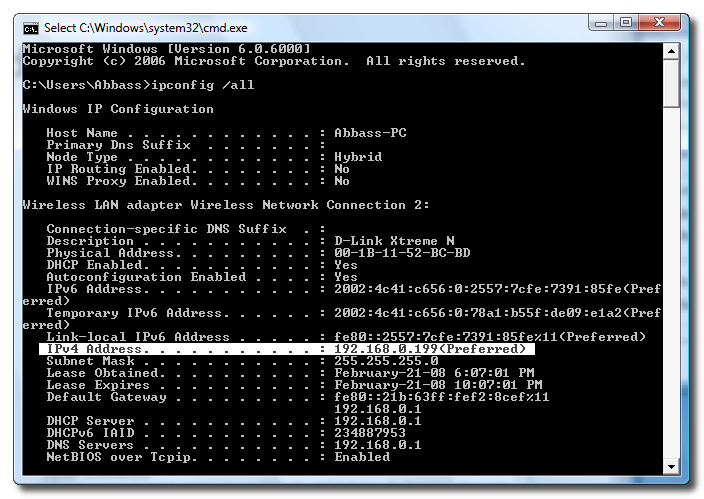
Step Seventeen When the command prompt appears, type in ipconfig /all and press the Enter key. Take note of your IP Address... In this case my IP is 192.168.0.199.
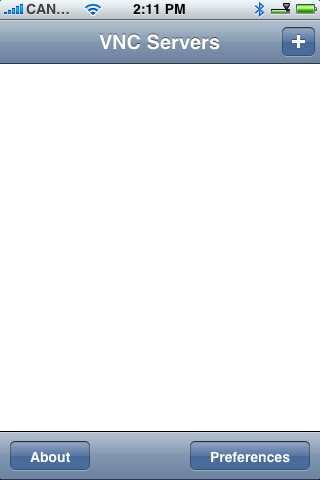
Step Eighteen Back on your iPhone, press to launch Touchpad from the Springboard.
Step Nineteen Press the + button at the top right of the screen.
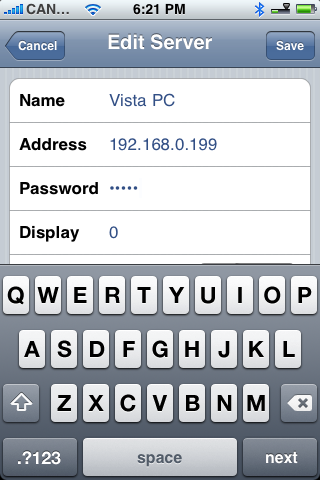
Step Twenty You will now be presented with the Edit Server screen. Enter a name from the computer you are connecting to. Enter an Address for the computer as well. (You can find this address from the screen in Step Seventeen.) Enter the password you set in Step Seventeen. Then, when you have entered all those settings you may press the Save button at the top right.
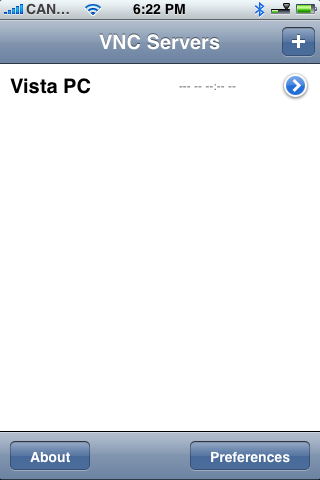
Step Twenty One Now that you have configured your server you may press to select it from the list of servers.
Step Twenty Two Now that you have connected to your computer you can use your iPhone as a Touchpad!!!
Thanks***: Big thanks goes out to Jahanzeb for creating this app!
Get the iClarified Daily Newsletter
Apple news, rumors, tutorials, price drop alerts, in your inbox every evening, free.
Unsubscribe at any time.
Success!
You have been subscribed.
Add Comment
Would you like to be notified when someone replies or adds a new comment?
Yes (All Threads)
Yes (This Thread Only)
No
Notifications
Would you like to be notified when we post a new Apple news article or tutorial?
@reboot:
For gnome, go to System -> Preferences -> Remote Desktop. VNC is installed with the default GNOME installation, but not enabled. Check the top two boxes and the bottom two if desired. VNC is a platform-independent protocol... life saver for Linux :D
I would not recommend using this client on the iPhone, though. VNsea in the Network category works just as well - I beleive it's the same package, and it doesn't require extra sources.
Does anybody know the default password of thightVNC? It would be so much easier to have tht saved in your iPhone, instead of always havinf to change the password to the choiche you selected.
Hi iclarified, I think many people will have using App problems on 1.1.3. Maybe can use the first time, then the App cannot run again & go to the spring board. Would you make any fixs to fix this problem?
Thanks!!
Yesterday I had the same problem. I use Ziphone after restore my iPhone 1.1.3. I had a black display in recovery mode. I restore with Itunes in 1.1.3 and Ziphone 2.4. Now he work perfect and really fast. Better don't use this app.
I have installed it and it worked ok, but when I turned off the iPhone and tried to turn it back on it will not start up! I just get the apple sign for a few mins then I get the apple sign and a spinning wheel behind it but it does not spin. I have put it in to restore mode and tried to restore it but get an error. I also tried to unlock it with Ziphone GUI 2.4 but it comes back to the same screen! Please do not try it on your iPhone as my iPhone now does not work and was working fine before on 1.1.3.
it wont work....whenever i click it on my iphone it says the server closed the connection...what should i do i closed the firewall and everything but still no...i am on vista is that why???





![Apple Cuts Fitness+ Jobs as It Rethinks the Service [Report]](/images/news/102306/102306/102306-160.jpg "Apple Cuts Fitness+ Jobs as It Rethinks the Service [Report]")

![Pro Photographer Austin Mann Tests iPhone 18 Pro Camera [Video]](/images/news/102297/102297/102297-160.jpg "Pro Photographer Austin Mann Tests iPhone 18 Pro Camera [Video]")









![Apple Studio Display XDR Hits All-Time Low of $2,969.99 ($329 Off) [Deal]](/images/news/101976/101976/101976-160.jpg "Apple Studio Display XDR Hits All-Time Low of $2,969.99 ($329 Off) [Deal]")
