These are instructions on how to unlock and jailbreak your iPhone 2G on the 3.1.2 iPhone firmware using RedSn0w for Mac.
The Windows version of this tutorial is here. If you have an iPhone 3GS please follow these instructions. If you have an iPhone 3G please follow this tutorial.
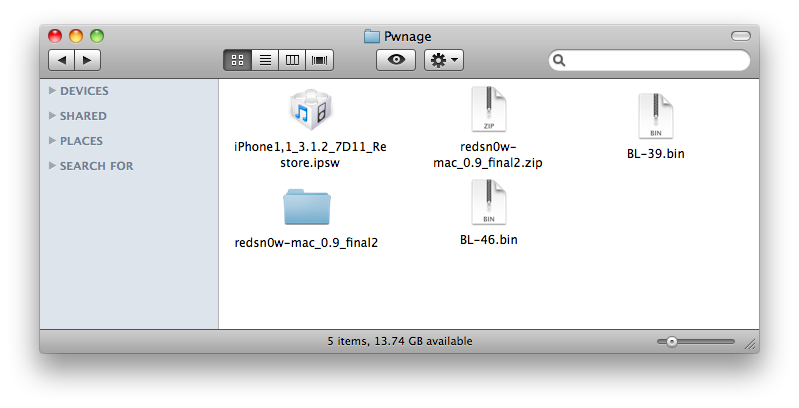
Step One Create a folder called Pwnage on your desktop.
Download the following files and place them in the Pwnage folder you just created: - RedSn0w - BL 3.9 - BL 4.6 - 3.1.3 (2G): iPhone1,1_3.1.3_7E18_Restore.ipsw
Double click the redsn0w zip to extract the redsn0w folder to the Pwnage directory.
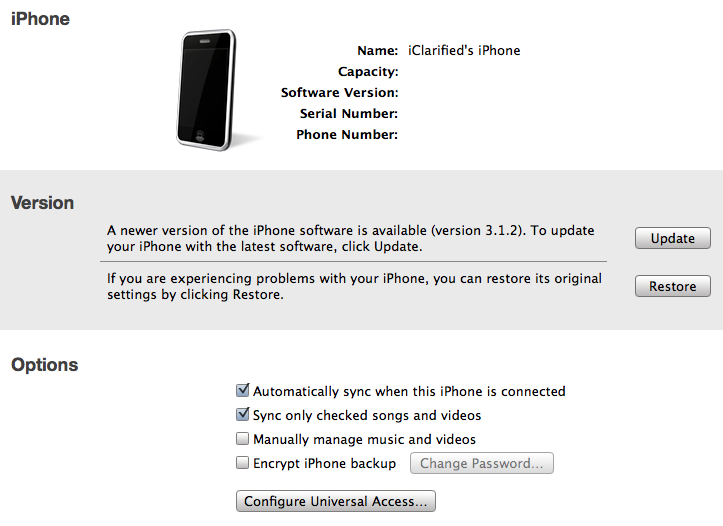
Step Two Connect your iPhone to the computer and launch iTunes.
Select your iPhone from the list of devices on the left. Now hold down Option and click the Restore button. Restore is preferred as it won't create any wasted space on your iPhone.
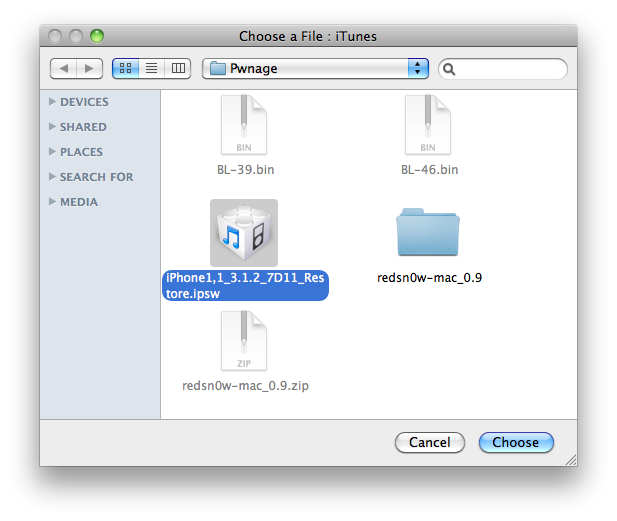
Navigate to the Pwnage folder on your desktop and select the firmware ipsw. Click the Open button to continue.
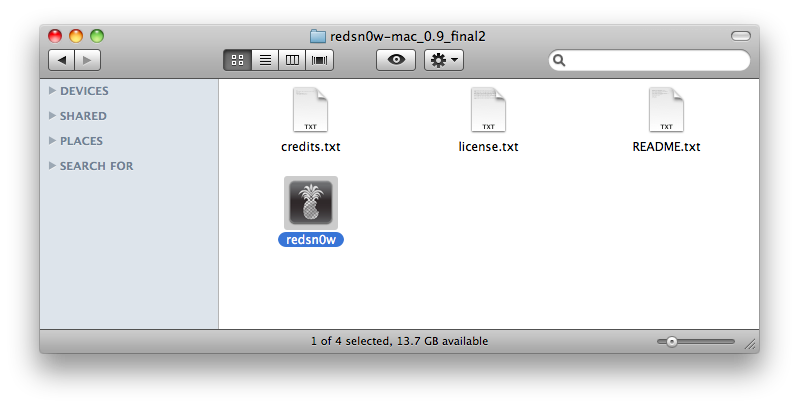
Step Three Once iTunes has finished updating your iPhone to the desired firmware open the Pwnage folder on your desktop and launch the redsn0w application from the redsn0w folder we extracted earlier.
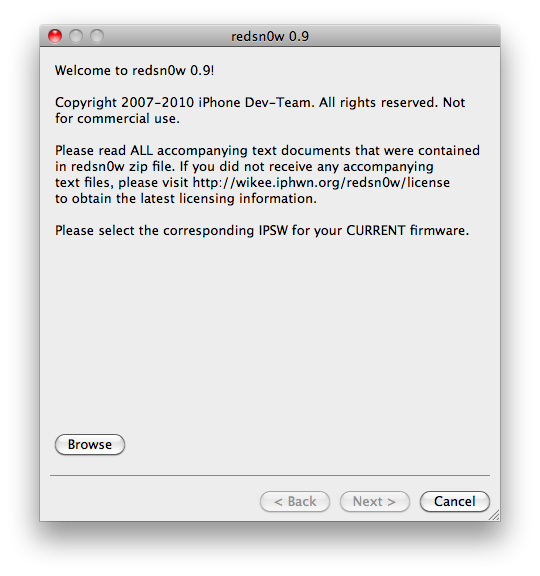
Step Four Once RedSn0w opens click the Browse button
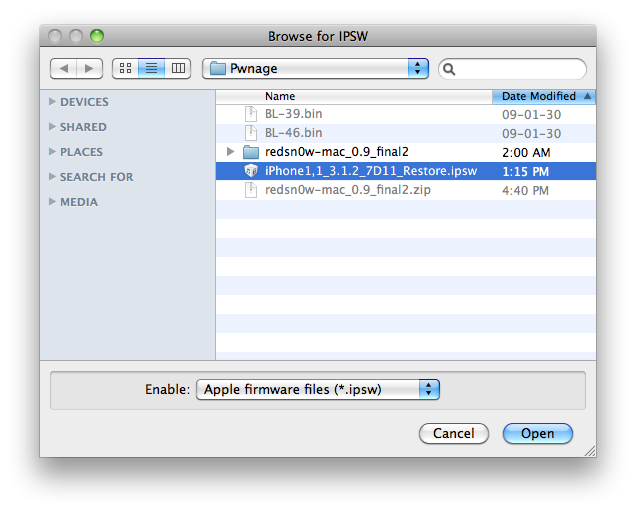
Step Five Select the firmware ipsw we placed in the Pwnage folder on our desktop then click Open
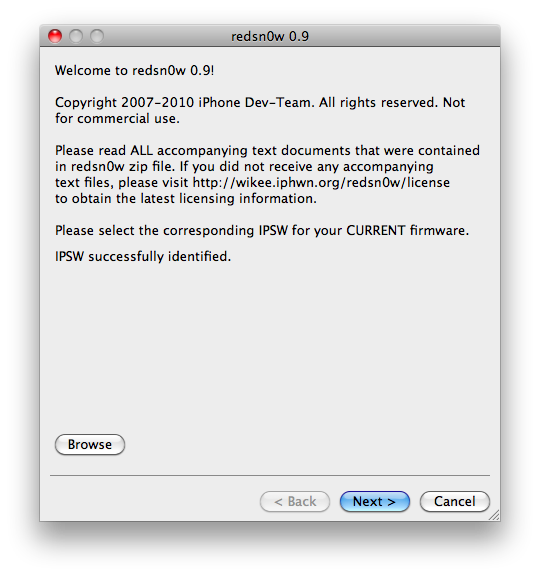
Step Six Once the firmware has been verified click the Next button to continue.
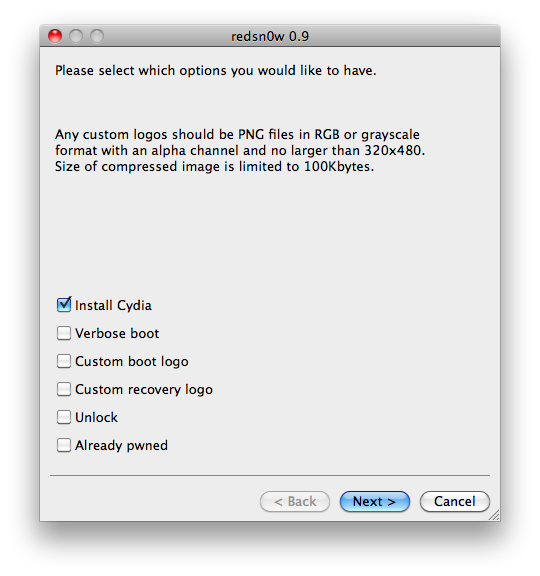
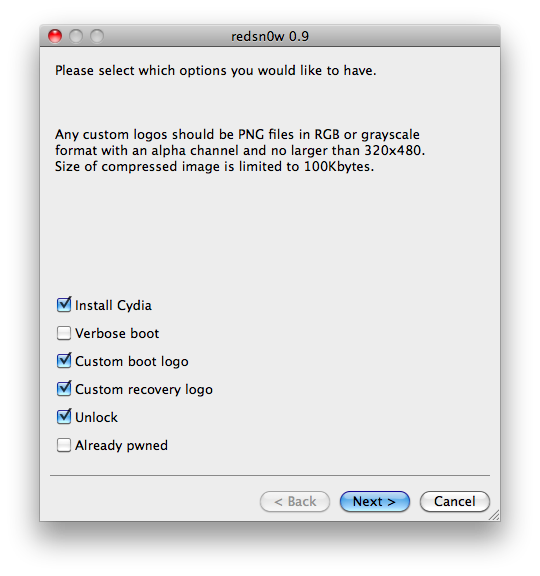
Step Seven From this window you can select the jailbreak options you would like. If you have already pwned your device check the Already pwned option.
Verbose boot displays detailed information on boot of your device and is generally only needed by developers and advanced users.
Make sure the Cydia and Unlock options are selected. For this tutorial we will also select Custom boot logo and Custom recovery logo.
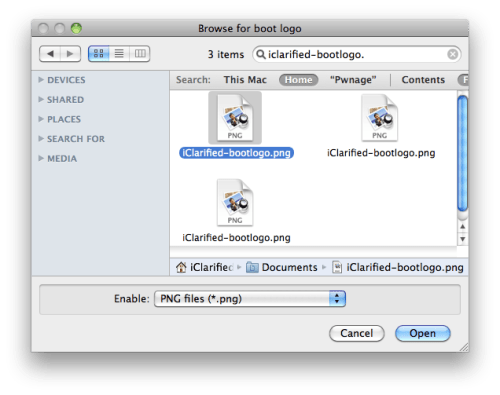
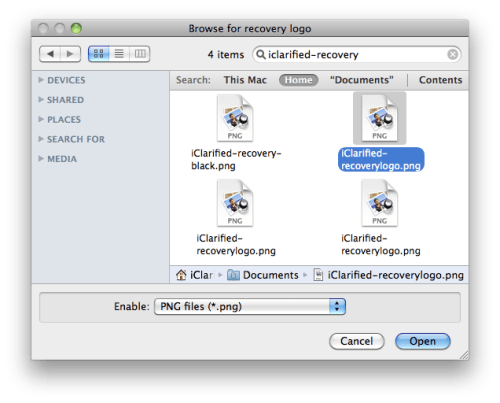
When you click to select each custom logo option a dialog window will appear asking you to select the image. Locate the image you would like to use then press the Open button.
*Remember the rules for boot logos are: RGB or Grayscale format with Alpha channel and dimension below 320x480. If you would like to use the iClarified ones they can be found here: Boot Logo, Recovery Logo
Click the Next button to continue
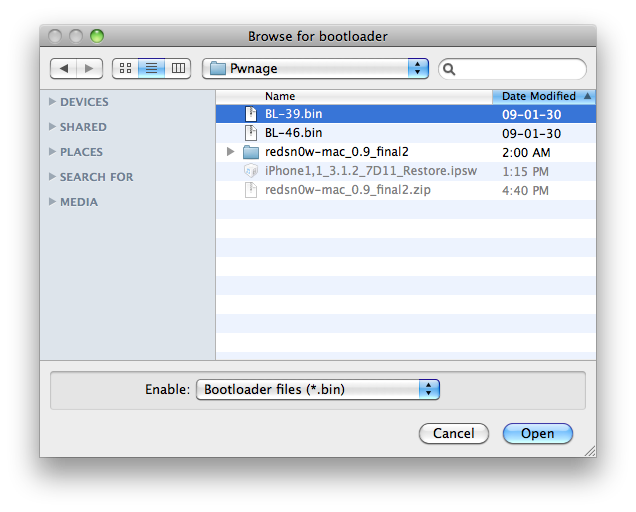
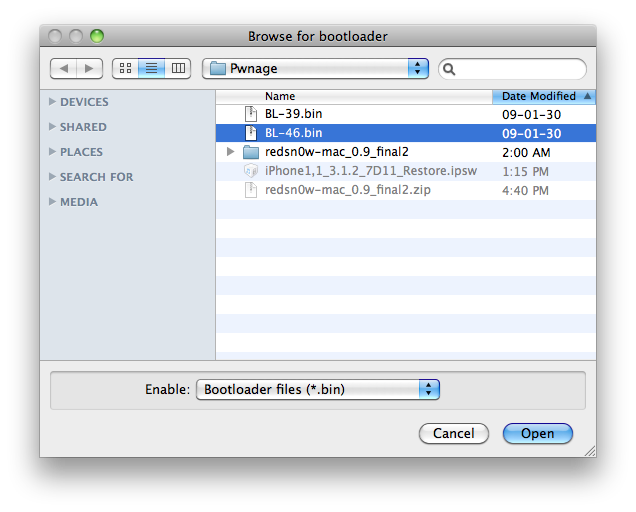
Step Eight We will now need to set the location of our bootloader files.
Click Browse and select the 3.9 bootloader file from the Pwnage folder on your desktop.
Click Browse and select the 4.6 bootloader file from the Pwnage folder on your desktop.
Click the Next button to continue.
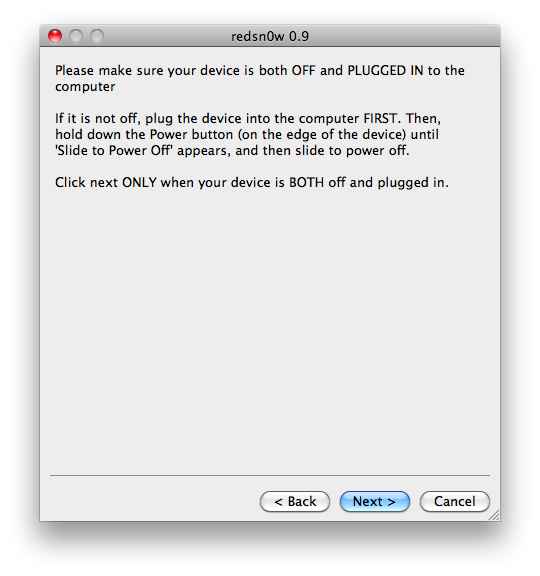
Step Nine Please plug your iPhone into the computer and make sure its OFF then click the Next button
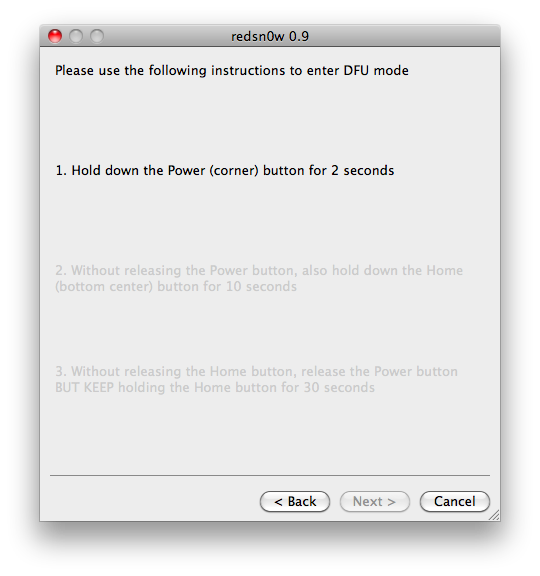
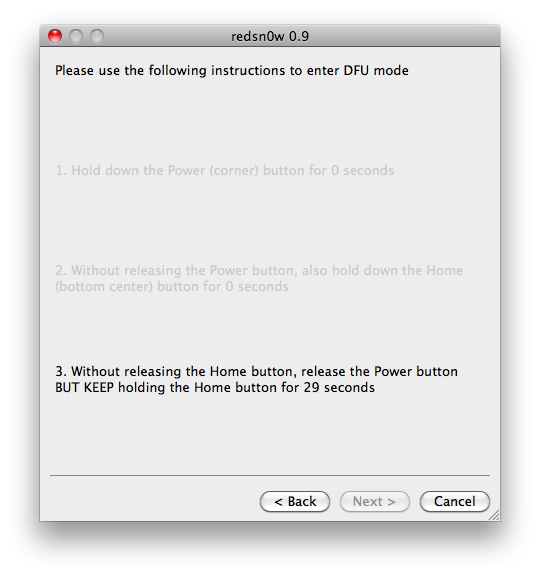
Step Ten RedSn0w will now guide you through the steps to get into DFU mode. You can find more help with DFU mode here
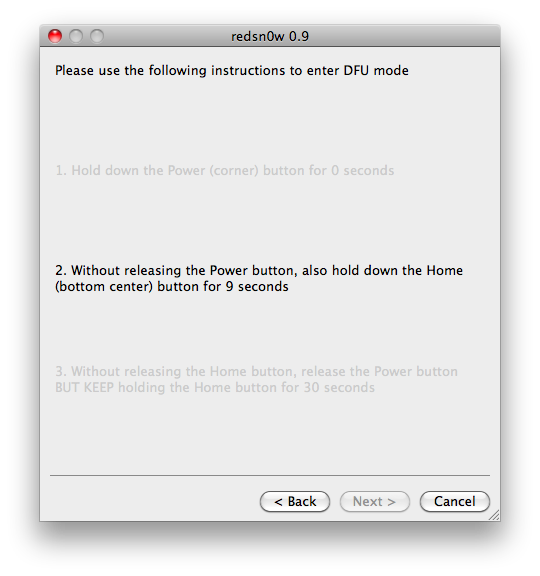
Hold down both the Home button and the Power button for 10 seconds.
Release the Power button and continue holding the Home button until RedSn0w detects the device.
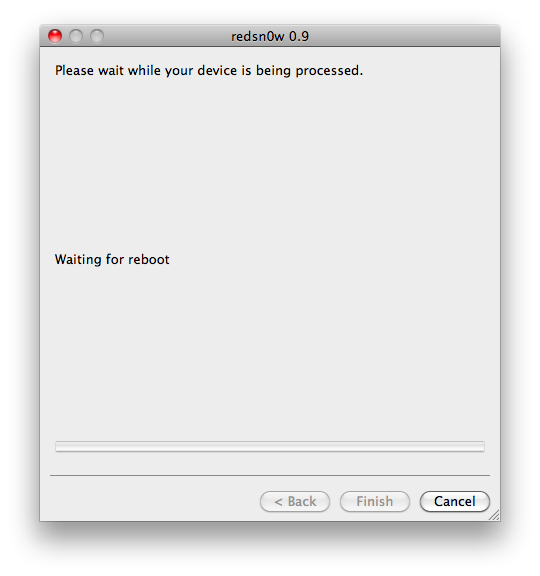
Step Eleven Your iPhone will now reboot
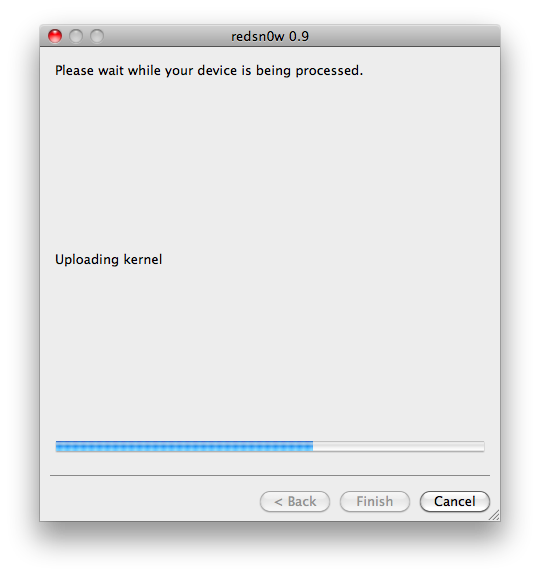
Step Twelve RedSn0w will then begin uploading the new RAM Disk and Kernel.
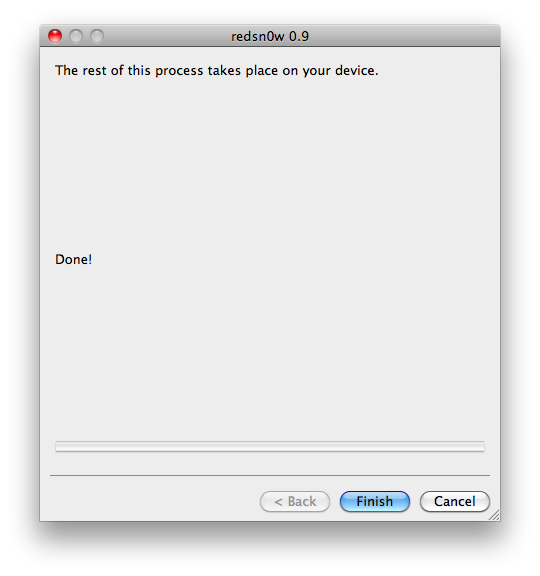
Step Thirteen Once this is complete you will be notified that RedSn0w is done. Click the Finish button.
When your iPhone finishes reboot (5 minutes or so). It will run BootNeuter then be unlocked and jailbroken with Cydia on the SpringBoard.
*As usual a big thanks to the iPhone Dev-Team for their hard work and contribution to the iPhone community.
Get the iClarified Daily Newsletter
Apple news, rumors, tutorials, price drop alerts, in your inbox every evening, free.
Unsubscribe at any time.
Success!
You have been subscribed.
Add Comment
Would you like to be notified when someone replies or adds a new comment?
Yes (All Threads)
Yes (This Thread Only)
No
Notifications
Would you like to be notified when we post a new Apple news article or tutorial?
I need help..
I wanted to unlock my Iphone 2G which has 3.1.3 version.
With recent itunes 11, I cannt do it. however also the itunes 8 /9 /10 it blocking and asking me to download latest version to follow backup n restore option.
Do we have any other way out..
Please help
I was able to complete all the steps and could see some updates on the iphone. I have left it conenct and now the screen is blank. Do i need to switch on the iPhone or wait till it re-Boots itself.
Thx
MJ
The tutorial and the links iClarified giving here are not matching! I am now stuck with a locked iPhone. Upgraded to 3.1.3 from the given link but stuck on step 4. Its 'Unrecognized IPSW' with Redsnow 0.9.4.
Hey Alex, I ran into the same issue on step 4. So what I did is download the iPhone1,1_3.1.2_7D11_Restore.ipsw file and used that instead and it worked. You can get it from the link below. After I used that file I continued following the steps and it worked fine. Hope it works for you too.
https://www.iclarified.com/entry/index.php?enid=750
Salut j'ai un gros proble8me au niveau du Jailbreak je tiens a sgnaile9 que ce n'est pas mon premier Jailbreak, si quelqun pouvez m'aider. DOONC, j'ai te9le9charge9 absinthe sous W7 tout marche juste au moment que je branche mon iphone (J'ai enleve9 TOUT les MDP) il l'reconnais mais il m'envoie un MSG d'erreur du genre : the attached device has a backup password set.You need to disable the backup password in itunes before you can continue Start itunes, remove the backup password and this program again EUHOK. Dooonc, je sais pas quoi faire y'a rien n'a faire j'ai tous essayer car j'ai vu que bcp pose9 la question, je suis sur l'Itunes de ma me8re fin c'est son pc ce sont ses music mais j'me suis de9connecte9 de son compte, mon pc est dead, je peut pas faire une restauration sinon j'perd toute mes musique AIDEZ MOI SVPPPPPPPPPPPPPP !!!!!
I solved this problem.
The link given in the download list at the top is: - 3.1.3 (2G): iPhone1,1_3.1.3_7E18_Restore.ipsw
When you download this, it is "iPhone1,1_3.1.3_7E18"
But, when you come to step 4, the current IPSW is not that version. Instead, it is: iphone1, 1_3.1.2_7D11_Restore.ipsw
Search for that file online.
Then in step 4, choose this file, not the first one you downloaded and used to back up your phone.
The rest of the steps will work just fine.
Got it... Thanks!!!
I did it on 2 different iPhone2G devices, and both are working perfectly.
Just make sure you use the file "iphone1, 1_3.1.2_7D11_Restore.ipsw" as user "m" earlier pointed out.
Good luck!
It just doesn´t work! Redsn0w says "unable to recognize specified IPSW", I followed all instructions, had 3.1.2 and was trying to put 3.1.3 - the tutorial seems wrong, for my disapointment!..... didn´t do anything wrong.. any1?
Run redsn0w 0.9.4 and click on browse. Point it to the iPhone OS 3.1.2 firmware you just copied to your desktop. Make sure your iPhone or iPod Touch is already updated to OS 3.1.3
Total confutation....what is the tutorial is going for...
U put there to download 3.1.3 7E18 but U select 3.1.2 7D11 (also in windows tutorial) but U download is not the firmware.
The other thing is not going for DFU mode.
Is it down grade to 3.1.2 or just unlock.
Pleas clear this.
I apologize in advance if this is a repost, but I have not been able to find a solution to my "unique" problem. I purchased a USED iPhone 2G from a coworker and I was successfully able to jailbreak (blackrain) and unlock (bootneuter) the phone to use an AT&T gophone SIM card. The OS seems way slower (to be expected, I guess) than my 2nd Gen 32GB iPod Touch. I should say that I am a Sprint customer, using a Treo Pro and I only wanted to get the iPhone because of the camera, bluetooth, and built-in earphone and transmitter. I was using Vonage Mobile (free unlimited domestic calls in the US--I have actually tethered it to the Treo Pro and gotten decent call quality at times!) for the iTouch and discovered that in order to activate the iPhone version, there was a test call that needed to go through, hence the goPhone SIM and the unlocking process.
Back to my problem. I have been unable to sync the device to iTunes and download my songs to the iPhone. It wants me to restore the phone and says that an iPhone (with my coworker's phone number) has already been synced to this computer. The reason I say my issue MAY be unique, is because most of the posters with unlocked iPhones seem to have "legit" AT&T iPhone accounts which is what I suspect may be my issue. My last resort, of course, is to restore the phone back to factory state, but I really don't want to lose my programs and such. I do have Pandora and Slacker, so I can listen to music most of the time, but I don't want to be restricted to wi-fi, since Edge is not really a practical option. ($20 for 100mb, and it is a pain to configure without a T-Mobile SIM card).
So, again, what I really want is to sync my jailbroken, unlocked iPhone 2G to iTunes.
Any suggestions?
Hi
iPhone is now 3.1.3 without unlock solution. Is it nevertheless possible to upgrade in 3.1.2 and jailbreak and unlock in this version ? using which tutorial ?
manythanks for help
iPhone 2G - V3.0.1






![Apple Releases Xcode 27.1 Beta With iPhone Duo SDKs and Simulator [Download]](/images/news/102276/102276/102276-160.jpg "Apple Releases Xcode 27.1 Beta With iPhone Duo SDKs and Simulator [Download]")
![Apple Shares 'new trick' Shot on iPhone 18 Pro Ad Featuring ROSÉ [Video]](/images/news/102273/102273/102273-160.jpg "Apple Shares 'new trick' Shot on iPhone 18 Pro Ad Featuring ROSÉ [Video]")
![iPhone 18 Pro Teardown Shows Under-Display Face ID Camera and Larger Vapor Chamber [Video]](/images/news/102270/102270/102270-160.jpg "iPhone 18 Pro Teardown Shows Under-Display Face ID Camera and Larger Vapor Chamber [Video]")











![Apple Studio Display XDR Hits All-Time Low of $2,969.99 ($329 Off) [Deal]](/images/news/101976/101976/101976-160.jpg "Apple Studio Display XDR Hits All-Time Low of $2,969.99 ($329 Off) [Deal]")
