These are instructions on how to install NetServices and use it to easily control your iPhone's network services.
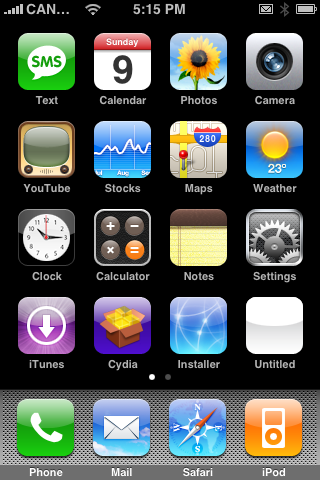
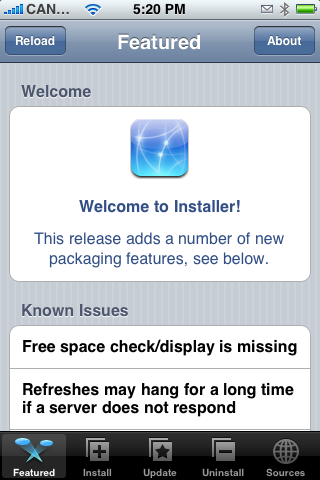
Step One Launch Installer from the SpringBoard by pressing its icon.
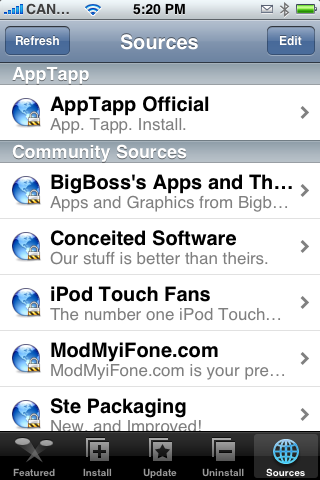
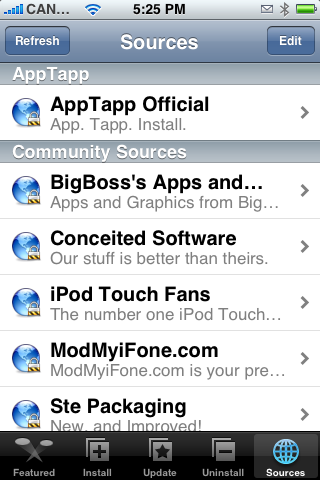
Step Two Press to select the Sources tab at the bottom right of the screen.
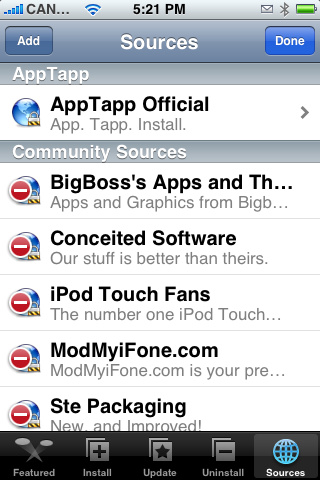
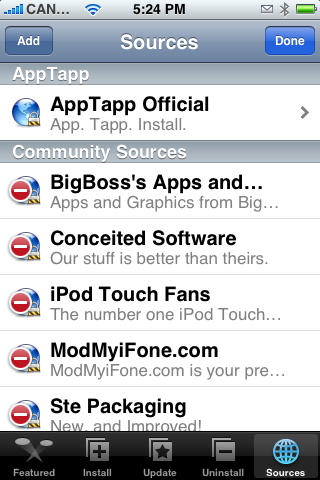
Step Three Press the Edit button at the top right hand corner of the screen.
Step Four Press the Add button at the top left hand corner of the screen.
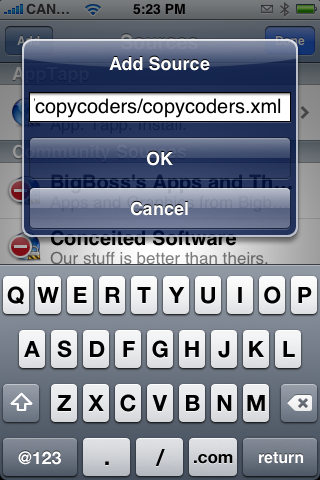
Step Five Enter http://homepage.mac.com/hartsteins/copycoders/copycoders.xml as the source address and press the OK button.
Step Six Press the Done button at the top right corner of the screen.
Step Seven Press to select the Install tab at the bottom of the screen.
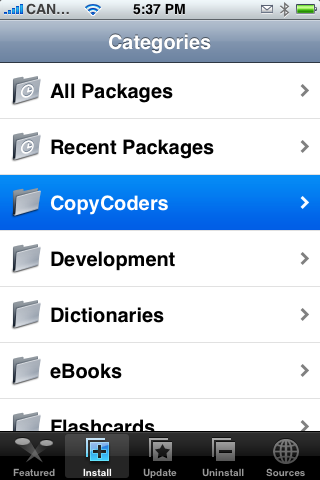
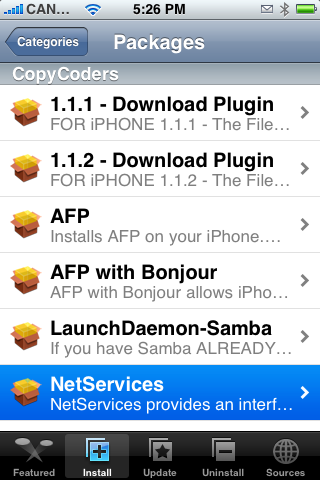
Step Eight Press to select CopyCoders from the list of Categories.
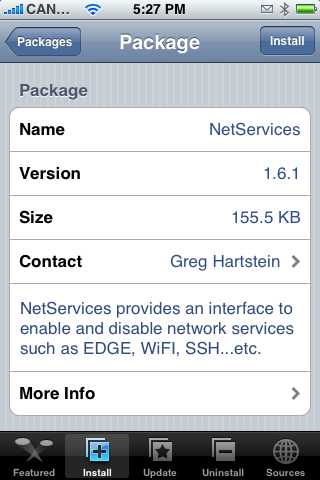
Step Nine Press to select NetServices from the list of Packages.
Step Ten Press the Install button at the top right corner of the screen.
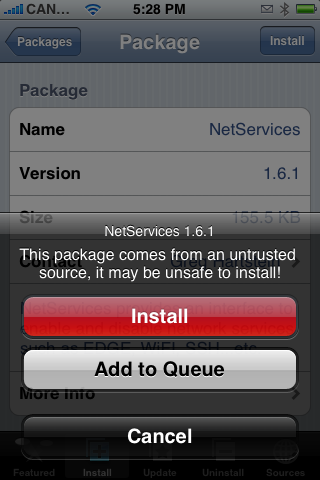
Step Eleven Press the large red Install button that appears.
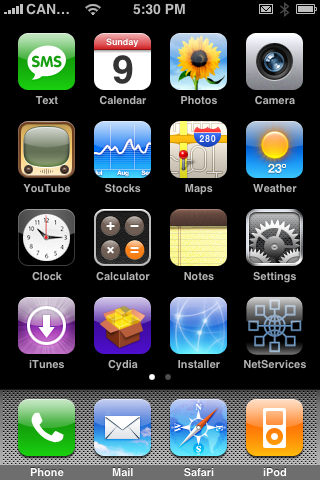
Step Twelve Once installation is complete you will be returned to the Categories menu. Press the Home button to return to your SpringBoard. Notice the new NetServices icon! Press to launch NetServices.
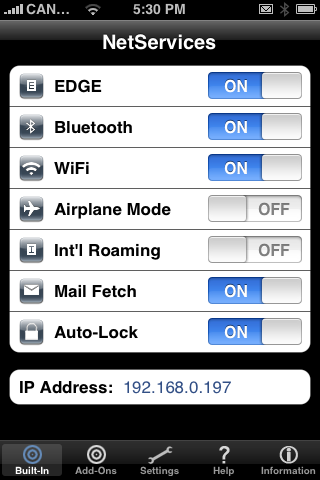
Step Thirteen You will now be brought to a screen of your Built In Network Services. Notice you can turn on and off: EDGE, Bluetooth, WiFi, Airplane Mode, Int'l Roaming, Mail Fetch, and Auto-Lock.
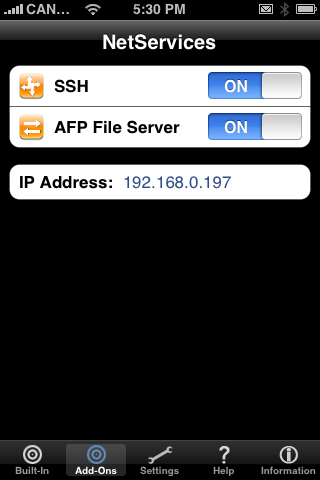
Step Fourteen Press the Add-Ons tab at the bottom of the screen. Notice you can turn off additional services such as SSH and AFP.
THANKS**: NetServices is based on source code written by Chris Hoffman with additional code by Peter Iannucci. Erica's Utilities coded by Erica Sadun - EricaSadun.com. GUI Interface designed by Drunknbass - monsterandfriends.com
Get the iClarified Daily Newsletter
Apple news, rumors, tutorials, price drop alerts, in your inbox every evening, free.
Unsubscribe at any time.
Success!
You have been subscribed.
Add Comment
Would you like to be notified when someone replies or adds a new comment?
Yes (All Threads)
Yes (This Thread Only)
No
Notifications
Would you like to be notified when we post a new Apple news article or tutorial?
i use a dual sim card on both my iphone and my blackberry (both have the same number)
what i need to do is be able to use the wireless network but turn off the GSM antenna on the iphone.
this wld also be useful for planes that offer wifi access but where you need to turn off your gsm reception.
how can i do that?
thanks,
ck
Can anyone hepl me.....
I connect thru wifi at home very well....once out in the city or anywhere else I try to connect ,,,,it say connected but it is NOT really connected as I cannot surf or receive email.
Is there a generic IP address and DNS also what about Router number.
Thanks
Hi again, I have the same problem taha JPO.....Every time I switch off EDGE and then go back into this application it says EDGE is on again. Any ideas? Thx
Worked fine for me, but it is very slow, take almost same time to set a service to ON/OFF with NetServices than to navigate on the "Original Menus". There is something to do to speed things up?
iPhone 1.1.2
Nicole, am assuming you have jailbroken your iPhone? If so, first go to installer, update it if it asks you to, then under Install, scroll down to Tweaks (1.1.3) Category and install T-Mobile 1.1.3 Tzones Hack, press the home button and restart your phone. see if it works that way. Oh, its a 1.1.3 hack but the system files in 1.1.3 and 1.1.4 are almost the same so it will install it in a right place. If it doesnt work, Reset your Network Settings under Settings>General>Reset then repeat the process again. The only way to figure what your APN is by trying, if it doesnt work, its not for you :-P
Nicole, are you in the UK or US?
On your iPhone, Tap Settings > General > Network > EDGE >
then you can type in your APN, Username and Password.
T-Mobile in UK the settings are:
APN: general.t-mobile.uk
Username: user
Password: wap
T-Mobile in US the settings are:
APN: internet2.voicestream.com or internet3.voicestream.com
Username:
Password:
*Yes I've left them blank, they are N/A Just leave blank.
What's your firmware version? there is a chance you might not be able to see EDGE under Network settings, this is caused by the type of unlocking solution you have used.
Am using o2 carrier, i haven't tried those APN myself, you can always find them online though.
Hope this helped
take care
Do NOT install this, you risk ruining your phone! I had to restore as my iPhone was just getting stuck and had to go through all those activating, jailbreaking, unlocking, and patching procedures!! It was a real hassle!
I have some serious problems with this app. Same problem as JPO and on top of that it automatically switched off "mail fetch" and now I can't turn it on again.. I can't connect to my mail server even if I uninstall the it.. What should i do?



![Apple TV Shares 'Full Throttle' With F1 Drivers and Vince Young Ahead of U.S. Grand Prix [Video]](/images/news/103023/103023/103023-160.jpg "Apple TV Shares 'Full Throttle' With F1 Drivers and Vince Young Ahead of U.S. Grand Prix [Video]")
![MacBook Neo Helps Apple Gain PC Market Share Despite Shipment Decline [Report]](/images/news/103020/103020/103020-160.jpg "MacBook Neo Helps Apple Gain PC Market Share Despite Shipment Decline [Report]")
![iPhone Duo Teardowns Reveal Dual-Battery Design and Repair Challenges [Video]](/images/news/103014/103014/103014-160.jpg "iPhone Duo Teardowns Reveal Dual-Battery Design and Repair Challenges [Video]")



![How To Back Up Your iPhone to an External Drive on Mac [Video]](/images/tutorials/72786/72786/72786-160.jpg "How To Back Up Your iPhone to an External Drive on Mac [Video]")

![How To Find Your IP Address on iPhone [Video]](/images/tutorials/496/496/496-160.jpg "How To Find Your IP Address on iPhone [Video]")


![New Fire TV Stick 4K Drops to $29.99 (50% Off) [Deal]](/images/news/102984/102984/102984-160.jpg "New Fire TV Stick 4K Drops to $29.99 (50% Off) [Deal]")
![Apple's iPhone 18 Pro and Pro Max Cases Are Up to 37% Off [Deal]](/images/news/102978/102978/102978-160.jpg "Apple's iPhone 18 Pro and Pro Max Cases Are Up to 37% Off [Deal]")
![16-Inch MacBook Pro With M5 Pro Drops to $2,429 ($570 Off), Lowest Price We've Seen [Deal]](/images/news/102957/102957/102957-160.jpg "16-Inch MacBook Pro With M5 Pro Drops to $2,429 ($570 Off), Lowest Price We've Seen [Deal]")