These are instructions on how to hide and filter SMS conversations using Pysl. This application was created by Rikk so iPhone users could Protect Your Secret Life. It allows you to setup blacklist and whitelists for SMS conversation filtering. You can then view the filtered messages in an area which is password protected.
NOTE***: This is only version .31 of the software. It is not 100% functional; however, it does perform everything we show in this tutorial!
Step One Make sure you have added iClarified as an installer source. You can find instructions on how to do this here.
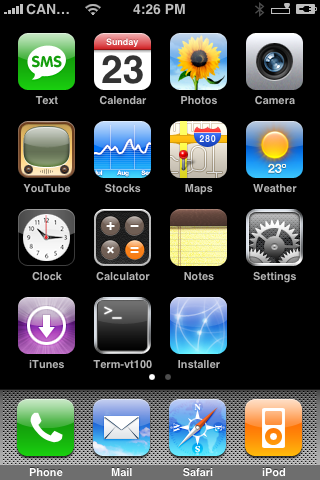
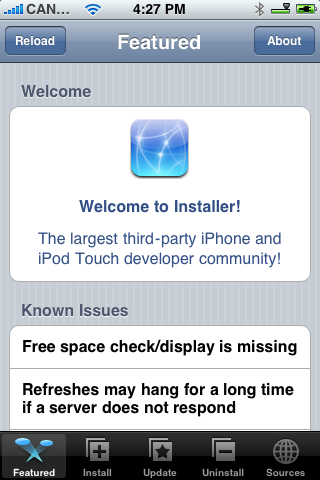
Step Two Press to launch Installer from your SpringBoard.
Step Three Press to select the Install tab at the bottom of the screen.
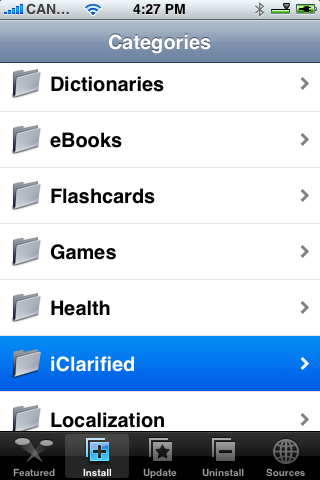
Step Four Press to select iClarified from the list of Categories.
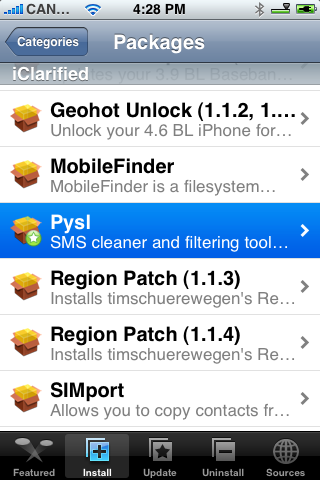
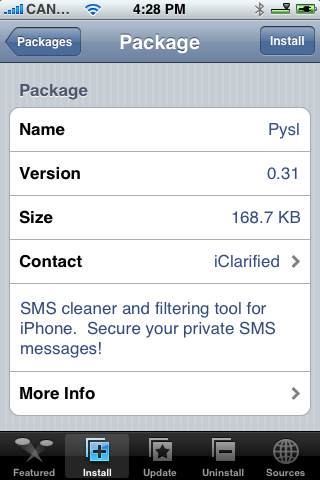
Step Five Press to select Pysl from the list of Packages.
Step Six Press the Install button at the top right hand corner.
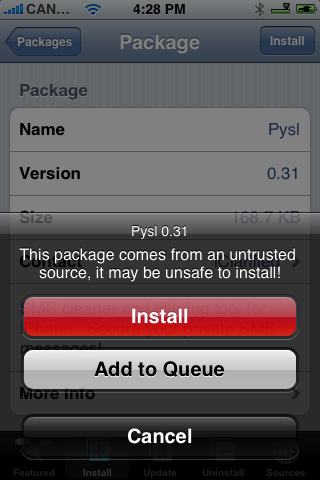
Step Seven Press the large red Install button that appears.
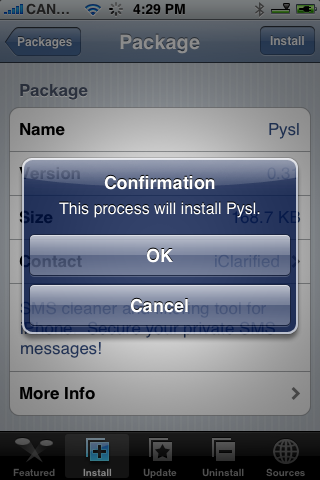
Step Eight A notice will appear asking you to Confirm installation. Press the large OK button.
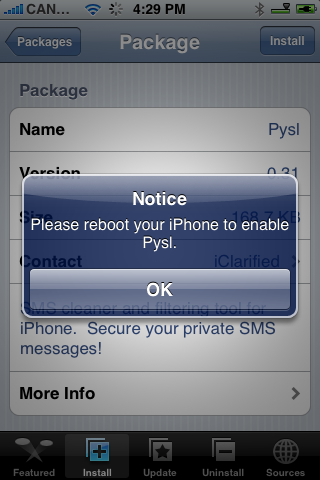
Step Nine Another notice will appear asking you to reboot your iPhone once installation is complete.
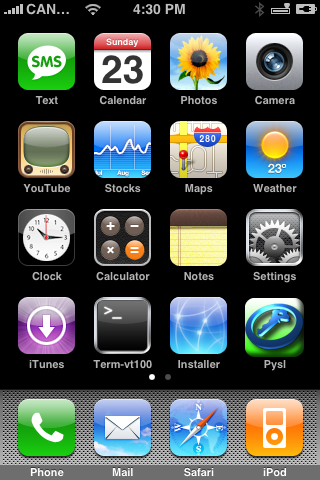
Step Ten Once installation is complete you will be returned to the Categories menu. Press the Home button to return to your SpringBoard. Notice the new Pysl icon.
Step Eleven Now hold the Sleep/Wake button for three seconds until you see the Power slider. Slide this to right to turn off your iPhone. Then push the Sleep/Wake button again to turn your phone back on.
Step Twelve Press the Pysl icon to launch the application.
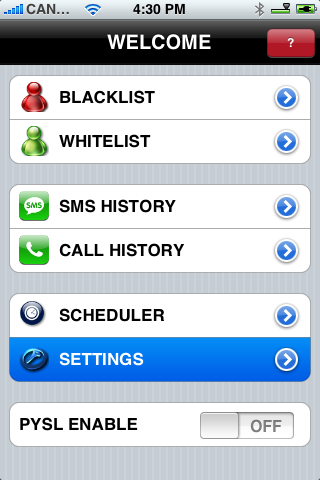
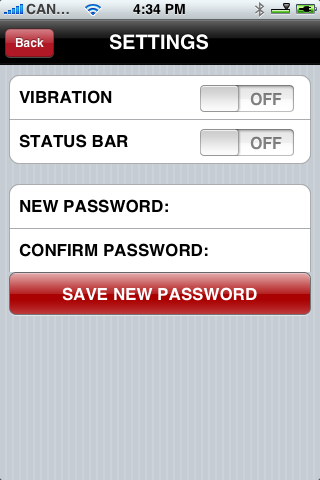
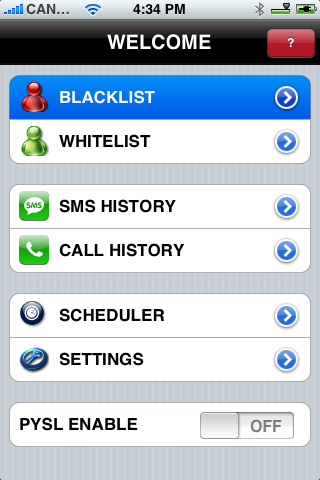
Step Thirteen Press Settings to open the Settings Menu.
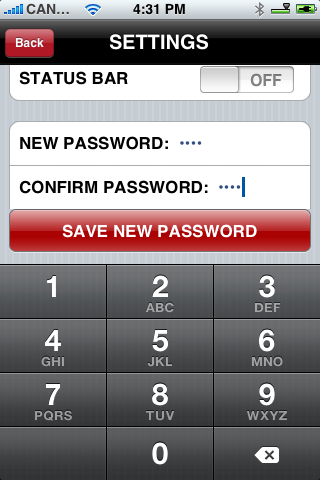
Step Fourteen Enter a new password to restrict access to this area then press the Save New Password button.
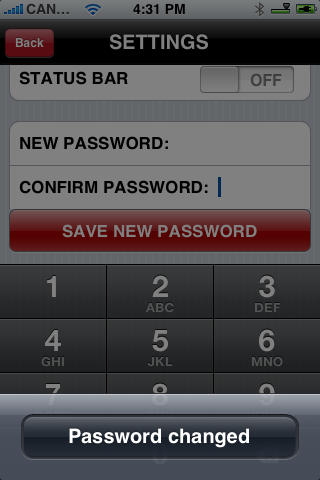
Step Fifteen Press the Password Changed button that appears.
Step Sixteen Press the Back button at the top left of the screen.
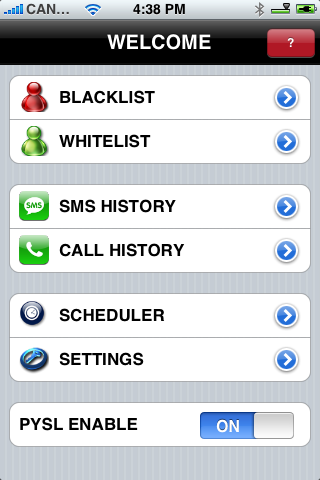
Step Seventeen Press Blacklist from the Welcome screen.
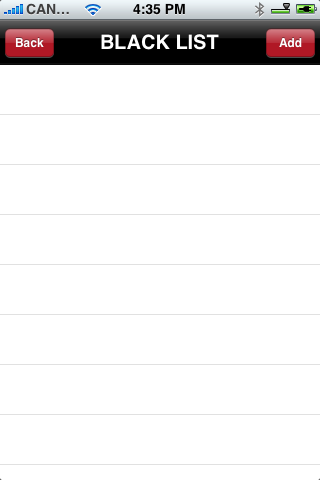
Step Eighteen Press the Add button at the top right hand corner.
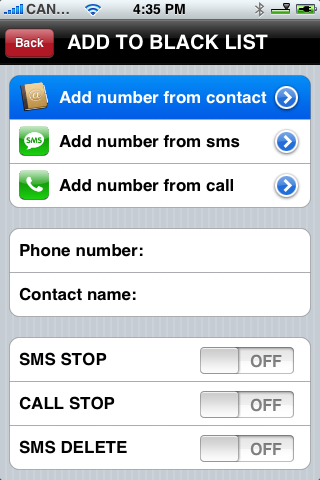
Step Nineteen Press to Add number from contact
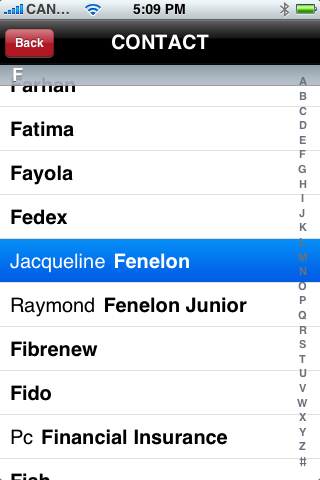
Step Twenty Select an address book entry from your Contact List.
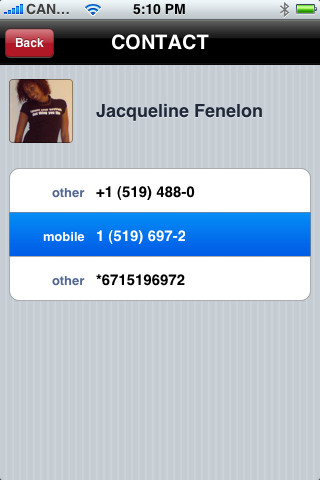
Step Twenty One Press to select a Contact's Phone Number to use as a filter.
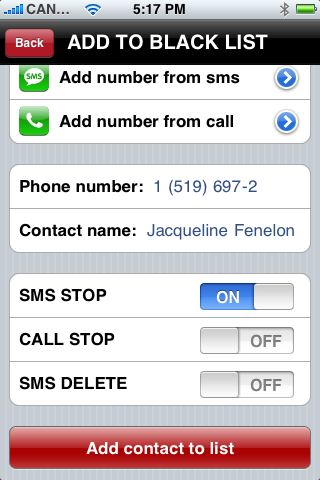
Step Twenty Two You will be returned to the Add To Black List screen. Here we have the options to enable three switches.
SMS STOP: hide SMS and store in SMS History SMS DELETE: hide SMS and delete it "on the fly" (without saving in SMS History..no trace) CALL STOP: hide CALL and register call in CALL History (not available yet)
I have enabled SMS STOP to hide SMS for this person. Then press the Add contact to list.
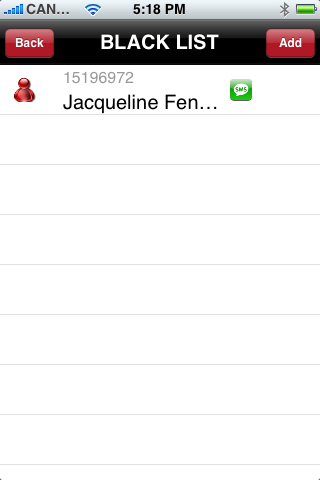
Step Twenty Three You will then be returned to the Blacklist. Press the Back button at the top left.
Step Twenty Four Switch the Pysl Enable to the ON Position.
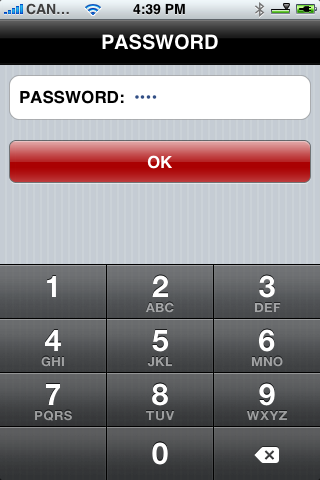
Step Twenty Five Now to test Pysl, send an SMS to the person you just added to your Blacklist. Then reopen Pysl. Notice you are asked for your password!
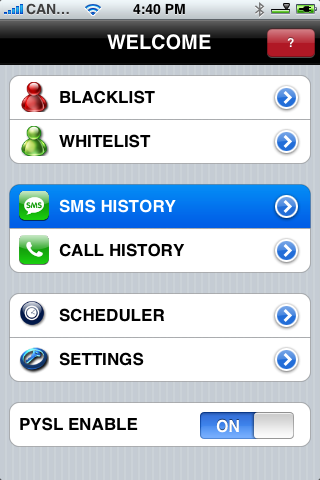
Step Twenty Six Select SMS History from the Welcome Screen.
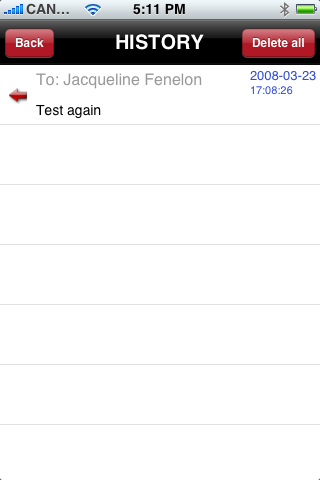
You will now find that your SMS is displayed here but it is not displayed in the iPhones MobileSMS.app!
THANKS***: Big thanks to Rikk for developing Pysl. You can visit his wiki here
Get the iClarified Daily Newsletter
Apple news, rumors, tutorials, price drop alerts, in your inbox every evening, free.
Unsubscribe at any time.
Success!
You have been subscribed.
Add Comment
Would you like to be notified when someone replies or adds a new comment?
Yes (All Threads)
Yes (This Thread Only)
No
Notifications
Would you like to be notified when we post a new Apple news article or tutorial?
go into settings->notifications->messages and turn off the badges option.
you can also turn off 'View in Lock Screen' to off from the same location.
this will only make your text message noise.. no preview. it wont even show that you have one under messages until you go right into it.
no need for all those stupid apps..
Try iBlacklist. When enabled, it will automatically move your messages (specified by contact and even by keywords) to it's own app and let you view/reply from there.
i have problem with this too. My SMS icon shows i ave 43 messages! and it wont go away...always when i recieve text abd read it they disappear from the inbox! whats that all about....and now i have uninstalled it like you said rebooting after it finishes and my phone is still in the same crappy state.....how can i get my iphone back to normal????
Please update this information for Installer 4.0 beta using PWANGE v 2.0.2 to install the PYSL app on a 3G iPhone.
How do I load iClarified once I have Installer 4.0 beta on my phone - is this all functional or should I wait?
Does PYSL work on a 3G iPhone?? or is there an alternative app?
Intelliscreen is useless as SMS/test messages/sender are still displayed on the Lockscreen and there does not seem to be away to turn this off.
I've upgraded the new version (0.42b2) on my iPhone 1.1.3 and found that there is a strange number has been shown on the phone icon, which is not missed call no. and it's still available even deleted all the call history. I need to restart to get rid of the number, but it will be back when I makes a call.
GUYS! found the perfect solution......well almost. Try iBlacklist......works great , untill......u reply to an SMS then the whole conversation shows up in yr SMS files.....but otherwise is a good app.
Its working fine since yesterday!!!
Cheers
This would be great if it could filter out "Blocked" callers. I just want to ignore any blocked numbers and hopefully also not allow them to leave voicemails.





![Pro Photographer Austin Mann Tests iPhone 18 Pro Camera [Video]](/images/news/102297/102297/102297-160.jpg "Pro Photographer Austin Mann Tests iPhone 18 Pro Camera [Video]")
![Apple Releases Xcode 27.1 Beta With iPhone Duo SDKs and Simulator [Download]](/images/news/102276/102276/102276-160.jpg "Apple Releases Xcode 27.1 Beta With iPhone Duo SDKs and Simulator [Download]")
![Apple Shares 'new trick' Shot on iPhone 18 Pro Ad Featuring ROSÉ [Video]](/images/news/102273/102273/102273-160.jpg "Apple Shares 'new trick' Shot on iPhone 18 Pro Ad Featuring ROSÉ [Video]")









![Apple Studio Display XDR Hits All-Time Low of $2,969.99 ($329 Off) [Deal]](/images/news/101976/101976/101976-160.jpg "Apple Studio Display XDR Hits All-Time Low of $2,969.99 ($329 Off) [Deal]")
