These are instructions on how to convert video to iPhone Format using Kvip and Windows.
Kvip is a utility that converts video files from various formats to a video file that is playable on the iPhone and iPod video (5G/5.5G/6G).
Step One Download Kvip from Kvip (release016.zip download no longer available). Save the file to your desktop.
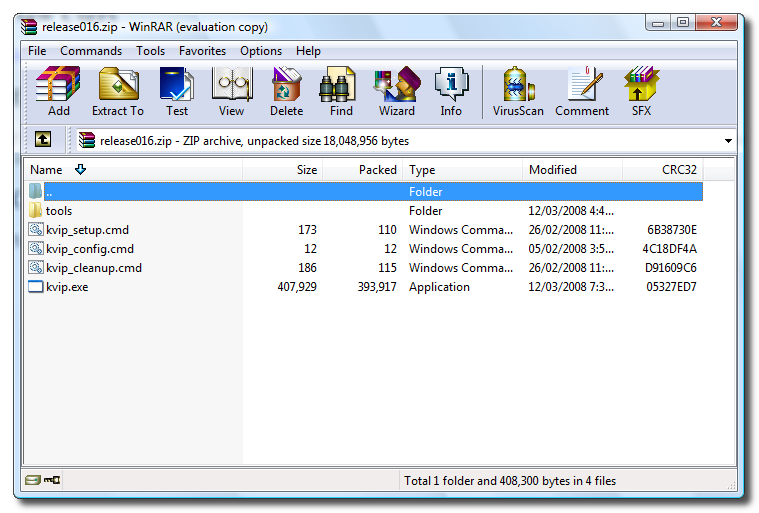
Step Two Double click the downloaded zip file (release016.zip) on your desktop to open it in Winrar or similar.
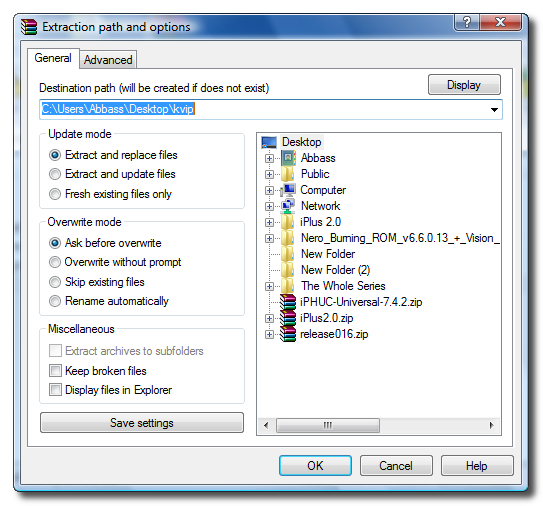
Step Three Extract the contents of the file to a location of your choice. In this example I am extracting the files to a folder called kvip on the Desktop.
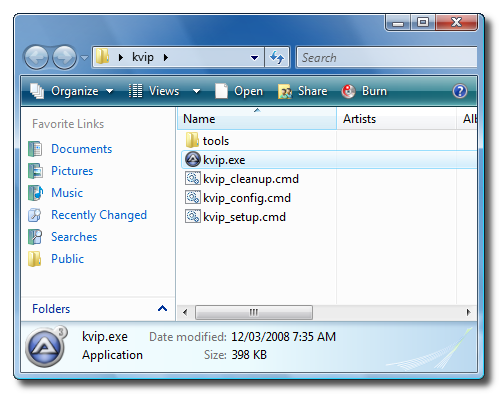
Step Four Open the kvip folder you extracted and double click kvip.exe.
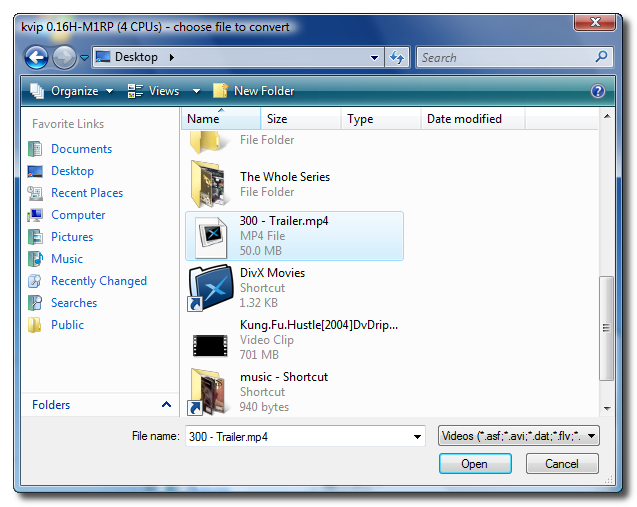
Step Five A windows will open asking you to select the file you would like to convert. Do this then click the Open button.
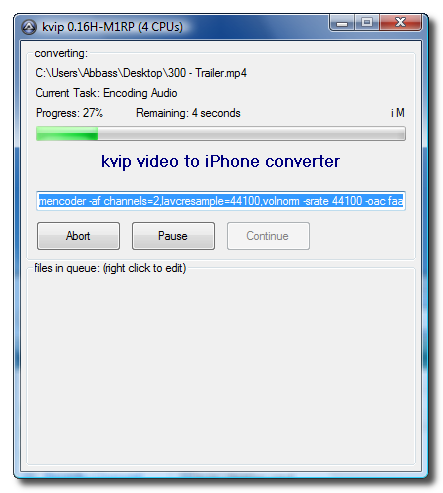
Step Six Kvip will then begin to convert your selected video file.
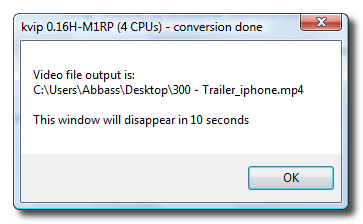
Once finished a dialog will appear and let you know the name and location of your newly converted video file.
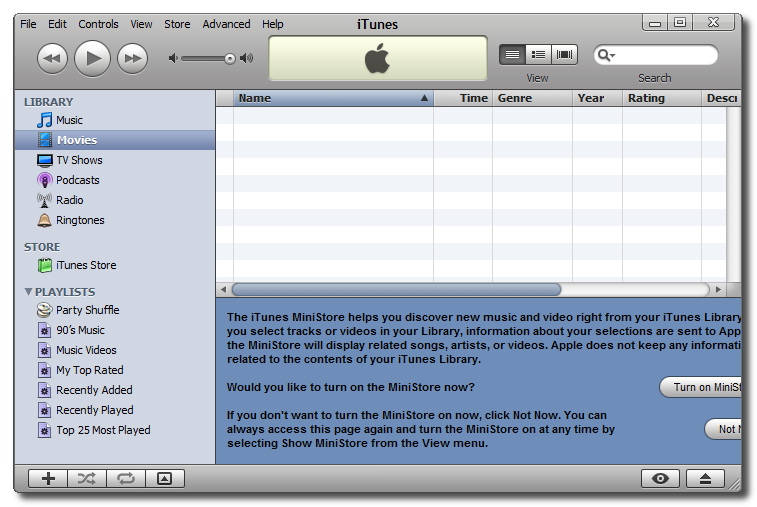
Step Seven Launch iTunes.
Step Eight Drag the newly created video file into the iTunes window.
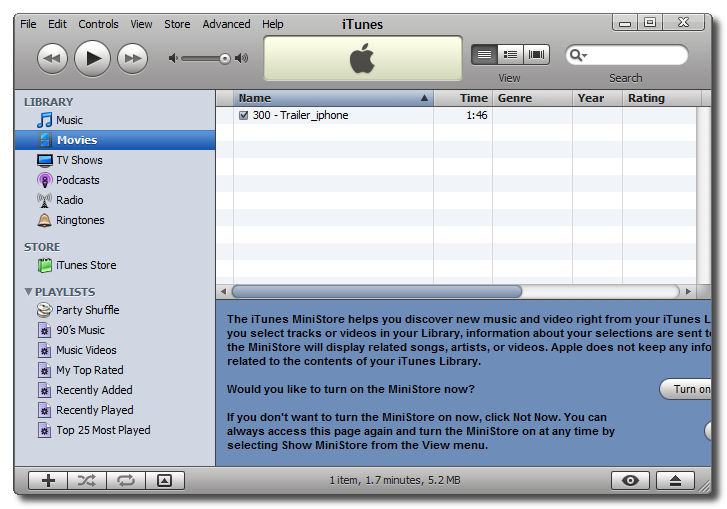
Step Nine Your video file will then be added to the iTunes library.
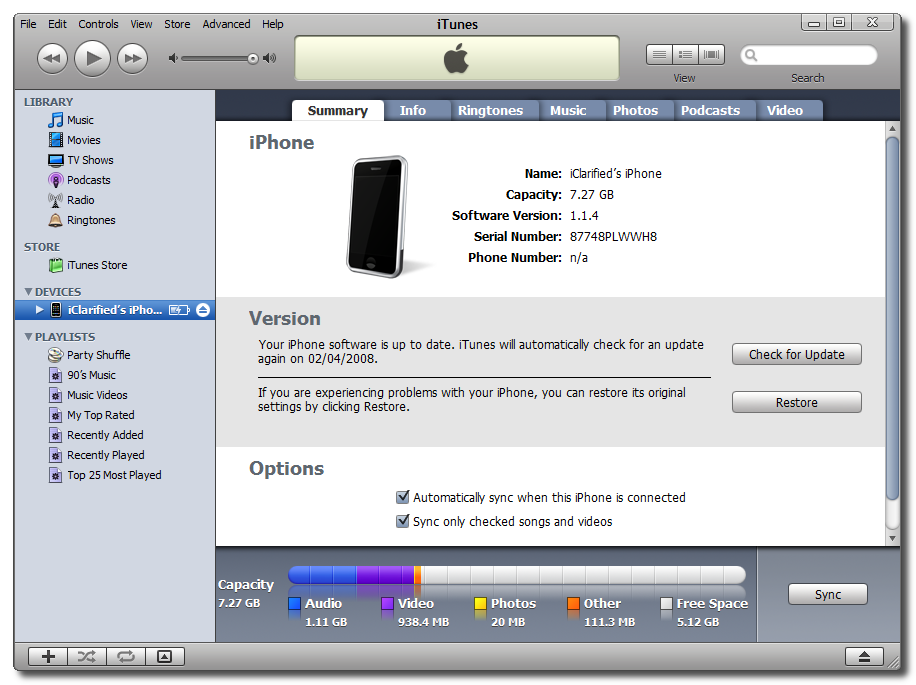
Step Ten Connect your iPhone to the computer. iTunes will automatically detect it. Make sure you select the iPhone from the list on the left.
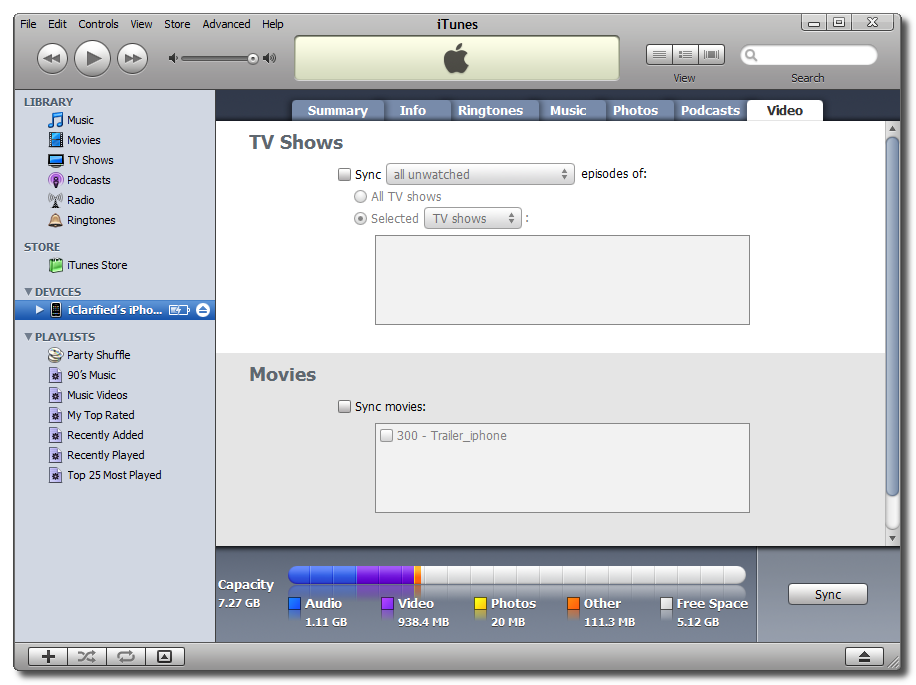
Step Eleven Click to select the Video tab.
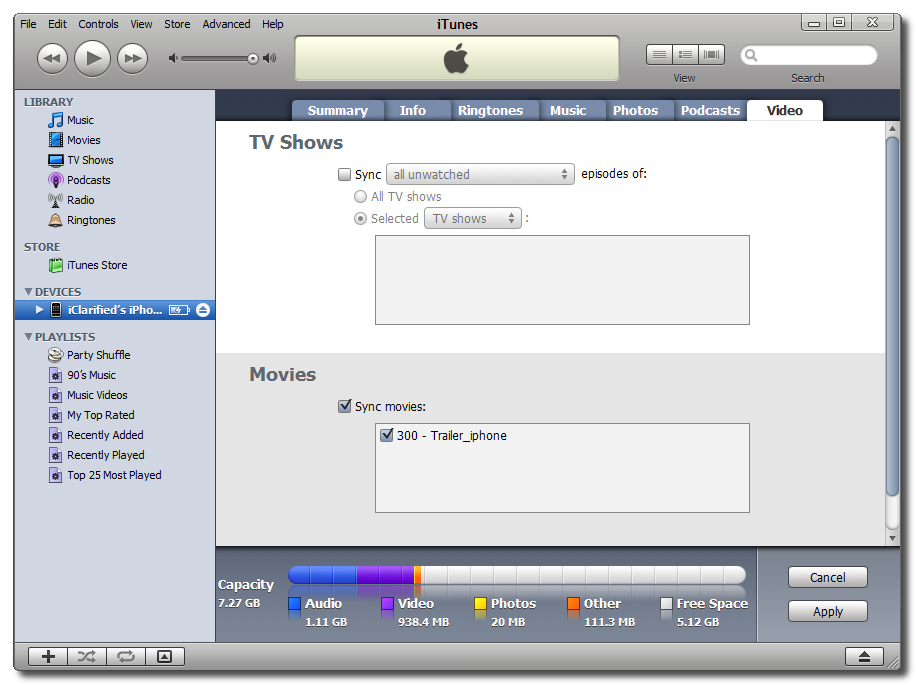
Step Twelve Check the Sync Movies checkbox, then check the box next to the movie you just imported into iTunes. Now click the Apply button at the bottom right hand corner to sync your video to the iPhone!
Get the iClarified Daily Newsletter
Apple news, rumors, tutorials, price drop alerts, in your inbox every evening, free.
Unsubscribe at any time.
Success!
You have been subscribed.
Add Comment
Would you like to be notified when someone replies or adds a new comment?
Yes (All Threads)
Yes (This Thread Only)
No
Notifications
Would you like to be notified when we post a new Apple news article or tutorial?
.img and .iso are not video files but rather archives (like zip and rar)
so, you can unrar a .iso or .img using winrar. This will give you what's inside (most likely video_ts and audio_ts folders with files.)
do a search on .iso to .avi or .iso to .mp4 for more info.
such a great software. huge thanks. and free too
2 encode pass (default is 1) of an hour AVI 400MB file in under 10min on my Quad core q6600 at 3Ghz. hopefully nVidia will soon have GPU transcoding --> 4 simultaneous realtime transcoding :)
unlike those that requires to pay, some of them doesn't even take advantage of quad core, and doesn't even compress it.
this one is the BEST





![Apple Says iPhone Duo's Folding Display Has a Replaceable Cover Layer [Video]](/images/news/102525/102525/102525-160.jpg "Apple Says iPhone Duo's Folding Display Has a Replaceable Cover Layer [Video]")
![Touchscreen OLED MacBook Pro Could Debut as Early as October [Gurman]](/images/news/102519/102519/102519-160.jpg "Touchscreen OLED MacBook Pro Could Debut as Early as October [Gurman]")
![iPhone 18 Pro Sales Rise 12% in China as Apple Leads Weekly Smartphone Market [Report]](/images/news/102522/102522/102522-160.jpg "iPhone 18 Pro Sales Rise 12% in China as Apple Leads Weekly Smartphone Market [Report]")
![How To Find Your iPhone IMEI Number [Video]](/images/tutorials/83557/83557/83557-160.jpg "How To Find Your iPhone IMEI Number [Video]")

![How To Change Wallpaper on Mac [Video]](/images/tutorials/90512/90512/90512-160.jpg "How To Change Wallpaper on Mac [Video]")




![16-Inch M5 Max MacBook Pro Drops $900 to New Low of $3,499 [Deal]](/images/news/102438/102438/102438-160.jpg "16-Inch M5 Max MacBook Pro Drops $900 to New Low of $3,499 [Deal]")
![Magic Keyboard for iPad Air Drops to $200 on Amazon [Deal]](/images/news/102402/102402/102402-160.jpg "Magic Keyboard for iPad Air Drops to $200 on Amazon [Deal]")
![13-Inch M5 MacBook Air With 1TB Drops to $1,449 on Amazon [Deal]](/images/news/102345/102345/102345-160.jpg "13-Inch M5 MacBook Air With 1TB Drops to $1,449 on Amazon [Deal]")
