These are instructions on how to download files using the Safari browser on your iPhone. It installs the Safari Download Plugin written by hachu and extends it to include more file extensions thanks to spyboy.
File formats supported: zip, rar, gz, lzh, hqx, dmg, dat, exe, tar, torrent, pdf, wma, wmv, avi, dll, db, flv, swf (code is there , but i disabled it) sqlitedb, doc (code there, but aint workin), plist (code there, but dont work) xls (not workin but code there), ppt, pps, msi, asf, iso, img, bin, rtf, 3gp, ipsw, mp3, mp4, mpeg, mpg, swa.
Step One Make sure you have added iClarified to your list of installer sources. You can do this by follow the tutorial here
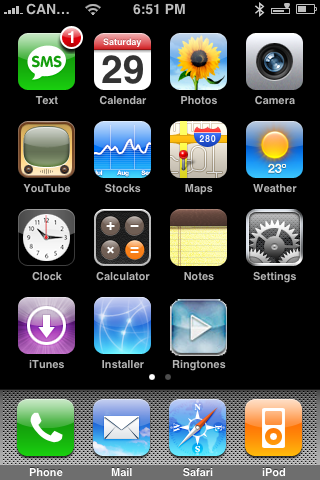
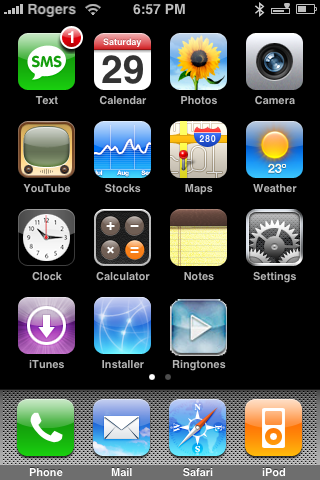
Step Two Press to launch Installer from your SpringBoard.
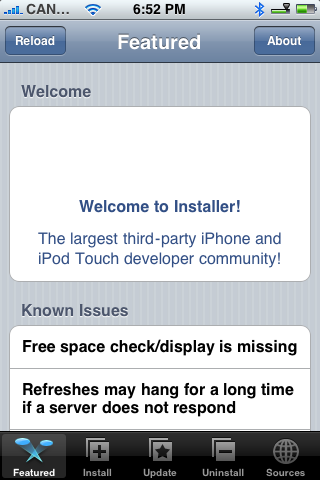
Step Three Press the Install tab at the bottom of the screen.
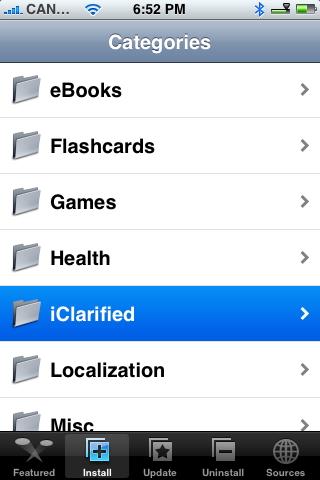
Step Four Press to select iClarified from the list of Categories.
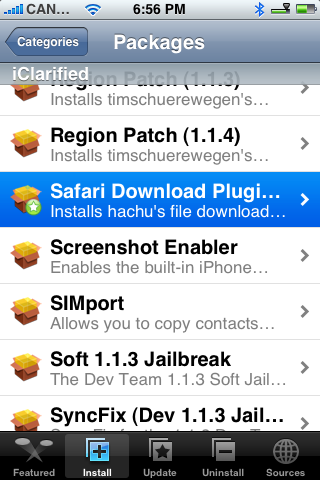
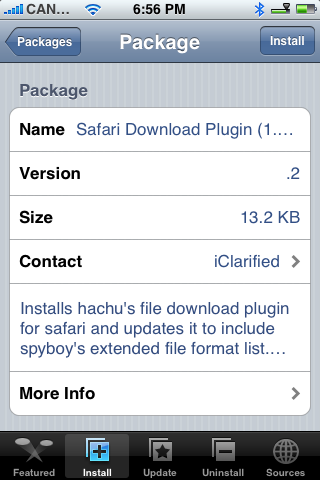
Step Five Press to select Safari Download Plugin (1.1.4) from the list of Packages.
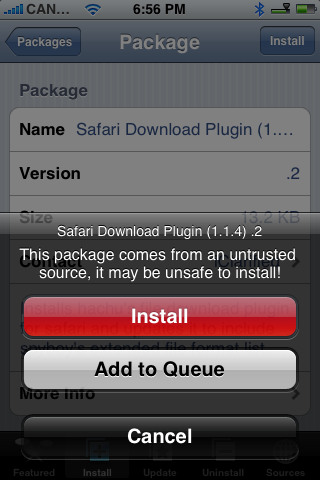
Step Six Press the Install button at the top right hand corner of the screen.
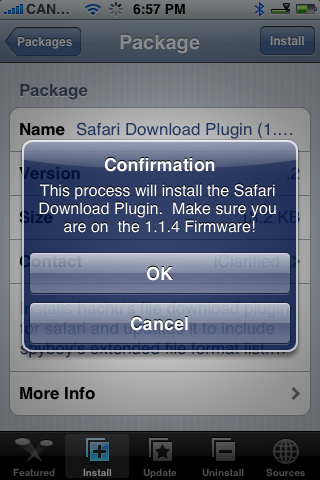
Step Seven A confirmation window will appear. Make sure you are on 1.1.4 and press the large OK button.
Step Eight Once installation is completed you will receive a Notice asking you to reboot your iPhone. Press the large OK button.
Step Nine You will be returned to the categories list. Press the Home button to return to your SpringBoard. Then press and hold the Sleep/Wake button for 3 seconds. A power slider will appear. Slide this to the right to power off your iPhone. Then press the Sleep/Wake button again to power it back on.
Step Ten Press to launch Safari from your SpringBoard.
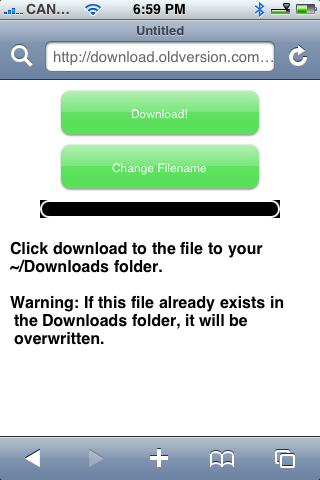
Step Eleven Navigate to a page that contains a link to a file you would like to download. Press to click the link. A window will appear with a Download and Change Filename button. Press Download to download your file!
NOTE***: The download will go to the /var/root/Downloads folder. I will make a tutorial soon on how to view these files best.
THANKS***: Thanks to hachu and spyboy and everyone else that contributed to the creation of this plugin and its capabilities!
Get the iClarified Daily Newsletter
Apple news, rumors, tutorials, price drop alerts, in your inbox every evening, free.
Unsubscribe at any time.
Success!
You have been subscribed.
Add Comment
Would you like to be notified when someone replies or adds a new comment?
Yes (All Threads)
Yes (This Thread Only)
No
Notifications
Would you like to be notified when we post a new Apple news article or tutorial?
I've installed hachu's plugin that enables Mobile Safari to download files, but I wish to continue to open (with a single click) pdf files on Mobile Safari. Is it possible to modify Info.plist so that Safari will open pdf files once again?
I tried to uninstall this plugin, but after uninstalling it, everytime I try to open a pdf file, Mobile Safari closes.
hello i rekomend u make symbolik link to /var/mobile/Downloads/ 1 the bitorrent client works then and u save space
do the folowing in ssh
rm -r /var/mobile/Downloads/
ln -s /var/root/Downloads /var/mobile/Downloads
now the Bitorrent client prog can find the torrent file
// Sorry About My Spelling I´m Dyslectic \\
I had already discovered the way to see where the files were. Anyway, thanks Leandro
Now, how do I open them? What program should I use to actually see the docs?
Fellows, to be able to browse the var directory, you must to enable Mobile FInder to access the System Files.
Go to Settings: System File Access and turn it to ON.
Hope it helps.
Cheers from Brasil
If you don't want to update your firmware version to 1.1.4 and keep your 1.1.3 (if you have it) just use my repository some comments down cause it works.. but it saves the files to /var/mobile/NetDrop so there is no "where my files are stored" matter! ;) It works flawlessly with 1.1.3 and uninstalls too!
How do I find the downloaded files? I cannot see the ~var/root/downloaded directory with mobile finder. Waiting for the tutorial too. Excellent website
You could even with native Terminal application on the iPhone.. but what files must be changed it the problem..!
The folder?
The files?
I hate to say it but with my version i got no problems with that.. i just find'em with MobileFinder and then run them with Open with Application option..!
I have seen files with Mobilefinder too. The problem is how to read these files on the iPhone. For example, pdf viewer, when I arrive to a pdf file via Mobilefinder and choose to read the file with it, doesn't see the file. Mobile finder is really useful to navigate into the iPhone, but it seems to stop when it asks to other software to cohoperate. What can we do? Please, Iclarified...
Hey every1...to view the files downloaded i have been using mobilefinder in my iphone and to view them in the comp im using WinSCP.... for now i can view them... will be seeing if i can play downloaded mp3 directly on my iphone
great job, this is great 4 dwld pics from the web, where will they dwnld, read UR going to post a tutorial about it cause I couldnt find the /var/root, etc.
THANKS.
Just install a webserver for example iSpit/lighttpd/apache.. run it and then browse the folder that the file is located using that browser.. but.. it may not play cause you must say to the web server that the mp4 is a applixation/x- something mp4 to play..
Search the internet about mime type of mp4 files..! ;)




![Apple Highlights Safari Privacy and Distraction Control in New Ads [Video]](/images/news/102753/102753/102753-160.jpg "Apple Highlights Safari Privacy and Distraction Control in New Ads [Video]")
![Apple's First Immersive Horror Film 'Remnants' Arrives on Vision Pro October 16 [Video]](/images/news/102750/102750/102750-160.jpg "Apple's First Immersive Horror Film 'Remnants' Arrives on Vision Pro October 16 [Video]")
![Apple Debuts Official Trailer for 'Being Heumann' Starring Ruth Madeley [Video]](/images/news/102747/102747/102747-160.jpg "Apple Debuts Official Trailer for 'Being Heumann' Starring Ruth Madeley [Video]")

![How To Turn Off iPhone [Video]](/images/tutorials/94999/94999/94999-160.jpg "How To Turn Off iPhone [Video]")
![How To Forward Calls on iPhone [Video]](/images/tutorials/92926/92926/92926-160.jpg "How To Forward Calls on iPhone [Video]")
![How To Back Up Your iPhone to an External Drive on Mac [Video]](/images/tutorials/72786/72786/72786-160.jpg "How To Back Up Your iPhone to an External Drive on Mac [Video]")






![Mac mini Drops to $779.99 for Prime Big Deal Days [Deal]](/images/news/102624/102624/102624-160.jpg "Mac mini Drops to $779.99 for Prime Big Deal Days [Deal]")
