These are instructions on how to install USB Hard Drive Support on a Take 2 Apple TV. To follow this tutorial you will need to have an Intel Tiger Disk 1 version 10.4.8 or higher. The disc I used was Mac OS version 10.4.8, AHT version 3A114, Disc version 1.2, 2Z691-5946-A.
To follow this tutorial you must already have SSH installed on your AppleTV. Instructions can be found here to install SSH.
Step One Download the Take2USB zip to your Desktop for your appropriate firmware version:
Step Two Download the firmware dmg to your desktop for your AppleTV version.
2.0.0: 2Z694-5274-109.dmg (download no longer available) 2.0.1: 2Z694-5387-25.dmg (download no longer available) 2.0.2: 2Z694-5428-3.dmg (download no longer available)
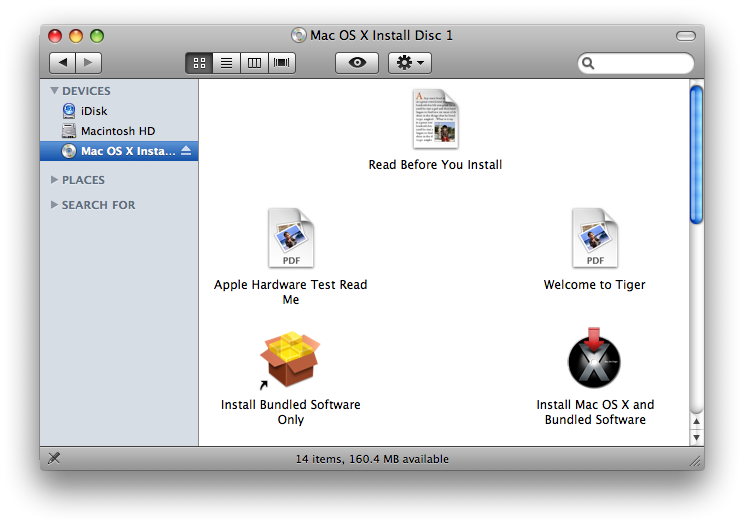
Step Three Insert your Intel Tiger Install Disk 1 into your computer and make sure it mounts
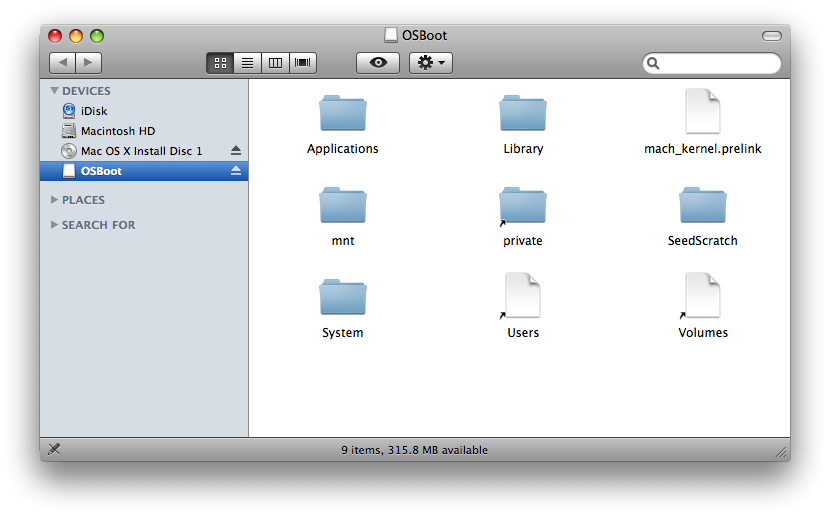
Step Four Double click the Apple TV firmware dmg you downloaded to your desktop. (ie 2Z694-5428-3.dmg). It will mount a volume called OSBoot.
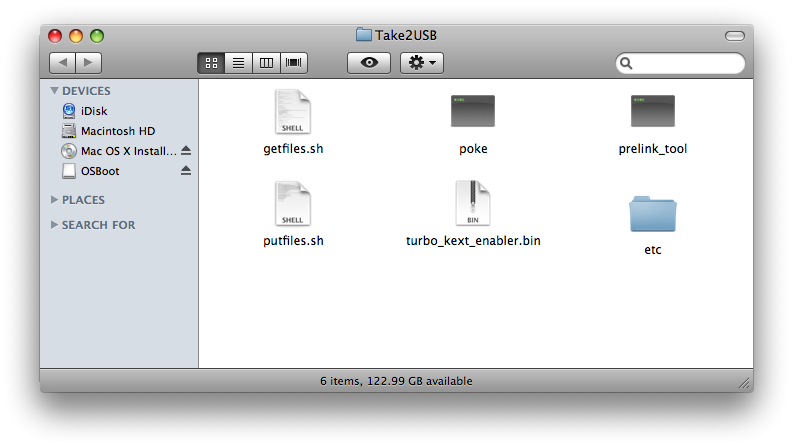
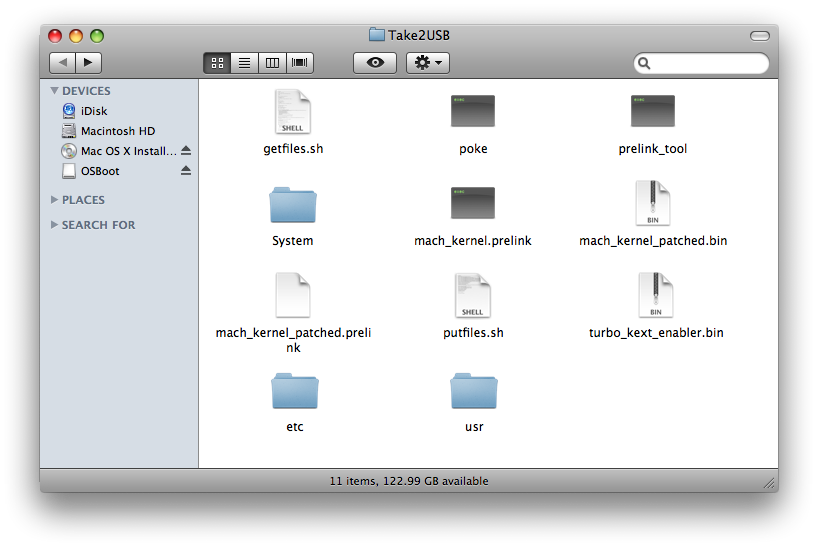
Step Five Double click the Take2USB zip file you downloaded to your desktop. This will extract a folder called Take2USB.
Step Six Launch Terminal from your Applications:Utilities folder.
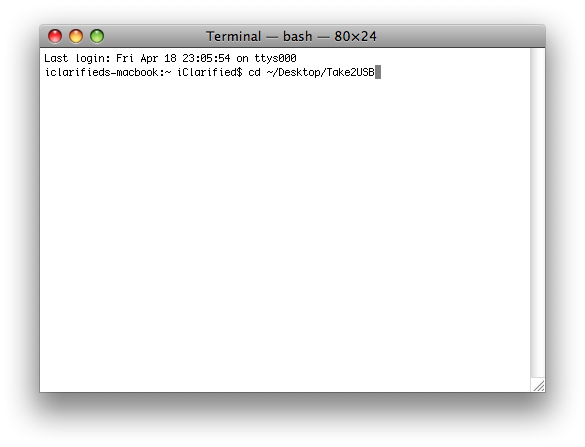
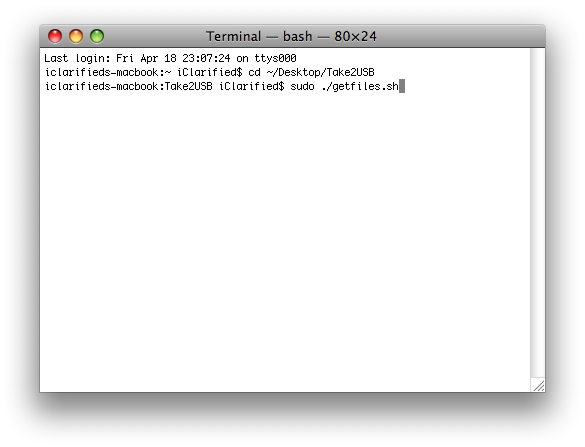
Step Seven Enter cd ~/Desktop/Take2USB into the Terminal window and press Enter.
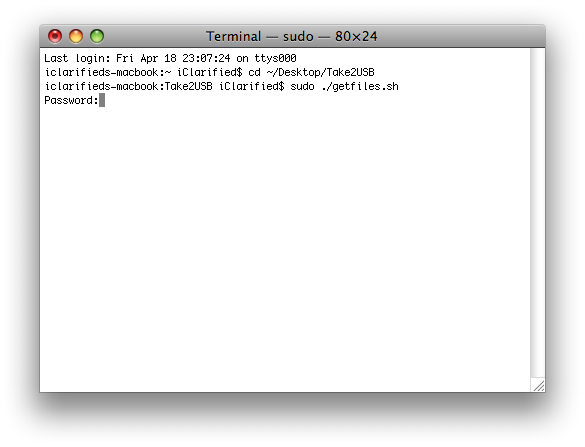
Step Eight Enter sudo ./getfiles.sh into the Terminal window and press the Enter key.
Step Nine When asked for a password enter your administrator password.
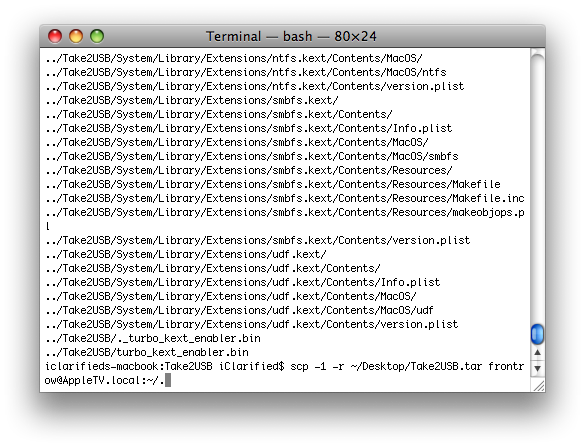
Step Ten The script will locate all the files you require and create a file called Take2USB.tar on your Desktop.
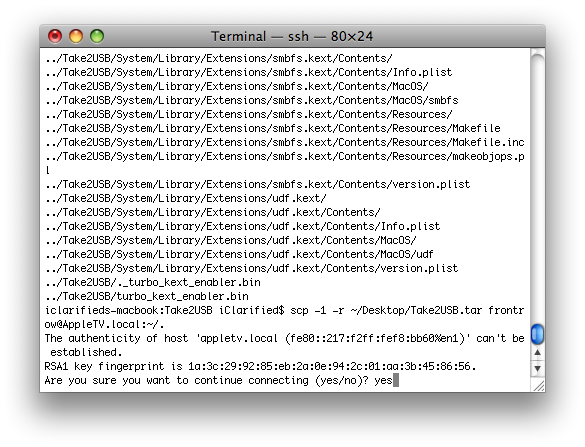
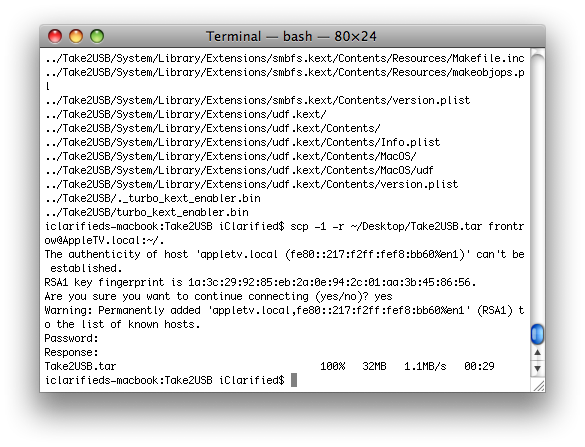
Step Eleven Input the following command into the Terminal window (NOTE*: You could use your AppleTV's IP Address instead of AppleTV.local) scp -1 -r ~/Desktop/Take2USB.tar frontrow@AppleTV.local:~/.
Step Twelve If asked whether to continue connecting type yes and hit Enter.
Step Thirteen If asked for a password enter frontrow and press Enter.
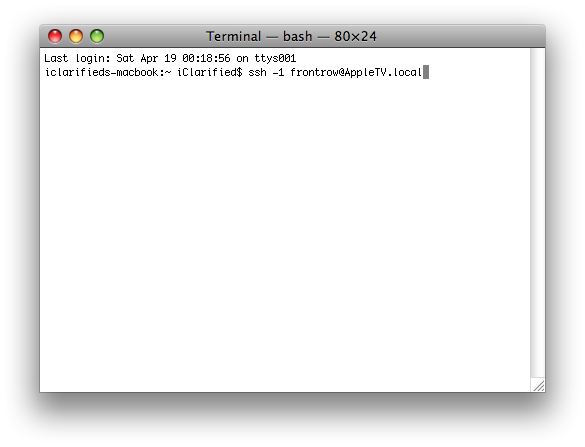
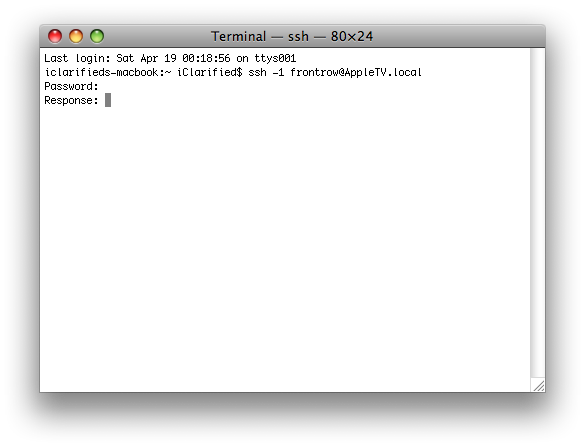
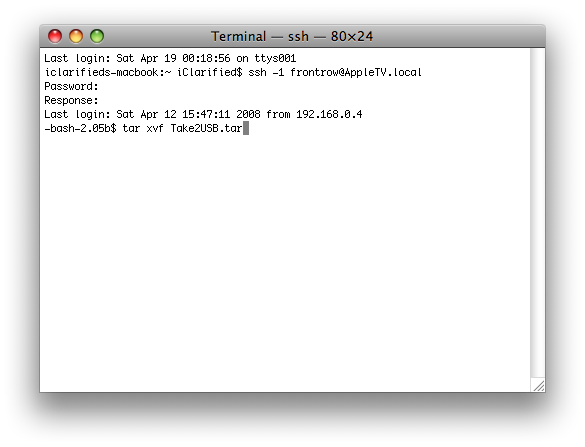
Step Fourteen Now input the following command into the Terminal window to ssh into your AppleTV ssh -1 frontrow@AppleTV.local
Step Fifteen If asked for a password enter frontrow and press Enter.
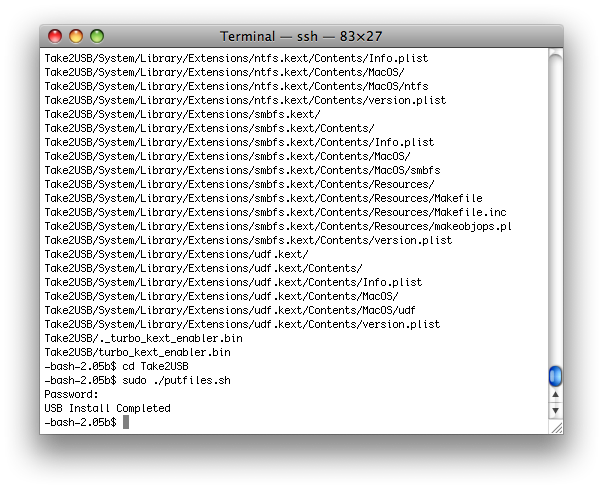
Step Sixteen Input the follow command into the Terminal window to extract the Take2USB.tar file tar xvf Take2USB.tar
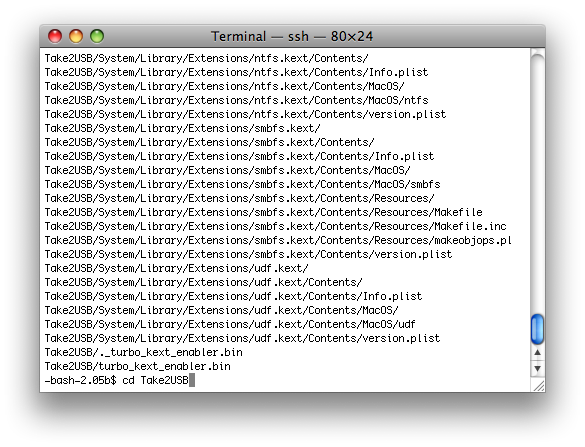
Step Seventeen Enter cd Take2USB into the Terminal window and press Enter to move into the newly created directory.
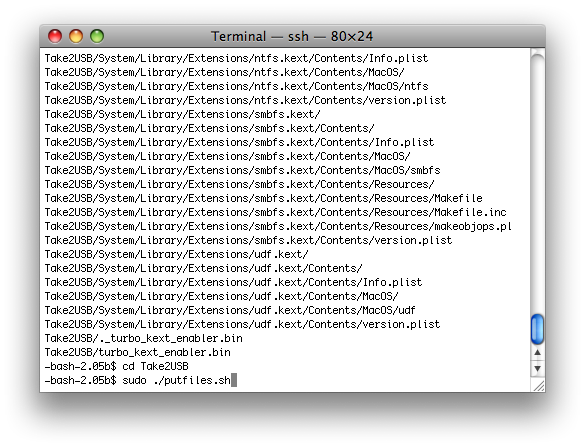
Step Eighteen Execute the following command to complete the USB installation sudo ./putfiles.sh
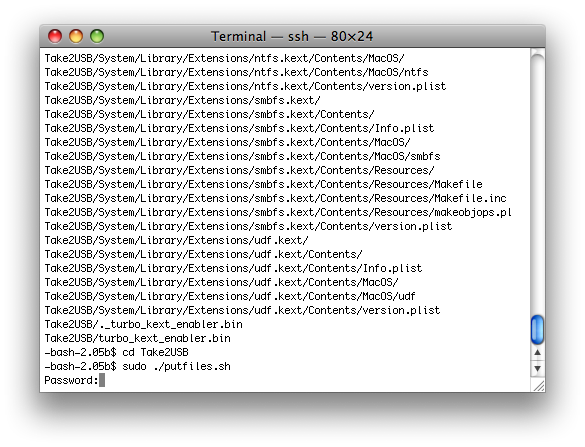
Step Nineteen If asked enter frontrow as your password and press Enter.
Step Twenty Once you have been notified that installation is complete you can unplug your AppleTV to restart it.
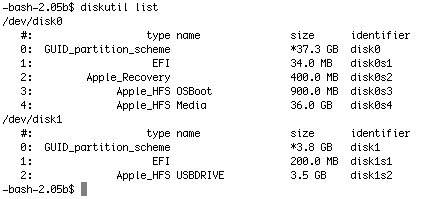
Step Twenty One Once your AppleTV has completed you will have USB functionality!
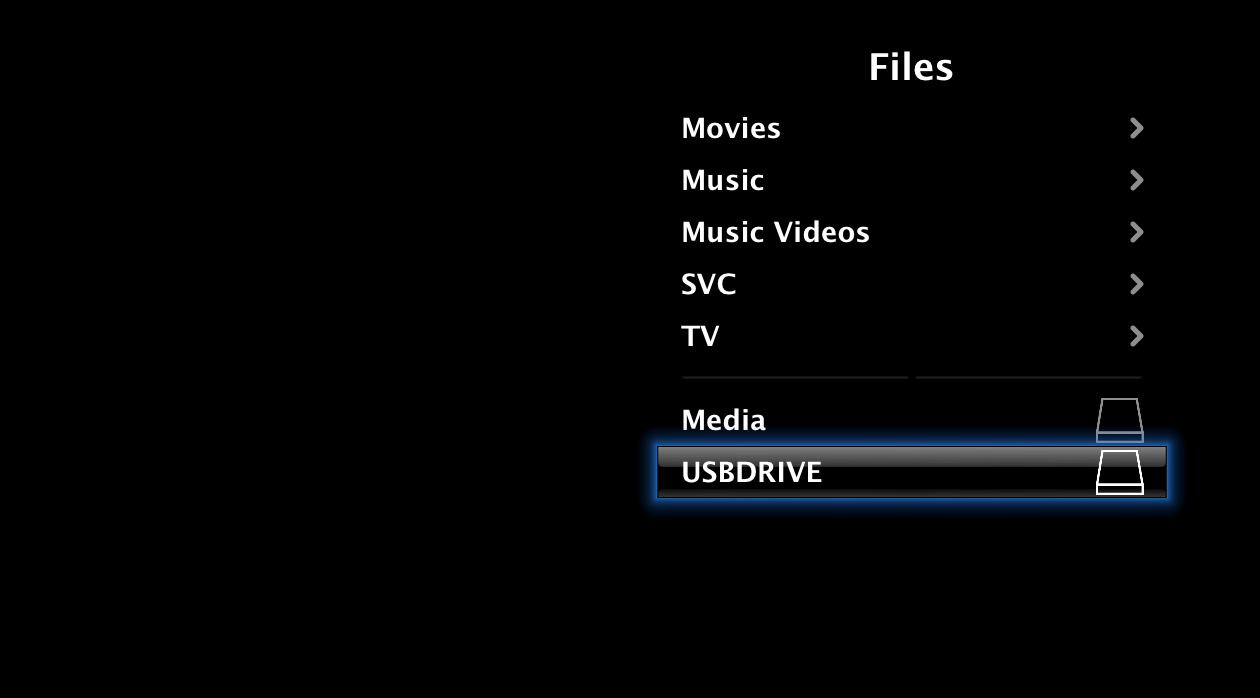
You can even view your connected USB Hard Drive in ATVFiles!
THANKS**: Big thanks to turbo for making this possible and to everyone who contributed!
Get the iClarified Daily Newsletter
Apple news, rumors, tutorials, price drop alerts, in your inbox every evening, free.
Unsubscribe at any time.
Success!
You have been subscribed.
Add Comment
Would you like to be notified when someone replies or adds a new comment?
Yes (All Threads)
Yes (This Thread Only)
No
Notifications
Would you like to be notified when we post a new Apple news article or tutorial?
PLEASE HELP! I cannot figure out why keep getting this on step 20...
-bash-2.05b$ sudo ./putfiles.sh
Password:
cp: /Users/frontrow/Take2USB/usr/bin/nano: No such file or directory
USB Install Completed
-bash-2.05b$
The ONLY error and I am stuck I have tried 2.0.2 and 2.3 ATV firmware with the same error.
Anyone else seeing the same thing and still able to use a USB hard drive?
THANKS!
Hi ereyone!
Thanks to this fantastic page i have ssh, usb and ATV files perfectly working in my ATV, (especially thanks to Alynpier). Now, when installing Nito TV I have some problem with "smart Installer". It needs the "MacOsxUpdCombo10.4.9.Intel.dmg" in the folder Documents of ATV. I have this file in the Desktop of my computer. Via terminal,I tried "scp -1 -r ~/Desktop/MacOsxUpdCombo10.4.9.Intel.dmg frontrow@AppleTV.local:~/Documents" It seemed that has been copied to "somewhere" in ATV (it lasts for five minutes) but when i try Smart Installer isn't working (still message "you must have MacOsxUpd... in /Documents".
So, Can someone tell me wich is the appropiate code line to copy, via terminal, from Desktop to Documents Folder the .dmg? or to change its location in ATV? (from this "somewhere" I copied it to the correct Documents folder)
All of this because I'm very new in terminal sintaxis, if you know where I can find information about it's also wellcomed.
Thanks in advance!
@miskatonic
Try to connect your ATV via Cyberduck (that is the way I copy/delete files from my iMac).
server : AppleTV.local
port : 21
log/pass : frontrow
Then you will be able to copy "MacOsxUpdCombo10.4.9.Intel.dmg" right in the folder Documents of ATV. If this file is already somewhere (you copied it) you will be able to move it in the right place.
Hey guys, I was wondering if we could use the Mac OS X Leopard (10.5) instead of Tiger as i dont have the Tiger disks. Also if I need Tiger, and download it, will the disk image be sufficient. However using Leopard would be easiest for me. Need youe help guys and any help would be appreciated.
Hey i was reading that you are using leopard. Can leopard disks (10.5.0) be used instead of tiger? If you could help it would be very much appreciated.
Thanks for spelling that out for me, I'm kind of slow :-)
Instead of writing scp -1 -r...... Can I write scp -2 -r......
I ask this because whenever I ssh, or anything that usually requires the -1 it tells me I have the wrong type or version (can't remember), but if I use a -2 it works. Is this ok?
If you unzip the Take2USB 2.0.2 zip file there is a getfiles.sh script in there. You need to add a # before the line "cp -p /Volumes/OSBoot//mach_kernel.prelink ." without quotes. Then add in "scp -1 -r frontrow@appletv.local:/mach_kernel.prelink ." without quotes on the next line. This will grab the mach_kernel.prelink from the AppleTV itself instead of the restore image so you always have the current version.
There isn't an easier way? I thought that there would be a zip file for 2.1? When you say script do you mean the tar file after extracting the 2.0.2 zip file. I have to modify that?
If you compare my script below to the original and make the necessary changes to the original, it will take the firmware directly off the appletv and you won't need the image.
Nobody knows where the zip/tar files are for OS 2.1? I saw a post that someone with OS 2.1 enabled USB. Do I use the 2.0.2 zip file for that? Please help!
Dan: Yes it does, for some reason, I can't find the link where it says so but just go to settings in nitoTV and install software in the order of the screen all the way to Smart Installer, after that its optional. nitoTv will tell you if your are missing files
To activate USB, you can more easily install the last version of nitoTV (0.4.8) and let him do the job... via Smart Installer. The one thing to do is to copy "MacOSXUpdCombo10.4.9Intel.dmg" in "frontrow/Documents". ;-)
Hi Alynpier!
I have posted a comment for everyone, but in case you see the reply fastest and in brief, wich is the appropiate code line to copy the .dmg from my desktop to Documents folder in ATV? I tried "scp -1 -r ~/Desktop/MacOsxUpdCombo10.4.9Intel.dmg frontrow@AppleTV.local:~/Documents" and it has been copied, but not in Documents folder, because Smart Installer is not working still.
Thanks again!
I had a hell of a time getting this to work, but was finally able to do so earlier this week. I'm still relatively new to terminal so nothing I did would work. I would get all the way to Step 18 without any problems, then when I put in the "sudo ./putfiles.sh" command, it would cycle through all the files and find errors with all of them saying that it could not locate them. I ended up opening the "putfiles.sh" file in the Take2USB folder and reading where the files were supposed to be located. I then logged in to the Apple TV using Fugu and navigated to those folders. As expected, none of the files the "putfiles.sh" file was looking for were there. As a work around, I decided I would use Fugu to manually place all the .kext files in the proper places on the Apple TV. For the other Noobs who can't get this to work who were getting the same error message I got, this is how I did it:
Open the putfiles.sh file in the Take2USB folder. Make a list of all the .kexts and .bins and the location on the Apple TV they need to be place in the file.
On your computer, navigate to the System>Library>Extensions folder in your hard drive in Finder. You should be able to find all those .kexts and .bins in there. Copy them all and paste them into a folder on your desktop.
Use Fugu or some other SSH program to get into your Apple TV and navigate to the locations that are in the list you made above. Once there, upload all the .kexts or .bins that are in that list in their proper locations. Once that's done, get into terminal and go through Steps 14 to the end again. Reboot your Apple TV and cross your fingers.
I spent about 3 months dealing with a piddly 40GB internal hard drive and being frustrated by dead ends with this hack. Now I have every television show I've ever downloaded at my finger tips on my TV. And I still have 200GB to spare on my external. This is really great. Thanks to everyone who has helped make this hack better.




![OLED iPad mini Expected in Late October or November [Report]](/images/news/102552/102552/102552-160.jpg "OLED iPad mini Expected in Late October or November [Report]")
![Redesigned MacBook Pro Said to Be 'Significantly Lighter' [Gurman]](/images/news/102549/102549/102549-160.jpg "Redesigned MacBook Pro Said to Be 'Significantly Lighter' [Gurman]")
![John Ternus Emerges as Apple's De Facto Design Chief [Gurman]](/images/news/102555/102555/102555-160.jpg "John Ternus Emerges as Apple's De Facto Design Chief [Gurman]")
![How To Turn Off Always On Display on iPhone [Video]](/images/tutorials/87524/87524/87524-160.jpg "How To Turn Off Always On Display on iPhone [Video]")
![How To Change Wallpaper on Mac [Video]](/images/tutorials/90512/90512/90512-160.jpg "How To Change Wallpaper on Mac [Video]")

![How To Back Up Your iPhone to an External Drive on Mac [Video]](/images/tutorials/72786/72786/72786-160.jpg "How To Back Up Your iPhone to an External Drive on Mac [Video]")

![AirPods Pro 3 Drop to $179, Lowest Price Since June [Deal]](/images/news/102558/102558/102558-160.jpg "AirPods Pro 3 Drop to $179, Lowest Price Since June [Deal]")

![16-Inch M5 Max MacBook Pro Drops $900 to New Low of $3,499 [Deal]](/images/news/102438/102438/102438-160.jpg "16-Inch M5 Max MacBook Pro Drops $900 to New Low of $3,499 [Deal]")
