This tutorial will show you how to jailbreak and unlock your 2G iPhone on the 3.1.3 iPhone firmware.
You can find the 3G version of this tutorial: here.
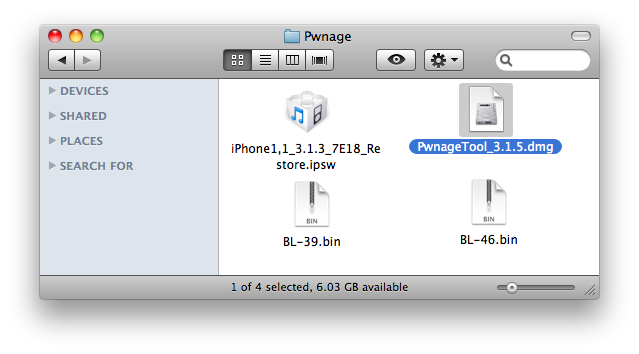
Alright, first make a folder on the desktop. In it, you will need a couple of things. The two bootloader files: - BL 3.9 (download no longer available) - BL 4.6 (download no longer available) Pwnage 3.1.5, found PwnageTool_3.1.5.dmg.torrent download no longer available.
When downloading the IPSW file, it is best to download it with Firefox!
Step One Create a folder on your desktop with all the required files listed above.
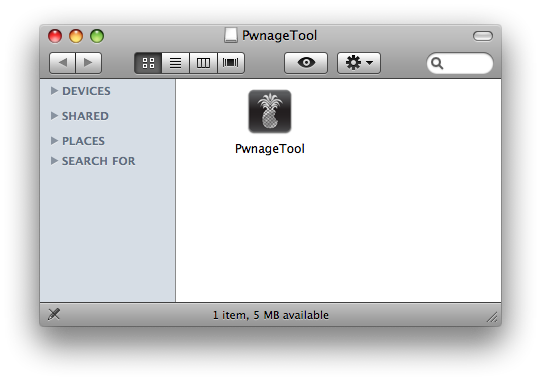
Step Two Double click to mount the PwnageTool dmg.
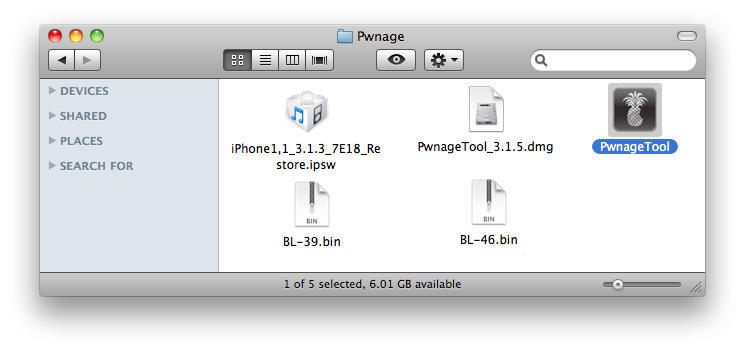
Drag the PwnageTool icon to the Pwnage folder then launch it.
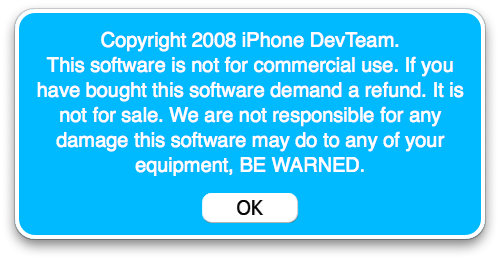
Click Ok if presented with a warning.
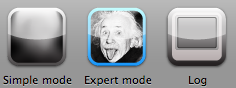
Step Three Make sure you click Expert Mode from the top menu.
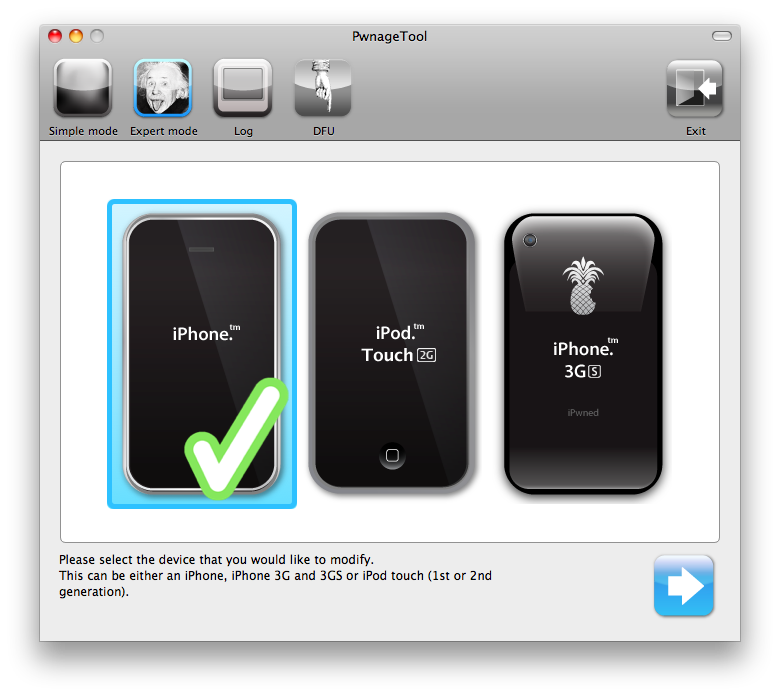
Step Four Select your iPhone or iPod from the three devices shown. Notice a large checkmark appears over the selected device. Then click the blue arrow button at the bottom right.
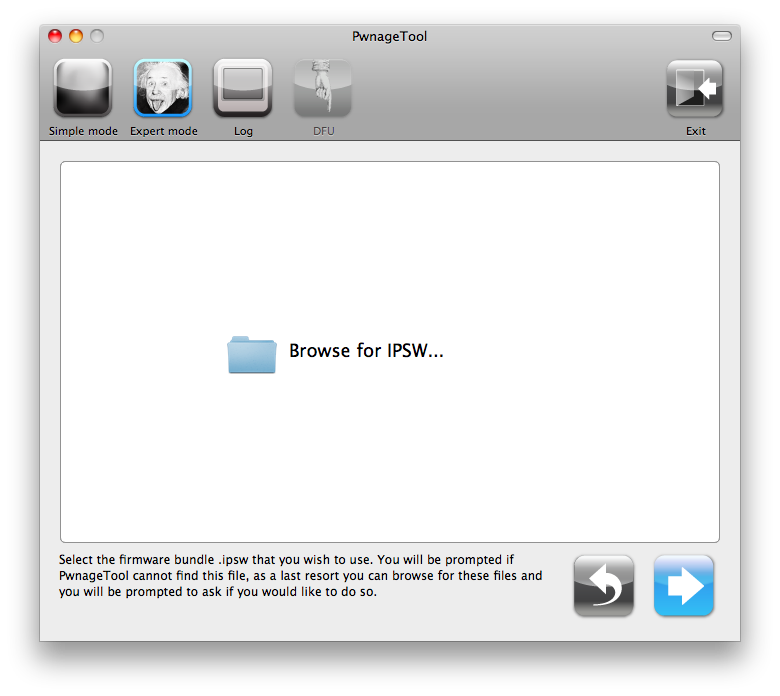
Step Five You will be brought to the "Browse for IPSW" page. On my laptop, it automatically found the IPSW. If PwnageTool doesn't automatically find the ipsw file you can click Browse for IPSW... button.
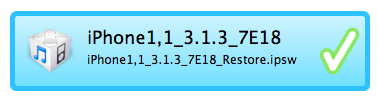
Click to select the found IPSW file, a checkmark will appear next to it. Then click the blue arrow button to continue.
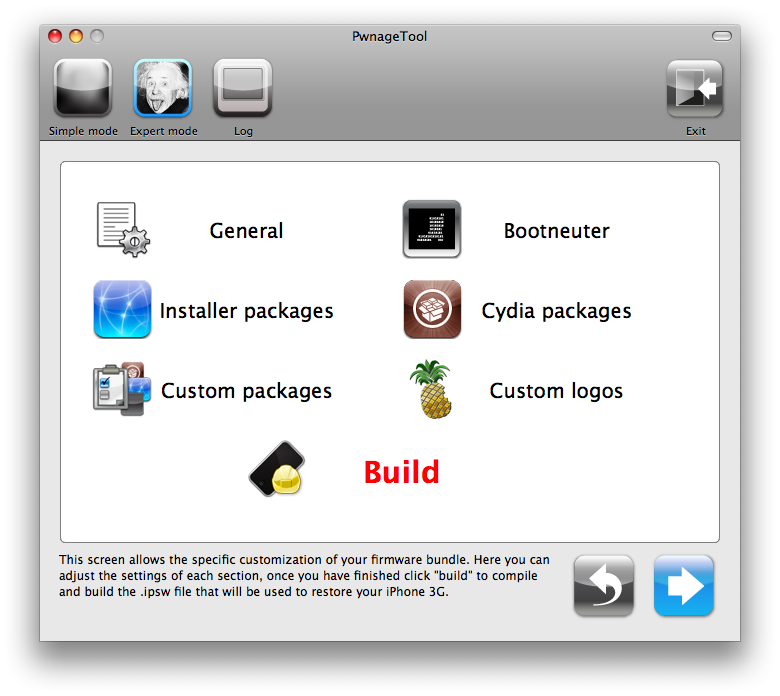
Step Six You will then be brought to a menu with 7 choices. Click to select General then click the blue arrow button.
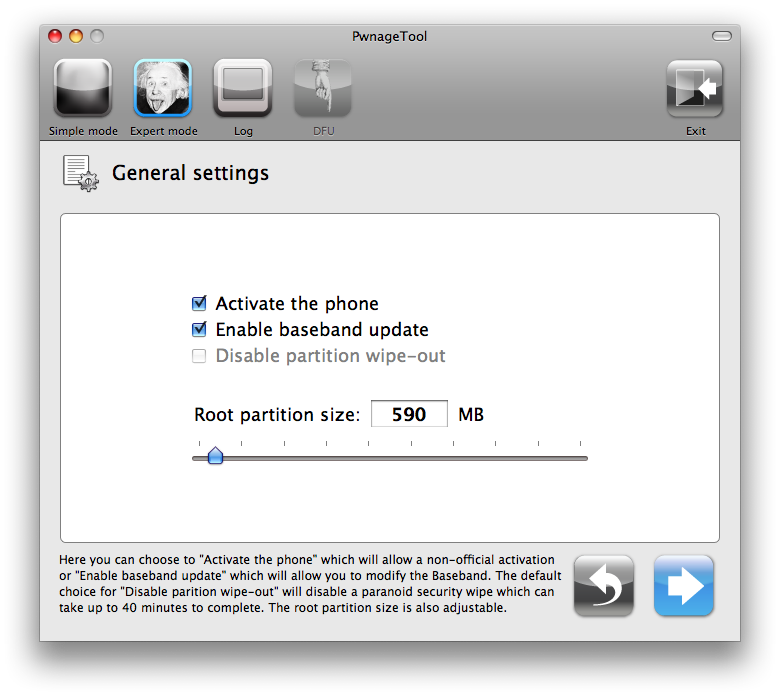
The General settings allows you to decide the partition size. Check Activate the phone and Enabled baseband update. Click the blue arrow button.
***If the Enable Baseband checkbox is not greyed out, checkmark it. This will allow the unlock to occur!*** ***For the 3.0 firmware you may have to increase the size of your root partition slightly for the IPSW build to be successful. 590MB worked just fine for me***
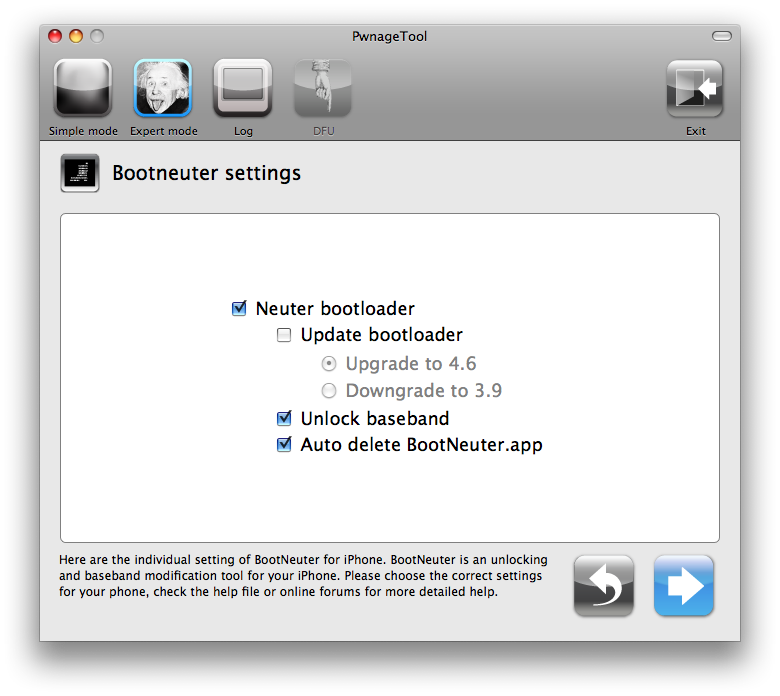
In the Bootneuter settings, click Neuter bootloader, Unlock baseband, and Auto-Delete BootNeuter.app. It is not necessary to upgrade the bootloader unless you are really feeling the need to be on 4.6. Click the blue arrow button to continue.
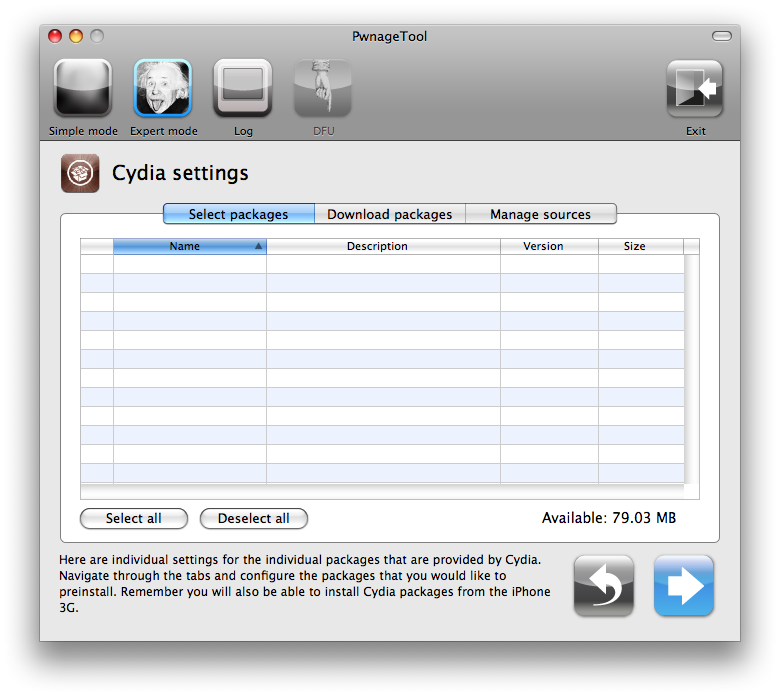
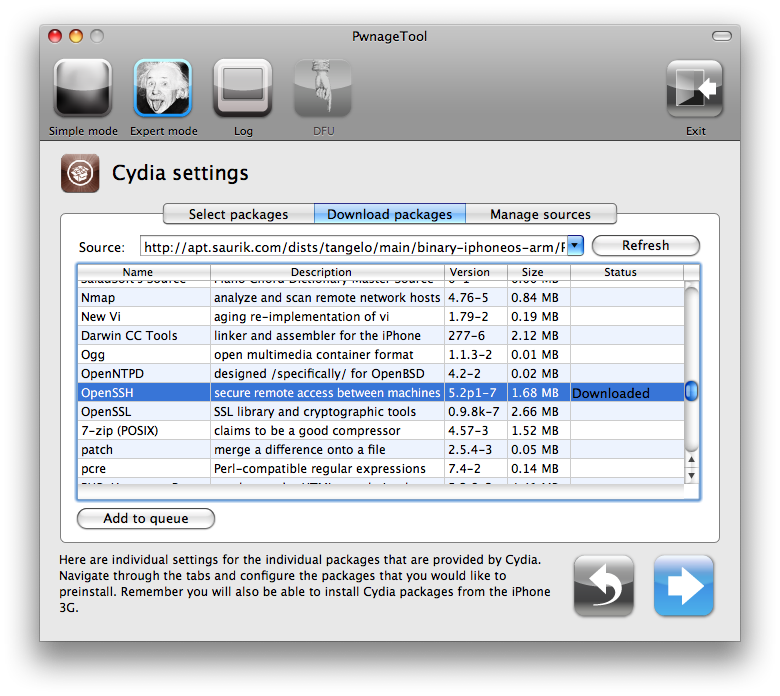
The Cydia settings menu allows you to create custom packages so you do not have to manually install the necessary them later.
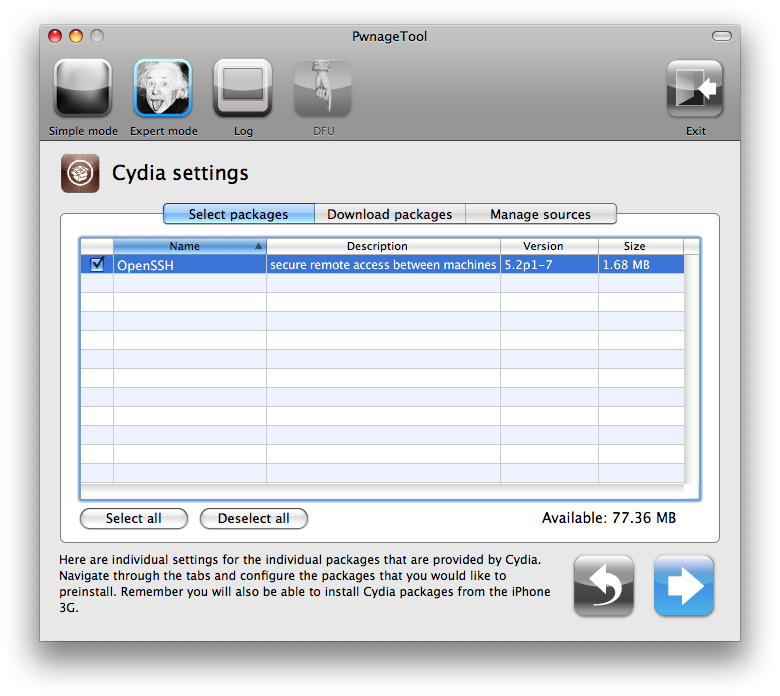
Click to select the Download packages tab. Then click the Refresh button to display all the available packages. Double clicking the package you want will download it and make it available in the Select Packages tab.
Checkmark the ones you want then Click the blue arrow button.
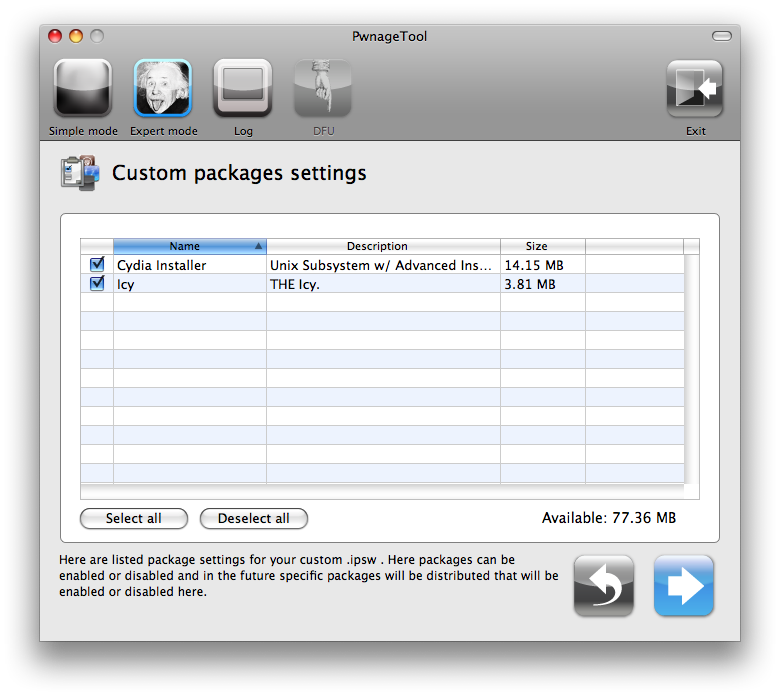
The Custom Packages Settings menu displays listed package settings for your custom IPSW. For know leave these settings as is. Click the blue arrow button to continue.
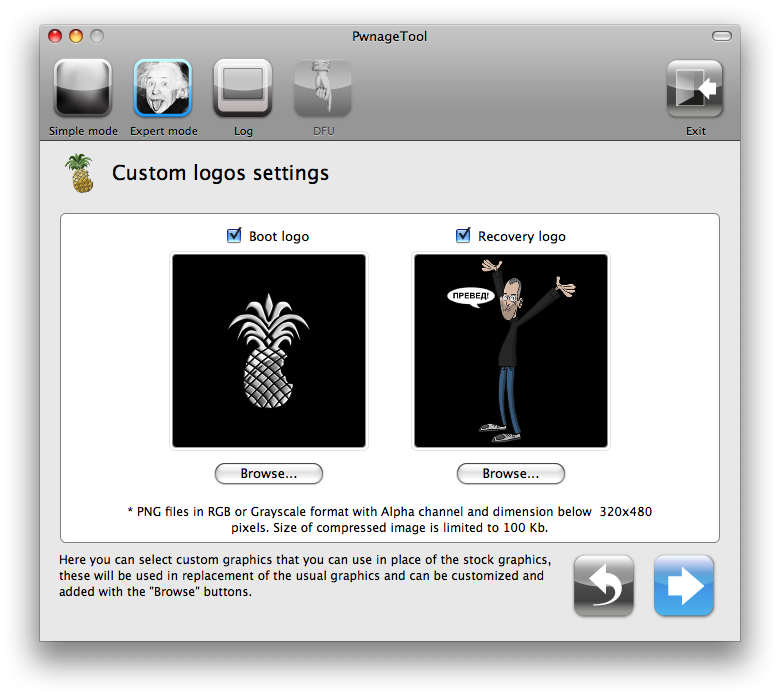
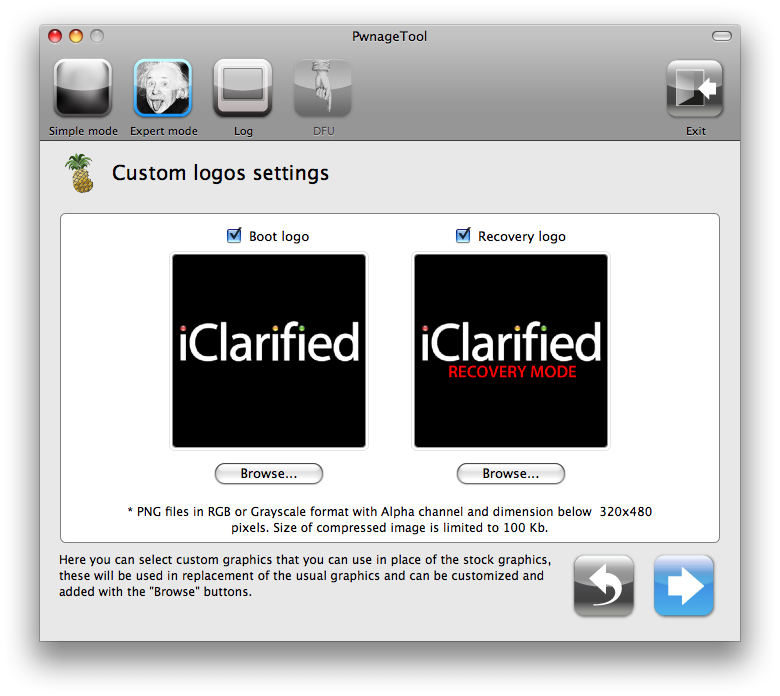
The Custom Logos Settings menu allows you to add your own images as boot logos. Click the Browse button to select your Boot logo and Recovery logo.
Remember the rules for them: RGB or Grayscale format with Alpha channel and dimension bellow 320x480. If you would like to use the iClarified ones they can be found here: Boot Logo, Recovery Logo
Click the blue arrow button to continue.
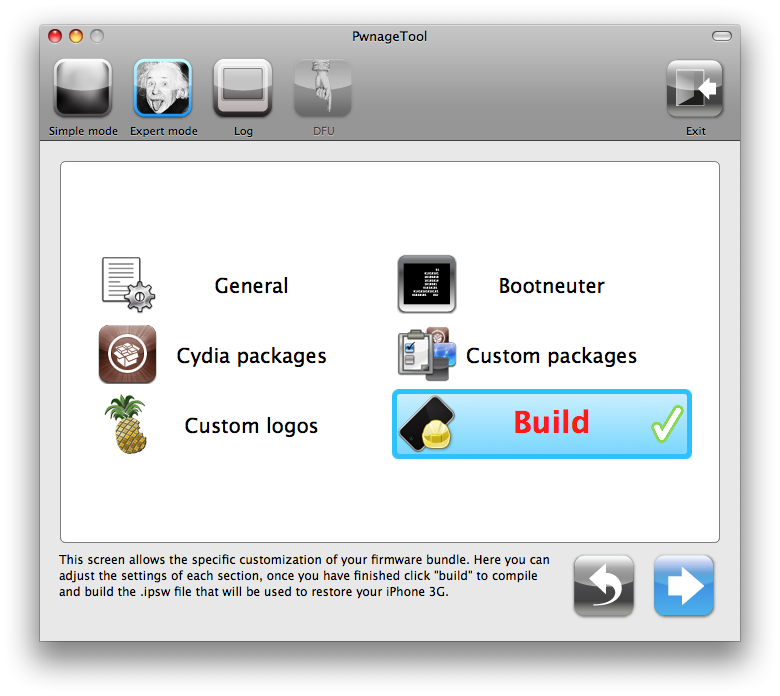
Step Seven You are now ready to build your custom firmware. Click the build button to select it, then click the blue arrow button.
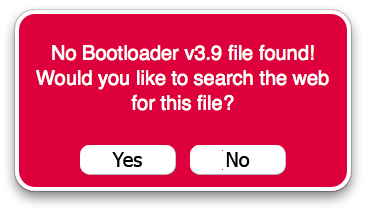
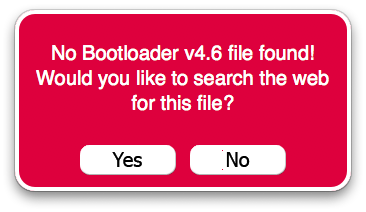
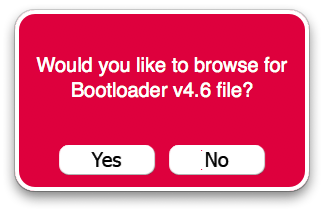
Step Eight If this is the first time doing this, you will be asked to upload the 3.9 and 4.6 BL files. When prompted to search the web, click no.
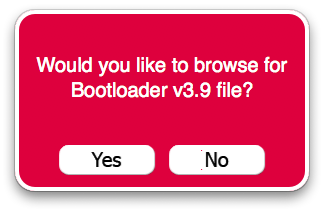
You will prompted to browse for the 3.9BL file. Click Yes then select the file(BL-39.bin) from the Pwnage folder you created on your desktop and click the Open button.
Select the file in the Pwnage folder on your desktop and click the Open button.
Do the same for 4.6.
***: After loading the 4.6 BL you may be asked if you're a legit user. If you legally have ATT or an iPhone plan in a different country, clicking yes will not unlock the iPhone and activate it as your legal plan already activates it and there is no need for an unlock. However if you wish to keep the iPhone unlocked, when asked if you're a legit iPhone user, click no
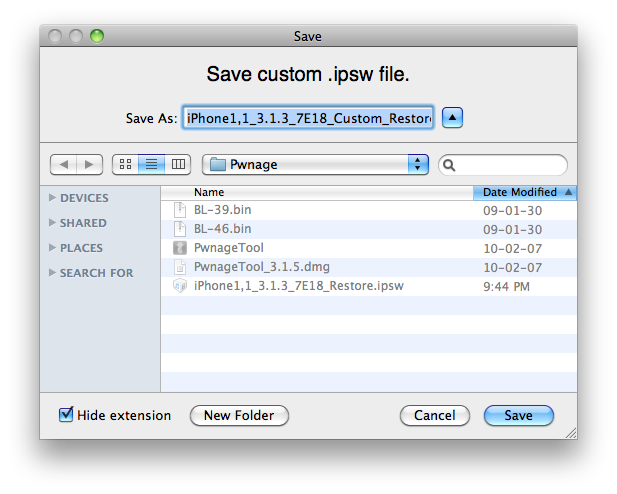
Step Nine After both are found. You will be asked to save your custom .ipsw file. Save it to your Pwnage folder on the desktop.
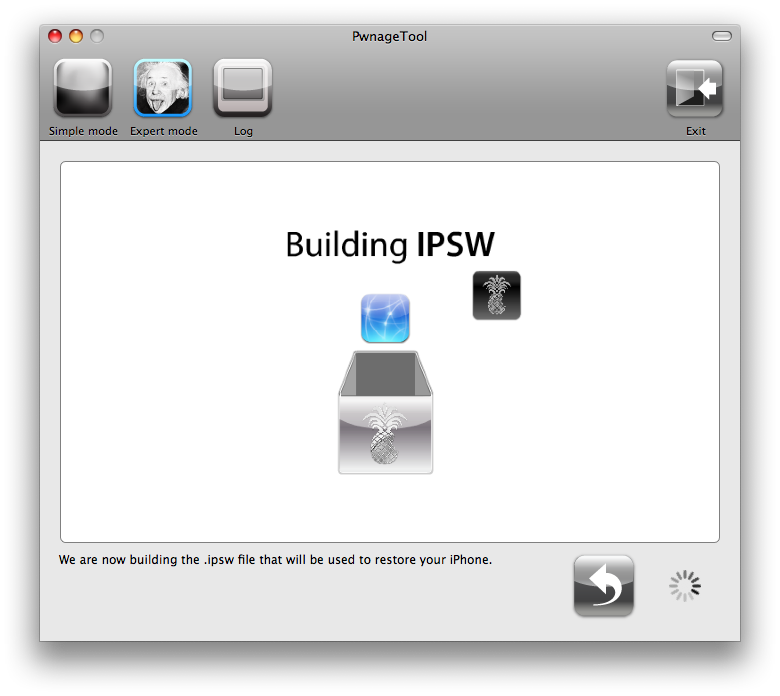
Step Ten Your custom IPSW is now being built. Please allow up to 10 minutes.
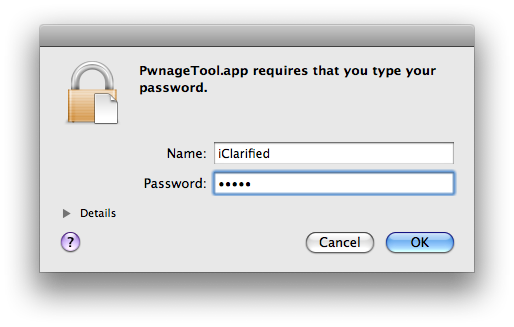
If prompted enter your Administrator password and click the OK button.
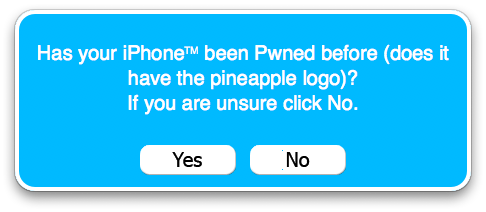
When prompted if your iPhone has been Pwned before, we clicked No. It allows for a more thorough restore.
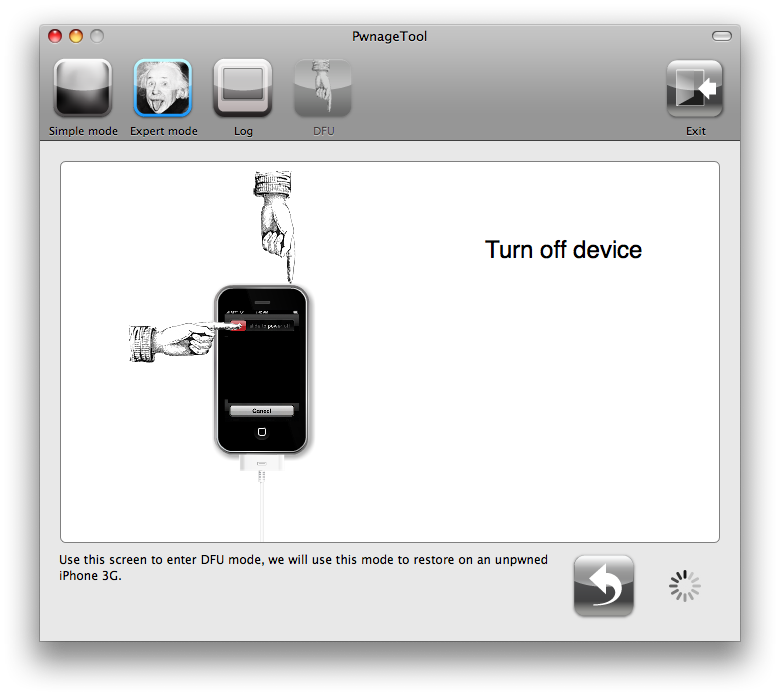
You will be asked to turn off the device. Make sure it is connected to the USB port.
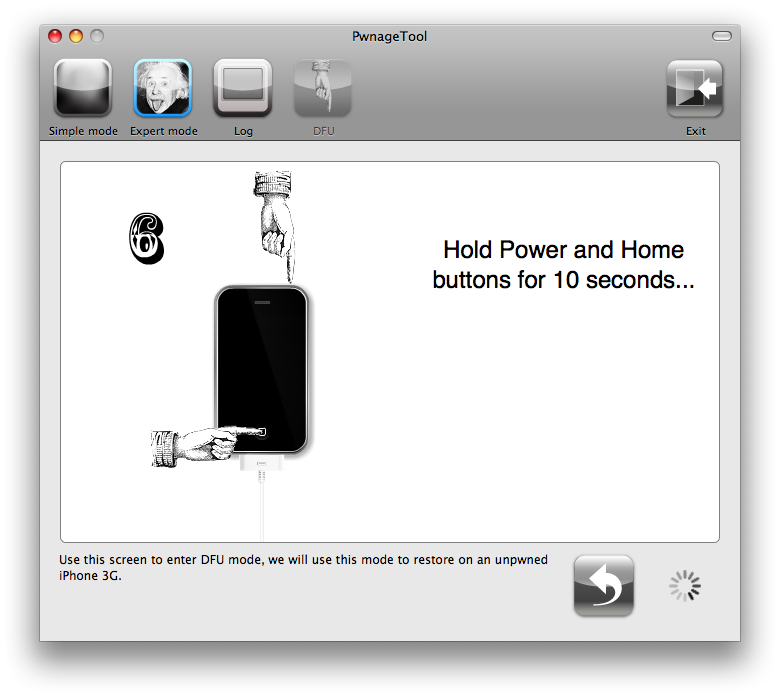
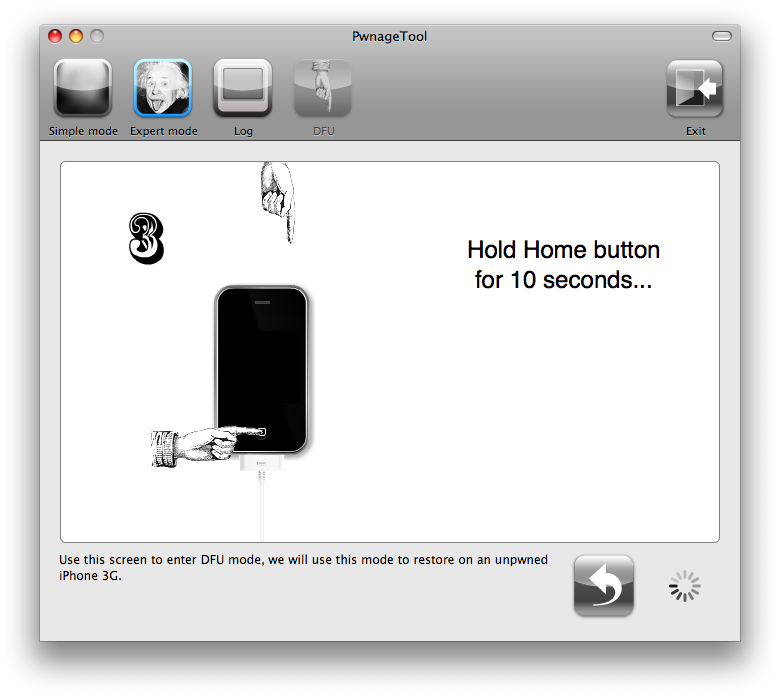
Step Eleven Be ready to follow directions now. It will ask you to hold the home button and the power button for 10 seconds. Then, you will have to release the power button and hold the home button for 10 seconds to enter DFU.
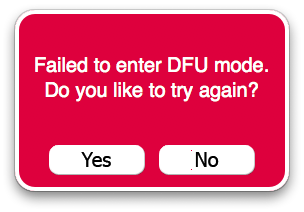
If you fail, it will show you a message. Click Yes. Unplug the iPhone from the USB. Turn it off, then turn it back on. Plug it back into the USB and turn off the iPhone when prompted.
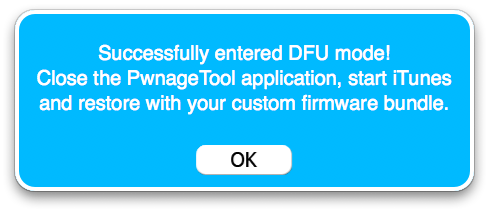
When done correctly, Pwnage 3.1.5 will display a message telling your that it successfully entered DFU mode. iTunes will also pop-up.
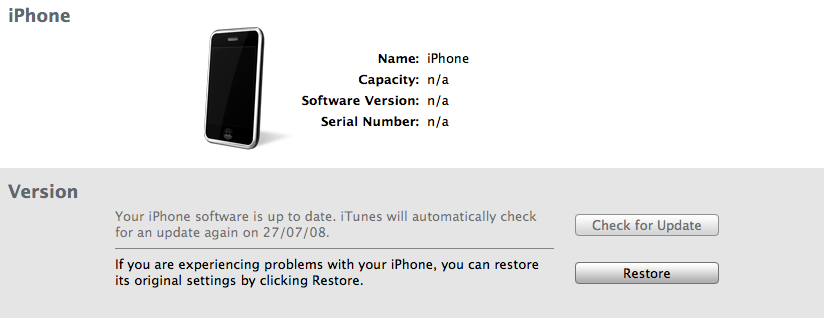
Step Twelve In iTunes, hold the Alt/Option key and click Restore.
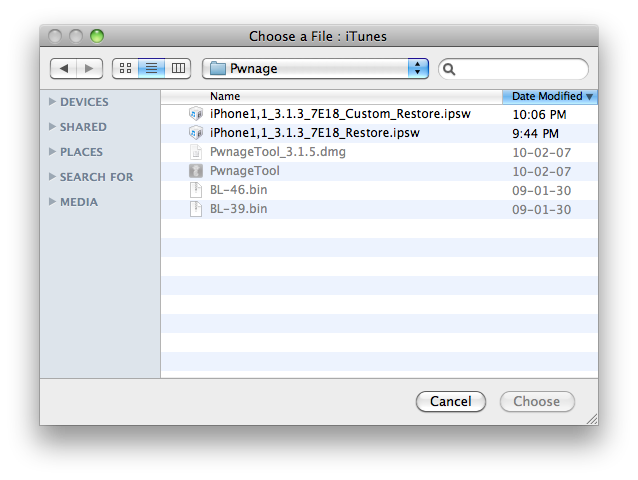
Step Thirteen Navigate to the Pwnage folder on your desktop using the dialog window that appears. Select the custom IPSW that was created (iPhone1,1_3.1.2_7D11_Restore.ipsw_Custom_Restore.ipsw) and click the Open button.
Step Fourteen Once the restore has completed, it will restart your iPhone. The phone will then launch BootNeuter.app to unlock your device.
Please allow 5 minutes for this to complete. Your iPhone will restart once completed.
Get the iClarified Daily Newsletter
Apple news, rumors, tutorials, price drop alerts, in your inbox every evening, free.
Unsubscribe at any time.
Success!
You have been subscribed.
Add Comment
Would you like to be notified when someone replies or adds a new comment?
Yes (All Threads)
Yes (This Thread Only)
No
Notifications
Would you like to be notified when we post a new Apple news article or tutorial?
Dear iClarified,
Thank you for your clear and easy, step by step process to jailbreak the iphone 2g. I have my one from say 6 years ago, and now its working after be left for 2-3 years. And I can give it to somebody to use.
Many thanks
Sorry, a total newbie... but when I tried to download Pwnage 3.1.5, it downloaded as "PwnageTool_3.1.5.dmg.5344262.TPB.torrent," and consequently won't open up for me. I just can't figure out how to do it. It used to download simply as a .dmg. Is there something wrong on my end? Any help, it'd be great, thanks!
This file is a torrent file. You need software like Vuze (vuze.com). Open the torrent file in Vuze (just double click it) and the actual pwnage software will download through Vuze.
nossier ahmad mehdawi - January 9, 2011 at 10:03am
If you already pwned your iPhone before, there is no need to restore using DFU mode.... Just turn off your iDevice, press and hold the Home Button and connect the usb cable. KEEP PRESSING THE HOME BUTTON UNTIL YOU GET THE CONNECT TO ITUNES LOGO ON THE IPHONE!!. Restore your phone :).... I've did this yesterday on Snow Leopard and iTunes 10 and it worked great... Cheers!
i just tried this and got error 1600 upon restoring to the custom firware. my 2G phone which was on 3.0 firmware is now got stuck on apple logo. for more background info, i am on Mac OSX 10.5.8 and 9.0 iTunes. it is not the first time i pwn my iphone, and during these steps it did not ask me for the BL files.
after a series of DFU modes and pressing the home button then connecting to the computer, my phone is back on running on the old 3.0 with all my info as if nothing happened.
any ideas of how i can try to get to 3.1.3 again without damaging my existing OS?
If you already pwned your iPhone before, there is no need to restore using DFU mode.... Just turn off your iDevice, press and hold the Home Button and connect the usb cable. KEEP PRESSING THE HOME BUTTON UNTIL YOU GET THE CONNECT TO ITUNES LOGO ON THE IPHONE!!.
Restore your phone :).... I've did this yesterday on Snow Leopard and iTunes 10 and it worked great...
Cheers!
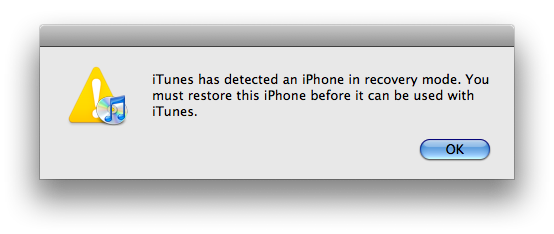
hi there, i just tried to unlock my iphone 3.1.3 using Pwnage Tool and everything went ok until i tried to restore it using the custom restore IPSW. i was not able to restore it and itunes show this message
i've done it twice and it didn't work... what should i do?







![Apple Highlights Child Safety and Screen Time Controls in New Ad [Video]](/images/news/102393/102393/102393-160.jpg "Apple Highlights Child Safety and Screen Time Controls in New Ad [Video]")



![How To Find Your iPhone IMEI Number [Video]](/images/tutorials/83557/83557/83557-160.jpg "How To Find Your iPhone IMEI Number [Video]")


![Magic Keyboard for iPad Air Drops to $200 on Amazon [Deal]](/images/news/102402/102402/102402-160.jpg "Magic Keyboard for iPad Air Drops to $200 on Amazon [Deal]")
![13-Inch M5 MacBook Air With 1TB Drops to $1,449 on Amazon [Deal]](/images/news/102345/102345/102345-160.jpg "13-Inch M5 MacBook Air With 1TB Drops to $1,449 on Amazon [Deal]")



