These are instructions on how to securely erase your iPhone or iPod touch to prevent the recovery of private data.
Step One Launch iTunes by selecting its icon in the dock
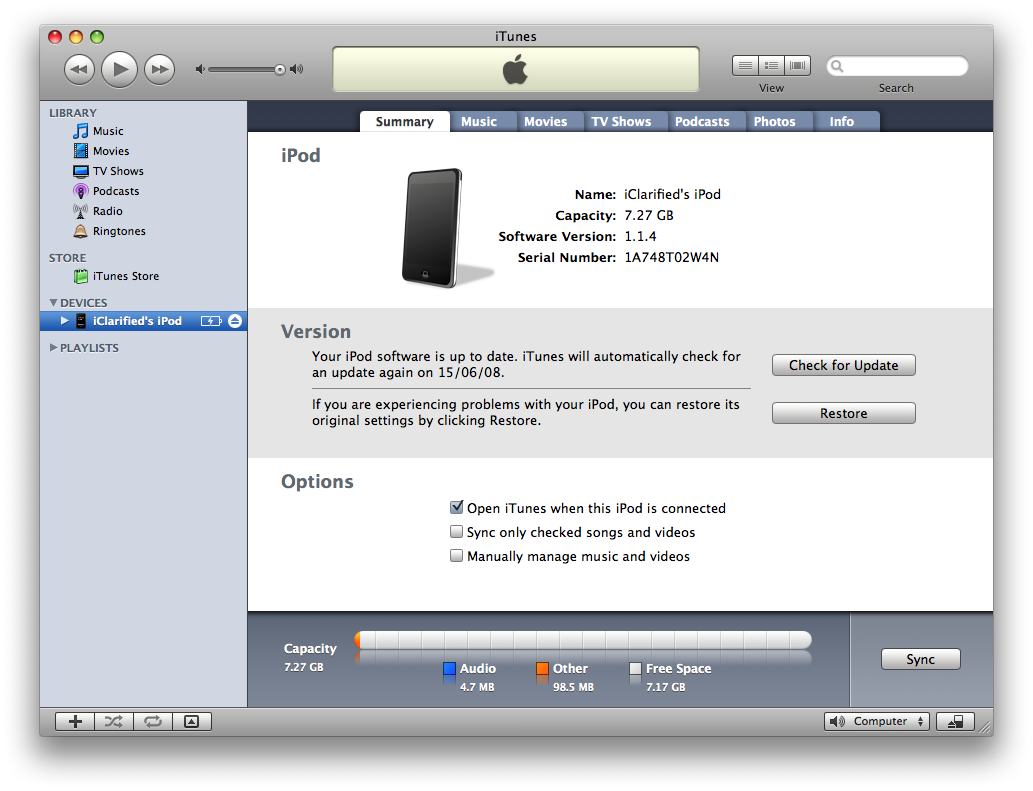
Step Two Connect your iPhone or iPod touch to the computer then select it from the list of devices on the left.
Step Three Click the Restore button in the Summary tab.
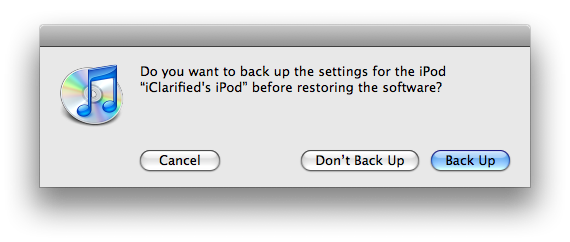
If asked to create a backup click Don't Back Up
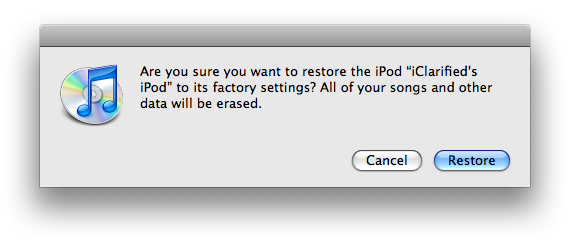
A popup window will appear asking you to confirm the restore. Click the Restore button.
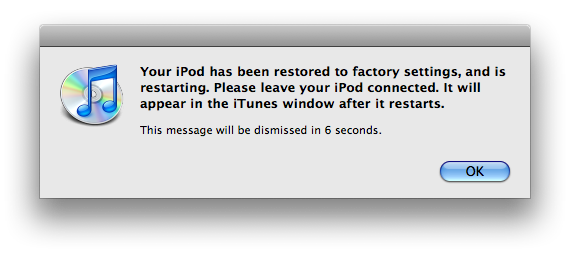
Once the Restore has complete a window will appear confirming that your iPhone, iPod has been restored to factory settings. Click the OK button.
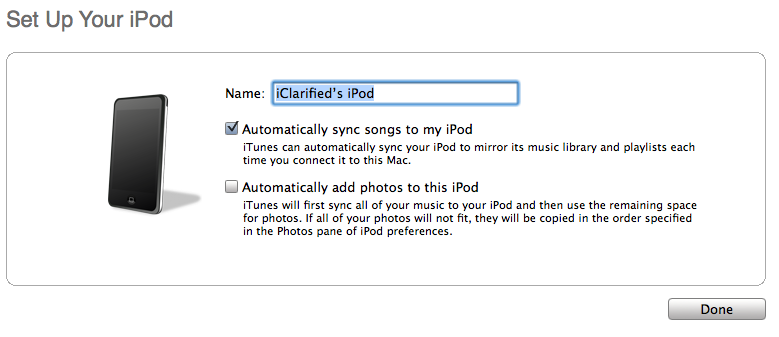
Now you will be asked to name your iPhone, iPod touch. Enter a new name then click the Done button.
Step Four Now follow your desired method to jailbreak your iPhone. If you do not have a preferred method then use one of the many detailed on this site!
NOTE*: This will likely take up to an hour to complete! After completion your iPhone, iPod touch GUI will be unresponsive. This is expected.
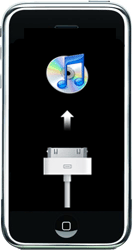
Step Thirteen We will now place the iPhone, iPod touch into recovery mode. You can follow the instructions here for a detailed explanation. Though all you need to do is press the Sleep/Wake button and Home button until the iTunes logo and dock connector appear on the screen.
Step Fourteen Follow Steps One through Three again to restore your iPhone, iPod touch. Your iPhone will now be securely erased and ready for resale.
THANKS***: This method was outlined by Jonathan A. Zdziarski.
Get the iClarified Daily Newsletter
Apple news, rumors, tutorials, price drop alerts, in your inbox every evening, free.
Unsubscribe at any time.
Success!
You have been subscribed.
Add Comment
Would you like to be notified when someone replies or adds a new comment?
Yes (All Threads)
Yes (This Thread Only)
No
Notifications
Would you like to be notified when we post a new Apple news article or tutorial?
Wipe iphone 4 system clean E-mail 此主題給朋友
[按此打開] [隱藏]
Iphone 4 16g, with Limera1n jailbroken, 4.1. I tried to wipe the whole file system clean by writing zeroing data, but encountered the following problem:
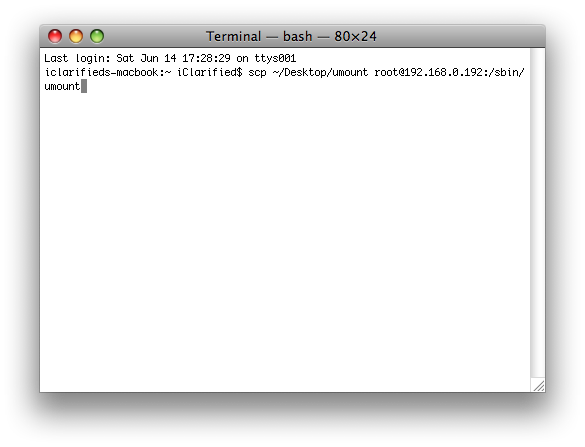
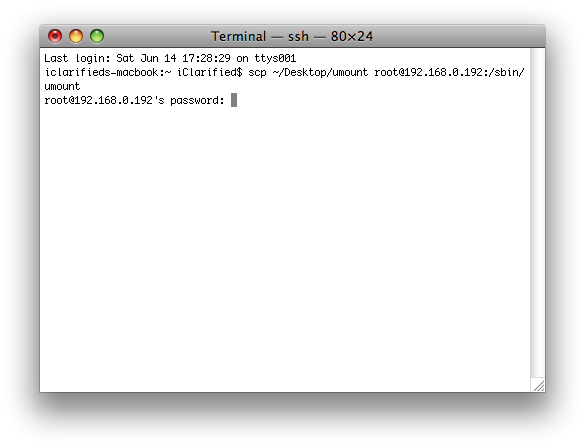
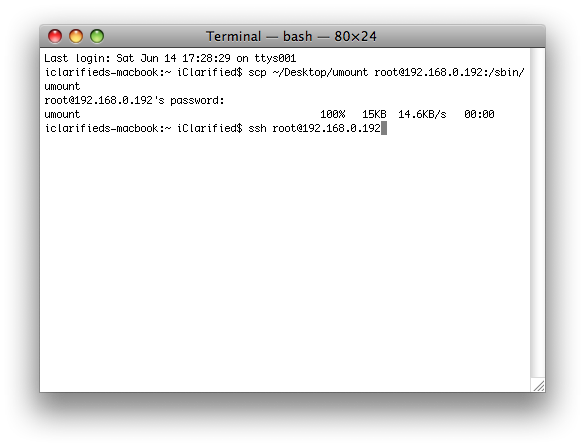
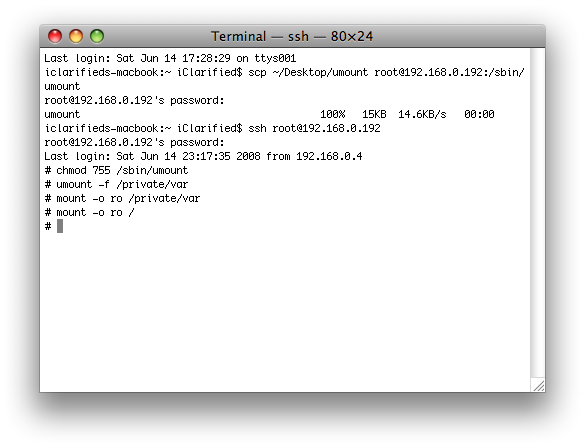
I successfully sshed into the device, and force the two partitions (root partition and media partition) to read only mode, but have to unmount the media partition before doing that.
So when typing the following command
"umount -f /private/var"
the system returns the error with
"not a directory or special device"
So anyone knows what's the cause?
Thank you
I get "Killed" after entering "umount -f /private/var" command and "mount_hfs: Resource busy" after entering "mount -o ro /private/var"
iPhone 2G OS v3.1.2
Jailbroken/Unlocked
Does this work on windows? And it's like this that the iPod on my iPhone have for no special reason disappeared, do I get it back if I restore using iTunes?
Davo, you need to connect it to your PC and do this: Try to jailbreak it with a different firmware than what you now have on your iPhone. By doing this, you scramble up your own firmware and all will be wiped clean. Then you do a complete restore, leaving you and all your directories clean.
Hey, Good stuff. Just curious: Anyone trying this with 2.1 firmware? When I run umount I receive "Killed" immediately. Doesn't seem to be working. I thought maybe there was an updated version of umount in the 2.1 build, but I can't find it anywhere. Any thoughts? Maybe this is no longer necessary due to the new erase features in 2.1? Thanks.
wow, seriously dont try it! if you dont know that you have to run "ldid -S /sbin/umount" then you probably shouldnt be messeing around with your iphone.
Becuase the CIA dosent want to retrive your data off your old iphone this is completely unnessecary.
Hey, thanks for putting this up. I read through Zdziarski's post, but I'm not entirely familiar with Terminal and was a little edgy about carrying it out, worried that I might make some changes to my Mac accidentally. Great work here, much appreciated.








![Apple Hires Meta's Scott Tucker as Global Litigation Chief [Report]](/images/news/102873/102873/102873-160.jpg "Apple Hires Meta's Scott Tucker as Global Litigation Chief [Report]")


![How To Install Homebrew on Mac [Video]](/images/tutorials/83695/83695/83695-160.jpg "How To Install Homebrew on Mac [Video]")
![How To Back Up Your iPhone to an External Drive on Mac [Video]](/images/tutorials/72786/72786/72786-160.jpg "How To Back Up Your iPhone to an External Drive on Mac [Video]")


![Apple HomeView and New Apple TV 4K Get First Pre-Order Discount on Amazon [Deal]](/images/news/102867/102867/102867-160.jpg "Apple HomeView and New Apple TV 4K Get First Pre-Order Discount on Amazon [Deal]")
![14-Inch MacBook Pro With M5 Max Drops to $3,299 ($800 Off) [Deal]](/images/news/102828/102828/102828-160.jpg "14-Inch MacBook Pro With M5 Max Drops to $3,299 ($800 Off) [Deal]")